The launch is next week. Sales wants a product walkthrough. Customer education needs a tutorial for the new feature. Support has a backlog of visual explanations to produce. You have no design budget and zero engineering time.
So you hit record.
But the capture step is only the beginning. The format you choose determines what the asset actually does. A narrated video someone watches once. A reusable training resource teams can share across onboarding. An async update that replaces a recurring meeting. Or a clickable product experience that buyers explore themselves before they ever talk to your sales team.
According to HubSpot (2025), 89% of consumers say they want more video content from brands. The market for screen recording software reached $2.49 billion in 2025 and is projected to grow at 18.48% annually through 2034, per Fortune Business Insights (2026). The category is expanding fast, and the tools are not interchangeable.
Do you need a video file, or do you need someone to experience the product?
What's inside
This guide is for PMMs, customer education leads, and GTM teams choosing between screen recording software and adjacent formats. Tools were selected based on four criteria:
- Recording quality and format coverage: Desktop, browser, mobile, and screen-plus-webcam capture
- Editing and distribution: Trimming, captions, exports, sharing, and viewer analytics
- PMM relevance: Fit for launches, sales enablement, customer onboarding, and training libraries
- Price and platform fit: Free and paid options across Windows, Mac, Android, and browser
TL;DR
- Best for interactive product demos: Guideflow, when buyers should click through the product rather than watch a recording
- Best for async video messaging: Loom, for narrated screen-and-camera updates with viewer insights
- Best for Windows capture and editing: Clipchamp, included free with Microsoft 365
- Best for Android recording: XRecorder, for mobile gameplay, tutorials, and facecam content
- Best for advanced production and streaming: OBS Studio, free and open source
- Best for polished training content: Camtasia, with timeline editing, captions, and templates
What is video screen recording?
Video screen recording is the process of capturing activity on a computer, phone, tablet, browser, or application as a video file. The output is a linear clip viewers play from start to finish.
Most screen recorders support several capture modes:
- Full screen: Captures everything visible on the display
- Application window: Records only a specific app
- Browser tab: Limits capture to one open tab
- Selected region: Crops to a defined area
- Mobile screen: Records activity on a phone or tablet
- Screen plus webcam: Combines desktop capture with a camera overlay
- Screen plus microphone: Adds narration to the recording
- Screen plus system audio: Captures in-app sounds alongside the screen
Key features to look for
When evaluating screen recording software, prioritize:
- Screen and webcam recording in a single pass
- Microphone input and internal audio capture
- Pause, resume, and retake controls
- Cursor highlighting and click visibility
- Trimming, splitting, cropping, and audio muting
- Captions and transcription
- MP4 and other export formats
- Watermark controls
- Privacy and access settings
- Sharing links and viewer analytics
- Integrations with CRM or collaboration tools
- Mobile and desktop compatibility
Video recordings versus interactive product demos
A video recording produces a linear clip. The viewer presses play and watches a fixed sequence. An interactive demo produces a navigable product experience. The user clicks through real interface elements, explores the path they care about, and stops where they want.
Both are used to show a product, which is why they appear in the same conversation. Video works best for narration, personal presence, tutorials, and async updates. Interactive demos work when the goal is product exploration, lead capture, self-serve education, or intent signals before a sales call.
Guideflow sits in the second category. The other nine tools in this guide produce video files.
When to use video screen recording
Create product tutorials without scheduling a call
A focused screen recording covers one task end to end, narrated in plain language, exported and dropped into a help center, launch page, or enablement library. Keep one job per video, show the exact UI path, add captions for accessibility, and export in a shareable format. PMMs can produce tutorial content in an afternoon without involving design or engineering.
Support async communication and sales follow-up
Recordings replace long written explanations and repeatable live walkthroughs. Personalized sales follow-ups, release explanations, product feedback responses, and internal launch updates all work well as short narrated clips. Video carries the most weight when tone or context matters more than interactivity.
Build customer education and training content
Onboarding, feature adoption, internal training, and partner enablement all use recorded walkthroughs as foundational content. For this use case, choose a tool with editing, captions, version control, and distribution. If the experience needs to let buyers explore rather than watch, route it to an interactive format instead.
Video screen recording tools comparison
Use the table below as a starting point. Each tool appears in a full section below with pricing, features, and fit guidance.
Pricing and ratings verified September 2026 from each vendor's pricing page and G2 listing.
| # | Product | Best for | Key differentiator | Pricing | G2 rating |
|---|---|---|---|---|---|
| 1 | Guideflow | Interactive product demos | Clickable product experiences with step-level analytics | Free; paid from $35/mo | 5.0 |
| 2 | Loom | Async video messaging | Screen, camera, narration, sharing, and viewer insights | Free; Business + AI at $24/user/mo | N/A |
| 3 | Clipchamp | Windows screen recording | Browser and desktop capture with built-in editing | Free; Premium via Microsoft 365 | 4.1 |
| 4 | XRecorder | Android screen recording | Mobile capture with audio, facecam, and gameplay support | Free (ads, in-app purchases) | N/A |
| 5 | OBS Studio | Advanced recording and streaming | Open source, multi-source scene composition and live output | Free | 4.6 |
| 6 | ScreenPal | Quick tutorials and sharing | Capture, editing, webcam, narration, and sharing workflow | Free; paid from $4/mo | 4.5 |
| 7 | Screencastify | Browser-based education content | Chrome-based recording with interactive questions and polls | Free; paid from $7/user/mo | 4.6 |
| 8 | Camtasia | Polished tutorials and training | Timeline editing, annotations, captions, and templates | From $39/year | 4.6 |
| 9 | ScreenFlow | Mac screen recording | Mac capture with timeline editing and multi-format export | $199 one-time | 4.5 |
| 10 | ShareX | Free Windows capture | Open source screenshots, recording, annotations, and workflow automation | Free | 4.8 |
Best video screen recording tools for 2026
1. Guideflow
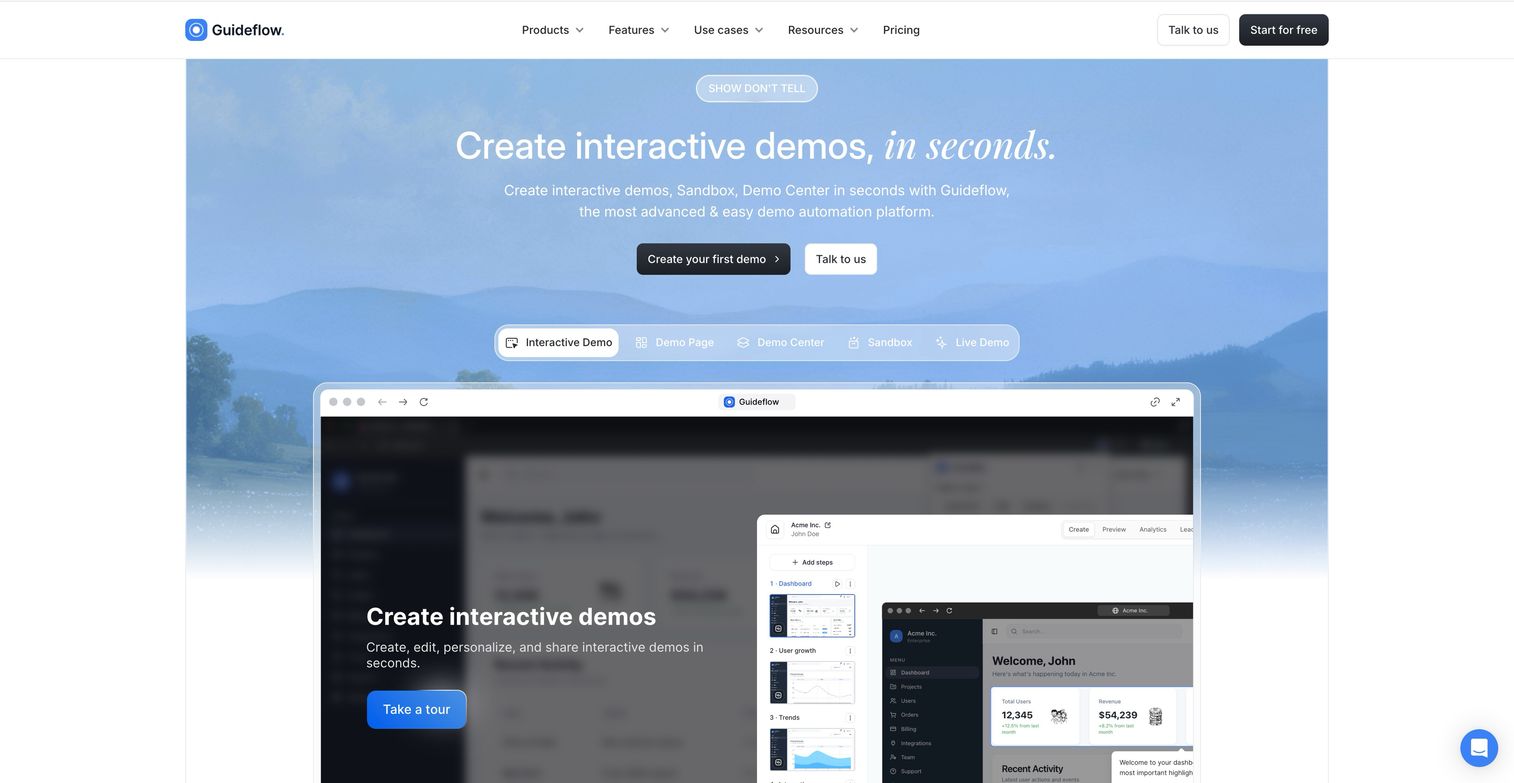
Guideflow is a demo automation platform that turns your product into a guided, clickable experience. Instead of a video file, you produce a navigable demo that prospects and customers click through at their own pace. It supports sales enablement, product launches, customer education, partner enablement, and onboarding, covering the use cases a PMM handles across every launch cycle.
Best for: PMMs who need prospects, customers, or sales teams to explore the product rather than watch a fixed recording.
Key features
- Guided clickable product paths with branching and choose-your-own journeys
- HTML, screenshot, and video capture modes
- In-demo forms, calls to action, and lead capture
- Personalization by audience, account, or CRM variable
- Step-level engagement analytics with drop-off and completion data
Why choose Guideflow: The format is fundamentally different from a video file. Guideflow excels when the buyer should interact with the product, not observe it. For sales follow-ups where context matters, use Loom. For interactive product demonstrations, sales enablement, and self-serve education, Guideflow is the right tool. The suite covers Interactive Demo for guided stories, Sandbox for free exploration, Demo Center for a centralized demo library, Live Demo for presenter-led experiences, and Mobile Demo for mobile product flows.
Guideflow pricing: A free plan includes 5 guideflows, unlimited viewers, and 7-day analytics. Paid plans start at $35/month (Solo, billed yearly) and go up to $499/month (Growth), $1,499/month (Advanced), and from $2,999/month (Enterprise), all billed yearly. Monthly billing runs higher. Advanced analytics, AI features, HTML demos, integrations, and dedicated support unlock on paid tiers.
G2 rating: 5.0/5
Start your journey with Guideflow today!
2. Loom
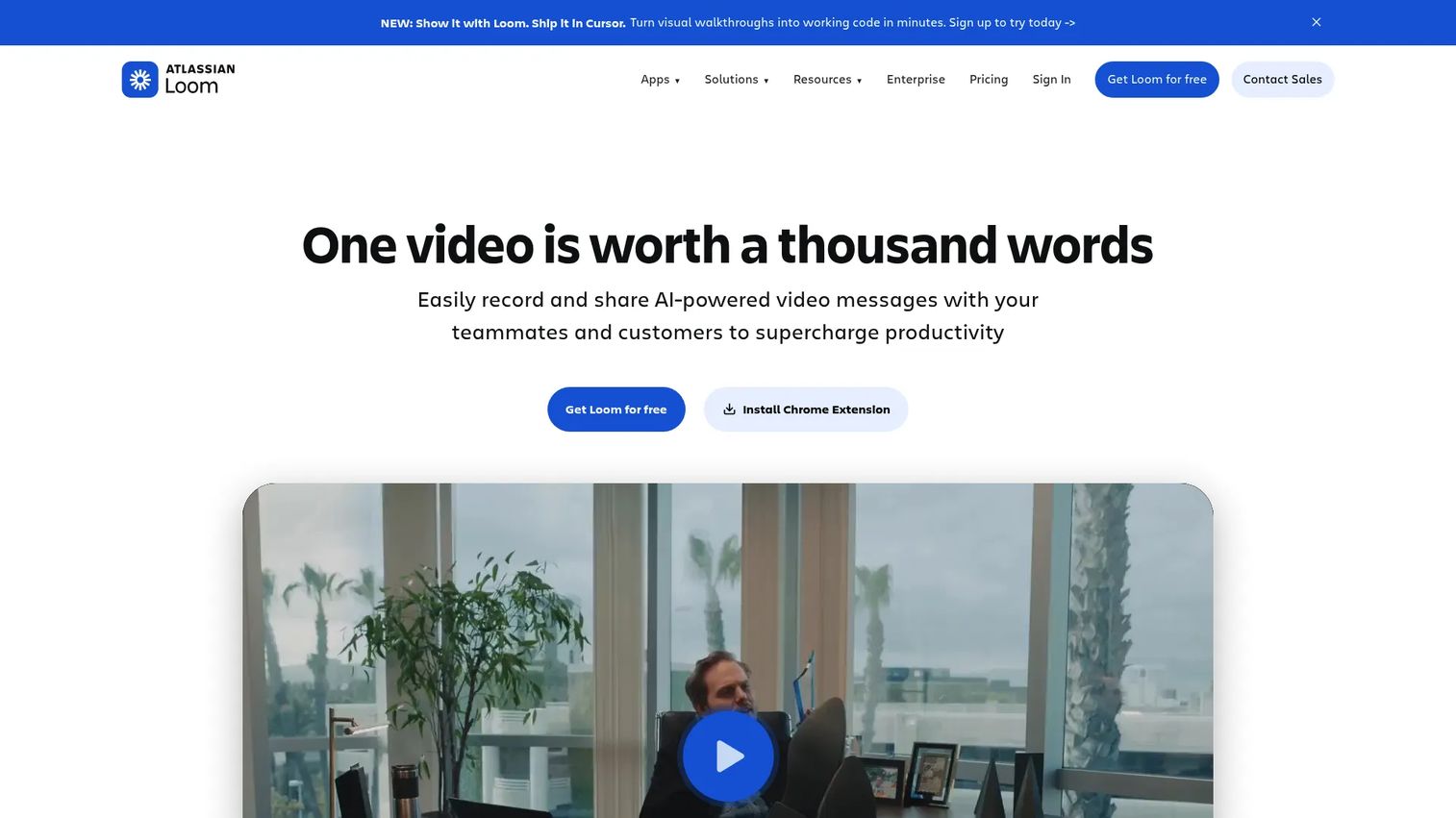
Loom is an AI-powered video messaging tool for capturing your screen and camera, then sharing the result through a link. It covers async updates, sales follow-ups, support replies, internal communication, and product walkthroughs where your voice and face carry the message.
Best for: Teams that need personal, narrated videos shared quickly through a link, without scheduling a meeting.
Key features
- Screen and webcam recording in one pass
- AI-generated titles, summaries, chapters, and filler-word removal
- Transcriptions and closed captions
- Video sharing, embedding, comments, and reactions
- Viewer engagement insights including completion and click data
Why choose Loom: Choose it when tone, face, and personal context make the message land. A sales follow-up, a product feedback response, or an internal launch update often needs that human layer. Loom produces a linear video someone watches; Guideflow produces a clickable experience someone navigates. Both belong in a PMM's toolkit for different moments. For best interactive demo tools for product marketing, Guideflow is the primary choice. For quick async video, Loom fits the gap.
Loom pricing: The Starter plan is free, covering up to 25 recordings per person with a 5-minute screen recording cap. Business pricing was not publicly displayed at the time of verification. Business + AI runs $24/user/month (billed monthly). Enterprise pricing requires contacting sales.
G2 rating: G2 rating not verified for this entity at time of publication.
3. Clipchamp
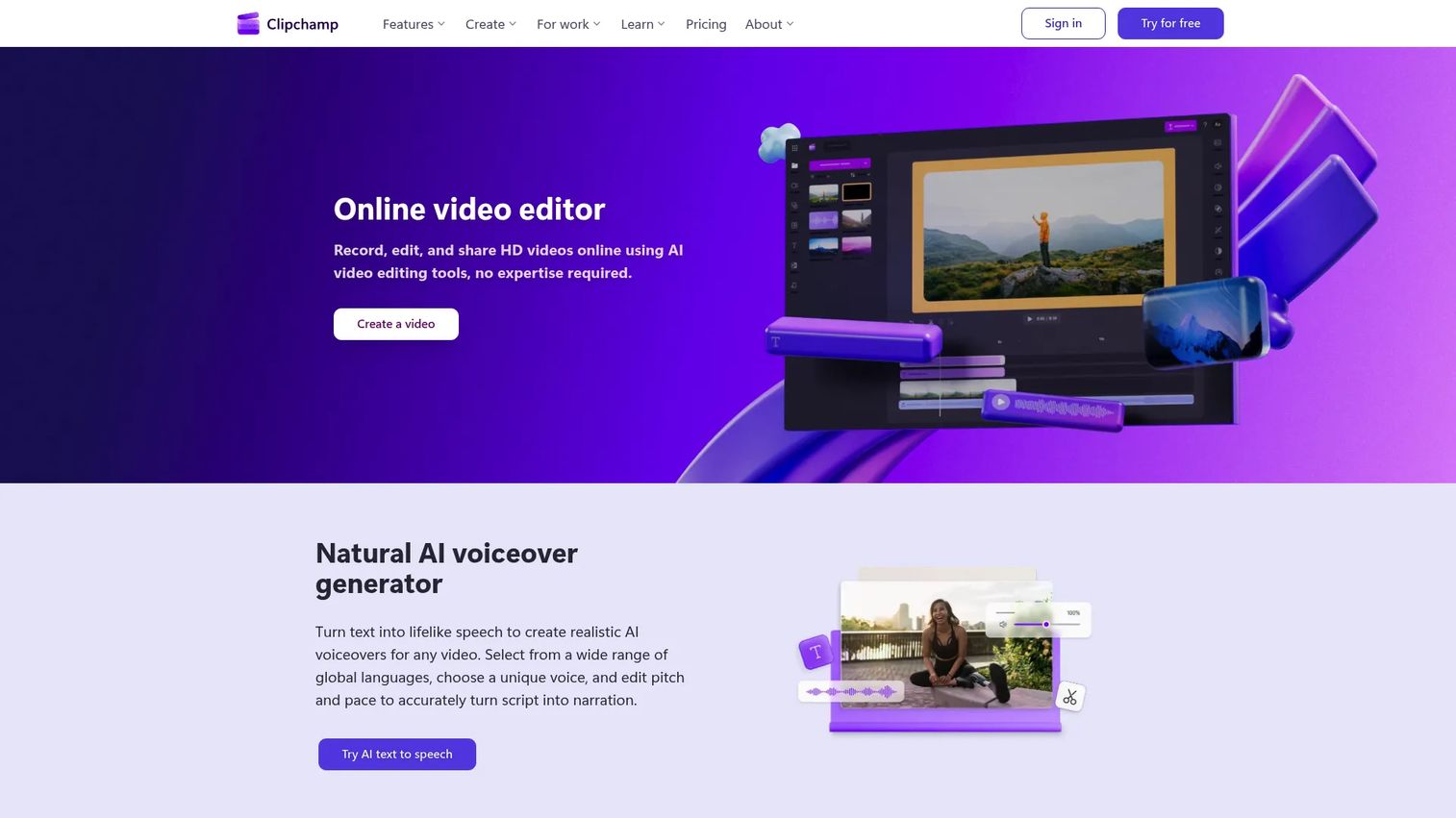
Clipchamp is Microsoft's browser-based video editor. It handles screen recording, camera overlay, and microphone input, then lets you trim, crop, and export without leaving the browser. For Windows and Microsoft 365 users, it is already part of the workflow.
Best for: PMMs and content teams already working in Windows or Microsoft environments who want practical capture and editing without adding a separate specialist tool.
Key features
- Browser tab, window, or full-screen recording
- Webcam overlay with microphone input
- Trim, crop, resize, and audio muting
- AI subtitles, voiceovers, and silence removal
- MP4 export up to 1080p on the free tier; 4K on Premium
Why choose Clipchamp: The free version covers most tutorial and launch asset needs without a subscription. PMMs producing screen recordings for Windows-based workflows will find it practical for screen recording on Windows without additional cost.
Clipchamp pricing: The Free plan covers core editing, watermark-free exports up to 1080p, and royalty-free stock assets at no charge. Premium features, including 4K export and advanced brand kit tools, are included with Microsoft 365 Personal and Family. No separate numeric subscription price is listed for Premium on the pricing page.
G2 rating: 4.1/5
4. XRecorder
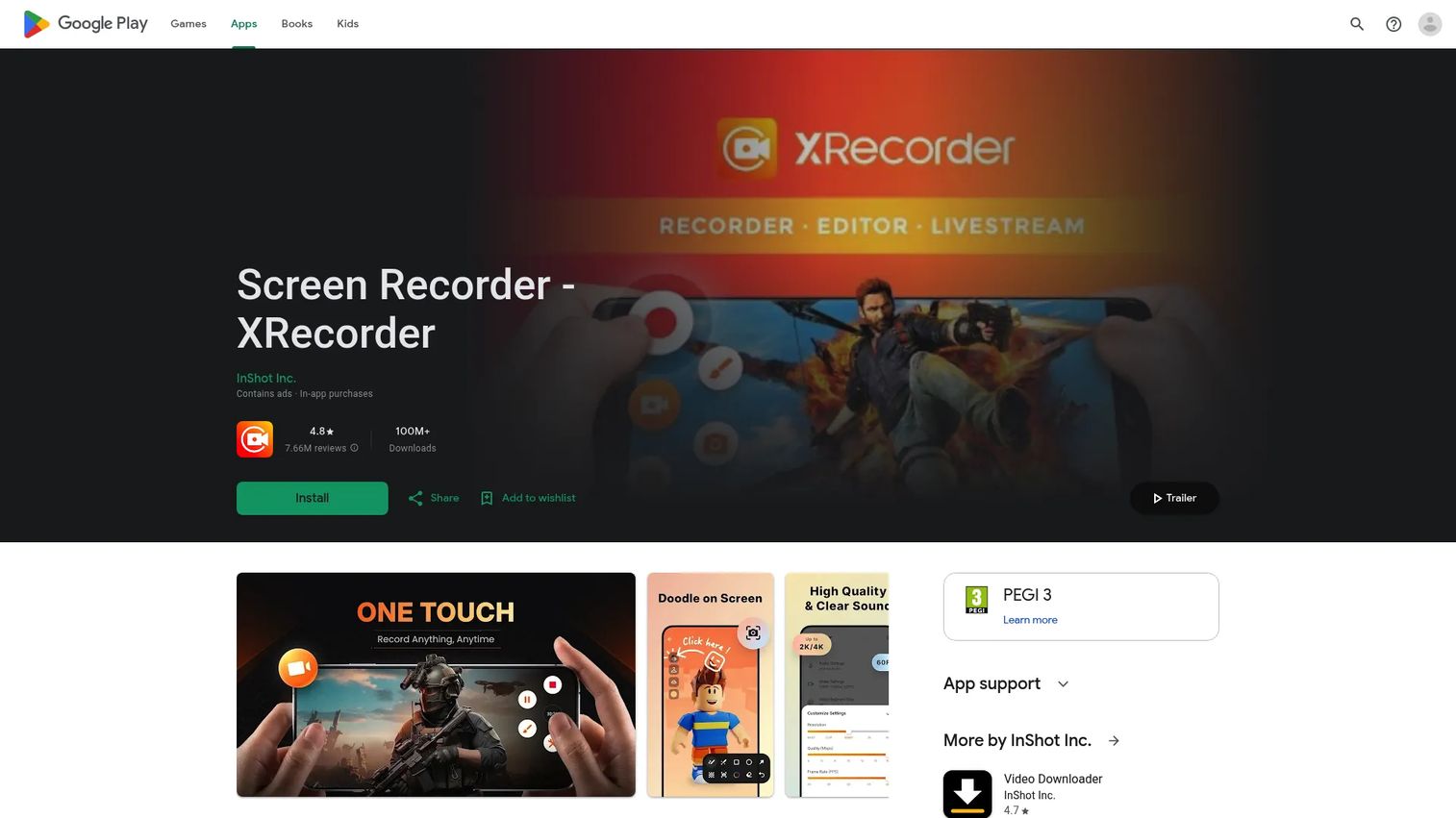
XRecorder is a mobile screen recorder built for Android. It captures screen activity in full HD, supports internal audio on Android 10 and above, and adds facecam overlays, live streaming via YouTube and RTMP, and basic video trimming inside the app.
Best for: Teams recording mobile app workflows, feature tutorials, gameplay, or field marketing content directly from an Android device.
Key features
- Android screen capture up to 1080p and 60 FPS
- Internal audio recording on Android 10+
- Facecam overlay with floating controls
- YouTube and RTMP livestreaming
- Built-in trimming, filters, text, and speed controls
Why choose XRecorder: When the product is a mobile app and the asset needs to show the real device experience, desktop tools won't get you there. XRecorder handles screen recording on Android with audio and facecam in one app. PMMs producing mobile onboarding walkthroughs, app feature launches, or customer education for mobile workflows will find it useful for capturing content they'd otherwise struggle to produce. Desktop editing and team governance require a separate step.
XRecorder pricing: The app is free on Google Play and contains ads and in-app purchases. Specific subscription pricing figures were not verifiable from the first-party sources reviewed at time of publication.
G2 rating: No verified G2 rating found for XRecorder at time of publication.
5. OBS Studio
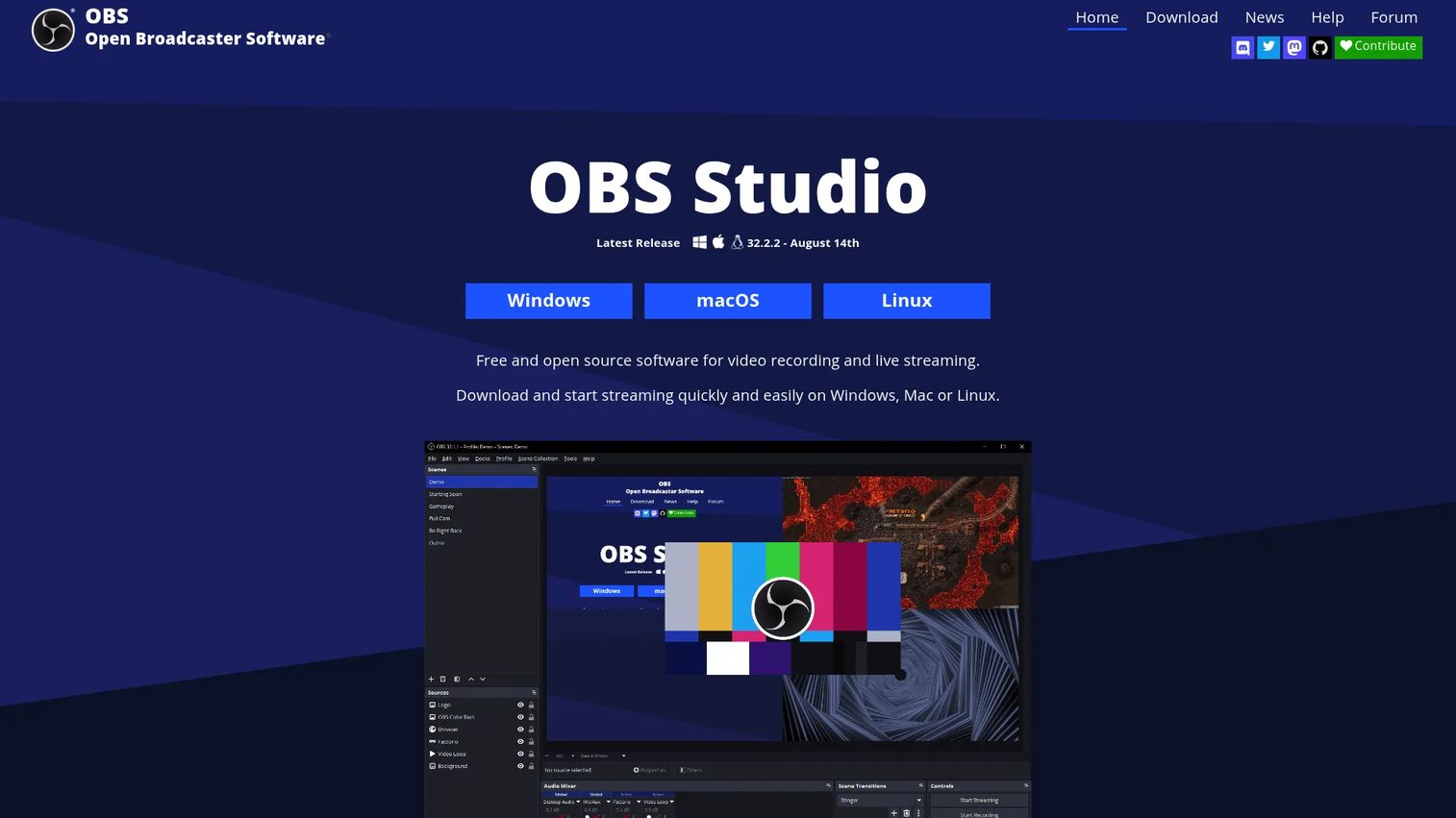
OBS Studio is free, open-source software for screen recording and live streaming on Windows, macOS, and Linux. It supports multiple simultaneous sources: Windows, browser tabs, webcams, capture cards, images, and text overlays. The scene system lets you switch between layouts mid-recording or mid-stream.
Best for: Technical teams that need control over complex recording setups, live production, product launch streams, or webinars.
Key features
- Multi-source scene composition with unlimited scenes
- Audio mixer with per-source filters and VST plugin support
- Webcam and capture card support
- Live streaming output alongside local recording
- Studio Mode and Multiview for live switching
Why choose OBS Studio: OBS gives PMMs production control that browser recorders can't match. It excels for product launch livestreams, webinars, and high-stakes recordings where scene composition matters. The tradeoff is setup time. Configuration takes longer than a browser recorder, and occasional users face a steeper learning curve. For quick tutorial production, ScreenPal or Clipchamp will get you there faster.
OBS Studio pricing: Completely free and open source. Donations support development. Available on Windows, macOS, and Linux.
G2 rating: 4.6/5
6. ScreenPal
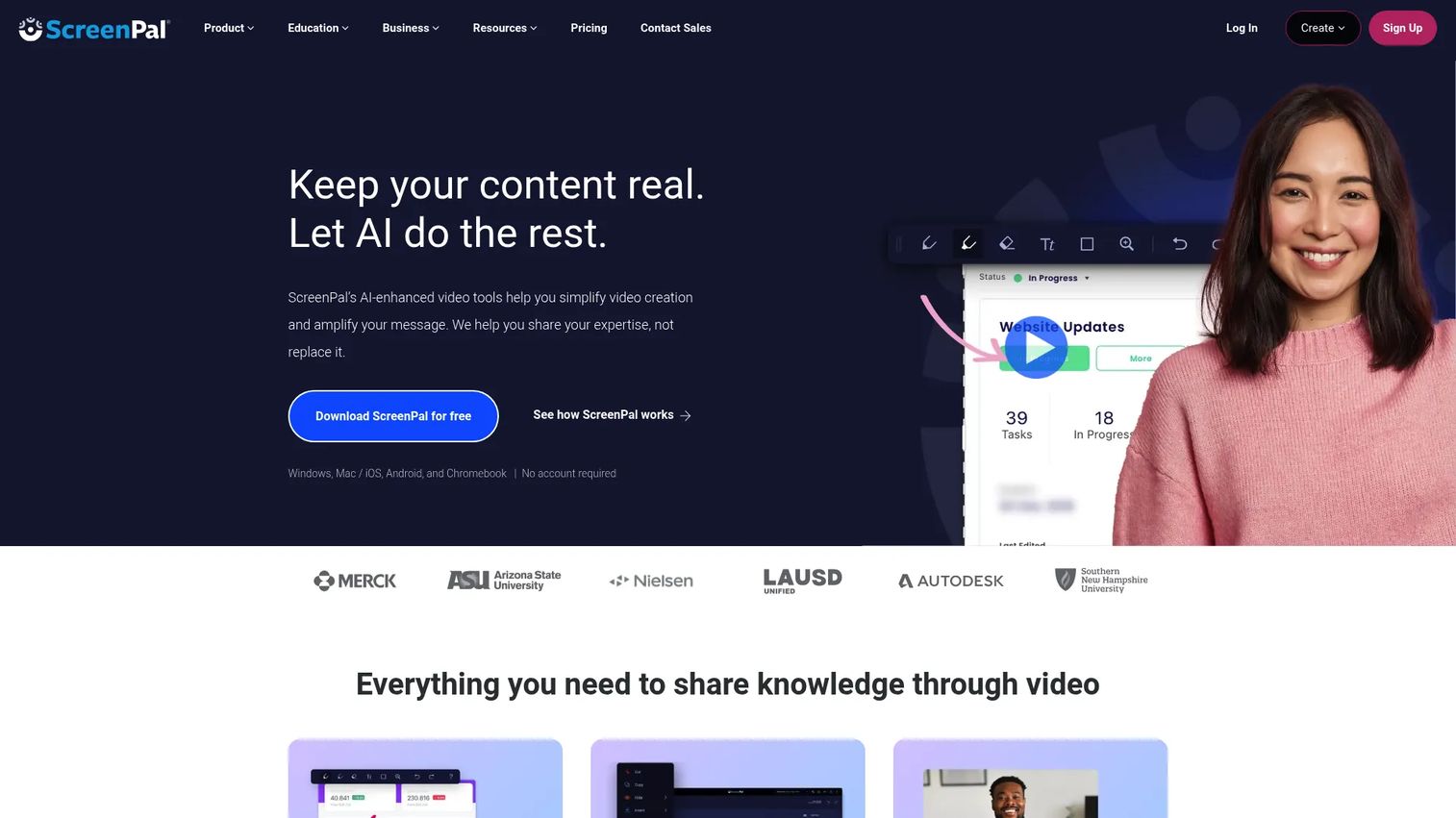
ScreenPal is an AI-enhanced video creation platform covering screen recording, webcam capture, narration, editing, hosting, and sharing. It adds interactive quizzes, polls, and captions on top of the recording workflow, making it practical for customer education and internal enablement teams that need more than a raw export.
Best for: PMMs and enablement teams that need repeatable tutorial production without advanced video production investment.
Key features
- Screen and webcam recording with narration
- AI transcripts, captions, summaries, and translations
- Interactive quizzes, polls, and ratings
- Secure video hosting and sharing
- Video analytics including viewer engagement data
Why choose ScreenPal: It sits between Clipchamp's simplicity and Camtasia's production depth. The interactive quiz and poll features make it useful for training content where you need more than passive viewing. For best sales onboarding software workflows, ScreenPal handles feature education, help center video, and launch enablement without requiring a large content production budget.
ScreenPal pricing: The Free plan is always available. Solo Deluxe starts at $4/month. Solo Max runs $10/month (billed annually). Team Business is $8/user/month (billed annually). Solo Max and Team Business include ScreenPal AI features.
G2 rating: 4.5/5
7. Screencastify
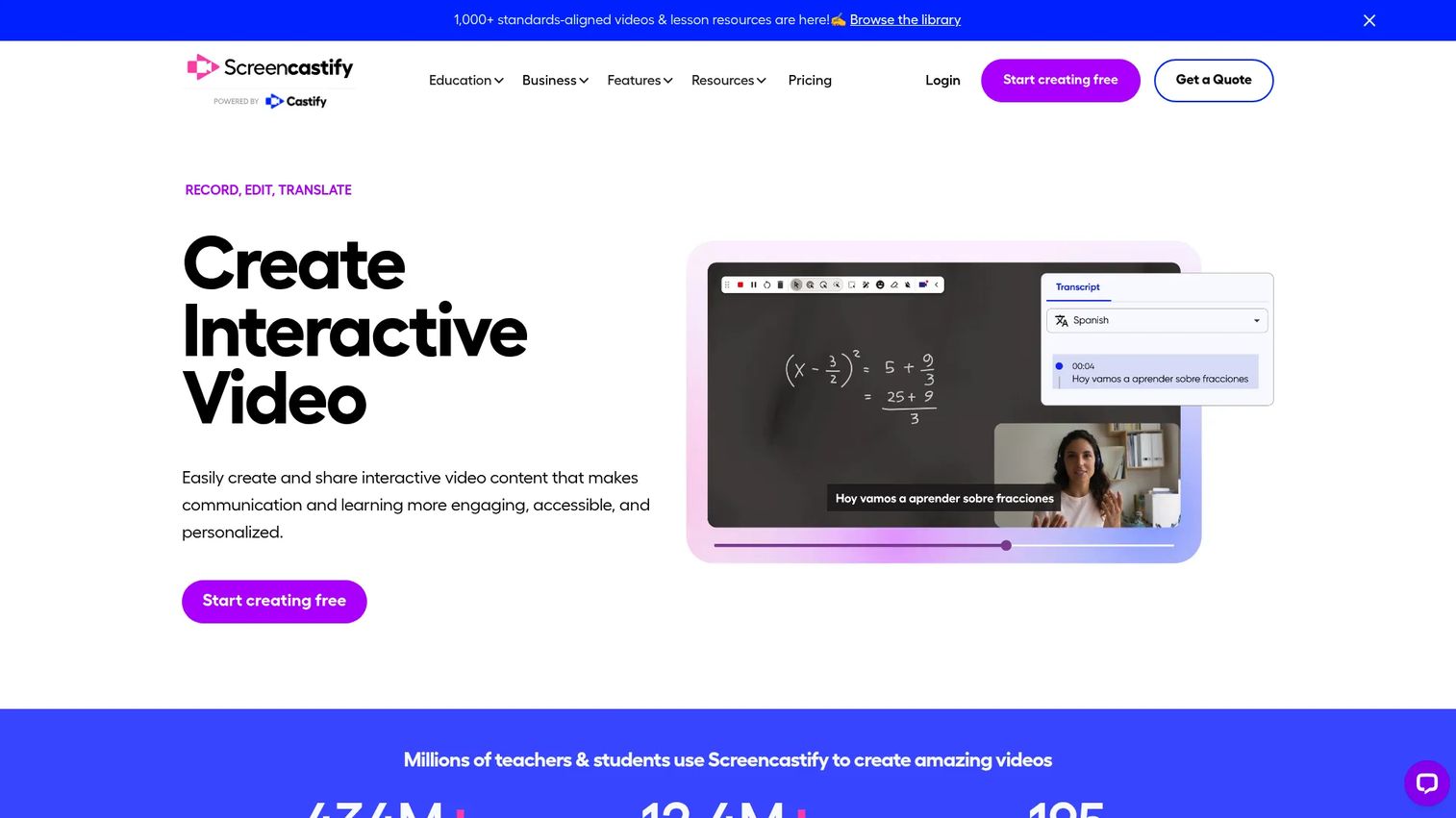
Screencastify is a browser-based video platform built around the Chrome extension workflow. It records browser tabs, desktop, or webcam, then lets you trim, annotate, add text, and publish without installing desktop software. Interactive questions and polls make it popular in education and distributed team training.
Best for: Teams that want a browser-first workflow for quick tutorials, training, and product explanations without managing desktop installations.
Key features
- Browser tab, desktop, and webcam recording
- Editing with trimming, stitching, annotations, and blur
- Interactive questions and polls
- Captions, transcripts, translations, and voiceovers
- Video analytics and viewer engagement tracking
Why choose Screencastify: The browser-native approach removes friction for distributed teams. PMMs should validate storage limits on the free plan, export formats for their distribution channels, and whether analytics depth meets their reporting needs. It is a strong fit for internal knowledge sharing, lightweight customer education, and async team training where ease of use matters more than production polish.
Screencastify pricing: Free includes up to 10 videos and 30-minute recordings. Starter runs $7/user/month (billed annually) or $19/month (billed monthly), adding unlimited videos, editing, questions and polls, and collaboration. Pro is $10/user/month (billed annually) or $25/month (billed monthly), adding AI features, captions, translations, and voiceovers. Enterprise and EDU pricing is custom.
G2 rating: 4.6/5
8. Camtasia
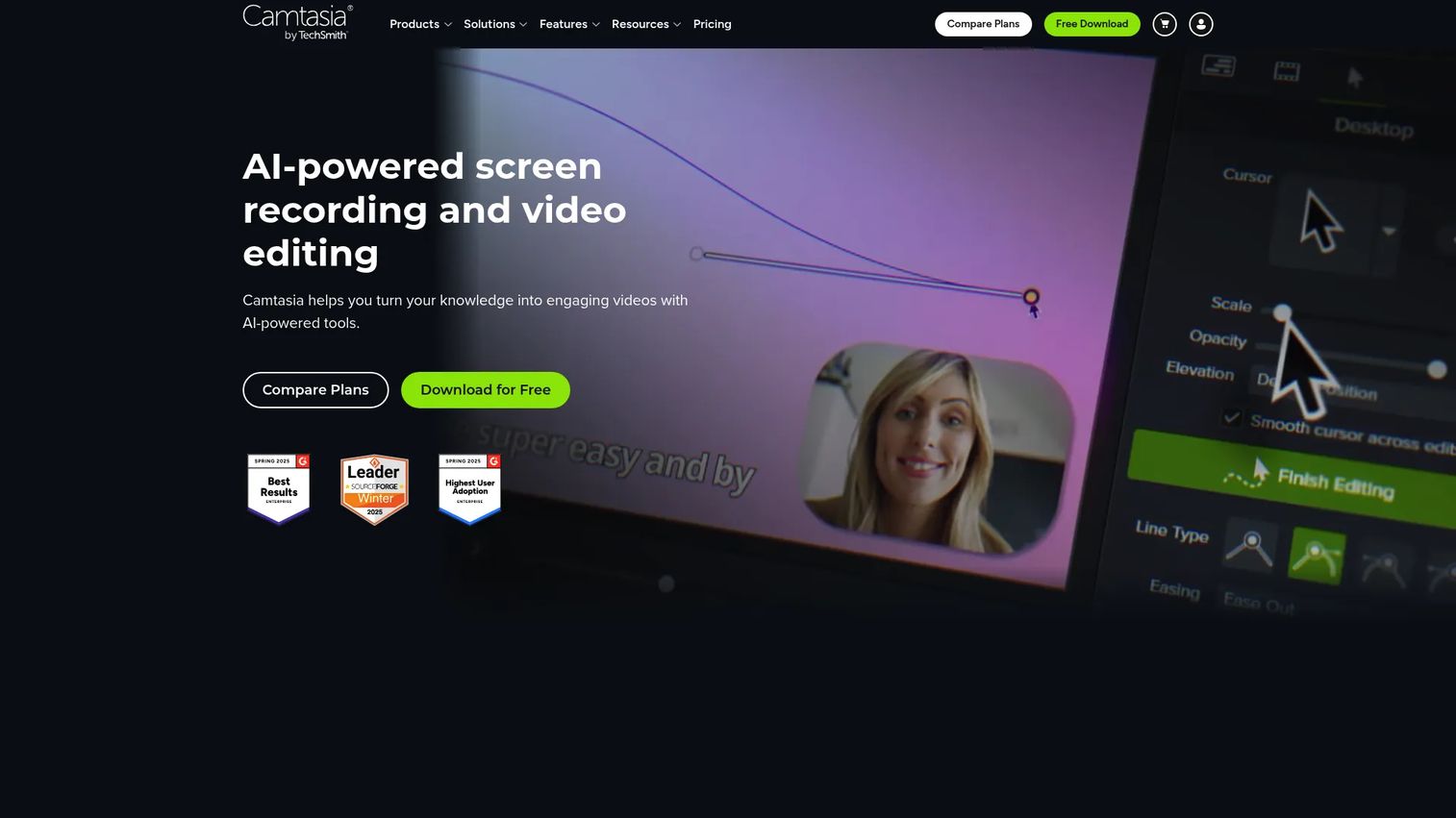
Camtasia is TechSmith's screen recording and timeline editing tool, built for structured training and tutorial production. It combines multitrack recording with cursor effects, callouts, annotations, captions, templates, and text-based video editing. Teams producing reusable training libraries return to Camtasia because the template system makes consistent production faster at scale.
Best for: PMMs producing structured, polished training assets where reusable templates and editing control justify the cost.
Key features
- Multitrack screen, camera, microphone, and system audio recording
- Text-based video editing and transcription
- AI script, voiceover, avatar, and background-noise removal
- Cursor effects, callouts, transitions, and annotations
- Caption generation and interactive elements
Why choose Camtasia: It suits teams that invest in a training content library rather than one-off recordings. The main evaluation question is whether your team needs timeline editing and annotation depth, or simply a quick capture and share. For best sales training software workflows and customer education programs, Camtasia's production controls pay off when the same asset gets reused across multiple cohorts.
Camtasia pricing: Starter runs $39/year. Essentials is $179.88/year. Create is $249/year. Pro is $599/year. A trial is available with watermarked exports. All tiers are billed annually.
G2 rating: 4.6/5
9. ScreenFlow
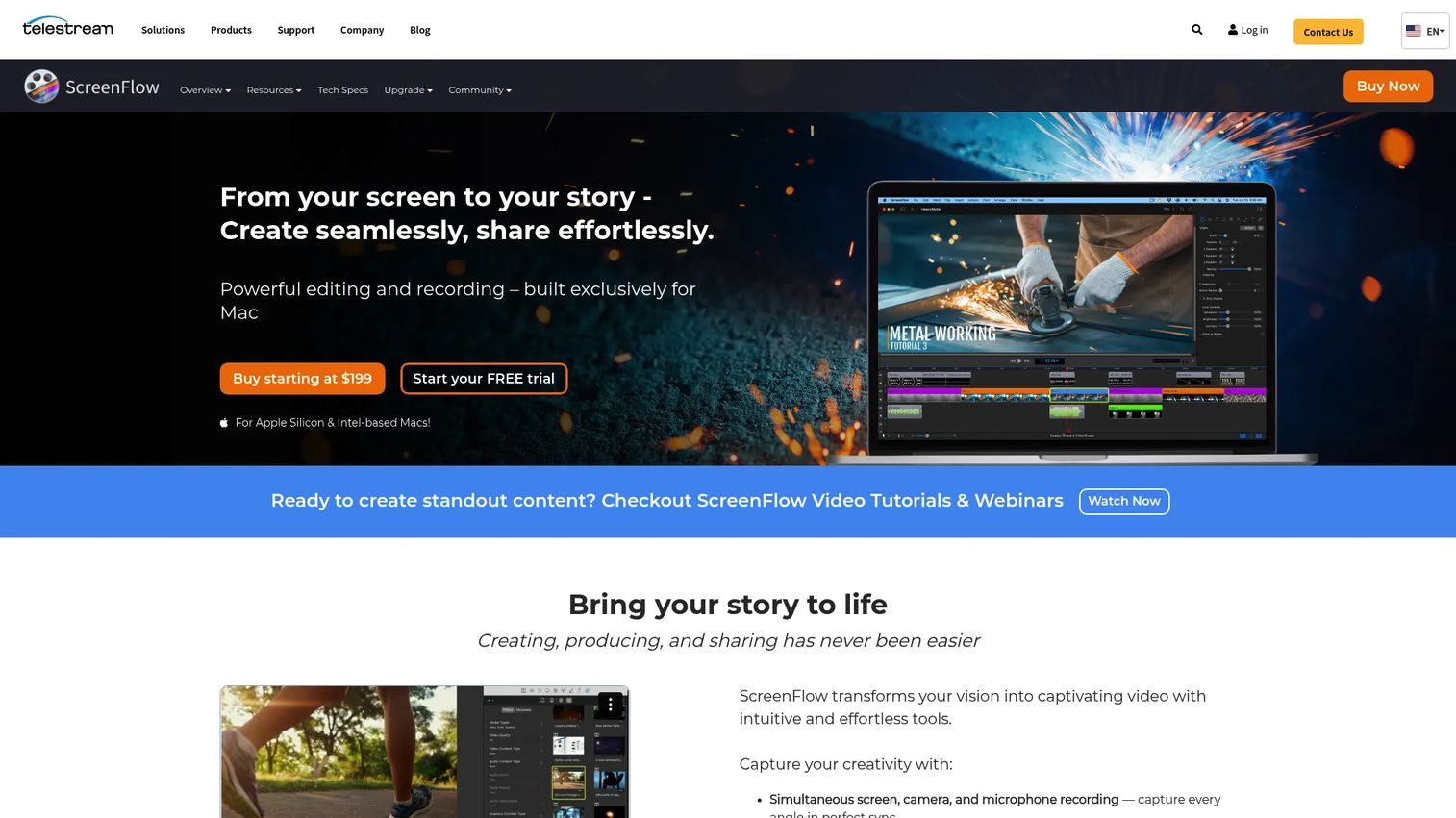
ScreenFlow is Mac-native screen recording and video editing software from Telestream. It captures your Mac display, webcam, microphone, and system audio simultaneously, then gives you a full timeline editor with transitions, text animations, annotations, and multi-format export. iOS device recording is also supported.
Best for: Mac-based content teams producing polished product videos, tutorials, and customer education content where timeline editing control matters.
Key features
- Simultaneous screen, camera, and microphone recording
- Timeline editing with transitions, text animations, and annotations
- iOS device recording
- Closed-caption support
- Animated GIF and APNG export alongside video formats
Why choose ScreenFlow: For screen recording on Mac with a real editing environment, ScreenFlow is the specialist tool. It fits PMMs producing product launch videos, feature tutorials, and customer education where Clipchamp's browser simplicity isn't enough and Camtasia's Windows-oriented workflow isn't the right fit. The one-time purchase model means no recurring seat cost once you're set up.
ScreenFlow pricing: A one-time license costs $199. The ScreenFlow Super Pak (license plus Stock Media Library) is $275. A trial is available with watermarked exports.
G2 rating: 4.5/5
10. ShareX
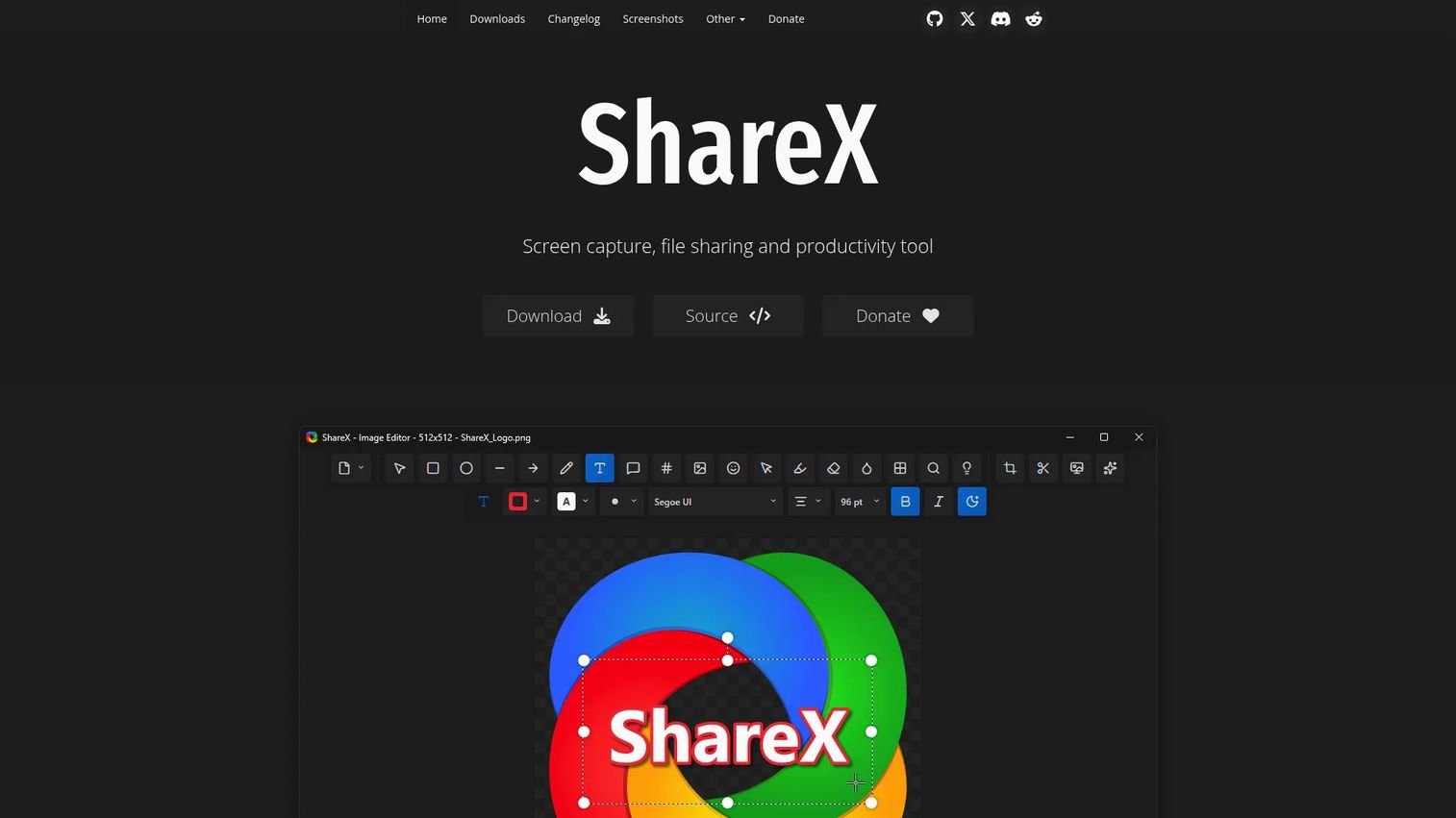
ShareX is free, open-source Windows software for screenshots, screen recording, annotations, file sharing, and workflow automation. It covers fullscreen capture, region selection, active window, scrolling capture, GIF recording, and OCR alongside a built-in image editor with redaction, cropping, and effects.
Best for: Technical PMMs and internal teams that want free Windows capture with workflow automation and no licensing cost.
Key features
- Region, window, fullscreen, and scrolling capture
- Screen recording and GIF recording
- Built-in image editor with annotations and redaction
- Upload and share to configurable destinations
- OCR, color picker, and customizable workflow shortcuts
Why choose ShareX: ShareX fits utility-first workflows rather than polished marketing production. PMMs using it for call center screen capture software documentation, quick internal screenshots, or workflow automation will find more power here than in any paid alternative at this price point. For webcam overlay, team governance, or viewer analytics, you'll need a different tool.
ShareX pricing: Completely free and open source. Donations support development. Windows only.
G2 rating: 4.8/5
Considerations when choosing video screen recording software
Match the output format to the job first
Ask what the viewer needs to do: Watch a narrated walkthrough, complete a training module, get an async update, or explore the product hands-on. Choosing the wrong format creates editing and distribution work that a better format choice would have skipped entirely.
Check audio and camera controls before committing
Microphone quality, system audio capture, internal mobile audio, webcam overlay, and noise reduction vary significantly across tools. Poor audio reduces the impact of a technically accurate product demo. Test audio settings with your actual hardware before building a library on any platform.
Plan for editing and reuse from the start
PMMs building content libraries need trimming, captions, transcription, cursor effects, and export format options. Decide whether assets will support a single launch or a reusable collection. Tools like Camtasia and ScreenFlow pay off over time; simpler tools like Clipchamp or ScreenPal fit lower-volume needs without the overhead.
Evaluate distribution and measurement together
Share links, embed options, access controls, and viewer analytics determine whether you can prove the asset influenced adoption or pipeline. Views alone rarely tell the full story. For best product analytics software tools integration, check which screen recorders connect to your CRM or analytics stack before purchase.
Account for maintenance as the product changes
Recordings become stale when the UI changes. Shorter, focused recordings are cheaper to update. Assigning named owners and adding review dates to your asset inventory prevents the library from quietly degrading. For frequently changing interfaces, an interactive demo can be easier to update than a fully edited video because the capture is HTML-based rather than a pixel-locked video file.
How to choose the right video screen recording tool
If you need a personal narrated walkthrough
Loom or ScreenPal fits here. Both handle async sales follow-ups, support replies, internal launch updates, and short product feedback videos. Choose Loom when your face and voice carry the message. Choose ScreenPal when you need built-in hosting, analytics, or interactive quiz elements alongside the recording.
If you need polished training or tutorial content
Camtasia or ScreenFlow is the right match. These tools suit teams building repeatable content with consistent templates, editing control, captions, and brand standards. Camtasia is stronger for Windows-based teams with complex annotation needs. ScreenFlow fits Mac-first creative workflows.
If you need mobile app recordings
XRecorder handles screen recording on Android with internal audio and facecam. iPhone and iPad include native screen recording through Control Center, accessible without a third-party app. For either platform, plan how the file moves into your broader PMM production workflow after capture.
If buyers should explore the product
Guideflow is the choice when the experience should let prospects navigate the product, capture intent signals, support self-serve evaluation, or serve best interactive demo tools marketing teams and sales enablement use cases. Guideflow is not the default choice for a narrated video file. Make the format decision before picking the tool.
Conclusion
The decision is simpler than the market makes it look. Start with the viewer's job.
For narrated async video: Loom. For Windows capture and editing: Clipchamp. For Android recording: XRecorder. For advanced production or live streaming: OBS Studio. For quick tutorials with hosting: ScreenPal. For browser-based education: Screencastify. For polished training libraries: Camtasia. For Mac-native production: ScreenFlow. For free Windows utility capture: ShareX. For interactive product experiences where buyers explore rather than watch: Guideflow.
PMMs who get this decision right ship assets that match the channel, the audience, and the moment. The recording is only as useful as the format it takes. Choose video when narration and personal context drive the message. Choose an interactive demo when the buyer needs to navigate the product on their own terms.
For best video editing software needs beyond screen capture, there's a separate guide worth bookmarking. And if your next launch needs a self-serve product experience rather than a passive clip, start with Guideflow.
Start your journey with Guideflow today!
FAQs
The answer depends on your output. Loom suits narrated async video with webcam. Clipchamp works for Windows capture and editing. XRecorder handles Android mobile recording. Camtasia fits structured training content. For interactive product demonstrations where buyers click through the product instead of watching a clip, Guideflow is the purpose-built option.
Choose a screen recorder, select microphone input, system audio, or both, then approve the browser or device permissions. Pick your capture area, hit record, and save the file when done. Audio options vary by operating system and browser. On mobile, internal audio recording requires Android 10 or later for most apps.
Yes, most desktop and mobile tools support simultaneous capture. Loom, Clipchamp, ScreenPal, Camtasia, and ScreenFlow all handle screen-and-webcam recording in a single session. XRecorder adds a facecam overlay for Android. Verify camera permissions and overlay settings in each tool before your first recording.
Four tools cover distinct Windows needs. Clipchamp is the practical choice for integrated capture and editing without extra cost. ShareX is the free utility option with workflow automation. OBS Studio suits advanced production and live streaming. Camtasia fits teams producing polished training content with timeline editing and template systems.
ScreenFlow is the specialist choice for screen recording on Mac, with a full timeline editor and iOS device capture. Loom works for browser-based async recording across platforms. OBS Studio handles advanced production on Mac and is free. Verify current Mac compatibility for each tool before building a content library on it.
Android users can record with built-in device controls on most recent devices, or use XRecorder for facecam, internal audio, and editing features in one app. iPhone and iPad support native screen recording through Control Center without installing a third-party app. For either platform, check your device's iOS or Android version for supported features before recording.
An interactive demo is a different output from a screen recording. Guideflow captures your product interface and turns it into a guided, clickable experience that users navigate at their own pace. Prospects explore specific flows, forms capture lead data, and analytics show step-level engagement. No live call or product login is required.
Keep each recording focused on one task so updates require minimal rework. Assign a named owner to every asset and set review dates tied to your release schedule. Store source files alongside the final export. For UI changes that affect multiple recordings at once, centralizing assets in a library like Demo Center means one update propagates rather than requiring individual edits across scattered files. Retire assets that no longer match the current product rather than leaving stale recordings in circulation.