You need to ship a launch trailer by Friday, three social cutdowns by Monday, and a captioned webinar clip somewhere in between. Then someone drops a "quick" ad variant on your desk. Most teams do not lose time because they picked a weak editor. They lose time because they picked the wrong editor for how they actually work, then spend hours fighting a tool that assumes a different job.
The market keeps growing because more teams face this exact problem. The global video editing software market was valued at $3.2 billion in 2025 and is forecast to reach $5.2 billion by 2034, a 5.6% CAGR through 2034, according to Dataintelo (2025). Cloud-based editing is expanding faster than the market overall, from about 37.9% of the market in 2025 to roughly 54.2% by 2034. Video is no longer a nice-to-have for marketers. It is the default format for ads, social, product education, and lifecycle campaigns.
So the real question is not "what is the most powerful editor." It is "which good video editing software matches my daily workload without overbuying." This guide answers that. We ranked ten editors by how they fit a marketer's reality: speed, ease of use, export flexibility, AI assistance, and platform support across Mac and Windows. If you spend more time producing video than mastering software, this list is built for you.
If your bigger challenge is generating footage from scratch rather than cutting it, our roundup of the best AI video generators covers that adjacent category. For everything about trimming, arranging, and exporting real footage, keep reading.
What's inside
This guide covers 10 video editing tools spanning beginner, prosumer, and professional workflows. Some are built for a fast social cutdown before lunch. Others are built for color grading a launch film. Most sit somewhere useful in between.
We chose tools based on six practical criteria: ease of use, editing features, file and format compatibility, export options, render and timeline speed, and platform support. Every entry lists verified pricing, a G2 rating where one is published, a clear "best for" line, and the strongest use cases for a marketing team. No filler tools, no near-duplicates padding the count.
TL;DR
Short on time? Here are the fast picks by use case and skill level.
- Best overall for fast, practical editing: CyberLink PowerDirector. Quick timeline, strong AI tools, and both subscription and one-time license options.
- Best for beginners wanting semi-pro results: Wondershare Filmora. Simple UI, watermark-free export, and AI features that speed up content velocity.
- Best for a simple drag-and-drop flow: Movavi Video Editor. Fast setup, one-click AI cleanup, and a shallow learning curve.
- Best free or lower-cost experimentation: CapCut for social-first editing, Apple iMovie for Mac beginners.
- Best for advanced color and pro workflows: DaVinci Resolve for grading and finishing, Adobe Premiere Pro for deep team production.
- Best for Mac users who want a polished pro editor: Apple Final Cut Pro. Mac-native speed and a clean professional workflow.
Background
Video editing software is a tool for importing raw footage, arranging and trimming it on a timeline, and exporting a finished video for a specific channel or format.
That is the one-line definition. In practice, most professional video editing software shares a core feature set you should expect from any serious option:
- Importing and organizing footage: bringing in clips, audio, images, and organizing them by project or bin.
- Timeline editing: cutting, arranging, and layering clips with precise control over sequence and timing.
- Trimming, transitions, and titles: tightening clips, adding transitions between shots, and building text overlays or lower-thirds.
- Effects and color tools: color correction, grading, filters, and visual effects to match a brand look.
- Audio cleanup: noise removal, leveling, mixing, and syncing voiceover or music.
- AI-assisted editing: auto captions, background removal, text-to-speech, and auto-generated highlight reels that cut manual work.
- Export presets and format support: rendering to the resolutions, aspect ratios, and codecs each platform needs.
The differences between video editing tools come down to how much control you get, how steep the learning curve is, and how fast you can move from raw file to published clip. A beginner editor hides complexity to get you shipping. A pro editor exposes every control at the cost of more setup. Your job is matching that spectrum to your actual output needs.
When to use video editing software
Not every video job needs the same tool. Here is how the work usually breaks down for a marketing team.
Social clips and ads
Short-form is a volume game. You are cutting a 90-second recording into three vertical clips, adding captions, swapping hooks, and resizing for different placements. Fast video editing software with strong caption and aspect-ratio tools wins here. Export speed matters more than deep grading, because you are shipping many variants against tight deadlines. Tools built for social-first workflows let you version content for each channel without rebuilding from scratch.
Launch videos and explainers
A product launch trailer or feature explainer needs polish. Clean titles, motion graphics, brand-consistent color, and readable captions carry the message. This is where a little more editing depth pays off. You want control over pacing, transitions, and audio mixing so the finished piece feels intentional rather than thrown together. Consistency across every launch asset builds trust with the buyer.
Webinars and long-form repurposing
One webinar recording can become a dozen assets. Editors help you clip highlights, add subtitles, cut chapters, and resize a single 60-minute source into shorts, quote cards, and a trimmed replay. The value is leverage: one recording, many outputs, minimal rework. Look for strong timeline navigation, subtitle generation, and multi-aspect export to make repurposing efficient.
Comparison table
Read this table top to bottom by relevance to a marketer's workflow, not alphabetically. The Intent column tells you who each tool fits. Key differentiation is the single reason to choose it. Pricing reflects verified figures from each vendor's current pricing page, and G2 ratings reflect published scores where available.
| # | Product | Intent | Key differentiation | Pricing | G2 rating |
|---|---|---|---|---|---|
| 1 | CyberLink PowerDirector | Fast, all-round | AI tools plus subscription or perpetual license | From $54.99/yr; free Essential tier | 4.4/5 |
| 2 | Wondershare Filmora | Beginner to semi-pro | Watermark-free export with AI assistance | From $19.99/mo; free plan | 4.4/5 |
| 3 | Movavi Video Editor | Beginner, drag-and-drop | One-click AI cleanup, simple timeline | From $19.95/mo; free trial | 4.7/5 |
| 4 | CapCut | Social-first, AI-assisted | Free web, desktop, and mobile editing | Free plan; paid Pro plan | 4.0/5 |
| 5 | Adobe Premiere Pro | Pro-grade, teams | Deep control and plugin ecosystem | From $22.99/mo | 4.5/5 |
| 6 | DaVinci Resolve | Color and finishing | Pro grading with a strong free version | Free; Studio $295 one-time | 4.7/5 |
| 7 | Apple Final Cut Pro | Mac-first pro | Mac-native Magnetic Timeline speed | $299.99 one-time | Not published |
| 8 | Pinnacle Studio | Prosumer, Windows | Multi-camera and motion tracking depth | Free trial; paid editions | Not published |
| 9 | Adobe Premiere Elements | Beginner, no subscription | Guided edits with a one-time license | $99.99 one-time | Not published |
| 10 | Magix Video Pro X | Prosumer, Windows | Multicam and HDR without a subscription | From $89.99 one-time | 4.0/5 |
1. CyberLink PowerDirector
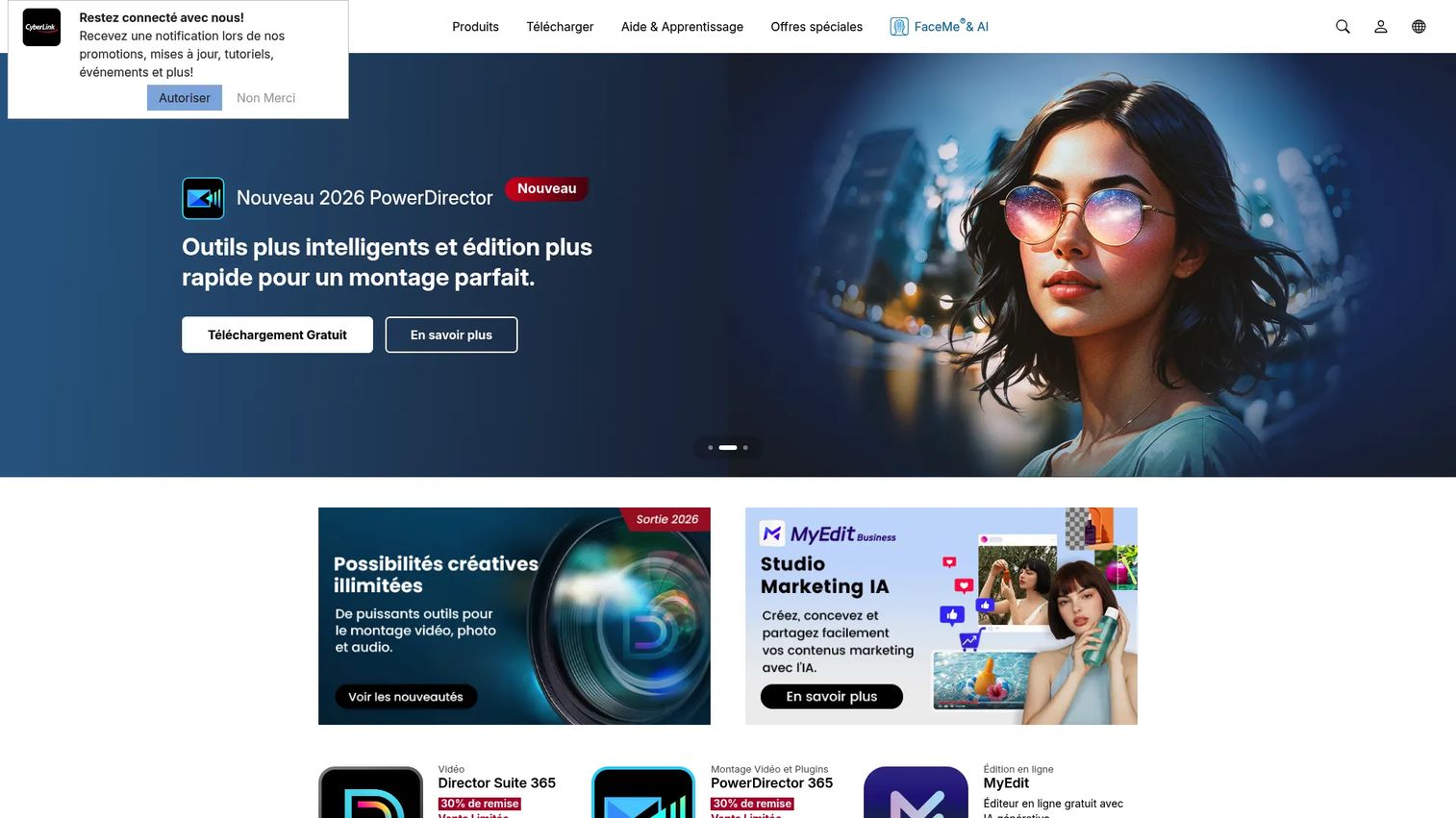
CyberLink PowerDirector is AI-powered video editing software built for creators and professionals who want to move fast. It pairs a responsive timeline with a deep set of AI creation and editing tools, so you can cut a clip, generate assets, and export without waiting on the software to catch up. For a marketer juggling social cutdowns and campaign videos, that speed is the whole point.
Best for: Marketers who want quick, AI-assisted edits without a steep learning curve, and who value the choice between a subscription and a one-time license.
Key strengths
- AI video editing tools: Auto-assisted editing that speeds up captioning, cleanup, and repetitive tasks.
- AI creation and generation tools: Generate assets inside your project instead of sourcing them separately.
- Professional timeline and export: A responsive timeline with broad format support for frequent, multi-channel exports.
Why choose CyberLink PowerDirector: It hits the sweet spot for marketers who need pro-level features without pro-level friction. The timeline responsiveness makes fast turnaround realistic, and the pricing flexibility means you are not forced into a subscription if you would rather own the software outright. It is a strong default for teams shipping video every week.
CyberLink PowerDirector pricing: PowerDirector 365 runs $54.99 on the annual plan, shown as roughly $4.58 per month on the pricing page. PowerDirector 2026 is available as a perpetual license for $139.99. A free PowerDirector Essential tier exists with limited features, so you can test the workflow before committing. G2 reviewers rate it 4.4/5.
2. Wondershare Filmora
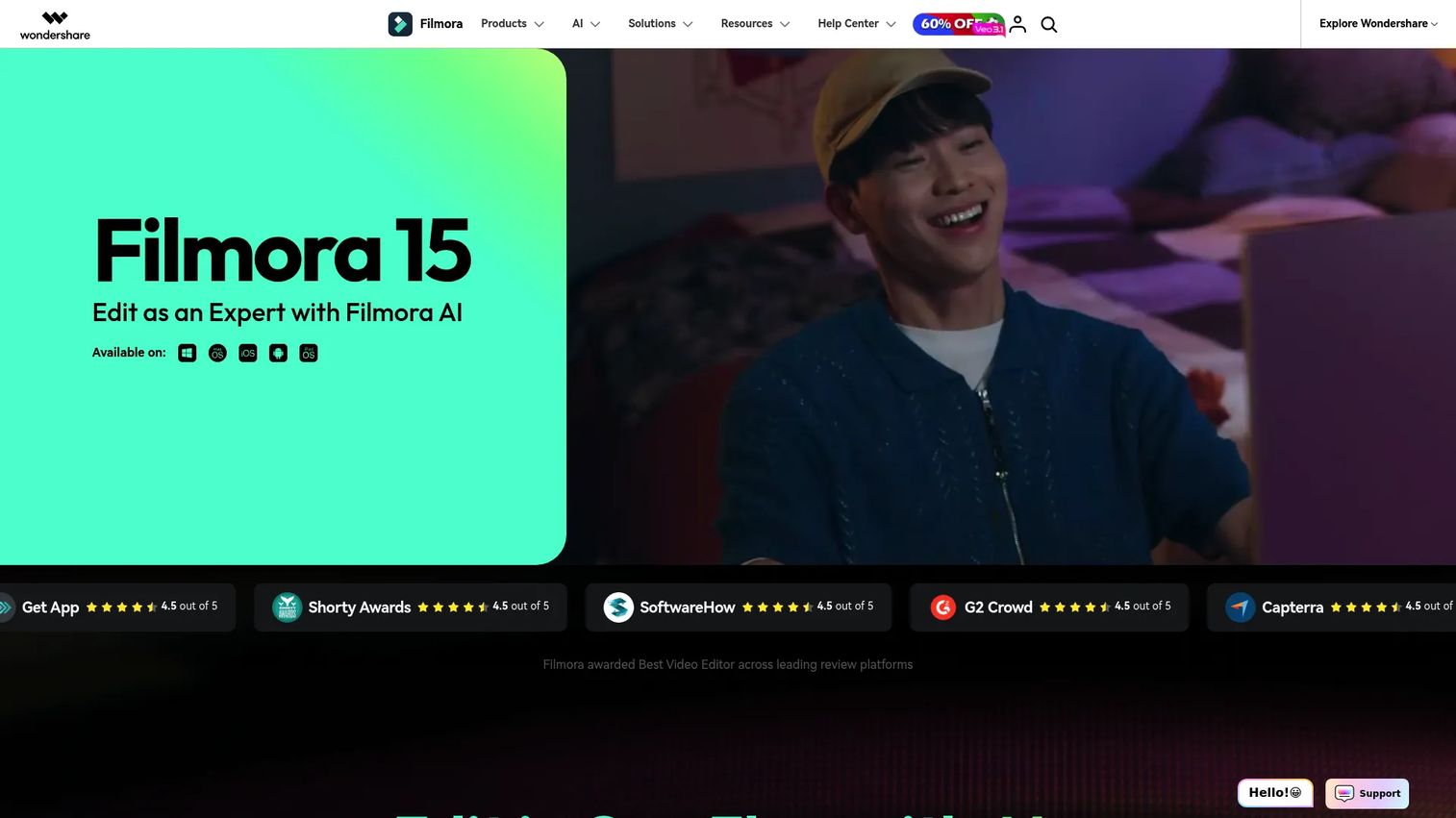
Wondershare Filmora is AI-powered video editing software built for creators and teams who want a simple editor that still produces polished results. The interface is beginner-friendly, but the output ceiling is high enough for semi-pro campaign work. If you want content velocity without a training curve, Filmora is one of the easiest ways to get there.
Best for: Beginners and fast-turn creators who want an approachable editor with AI-assisted workflows and clean, watermark-free exports.
Key strengths
- Watermark-free export: Publish finished clips without a branding overlay you did not choose.
- AI features: Editing, subtitles, background removal, text-to-speech, and AI copywriting to cut manual work.
- Advanced editing tools: Motion tracking, keyframe animation, and color controls when you need more than the basics.
Why choose Wondershare Filmora: It is the editor to pick when speed and simplicity matter more than deep control. The template-driven, AI-assisted workflow means you can go from raw footage to a shareable clip fast, which is exactly what a lean marketing team needs for social and lifecycle content. When you eventually want more precision, the advanced tools are there.
Wondershare Filmora pricing: The monthly plan starts at US$19.99, billed monthly with the option to cancel anytime. An annual plan is US$49.99 per year, and a perpetual plan is a one-time US$79.99. A free plan is available so you can try the workflow first. G2 reviewers rate it 4.4/5.
3. Movavi Video Editor
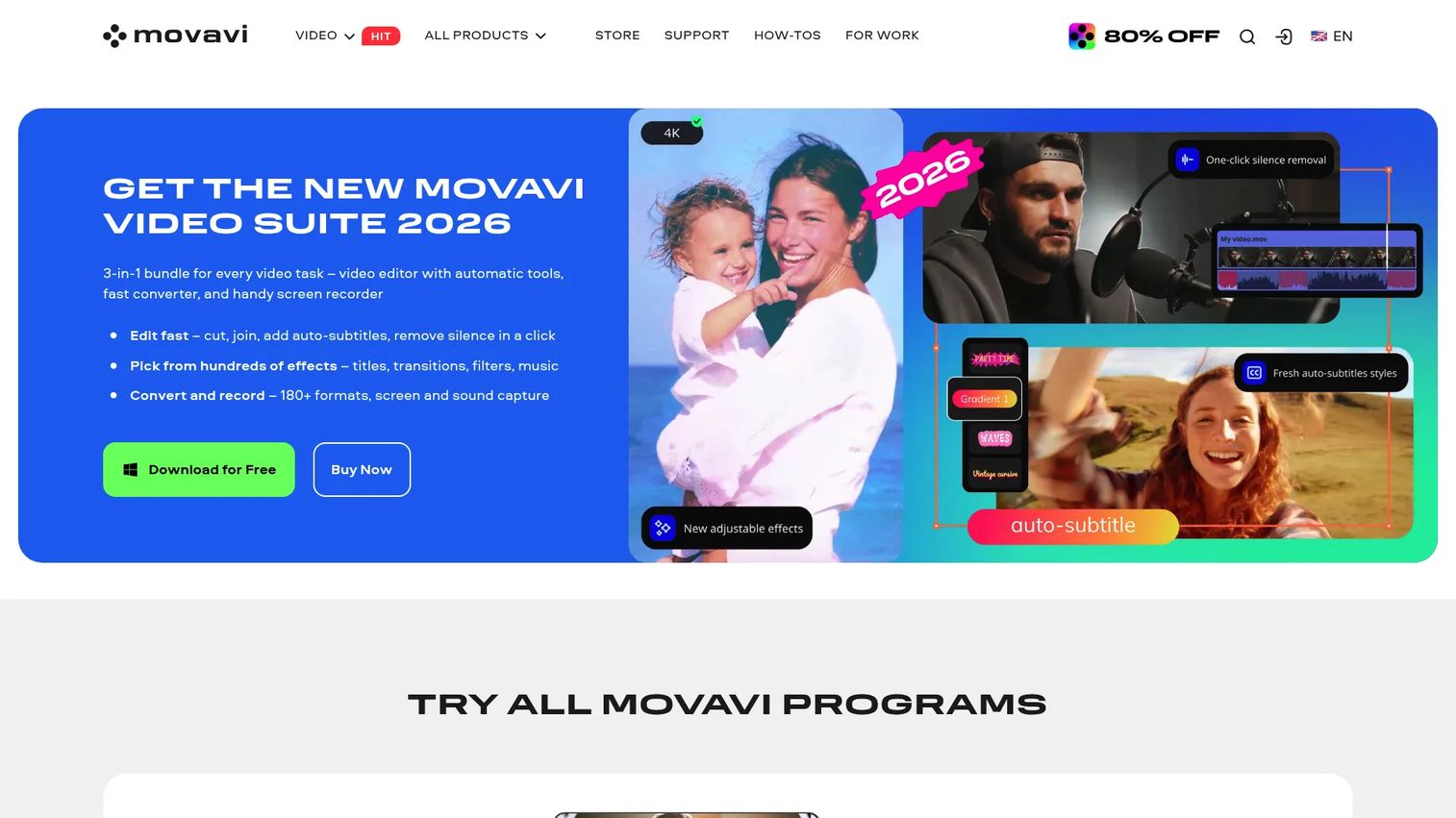
Movavi Video Editor is beginner-friendly video editing software built around drag-and-drop simplicity. You can set up a project, drop in clips, and start cutting within minutes, with AI tools handling the tedious cleanup. For marketers repurposing content quickly, that low-friction start is the main draw.
Best for: Individuals and small teams who want simple, fast editing with AI-assisted cleanup and a shallow learning curve.
Key strengths
- Core timeline editing: Cut, crop, trim, and join clips with a straightforward, forgiving workflow.
- One-click AI tools: Auto subtitles and noise removal that clean up footage without manual effort.
- Effects and titles: Hundreds of effects, transitions, titles, and overlays to dress up a clip fast.
Why choose Movavi Video Editor: Pick it when you want the shortest path from raw footage to a finished clip. It does not try to be a pro suite, and that focus is the point: fast setup, easy AI cleanup, and enough effects to make repurposed content look intentional. It fits marketers who edit occasionally and do not want to relearn a complex tool each time.
Movavi Video Editor pricing: The Video Editor plan is $19.95 for a one-month subscription. Video Editor Plus is available as a lifetime license, shown at a discounted $69.95. A free trial lets you test the editor before buying. G2 reviewers rate it 4.7/5, one of the highest scores on this list.
4. CapCut
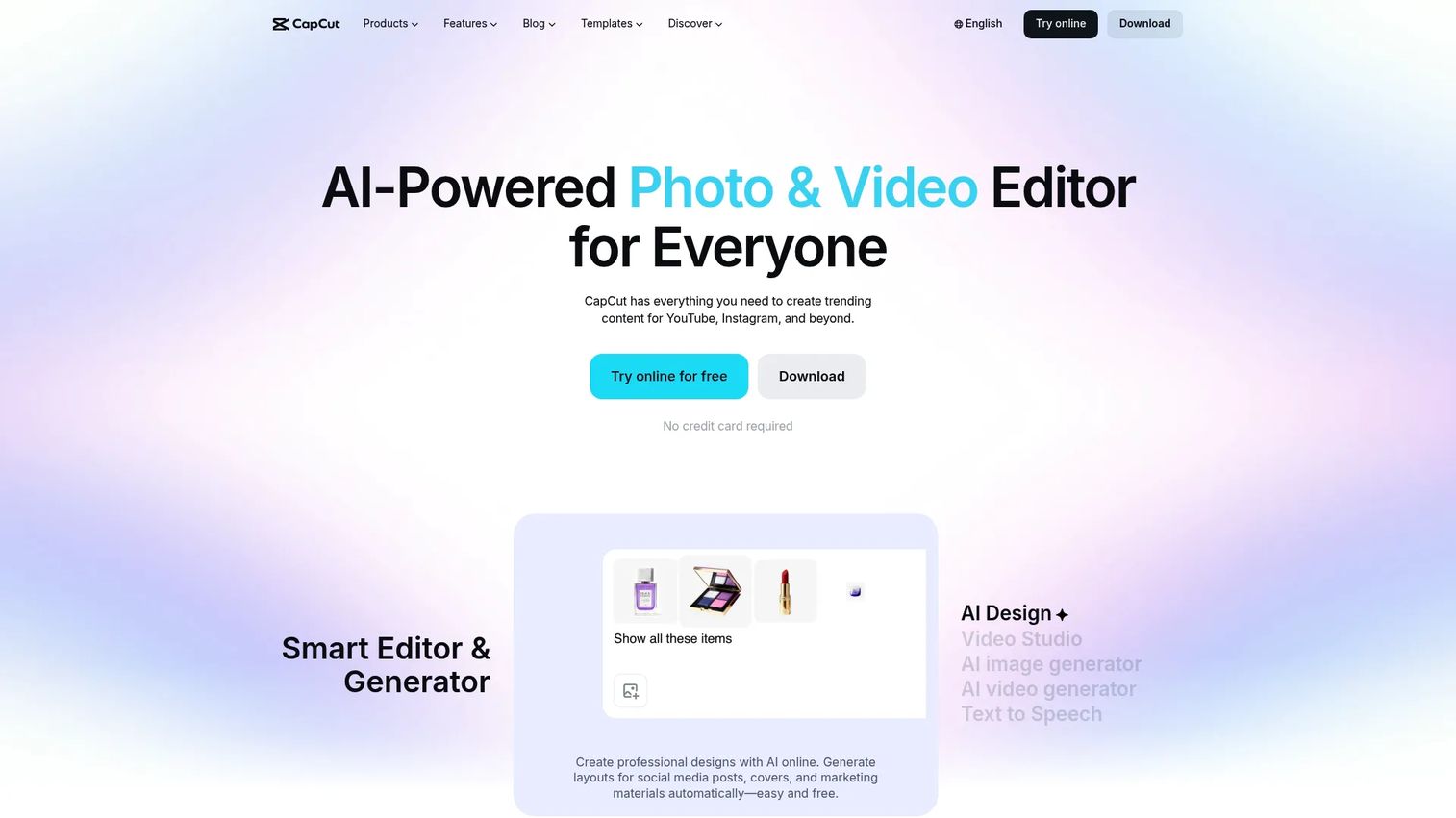
CapCut is an AI-powered video editor for web, desktop, and mobile, built for the speed of short-form content. It is the tool marketers reach for when they need a social clip out the door in minutes, with captions, transitions, and effects baked in. The free online editor requires no credit card, which makes it a low-risk starting point.
Best for: Creators and teams producing short-form, platform-native social videos quickly.
Key strengths
- Free online editor: A no-cost MP4 and video editor accessible from the browser.
- Social-ready assets: Closed captions, transitions, stickers, and filters for platform-native content.
- Pro AI and collaboration: Advanced AI tools, team collaboration, and cloud storage on the Pro plan.
Why choose CapCut: It is purpose-built for the social-first, high-volume workflow that eats up so much of a marketer's week. The web, desktop, and mobile availability means you can edit wherever the work lands, and the AI-assisted tools speed up captioning and cleanup. For fast content production against a content calendar, it is hard to beat as a lightweight, free-to-start option.
CapCut pricing: CapCut offers a free online editor with no credit card required, plus Standard and Pro plans that add advanced AI tools, collaboration, and cloud storage. Public numeric pricing for the paid tiers is set on CapCut's plan pages. The closest CapCut-branded G2 rating is 4.0/5.
5. Adobe Premiere Pro
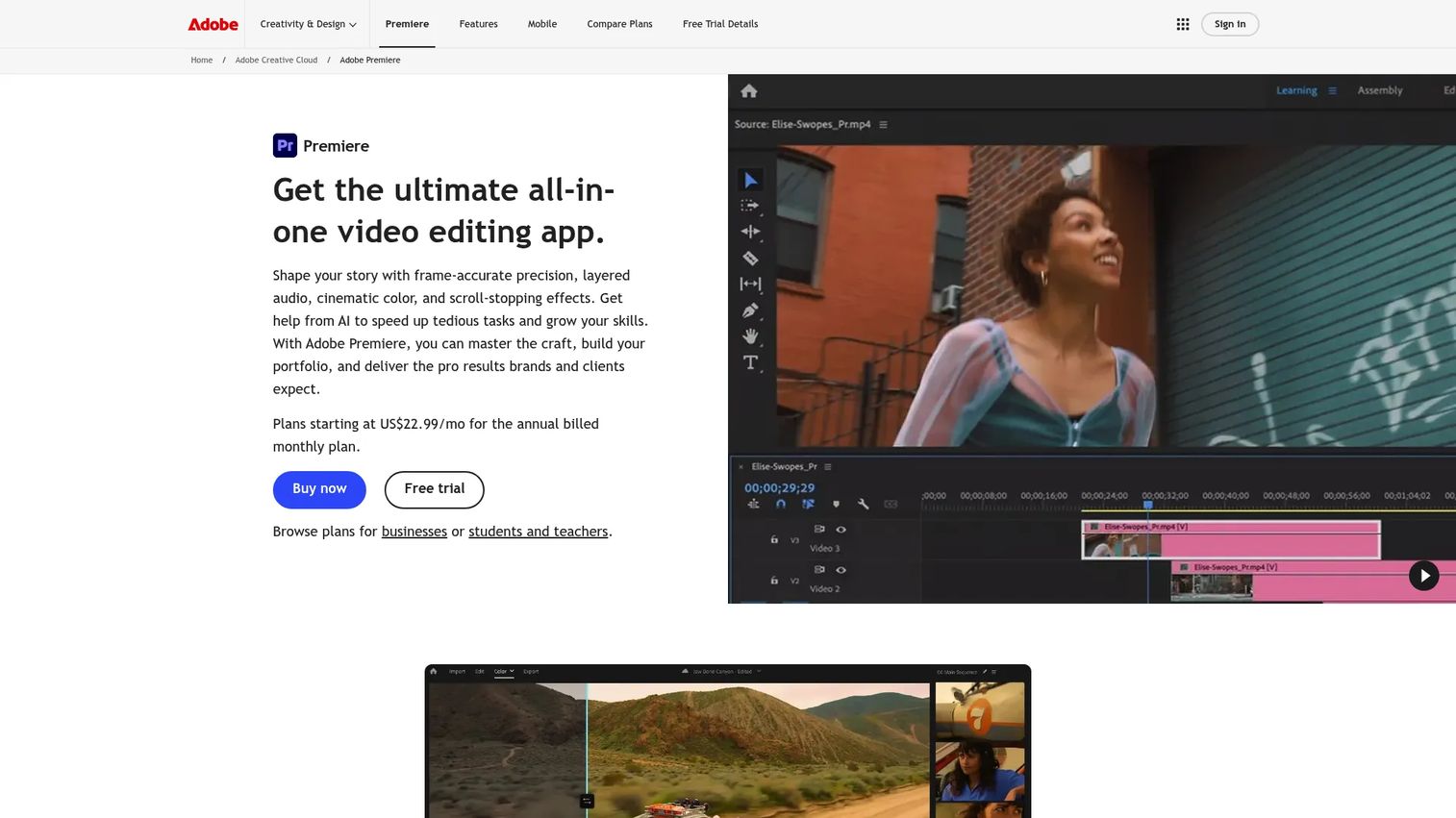
Adobe Premiere Pro is the pro-grade standard for teams that need deep control over every frame. It offers a powerful timeline, extensive color and audio tools, speech-to-text captions, and integration with the wider Adobe ecosystem. For a marketing team with editing expertise and high production standards, it is the tool that scales with ambition.
Best for: Teams and creators who need professional, Adobe-integrated video editing and deep timeline control.
Key strengths
- Timeline and trim control: Precise editing, trimming, and layered timeline management for complex projects.
- Color grading: Full color correction and grading tools to match brand and cinematic looks.
- Audio and AI: Audio mixing, speech-to-text captions, and AI features that speed up production.
Why choose Adobe Premiere Pro: Choose it when your team already lives in Creative Cloud or when your video work demands professional depth, plugins, and collaboration. It is honest to say the learning curve is real, so a solo marketer editing occasional social clips may find it more than they need. But for teams producing polished, high-volume video, the control and ecosystem pay for themselves.
Adobe Premiere Pro pricing: The Premiere-only plan is US$22.99 per month on an annual, billed-monthly basis. Creative Cloud Pro is US$69.99 per month, with a student and teacher plan at US$19.99 per month. Team plans start at US$37.99 per month per license. There is no free tier. G2 reviewers rate it 4.5/5.
6. DaVinci Resolve
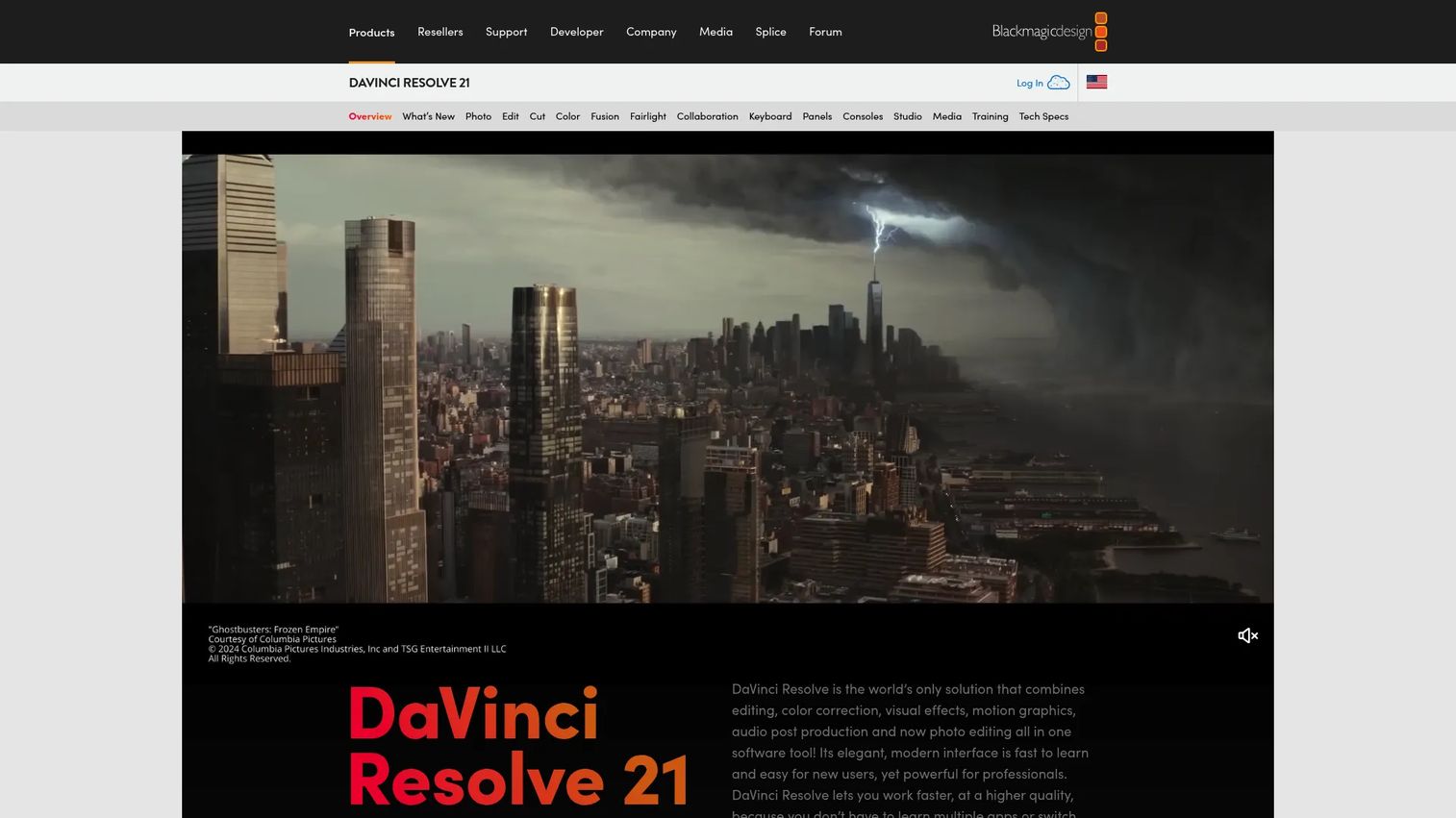
DaVinci Resolve from Blackmagic Design combines editing, color, VFX, motion graphics, and audio post-production in one application. It is best known for industry-grade color grading, and the fact that a genuinely capable free version exists makes it one of the strongest entry points in professional video editing. That free tier is why so many creators start here.
Best for: Teams and solo creators who need pro-grade editing and color tools in one package and are willing to invest learning time.
Key strengths
- All-in-one post: Editing, color, VFX, motion graphics, and audio in a single app.
- Free full version: Multi-user collaboration and HDR grading in the free download.
- Studio upgrades: AI Neural Engine, Resolve FX, noise reduction, and advanced HDR grading in the paid version.
Why choose DaVinci Resolve: Pick it when color and finishing quality matter, or when you want a serious free editor without a subscription. The learning curve is steeper than a beginner tool, and that is a fair trade for the control you get. Marketers producing high-end launch films or brand videos get professional grading here at a price that is hard to argue with.
DaVinci Resolve pricing: The full DaVinci Resolve download is free. DaVinci Resolve Studio is a one-time $295 purchase that adds the AI Neural Engine, Resolve FX, and advanced HDR grading. There is no subscription. G2 reviewers rate it 4.7/5.
7. Apple Final Cut Pro
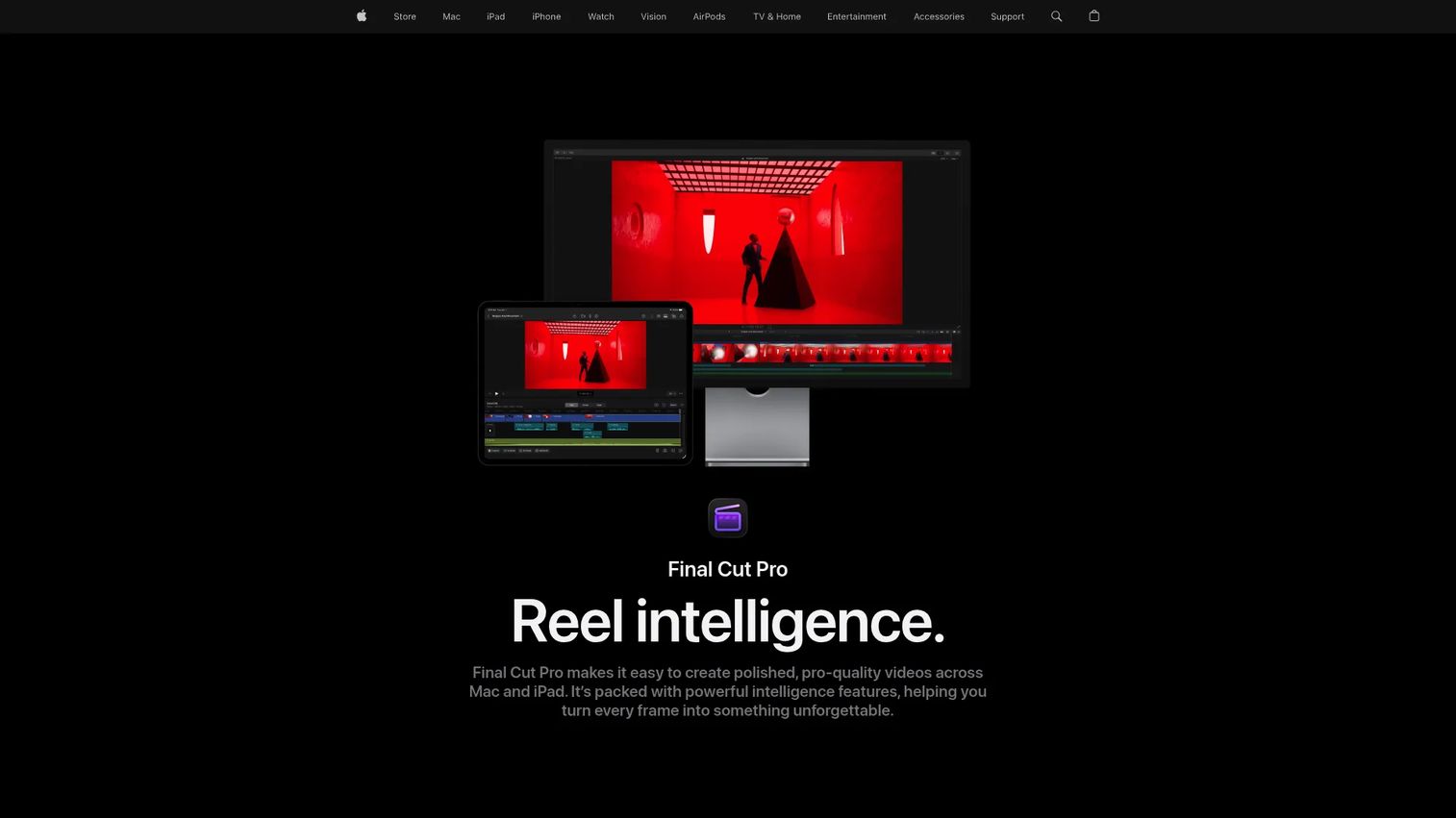
Apple Final Cut Pro is professional video editing software for Mac and iPad, built for speed and a polished, Apple-native workflow. Its Magnetic Timeline, AI captions, and color tools make it a favorite for creators already on Apple hardware. If your team runs on Macs, this is the pro editor that feels at home.
Best for: Mac and iPad creators who want pro-grade editing with fast, Apple-native workflows.
Key strengths
- Magnetic Timeline: Editing that keeps clips organized and speeds up arranging and trimming.
- AI tools: AI captions and masking that cut manual cleanup time.
- Color grading: Color wheels, curves, and HDR grading for finished, brand-ready output.
Why choose Apple Final Cut Pro: Choose it if you are on a Mac and want professional editing that runs fast without the friction of a subscription. The one caveat is platform: it is Mac and iPad only, so a mixed or Windows team should look elsewhere. For Apple-based creators, the speed, organization, and export workflow are hard to match.
Apple Final Cut Pro pricing: Final Cut Pro is a one-time $299.99 Mac purchase. It is also included in Apple Creator Studio, which offers a 30-day free trial and then costs $12.99 per month or $129 per year. There is no standalone free tier.
8. Pinnacle Studio
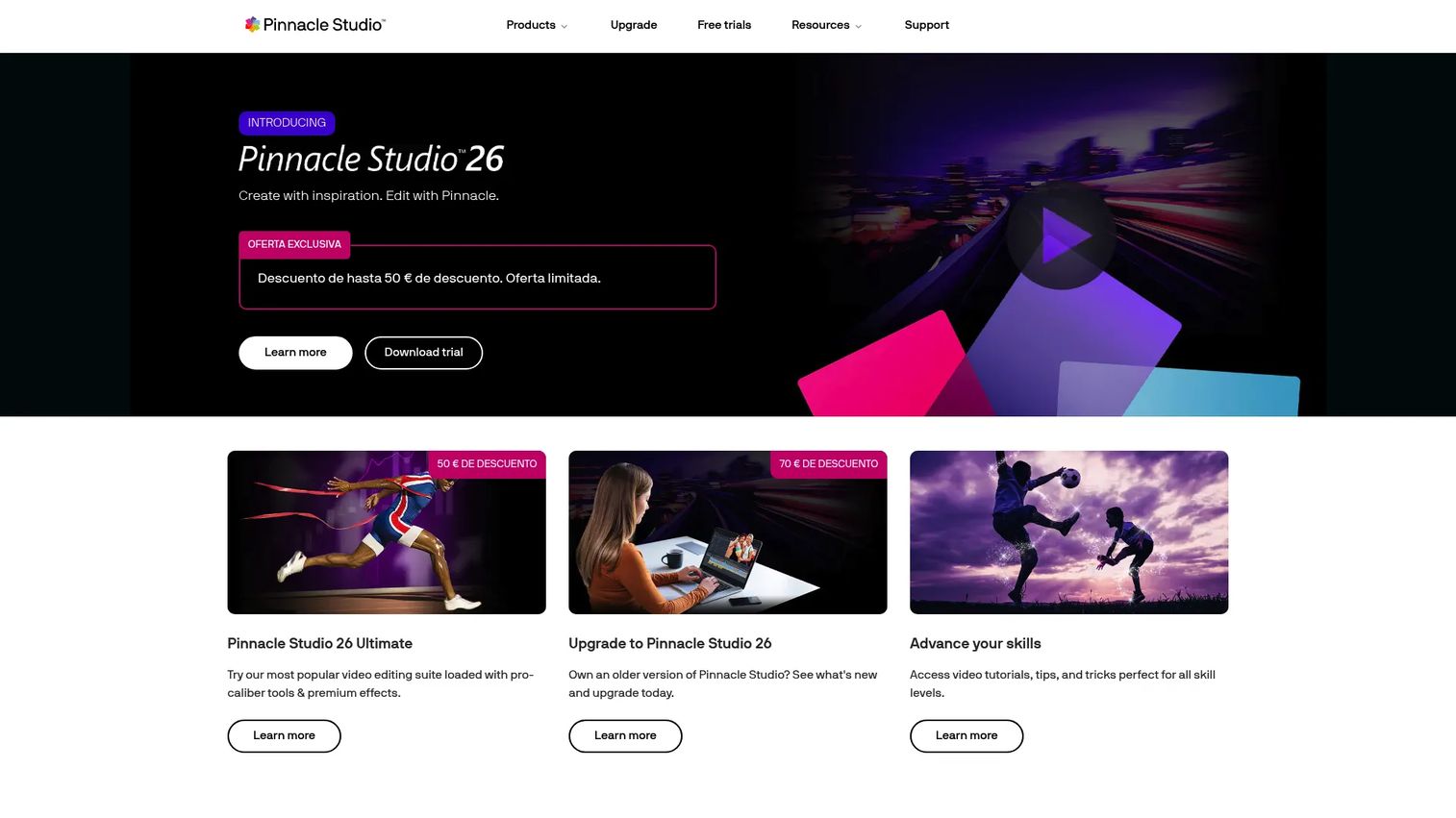
Pinnacle Studio is video editing software for Windows that offers a more advanced editing environment than most beginner tools. It brings timeline editing, effects, color tools, screen recording, and multi-camera support into one prosumer package. For marketers who have outgrown entry-level editors, it adds real depth.
Best for: Windows users who want a feature-rich consumer or prosumer editor with more precision than beginner tools offer.
Key strengths
- Screen recording: Capture on-screen activity for tutorials, demos, and explainers.
- Multi-camera editing: Sync and switch between angles for interviews and events.
- Masking and motion tracking: Video masking and motion tracking for more advanced effects.
Why choose Pinnacle Studio: Choose it when you need more control than a beginner editor provides but are not ready for a full pro suite. There is a learning curve that comes with the added depth, which is a fair trade for the precision and features you gain. It suits Windows marketers who edit regularly and want multi-camera and motion tracking without switching to a subscription platform.
Pinnacle Studio pricing: Pinnacle Studio is sold in Studio, Studio Ultimate, and Ultimate Bundle editions. A 15-day free trial is available so you can test the editor before buying. Check the current product page for edition pricing in your region.
9. Adobe Premiere Elements
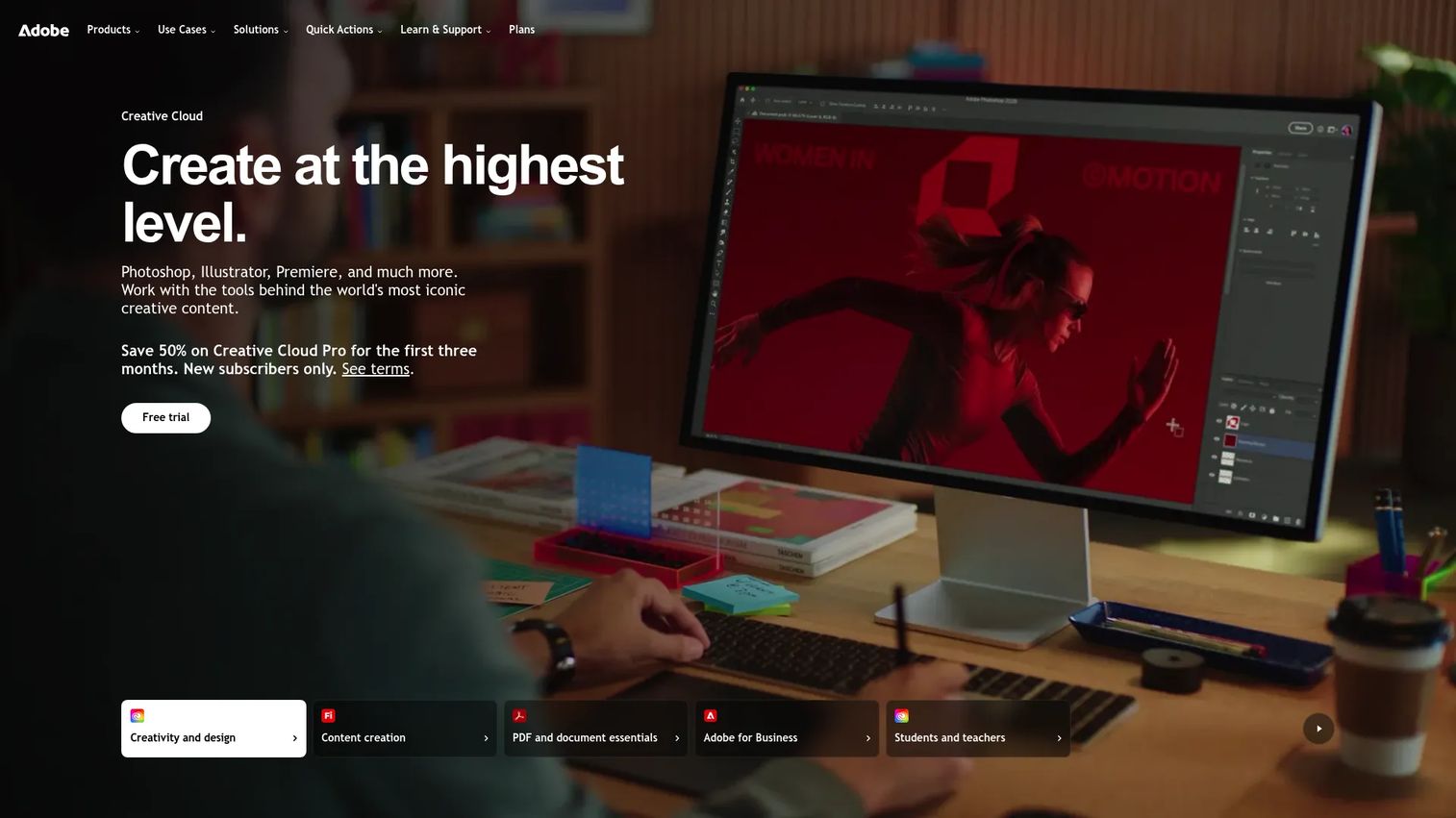
Adobe Premiere Elements is consumer video editing software with AI and guided tools for quick editing, creation, and sharing. It offers a simpler Adobe experience with multiple UI levels, so beginners can follow guided edits while more confident users step into expert mode. For marketers who want Adobe quality without the subscription, it is an approachable entry point.
Best for: Individuals who want simple, guided video editing without a subscription.
Key strengths
- Guided edits: Step-by-step workflows that walk beginners through common edits.
- Automatic Highlight Reels: Auto-generated reels that turn raw footage into a quick edit.
- Freehand crop: Flexible cropping for reframing and cleanup.
Why choose Adobe Premiere Elements: Choose it when you want the polish of Adobe editing with a beginner-to-intermediate ramp and a one-time purchase instead of an ongoing subscription. The multi-level UI means it grows with you as your skills improve. It fits home-studio content, simple marketing clips, and anyone who wants Adobe familiarity without committing to Premiere Pro.
Adobe Premiere Elements pricing: Premiere Elements 2026 is a one-time US$99.99 purchase on a three-year term license. A bundle with Photoshop Elements is US$149.99, and upgrade or student and teacher pricing is US$79.99. A free full-featured 7-day trial is available. There is no ongoing free tier.
10. Magix Video Pro X
Magix Video Pro X is professional video editing software from MAGIX for precision editing, color, and audio work on Windows. It is a capable prosumer-to-pro editor for users who want advanced workflow control without a subscription. If you have not heard of it, think of it as a serious Windows desktop editor with strong technical features.
Best for: Creators who want a Windows desktop editor with pro-style editing tools and no subscription.
Key strengths
- Multicam editing: Sync and cut up to nine camera angles for complex projects.
- HDR10 support: BT.2020 and 10-bit HEVC for high dynamic range output.
- AI voiceovers and subtitles: AI-generated narration and captions to speed up production.
Why choose Magix Video Pro X: Choose it when you want advanced editing depth, multicam, and HDR export on Windows without paying a recurring fee. The technical feature set rivals subscription editors, and the one-time license appeals to teams that prefer owning software. It fits prosumer marketers producing polished, technically demanding video who want long-term control over their toolchain.
Magix Video Pro X pricing: MAGIX lists two editions. Classic is $149.99 for a new license or $89.99 as an upgrade. Ultimate is $169.99 for a new license or $139.99 as an upgrade. All are one-time purchases, and a free trial is available. G2 reviewers rate it 4.0/5.
Considerations before buying video editing software
Before you commit to any editor, run through these criteria against your actual workload. The goal is a tool you will use, not the one with the longest feature list.
Ease of use
Match the learning curve to how often you edit. If you produce video weekly, a beginner tool like Movavi or Filmora keeps you shipping. If you edit occasionally, a guided experience like Premiere Elements avoids relearning a complex interface every time. Overbuying on complexity is the fastest way to a tool that sits unused.
Performance and stability
Timeline responsiveness and render speed decide how many clips you can ship in a day. Test how the software handles your typical file sizes and resolution on your actual machine before you buy. A free trial or free tier is the honest way to check this.
Export formats and resolution support
Confirm the editor exports the aspect ratios, resolutions, and codecs your channels need. Vertical, square, and horizontal presets matter for social. 4K and HDR matter for launch films. Missing an export preset you rely on is a daily friction you will feel immediately.
AI tools and automation
AI captions, background removal, and auto highlight reels cut real time from repetitive work. Filmora, CapCut, and PowerDirector lean heavily into AI-assisted editing, which is a genuine speed advantage for high-volume content. Weigh how much of your work these features actually automate.
Pricing and upgrade path
Decide whether a subscription or a one-time license fits your budget and how long you plan to use the tool. Free video editing software like DaVinci Resolve or CapCut lets you start at zero. Perpetual licenses from PowerDirector, Filmora, or Magix suit teams that dislike recurring fees.
Platform compatibility
Confirm Mac and Windows support before committing. Final Cut Pro is Mac and iPad only. Pinnacle Studio and Magix Video Pro X are Windows-focused. Cross-platform tools like Premiere Pro, DaVinci Resolve, and CapCut give mixed teams flexibility.
Conclusion
The best video editing software is the one that matches your daily workload, not the one with the deepest feature set. For most marketers, CyberLink PowerDirector is the strongest all-round pick: fast, AI-assisted, and flexible on pricing. Wondershare Filmora and Movavi Video Editor are the easiest ways for beginners to ship polished clips quickly. CapCut is the go-to for free, social-first editing.
If you need professional depth, Adobe Premiere Pro leads for team production, DaVinci Resolve owns color and finishing with a genuinely capable free version, and Apple Final Cut Pro is the top choice for Mac users. Pinnacle Studio and Magix Video Pro X give Windows prosumers real control without a subscription, and Adobe Premiere Elements offers guided Adobe editing for a one-time price.
Decide with a simple lens: speed, ease, export needs, and platform fit. Then start with the tool that fits how you work today. Almost every option here has a free trial or free tier, so test your real workflow before you pay, and avoid overbuying for a future you may never reach.
FAQs
For most beginners, Wondershare Filmora and Movavi Video Editor are the easiest, thanks to simple interfaces and AI-assisted cleanup. If you want a free, browser-based start, CapCut is very approachable. On a Mac, Apple iMovie or Adobe Premiere Elements offer guided, low-friction editing.
CapCut is a strong free option for fast social clips across web, desktop, and mobile. DaVinci Resolve's free version is the most powerful, offering pro-grade editing and color at no cost. On a Mac, iMovie is a solid free starting point. The best free video editor depends on your platform and how much complexity you want to take on.
CapCut, Wondershare Filmora, and CyberLink PowerDirector are the top picks for fast social workflows. They handle captions, templates, aspect-ratio resizing, and quick exports well, which is exactly what short-form and platform-native content demands. CapCut is especially strong for high-volume, versioned clips.
For Windows users, CyberLink PowerDirector and Wondershare Filmora balance speed and ease, while Adobe Premiere Pro and DaVinci Resolve offer professional depth. Pinnacle Studio and Magix Video Pro X are strong prosumer options with multi-camera and HDR support. All run on Windows with full workflow depth.
Apple Final Cut Pro is the standout for Mac, with fast Mac-native performance and a polished professional workflow. iMovie is the best free Mac starting point for beginners. DaVinci Resolve also runs well on Mac and adds industry-grade color grading. Your choice comes down to how much editing depth you need.
It depends on your volume, team expertise, and editing complexity. If you produce polished, high-volume video and already use Creative Cloud, Premiere Pro's depth and ecosystem are worth it. If you mostly cut simple social clips, a lighter tool like PowerDirector, Filmora, or CapCut will get you there faster with less overhead.
DaVinci Resolve's free version is powerful, but it has a steeper learning curve than beginner editors like Filmora or Movavi. It is best for beginners who are willing to invest time to learn a pro-grade tool, especially if color grading matters to their work. If you want to ship fast today, start simpler.
Focus on six things: ease of use, export formats and resolution support, performance on your machine, pricing and upgrade path, AI tools, and platform compatibility across Mac and Windows. Match those to your actual daily workload rather than a hypothetical future one, and use a free trial to confirm the fit before you pay.