Your developers are juggling an editor in one window, a terminal in another, a debugger somewhere else, and a repository in a fourth tab. Every context switch costs time. Product managers feel it downstream: Slower validation cycles, inconsistent onboarding for new engineers, and release risk that shows up in sprint reviews rather than sprint planning.
An integrated development environment (IDE) solves this by pulling code editing, execution, debugging, testing, and source control into a single coordinated workspace. The global IDE market is projected to grow from $2.44 billion in 2025 to $2.82 billion in 2026 (Research and Markets, 2026), reflecting how central these tools have become to delivery velocity. Choosing the right one means matching the tool to the team's language stack, release cadence, onboarding model, and governance requirements.
The right integrated development environment is not the one with the most features. It is the one that fits the team's languages, release cadence, onboarding needs, and maintenance capacity.
What's inside
This guide covers 14 tools evaluated for language support, debugging depth, cloud or local deployment, collaboration, and onboarding effort.
- Who it's for: Product managers, engineering leads, and technical founders evaluating development tooling
- Selection criteria: Programming language and framework support; debugging, testing, and source control; cloud versus local deployment; onboarding and maintenance overhead; pricing and governance controls
TL;DR
- Best for flexible multilingual development: Visual Studio Code, used by 75.9% of surveyed developers (Stack Overflow, 2025)
- Best for Java and Kotlin teams: IntelliJ IDEA, with deep code intelligence and refactoring support
- Best for Python development: PyCharm for applications; Spyder or JupyterLab for data workflows
- Best for Apple platforms: Xcode, the only path to App Store distribution
- Best for cloud-based repository work: GitHub Codespaces, with reproducible dev containers tied to your repo
What is an integrated development environment?
An integrated development environment is software that combines code editing, project navigation, code execution, debugging, testing, and source control into a coordinated development workspace. IDE stands for integrated development environment. The term describes what these tools do: They integrate functions that developers would otherwise handle across separate tools.
Core IDE features
- Code editor: Write and organize source files with syntax awareness
- Syntax highlighting: Make code structure easier to scan at speed
- Code completion: Suggest functions, parameters, and variables as you type
- Refactoring: Change code structure while preserving behavior and reducing manual edits
- Debugger: Inspect variables and step through execution line by line
- Build and run tools: Compile, interpret, or execute code inside the project context
- Testing tools: Discover and run unit, integration, and end-to-end tests
- Source control integration: Review changes, manage branches, and handle pull requests
- Extensions and plugins: Add language, framework, and workflow support as needed
- AI-assisted development: Generate, explain, test, or refactor code through built-in or plugin-based models
Local, cloud, and browser-based IDEs
- Local IDE: Installed on a developer's machine, with full access to local files and runtimes
- Cloud based IDE: Runs in a managed environment that standardizes dependencies across the team
- Online IDE: Accessible through a browser, suited for collaboration, teaching, and quick experiments
- Specialized IDE: Designed around a specific language, platform, or workflow such as mobile development or data science
IDE versus text editor
| Capability | Integrated development environment | Text editor |
|---|---|---|
| Code editing | Included | Included |
| Debugging | Usually built in | Often requires extensions or external tools |
| Build and run workflows | Integrated | Usually configured separately |
| Testing | Integrated or extensible | Usually external or plugin-based |
| Source control | Built in or deeply integrated | Varies by tool |
| Best for | Structured software projects | Lightweight editing and flexible workflows |
The distinction matters for product managers: A team standardized on a full IDE reduces environment-specific defects and onboarding variation, while a well-configured text editor can cover many of the same bases at lower overhead.
When to use an integrated development environment
Standardize development across a team
When multiple engineers each configure their own environments, onboarding takes longer and environment-specific defects creep into the backlog. A shared IDE configuration, covering workspace settings, extensions, runtime versions, and source control conventions, reduces that variation. For product managers, the payoff is faster ramp time for new engineers and fewer "works on my machine" issues surfacing at release.
Debug and test complex applications
Projects with multiple services, layered dependencies, and parallel test suites are where IDE debugging tools earn their keep. Breakpoints, stack traces, integrated test runners, and project-wide search compress the feedback loop on defects. The faster your team can diagnose and fix issues, the more predictable your release cadence becomes.
Work in a browser or remote environment
Cloud and online IDEs make sense for distributed teams, short-lived prototypes, classroom environments, and scenarios where reproducible dependencies matter more than hardware access. GitHub Codespaces and Replit, for example, let a new engineer start contributing within minutes rather than hours. Local environments remain the stronger choice when teams need hardware access, offline capability, or deep operating system integration.
Integrated development environment comparison
The table below gives product managers a quick reference across language fit, key differentiator, pricing, and G2 rating.
| # | Product | Best for | Key differentiator | Pricing | G2 rating |
|---|---|---|---|---|---|
| 1 | Eclipse | Open-source Java and extensible projects | Plugin ecosystem via Eclipse Marketplace | Free | 4.3/5 |
| 2 | Visual Studio Code | Flexible multilingual development | Largest extension marketplace | Free | 4.7/5 |
| 3 | IntelliJ IDEA | Java and Kotlin teams | Deep code intelligence and refactoring | Free / paid | 4.6/5 |
| 4 | PyCharm | Python application development | Virtual environment and framework support | Free / $100/yr | 4.6/5 |
| 5 | Xcode | Apple platform development | Only IDE for App Store distribution | Free | 4.2/5 |
| 6 | GitHub Codespaces | Cloud-based repository development | Dev containers tied to GitHub repos | Free tier / usage-based | 4.6/5 |
| 7 | Microsoft Visual Studio | .NET and Windows development | Full-stack Windows and .NET toolchain | Free (Community) / paid | 4.5/5 |
| 8 | Android Studio | Android application development | Official Android SDK and emulator | Free | 4.5/5 |
| 9 | AWS Cloud9 | AWS-centered cloud development | Direct AWS service and Lambda access | No added charge (existing customers) | 4.3/5 |
| 10 | Replit | Browser-based prototyping and AI coding | AI app generation from natural language | Free / $20/mo | 4.5/5 |
| 11 | CodeSandbox | Web development prototypes | Secure microVM sandboxes at scale | Free / $170/mo | 4.5/5 |
| 12 | NetBeans | Open-source Java development | Apache foundation; Maven and Gradle built in | Free | 4.2/5 |
| 13 | Spyder | Python data science workflows | Variable explorer and scientific console | Free | 4.4/5 |
| 14 | JupyterLab | Notebook-based data and research work | Multi-language notebook with rich outputs | Free | 4.5/5 |
Pricing and G2 ratings verified September 2026 from each vendor's official pricing page and G2 listing.
14 best integrated development environment tools for 2026
1. Eclipse
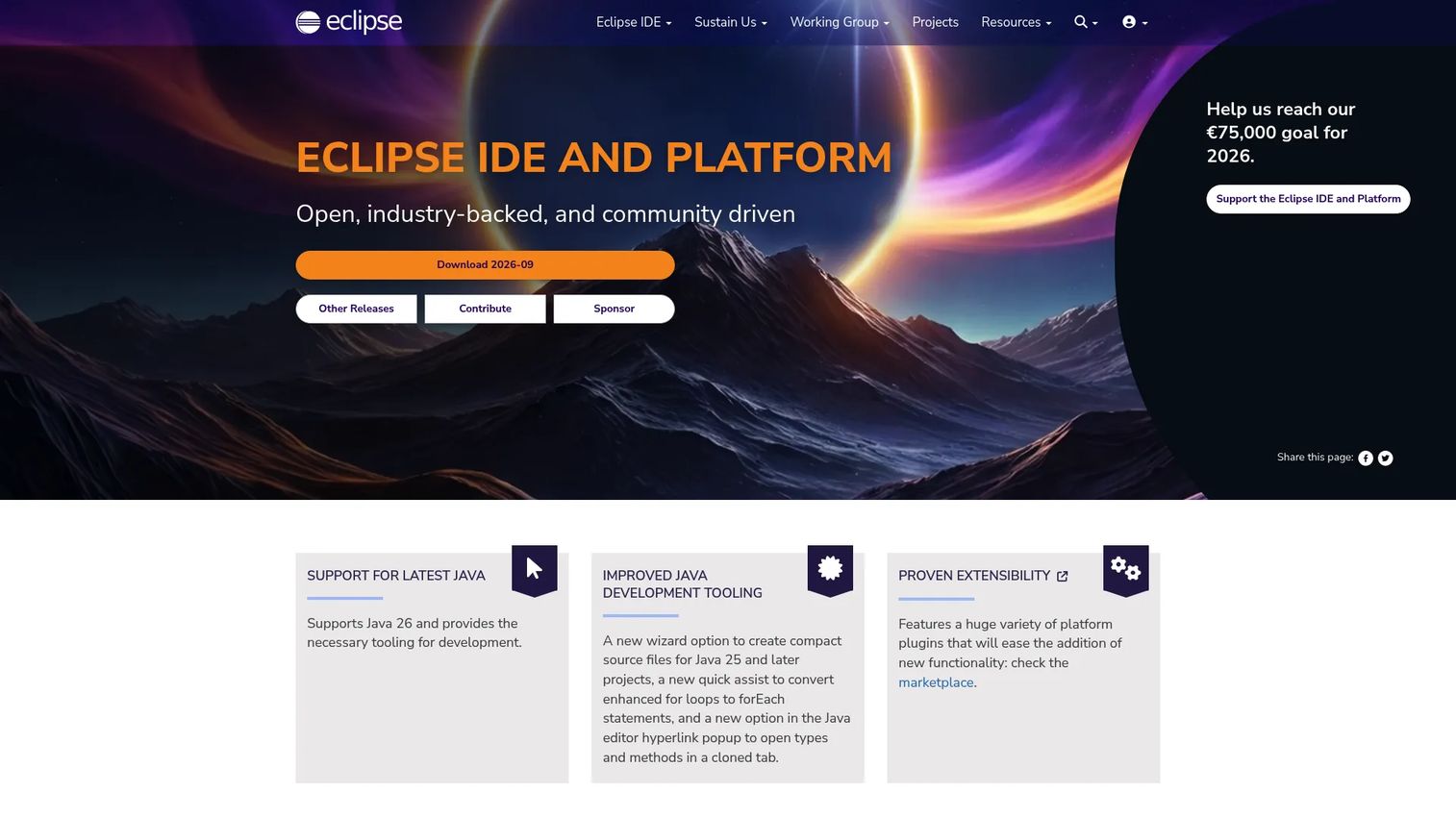
Eclipse IDE is a free, open-source development environment and platform built around an extensible plugin architecture. Originally focused on Java, it supports C, C++, and many other languages through the Eclipse Marketplace. Teams that want full control over their development configuration and are comfortable managing plugins will find it a capable foundation.
Best for: Java and C/C++ teams that prefer a configurable, open-source environment with no licensing cost.
Key features
- Java 26 support and core Java development tooling
- Extensible plugin ecosystem via Eclipse Marketplace
- Integrated build, run, and debugging tools
- Plug-in development tooling for Eclipse Platform itself
- Free and open source under Eclipse Public License 2.0
Why choose Eclipse: It gives teams a zero-cost starting point for Java development and the flexibility to compose their own toolchain. The tradeoff is configuration overhead: Shared plugin standards and workspace settings require upfront investment to maintain consistency across a team.
Eclipse pricing: Eclipse IDE is completely free with no paid tiers.
G2 rating: 4.3/5.
2. Visual Studio Code
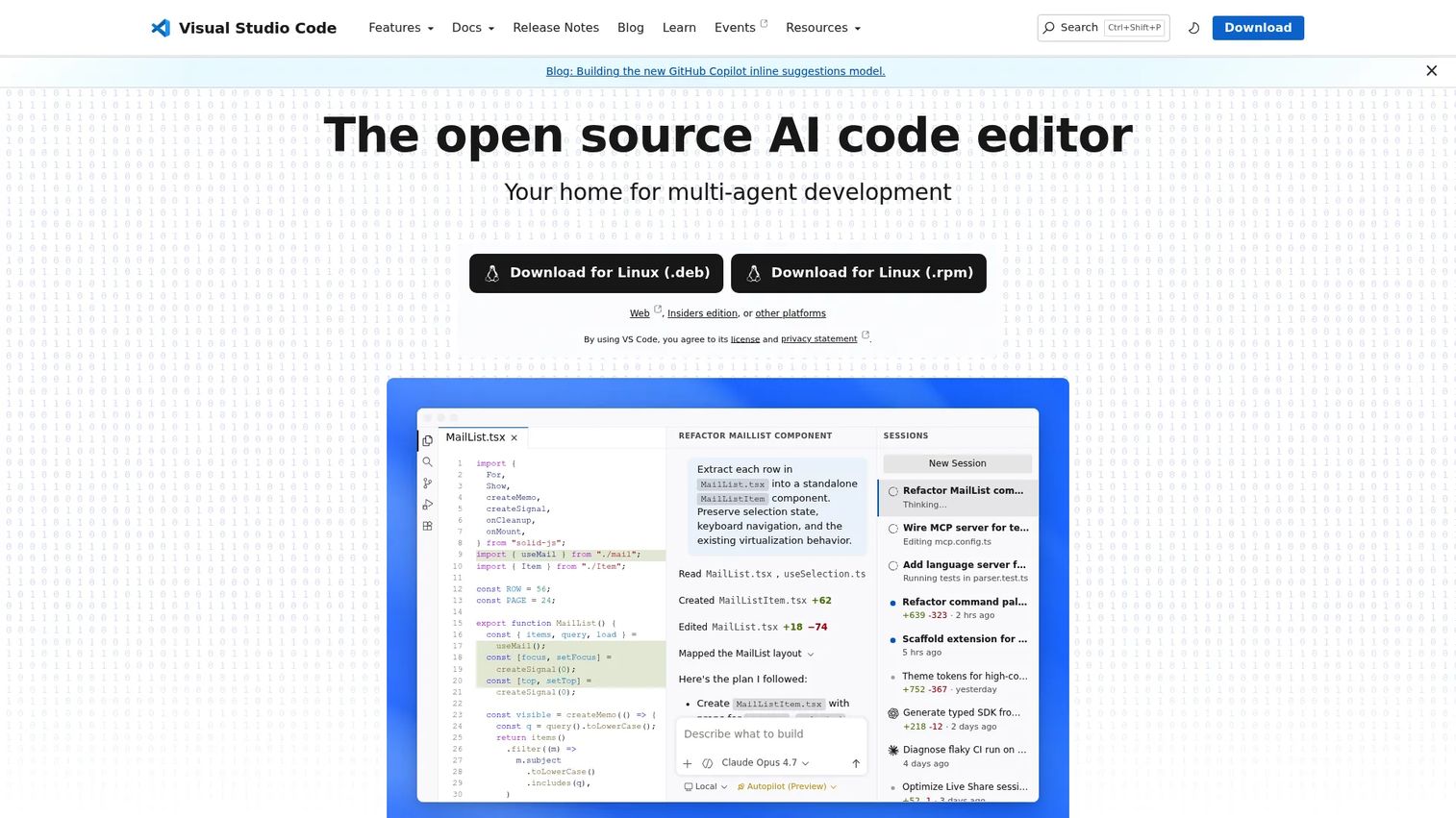
Visual Studio Code is a free, cross-platform source code editor with IDE capabilities delivered through extensions. It supports JavaScript, TypeScript, Python, Java, C#, Go, and dozens of other languages. The Visual Studio Marketplace hosts thousands of extensions covering linting, debugging, source control, testing, and AI assistance.
According to the Stack Overflow Developer Survey (2025), 75.9% of surveyed developers used VS Code, making it the most widely adopted development environment by a significant margin across 49,000+ responses from 177 countries.
Best for: Developers and teams needing a flexible editor that adapts to multiple languages and project types.
Key features
- IntelliSense code completion and code navigation
- Built-in Git source control and integrated terminal
- Integrated debugging and test support
- Cross-platform on Windows, macOS, and Linux
- Extensible via Visual Studio Marketplace
Why choose Visual Studio Code: Broad adoption across a team reduces context switching and makes onboarding documentation easier to standardize. Teams should define and govern an approved extension set; unconstrained extension sprawl can introduce inconsistency.
Visual Studio Code pricing: Free for private and commercial use.
G2 rating: 4.7/5.
3. IntelliJ IDEA
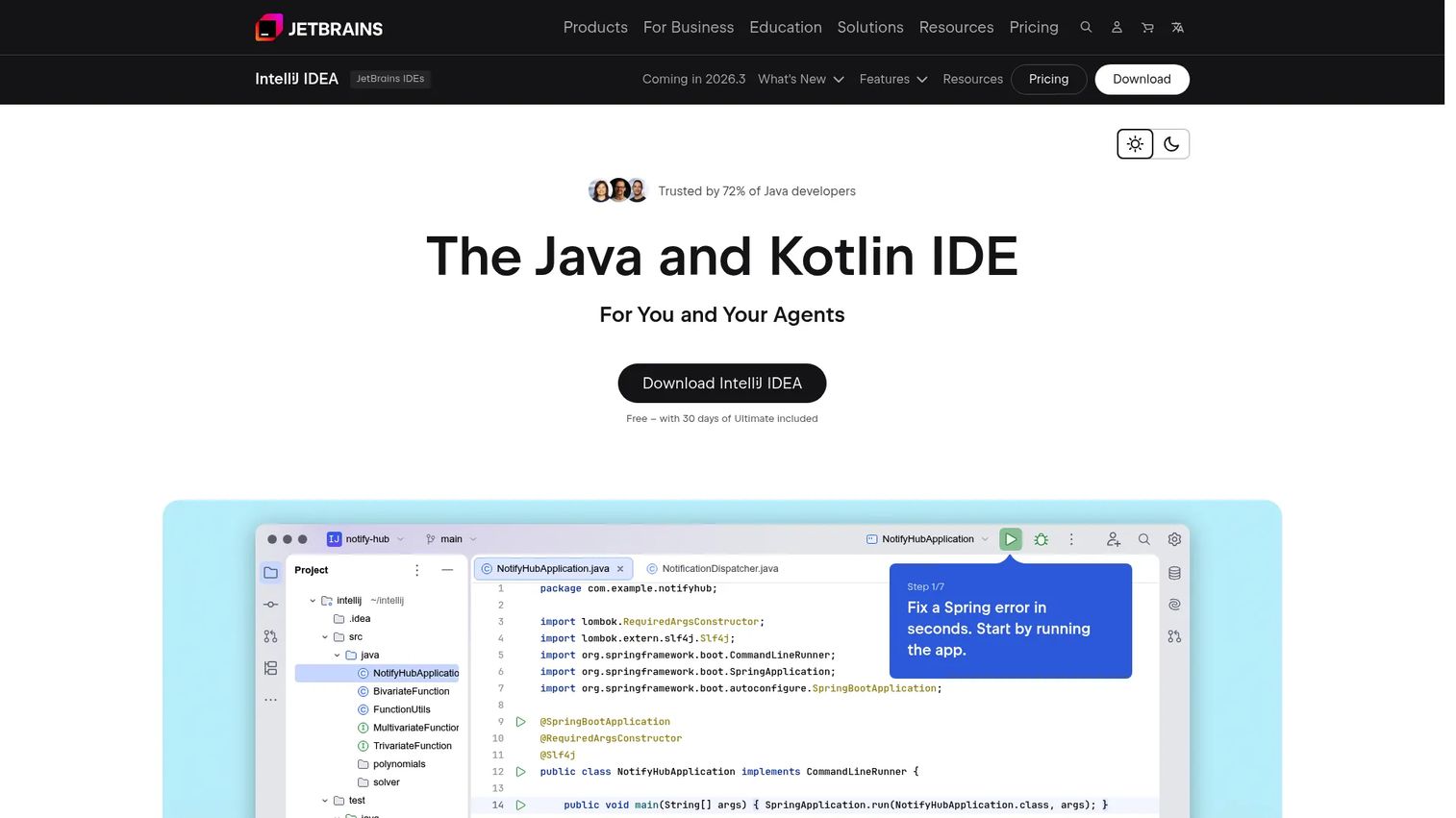
IntelliJ IDEA from JetBrains is purpose-built for Java and Kotlin development. It provides code intelligence, refactoring, navigation, and project analysis that go deeper than a general-purpose editor. Framework support covers Spring, JVM applications, databases, and HTTP clients, with a built-in profiler and debugger.
Best for: Professional Java and Kotlin teams building enterprise or Spring applications where developer navigation and refactoring speed affect delivery.
Key features
- Java and Kotlin support with deep code intelligence
- Advanced code navigation, refactoring, and inspections
- Built-in debugger, profiler, and terminal
- Database tools and HTTP client
- Git source control integration
Why choose IntelliJ IDEA: For large Java codebases, the navigation and refactoring tools pay back in velocity. The Community edition is free; Ultimate adds Spring, advanced database, AI features, and expanded framework support. Resource requirements are higher than a lightweight editor, so evaluate hardware standardization as part of the tooling decision.
IntelliJ IDEA pricing: The Community edition is free and includes 30 days of Ultimate access. Ultimate subscription pricing requires checking the JetBrains pricing page, where annual rates vary by license type.
G2 rating: 4.6/5.
4. PyCharm
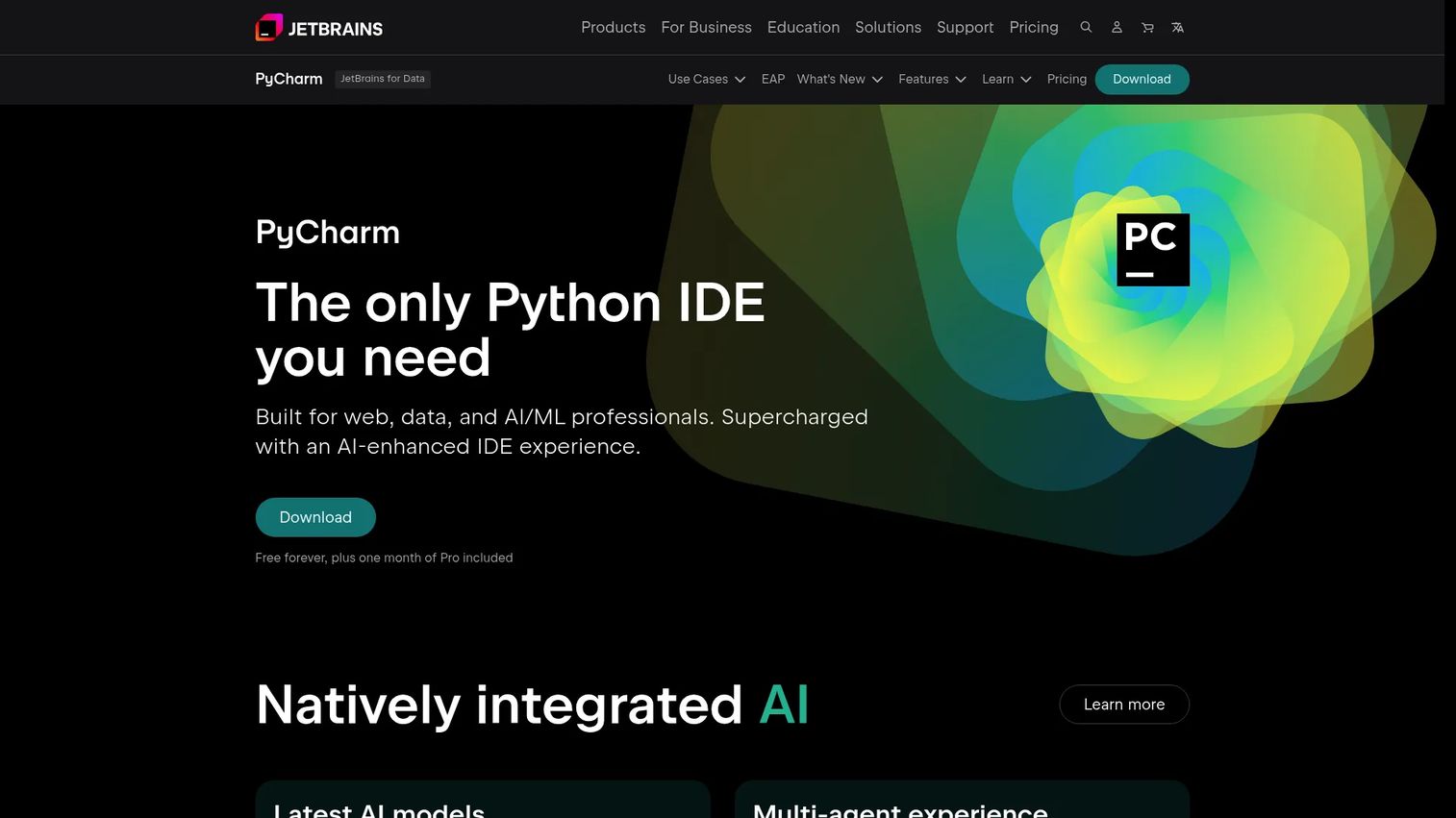
PyCharm is JetBrains' IDE built specifically for Python. It covers virtual environment management, package handling, debugging, testing, and profiling in one environment. Web framework support includes Django, Flask, and FastAPI. The IDE also integrates Jupyter notebook support for data-adjacent workflows.
Best for: Python application developers who need a complete IDE covering the testing, debugging, and virtual environment lifecycle.
Key features
- Python code completion, type hinting, and auto-imports
- Virtual environment management and package tools
- Integrated debugger and test runner
- Django, Flask, and FastAPI framework support
- Jupyter notebook integration
Why choose PyCharm: When Python is central to the product or data pipeline, PyCharm reduces the number of separate tools engineers need to configure. The Community edition covers core Python development at no cost; Pro adds data tools, remote development, and expanded framework support.
PyCharm pricing: The Community edition is free. PyCharm Pro starts at $100 per user for the first year, then $109 per user annually from year two onward.
G2 rating: 4.6/5.
5. Xcode
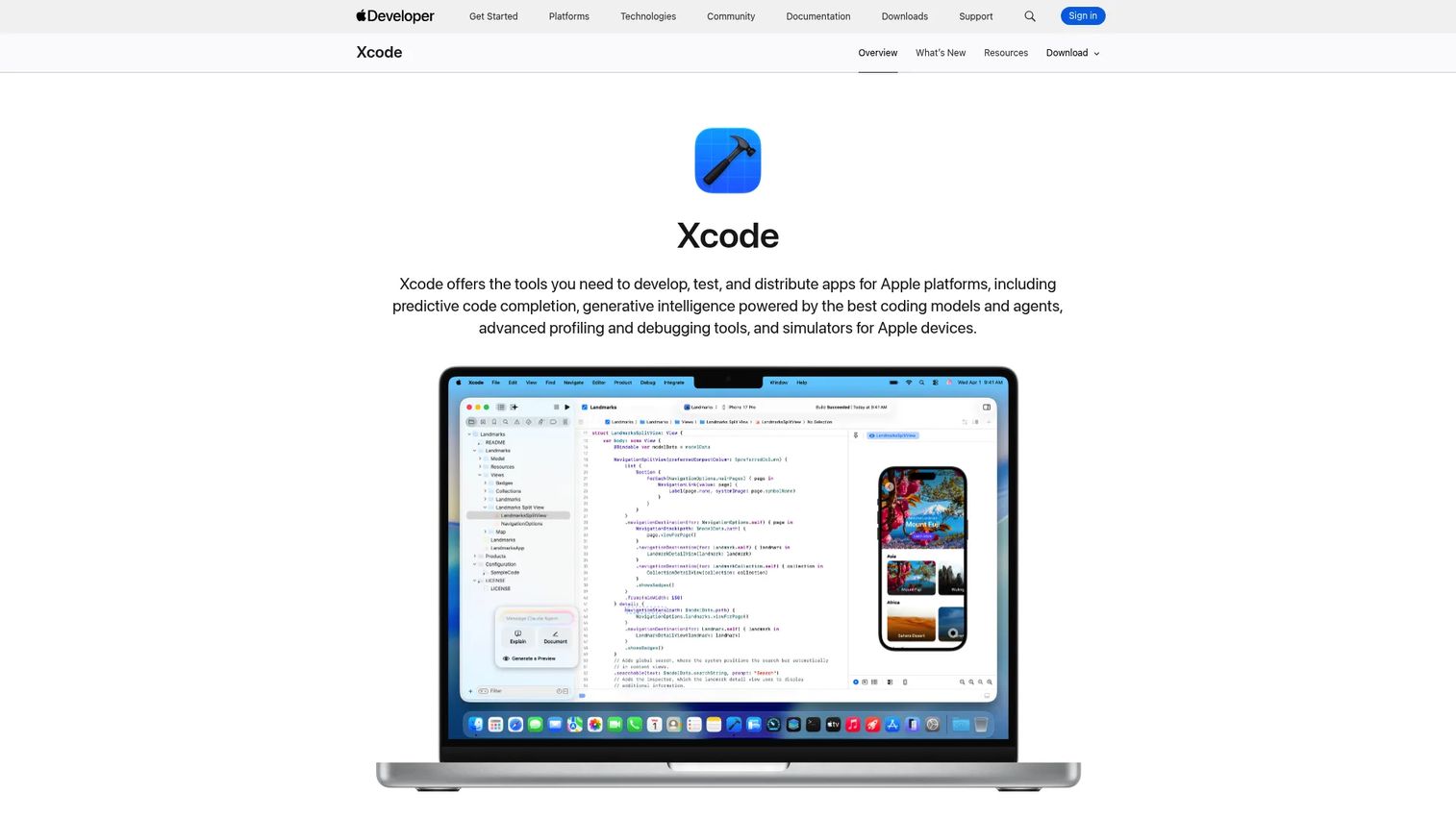
Xcode is Apple's official IDE for building apps across iOS, macOS, watchOS, tvOS, and visionOS. It supports Swift and Objective-C development, with device simulators, interface design tools, performance profiling via Instruments, and the Xcode Cloud CI/CD service. App Store distribution requires Xcode, making it non-optional for Apple platform roadmaps.
Best for: Developers and teams whose product roadmap targets Apple operating systems and App Store distribution.
Key features
- Swift and Objective-C development tools
- Apple platform SDKs for all Apple operating systems
- Device simulators for iOS, macOS, watchOS, and tvOS
- Interface design and accessibility tools
- Xcode Cloud CI/CD integration
Why choose Xcode: It is the only path to App Store submission, so the decision is rarely discretionary. The key planning consideration is hardware: Xcode requires macOS, which constrains developer machine standardization for cross-platform teams.
Xcode pricing: Xcode itself is free from the Mac App Store. Xcode Cloud compute hours beyond the 25 hours included with Apple Developer Program membership start at $49.99/month for 100 hours.
G2 rating: 4.2/5.
6. GitHub Codespaces
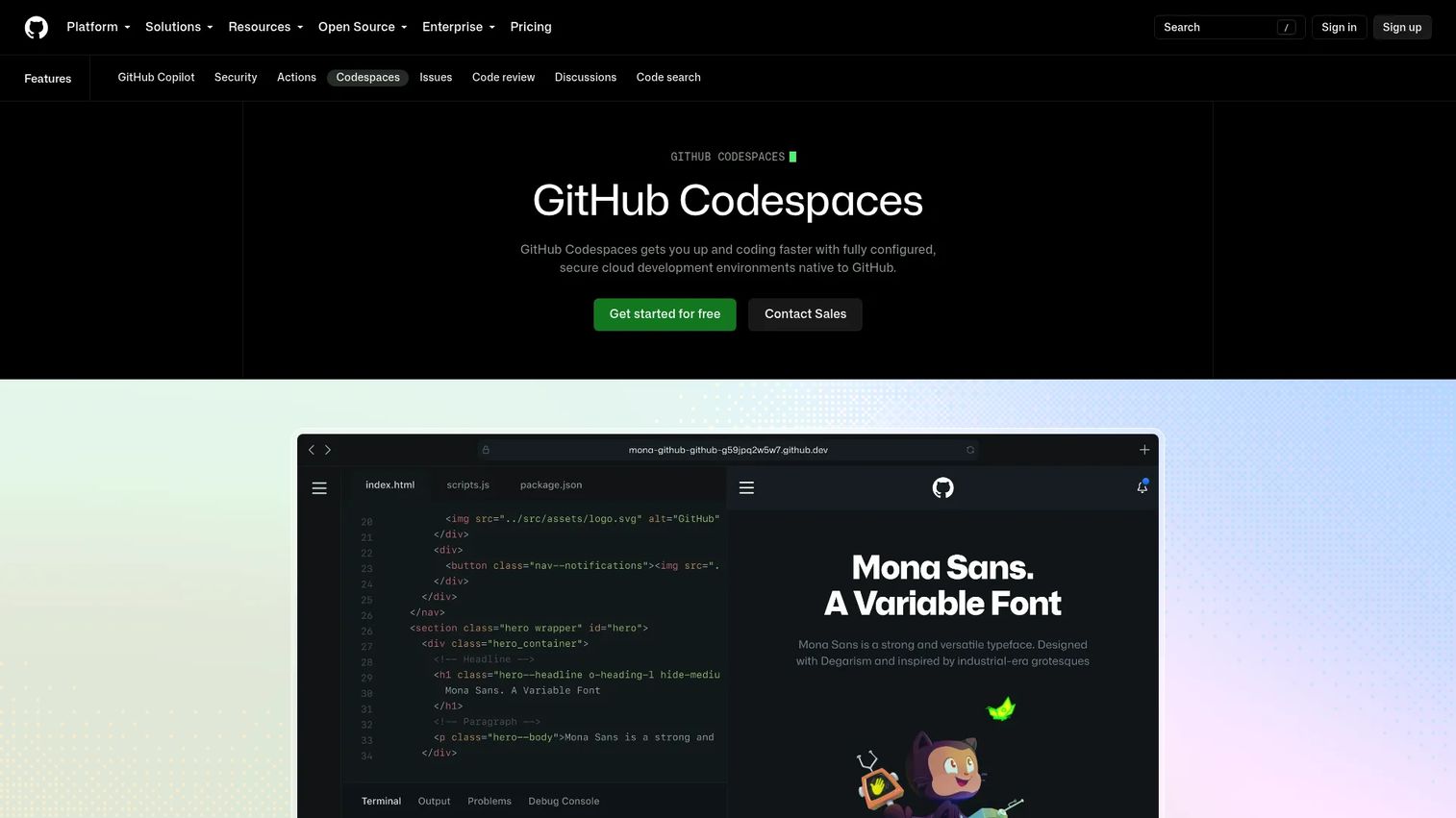
GitHub Codespaces provides fully configured cloud development environments launched directly from GitHub repositories, pull requests, templates, or specific commits. Environments are defined through dev containers, making dependencies reproducible across the team. Developers can access them via browser or through a desktop VS Code instance.
Best for: Teams that want to eliminate "works on my machine" problems by standardizing development environments at the repository level.
Key features
- Cloud dev containers launched from GitHub repositories
- Browser and desktop (VS Code, IntelliJ) access
- Reproducible, configurable environments per project
- Secure isolated environments with access controls
- Configurable compute from 2 to 32 cores
Why choose GitHub Codespaces: The onboarding payoff is concrete: A new engineer can open a correctly configured environment in minutes rather than spending a day on local setup. The tradeoff is cost at scale and network dependency. Teams should set spending controls and evaluate repository permissions governance before rolling out broadly.
GitHub Codespaces pricing: Personal accounts receive 120 core hours or 60 hours on a 2-core machine per month at no charge, plus 15 GB storage. Usage beyond the free allotment is billed at $0.18/hr compute and $0.07/GB storage per month.
G2 rating: 4.6/5.
7. Microsoft Visual Studio
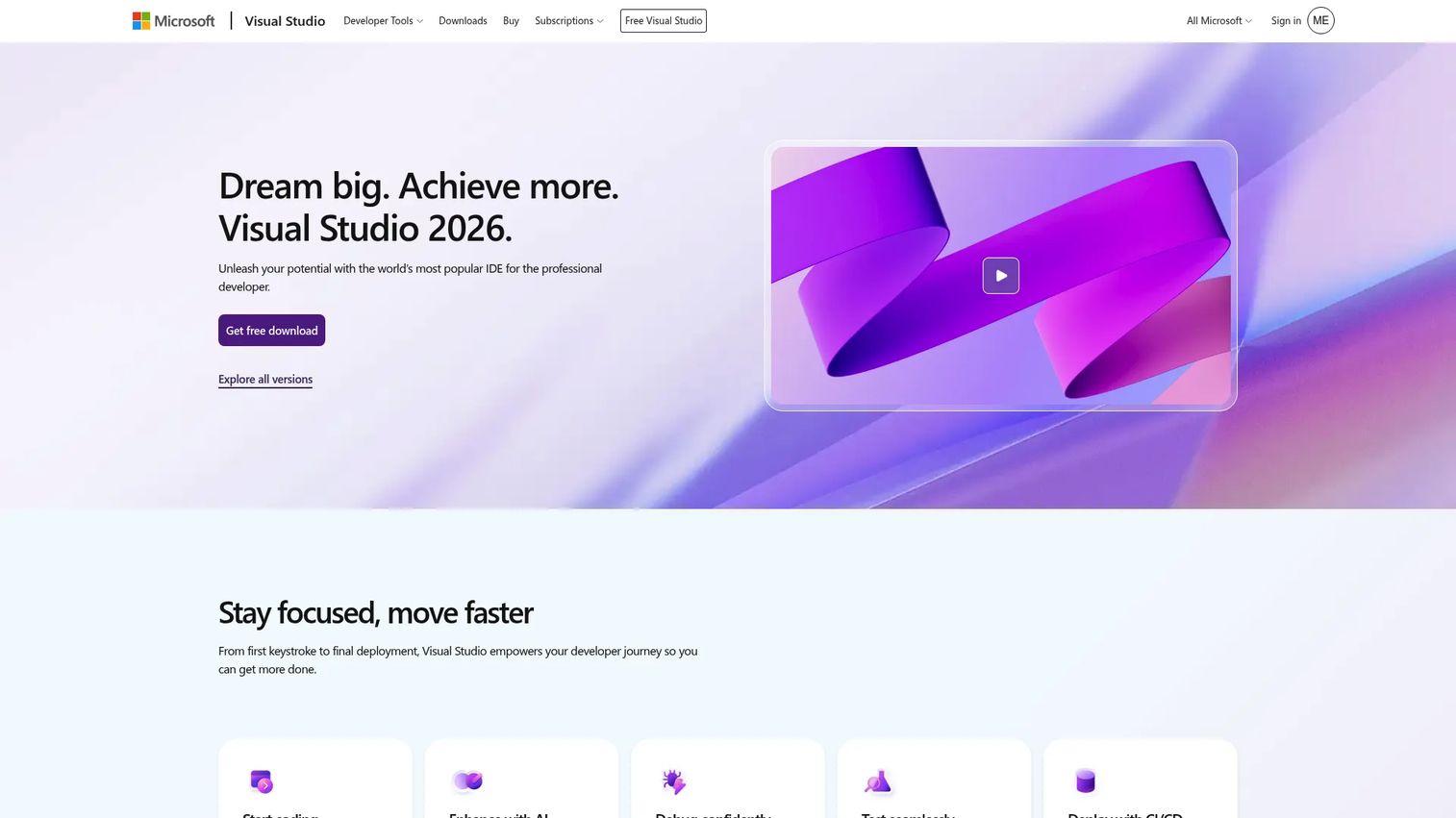
Microsoft Visual Studio is a fully featured IDE for building applications across .NET, C#, C++, and Windows-targeted development. It covers the full development lifecycle: Code editing and navigation, debugging and profiling, comprehensive testing, version control, and an extensive extension library.
Best for: Professional teams building .NET applications or standardizing on the Microsoft technology stack for enterprise development.
Key features
- .NET, C#, and C++ development tools
- Advanced debugger and profiling diagnostics
- Integrated testing framework support
- Solution and project management
- Thousands of available extensions
Why choose Microsoft Visual Studio: It is the deepest option for .NET and Windows application development. The Community edition is free for individual developers and small teams. Enterprise teams needing advanced DevOps integrations, load testing, and code coverage tools will evaluate Professional or Enterprise subscriptions.
Microsoft Visual Studio pricing: Visual Studio Community is free. Professional plans run $99.99 per user per month billed annually (or $45/user/month billed monthly). Enterprise plans run $499.92 per user per month billed annually (or $250/user/month billed monthly). A standalone IDE license is also available at $499 as a one-time purchase.
G2 rating: 4.5/5.
8. Android Studio
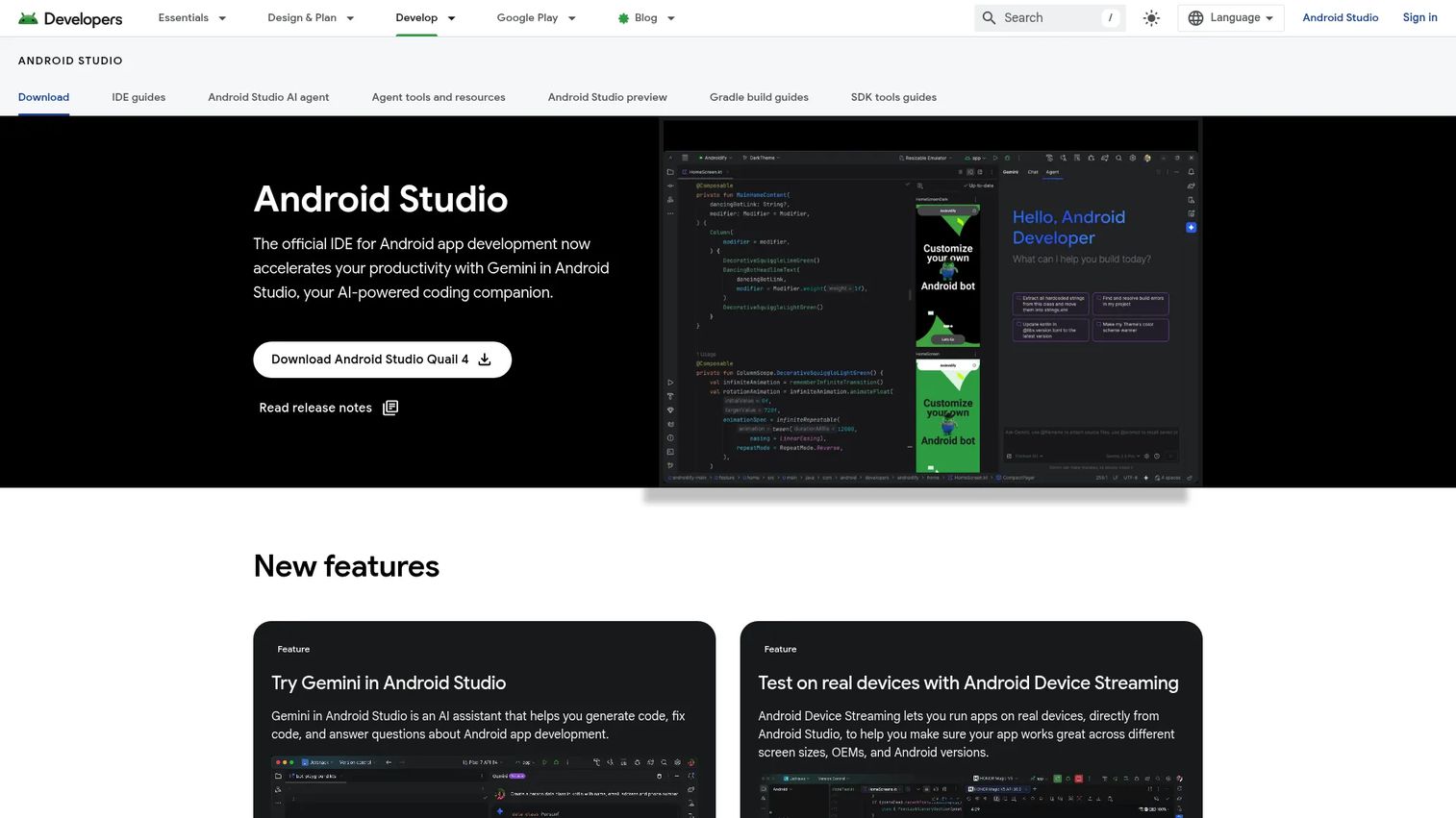
Android Studio is Google's official IDE for Android application development. Built on IntelliJ IDEA, it provides Kotlin and Java tooling alongside the Android SDK, a fast emulator, layout inspection, Gradle build support, and Gemini-powered AI assistance.
Best for: Android developers building, testing, debugging, and profiling applications across Android devices.
Key features
- Android SDK integration and Gradle build system
- Fast, feature-rich Android emulator
- Layout Inspector and Live Edit for composables
- Performance profiling and Lint analysis
- Gemini AI assistance and GitHub integration
Why choose Android Studio: For any team targeting Android, it is the reference environment. The emulator and device testing tools matter especially for product managers validating feature coverage across device sizes and Android versions before release. Resource requirements are meaningful; standardized hardware specifications help avoid build-time bottlenecks on the team.
Android Studio pricing: Free to download and use.
G2 rating: 4.5/5.
9. AWS Cloud9
AWS Cloud9 is a browser-based cloud IDE with an integrated terminal, AWS CLI access, real-time collaborative editing, and support for serverless development including AWS Lambda. It carries no additional service charge; customers pay only for the underlying AWS compute and storage resources they use.
One important status note: AWS Cloud9 is no longer available to new customers. Existing customers can continue using it, but teams evaluating a cloud IDE for the first time should consider GitHub Codespaces or Replit instead.
Best for: Existing AWS customers who need a browser-based IDE tightly integrated with AWS services and Lambda workflows.
Key features
- Browser-based workspace with no local setup required
- Integrated AWS CLI and direct AWS service access
- Real-time collaborative editing and chat
- Serverless and Lambda development support
- SSH connectivity to existing Linux servers
Why choose AWS Cloud9: For teams already running infrastructure on AWS, the direct service access and integrated terminal reduce the friction of switching between development and deployment contexts. New adopters should note the availability restriction and plan accordingly.
AWS Cloud9 pricing: No additional charge for the Cloud9 service itself. Standard AWS EC2 and EBS costs apply to the underlying resources.
G2 rating: 4.3/5.
10. Replit
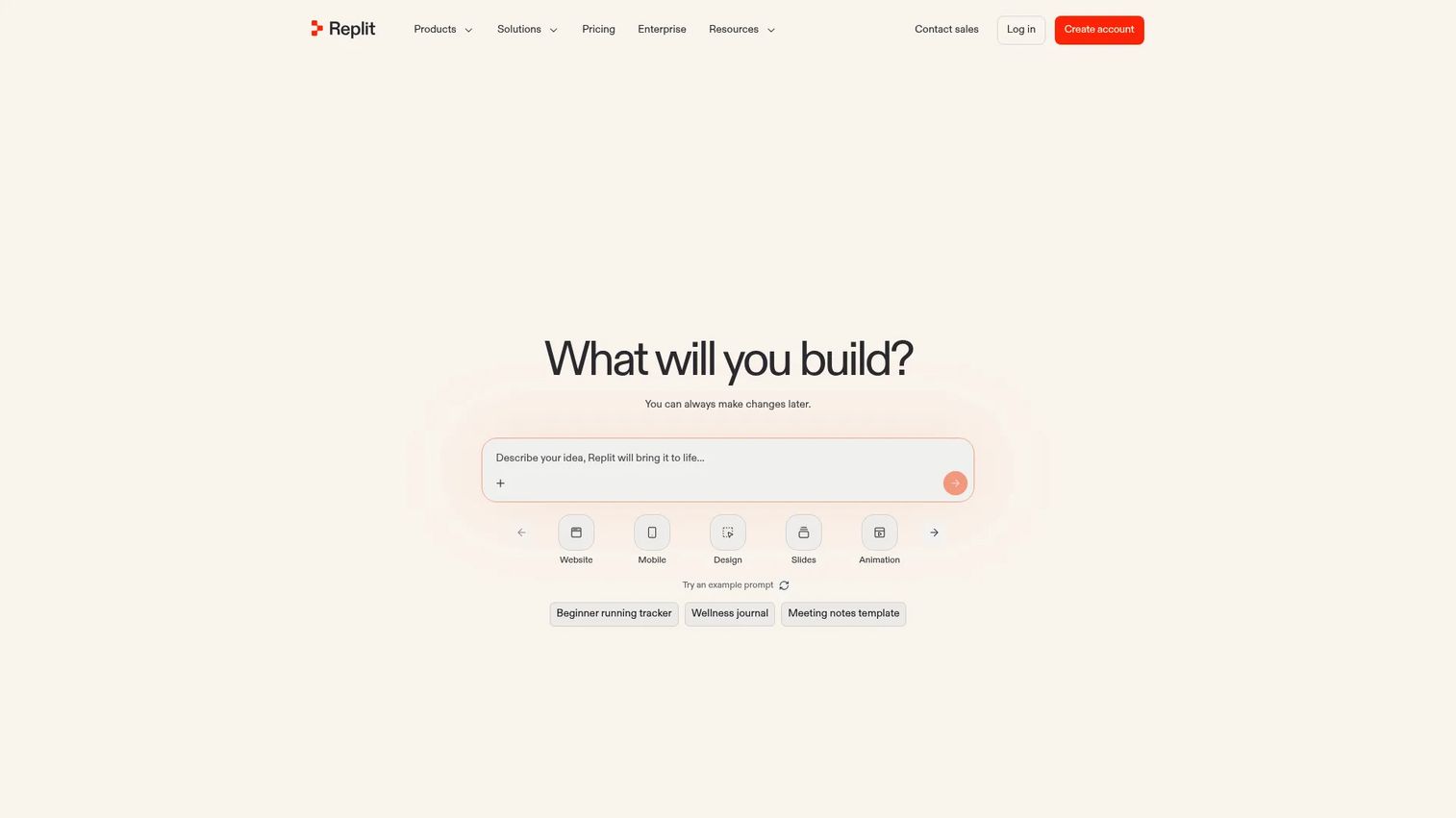
Replit is an AI-powered platform for building, deploying, and collaborating on full-stack applications from the browser. Its natural-language app generation, built-in databases, secrets management, and hosted execution make it faster to get a working prototype visible to stakeholders than most traditional environments.
Best for: Individuals and teams that want to validate ideas quickly using AI-assisted development and browser-based collaboration.
Key features
- Natural-language AI app generation
- Browser-based environment with no local setup
- Real-time collaboration and project sharing
- Built-in databases, secrets, and deployment
- Mobile app for on-the-go deployment management
Why choose Replit: It reduces time-to-first-prototype significantly for early-stage validation and stakeholder demos. For production-grade applications with complex deployment, governance, or security requirements, evaluate whether the platform's constraints fit your architecture before committing.
Replit pricing: Starter is free with daily usage limits and one published project. Core plans are $20/month (or $18/month billed annually). Pro plans are $100/month (or $90/month billed annually). Enterprise pricing is custom.
G2 rating: 4.5/5.
11. CodeSandbox
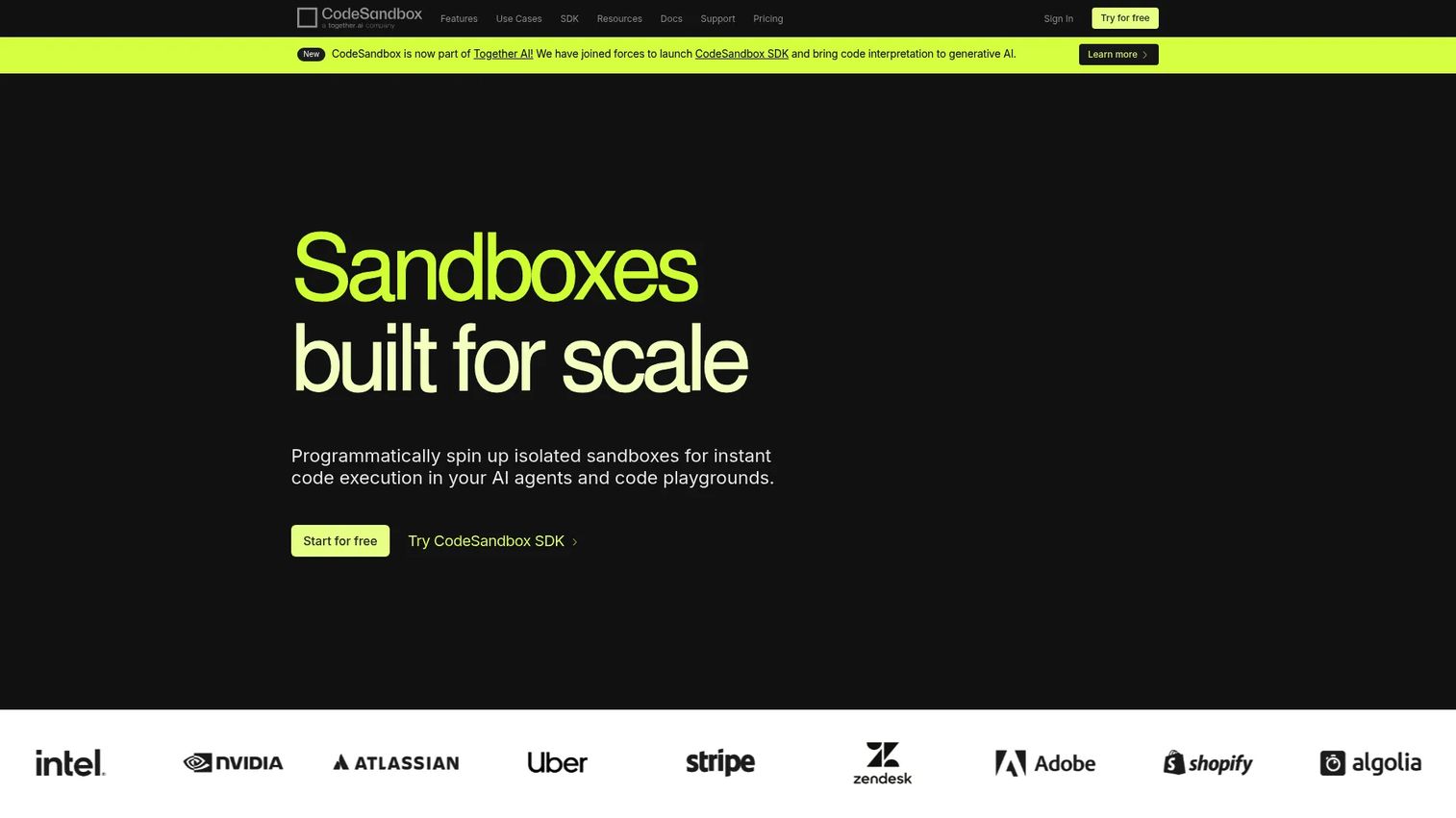
CodeSandbox provides cloud development environments and secure microVM sandboxes for both browser-based coding and programmatic code execution at scale. It supports pre-configured environments via Dev Containers, Dockerfile, or Docker Compose, along with a VS Code extension and a live preview for web projects.
Best for: Development teams, educators, and AI applications that need reproducible browser-based coding or secure, scalable code execution environments.
Key features
- Secure, isolated microVM environments
- Pre-configured dev environments via Dev Containers
- Online code editor with live preview
- CodeSandbox SDK for programmatic sandbox management
- VS Code extension for familiar workflow
Why choose CodeSandbox: It covers two distinct use cases well: Front-end web prototyping with live preview, and scalable sandbox infrastructure for AI applications or code execution platforms. For teams primarily working outside JavaScript and web frameworks, evaluate language coverage against your stack before adopting.
CodeSandbox pricing: Build tier is free. Scale tier is $170/month per workspace. Enterprise pricing is custom.
G2 rating: 4.5/5.
12. NetBeans
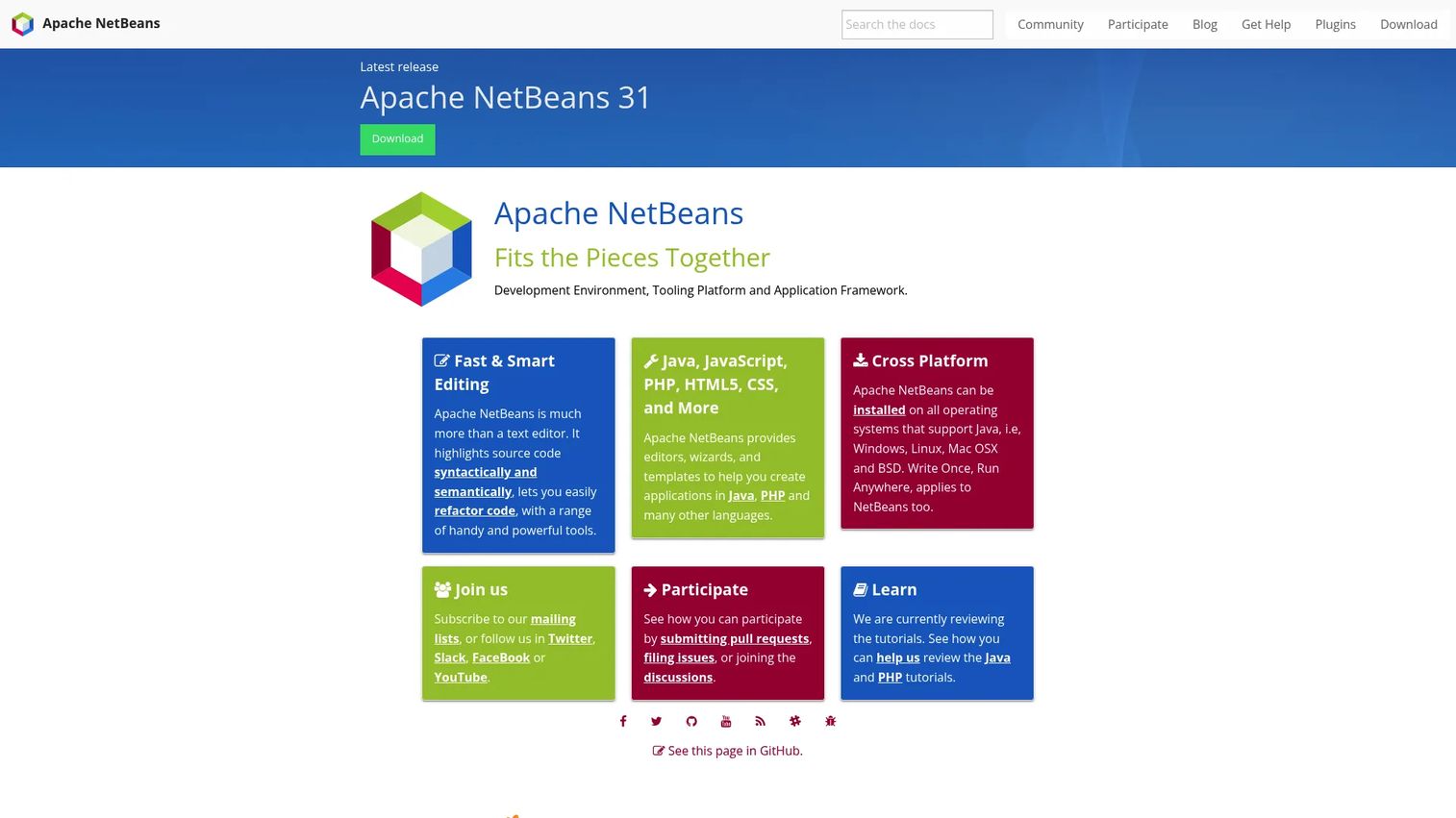
Apache NetBeans is a free, open-source IDE under the Apache Foundation, supporting Java, PHP, JavaFX, JavaScript, C/C++, and related frameworks. It includes Maven and Gradle integration, debugging and profiling tools, a project navigator, and the NetBeans Platform for building modular applications.
Best for: Developers building Java and enterprise applications who want an established open-source IDE with Maven and Gradle built in.
Key features
- Multi-language support: Java, PHP, JavaScript, C/C++
- Maven and Gradle integration
- Integrated debugger and profiling tools
- Project navigator and module management
- Open-source under Apache License
Why choose NetBeans: It is a capable, fully free option for Java development teams that prefer Apache governance and do not want a commercial IDE. Compared to IntelliJ IDEA, the language intelligence and refactoring tools are less sophisticated, and the plugin ecosystem is narrower.
NetBeans pricing: Completely free and open source.
G2 rating: 4.2/5.
13. Spyder
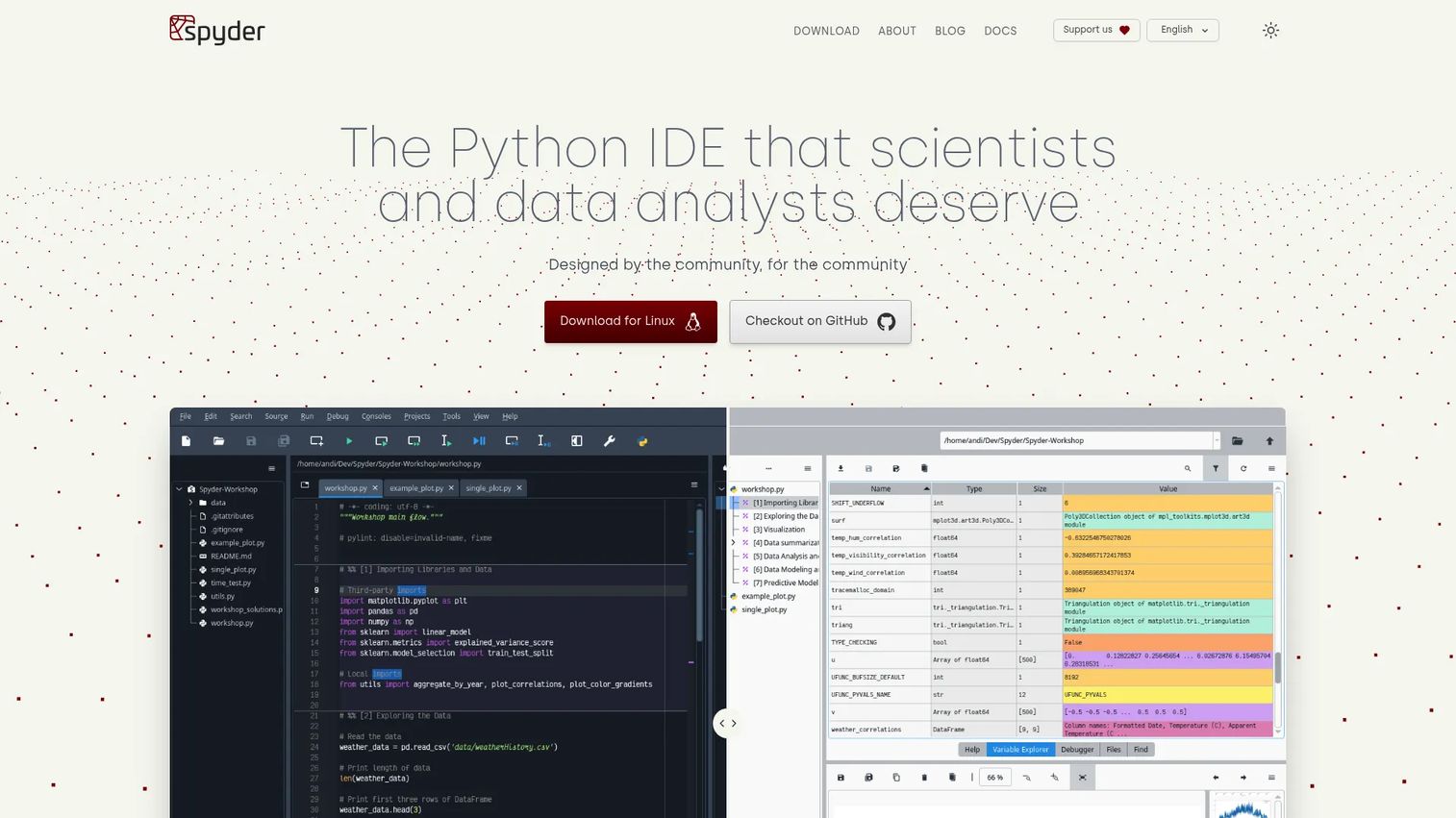
Spyder is a free, open-source scientific Python IDE built for data analysts, engineers, and researchers. Its variable explorer, interactive IPython console, integrated plotting, and debugging tools are organized around the way scientists and data practitioners actually work, rather than around general software development conventions.
Best for: Scientific Python workflows including data analysis, engineering computation, and research-oriented development.
Key features
- Variable Explorer for browsing and editing data in-session
- Interactive IPython console with scientific library integration
- Integrated debugging with breakpoints and stack-frame browsing
- Multi-language editor with syntax highlighting and linting
- Data visualization support
Why choose Spyder: For product managers overseeing analytics, experimentation, or research functions that run on Python, Spyder matches the workflow those teams already use. It is a narrower tool than PyCharm for general application development, but it is better suited for the scientific and analytical use case than a general-purpose editor.
Spyder pricing: Completely free and open source. No paid version exists.
G2 rating: 4.4/5.
14. JupyterLab
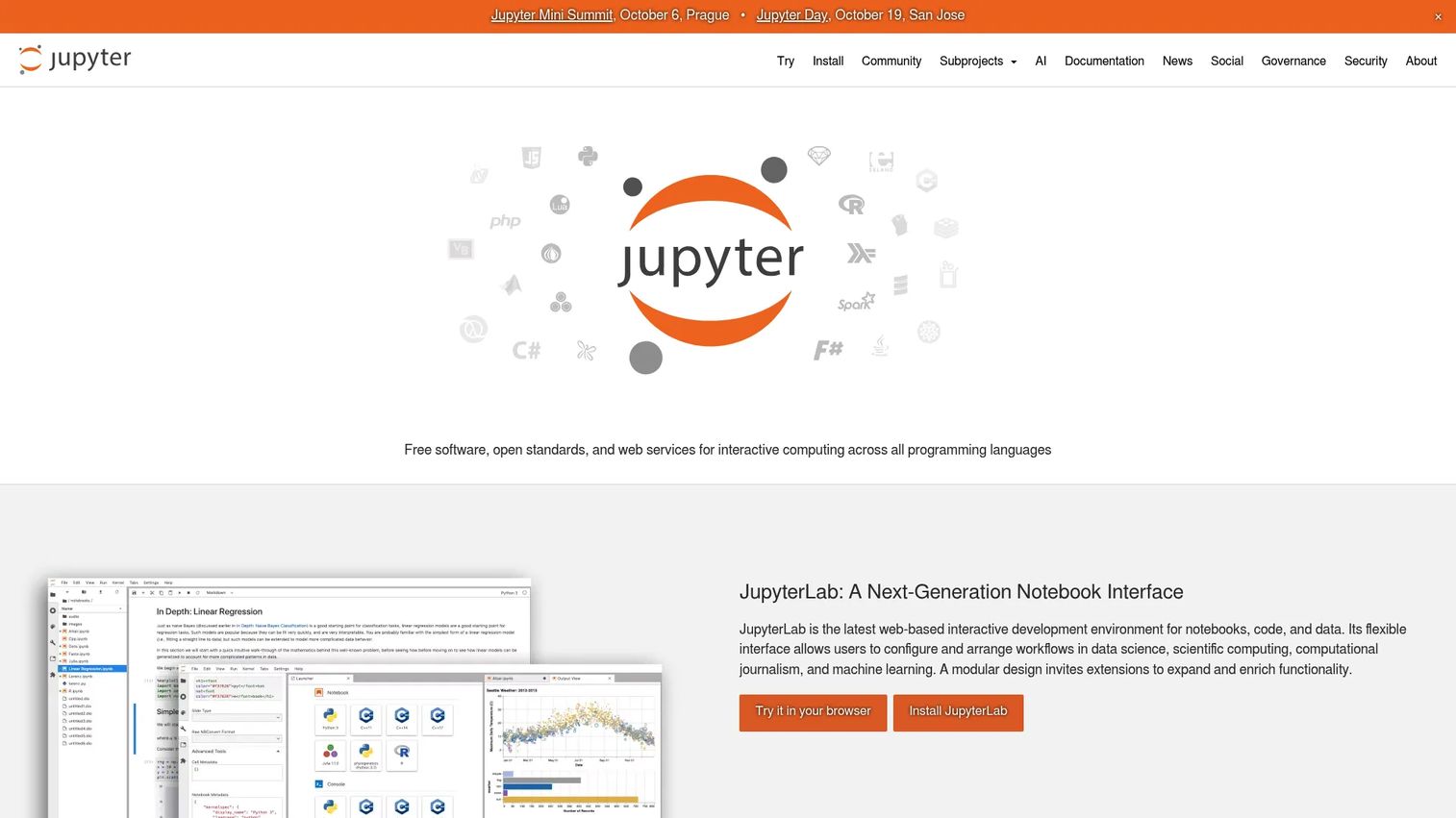
JupyterLab is a web-based interactive development environment for notebooks, code, and data. It supports multiple programming languages through Jupyter kernels, including Python, R, and Julia. The interface combines notebooks, text editors, terminals, and file browsers in a tabbed, customizable workspace. Its notebook format mixes executable code, rich outputs (HTML, images, LaTeX), and prose documentation in a single shareable file.
Best for: Data scientists, researchers, and educators who need interactive, reproducible workflows combining code, data, and narrative documentation.
Key features
- Notebook execution with inline interactive outputs
- Multi-language kernel support (Python, R, Julia)
- Tabbed, customizable multi-document workspace
- Integrated terminal and file browser
- Extensible architecture with plugin support
Why choose JupyterLab: It is the standard environment for exploratory data analysis, research, and documentation-heavy workflows. For production software development, notebook workflows benefit from additional structure and version control discipline. Teams handing off analysis to engineering should establish conventions for how notebooks translate into production code.
JupyterLab pricing: Free and open source.
G2 rating: 4.5/5.
Considerations when choosing an integrated development environment
Match the environment to the primary language
Check whether the IDE supports the team's language, framework, runtime, and package manager. A general-purpose tool often works, but specialized environments like PyCharm for Python or Android Studio for Android provide deeper language intelligence that directly affects developer velocity and the quality of code suggestions.
Evaluate debugging and testing depth
Syntax highlighting is the starting point, not the finish line. Review breakpoint support, stack inspection, test discovery, profiling, log integration, and compatibility with the application's architecture. For product managers, debugging capability is a proxy for how fast engineers can diagnose issues between releases.
Check source control and collaboration
Review Git workflow support, pull request integrations, branch management, and remote development capabilities. For cross-functional teams, ask whether the IDE reduces or adds friction at handoff points between engineering, QA, and product.
Measure onboarding and maintenance effort
A tool that takes weeks to standardize can erase its productivity gains. Check whether the IDE supports workspace configuration templates, dev containers, and documented extension standards. The lower the per-engineer setup cost, the faster new hires reach their first meaningful commit.
Review pricing, security, and governance
Assess license terms, user management, data handling, audit requirements, and enterprise controls. For cloud IDEs, include compute usage, repository access controls, and environment lifecycle management in the evaluation. Security review is non-negotiable for teams operating in regulated industries or handling sensitive data.
Conclusion
The right environment for your team depends on the language stack first, and the deployment model second.
Visual Studio Code covers the broadest range of languages and is the most widely adopted. IntelliJ IDEA is the stronger choice for Java and Kotlin teams that need deep refactoring and code intelligence. PyCharm fits Python application teams, while Spyder and JupyterLab serve data science and research workflows. Xcode is mandatory for Apple platform development. GitHub Codespaces reduces onboarding overhead through reproducible cloud environments.
For product managers evaluating developer tools, remember that language stack and deployment model should anchor the decision. You can pair this evaluation with an AI code generation tools comparison or explore adjacent topics like AI software testing tools to round out your team's stack evaluation.
FAQs
IDE stands for integrated development environment. It refers to software that combines code editing, execution, debugging, testing, and source control into a single coordinated workspace, so developers can manage the full development cycle without switching between separate tools.
Developers use IDEs to write, run, test, debug, and maintain software in one environment. The best fit depends on the team's primary programming language, the type of application being built (web, mobile, data, systems), and whether local or cloud deployment better matches the team's workflow.
A code editor focuses primarily on writing and editing source files, often with syntax highlighting and basic completion. An IDE adds project management, build tools, an integrated debugger, test runners, runtime execution, and source control, making it a more complete environment for structured software development.
Language support is the foundation. Beyond that, evaluate debugging depth, test discovery, source control integration, onboarding effort, collaboration support, and security controls. For product managers, the most relevant metrics are time-to-first-commit for new engineers and how much the environment reduces environment-specific defects between releases.
Cloud IDEs work well for reproducible environments, distributed teams, and fast onboarding. Teams should evaluate network dependency, compute costs, repository permission governance, and how the cloud environment integrates with existing CI/CD pipelines before standardizing. Local environments remain preferable for hardware access, offline work, and operating-system-level integrations.
PyCharm is the strongest choice for Python application development, covering virtual environments, debugging, testing, and web framework support. Spyder fits scientific computing and data analysis workflows better, given its variable explorer and interactive console. JupyterLab is the standard for notebook-based research and documentation. The decision turns on whether the project is a production application, an analytical workflow, or a research environment.
IntelliJ IDEA, Eclipse, and Apache NetBeans are all established options. IntelliJ IDEA offers the most sophisticated code intelligence and refactoring tools, particularly in the Ultimate edition. Eclipse and NetBeans are both free and open source, with Eclipse having a larger plugin ecosystem. The choice depends on the team's framework requirements, budget, and tolerance for configuration overhead.
Many modern IDEs support AI-assisted code completion, explanation, test generation, and refactoring through built-in tools or extensions. Visual Studio Code supports GitHub Copilot and other AI extensions; Android Studio includes Gemini assistance; Replit offers natural-language app generation natively. Product teams should evaluate model behavior, privacy implications for code sent to external services, and how AI suggestions integrate with existing code review workflows before enabling them broadly. You can also explore dedicated AI code generation tools or AI software testing tools that pair with IDE environments.