The spreadsheet that started as a quick customer tracker now has 14 tabs, three owners, and nobody agrees which version is current. That is not a data volume problem. It is a structure problem. And adding more columns will not fix it.
Product managers hit this inflection point regularly: The workflow outgrew a spreadsheet but does not yet justify custom engineering or a managed cloud warehouse. The answer is usually a desktop database, but "desktop database software" actually describes three different things: An application for building database-backed forms and reports, a client for querying an existing database server, and an embedded local database engine. Picking the wrong category wastes a sprint.
The global database management system market was estimated at $106.04 billion in 2025, according to SNS Insider. Most of that spending goes to cloud services, but the desktop layer remains the fastest way for a PM or operations team to instrument a repeatable workflow before committing engineering time to a production system.
Choose the tool type before you compare feature checklists.
What's inside
This guide covers 12 desktop database software tools for 2026, evaluated across four categories: Desktop database builders, multi-database SQL clients, local embedded engines, and server engines with desktop tooling.
- Who it's for: Product managers, operations leads, and technical PMs evaluating local data tools for internal workflows, prototyping, and reporting preparation
- Selection criteria: Desktop usability, local or offline capability, database management depth, and fit across different technical skill levels
- What you'll learn: How to distinguish a database builder from a client from an engine, and which tool fits your specific situation
TL;DR
- Best for Windows business workflows: Microsoft Access, particularly for teams already on eligible Microsoft 365 plans
- Best for custom no-code business apps: Claris FileMaker, for cross-platform operational apps with polished interfaces
- Best free desktop database builder: LibreOffice Base, for budget-conscious teams needing basic relational structure
- Best multi-database SQL client: DBeaver (open source) or DbVisualizer (commercial support), depending on your preference
- Best free local database route: SQLite paired with DB Browser for SQLite for visual file editing
- Best for production SQL workloads: PostgreSQL (open source) or Microsoft SQL Server Express (Windows-centric, free tier)
What is desktop database software?
Desktop database software is an application or local database system that lets you create, store, query, edit, or administer structured data from a computer.
The term covers four distinct categories, and understanding which one you need is the first decision to make.
Desktop database builders
These tools let you create forms, reports, relational tables, and business workflows without writing a full custom application. Microsoft Access, Claris FileMaker, and LibreOffice Base belong here. They suit PMs and operations teams who need structured records, controlled data entry, and repeatable reporting without developer involvement.
Database clients and SQL tools
These are desktop applications that connect to existing databases. They help you query, model, administer, and export data. DBeaver, DbVisualizer, Navicat Premium, MySQL Workbench, and MongoDB Compass fall into this category. A database client is not a replacement for a database engine; it is a window into one.
Local embedded database engines
Lightweight databases that live inside an application or a local file. SQLite is the canonical example. It requires no server, no configuration, and stores everything in a single portable file. Pair it with a visual client like DB Browser for SQLite when nontechnical inspection is needed.
Server database engines with desktop administration
Database systems that run as services but are managed from desktop tools. PostgreSQL and Microsoft SQL Server Express belong here. They carry more setup and operational ownership than single-file engines, but they support shared access, larger workloads, and a clear path to production infrastructure.
Key capabilities to look for
- Table and schema design
- SQL querying and data editing
- Import and export support (CSV, SQL dump, API)
- Forms and reports for nontechnical users
- User permissions and access control
- Backup and recovery options
- Windows and cross-platform compatibility
- Integration paths with existing reporting or CRM systems
Desktop database software versus online databases
Desktop software can be local-first, cloud-connected, or a client for a remote database. The core decision is where the data runs, who needs access, and how much administration the team can sustain. A desktop tool is not obsolete because cloud exists; it is often the right operational layer before you commit to a managed service.
| Tool type | Best for | Typical users | Example tools |
|---|---|---|---|
| Desktop database builder | Forms, reports, internal apps | Ops teams, nontechnical PMs | Microsoft Access, LibreOffice Base |
| Database client | Querying and administering existing databases | Technical PMs, developers | DBeaver, DbVisualizer, Navicat |
| Local embedded engine | Portable, offline, single-file databases | Developers, product prototypers | SQLite |
| Server engine with desktop tooling | Shared, production-grade relational databases | Technical teams, growing products | PostgreSQL, SQL Server Express |
When to use desktop database software
Replace a spreadsheet that became operational infrastructure
The signs are familiar: Duplicate records, formulas that break when someone renames a column, uncertain ownership, and a version history nobody trusts. When the spreadsheet is doing the job of a database, a desktop database builder or local database file gives the team a real schema, controlled data entry, and a stable single source of truth. This is the right move before asking engineering to build a custom system. For teams managing client management software workflows or similar structured records, a local database often bridges the gap effectively.
Inspect and manage a production or test database
PMs working alongside developers often need read access to verify data, validate test records, inspect schemas, or export a segment for analysis. A database client handles this without requiring command-line work. It keeps the PM in the loop without adding engineering overhead to routine data checks.
Build an offline or portable data workflow
Field research, standalone desktop utilities, internal tools for regulated workflows, and applications that must run without a network connection all benefit from a local database. SQLite's zero-configuration deployment and single-file format make it a common choice for these scenarios. Backup discipline and access controls still matter even when the database never touches a server. Teams building business process management software integrations often use local engines as a staging layer before syncing upstream.
Desktop database software comparison
No single tool wins every use case. The main fork is between visual business database builders, multi-database SQL clients, and database engines. Use the table below to find your starting point, then read the matching item section for detail.
| # | Product | Best for | Key differentiator | Pricing | G2 rating |
|---|---|---|---|---|---|
| 1 | Microsoft Access | Windows business databases | Forms, reports, queries, and Microsoft 365 integration | $179.99 one-time or included with select Microsoft 365 plans | 4.0/5 |
| 2 | Claris FileMaker | Custom no-code business apps | Cross-platform low-code app deployment | From $17.50/user/month (FileMaker Server) | N/A |
| 3 | LibreOffice Base | Free desktop database forms and reports | Open-source front end bundled with LibreOffice suite | Free | N/A |
| 4 | DBeaver | Broad multi-database connectivity | Universal client for SQL, NoSQL, and cloud databases | Free (Community); from $12/month (Lite) | 4.4/5 |
| 5 | DbVisualizer | SQL development with commercial support | Cross-platform client with AI-assisted SQL editor | Free; Pro from $199/user (year one) | 4.7/5 |
| 6 | Navicat Premium | Paid multi-database administration | Connects MySQL, PostgreSQL, MongoDB, SQL Server, and more | From $1,299 perpetual license | 4.5/5 |
| 7 | MySQL Workbench | MySQL design and administration | Visual modeling, SQL development, and server administration | Free (Community Edition) | 4.5/5 |
| 8 | MongoDB Compass | Visual MongoDB administration | GUI for querying and exploring MongoDB collections | Free | 4.5/5 |
| 9 | DB Browser for SQLite | Visual SQLite file editing | Open-source spreadsheet-style SQLite interface | Free | N/A |
| 10 | SQLite | Embedded and portable local databases | Serverless, single-file, zero-configuration SQL engine | Free (public domain) | 4.3/5 |
| 11 | PostgreSQL | Production-grade open-source relational databases | Advanced relational engine with broad extension ecosystem | Free (open source) | N/A |
| 12 | Microsoft SQL Server Express | Windows SQL Server development | Free SQL Server edition for small deployments | Free | 4.4/5 |
Pricing and ratings verified October 2026 from each tool's official pricing page and G2 listing.
Best 12 desktop database software tools for 2026
1. Microsoft Access
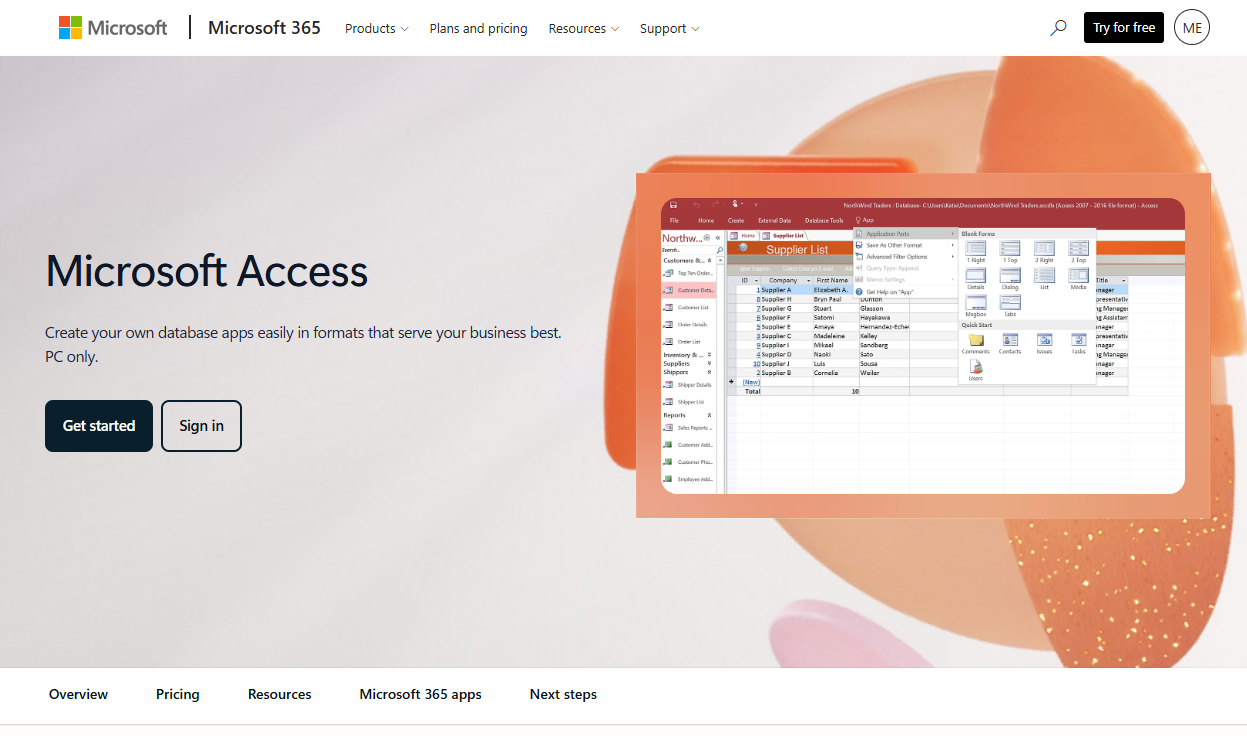
Microsoft Access is a Windows-only desktop database application for creating, customizing, and sharing business database apps. It combines relational tables, visual form and report builders, query design tools, and VBA automation in a single application. For teams already inside the Microsoft 365 environment, it is the most accessible way to build a structured internal database without writing code.
Best for: Product and operations teams standardizing Windows-based internal databases and replacing brittle spreadsheets.
Key features
- Windows desktop database application with forms and reports
- Relational table relationships and query designer
- VBA macro automation for repetitive data tasks
- Import from Excel and CSV files
- Connect to SQL Server or Microsoft Azure SQL as a back end
Why choose Microsoft Access: Access makes the most sense when the entire team is on Windows and the workflow stays within Microsoft 365. It is not the right choice for teams that need cross-platform access or plan to move data to a non-Microsoft stack.
Microsoft Access pricing: The standalone desktop license costs $179.99 (one-time, one PC). Access is also included with Microsoft 365 Personal, Family, Apps for Business, Business Standard, and Business Premium subscriptions. Check the Microsoft 365 plan you already pay for before buying the standalone version.
G2 rating: 4.0/5
2. Claris FileMaker
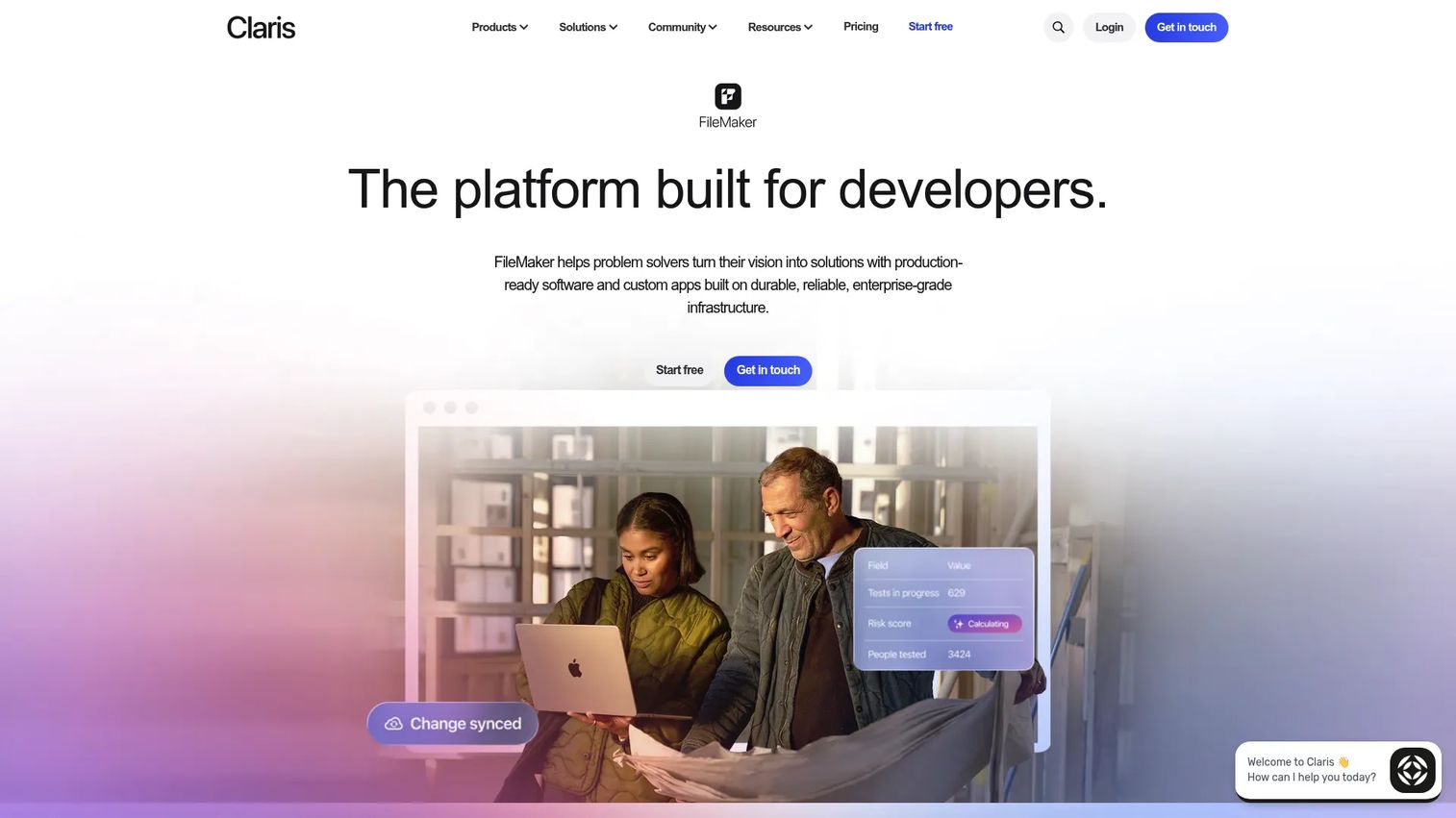
Claris FileMaker is a low-code platform for building custom database applications that run across desktop (macOS and Windows), iPhone, iPad, and web browsers. It is not a SQL client and it is not a simple spreadsheet replacement: It is a development environment for operational apps with custom layouts, scripting, workflow automation, and multi-user hosting. Organizations use it for asset tracking, intake forms, approval workflows, and internal tools that need a polished interface without a full engineering team behind them.
Best for: PMs and operations teams building tailored business applications where nontechnical staff need a custom, guided interface.
Key features
- Visual low-code app development with scripting and automation
- Cross-platform deployment: MacOS, Windows, iOS, web
- FileMaker Cloud and FileMaker Server hosting options
- AES-256 encryption, SSL/TLS, SSO, and MFA support
- AI and machine-learning capabilities including schema-aware features
Why choose Claris FileMaker: Choose FileMaker when the team needs a polished, multi-screen operational app rather than a basic data table. It is stronger than a plain desktop database builder for workflows involving multiple user roles, custom interfaces per department, and mobile access. It carries a higher per-user cost than open-source alternatives.
Claris FileMaker pricing: FileMaker Server annual licensing starts at $17.50 per user per month for 5 to 9 users, billed for the full contract term. Cloud Starter and Cloud Max plans are available for teams of 5 to 99 users; contact Claris for current cloud pricing. A Developer Subscription ($199/year) covers testing and development environments.
3. LibreOffice Base
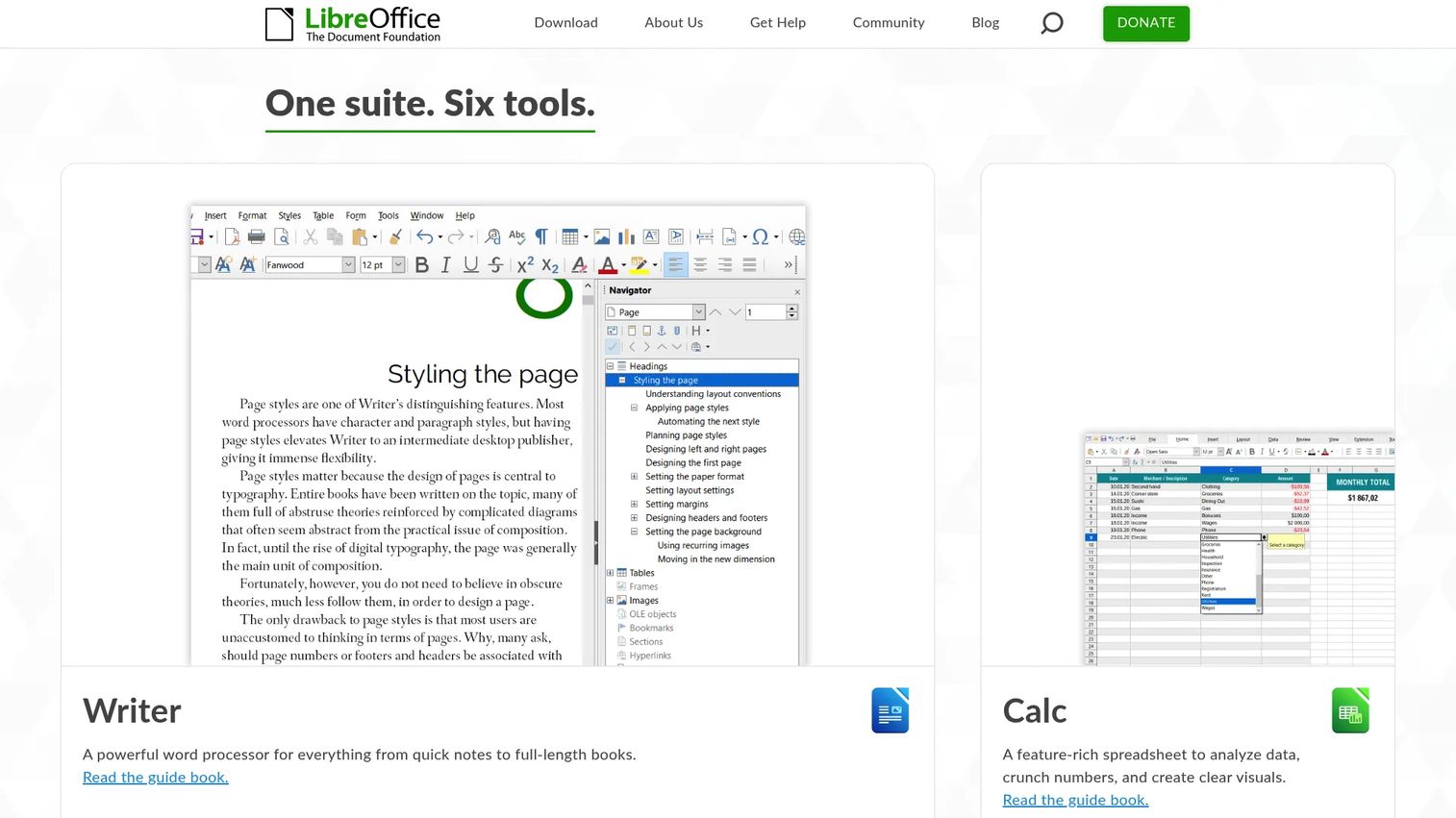
LibreOffice Base is the database component of the free LibreOffice suite. It provides tables, queries, forms, and reports for users who need a basic relational database front end without a software budget. Base supports native connections to MySQL/MariaDB, PostgreSQL, and Microsoft Access, and extends to other systems through JDBC and ODBC drivers. For simple local databases, it can use an embedded HSQLDB or Firebird engine.
Best for: Individuals, nonprofits, and small teams that need free PC database software for basic relational data management.
Key features
- Free, open-source desktop database builder
- Wizards for tables, queries, forms, and reports
- Connections to MySQL/MariaDB, PostgreSQL, and Access files
- JDBC and ODBC driver support for other engines
- Part of the broader LibreOffice productivity suite
Why choose LibreOffice Base: It is the most accessible free database program for teams already using LibreOffice Writer or Calc. The learning curve is modest for basic use, but complex multi-user workflows and advanced reporting should be tested thoroughly before relying on it in production. It is not a substitute for a production database engine.
LibreOffice Base pricing: Free to download and use. No paid tier exists.
4. DBeaver
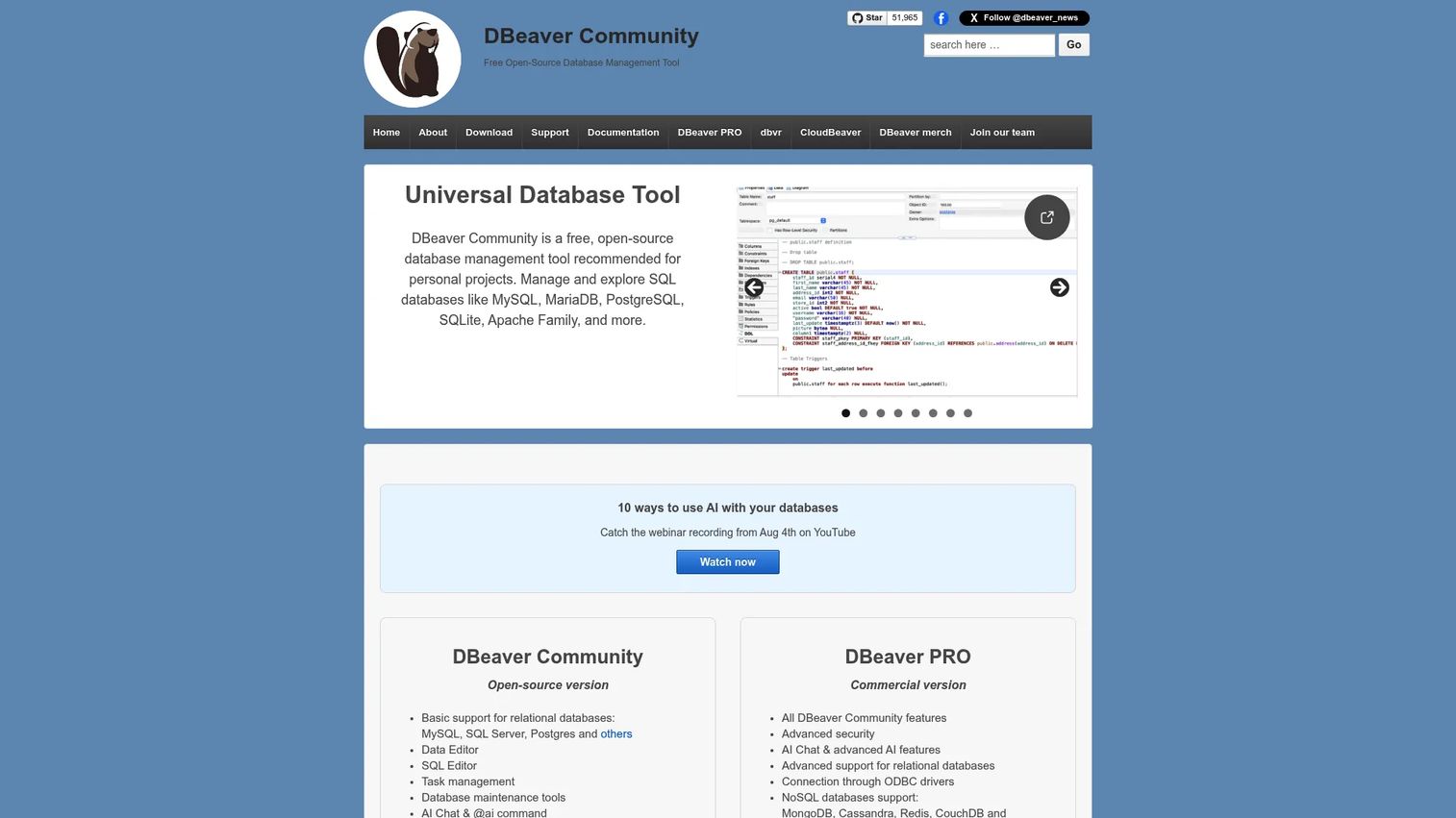
DBeaver is a universal database management client for SQL, NoSQL, and cloud databases. It connects to virtually any database technology, from PostgreSQL and MySQL to MongoDB, Redis, and cloud data warehouses. Technical PMs use it to inspect schemas, run queries, compare data across environments, and export records, without switching between separate tools for each database type. The Community edition is fully open source; paid editions add AI assistance, team collaboration, and enterprise SSO.
Best for: Technical PMs and engineering-adjacent product teams that work across multiple database technologies and need one consistent desktop workspace.
Key features
- Connections to SQL, NoSQL, and cloud databases from one client
- SQL editor with query history and ER diagrams
- Data export and import across formats
- Schema and data comparison across databases
- Enterprise collaboration, AI assistant, and SSO in paid editions
Why choose DBeaver: DBeaver is the right call when the team's stack spans several database types and engineers need a shared client. The Community edition covers most technical needs at no cost. Remember: It is a database management client, not a database engine or a no-code form builder. For teams evaluating application portfolio management software, DBeaver can serve as the data inspection layer across heterogeneous systems.
DBeaver pricing: The Community edition is free and open source. Paid desktop editions run $12/month or $113/year (Lite), $26/month or $255/year (Enterprise), and $51/month or $510/year (Ultimate). A 14-day trial is available for paid editions.
G2 rating: 4.4/5
5. DbVisualizer
DbVisualizer is a cross-platform database client and SQL development tool for developers, analysts, and DBAs. It runs on Windows, macOS, and Linux, connects to dozens of database systems, and includes visual query building, schema browsing, data editing, result comparison, and export utilities. The Pro edition adds an AI assistant for query explanation and error analysis, plus Git version control for database scripts.
Best for: Teams that want a polished cross-platform SQL client with a clear free-to-paid upgrade path and commercial support options.
Key features
- Multi-database connectivity on Windows, macOS, and Linux
- SQL editor with AI assistance and Git integration (Pro)
- Visual query builder and schema browser
- Data comparison, monitoring, and export utilities
- 21-day Pro trial available
Why choose DbVisualizer: DbVisualizer suits technical teams that want a free starting point and a predictable upgrade path to commercial support. The free edition handles most SQL development tasks; the Pro tier adds the AI assistant and version control for teams managing complex query libraries. It is a SQL development and administration tool, not a no-code database builder.
DbVisualizer pricing: The Free edition costs $0. Pro with 60-day support starts at $199 per user in year one, then $89 per user annually. Pro with premium support starts at $229 per user in year one, then $119 per user annually. All prices exclude VAT.
G2 rating: 4.7/5
6. Navicat Premium
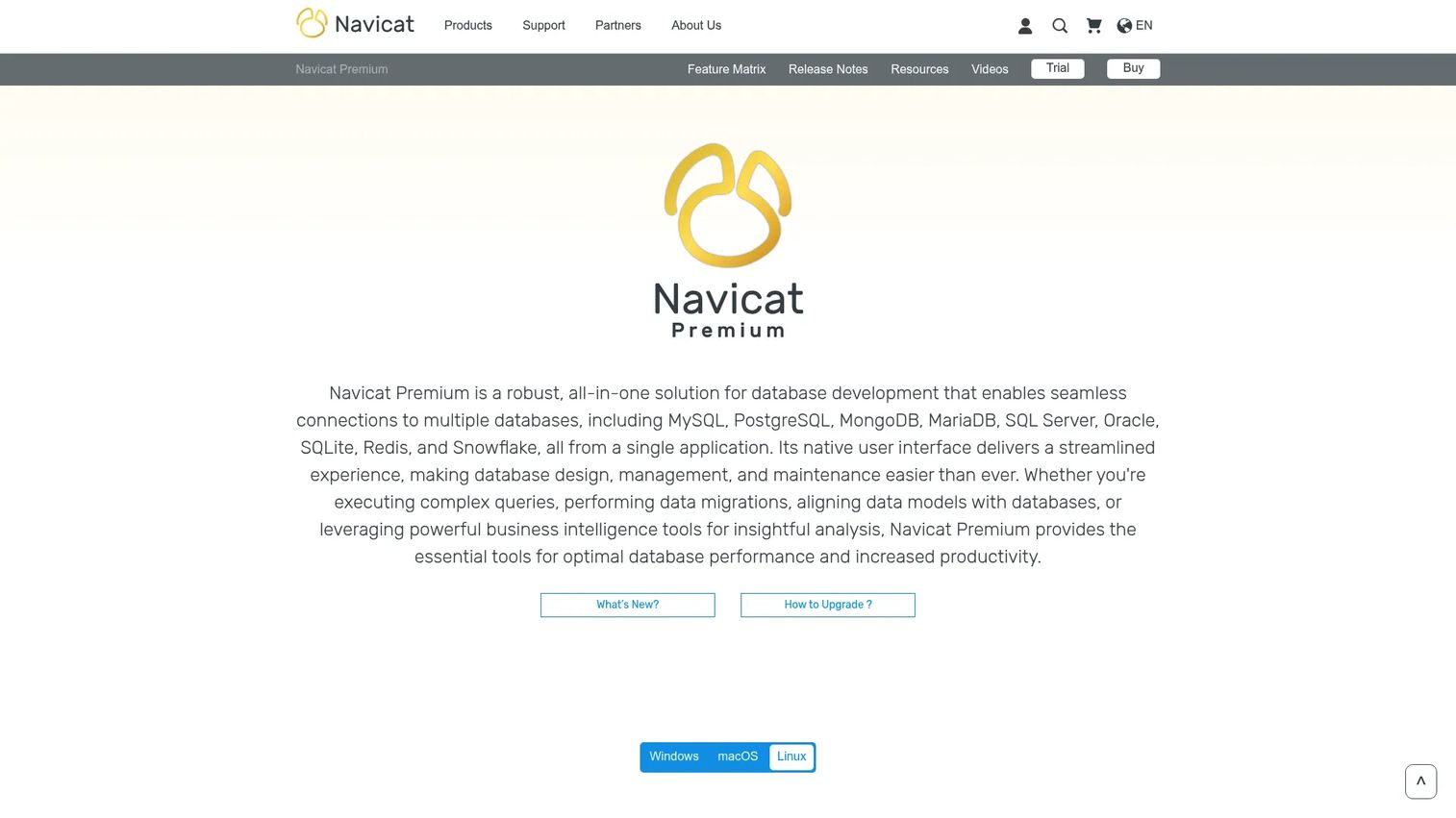
Navicat Premium is a paid, all-in-one database administration tool that connects to MySQL, PostgreSQL, MongoDB, MariaDB, SQL Server, Oracle, SQLite, Redis, and Snowflake from a single desktop interface. It covers query editing, data migration, schema design, synchronization, backup, and optional cloud team collaboration. For database professionals managing heterogeneous environments, it eliminates the need to context-switch between separate administration tools.
Best for: Database professionals and technical product teams administering multiple database systems who need broad connectivity and commercial support.
Key features
- Connections to MySQL, PostgreSQL, MongoDB, SQL Server, Oracle, SQLite, Redis, and Snowflake
- Data migration, synchronization, import, export, and backup
- Query editor, visual data modeling, and BI reporting
- Data masking and automation scripting
- Optional Navicat Cloud team collaboration ($9.99/month or $99/year)
Why choose Navicat Premium: Navicat's breadth of database support and its data transfer and synchronization tools make it a strong choice for teams managing multiple database systems that need to move data between them regularly. The perpetual license model suits organizations that prefer a one-time purchase over subscription pricing. Evaluate the per-OS license structure carefully for multi-machine deployments.
Navicat Premium pricing: A perpetual license costs $1,299 (reseller price, per operating system). Monthly and yearly subscription pricing is available but not displayed publicly; contact Navicat directly for current subscription rates. A free trial is available. The Navicat Cloud Pro collaboration add-on runs $9.99/month or $99/year separately.
G2 rating: 4.5/5
7. MySQL Workbench
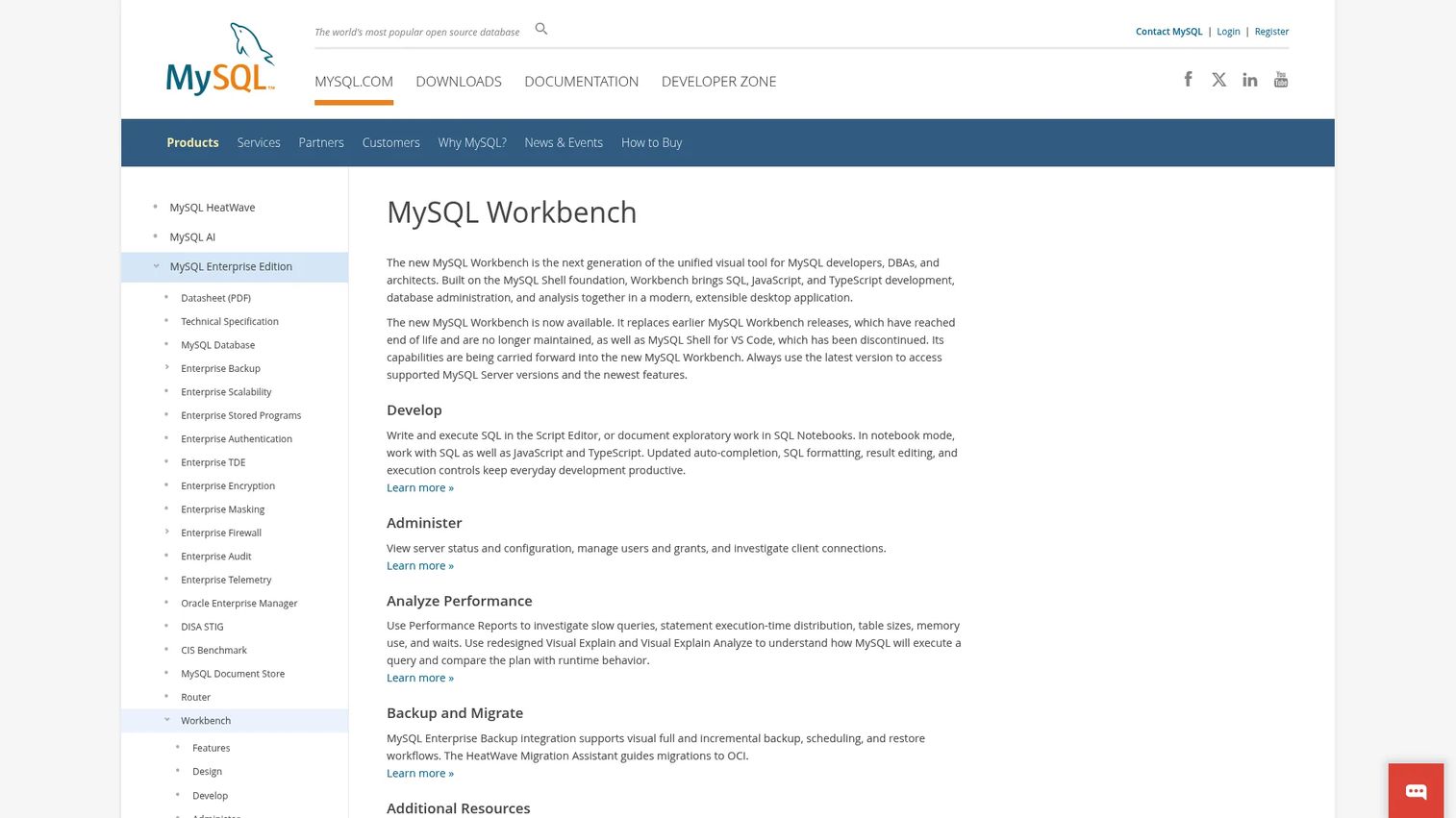
MySQL Workbench is the official desktop tool for MySQL database design, development, and administration. It provides a visual ER diagram editor for schema design, a SQL editor with syntax highlighting, auto-complete, and query history, server administration panels, a performance dashboard, and database migration utilities. The Community Edition is free; commercial editions connect to enterprise MySQL feature sets.
Best for: PMs and technical teams working primarily with MySQL who need visual design tools and a free administration client.
Key features
- Visual database modeling with ER diagrams
- SQL editor with auto-completion, snippets, and result export
- Server administration and user management
- Performance dashboard and diagnostics
- Database migration from other relational systems
Why choose MySQL Workbench: If your stack is MySQL-only, Workbench is the most direct free option available. It covers schema design through server administration in one application. Teams using several database brands should evaluate a multi-database client like DBeaver or DbVisualizer instead. Commercial editions of Workbench require a MySQL Enterprise subscription.
MySQL Workbench pricing: The Community Edition is free. Commercial editions are part of MySQL Enterprise subscriptions; contact Oracle for current commercial pricing.
G2 rating: 4.5/5
8. MongoDB Compass
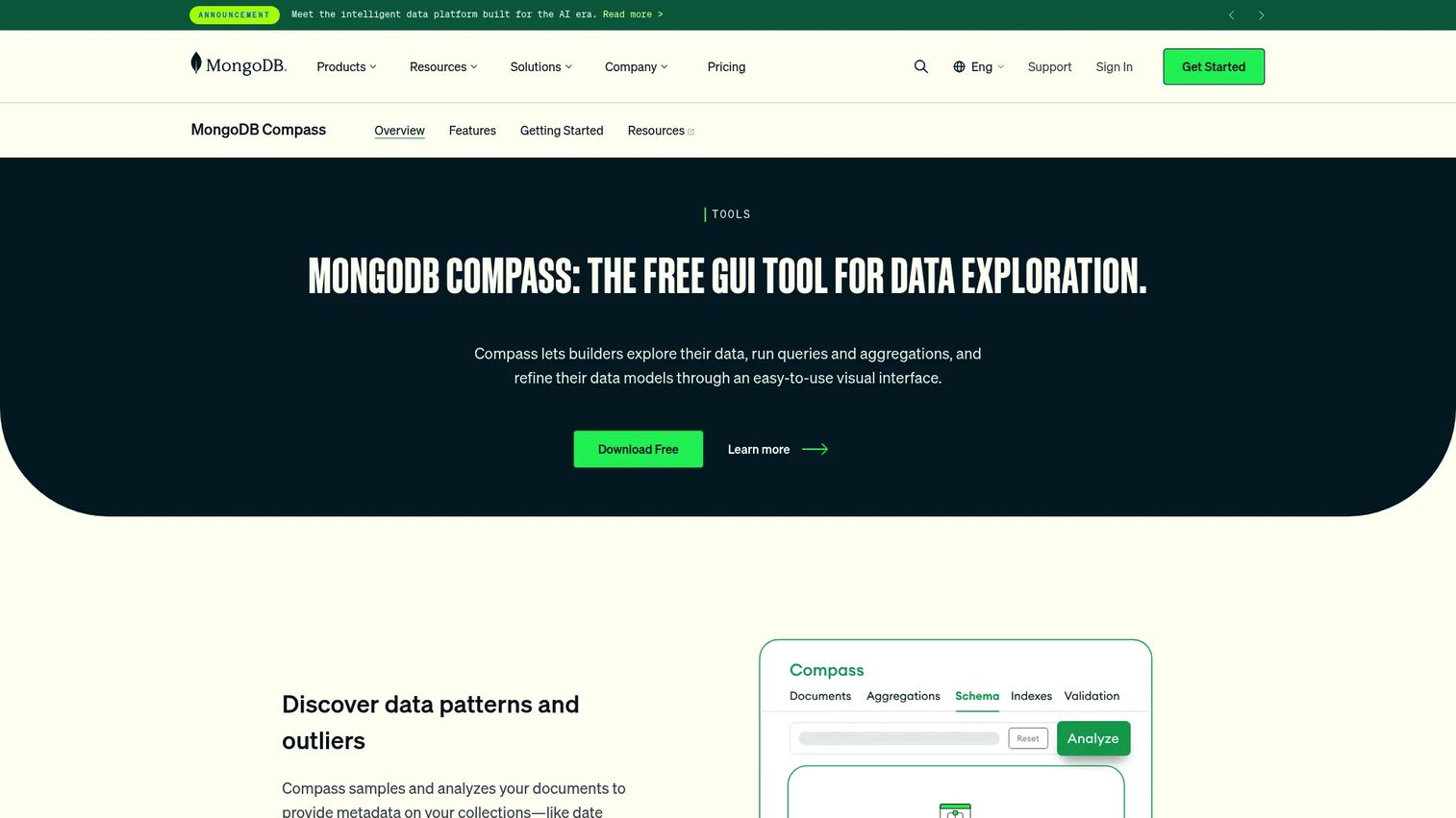
MongoDB Compass is a free graphical desktop interface for exploring, querying, and managing MongoDB data. It covers document browsing, visual filter and query building, multi-stage aggregation pipeline construction, index management, schema validation, and Visual Explain Plans for query performance analysis. A natural-language query generation feature helps users write queries without memorizing MongoDB syntax.
Best for: Product teams and developers using MongoDB who need to inspect collections, test aggregations, and analyze schema without relying solely on the command line.
Key features
- Visual document exploration and filter builder
- Multi-stage aggregation pipeline editor
- Index creation, management, and performance analysis
- Schema validation and analysis tools
- Data import and export utilities
Why choose MongoDB Compass: Compass is the right tool when your data lives in MongoDB. It removes the command-line requirement for routine inspection and makes aggregation pipeline work accessible to team members who are not MongoDB experts. It does not work with relational databases; teams that need SQL joins and foreign key relationships should evaluate a relational engine instead.
MongoDB Compass pricing: Free to download and use in full, read-only, and isolated editions.
G2 rating: 4.5/5
9. DB Browser for SQLite
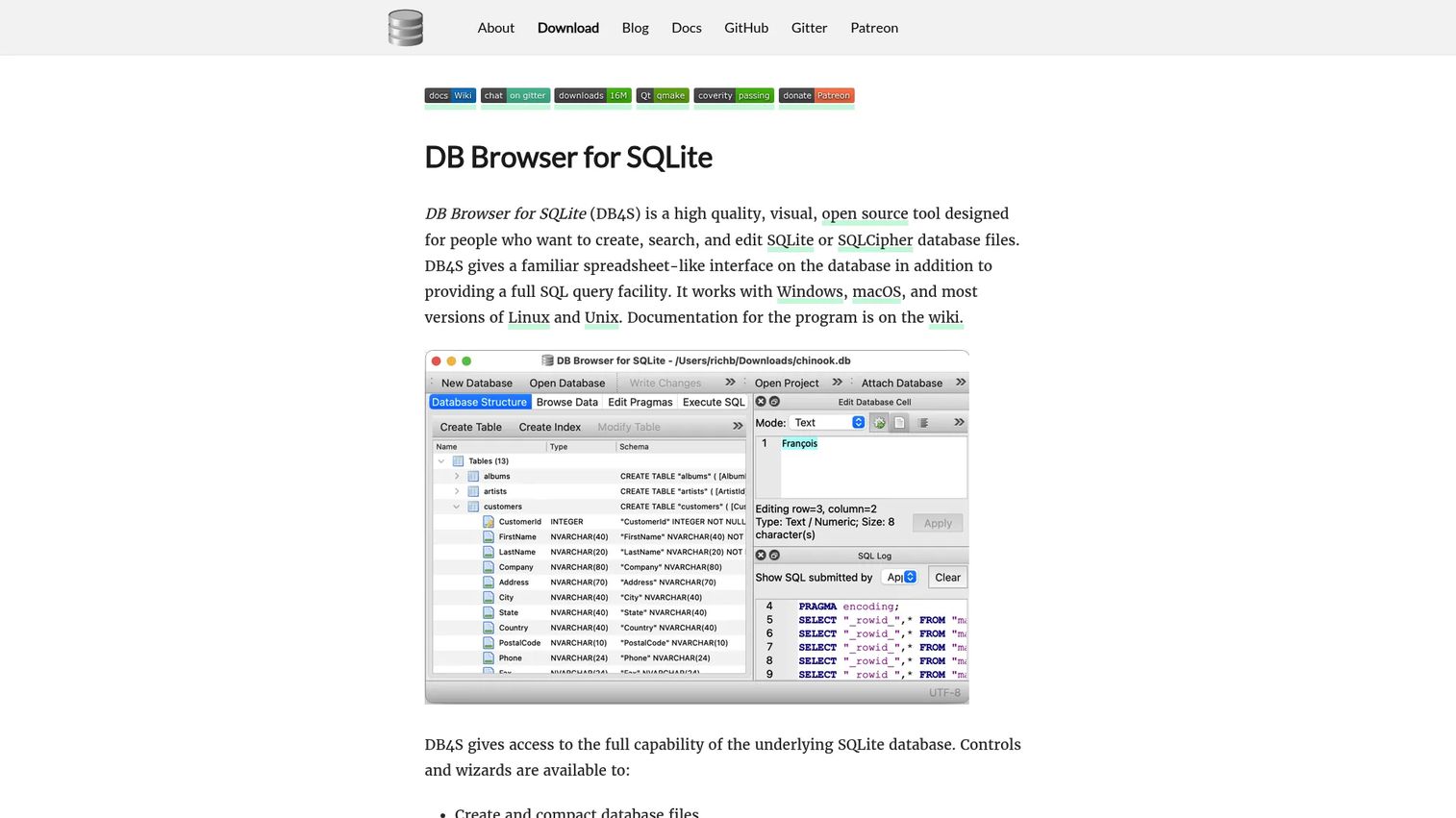
DB Browser for SQLite is a free, open-source visual tool for creating, editing, querying, and exporting SQLite and SQLCipher database files. Its spreadsheet-style grid makes it approachable for users who understand tabular data but have no SQL background. It provides table and index management, a SQL query editor, CSV import and export, SQLCipher encryption support, and simple graph plotting from query results. Official installers are available for Windows, macOS, and Linux.
Best for: Beginners and technical users who need to inspect, edit, or query SQLite database files through a visual interface rather than a command line.
Key features
- Visual creation and editing of SQLite and SQLCipher files
- Table and index management with a spreadsheet-style browser
- SQL query editor with results display
- CSV and SQL dump import and export
- SQLCipher encryption support
Why choose DB Browser for SQLite: It is the natural companion for SQLite files when you need a visual interface. Setup takes minutes, and the learning curve is minimal. It is not designed for multi-user concurrent editing or for acting as a front end to a database server. Use it for working with local SQLite files; use a database builder for forms and workflow automation.
DB Browser for SQLite pricing: Free and open source.
10. SQLite
SQLite is a database engine, not a desktop application. It is a self-contained, serverless, zero-configuration, transactional SQL library embedded directly into applications or accessed as a local file. Data lives in a single cross-platform file. There is no server to install, no background service to manage, and no configuration to maintain. SQLite source code is in the public domain, making it one of the most widely deployed database engines in the world.
Best for: Product teams and developers building applications, prototypes, or desktop utilities that need an embedded local database with minimal operational overhead.
Key features
- Serverless, zero-configuration operation
- Single portable database file with ACID transactions
- Full SQL support including JSON, window functions, and common table expressions
- Cross-platform file format (read by any OS)
- Public-domain source code
Why choose SQLite: Use it when the product or tool needs an embedded local database that travels with the application file. It is not a substitute for a shared server database when multiple users need concurrent write access. Pair it with DB Browser for SQLite when nontechnical team members need to inspect or edit the data directly.
SQLite pricing: The core engine is free and in the public domain. Optional paid support packages, warranties, and commercial extensions are available for organizations that require them.
G2 rating: 4.3/5
11. PostgreSQL
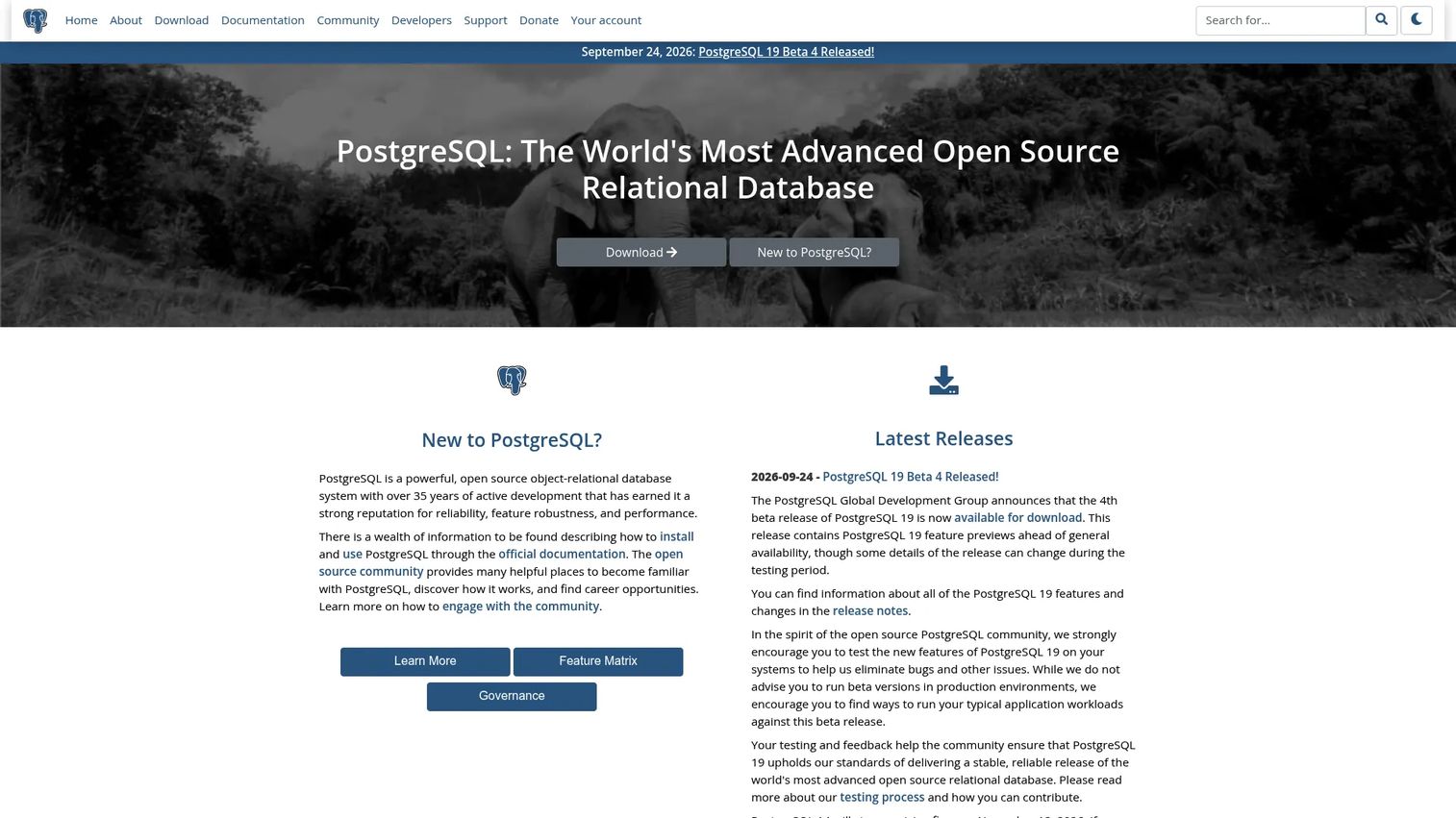
PostgreSQL is a powerful open-source object-relational database engine. Like SQLite, it is a database engine rather than a self-contained desktop application; teams typically manage it through a desktop client such as DBeaver or pgAdmin. PostgreSQL supports complex queries, foreign keys, triggers, updatable views, transactional integrity, multiversion concurrency control, and a large ecosystem of extensions. It runs on Windows, macOS, and Linux.
Best for: Teams planning for shared applications, durable product infrastructure, or workloads that will outgrow single-file or embedded databases.
Key features
- Advanced relational engine with complex query support
- Transactional integrity and multiversion concurrency control
- Extensible with custom data types, functions, and procedural languages
- Indexing strategies and query optimization tools
- Large ecosystem of compatible desktop clients
Why choose PostgreSQL: PostgreSQL is the right choice when the data model will be shared across multiple users or applications and when data integrity at scale matters. It carries more setup and operational ownership than SQLite or a desktop builder. The engineering opportunity cost is real: Someone needs to manage schema migrations, backups, and access control. That investment pays off when the system needs to support a team or a customer-facing product. For teams building business intelligence software pipelines, PostgreSQL is a common upstream source.
PostgreSQL pricing: Free and open source under the PostgreSQL License, including for commercial use.
12. Microsoft SQL Server Express
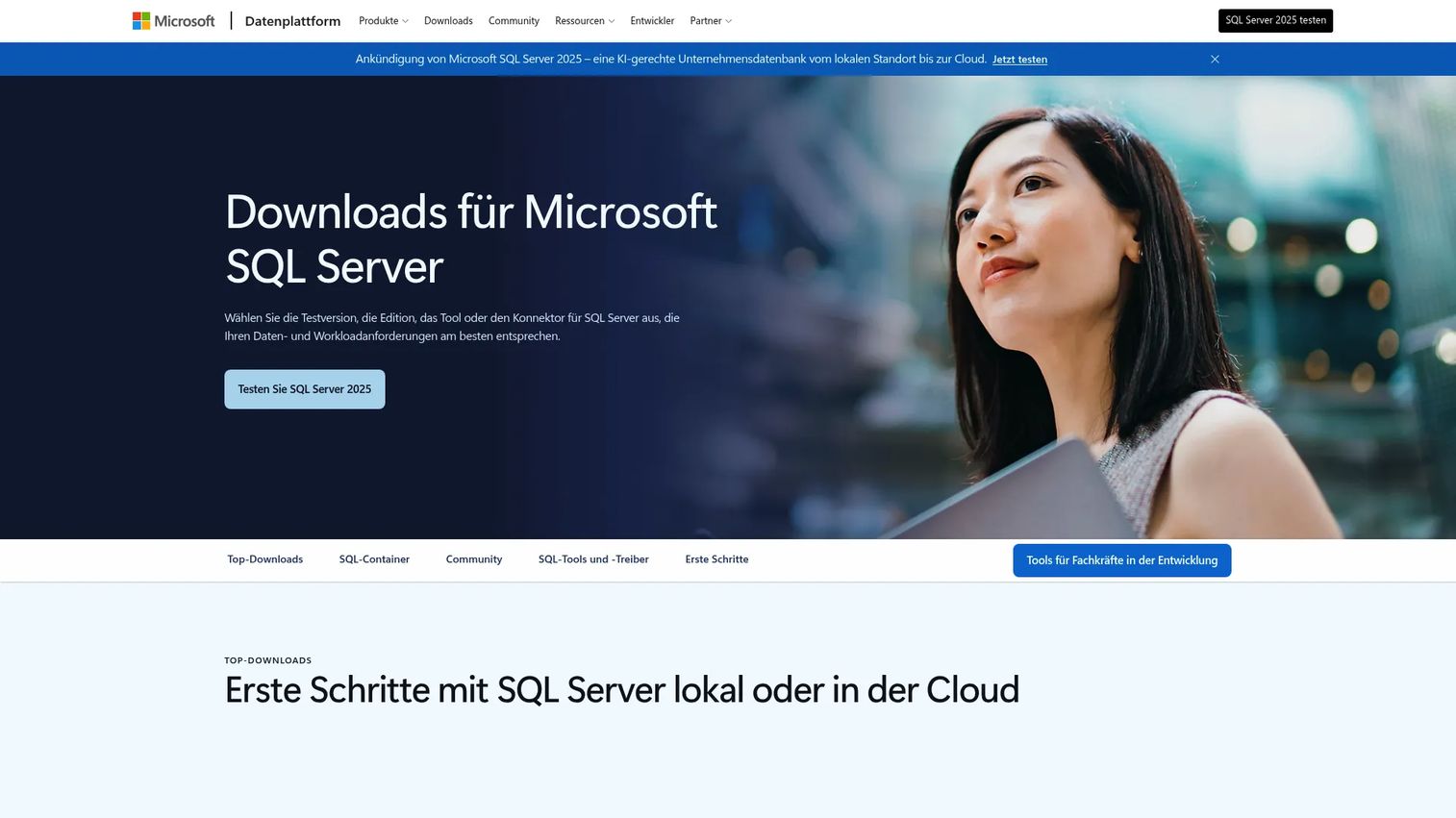
Microsoft SQL Server Express is the free entry-level edition of Microsoft SQL Server. It supports up to 4 CPU cores, 1,410 MB of memory per instance, and a maximum relational database size of 50 GB. It includes the core SQL Server database engine with relational, XML, and JSON data support, Microsoft Entra authentication, and built-in vector and semantic search capabilities. It is managed through SQL Server Management Studio (SSMS) or Azure Data Studio, both free Windows tools.
Best for: Windows-centric teams learning SQL Server concepts, building desktop or small-server applications, and preparing for a path to full SQL Server editions.
Key features
- Free SQL Server edition for small deployments
- Up to 4 CPU cores and 50 GB database size per instance
- Relational, XML, and JSON data support
- Microsoft Entra authentication
- Built-in vector and semantic search
Why choose Microsoft SQL Server Express: It fits teams that expect a Microsoft-centric stack long term and want to build on SQL Server conventions from day one. The 50 GB database size limit and the memory cap per instance matter; verify these against your expected data volume before committing. When the workflow outgrows Express, upgrading to a commercial SQL Server edition preserves the existing schema and tooling.
Microsoft SQL Server Express pricing: Free to download and use.
G2 rating: 4.4/5 (for Microsoft SQL Server generally)
Considerations when choosing desktop database software
Choose the right tool category first
Start with who owns the data, who edits it, and whether the system is part of a product or an internal workflow. A desktop builder, a SQL client, and a database engine solve different jobs. Picking the wrong category adds maintenance without adding capability.
Plan for collaboration and access control
A database on one laptop is not the same as a shared operational system. Before moving a critical workflow to a desktop database, verify user permissions, audit requirements, file sharing behavior, conflict handling on concurrent edits, and backup frequency. A fast prototype can become a permanent dependency with no ownership plan.
Check operating system and stack compatibility
Microsoft Access and SQL Server Express are Windows-only. DBeaver, DbVisualizer, LibreOffice Base, SQLite, and PostgreSQL run across Windows, macOS, and Linux. For teams with mixed operating systems or plans to integrate with an existing engineering stack, verify compatibility before committing to a tool. For teams already using account management software or CRM tools, check whether the database client integrates with those systems.
Measure maintenance burden honestly
Someone needs to update schemas, own backups, resolve import errors, and document the workflow after the original builder moves on. A no-code tool reduces the engineering opportunity cost, but it does not eliminate the operational ownership. Ask who on the team will maintain this across the next three release cycles.
Preserve portability and reporting access
Before committing to a tool, verify CSV export, SQL dump, API connector, and migration options. A database format that cannot support future reporting, CRM integration, or product data pipelines creates a migration problem later. For teams building toward product analytics software pipelines, portability decisions made now affect instrumentation options downstream.
Conclusion
The right desktop database software depends on one question: Are you building a database, querying one, or embedding one?
For building operational database applications, Microsoft Access suits Windows-centric teams inside Microsoft 365, Claris FileMaker suits cross-platform custom apps, and LibreOffice Base suits budget-conscious teams with basic relational needs. For querying and administering existing databases, DBeaver covers broad multi-database needs at no cost, DbVisualizer adds commercial support and AI-assisted SQL editing, Navicat Premium covers teams managing heterogeneous enterprise stacks, MySQL Workbench targets MySQL environments specifically, and MongoDB Compass serves document database workflows. For embedding or running a database engine, SQLite is the zero-configuration local option, PostgreSQL is the production-grade open-source choice, and SQL Server Express fits Windows-centric teams building toward a full SQL Server stack.
The practical rule: Pick the smallest tool that gives your team a durable data model, clear ownership, and a workable migration path. Start with the tool type, then evaluate within that category.
For teams exploring related tool categories, the Guideflow blog covers best product management tools and best data visualization tools that often complement a desktop database workflow.
FAQs
Microsoft Access is the most approachable option for Windows users who need forms, reports, and relational tables without writing SQL. LibreOffice Base is a strong free alternative for the same use cases. If the goal is simply to inspect or edit a local SQLite file, DB Browser for SQLite requires almost no learning curve and runs on Windows, macOS, and Linux.
The answer depends on what job you need it to do. LibreOffice Base is the best free database builder for forms and reports. DB Browser for SQLite is the best free visual interface for SQLite files. SQLite itself is free and public domain for embedded use. MySQL Workbench is free for MySQL administration. PostgreSQL is free for production-grade relational workloads. Microsoft SQL Server Express is free for Windows-centric SQL Server development.
Yes, for the right context. Access remains a practical choice for Windows-based internal databases with forms, reports, and Microsoft 365 alignment. It works well for department-level workflows where the team stays on Windows and the data does not need to support a customer-facing product. It is less suited to cross-platform teams, large concurrent user counts, or workflows that require a cloud-first architecture.
A desktop database typically stores or manages data locally from a user's machine, often in a file format, and is designed for single-user or small-team access. A server database runs as a shared service that multiple users or applications connect to simultaneously. Desktop clients like DBeaver and DbVisualizer can connect to and manage server databases; the client runs on the desktop but the data lives on the server.
A database improves on a spreadsheet when the data has related records, controlled data entry requirements, consistent field types, user permissions, or complex query needs. If the team is running vlookups across sheets or maintaining a master customer list manually, a desktop database builder will give more structure and fewer data errors. Excel remains better for lightweight analysis and ad hoc reporting where pivot tables and charting matter more than relational integrity.
SQLite is the strongest option for offline and local database workflows; it stores everything in a single file with no network dependency. Microsoft Access and LibreOffice Base also work offline as desktop applications. DB Browser for SQLite provides offline visual access to SQLite files. For server engines like PostgreSQL and SQL Server Express, the server itself can run locally on a laptop without a network connection, but the setup is more involved. Establish a backup routine for any offline database before it stores critical data.
Microsoft Access fits small Windows teams that need internal forms and reports. Claris FileMaker suits small businesses that need a custom operational app with mobile access. LibreOffice Base works for basic database needs with no software budget. For small businesses with developer capacity, SQLite handles lightweight application data and PostgreSQL handles anything that needs to scale to a team or a product.
Not always. No-code database builders like Microsoft Access, Claris FileMaker, and LibreOffice Base reduce the SQL requirement to near zero for everyday data entry and reporting. Database clients and engines benefit from SQL knowledge for querying, schema inspection, and data validation. As a PM, knowing enough SQL to run a SELECT query, filter records, and join two tables covers the vast majority of data verification tasks. It also makes communication with engineering clearer when you can describe a data requirement in terms of the query it would require.
Four questions matter most. Who owns schema updates when the product changes? What does the backup and recovery process look like, and who runs it? Can the data be exported cleanly if the team migrates to a different tool later? Does the tool's access control model match the team's governance requirements? A desktop database that answers all four clearly is easier to maintain than one that answers only the first.