Spreadsheets hit a wall around row 10,000. That's when scrolling stops revealing patterns and starts hiding them.
Data visualization tools turn those rows into charts, maps, and dashboards where trends become obvious at a glance. This guide covers 12 options across the spectrum in a USD 10.92 billion market, from enterprise BI platforms like Tableau to free chart builders like Datawrapper, with honest evaluations of what each does well and where it falls short.
What's inside
This guide covers 12 data visualization tools ranked by use case, from enterprise BI platforms to free chart builders. You'll find a comparison table, honest evaluations of each tool's strengths and limitations, and guidance on matching the right tool to your team's technical skills and data needs.
TL;DR
- Enterprise BI: Tableau and Power BI handle complex, interactive dashboards with advanced analytics
- Quick publishing: Datawrapper and Flourish create embeddable charts without coding
- Free options: Looker Studio, RAWGraphs, and Google Charts work well for budget-conscious teams
- Developer-focused: Observable and Apache Superset offer programmatic control for technical users
- Key decision factor: Match tool complexity to your team's skill level and data source requirements
What are data visualization tools
Top data visualization tools include Tableau and Power BI for robust, interactive dashboards, along with Datawrapper and Flourish for quick, embeddable charts. Data visualization tools transform raw numbers into visual formats like charts, graphs, maps, and dashboards. The goal is simple: spot patterns, outliers, and trends that would stay hidden in spreadsheets.
The category spans a wide range. On one end, simple chart builders take a CSV and produce a polished bar chart in minutes. On the other, full business intelligence (BI) platforms connect to live databases, support complex calculations, and power enterprise-wide reporting.
Here's what data visualization tools typically do:
- Connect to data sources: Pull from spreadsheets, SQL databases, cloud services, or APIs
- Create visual formats: Generate charts, graphs, maps, tables, and interactive dashboards
- Enable exploration: Let users filter, drill down, and interact with data in real time
- Support sharing: Export, embed, or publish visualizations for stakeholders
The tool you pick depends on who's using it. A marketing analyst embedding a chart in a blog post has different needs than a data engineer building a real-time operations dashboard.
Why data visualization matters
Faster decisions from clear insights
A well-designed chart surfaces trends, outliers, and correlations that would take hours to find in a spreadsheet. When your sales data shows a sudden dip in one region, a line chart makes that obvious at a glance.
Better stakeholder communication
Dashboards and charts make data accessible to people who don't live in spreadsheets in more than 83% of organizations that rely on dashboards for decision-making. Executive teams, clients, and cross-functional partners can understand performance without interpreting raw numbers. This matters when presenting quarterly results or aligning teams around shared metrics.
Pattern recognition at scale
Humans struggle to spot patterns in large datasets without visual aid. When you're looking at 50,000 rows of transaction data, no amount of scrolling reveals the seasonal trends or anomalies that a heat map or scatter plot makes immediately visible.
Types of data visualizations
Different visualization types serve different analytical needs. The format you choose depends on what question you're trying to answer.
Type | Best for | Examples |
|---|---|---|
Charts and graphs | Trends, comparisons, distributions | Bar, line, pie, scatter |
Maps | Geographic or location data | Choropleth, heat maps, point maps |
Tables | Precise values and lookups | Pivot tables, data grids |
Dashboards | Real-time monitoring, KPI tracking | Interactive multi-chart views |
Charts and graphs
Bar charts work well for comparing categories. Line charts show change over time. Pie charts display proportions (though they're often overused). Scatter plots reveal relationships between two variables. Most business reporting relies heavily on bar, line, and scatter formats.
Maps and geospatial displays
Choropleth maps shade regions by value, useful for showing sales by state or population density. Heat maps highlight concentration patterns. Point maps plot individual locations. Geographic formats matter for sales territories, logistics planning, and regional performance analysis.
Tables and matrices
Sometimes you need exact numbers, not visual approximations. Pivot tables and data grids remain essential when precision matters more than pattern recognition. Financial reporting and detailed lookups often require tabular formats alongside visual summaries.
Dashboards and interactive reports
Dashboards combine multiple visualizations with filters and drill-down capabilities. They're designed for ongoing monitoring rather than one-time analysis. Real-time data connections keep KPIs current, and interactivity lets users explore without waiting for new reports.
How we chose these tools
We evaluated tools based on criteria that matter for day-to-day use:
- Ease of use: No-code drag-and-drop versus code-required interfaces
- Data connectivity: Supported sources including SQL, cloud platforms, APIs, and spreadsheets
- Visualization types: Range of chart, map, and dashboard options available
- Collaboration: Team features, permissions, commenting, and version history
- Pricing: Free tiers, per-user costs, and enterprise licensing models
- Target audience: Which teams and skill levels each tool serves best
Data visualization tools comparison table
# | Product | Intent | Key use case | Pricing | G2 rating |
|---|---|---|---|---|---|
1 | Tableau | Enterprise analytics | Complex interactive dashboards | From $15/user/month | 4.4/5 |
2 | Microsoft Power BI | Microsoft ecosystem | Automated insights and data modeling | Free to $20/user/month | 4.5/5 |
3 | Looker Studio | Marketing reporting | Google-integrated cloud dashboards | Free | 4.4/5 |
4 | Datawrapper | Publishing | Fast, accessible embeddable charts | Free to $599/month | 4.7/5 |
5 | Flourish | Data storytelling | Animated, interactive narratives | Free to custom pricing | 4.7/5 |
6 | Metabase | Product analytics | Open-source embedded BI | Free to $500+/month | 4.5/5 |
7 | Grafana | Infrastructure monitoring | Time-series metrics dashboards | Free to custom pricing | 4.6/5 |
8 | Infogram | Visual content | Infographics and visual reports | Free to $149/month | 4.5/5 |
9 | Observable | Custom development | Code-based visualization notebooks | Free to $35/editor/month | 4.5/5 |
10 | RAWGraphs | Experimental design | Unconventional chart types | Free | N/A |
11 | Apache Superset | Data teams | Enterprise open-source BI | Free | 4.4/5 |
12 | Google Charts | Web development | Simple embedded web charts | Free | 4.3/5 |
1. Tableau
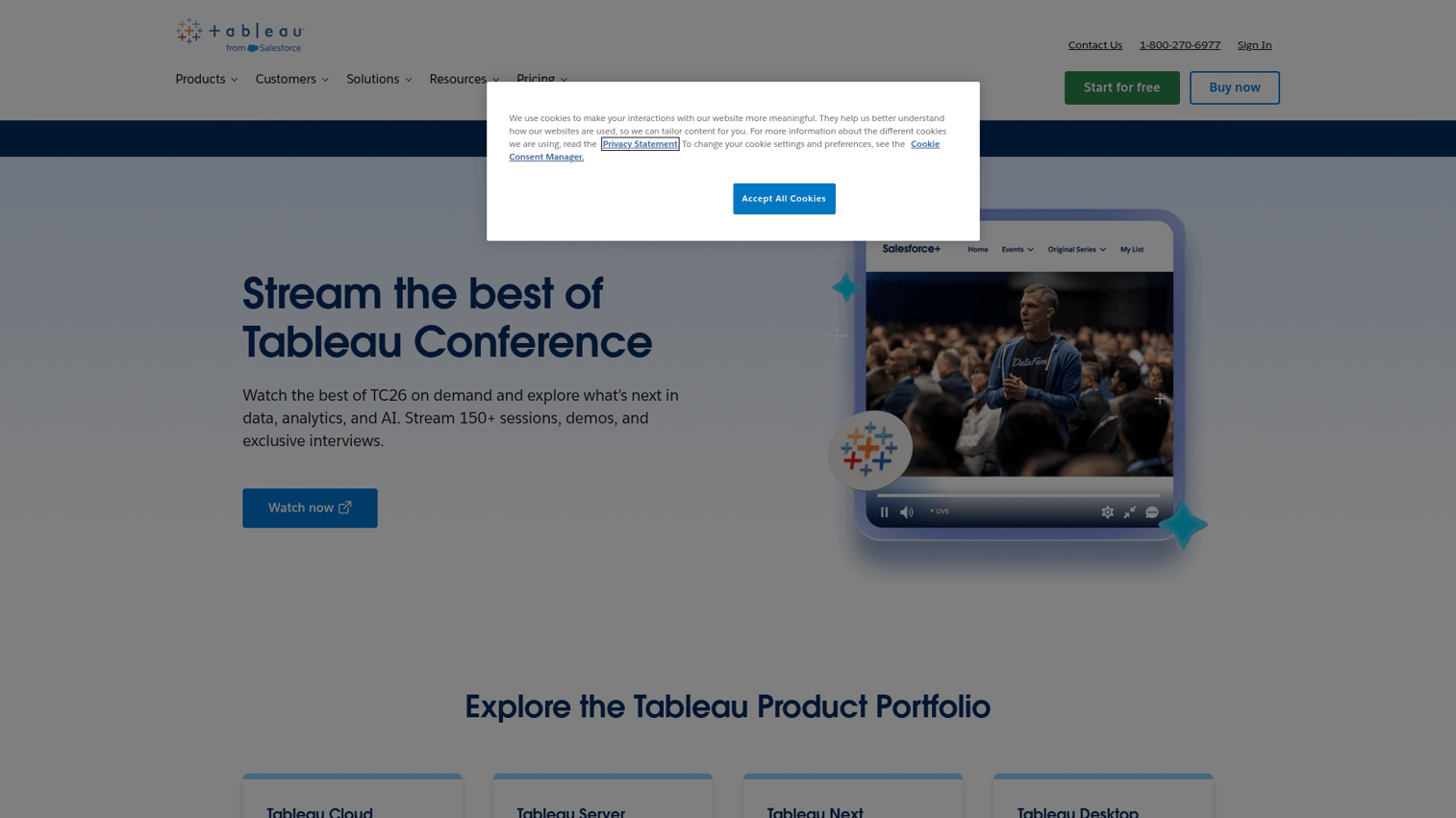
Tableau is the industry standard for advanced data visualization and business intelligence. It handles complex datasets, supports sophisticated calculations, and produces highly interactive dashboards that let users explore data without technical skills.
The platform connects to virtually any data source, from spreadsheets to cloud data warehouses. Its drag-and-drop interface makes building visualizations accessible, though mastering advanced features takes time.
Best for: Enterprise analytics teams needing advanced interactivity and complex data modeling across large datasets.
Key strengths
- Drag-and-drop interface: Build visualizations without writing code
- Advanced analytics: Calculated fields, trend lines, forecasting, and statistical functions built in
- Data blending: Combine multiple data sources in single views without complex ETL processes
- Explain Data feature: AI-powered insight suggestions that surface potential explanations for data patterns
- Tableau Public: Free version for creating and sharing public visualizations
Why choose Tableau
Tableau fits teams with dedicated analysts who need to build complex, interactive dashboards. It handles large datasets well and offers deep customization. The tradeoff is cost and complexity. Smaller teams or those with simpler needs may find it overkill.
Pricing
Tableau Creator starts at $75/user/month. Explorer and Viewer tiers offer lower-cost access for dashboard consumers. Tableau Public is free for public data visualizations.
2. Microsoft Power BI
Power BI integrates tightly with the Microsoft ecosystem and holds 23.21% market share, making it the natural choice for organizations already using Excel, Azure, SharePoint, and Teams. It offers robust data modeling capabilities and AI-powered automated insights.
The platform's Quick Insights feature automatically identifies trends and anomalies in your data. Natural language queries let users ask questions in plain English and get visualizations in response.
Best for: Microsoft-heavy organizations needing robust data modeling and automated insights without leaving their existing stack.
Key strengths
- Microsoft integration: Native connections to Excel, Azure, SharePoint, Teams, and Dynamics
- Quick Insights: AI-powered automatic trend detection that surfaces patterns you might miss
- Natural language queries: Ask questions like "show sales by region last quarter" and get instant charts
- DAX formulas: Powerful data modeling language for complex calculations
- Free desktop version: Power BI Desktop costs nothing to download and use locally
Why choose Power BI
If your organization runs on Microsoft tools, Power BI reduces friction. Data flows naturally from Excel and Azure. The learning curve is gentler than Tableau for users familiar with Excel. Mobile apps are solid, and the free Desktop version lets you evaluate before committing.
Pricing
Power BI Pro costs $10/user/month. Premium Per User runs $20/user/month with additional features. Premium capacity pricing starts at $4,995/month for dedicated resources. Power BI Desktop is free.
3. Looker Studio
Looker Studio (formerly Google Data Studio) is Google's free, cloud-based reporting tool. It connects directly to Google Analytics, Google Ads, Google Sheets, and BigQuery, making it the default choice for marketing teams already in the Google ecosystem.
Real-time collaboration works like Google Docs. Multiple users can edit simultaneously, leave comments, and share reports with view or edit permissions.
Best for: Marketing teams and beginners needing free, cloud-based reporting with native Google integrations.
Key strengths
- Completely free: No cost for core features, unlimited reports, and unlimited viewers
- Google ecosystem: Direct connectors for Analytics, Ads, Sheets, BigQuery, and YouTube
- Real-time collaboration: Google Docs-style sharing and simultaneous editing
- Community connectors: Third-party integrations for data sources outside Google
- Template gallery: Pre-built report templates to accelerate setup
Why choose Looker Studio
Looker Studio is the best entry point for teams already using Google tools. The price (free) removes budget concerns. However, it's limited for non-Google data sources, and advanced features require workarounds or third-party connectors.
Pricing
Free. Note that Looker (the enterprise version acquired by Google) is a separate paid product with different capabilities.
4. Datawrapper
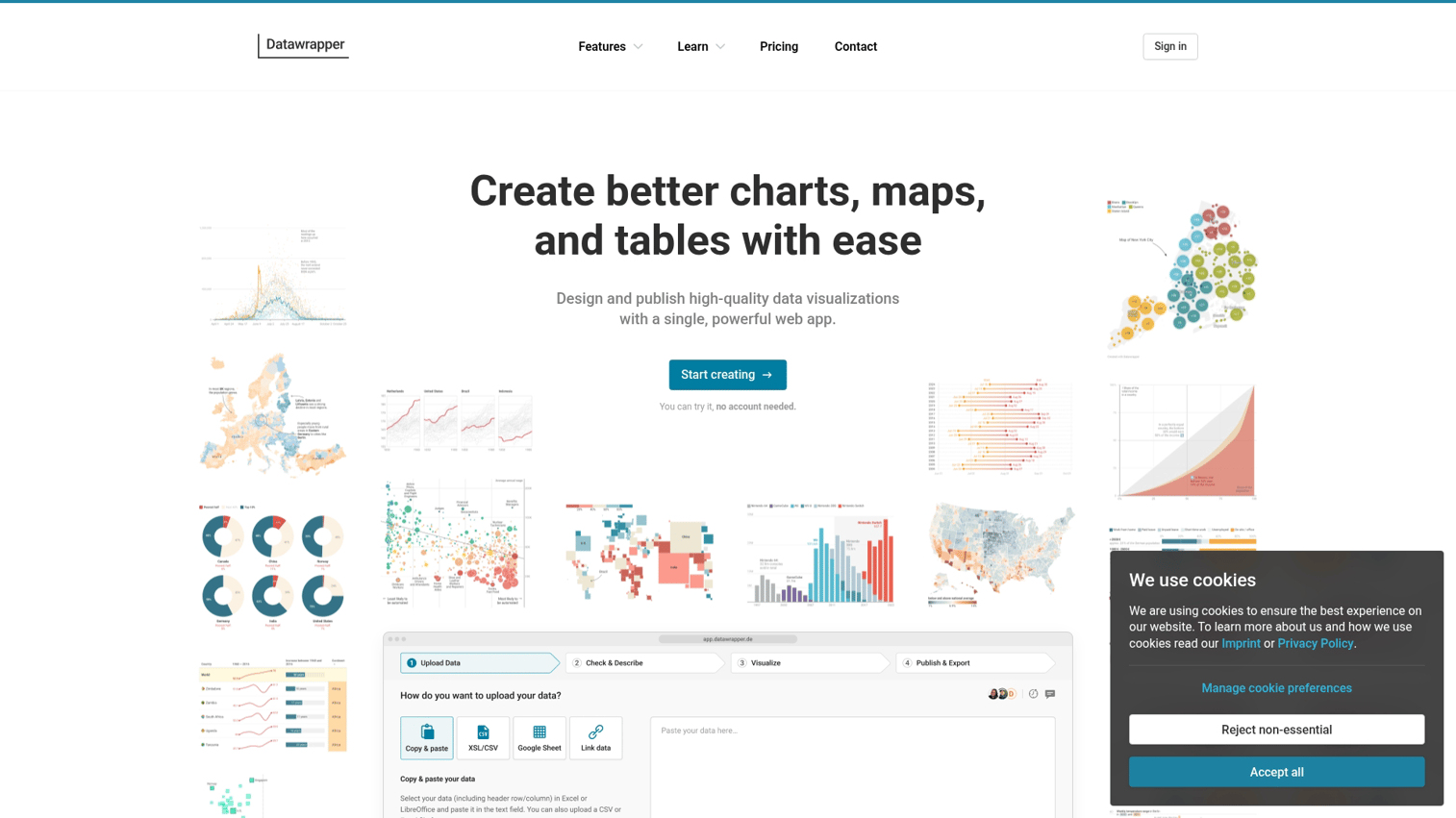
Datawrapper focuses on speed and accessibility. Journalists, content teams, and communications professionals use it to create publication-quality charts in minutes without design skills or coding knowledge.
Accessibility is a core feature, not an afterthought. Charts automatically include screen reader support and meet WCAG guidelines. Responsive embeds adapt to any screen size.
Best for: Journalists, content teams, and professionals needing fast, accessible, embeddable charts for articles and reports.
Key strengths
- Speed to publish: Create polished charts in minutes, not hours
- Accessibility first: Automated accessible chart creation meets WCAG standards by default
- Clean design: Publication-quality output without needing design expertise
- Responsive embeds: Charts adapt automatically to any screen size
- No account required: Start creating immediately without signup for basic use
Why choose Datawrapper
Datawrapper excels at one thing: getting clean, accessible charts published fast. It's not a full BI platform. You won't build complex dashboards or connect to live databases. But for embedding charts in articles, reports, or websites, it's hard to beat.
Pricing
Free tier available with watermarks. Team plans start at $599/month for custom branding, private charts, and collaboration features.
5. Flourish
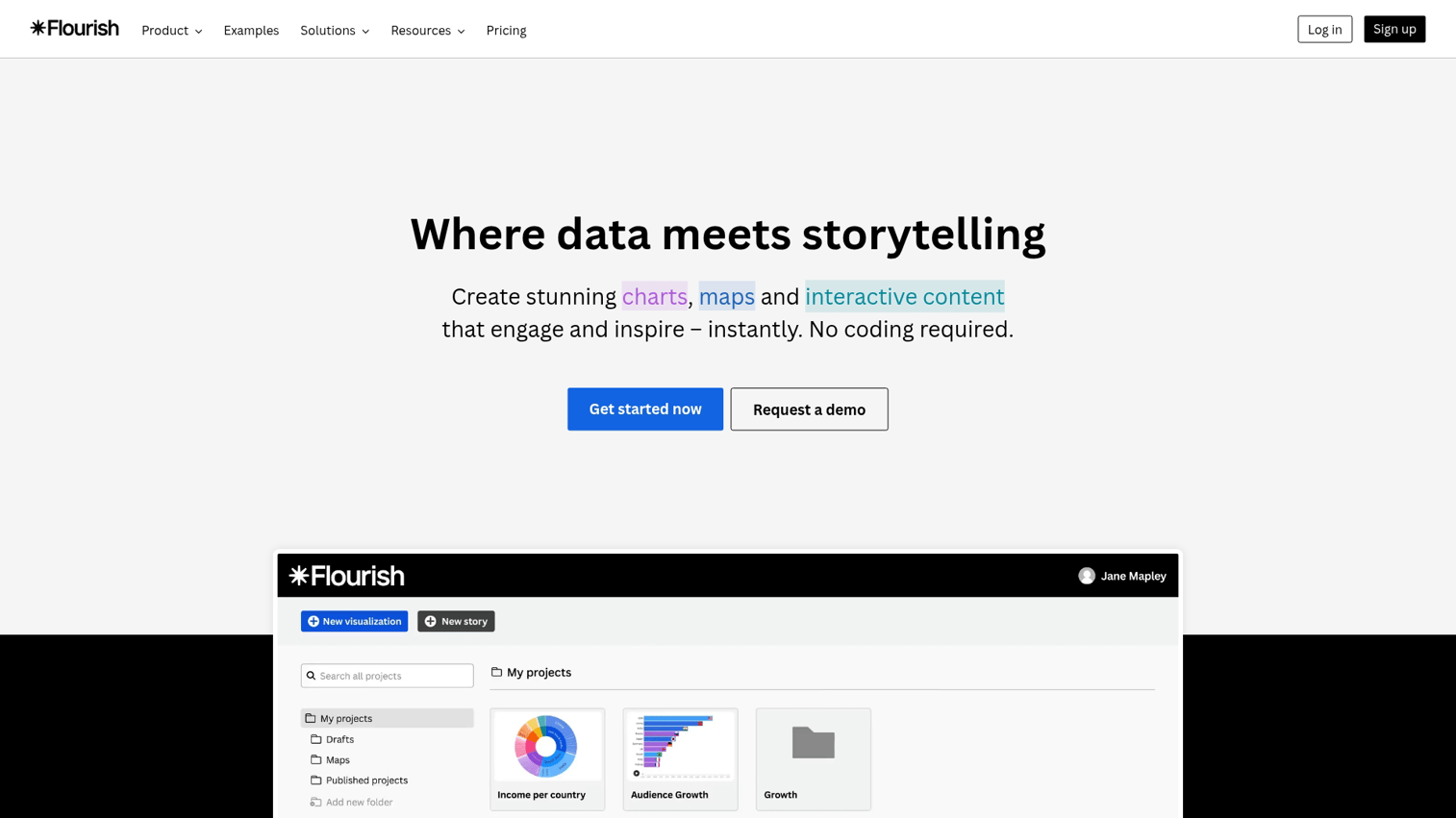
Flourish specializes in data storytelling. Its templates include animated bar chart races, scrollytelling narratives, and interactive maps designed to engage audiences rather than just inform them.
The platform works well for presentations, social media content, and editorial projects where visual impact matters as much as data accuracy.
Best for: Storytellers and communicators creating interactive, animated data narratives for presentations and social content.
Key strengths
- Data storytelling: Animated transitions, scrollytelling templates, and narrative-driven formats
- No-code creation: Drag-and-drop interface with no programming required
- Template library: Racing bar charts, interactive maps, timelines, and more
- Brand customization: Match organizational style guides with custom colors and fonts
- Embeddable anywhere: Works in websites, presentations, and social media posts
Why choose Flourish
Flourish shines when engagement matters. If you're creating content for social media, presentations, or editorial projects, the animated and interactive formats capture attention. It's less suited for live BI dashboards or complex analytical work.
Pricing
Free tier for public projects. Paid plans for private projects and team features start at custom pricing based on usage.
6. Metabase
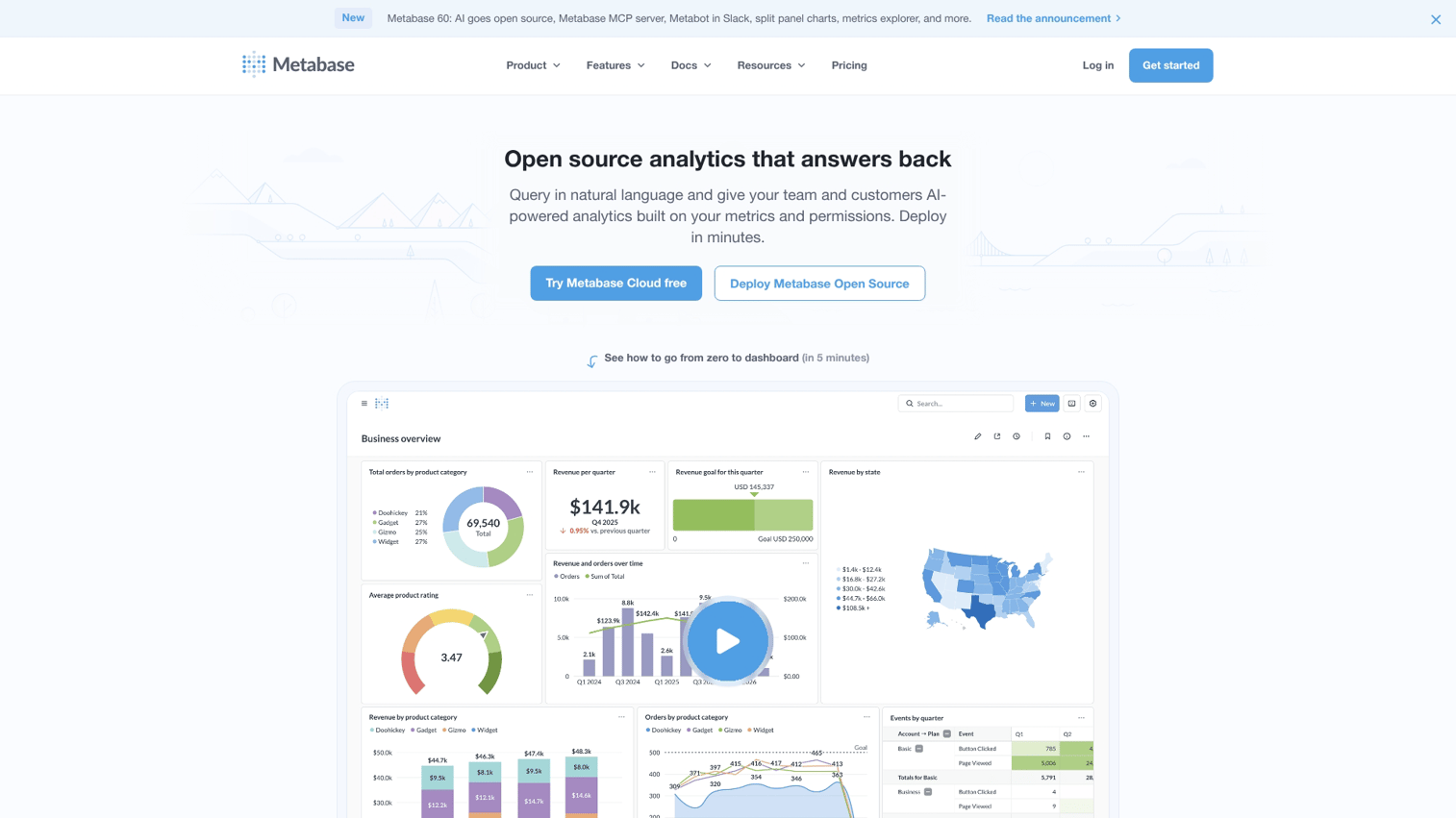
Metabase offers a middle ground between simple chart tools and complex BI platforms. Its question builder lets non-technical users create queries without SQL, while power users can drop into full SQL mode when needed.
The open-source version can be self-hosted, reducing vendor lock-in concerns. Embedded analytics capabilities let product teams white-label dashboards inside their own applications.
Best for: Teams wanting open-source BI with both no-code and SQL query options, especially for embedded analytics.
Key strengths
- Question builder: Create queries without SQL knowledge using a visual interface
- SQL mode: Full SQL access for power users who need complex queries
- Self-hosted option: Deploy on your own infrastructure with the open-source version
- Embedded analytics: White-label dashboards inside your own product
- Alerts and subscriptions: Automated report delivery via email or Slack
Why choose Metabase
Metabase works well for product teams embedding analytics into their applications. The open-source option appeals to organizations concerned about vendor lock-in. It's less polished than Tableau or Power BI but more accessible than building custom solutions.
Pricing
Free open-source version. Cloud hosting starts at $85/month. Enterprise tier with advanced features runs $500+/month.
7. Grafana
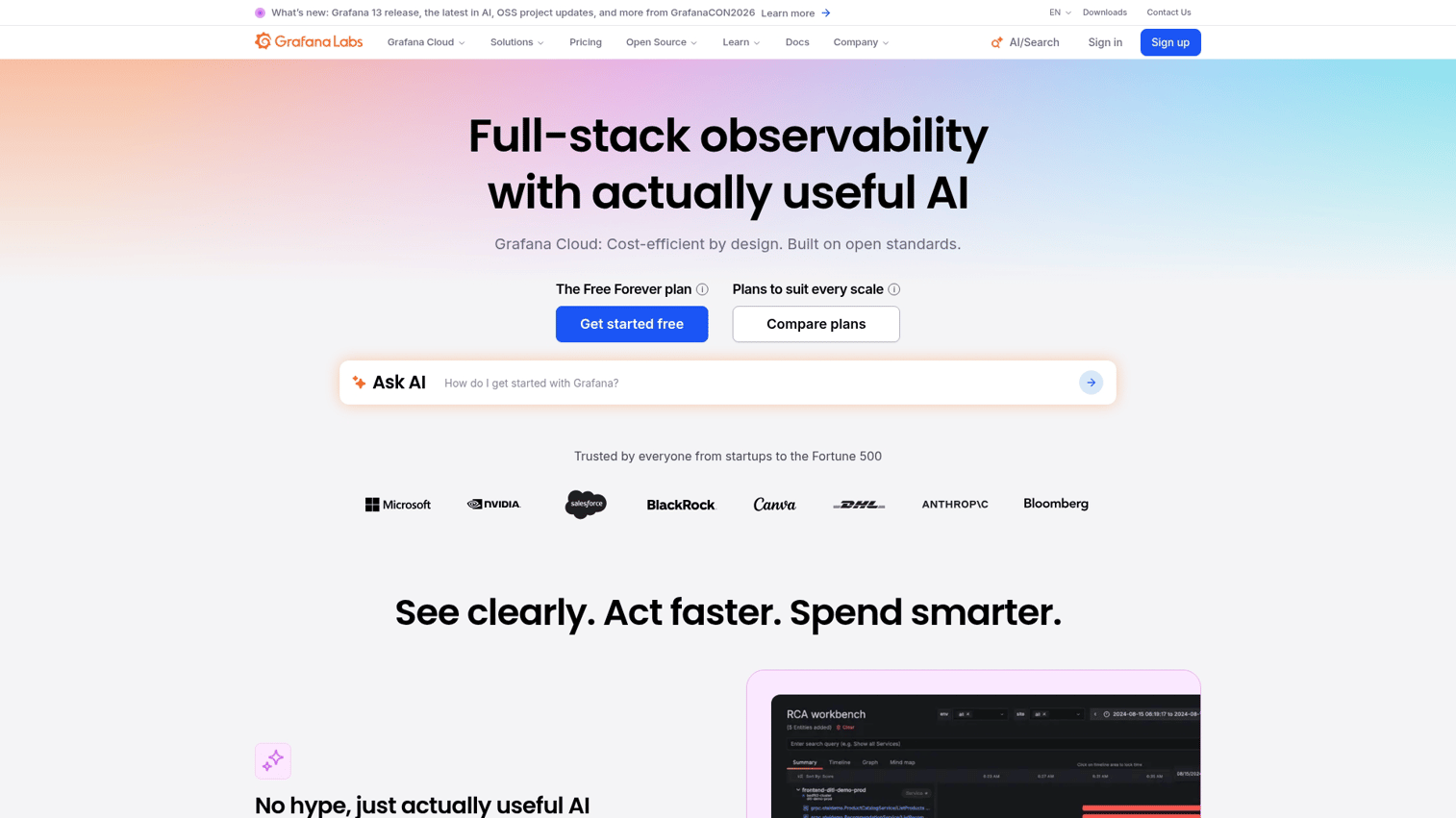
Grafana dominates time-series visualization. DevOps and engineering teams use it to monitor infrastructure metrics, application performance, and system health in real time.
The platform connects to dozens of data sources including Prometheus, InfluxDB, Elasticsearch, and cloud monitoring services. Its alerting system triggers notifications when metrics cross defined thresholds.
Best for: DevOps and engineering teams monitoring time-series metrics and infrastructure performance.
Key strengths
- Time-series focus: Built specifically for metrics that change over time
- Data source flexibility: Native support for Prometheus, InfluxDB, Elasticsearch, and more
- Alerting: Threshold-based notifications via email, Slack, PagerDuty, and other channels
- Plugin ecosystem: Extend functionality with community-built plugins
- Open source: Self-host at no cost with full feature access
Why choose Grafana
Grafana is the standard for infrastructure monitoring. If you're tracking server metrics, application performance, or IoT sensor data, it's likely the right choice. It's less suited for business analytics or ad-hoc reporting where time-series isn't the primary format.
Pricing
Free and open-source for self-hosting. Grafana Cloud offers managed hosting with a free tier and paid plans starting at $29/month.
8. Infogram
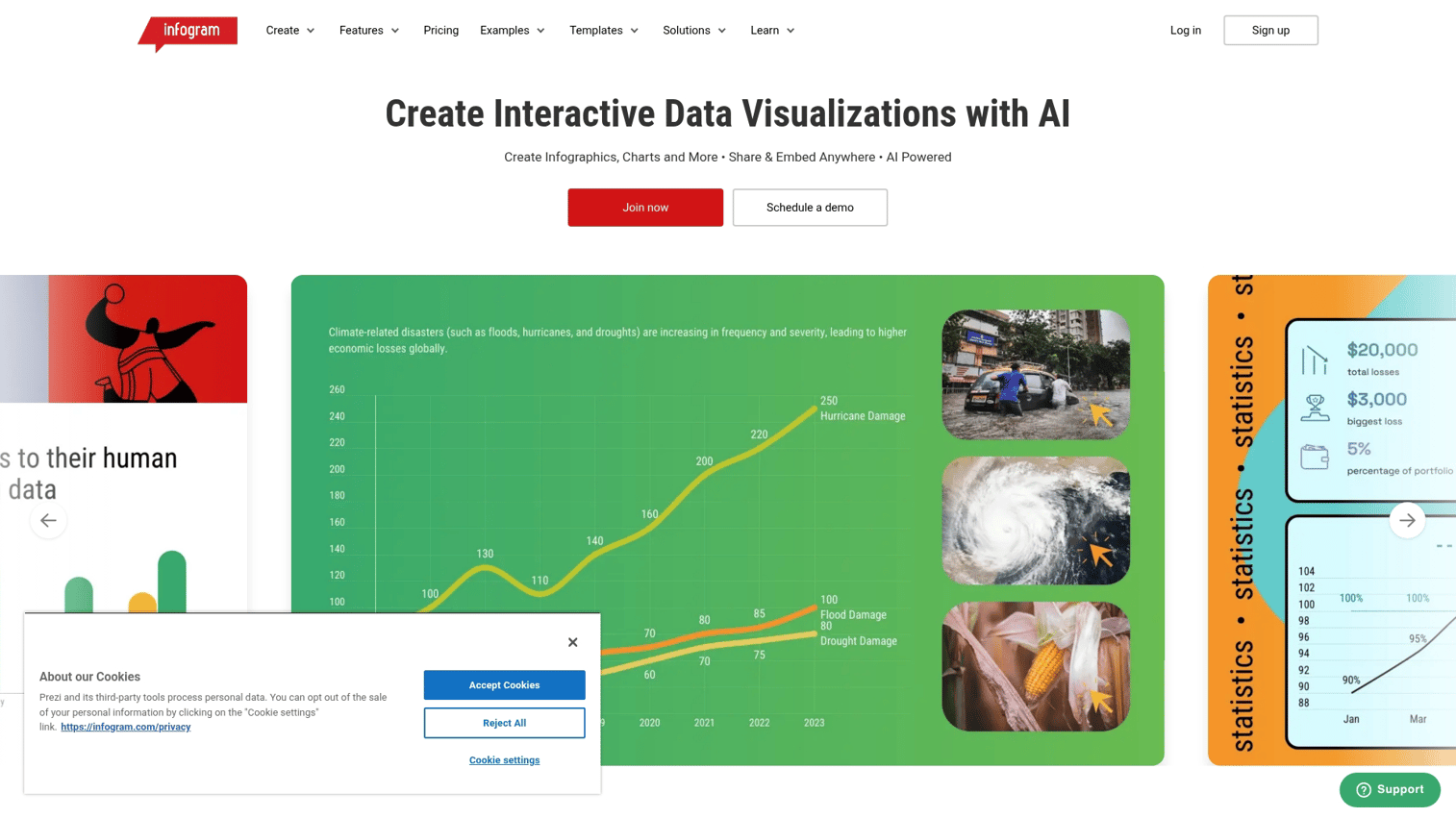
Infogram focuses on infographics and visual content creation. Marketing and communications teams use it to produce branded visual reports, social media graphics, and interactive content.
The platform emphasizes design over data analysis. Pre-built templates and brand kits ensure visual consistency across assets without requiring design expertise.
Best for: Marketing and communications teams creating infographics and visual reports for external audiences.
Key strengths
- Infographic templates: Pre-designed layouts for visual storytelling
- Brand kit: Consistent colors, fonts, and logos across all assets
- Interactive elements: Clickable charts and maps for web publishing
- Team collaboration: Shared workspaces and approval workflows
- Multi-format export: PNG, PDF, GIF, and HTML output options
Why choose Infogram
Infogram works well for visual content marketing where design matters as much as data. It's not designed for live dashboards or complex analysis. Think of it as a design tool that happens to handle data, rather than a data tool with design features.
Pricing
Free tier with watermarks. Pro plans start at $19/month. Business plans run $67/month. Team and Enterprise pricing scales with users.
9. Observable
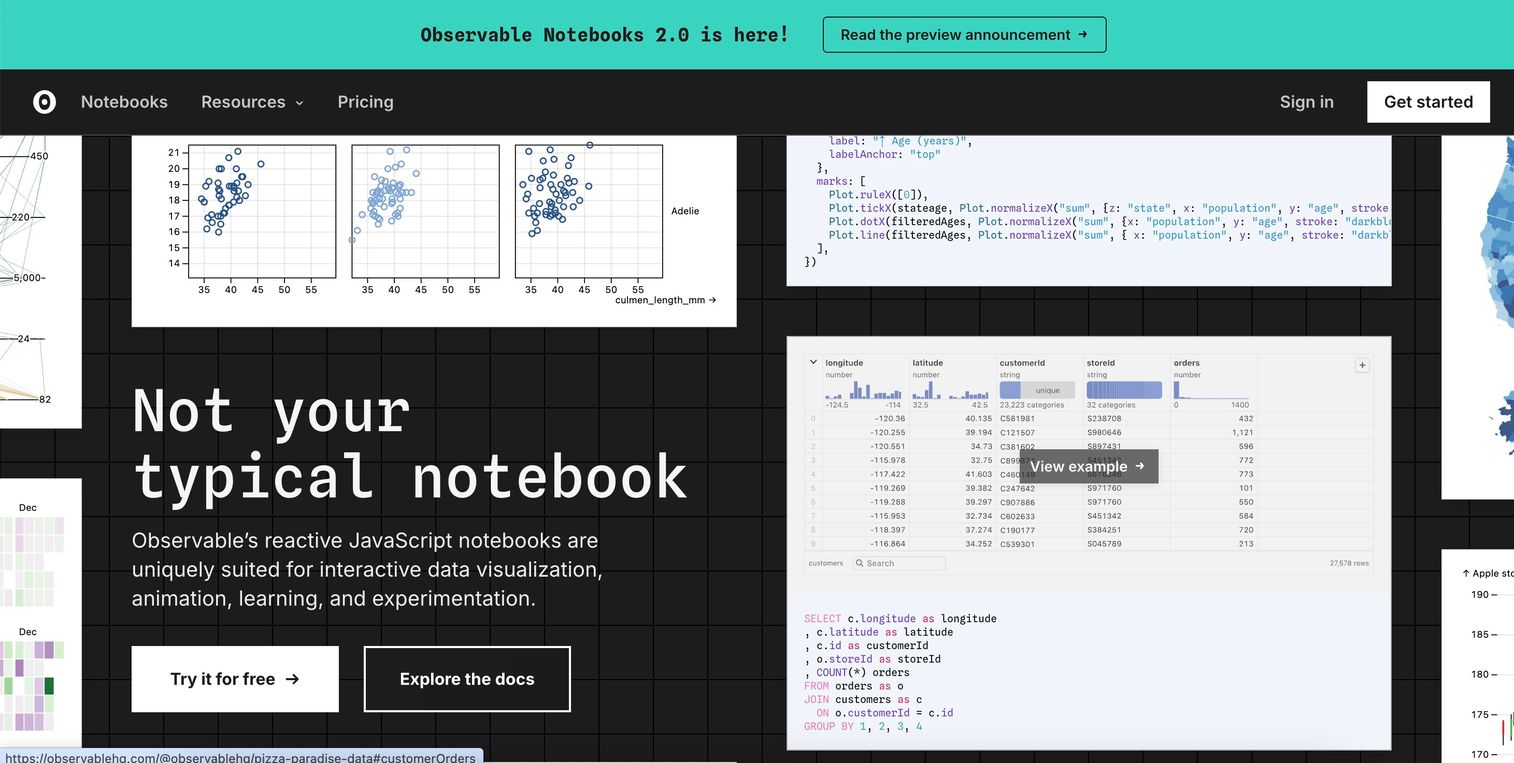
Observable combines code, data, and visualization in reactive notebooks. Developers and data scientists use it to build custom visualizations with JavaScript, often leveraging the D3.js library for complex, bespoke charts.
The platform's reactive model means code and output update together. Change a variable, and every dependent visualization updates automatically.
Best for: Developers and data scientists wanting code-based, collaborative visualization notebooks with full programming flexibility.
Key strengths
- JavaScript-native: Full programming flexibility for custom visualizations
- D3.js integration: Direct access to the most powerful visualization library
- Reactive notebooks: Code and output update together automatically
- Version control: Track changes and collaborate with Git-like history
- Community examples: Learn from thousands of public notebooks
Why choose Observable
Observable offers maximum flexibility for teams with JavaScript skills. If you need visualizations that don't exist in any template library, this is where you build them. The tradeoff is a steeper learning curve than no-code alternatives.
Pricing
Free for public notebooks. Team plans start at $35/editor/month for private work and collaboration features.
10. RAWGraphs
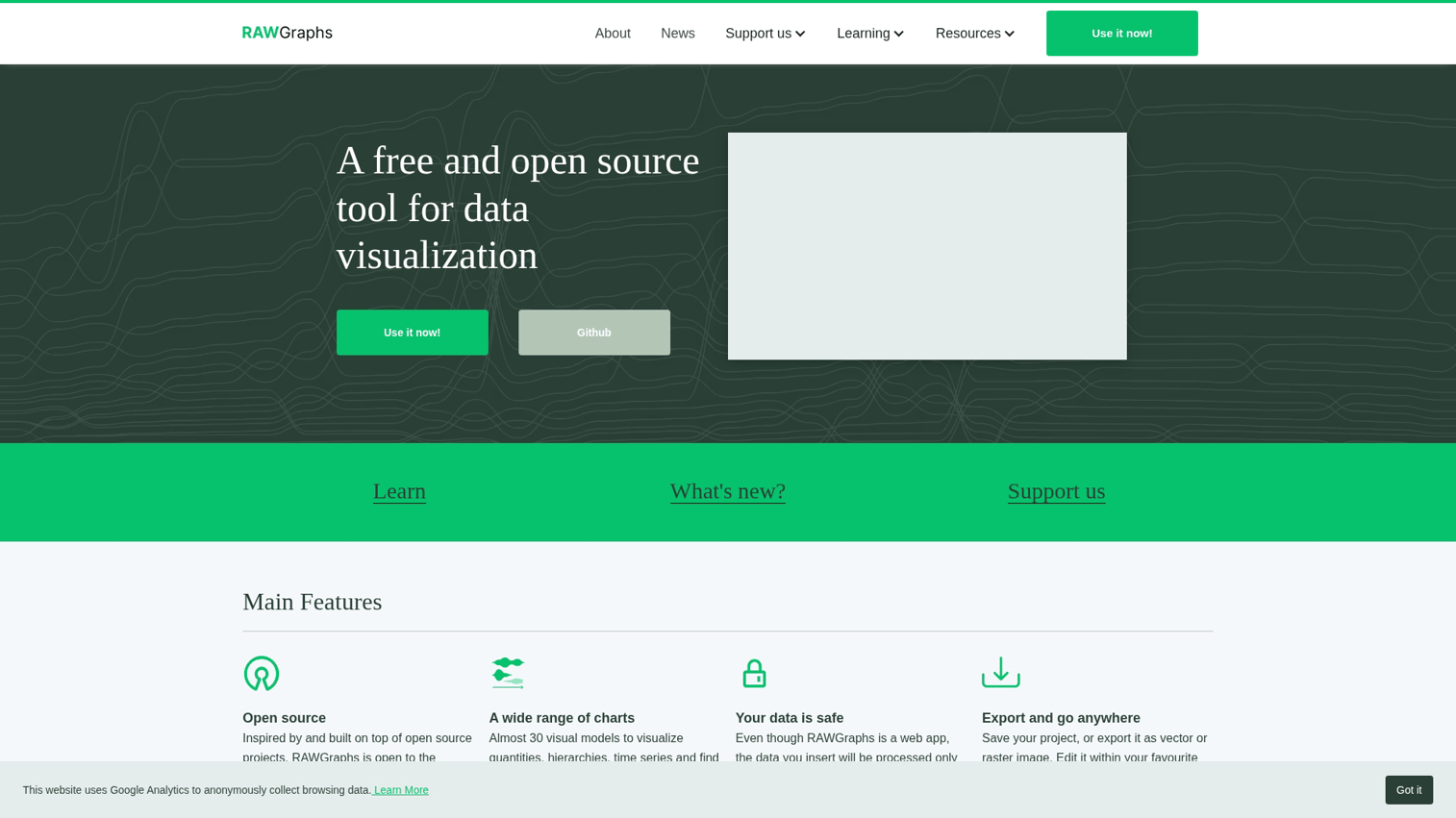
RAWGraphs is an open-source tool for creating unconventional visualizations. Designers and researchers use it to produce alluvial diagrams, bump charts, sunbursts, and other formats that standard tools don't support.
Data stays in your browser. Nothing uploads to external servers, which matters for sensitive datasets.
Best for: Designers and researchers exploring unconventional visualization formats for academic or experimental work.
Key strengths
- Unusual chart types: Alluvial diagrams, bump charts, sunbursts, and more
- Open source: Free to use and modify
- No account required: Paste data and visualize immediately
- SVG export: Vector output for further design work in Illustrator or Figma
- Privacy first: Data stays in your browser, never uploaded to servers
Why choose RAWGraphs
RAWGraphs fills a niche for experimental or academic visualizations. When standard bar and line charts won't communicate your data's structure, RAWGraphs offers alternatives. It's not for dashboards or team collaboration.
Pricing
Completely free and open-source.
11. Apache Superset
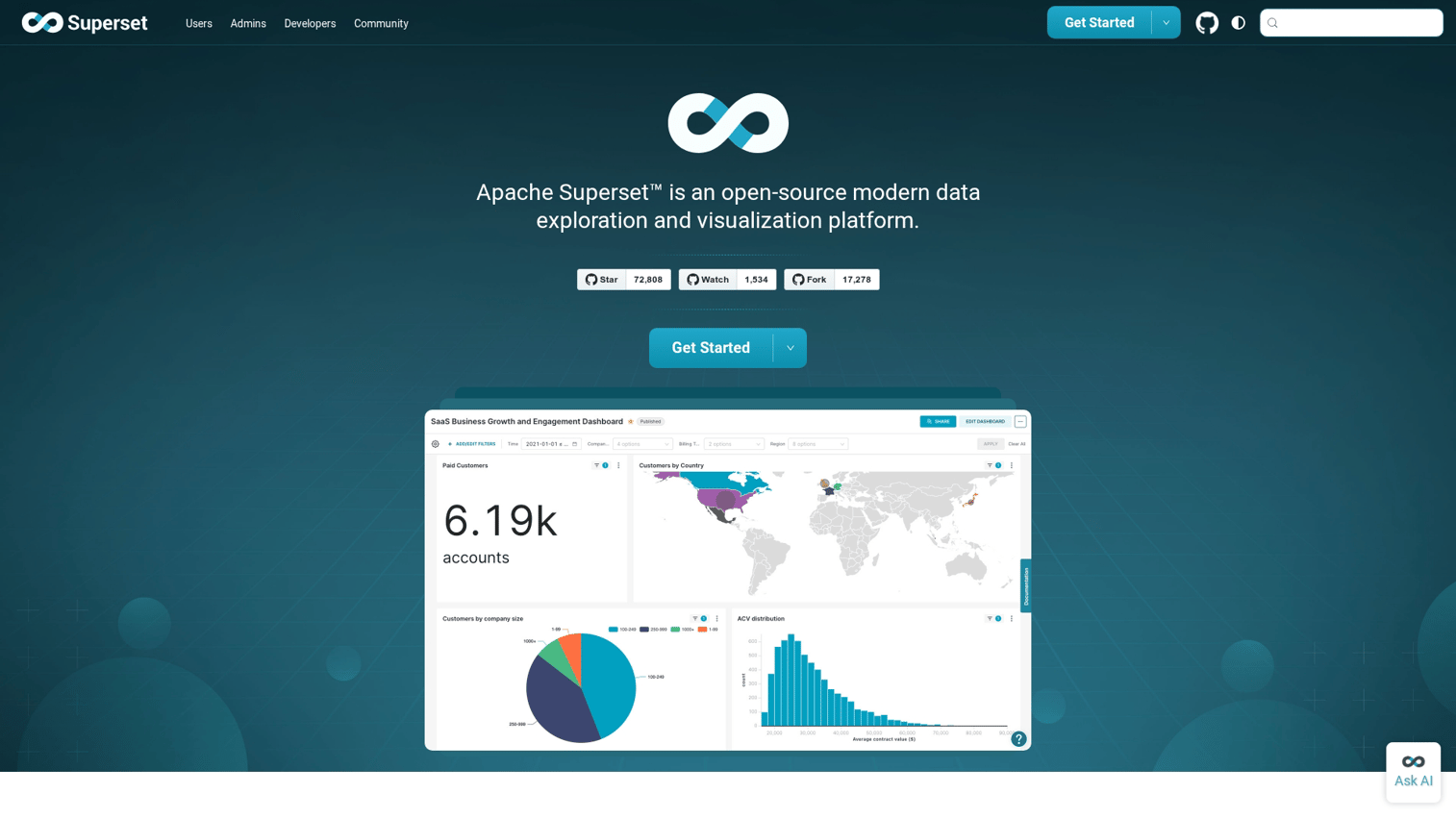
Apache Superset is an enterprise-grade open-source BI platform. Data teams use it as a Tableau alternative when they want full control over their infrastructure and don't want to pay per-user licensing fees.
SQL Lab provides a rich IDE for data exploration. The semantic layer lets teams define metrics and dimensions once, ensuring consistency across reports.
Best for: Data teams wanting enterprise-grade open-source BI with SQL capabilities and dashboard building.
Key strengths
- SQL Lab: Rich SQL IDE for data exploration and ad-hoc queries
- Dashboard builder: Drag-and-drop dashboard creation with dozens of chart types
- Semantic layer: Define metrics and dimensions once for consistent reporting
- Scalability: Handle large datasets with proper infrastructure
- Active community: Regular updates and contributions from a large open-source community
Why choose Apache Superset
Superset appeals to teams comfortable with self-hosting who want enterprise BI capabilities without enterprise pricing. It requires technical setup and ongoing maintenance. Organizations without DevOps resources may find managed alternatives easier.
Pricing
Free and open-source. Cloud-managed versions available from third-party providers at varying costs.
12. Google Charts
Google Charts is a JavaScript library for embedding interactive charts in web applications. Developers use it to add visualizations to websites and apps without external dependencies.
The library is free for commercial use and works across all modern browsers. Charts are interactive by default with hover, click, and zoom functionality.
Best for: Web developers embedding simple, interactive charts in websites and applications.
Key strengths
- Easy embedding: Simple JavaScript API for adding charts to any web page
- No licensing fees: Free for commercial use with no restrictions
- Interactive by default: Hover, click, and zoom built into every chart
- Wide chart selection: Basic to moderately complex visualization types
- Cross-browser support: Works consistently across all modern browsers
Why choose Google Charts
Google Charts works well for developers adding charts to web applications. It's not a standalone BI tool. You won't build dashboards or connect to databases directly. But for programmatic chart generation in web projects, it's reliable and free.
Pricing
Completely free.
How to demo data visualization software to prospects
Why static screenshots fail
Data visualization tools need interaction to demonstrate value. Screenshots can't show filtering, drilling down, or real-time updates. When a prospect evaluates Tableau or Power BI, they want to see how charts respond to their questions, not static images of someone else's dashboard.
This creates a challenge for pre-sales teams selling data-heavy products. Live demos require scheduling, environment setup, and sample data that looks realistic. Recorded videos go stale and don't let prospects explore on their own terms.
Using interactive demos for data-heavy products
Interactive demos offer an alternative. Teams can capture real dashboards and let prospects click through without needing a trial account or live call. The prospect experiences the product's interactivity while the team controls what data appears and which features are highlighted.
This approach works particularly well for visualization tools where the "aha moment" comes from exploring data, not watching someone else do it.
Tracking what visualizations resonate
Interactive demos reveal which features prospects explore, where they spend time, and where they drop off. This analytics data helps sales teams prioritize follow-up conversations around the capabilities that actually interested each prospect.
What to look for in data visualization software
No-code chart and graph builders
Drag-and-drop interfaces let non-technical users create visualizations without writing code amid 31% year over year growth in self-service BI adoption.
Match the tool's complexity to your team's skill level. A marketing analyst doesn't need SQL access, while a data engineer might find no-code limitations frustrating.
Real-time data connections
Live database connections keep dashboards current without manual data refreshes. This matters for operational dashboards that track metrics throughout the day. Static upload tools work fine for one-time reports but create maintenance overhead for ongoing monitoring.
Custom branding and styling
Client-facing reports and marketing materials often require brand consistency. Look for white-labeling capabilities, custom color palettes, and font controls. Some tools offer brand kits that apply styling automatically across all visualizations.
Export, embed, and sharing options
Consider where your visualizations need to appear:
- PNG and PDF exports: Work for presentations and documents
- HTML embeds: Let you add interactive charts to websites
- Shareable links: Enable collaboration without requiring viewer accounts
Team collaboration and permissions
Larger teams need role-based access, commenting, and version history. Some tools offer approval workflows for published dashboards. Consider who needs to edit versus view, and whether you need audit trails for compliance.
When to use each type of tool
Marketing and content teams
Datawrapper, Flourish, and Infogram work well for embeddable content. Prioritize clean output and fast creation over analytical depth. If you're adding charts to blog posts, social media, or reports, start here.
Data analysts and BI teams
Tableau, Power BI, and Apache Superset handle complex analysis and enterprise-scale dashboards. Budget for learning curves and ongoing administration.
Product and sales teams
Metabase works well for embedded analytics inside products. For showcasing data features to prospects, interactive demos let buyers experience visualization capabilities without trial accounts or live calls.
Journalists and researchers
Datawrapper's accessibility features and RAWGraphs' unconventional chart types serve editorial and academic use cases. Flourish's storytelling templates work well for narrative-driven data journalism.
Start visualizing your data today
The right data visualization tool depends on your team's technical skills, data sources, and use cases. Enterprise teams with complex needs gravitate toward Tableau and Power BI. Content creators and journalists prefer Datawrapper and Flourish. Developers building custom solutions reach for Observable or Google Charts.
Start with a free tier or trial that matches your primary use case. Test with real data and real workflows before committing to paid plans.
Start your journey with Guideflow today!
FAQs about data visualization tools
Data visualization refers to the graphical representation of data, while business intelligence (BI) encompasses the broader process of collecting, analyzing, and presenting data to inform decisions. Visualization is one component of BI, which also includes data warehousing, ETL processes, and reporting infrastructure.
Yes. Tools like Tableau, Power BI, Datawrapper, and Flourish offer drag-and-drop interfaces that require no programming knowledge. You can create professional charts and dashboards by pointing and clicking rather than writing code.
Looker Studio, RAWGraphs, and Google Charts are completely free with no usage limits. Datawrapper and Flourish offer generous free tiers for public projects. The best choice depends on your use case: Looker Studio for Google-integrated reporting, RAWGraphs for unusual chart types, Google Charts for web development.
Use chart tools like Datawrapper for quick, embeddable visuals in articles or reports. Choose full BI platforms like Tableau or Power BI when you need live data connections, complex analysis, and enterprise-wide dashboards with role-based access and governance.
Excel includes basic charting capabilities and remains widely used for simple visualizations. However, it lacks the interactivity, real-time data connectivity, and collaboration features of dedicated visualization platforms. For anything beyond basic charts, purpose-built tools offer significant advantages.
Most tools offer shareable links, embed codes for websites, and export options like PDF or PNG. Enterprise tools add role-based permissions, commenting features, and scheduled report delivery via email or Slack.