Editing a PDF shouldn't cost you $20 a month.
Yet that's exactly what most people assume - because Adobe Acrobat has dominated the conversation for so long. The reality in 2026 is different. There are now dozens of capable pdf editors ranging from completely free browser tools to full-featured desktop suites that cost a fraction of Adobe's price.
We tested 15 tools across real workflows: contract markups, form filling, scanned document OCR, batch conversions, and collaborative annotations. Each tool was scored on editing power, ease of use, platform availability, pricing, conversion quality, security, collaboration features, and emerging AI capabilities.
What you'll find below: a quick-scan comparison table, detailed reviews of every tool, and honest assessments of what free tiers actually deliver versus what you need to pay for.
What's inside
This guide covers 15 pdf editors organized from best overall to niche picks. You'll get consistent breakdowns - key strengths, pricing, ideal user profiles - so you can compare without opening 15 browser tabs.
We also include a step-by-step section on how to edit a pdf, a free vs. paid breakdown, and an FAQ covering the most common questions. Whether you need to edit pdf files daily or just sign the occasional form, there's a match here. If your workflow also involves getting documents signed digitally, check out our roundup of the best e-signature software for dedicated signing solutions.
TL;DR
- Best overall: Adobe Acrobat Pro - the most complete toolkit, but also the priciest
- Best free: iLovePDF for breadth, PDFescape for browser-based form filling
- Best value: PDF-XChange Editor - deep feature set at ~$56/year (Windows only)
- Best for design: Canva PDF Editor for visually rich documents
- Best mobile: Xodo - generous free tier with strong annotation tools
- Best open-source: LibreOffice Draw - 100% free, no strings, works offline
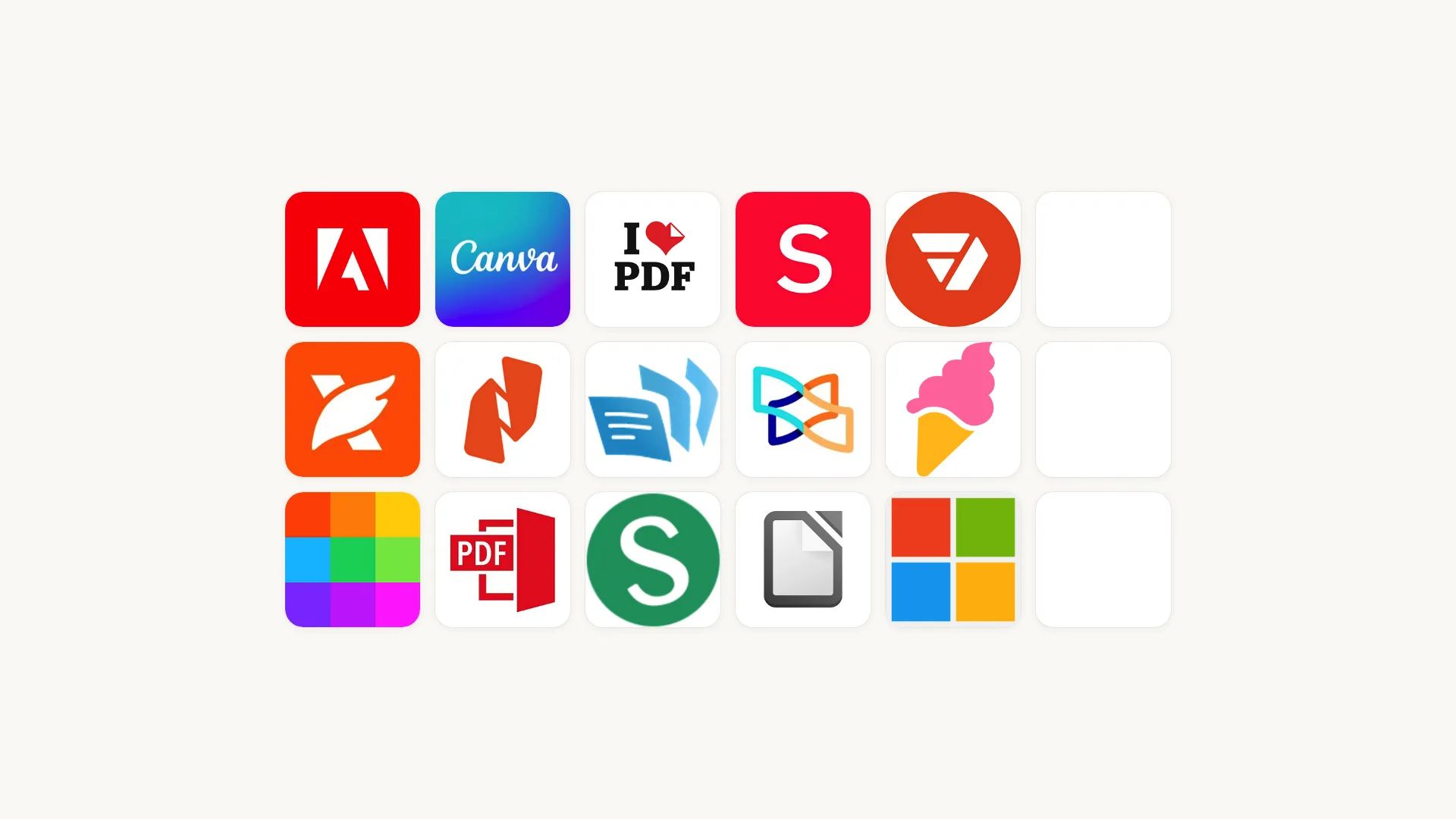
Quick comparison table - 15 best pdf editors at a glance
| Tool | Best For | Free Plan? | Platform | Key Standout | Starting Price |
|---|---|---|---|---|---|
| Adobe Acrobat Pro | Overall completeness | Limited | Online / Win / Mac / Mobile | AI Assistant + full editing | ~$12.99/mo |
| Foxit PDF Editor | Adobe alternative | Reader only | Win / Mac / Mobile / Cloud | Lighter footprint, ConnectedPDF | ~$149.99/yr |
| Smallpdf | Quick, simple edits | Yes (2/day) | Online / Win / Mac | 21+ tools, clean interface | ~$12/mo |
| Canva PDF Editor | Design-focused PDFs | Yes | Online / Mobile / Desktop | Drag-and-drop templates | ~$12.99/mo |
| Nitro PDF Pro | Business workflows | Trial only | Win / Mac / Cloud | E-signatures + analytics | ~$15/mo per user/td> |
| PDFescape | Free browser editing | Yes | Online / Win | No download needed, form tools | Free / ~ $5.99/mo |
| iLovePDF | Free all-in-one toolkit | Yes | Online / Mobile | 20+ tools in one place | Free / ~ $7/mo |
| PDF-XChange Editor | Windows power users | Yes (watermark) | Windows | Feature depth at low cost | ~$56/yr |
| Sejda PDF Editor | No-signup quick edits | Yes (3/hr) | Online / Win / Mac / Linux | Auto-deletes files, edits text | ~$5/week |
| Soda PDF | Cross-platform use | Limited | Online / Win / Mac | Consistent experience everywhere | ~$6.73/mo |
| Xodo PDF Editor | Mobile-first editing | Yes | iOS / Android / Online | Best mobile annotation tools | Free / ~ $9.99/mo |
| LibreOffice Draw | Open-source desktop | Yes (fully) | Win / Mac / Linux | 100% free, no feature gating | Free |
| pdfFiller | Form-heavy workflows | Trial only | Online / Mobile | HIPAA-compliant e-signatures | ~$8/mo |
| Icecream PDF Editor | Beginner simplicity | Yes (basic) | Windows | Minimal learning curve | ~$49.95 one-time |
| Microsoft Word | Existing M365 users | Via Word Online | Win / Mac / Online | Already installed, no extra cost | Included w/ M365 |
How we tested and ranked these pdf editors
Every tool on this list was evaluated against the same eight criteria:
- Editing power: text editing, image insertion, annotations, form filling, page management
- Ease of use: how quickly a new user can complete a basic edit
- Platform availability: online, desktop (Windows/Mac/Linux), mobile
- Pricing and value: free tier generosity, paid plan affordability relative to features
- Conversion and export: PDF to Word, Excel, PowerPoint, and image formats
- Security: encryption, password protection, redaction, e-signatures
- Collaboration: sharing, commenting, real-time co-editing
- AI features: summarization, content generation, smart editing tools emerging in 2026
Tools were ranked by overall capability first, then grouped by use case. A $7/month editor that nails form workflows can outperform a $20/month suite if forms are all you need.
1. Adobe Acrobat Pro - best overall pdf editor
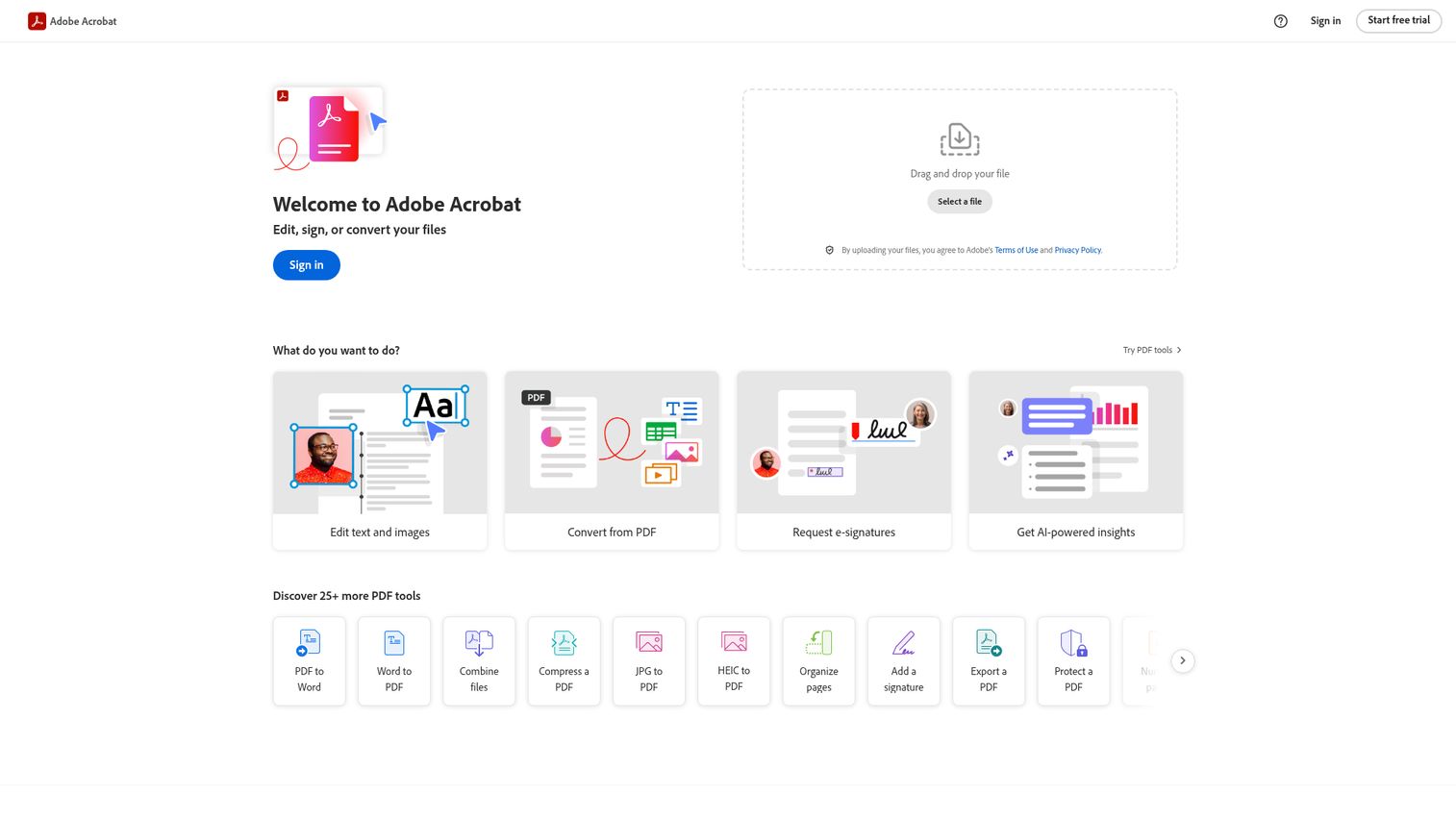
Adobe Acrobat Pro is the original pdf editor and still the most feature-complete option on the market - the benchmark everything else is measured against.
It's the only tool that consistently handles every PDF task without compromise: full text and image editing, OCR on scanned documents, advanced form creation, redaction, and now an AI Assistant that can summarize long documents and answer questions about their contents. If you edit PDFs daily and need zero gaps in capability, this is where you start.
Best for: professionals, legal teams, and enterprises needing the most complete PDF toolkit
Key strengths
- Full in-place text and image editing across any PDF
- AI Assistant for document summarization and Q&A
- Adobe Sign integration for legally binding e-signatures
- OCR engine handles scanned documents accurately
- Cross-device sync with cloud storage included
Pricing: Free online tools (limited); Acrobat Standard ~$12.99/mo; Acrobat Pro ~$19.99/mo
The trade-off is real, though. Adobe Acrobat is the most expensive option here, and the free online adobe pdf editor only covers basic annotations and single conversions. The desktop app can feel heavy, and the subscription model means you're paying indefinitely. For occasional edits, it's overkill. For daily, high-stakes document work, nothing else matches the depth of this adobe acrobat pdf editor.
2. Foxit PDF Editor - best Adobe alternative for power users
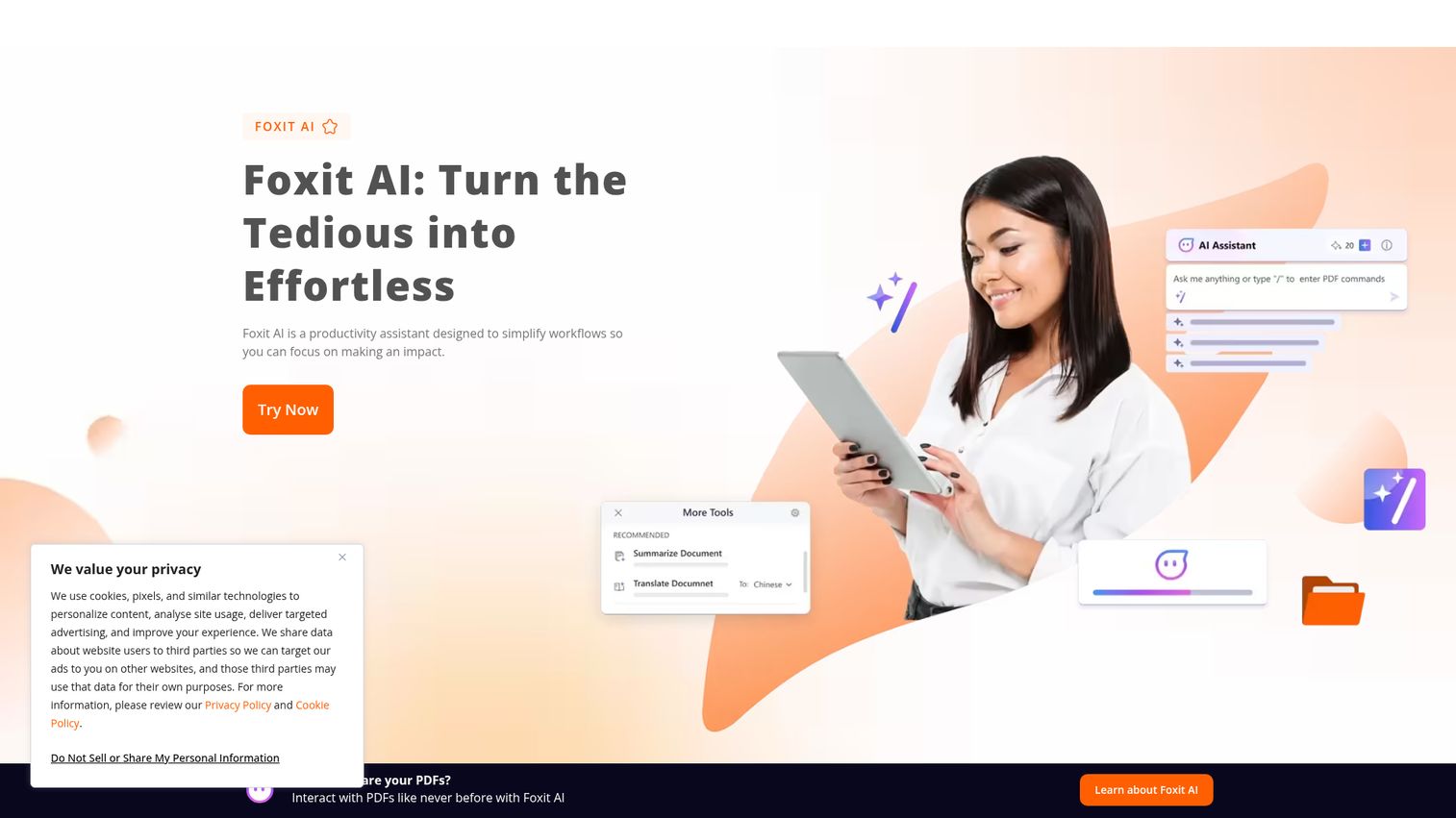
Foxit PDF Editor delivers roughly 90% of Adobe's feature set at a noticeably lower price - and it runs lighter on system resources while doing it.
Where Foxit stands out is ConnectedPDF, a feature that lets you track document usage, manage versions, and collaborate with granular permissions. It's a pdf editor for windows and Mac that also plays well with SharePoint, OneDrive, and Google Drive. The built-in AI assistant handles document queries, and batch processing makes it practical for teams handling hundreds of files.
Best for: business users and IT teams wanting Adobe-level features at a lower price
Key strengths
- Full PDF editing with lighter resource footprint
- ConnectedPDF for document tracking and collaboration
- Advanced security including redaction and encryption
- OCR engine for scanned document editing
- Batch processing for high-volume workflows
Pricing: Free Foxit Reader (viewing + annotation); Foxit PDF Editor ~$149.99/yr
The learning curve is steeper than simpler tools - Foxit packs a lot into its interface. And while the free Reader is solid for viewing and basic markup, you'll need the paid editor for any real text editing. Still, for teams that find Adobe's pricing hard to justify, Foxit is the strongest alternative.
3. Smallpdf - best for simplicity and quick edits
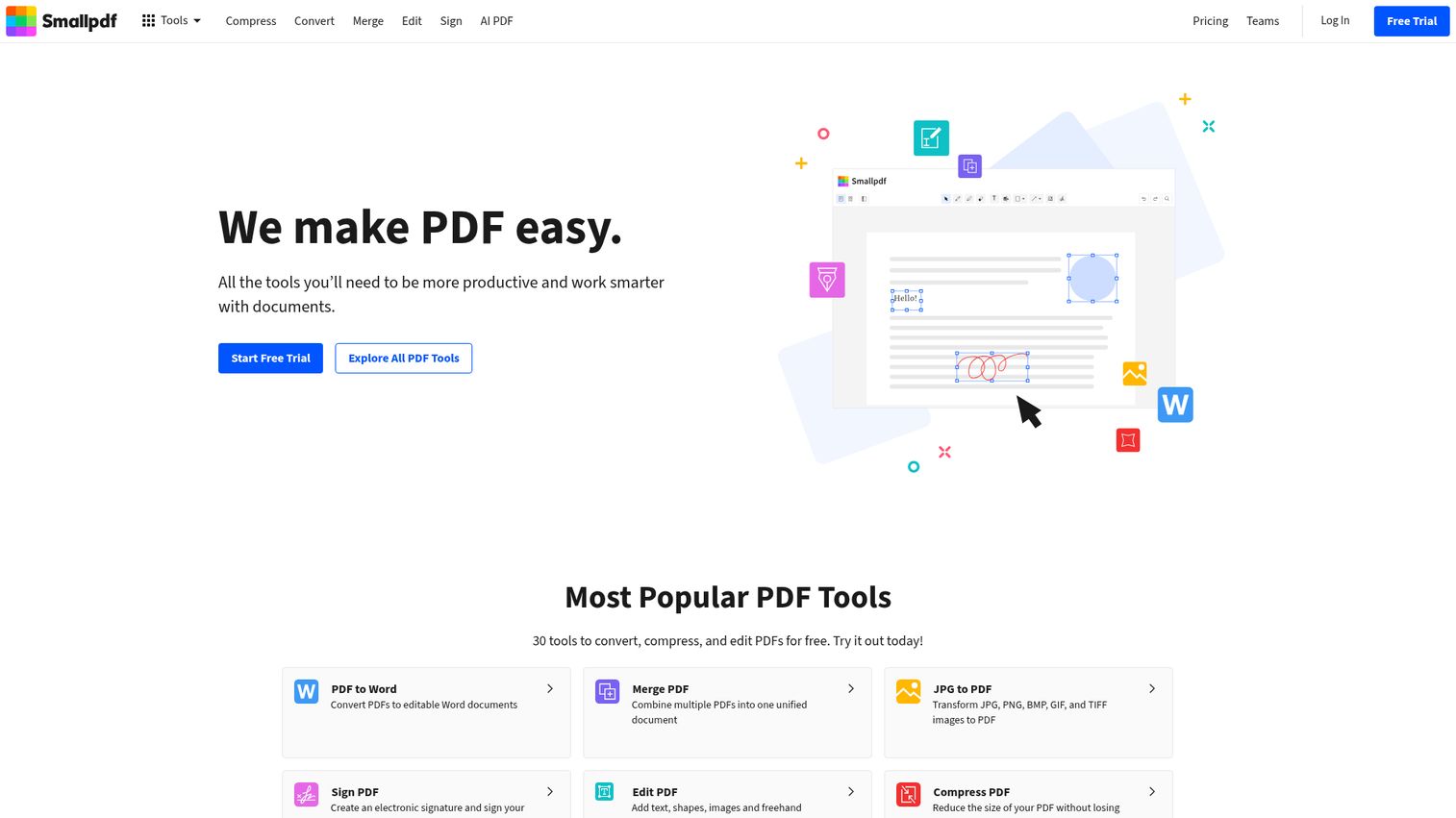
Smallpdf is an online pdf editor built around one idea: get in, make your edit, get out.
Its web interface is clean to the point of being minimal. You pick a tool - edit, convert, compress, merge, split, sign - and you're working within seconds. There are 21+ PDF tools total, and the desktop app mirrors the same experience offline. For people who don't want to learn a complex interface just to edit pdf online, Smallpdf tends to be the fastest path.
Best for: casual users and small teams who need quick, no-fuss PDF tasks
Key strengths
- 21+ tools accessible from a single clean interface
- eSign functionality built into the free tier
- PDF conversion to and from Word, Excel, PPT, JPG
- Desktop app available for offline work
- Team collaboration features on paid plans
Pricing: Free (2 tasks/day); Pro ~$12/mo billed annually
The daily task limit on the free tier is the main limitation. Two tasks per day works for occasional use, but anyone editing regularly will hit that wall fast. The Pro plan removes limits and adds batch processing, making it reasonable for small teams. Just don't expect the editing depth of Adobe or Foxit - Smallpdf is about speed, not granularity.
4. Canva PDF Editor - best for design-focused pdf editing
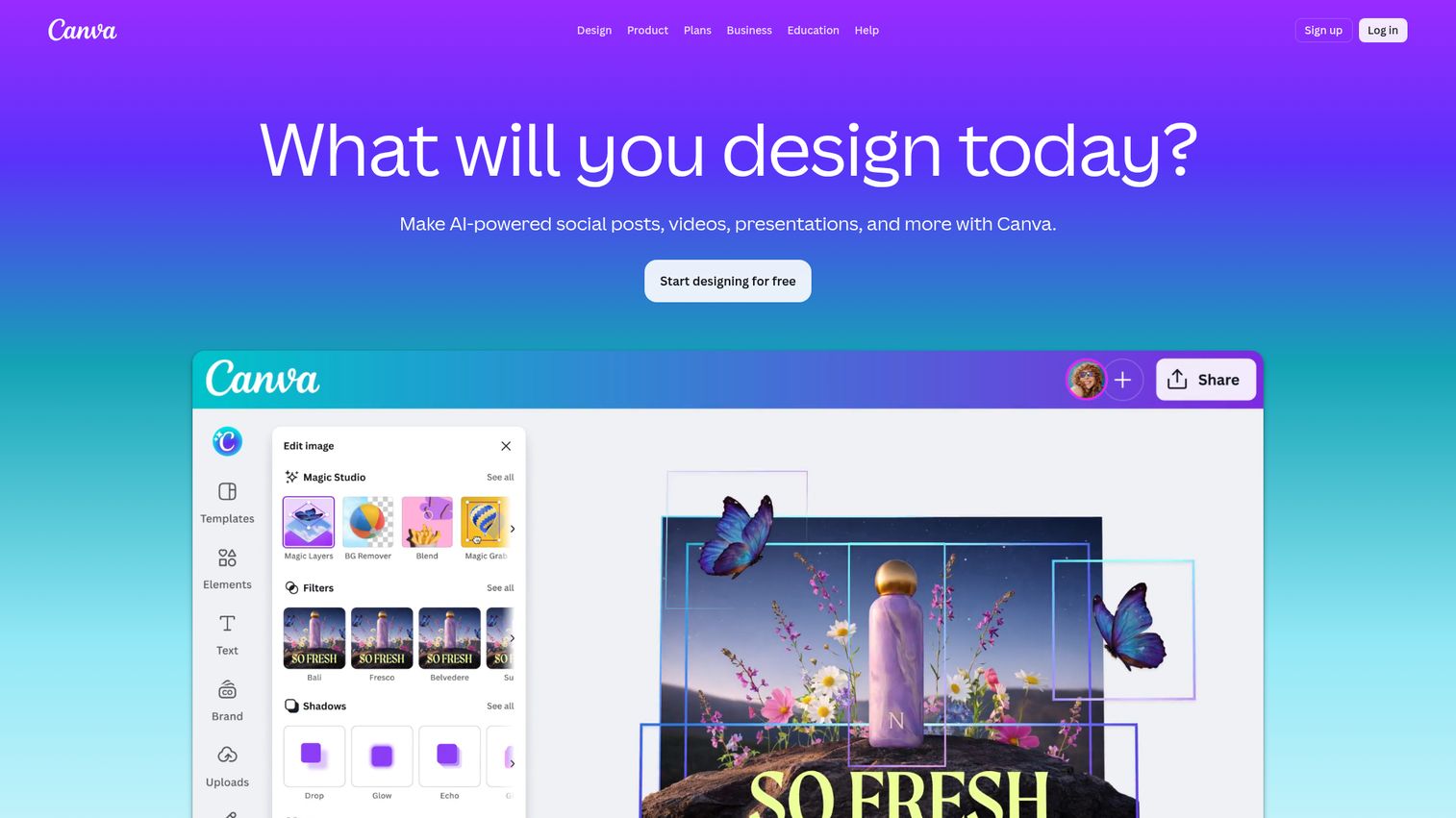
Canva PDF Editor isn't a traditional pdf editor - it's a design tool that happens to handle PDFs, and that distinction matters.
If you're creating visually rich documents from scratch - reports, resumes, presentations, marketing materials - Canva's drag-and-drop interface and massive template library make it faster than any traditional editor. Real-time collaboration works well for teams. But if you need to edit existing text precisely in a complex PDF, this canva pdf editor isn't the right fit. It excels at creation and redesign, not surgical edits. For teams focused on content creation software, Canva doubles as a versatile design platform beyond just PDFs.
Best for: designers, marketers, educators, and anyone creating visually rich PDFs
Key strengths
- Drag-and-drop editing with thousands of templates
- Add graphics, charts, brand elements, and custom layouts
- Real-time co-editing for team collaboration
- Mobile and desktop access with consistent experience
- Generous free plan with extensive design assets
Pricing: Free plan available; Canva Pro ~$12.99/mo; Canva for Teams ~$14.99/mo per person
The honest limitation: Canva converts your PDF into its own format for editing, which means complex layouts and precise formatting can shift. It's a creation tool first, an editor second. For visual documents you're building or heavily redesigning, it's excellent. For editing a legal contract, look elsewhere.
5. Nitro PDF Pro - best for business workflows
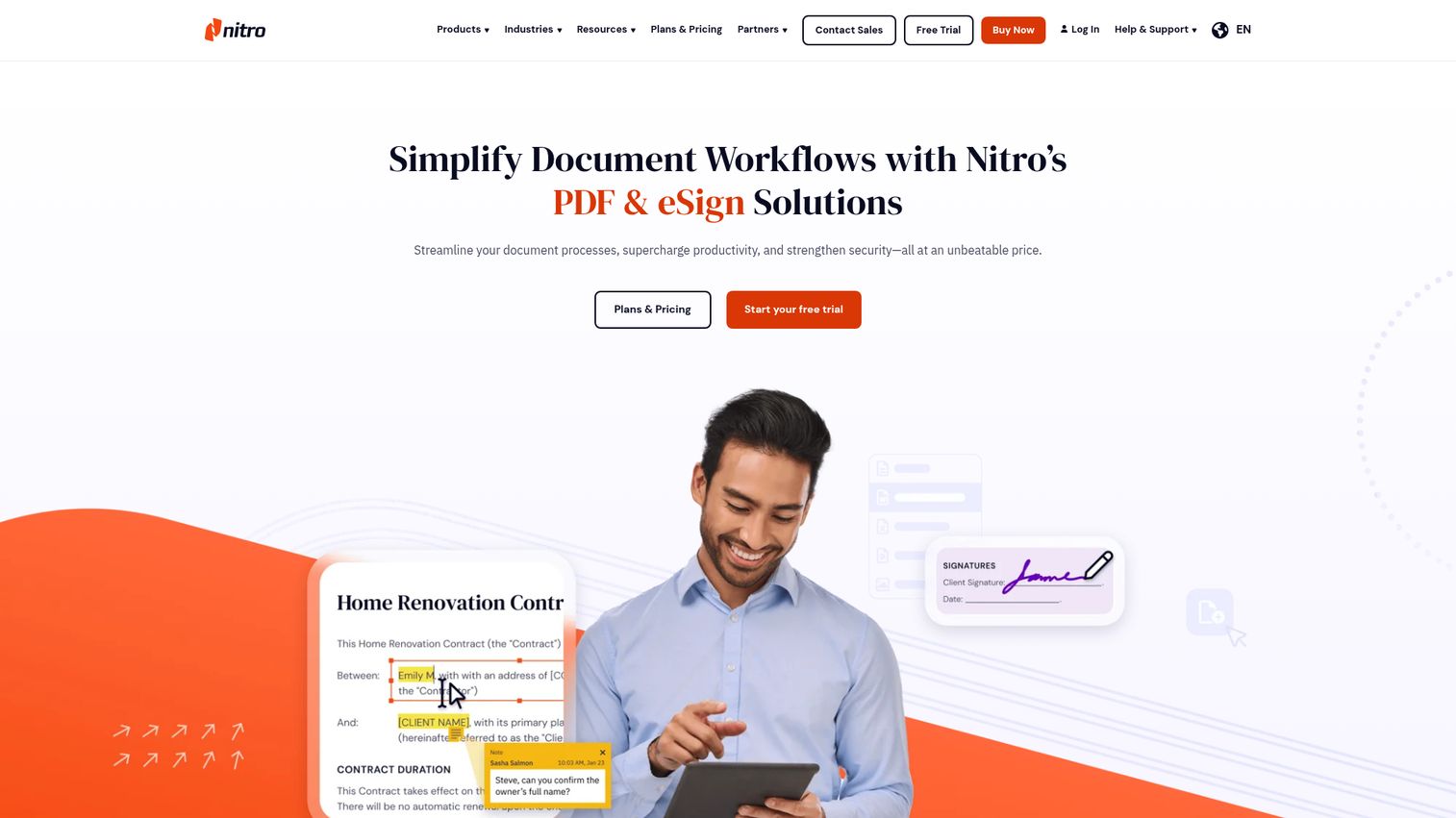
Nitro PDF Pro is built for organizations that move a high volume of documents through approval, signature, and review cycles.
Nitro Sign handles legally binding e-signatures. The analytics dashboard tracks who opened what and when. Batch processing automates repetitive conversions. And the Microsoft 365 integration means your team doesn't need to leave their existing workflow. It's less about individual editing power and more about document workflow management at scale. Organizations managing complex contract lifecycle management processes will find Nitro's workflow automation particularly valuable.
Best for: mid-size businesses and enterprises with heavy document workflows
Key strengths
- Nitro Sign for legally binding electronic signatures
- Document analytics and tracking dashboard
- Batch processing and workflow automation
- Deep Microsoft 365 integration
- Cloud-based collaboration with version control
Pricing: Nitro PDF Standard ~$15/mo per user; Nitro PDF Plus custom pricing for enterprise; Nitro PDF Classic ~$270 one-time for a three year license; 14 day free trial available.
6. PDFescape - best free browser-based editor
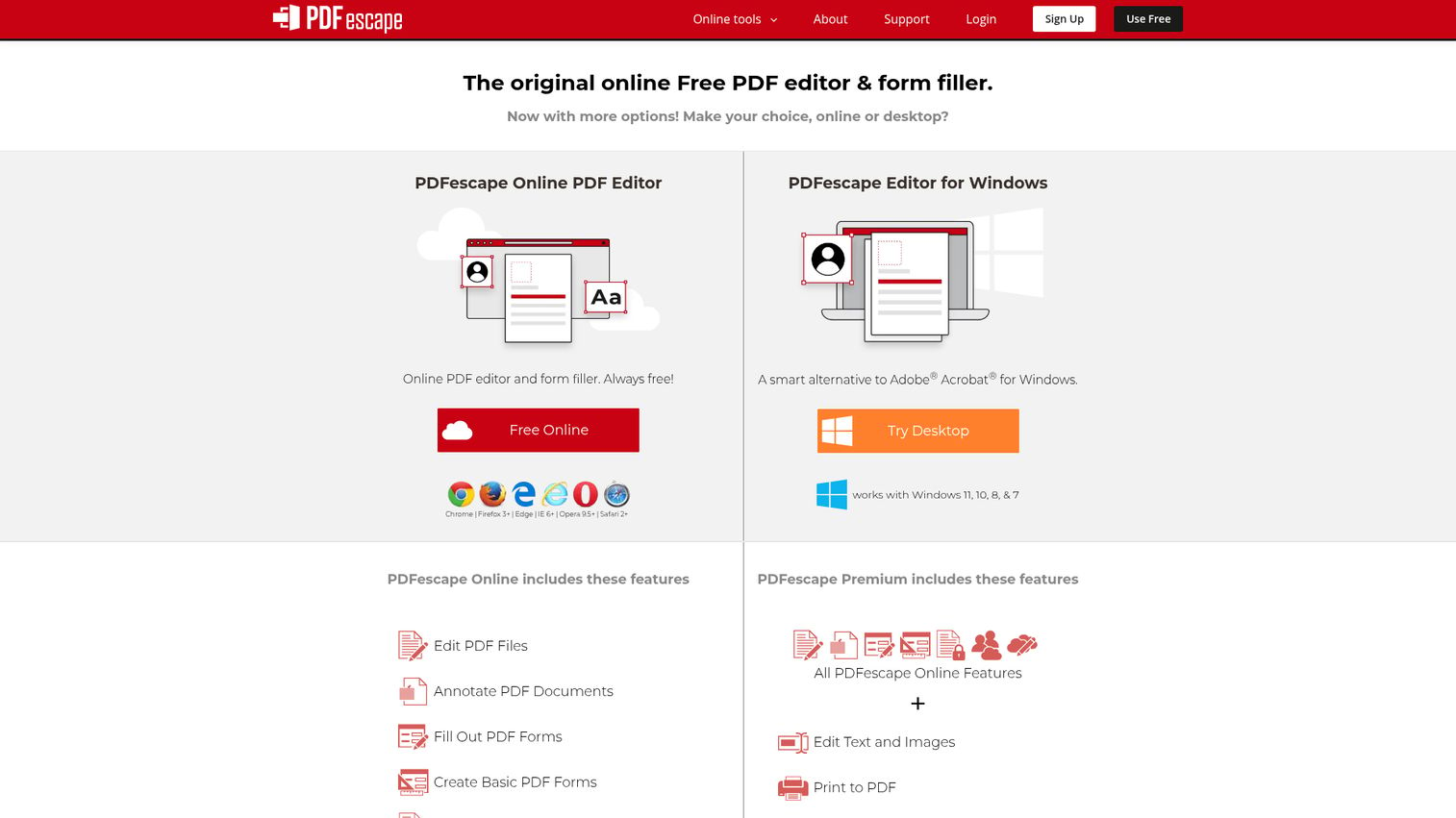
PDFescape lets you edit pdf online free without downloading anything or creating an account for basic tasks.
It runs entirely in your browser. You can add text, images, links, and form fields. You can fill existing forms, rearrange pages, and add password protection. For a free tool, the form-filling capabilities are particularly strong - it's one of the better options for quickly completing a pdf to fill without installing software.
Best for: users who need quick, free edits without installing software
Key strengths
- Fully browser-based with no download required
- Strong form filling and form creation tools
- Page management including add, delete, and rotate
- Password protection on exported files
- Free tier covers files up to 10MB and 100 pages
Pricing: Free online editor; Premium ~$5.99/mo; Ultimate ~$8.99/mo
The limitations are real. The 10MB file size cap means large PDFs won't load. There's no OCR. Text editing is overlay-based (you're adding new text on top, not modifying existing text in place). And the interface looks dated compared to newer tools. But for quick form fills and annotations at zero cost, pdfescape delivers.
7. iLovePDF - best free all-in-one pdf toolkit
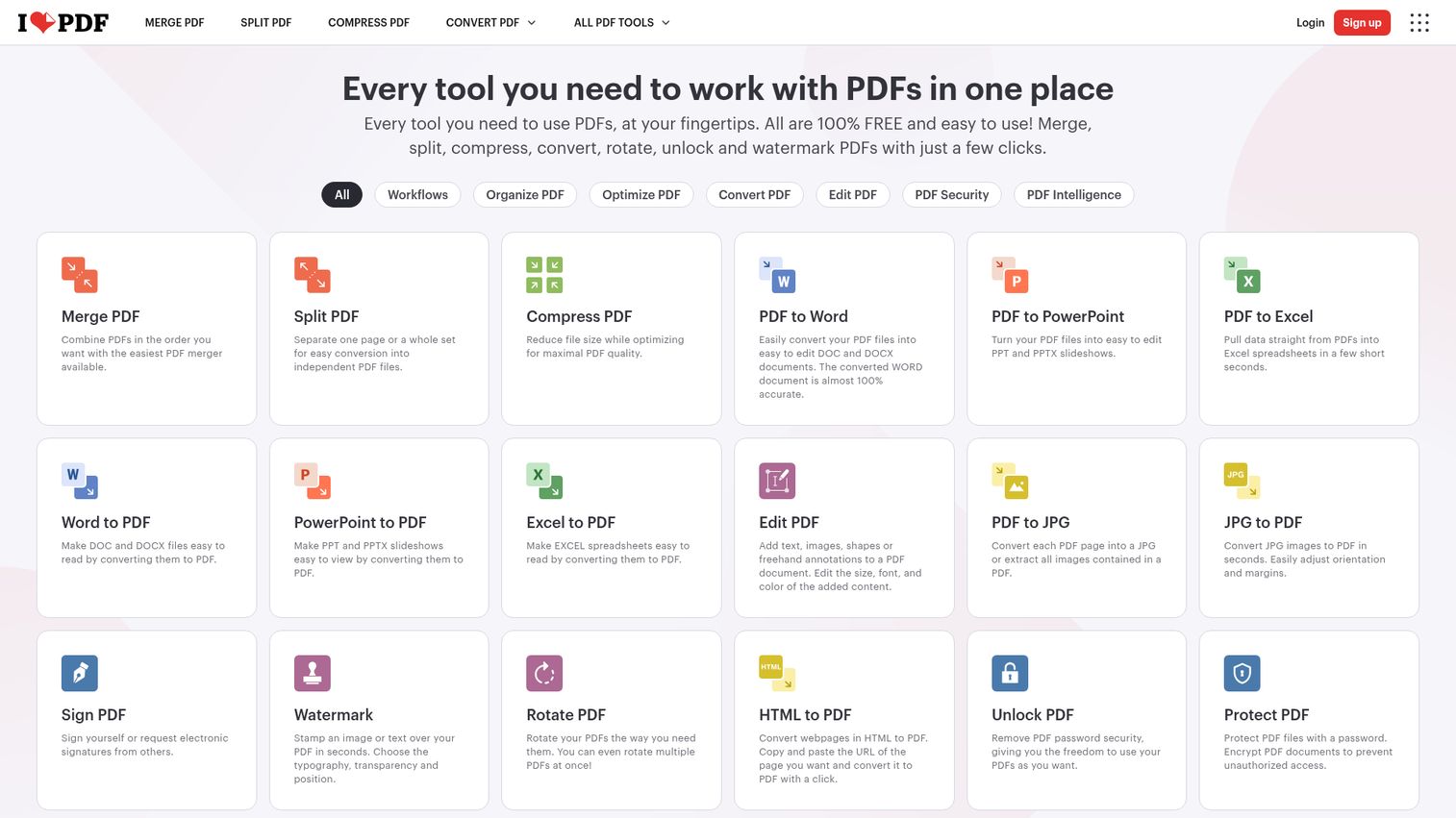
iLovePDF packs over 20 PDF tools into a single free platform - edit, merge, split, compress, convert, watermark, unlock, rotate, and more.
It's the Swiss Army knife approach to PDF editing. Upload from your device, Google Drive, or Dropbox. The free pdf editor handles most casual tasks without requiring an account, though daily limits and ads apply. The breadth of tools is what makes it stand out: instead of visiting five different sites for five different tasks, iLovePDF consolidates everything.
Best for: users who need a wide variety of PDF tools in one place at minimal cost
Key strengths
- 20+ PDF tools covering virtually every common task
- Upload from local device, Google Drive, or Dropbox
- E-sign tool included in the free tier
- PDF conversion to and from Word, Excel, PPT, JPG
- Batch processing available on premium plans
Pricing: Free with daily limits and ads; Premium ~$7/mo billed annually
The trade-off: individual editing depth is more basic than dedicated editors like Adobe or Foxit. Text editing is overlay-based on the free tier. And the ads on the free plan, while not intrusive, are noticeable. For a free pdf editor that covers the widest range of tasks, though, it's hard to beat.
8. PDF-XChange Editor - best pdf editor for windows power users
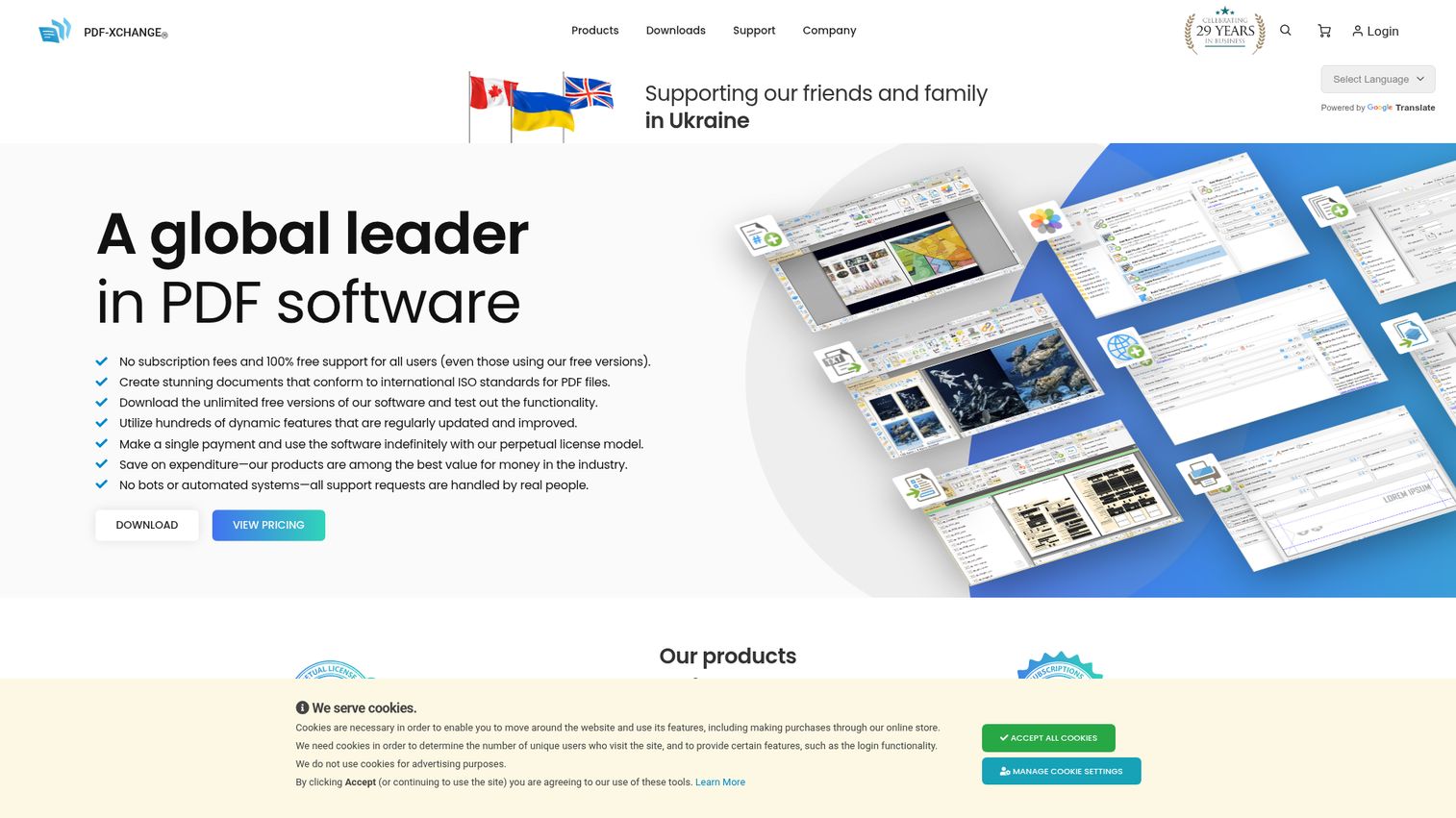
PDF-XChange Editor is the hidden gem of this list - a feature-dense Windows pdf editor that costs a fraction of Adobe's price.
It handles advanced text editing, OCR, stamps, comments, bookmarks, measurement tools, and even JavaScript support. The interface is customizable and the app stays fast even with large files. The free version is genuinely usable, though some advanced features add a watermark to output. For Windows users who want maximum capability per dollar, this is the pick.
Best for: Windows users who want maximum features at a fraction of Adobe's price
Key strengths
- Extremely feature-rich with OCR and advanced annotations
- Lightweight performance even on large documents
- Customizable toolbar and interface layout
- Plugin support for extended functionality
- One of the most competitive prices in the category
Pricing: Free version (watermark on some advanced features); PDF-XChange Editor Plus ~$56/yr or one-time license
The catch: it's Windows-only. No Mac version, no online editor, no mobile app. And the sheer number of features can overwhelm beginners - this isn't the tool for someone who just wants to sign a form. But for a pdf editor for windows that rivals Adobe's depth at roughly a quarter of the price, PDF-XChange is hard to argue against.
9. Sejda PDF Editor - best for no-signup quick edits
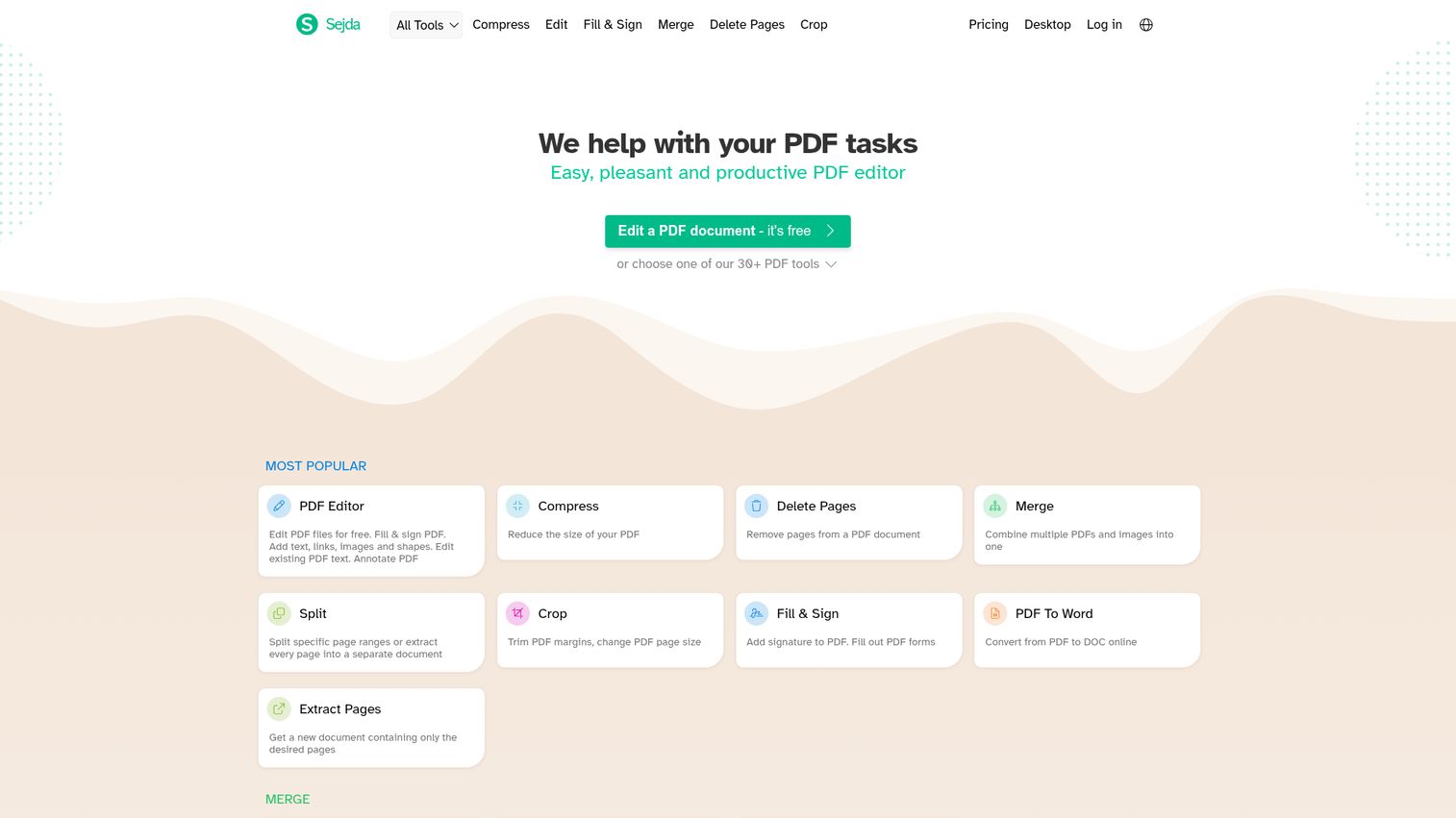
Sejda PDF Editor does something most free online pdf editors don't: it lets you edit existing text directly in a PDF, not just add overlays on top.
No account required. Upload your file, make changes, download. Files are automatically deleted from Sejda's servers after 2 hours. For privacy-conscious users who want to modify pdf online without leaving a trace, that auto-deletion policy is a genuine differentiator. Desktop versions are available for Windows, Mac, and Linux.
Best for: users who want quick, private edits without creating an account
Key strengths
- Edit existing PDF text directly (rare for free tools)
- No account or signup required for basic use
- Automatic file deletion after 2 hours for privacy
- Available as online, Windows, Mac, and Linux apps
- Merge, split, compress, and convert included
Pricing: Free (3 tasks/hr, 200 pages, 50MB limit); Web Week Pass ~$5/week; Desktop + Web ~$7.50/mo annually
The hourly task limit is restrictive for heavy use. And the free tier caps file size at 50MB and 200 pages. But for the specific use case of "I need to quickly edit pdf online free, right now, without signing up for anything" - Sejda is the best option available.
10. Soda PDF - best for cross-platform flexibility
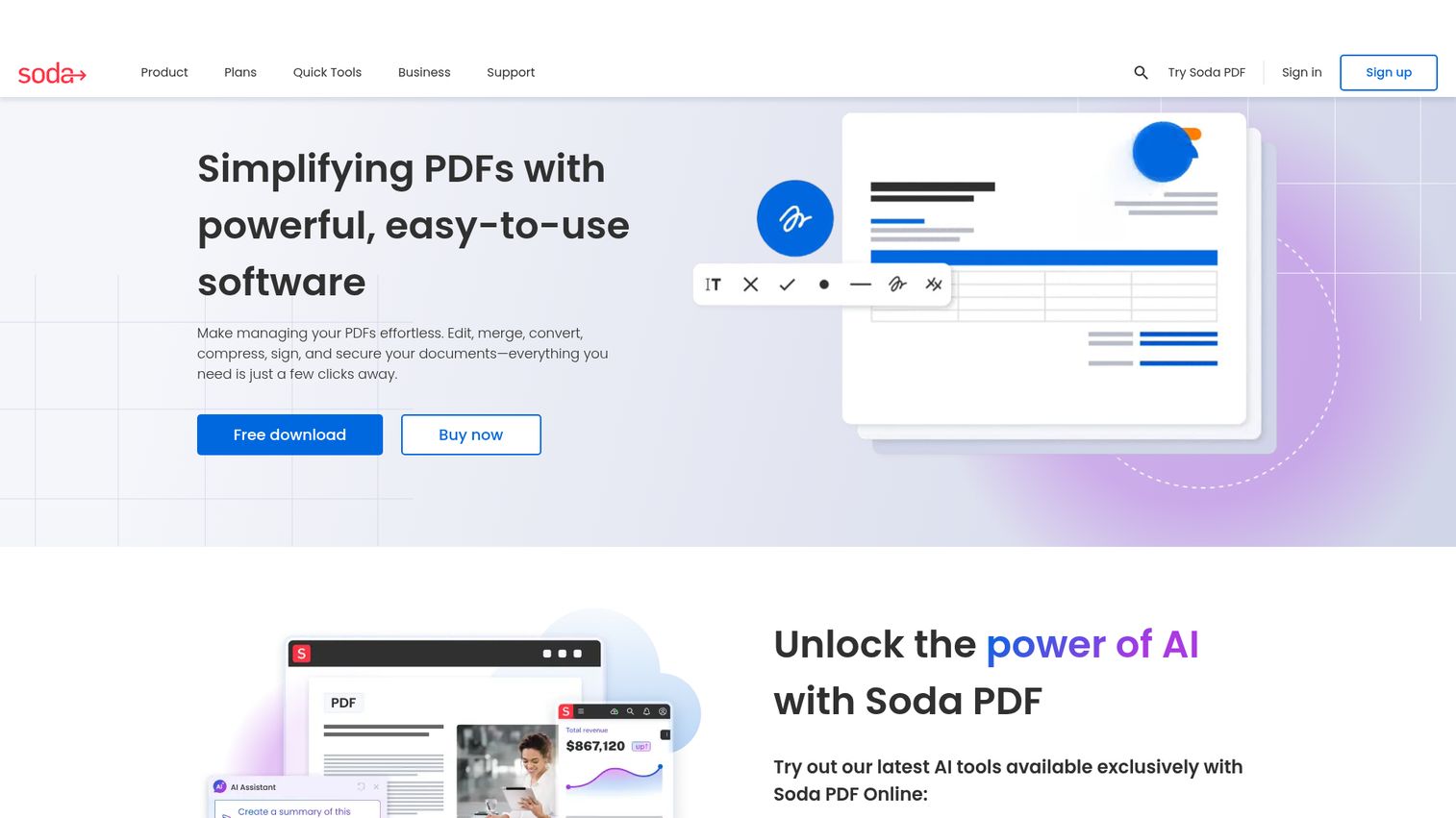
Soda PDF gives you a consistent editing experience whether you're working online, on Windows, or on Mac.
The full editing suite covers text, images, page management, e-signatures, and OCR for scanned documents. Cloud integration with Google Drive, Dropbox, and OneDrive means your files follow you across devices. Batch conversion handles multiple files at once. It's a solid mid-range option that doesn't try to be the cheapest or the most powerful - it aims for reliable consistency.
Best for: users who switch between platforms and need consistent PDF editing everywhere
Key strengths
- Available online, on Windows, and on Mac
- OCR for scanned document editing
- E-signature tools built into the editor
- Batch conversion for multiple files
- Cloud storage integration across major providers
Pricing: Free online tools (limited); Standard ~$6.73/mo; Pro ~$8.23/mo
The free online tools are quite limited - mostly single-task conversions. And Soda PDF doesn't stand out in any single category the way Adobe does for power or Smallpdf does for simplicity. It's a capable generalist, which makes it a good fit for users who value platform flexibility over specialized depth.
11. Xodo PDF Editor - best free mobile pdf editor
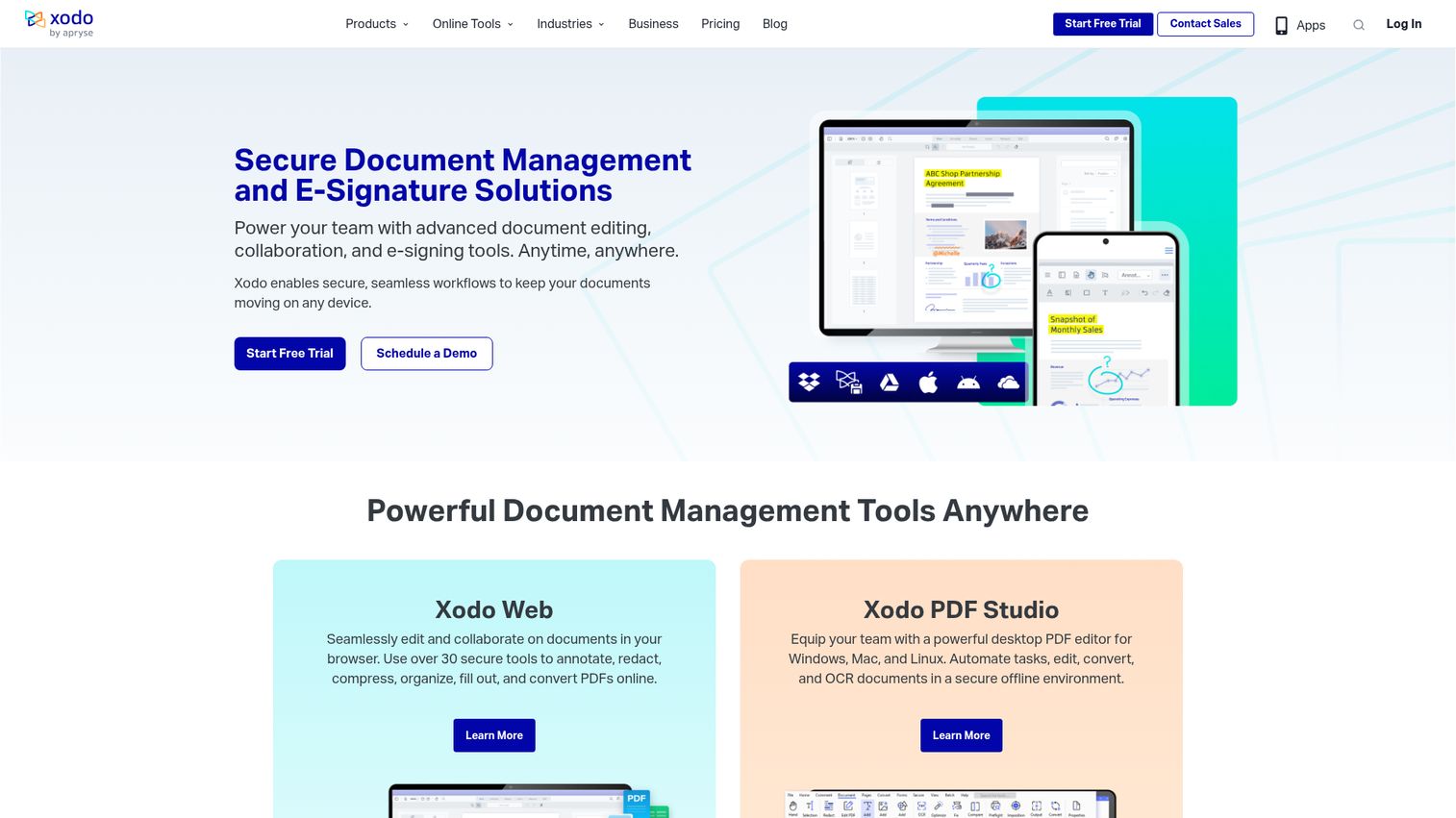
Xodo PDF Editor has the best mobile PDF editing experience we tested - the iOS and Android apps are genuinely well-designed, not afterthoughts.
Annotate, highlight, underline, strikethrough, fill forms, and sign documents directly on your phone or tablet. Real-time collaboration lets multiple people mark up the same document. The web-based editor pdf online version works too, but the mobile apps are where Xodo shines. The free tier is generous enough for most annotation and form-filling needs.
Best for: mobile-first users who edit PDFs primarily on tablets and smartphones
Key strengths
- Excellent native iOS and Android applications
- Real-time collaboration on shared documents
- Generous free tier for annotations and form filling
- Web-based editor available for desktop use
- Merge and organize pages from mobile devices
Pricing: Free (generous feature set); Xodo Pro ~$9.99/mo or ~$59.99/yr
Mobile editing works particularly well for annotations, signatures, and form filling. Heavy text editing on a phone screen is still awkward regardless of the app. If your primary PDF workflow is reviewing, marking up, and signing documents on the go, Xodo is the clear pick.
12. LibreOffice Draw - best free open-source option
LibreOffice Draw is completely free, fully open-source, and has no premium tier, no feature gating, and no ads.
It can edit PDF text, images, and layout, then export back to PDF. It runs on Windows, Mac, and Linux with no internet connection required. As part of the broader LibreOffice suite, it integrates with Writer, Calc, and Impress. For open-source advocates and Linux users, it's the obvious choice.
Best for: Linux users, open-source advocates, and anyone wanting a fully free desktop editor with no strings
Key strengths
- 100% free with no premium upsells or ads
- Available on Windows, Mac, and Linux
- Works completely offline with no account needed
- Part of the full LibreOffice productivity suite
- Active open-source community and regular updates
Pricing: Free - always
The honest assessment: the editing experience is less polished than commercial tools. Complex PDFs with intricate layouts, embedded fonts, or heavy graphics may not render perfectly. The interface feels dated compared to Smallpdf or Canva. But for a completely free, offline, no-account-needed desktop pdf editor, nothing else matches it.
13. PdfFiller - best for form-heavy workflows
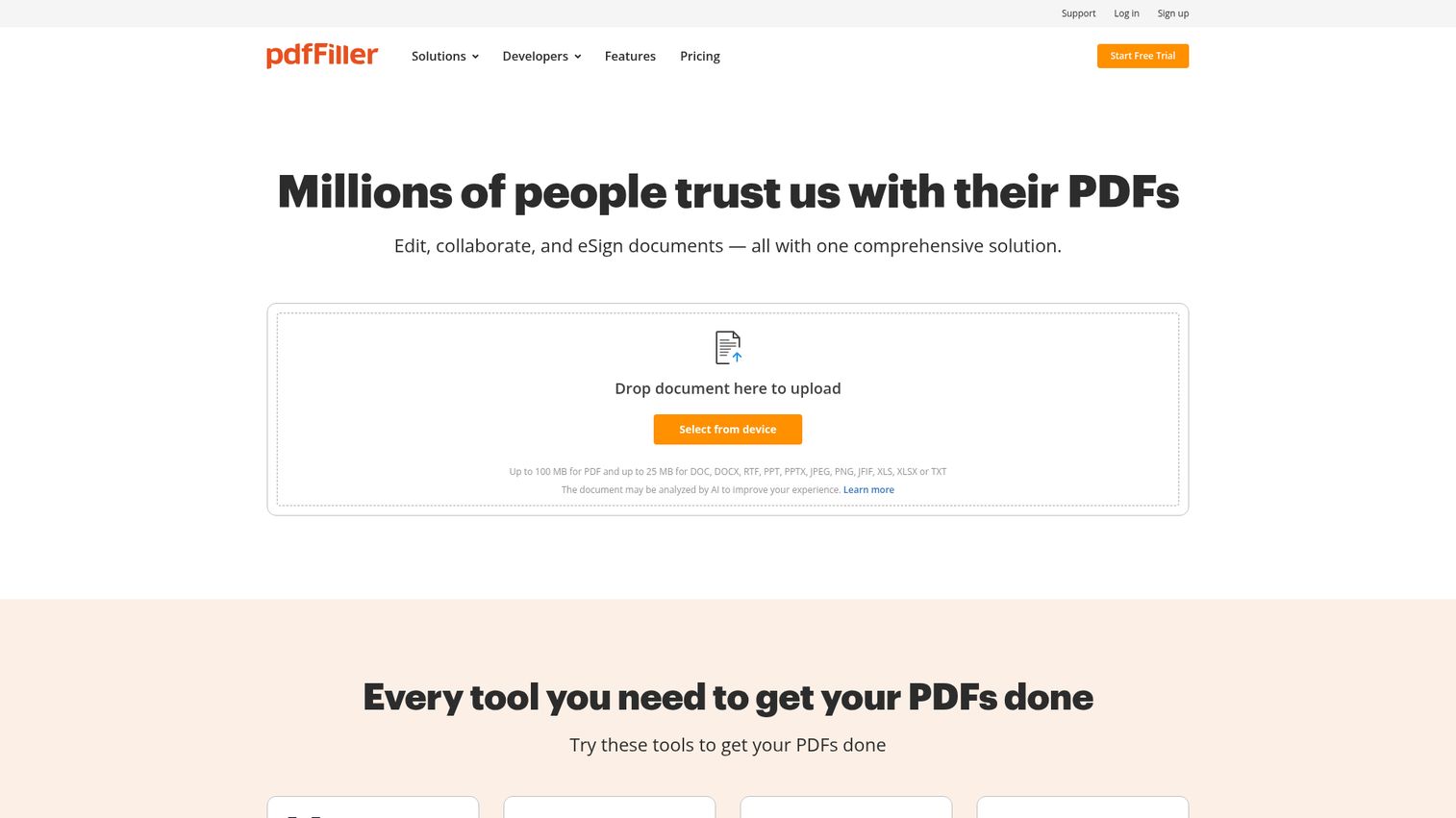
pdfFiller is purpose-built for organizations that process a high volume of forms, signatures, and structured documents.
Its template library includes thousands of pre-built forms. E-signatures are legally binding under the ESIGN Act and UETA. Workflow automation lets you send documents for signature, set reminders, and track completion. There's even a HIPAA-compliant option for healthcare organizations. If your work revolves around getting forms filled and signed - not general pdf editing - pdfFiller is more specialized and more efficient than a general-purpose tool. Teams that handle heavy contract volumes may also want to explore dedicated contract management software alongside pdfFiller.
Best for: HR departments, legal teams, real estate agents, and healthcare professionals processing high volumes of forms
Key strengths
- Powerful form filling and creation with template library
- Legally binding e-signatures (ESIGN Act and UETA compliant)
- Workflow automation with signature routing and reminders
- HIPAA-compliant option for healthcare use
- Integration with CRMs, cloud storage, and productivity tools
Pricing: Free trial (limited); Basic ~$8/mo; Plus ~$12/mo; Premium ~$15/mo
The limitation: pdfFiller isn't a great general-purpose pdf editor. If you need to edit text, manipulate images, or do creative layout work, other tools on this list are better fits. It's a specialist, and a good one - but only if forms and signatures are your primary workflow.
14. Icecream PDF Editor - best simple desktop editor for beginners
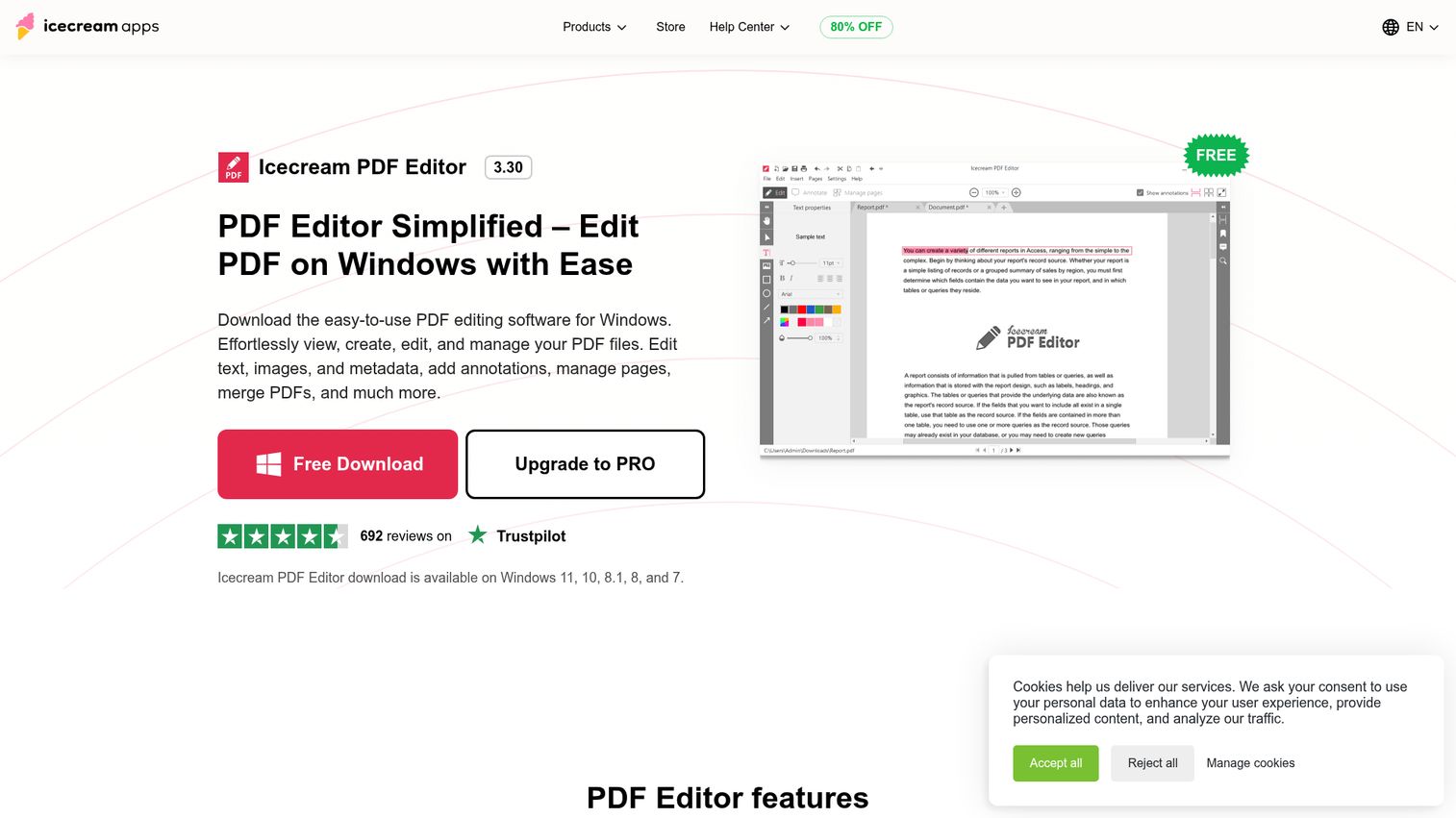
Icecream PDF Editor is the "no-learning-curve" option - a clean Windows desktop editor that does the basics without overwhelming you.
Edit text, add images, annotate, reorder pages, add password protection, fill and sign forms. That's roughly the full feature set, and that's the point. If you've been intimidated by the toolbar sprawl of Foxit or Adobe, Icecream strips things down to what most people actually need. The one-time purchase price is refreshingly simple too.
Best for: Windows beginners who want a straightforward desktop editor without complexity
Key strengths
- Minimal, clean interface with near-zero learning curve
- Core editing tools for text, images, and annotations
- Page management including reorder, delete, and add
- Password protection and basic form filling
- One-time purchase with no ongoing subscription
Pricing: Free version (basic features); Pro ~$49.95 one-time
The trade-off is obvious: limited features. No OCR, no batch processing, no collaboration, no AI features. Windows only. For power users, it'll feel restrictive within minutes. But for someone who just needs to edit pdf files occasionally on a Windows machine without a subscription, it's a practical, affordable choice.
15. Microsoft Word - best for existing Microsoft 365 users
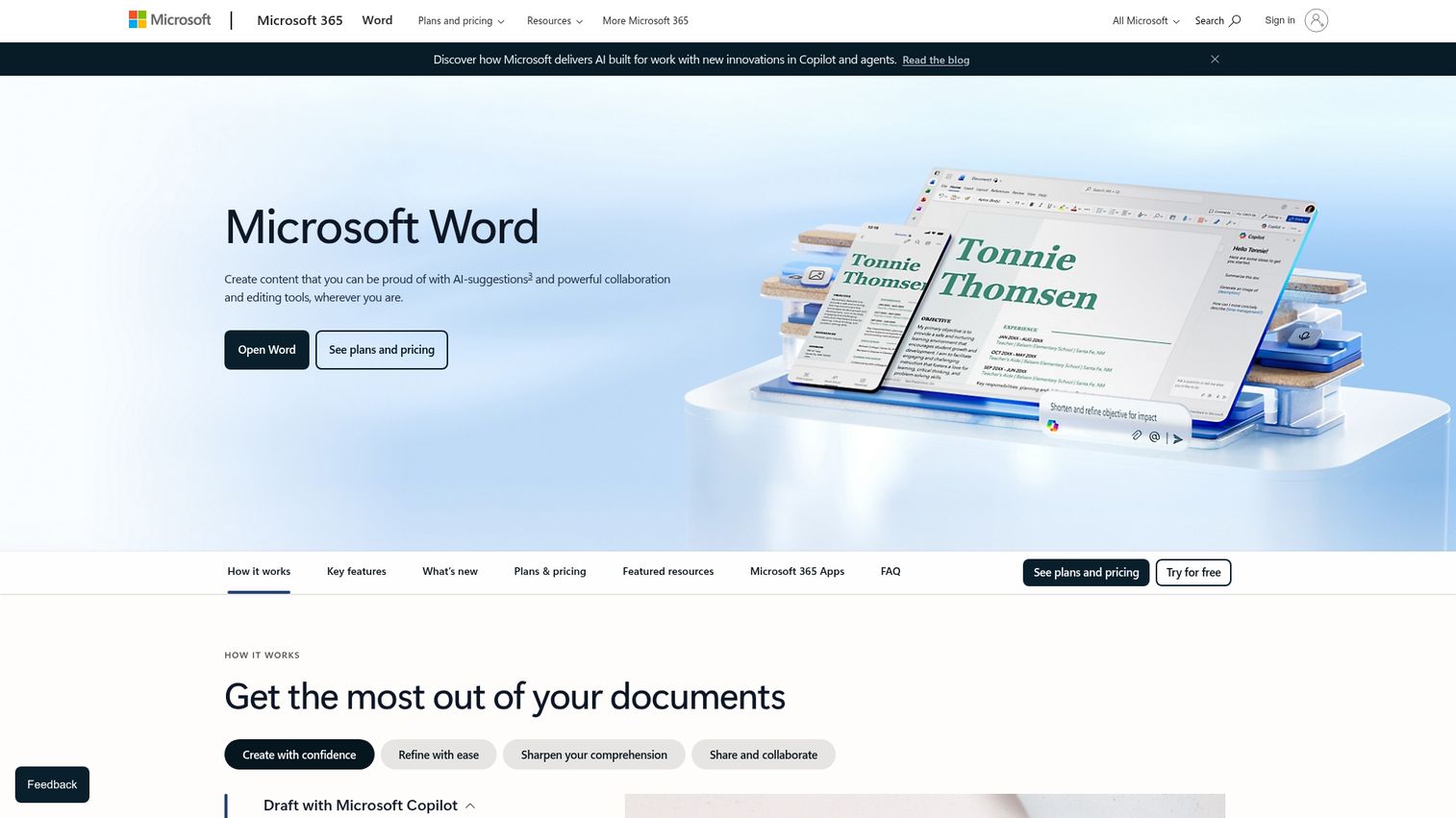
Microsoft Word can edit PDFs - and a surprising number of people don't know this.
Open a PDF in Word and it converts the file into an editable Word document. You get access to all of Word's editing tools: formatting, tables, images, comments, track changes. Save or export back to PDF when you're done. If you're already paying for Microsoft 365, there's no additional cost and no extra software to install.
Best for: anyone already paying for Microsoft 365 who needs occasional PDF edits without another tool
Key strengths
- Opens and converts PDFs to editable Word format
- Full Word editing tools available after conversion
- No additional software or subscription needed with M365
- Works on both Windows and Mac
- Free limited version via Word Online
Pricing: Included with Microsoft 365 (~$6.99–$12.99/mo); limited free access via Word Online
The important caveat: Word converts PDFs to its own format, so complex layouts often break. Images may shift, columns can collapse, and precise formatting gets lost. For text-heavy documents - contracts, reports, memos - it works surprisingly well. For designed PDFs with custom layouts, you'll want a dedicated editor instead.
How to edit a pdf - quick step-by-step guide
Here's how to edit a pdf using most tools on this list:
- Choose your pdf editor - pick one from the comparison table based on your needs and budget
- Upload or open your PDF - drag and drop, browse your files, or import from Google Drive or Dropbox
- Edit the content - modify text, add images, annotate, fill forms, or rearrange pages
- Review your changes - check that formatting held and nothing shifted unexpectedly
- Save or export - download the edited PDF, export to another format, or share directly
Pro tip: always keep a copy of the original PDF before editing. Some tools modify the source file, and you can't undo changes after closing.
This process works whether you edit pdf online through a browser tool or use a desktop application. The specific buttons and menus differ, but the workflow stays the same. For SaaS teams looking to create interactive product demos that walk users through workflows like these step by step, dedicated demo platforms can be more effective than static PDF guides.
Free vs. paid pdf editors - what do you actually need?
Most people don't need a paid pdf editor. That's the honest starting point.
Free tiers from tools like iLovePDF, PDFescape, Sejda, and Xodo cover the tasks that 80% of casual users need: adding text overlays, annotations, form filling, basic conversions, and compression. If you're signing a lease, filling out a government form, or merging two documents, free works fine.
Here's where you typically need to pay:
| What free gets you | What paid unlocks |
|---|---|
| Add text overlays and annotations | Edit existing text in-place |
| Basic form filling | Advanced form creation |
| Simple conversions (PDF to Word) | Batch processing and automation |
| Compression and merging | OCR for scanned documents |
| Basic e-signatures | Legally binding e-signatures with audit trails |
| Single-file processing | Collaboration and real-time co-editing |
| Standard security | Redaction, encryption, and compliance features |
| - | AI-powered summarization and editing |
The decision framework is straightforward. If you edit pdf files a few times a month, start with a free tool. If you're editing daily, working with scanned documents, or need e-signatures with legal weight, a paid plan between $7–$20/month will save you more time than it costs. For teams evaluating broader software investments, our guide to the best proposal software covers tools that combine document creation with e-signatures and tracking in one workflow.
Choosing the right pdf editor for your needs
Here's the short version, organized by what you actually need:
| Your situation | Our pick |
|---|---|
| Need everything, budget isn't the issue | Adobe Acrobat Pro |
| Want Adobe-level power for less | Foxit PDF Editor |
| Quick edits, no complexity | Smallpdf |
| Creating visual documents | Canva PDF Editor |
| Business document workflows | Nitro PDF Pro |
| Free browser-based editing | PDFescape |
| Free all-in-one toolkit | iLovePDF |
| Windows power user on a budget | PDF-XChange Editor |
| Private, no-signup edits | Sejda PDF Editor |
| Cross-platform consistency | Soda PDF |
| Mobile-first editing | Xodo PDF Editor |
| Open-source, fully free | LibreOffice Draw |
| High-volume forms and signatures | pdfFiller |
| Beginner-friendly desktop editor | Icecream PDF Editor |
| Already have Microsoft 365 | Microsoft Word |
The PDF editor landscape is evolving quickly in 2026, with AI features appearing across nearly every tool. Start with a free tier or trial to test your actual workflow before committing to a paid plan. If you're evaluating AI-powered sales tools alongside document editors, many now share overlapping AI summarization and automation capabilities.
Bookmark this guide - we update it regularly as tools release new features and pricing changes.
FAQs about pdf editors
iLovePDF offers the broadest free toolkit with 20+ tools covering editing, conversion, merging, and compression. PDFescape is the better pick for browser-based form filling specifically. LibreOffice Draw gives you a fully free desktop editor with no limits, no ads, and no account required. Smallpdf and Sejda also offer strong free tiers, though both cap the number of tasks you can perform per day or hour.
Yes - and you have plenty of options. Foxit PDF Editor offers comparable power at a lower price. Smallpdf and Sejda let you edit pdf online without installing anything. PDF-XChange Editor delivers deep features on Windows for ~$56/year. Even Microsoft Word can open and edit PDFs if you already have a Microsoft 365 subscription. Adobe is the industry standard, but it's far from the only capable choice.
Go to a free online pdf editor like Smallpdf, iLovePDF, PDFescape, or Sejda. Upload your PDF file. Use the editing tools to add text, annotate, fill forms, or rearrange pages, then download the result. No software installation is needed - everything runs in your browser. Most tools don't even require an account for basic tasks.
Reputable tools like Smallpdf, iLovePDF, PDFescape, and Sejda are generally safe. Sejda automatically deletes uploaded files after 2 hours, which is a strong privacy feature. Check each tool's privacy policy before uploading sensitive documents. Avoid unknown or unbranded PDF editing sites - stick to established tools with clear data handling practices and HTTPS encryption.
There's an important distinction here. Most free tools let you add new text as an overlay - it sits on top of the existing content. Editing existing text in place (changing words already in the PDF) requires tools like Adobe Acrobat, Foxit, PDF-XChange Editor, or Sejda. Scanned PDFs need OCR (optical character recognition) processing before any text becomes editable.
Adobe Acrobat Pro is the most complete option on Mac. Foxit PDF Editor also has a strong Mac version. For basic tasks like annotations and signatures, the built-in macOS Preview app handles more than most people realize. Many online editors - Smallpdf, iLovePDF, Canva - work on any platform through your browser, making the operating system irrelevant.
Yes. Xodo is the best mobile-first pdf editor with well-designed iOS and Android apps. Adobe Acrobat Reader's mobile app handles annotations and signatures well. Smallpdf and iLovePDF both offer mobile apps too. Mobile editing works particularly well for annotations, form filling, and signatures - heavy text editing on a phone screen remains awkward regardless of the app.
The features that tend to justify a paid plan: OCR for scanned documents, batch processing for multiple files, advanced e-signatures with legal compliance, redaction tools for sensitive information, real-time collaboration, and AI-powered features like document summarization. If you edit PDFs daily, a paid tool in the $7–$20/month range typically pays for itself in time saved within the first week. For a deeper dive into dedicated signing platforms, see our best e-signature software guide.