

Twelve minutes before a customer call, you need to tweak a JSON payload, inspect an API response, and get back into your demo environment. The editor either disappears into that workflow or becomes the blocker. According to the Stack Overflow Developer Survey 2025, 75.9% of developers regularly use Visual Studio Code, but the best code editor for you depends on where you work, what you touch, and how much setup time you can spare.
The wrong choice adds friction at the worst moment. A slow startup, missing language support, or a terminal workflow that fights you during a proof of concept can turn a small technical change into a meeting disaster. Most coding software comparisons answer "which editor is popular?" This guide answers the more useful question: Which editor fits the work you actually do?
What's inside
This guide compares 15 source code editors and IDEs for developers and technical GTM teams in 2026. Selection criteria covered:
- Platform support: Windows, macOS, Linux, iOS, Android, SSH, and terminal
- Language and workflow fit: from quick JSON edits to full Python or Java projects
- Performance and setup cost: startup speed, large-file handling, configuration depth
- Git and remote workflows: built-in source control, diff views, SSH, container support
- Pricing: free, one-time purchase, or subscription, verified from official pages
TL;DR
- Best overall: Visual Studio Code for most developers and technical teams who need extensions, Git, debugging, and remote workflows across platforms
- Best paid lightweight editor: Sublime Text for fast desktop editing and large-file handling without project overhead
- Best terminal workflows: Neovim or Vim for keyboard-first users working over SSH or on remote servers
- Best for Windows quick edits: Notepad++ for fast, low-overhead file editing on Windows
- Best full IDE family: JetBrains tools (PyCharm, IntelliJ IDEA, CLion) when deep language tooling matters more than minimal setup
- Best mobile editors: Textastic for iPad and iPhone, Acode for Android
What is a code editor?
A code editor is a source code editing tool that helps users write, read, navigate, format, and debug code across programming languages and development environments.
The category sits between plain text editors and full IDEs. A plain text editor, like Notepad on Windows, opens files and lets you type. A code editor adds language-aware features that make navigating and editing code faster. A full IDE adds project-wide tooling: Build systems, test runners, refactoring engines, and framework integrations.
Core capabilities to look for:
- Syntax highlighting: Color-codes keywords, strings, and operators by language
- Code completion: Suggests completions, types, and function signatures as you type
- Git integration: Shows diffs, stages commits, and manages branches without leaving the editor
- Search and navigation: Jump to definitions, find references, and search across files
- Debugging support: Set breakpoints, inspect variables, and step through execution
- Extensions or packages: Add language support, linters, themes, and tool integrations
- Terminal and remote development: Run commands, connect to SSH hosts, and edit files in containers
- AI-assisted coding: Autocomplete suggestions, inline explanations, and refactoring help
The JetBrains State of Developer Ecosystem 2025 found that 62% of developers relied on at least one AI coding assistant or code editor with built-in AI. That figure marks a real shift in what buyers now expect from this category.
For presales engineers and solutions consultants, code editors rarely replace an engineering workstation. They are practical tools for editing config files before demos, reviewing JSON payloads during discovery, running scripts in a POC environment, and navigating API documentation or sample repositories. The right editor opens fast, handles the file in front of you, and does not slow you down when a technical buyer asks a live question.
When to use code editors
Edit technical assets before demos
Presales often needs to modify scripts, environment variables, sample payloads, or config files in the minutes before a call. A well-chosen editor prevents those small changes from becoming a meeting blocker. Visual Studio Code and Notepad++ cover this quickly. Neovim or Nano work if you are already in a terminal.
Review API and integration details during validation
JSON, YAML, SDK snippets, webhook payloads, Git diffs, and log output all become easier to read with syntax highlighting and search. During technical validation, a presales engineer reading a malformed payload without formatting wastes time and risks missing an actual problem.
Work across local, remote, and mobile environments
Not all editing happens at a desk. SSH sessions, containerized environments, tablet-based demos, and Android devices are real scenarios. The right editor follows you into those contexts: Vim travels into any terminal, Textastic works on an iPad, and Visual Studio Code connects to remote hosts through its built-in tunneling.
Code editors comparison
Pricing and G2 ratings below are verified from each vendor's official pricing page and G2 listing. Tools without a meaningful G2 review profile are marked N/A.
| # | Product | Best for | Key differentiator | Pricing | G2 rating |
|---|---|---|---|---|---|
| 1 | Visual Studio Code | Most developers and technical teams | Largest extension ecosystem with Git, debugging, remote, and AI support | Free | 4.7/5 |
| 2 | Sublime Text | Fast desktop editing | Speed, large-file handling, and distraction-free interface | $99 one-time (personal) | 4.5/5 |
| 3 | Zed | Mac and Linux users wanting speed and AI | Rust-built editor with collaboration and built-in AI agents | Free; Pro $10/mo | 4.5/5 |
| 4 | Neovim | Terminal power users | Lua-configurable Vim fork with LSP and plugin support | Free | 4.3/5 |
| 5 | Vim | SSH and server editing | Ubiquitous on Unix-like systems with modal editing | Free | 4.4/5 |
| 6 | Notepad++ | Windows quick edits | Lightweight Windows editing with plugin support | Free | 4.6/5 |
| 7 | JetBrains | Teams wanting full IDE coverage | Language-specific IDEs under one vendor subscription | From $199/user/year | 4.5/5 |
| 8 | PyCharm | Python development | Python-first IDE with deep project tooling | Free core; Pro $200/user/year | 4.6/5 |
| 9 | IntelliJ IDEA | Java and JVM development | Deep Java and Kotlin intelligence with build tool support | Free core; Ultimate $719/user/year | 4.6/5 |
| 10 | CLion | C and C++ development | C/C++ IDE with CMake, embedded dev, and GDB/LLDB debugging | Free non-commercial; $10.90/mo commercial | 4.4/5 |
| 11 | Emacs | Deep customization | Programmable editor environment with Lisp extensibility | Free | N/A |
| 12 | Nano | Fast terminal edits | Simple command-line editing with minimal learning curve | Free | N/A |
| 13 | Textastic | iPad and iPhone coding | iOS and iPadOS code editing with SFTP and SSH support | Free with in-app purchases | 4.3/5 |
| 14 | Acode | Android coding | Free, open-source Android editor with LSP and built-in terminal | Free | N/A |
| 15 | Xcode | Apple platform development | Native IDE for iOS, macOS, watchOS, and visionOS | Free | 4.2/5 |
Best 15 code editors for 2026
1. Visual Studio Code
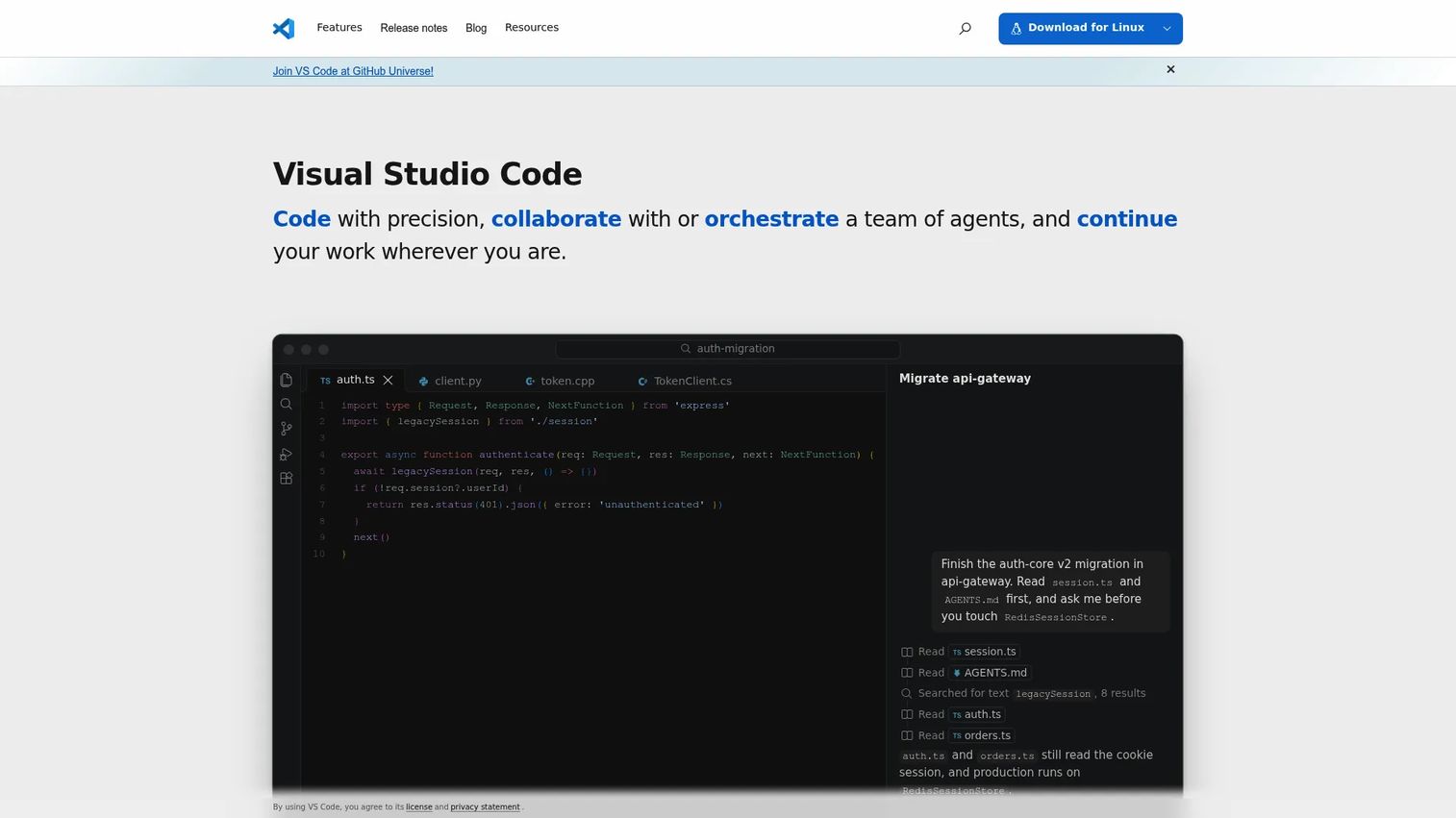
Visual Studio Code is a free, cross-platform source code editor from Microsoft with integrated editing, debugging, testing, Git, a terminal, and a large extension marketplace. It runs on Windows, macOS, and Linux, and supports remote development over SSH, in containers, and via browser-based tunnels. For presales engineers, it handles JSON inspection, config edits, YAML files, and sample repositories without needing a separate tool for each.
Best for: Developers and technical GTM teams who need one flexible editor across languages, repositories, and remote workflows.
Key features
- Extension marketplace with thousands of language and tool integrations
- Integrated Git source control with diff views and branch management
- Built-in debugging, breakpoints, and test coverage workflows
- Remote development over SSH, containers, and WSL
- IntelliSense code completion, navigation, and multi-cursor editing
Why choose Visual Studio Code: It is the safest default when your team touches multiple languages or file types throughout the week. The breadth of its ecosystem means you rarely need a second editor.
Visual Studio Code pricing: The core editor is free for private and commercial use. AI features from various providers may carry separate subscription costs.
G2 rating: 4.7/5
2. Sublime Text
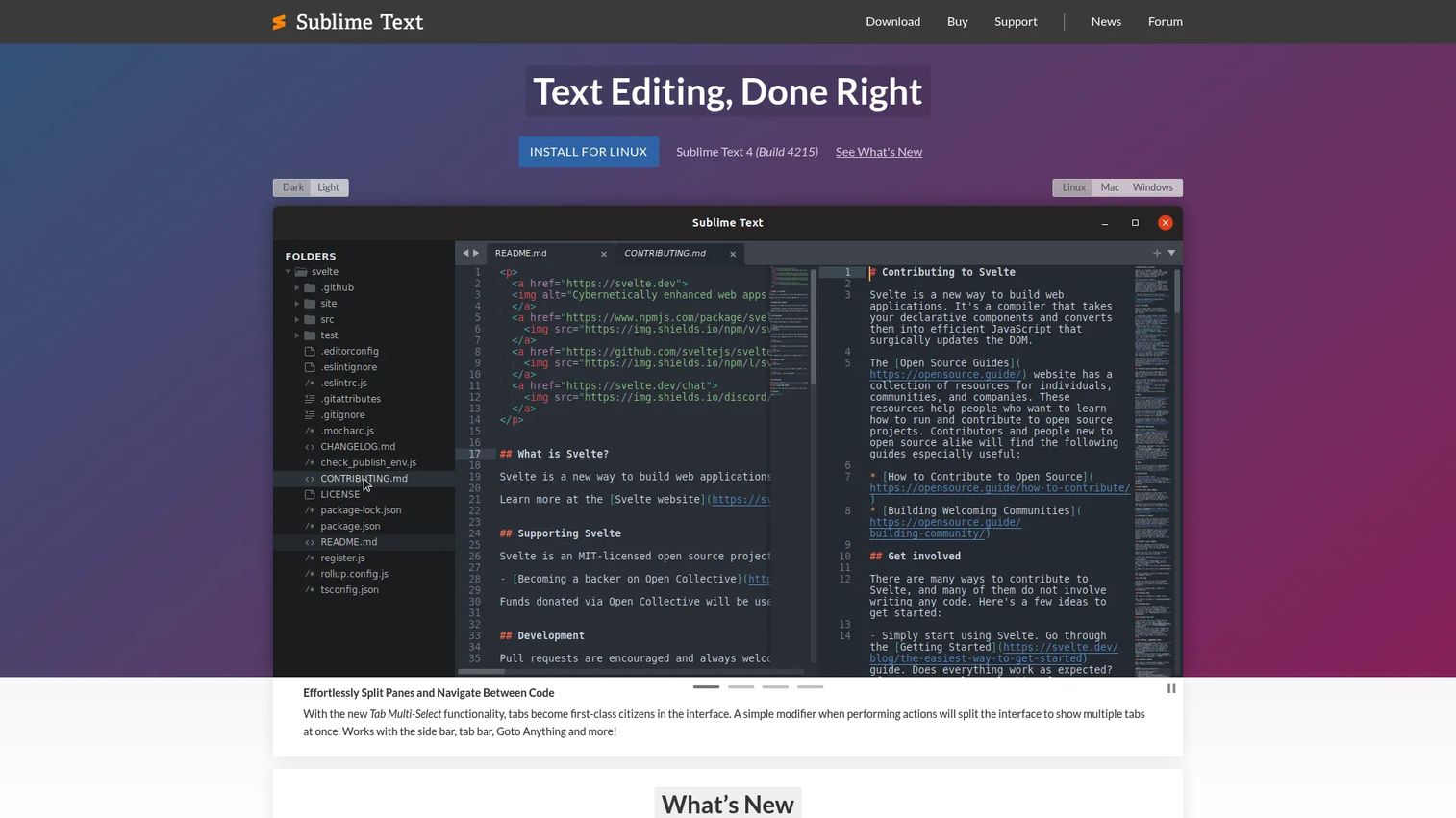
Sublime Text is a polished, cross-platform editor built for speed and distraction-free writing. It opens large files without slowing down, supports multiple simultaneous selections, and provides a command palette that replaces most mouse-driven navigation. Package Control adds language support, linters, and Git integrations. For a presales engineer who wants to open a 50,000-line log file and search it quickly, Sublime Text holds up where slower editors stall.
Best for: Developers who want a fast desktop editor without any IDE overhead.
Key features
- Multi-selection and multi-cursor editing across the file
- Command palette for commands, file navigation, and symbol search
- Package Control for extending language and tool support
- Split-pane editing and tab multi-select
- GPU-rendered interface with fast startup across Windows, macOS, and Linux
Why choose Sublime Text: Choose it when startup speed and large-file performance matter more than built-in project tooling. It works especially well for people who know their workflow and want the editor to stay out of the way.
Sublime Text pricing: Personal licenses are a one-time purchase at $99 USD, covering three years of updates. Business licenses run $65 per seat per year for the first ten seats, with lower rates at higher volumes. A free evaluation period is available with no enforced time limit, but continued use requires a license.
G2 rating: 4.5/5
3. Zed
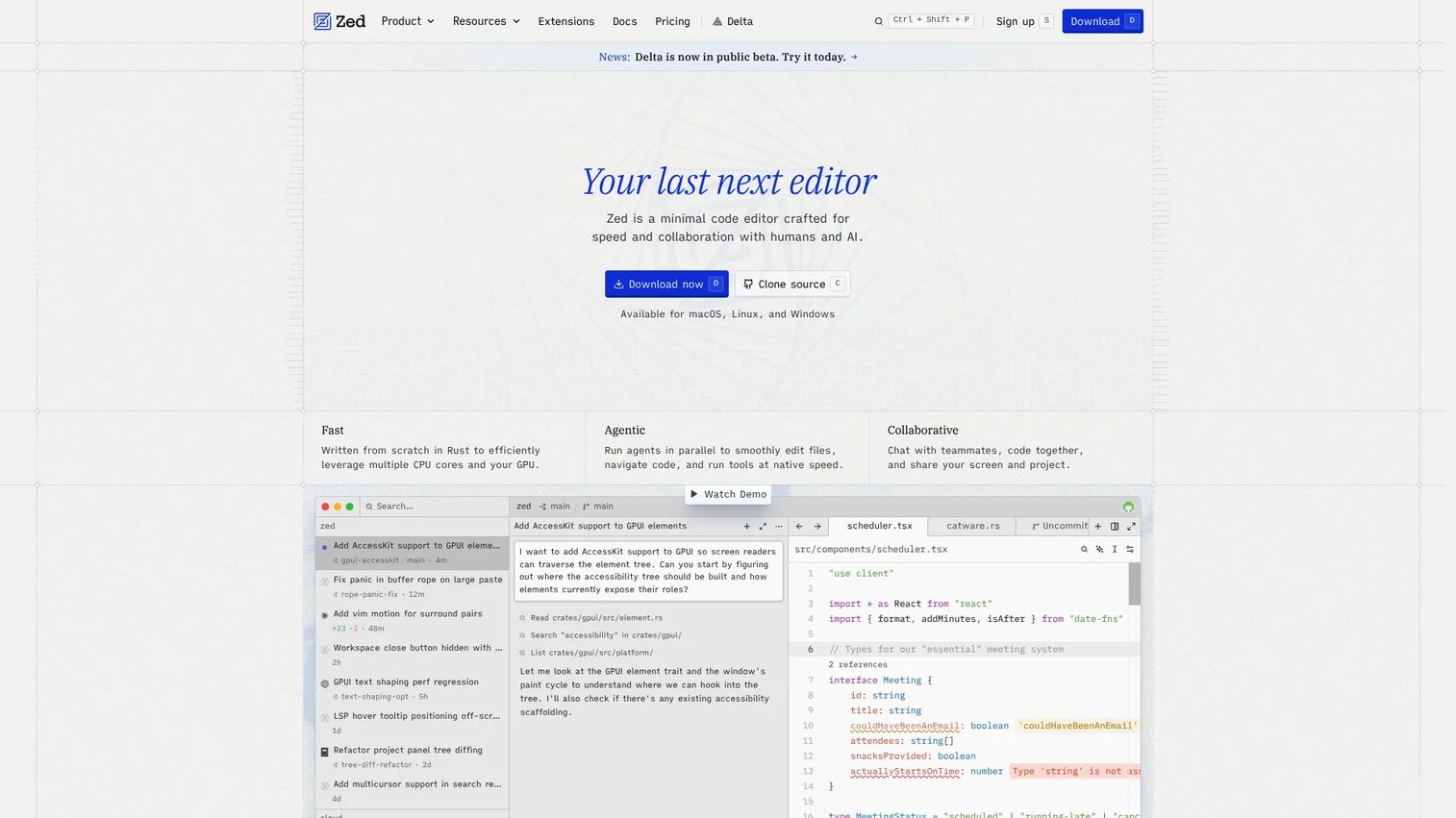
Zed is a modern code editor built in Rust, designed for both performance and collaborative workflows. It supports real-time project collaboration, screen sharing, and built-in AI agents that can run editing tasks in parallel. Git support, a native debugger using the Debug Adapter Protocol, remote development, and an integrated terminal are all included. Zed runs on macOS and Linux; Windows support is in progress, so check the current roadmap before committing. For teams experimenting with AI coding workflows, Zed's editor-native AI direction stands out from extensions bolted onto older editors.
Best for: Mac and Linux developers who want a high-performance modern editor with collaboration and AI built into the core.
Key features
- Parallel AI agents for agentic code editing
- Real-time collaboration and screen sharing
- Native Git support and built-in DAP debugger
- Remote development and integrated terminal
- Edit predictions and Vim-compatible modal editing
Why choose Zed: Choose Zed if you want a newer editor that treats AI and collaboration as first-class features rather than add-ons. It is a strong fit for teams already working in AI-augmented coding workflows.
Zed pricing: The Personal plan is free forever, covering the editor and 2,000 accepted edit predictions per month. Pro is $10 per month and adds unlimited edit predictions plus $5 of included token usage. Business is $30 per seat per month and adds organization controls, role-based access, and unified spend visibility.
G2 rating: 4.5/5
4. Neovim
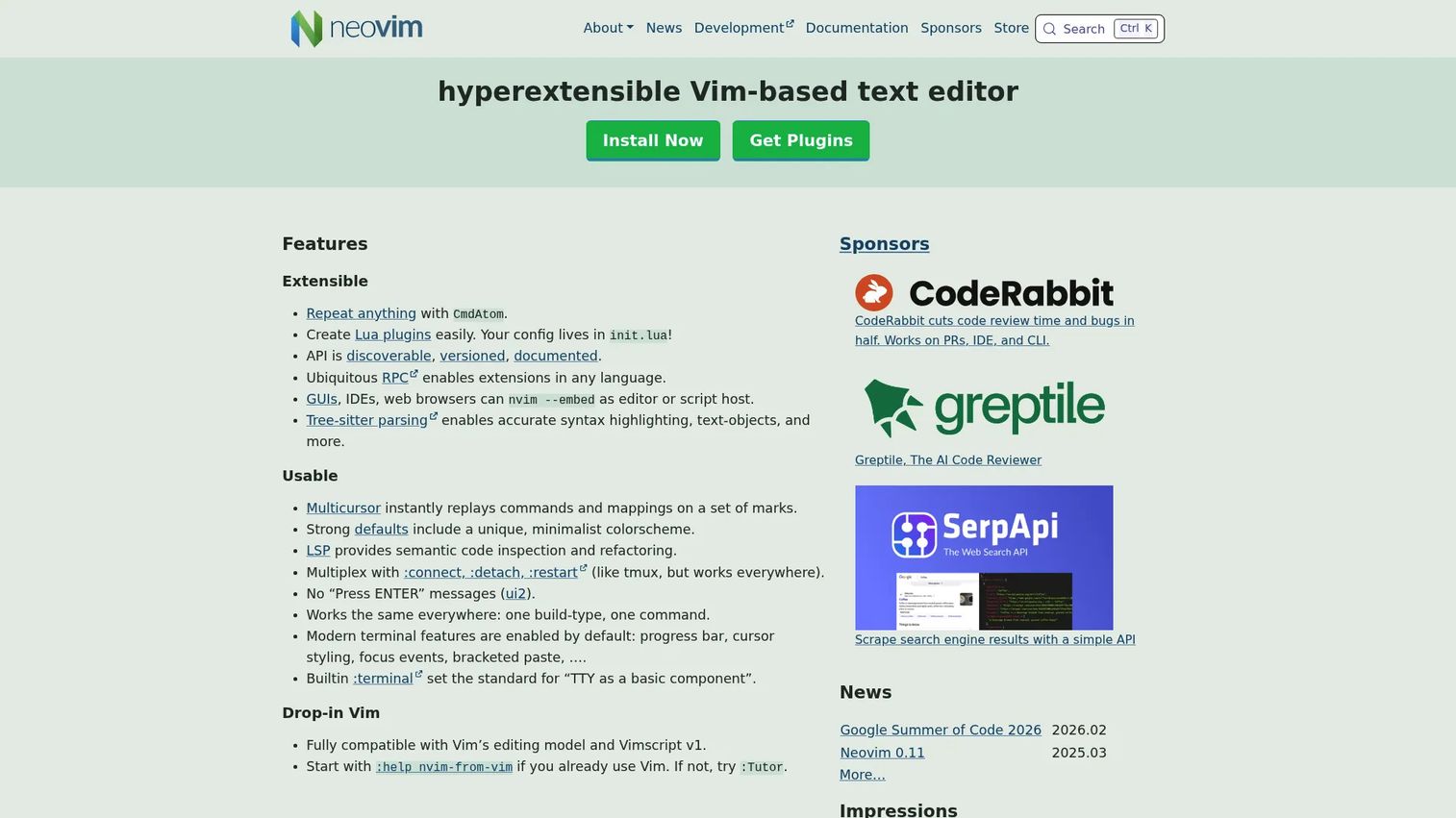
Neovim is a modern, extensible fork of Vim that replaces Vimscript configuration with Lua, adds built-in Language Server Protocol support for code intelligence, and uses Tree-sitter for accurate syntax highlighting. Its plugin ecosystem covers everything from file trees and fuzzy finders to full IDE-style interfaces. For presales engineers who SSH into demo environments or customer-facing servers, Neovim is available wherever a terminal is. The learning curve is real, but a configured Neovim setup travels across machines without reinstallation.
Best for: Power users who want a programmable terminal editor and are willing to invest in their configuration.
Key features
- Lua-based configuration and plugin development
- Built-in LSP support for code intelligence across languages
- Tree-sitter parsing for accurate syntax highlighting and text objects
- Terminal-first editing with modal commands and macros
- Active plugin ecosystem covering debugging, file navigation, and Git
Why choose Neovim: Choose it when editing speed and SSH-native workflows matter more than a GUI. A properly configured Neovim environment is faster than most graphical editors at navigation and text manipulation.
Neovim pricing: Free and open source. No paid plans or subscriptions exist.
G2 rating: 4.3/5
5. Vim
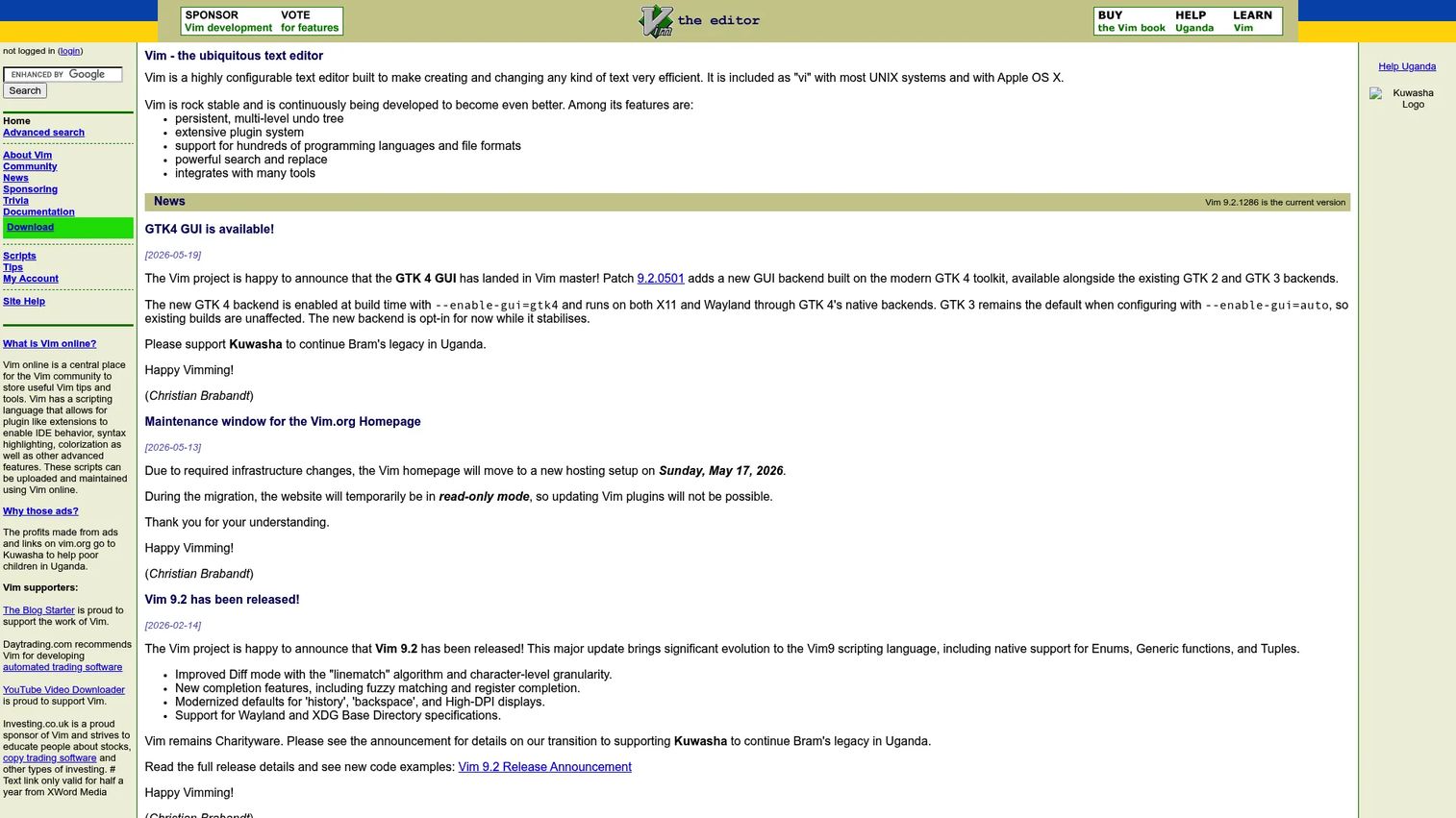
Vim is a highly configurable terminal editor with modal editing, macro recording, and a plugin system that has been extended for decades. Its most practical strength is availability: Vim ships with most Linux distributions and macOS, so it is almost always accessible on remote servers and constrained environments where installing a GUI editor is not an option. For presales engineers editing a config file on a customer server during a POC, Vim is often already there.
Best for: Users who edit code and config files across servers, terminals, and environments where GUI editors are not available.
Key features
- Modal editing with normal, insert, and visual modes
- Terminal availability across most Unix-like systems
- Plugin support via Vim Packages or plugin managers
- Macro recording for repeatable editing tasks
- Persistent multi-level undo tree
Why choose Vim: Choose Vim when your work lives inside terminals or remote systems. The modal editing model has a steep initial learning curve but pays back when you need precise keyboard-driven changes without leaving the shell.
Vim pricing: Free, distributed as charityware. The official site encourages donations to support children in Uganda.
G2 rating: 4.4/5
6. Notepad++
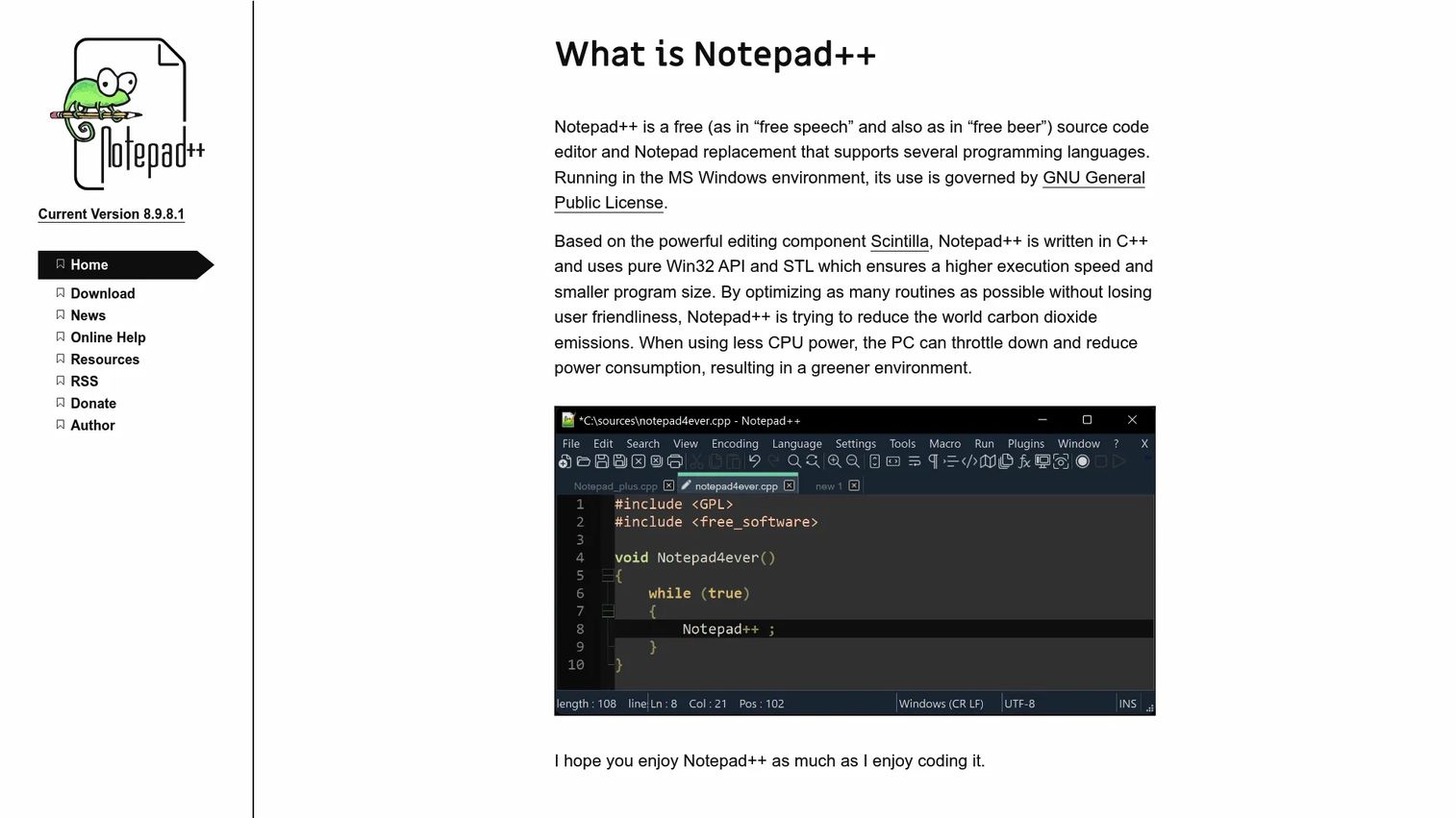
Notepad++ is a free, open-source editor for Windows with syntax highlighting for most programming and markup languages, tabbed multi-file editing, search and replace with regex, and a plugin system for extended functionality. It opens instantly, uses minimal resources, and handles everything from log files to scripts without any project setup. For Windows-based presales engineers who need to inspect a payload, edit a batch script, or review a config file before a call, Notepad++ does the job without friction.
Best for: Windows users who need fast, reliable editing for code, logs, scripts, and text files without project overhead.
Key features
- Syntax highlighting for programming and markup languages
- Tabbed multi-document editing
- Search and replace with regular expression support
- Plugin support for additional language and tool integrations
- Macro recording for repeatable text operations
Why choose Notepad++: Choose it when you need quick Windows editing with no project setup required. It does not try to be a complete development environment, and that focused scope is exactly its strength.
Notepad++ pricing: Free and open source. No paid tiers or subscription plans exist.
G2 rating: 4.6/5
7. JetBrains
JetBrains is a software development tooling company whose product family covers language-specific IDEs for Python, Java, JavaScript, C/C++, Go, Ruby, Rust, and more, along with AI assistance, project management, and CI tools. Where a lightweight code editor asks you to configure language support through extensions, JetBrains IDEs ship with deep language intelligence built into the core. For technical teams running multi-language projects or for presales engineers who regularly need to inspect enterprise Java or Python codebases, the JetBrains family provides consistent tooling across languages. PyCharm, IntelliJ IDEA, and CLion each get their own entries below for language-specific details.
Best for: Development teams that want consistent IDE tooling across multiple language stacks without managing separate extension configurations.
Key features
- Language-specific IDEs for Python, Java, JavaScript, C/C++, and more
- AI-powered coding assistance and agentic development tools
- Deep refactoring, navigation, and code analysis across project files
- Built-in debugger, profiler, and test runner per IDE
- Team licensing and subscription management through one vendor
Why choose JetBrains: Choose the JetBrains family when your team works across several languages and wants IDE-level depth in each one. The tradeoff is heavier resource use and subscription cost compared with lightweight editors.
JetBrains pricing: The All Products Pack costs $299 per user in the first year, $239 in the second, and $179 from the third year onward. IntelliJ IDEA Ultimate starts at $199 per user in the first year. Students and academic staff can access all JetBrains tools free after verification.
G2 rating: 4.5/5
8. PyCharm

PyCharm is JetBrains' Python-focused IDE, covering application development, data work, automation scripts, and backend projects. It manages Python interpreters and virtual environments, runs and debugs tests, and provides project-wide refactoring and code navigation. For presales engineers who edit Python scripts for demo environments or POC automation, PyCharm understands the project well enough to catch issues before they surface during a live call.
Best for: Python developers who want IDE-level project understanding rather than a lightweight editor setup.
Key features
- Python interpreter and virtual environment management
- Integrated debugger with local, remote, and container support
- Test runner for pytest, unittest, and other frameworks
- Project-wide refactoring and code navigation
- Support for JavaScript, TypeScript, HTML, CSS, and SQL alongside Python
Why choose PyCharm: Choose PyCharm when Python is central to your project and you want the editor to understand the full codebase. It is more than you need for quick text edits, but it pays for itself in real Python projects where navigation and debugging matter.
PyCharm pricing: Core features are free forever. PyCharm Pro costs $200 per user per year (billed annually) or $100 in the first year under some billing options. Check the JetBrains pricing page for current promotional and renewal rates.
G2 rating: 4.6/5
9. IntelliJ IDEA

IntelliJ IDEA is the flagship JetBrains IDE for Java and Kotlin development, with strong support for other JVM languages and frameworks. It provides intelligent code completion, deep refactoring, a built-in debugger and profiler, build tool integration for Maven and Gradle, and database tools. For presales engineers working with enterprise Java applications during technical validation, IntelliJ IDEA reduces the friction of navigating large codebases and understanding data flow.
Best for: Java and Kotlin developers working on complex applications who need IDE-level project intelligence.
Key features
- Intelligent code completion and analysis for Java, Kotlin, and JVM languages
- Built-in debugger, profiler, and refactoring tools
- Build tool support for Maven and Gradle
- Git, GitHub, GitLab, database, HTTP client, and Docker integration
- Remote development support
Why choose IntelliJ IDEA: Choose it when understanding large Java or Kotlin projects matters more than editor minimalism. Code navigation and refactoring at scale justify the subscription cost for teams spending serious time in JVM codebases.
IntelliJ IDEA pricing: The Community edition is free. IntelliJ IDEA Ultimate costs $719 per user per year. A 30-day free trial of Ultimate is available before purchase.
G2 rating: 4.6/5
10. CLion
CLion is JetBrains' cross-platform IDE for C and C++ development. It supports CMake, Makefile, Meson, and Bazel build systems, provides GDB and LLDB debugging, includes code inspections and refactoring, and covers embedded development workflows for platforms including STM32 and Zephyr. For presales engineers at companies selling into automotive, embedded, or systems software markets, CLion provides a credible environment for technical deep-dives with engineering buyers.
Best for: C and C++ developers who need IDE-level navigation, analysis, debugging, and embedded workflow support.
Key features
- C and C++ code completion, inspections, navigation, and refactoring
- GDB, LLDB, and Debug Adapter Protocol debugging
- CMake, Makefile, Meson, and Bazel build system support
- Embedded development including STM32, Zephyr, and PlatformIO
- GoogleTest, Catch2, and Boost.Test integration
Why choose CLion: Choose CLion when C or C++ project complexity makes a simple editor expensive in time. It is a better fit for codebases where navigation and debugging are daily needs, not occasional tasks.
CLion pricing: A free non-commercial license is available. Commercial CLion subscriptions cost $10.90 per month. The All Products Pack, which includes CLion and all other JetBrains IDEs, is $29.90 per month.
G2 rating: 4.4/5
11. Emacs
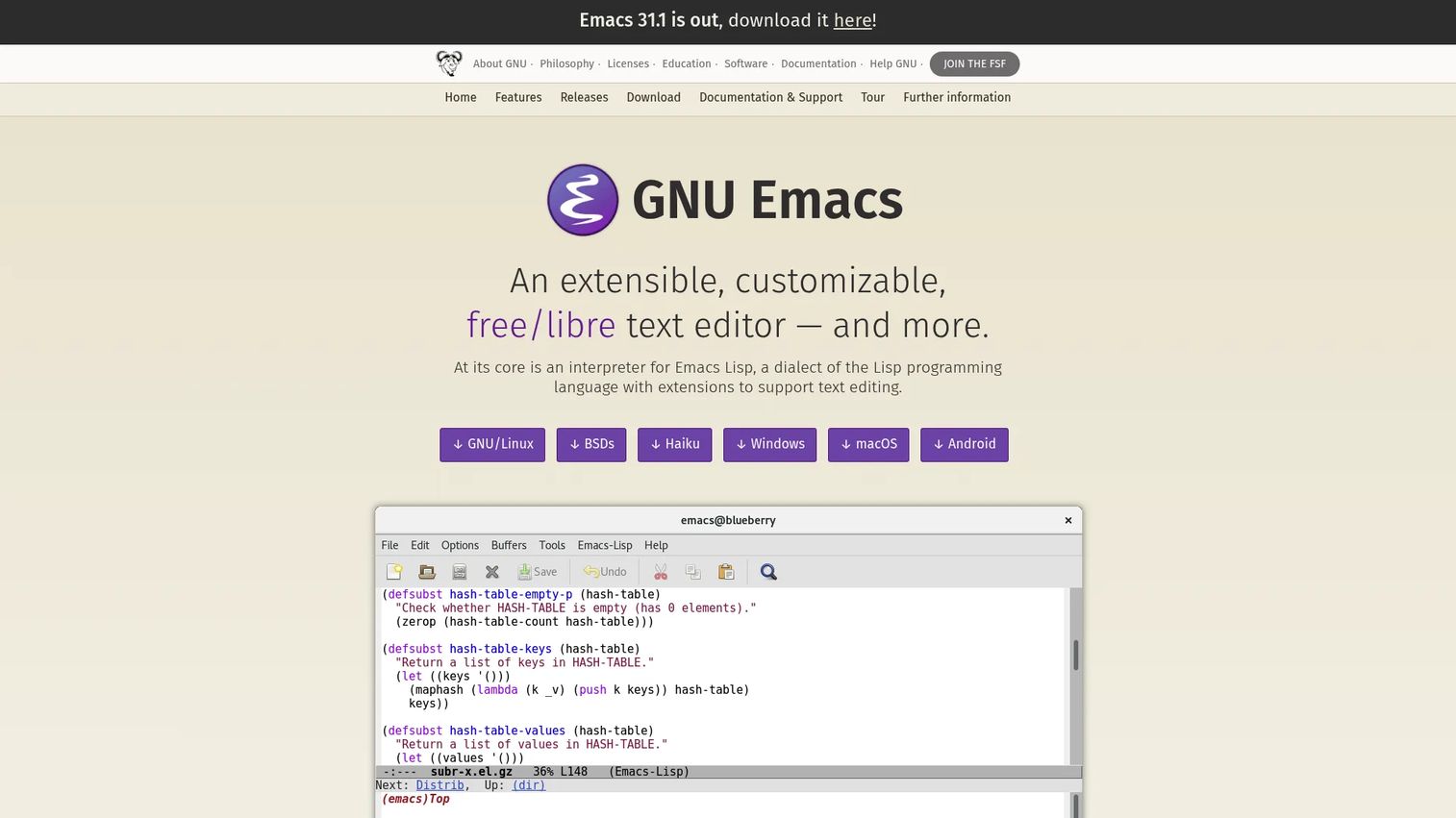
GNU Emacs is a programmable editor environment built on Emacs Lisp. Where most editors let you configure appearance and extensions, Emacs lets you rewrite its behavior at every level. It supports syntax-aware editing for most file types, full Unicode, built-in documentation, package management, and capabilities ranging from code editing and debugging to mail, calendar, and IRC. The Python Developers Survey 2024 found that 42% of respondents used three or more editors simultaneously, suggesting that Emacs users often pair it with a more conventional editor for specific tasks.
Best for: Advanced users who want deep, long-term customization and are willing to invest in building their environment.
Key features
- Emacs Lisp scripting for deep editor customization
- Syntax-aware major modes for most programming languages
- Built-in documentation, tutorial, and package manager
- Debugging, calendar, mail, project planning, and IRC within the editor
- Cross-platform support on Linux, macOS, and Windows
Why choose Emacs: Choose Emacs if you want to shape the editor around your thinking style rather than adapting your workflow to a tool. It is not the shortest path to a first edit, but it can become a durable long-term workspace.
Emacs pricing: GNU Emacs is free software under the GPL. No paid plans or tiers exist.
12. Nano
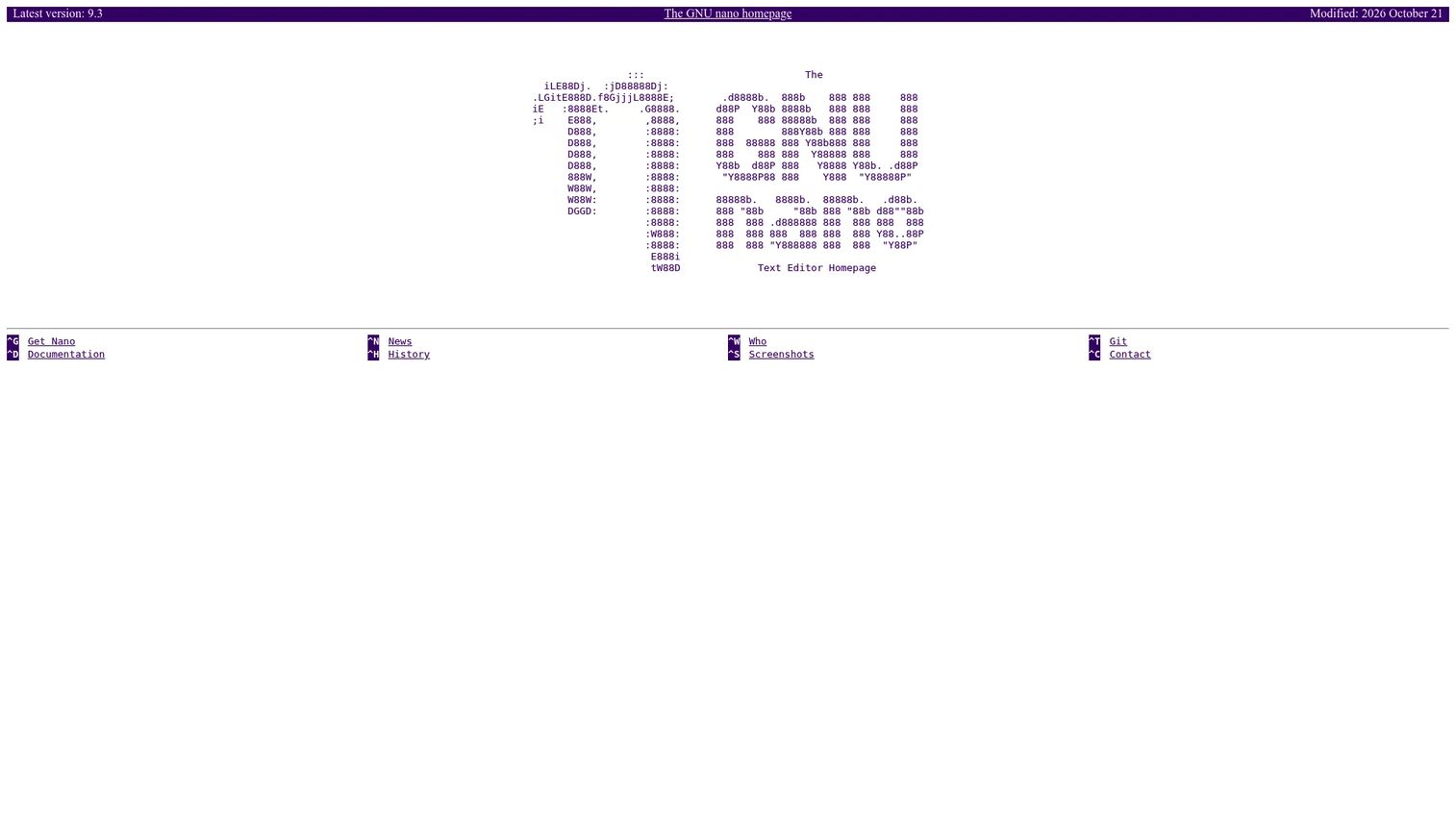
GNU nano is a small terminal text editor that displays keyboard shortcuts on-screen, making it immediately usable without memorizing modal commands. It provides interactive search and replace, undo and redo, and basic syntax coloring. For presales engineers who SSH into a customer environment or a demo server and need to edit a single config file quickly, nano gets the job done without requiring any prior familiarity with terminal editors.
Best for: Users who need simple terminal editing without a steep learning curve, especially for quick server or remote environment changes.
Key features
- On-screen keyboard shortcut display
- Interactive search and replace
- Undo and redo
- Basic syntax coloring
- Low resource use and fast startup
Why choose Nano: Choose nano when you need to edit a file in a terminal right now and do not want a learning curve between you and the save. It is easy to hand off to a teammate who has never used a terminal editor before.
Nano pricing: Free. No paid options exist.
13. Textastic

Textastic is a text and code editor for iPhone, iPad, and Mac with syntax highlighting for more than 80 programming and markup languages, SFTP and SSH file access, FTP, WebDAV, and Dropbox connectivity, and code completion with search and replace. External keyboard support makes it practical on an iPad for real editing sessions, not just reading. For presales engineers who work from a tablet at customer sites or trade shows, Textastic provides a capable coding environment without a laptop.
Best for: iPad and iPhone users who need capable code editing, including remote server access, away from a desktop.
Key features
- Syntax highlighting for 80+ programming and markup languages
- SFTP, SSH, FTP, WebDAV, and Dropbox connectivity
- Code completion and regex search and replace
- External keyboard support on iPad
- Web and Markdown preview
Why choose Textastic: Choose Textastic if mobile editing is a regular part of your workflow rather than an occasional workaround. Its remote file access support means you can connect to the same servers you work with on a laptop.
Textastic pricing: The iOS and iPadOS app is free with in-app purchase options for annual subscriptions, monthly subscriptions, and one-time purchase. A 7-day free trial is available for annual and monthly plans. Current prices are shown in the App Store and vary by region.
G2 rating: 4.3/5
14. Acode
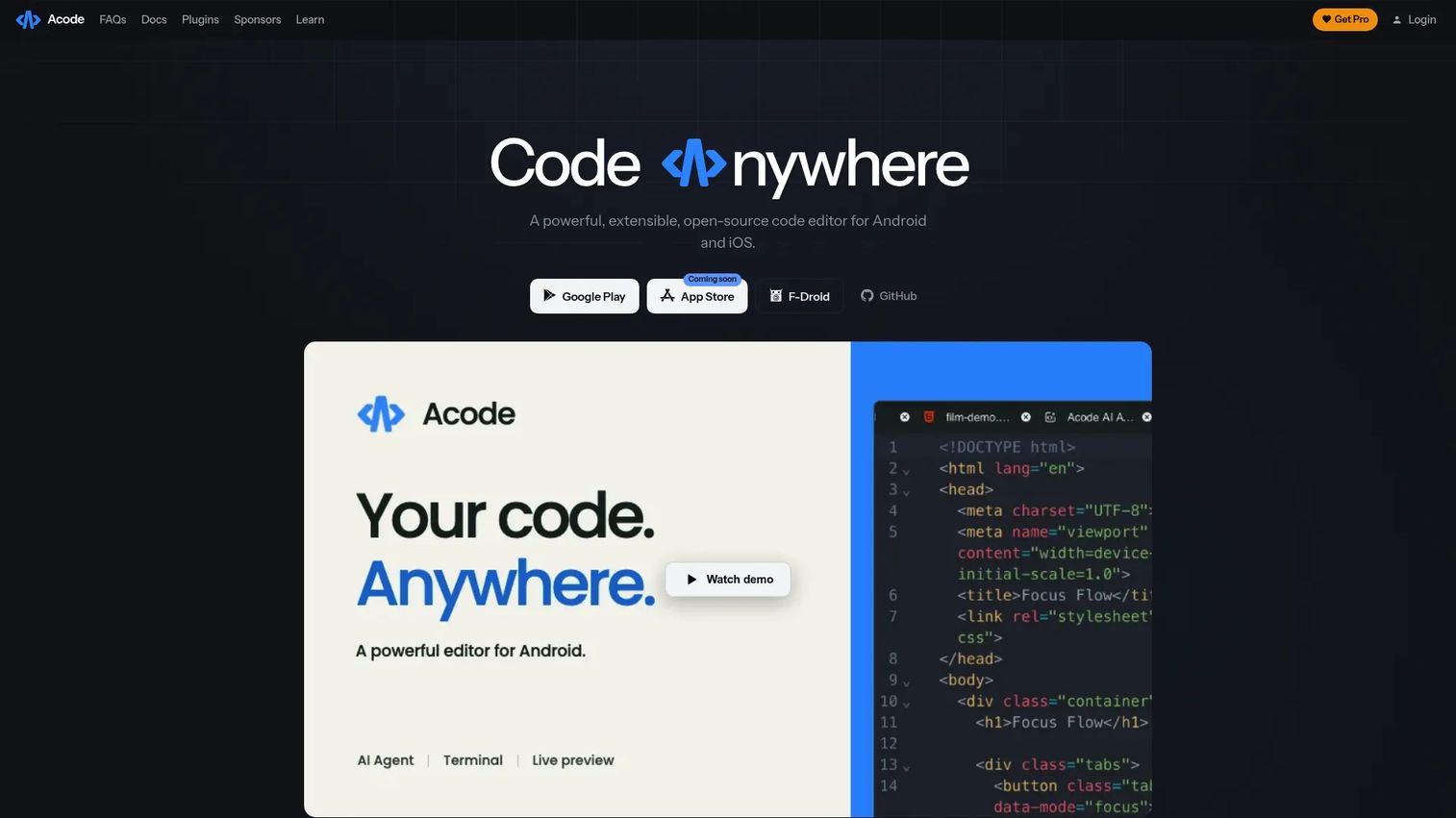
Acode is a free, open-source code editor for Android, built on the MIT license. It supports syntax highlighting, code completions, and Language Server Protocol integration, includes a built-in Alpine Linux terminal with package management, and provides FTP/SFTP remote file access, SSH support, Git integration, and a live HTML and Markdown preview. An AI coding-agent integration and plugin system extend it further. For presales engineers on Android who need to inspect or edit files during travel or on-site visits, Acode provides more capability than most mobile editors in its category.
Best for: Android users who need a mobile code editor for file inspection, quick edits, and lightweight coding projects.
Key features
- Syntax highlighting, completions, and LSP support
- Built-in Alpine Linux terminal with package management
- FTP, SFTP, SSH, and remote file access
- Git integration and live HTML/Markdown preview
- Plugin system, themes, and AI coding-agent support
Why choose Acode: Choose Acode as a mobile companion for Android when you need more than a basic text editor. Frame it as a field tool for inspection and quick edits, not a full desktop replacement.
Acode pricing: Free and open source under the MIT license.
15. Xcode
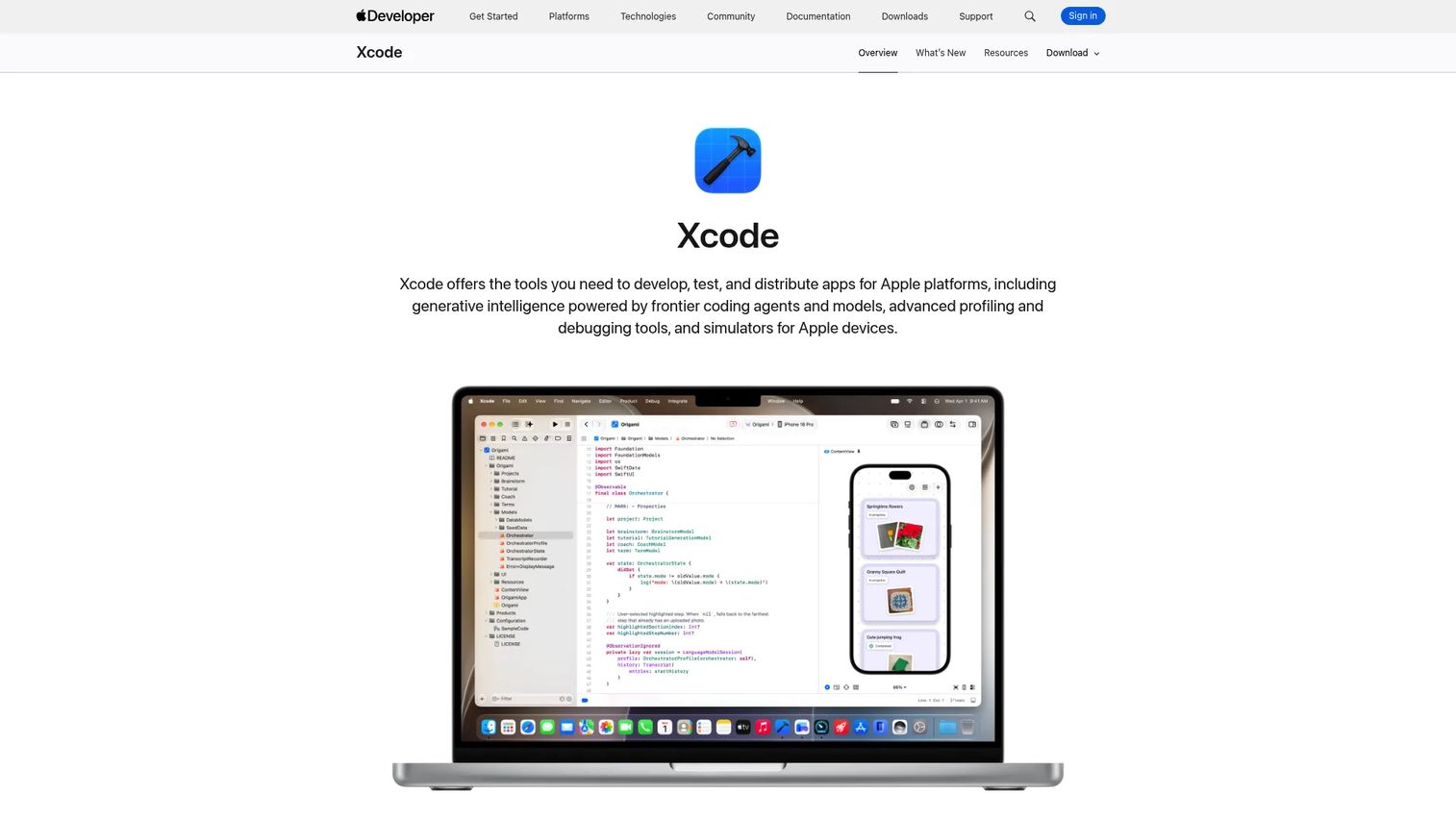
Xcode is Apple's integrated development environment for building apps across iOS, macOS, watchOS, tvOS, and visionOS. It includes predictive code completion, SwiftUI previews, device simulators, a debugger, profiler, performance tools, and the full app signing and App Store submission workflow. For presales engineers at companies whose products integrate with Apple platforms, Xcode is the standard environment for demonstrating native app integrations or reviewing Swift code with a technical buyer.
Best for: Developers building and shipping applications for Apple platforms.
Key features
- Swift and Objective-C code completion and coding intelligence
- Xcode Previews and device simulators for all Apple platforms
- Integrated testing, debugging, and performance profiling
- Interface and layout tools for SwiftUI and UIKit
- App signing and App Store distribution workflow
Why choose Xcode: Choose Xcode when Apple platform development is the job. For general file editing it carries more overhead than a lightweight editor, but for shipping Apple apps it is the necessary path.
Xcode pricing: Free from the Mac App Store. Xcode Cloud build compute is separate, with 25 hours per month included in an Apple Developer Program membership and additional compute available by subscription.
G2 rating: 4.2/5
Considerations when choosing a code editor
Platform support
Verify that the editor runs on every device and operating system your team uses. Visual Studio Code and Sublime Text cover Windows, macOS, and Linux. Vim and Nano travel into any terminal. Textastic covers Apple mobile devices and Acode covers Android. An editor that does not follow you into the environments where your work actually happens creates friction at the wrong moment.
Language and framework fit
A lightweight editor with extensions handles mixed-language work well. A dedicated IDE, like PyCharm for Python or IntelliJ IDEA for Java, earns its weight when the project is large enough that navigation, refactoring, and test runners matter. Choose the depth that matches the complexity of your work, not a heavier tool than the job requires.
Performance and large-file handling
Startup time and memory use matter when you are opening a 200,000-line log file twelve minutes before a call. Sublime Text and Notepad++ hold up well with large files. Heavy IDEs can struggle. Test your shortlisted editors against the largest files you actually open before committing to one as your default.
Git and remote workflow integration
If your work involves reviewing diffs, staging commits, or connecting to remote hosts, verify that the editor handles those workflows natively or through well-maintained extensions. Visual Studio Code's built-in Git views and remote development support are strong. For teams using API development tools or reviewing integration code regularly, Git workflow quality is a daily productivity factor.
Setup cost and long-term maintainability
Highly configurable editors like Neovim and Emacs reward investment with a powerful personal environment. That investment is valuable for an experienced developer but disruptive for a team that needs a standard setup everyone can adopt quickly. Match the editor's configuration depth to the team's appetite for ongoing maintenance. For presales teams that also rely on AI software testing tools during validation cycles, a stable shared editor configuration reduces onboarding time when new solutions consultants join.
Conclusion
Most code editor decisions come down to one practical question: What slows you down least during the work you do most often?
Visual Studio Code is the safest default for most developers and technical GTM teams. Its extension ecosystem, Git integration, remote development, and AI options cover the majority of workflows without forcing a tradeoff between features and startup speed.
Sublime Text wins for raw desktop speed and large-file handling. Neovim and Vim belong in terminal and SSH workflows where a GUI editor is not practical. JetBrains tools, whether PyCharm, IntelliJ IDEA, or CLion, earn their subscription cost when language-specific depth matters more than minimal setup. For mobile work, Textastic covers Apple devices and Acode covers Android with more capability than the category usually delivers.
Pick the editor that removes friction from the work you do most often. If you spend the day in repositories, choose breadth. If you live in terminals, choose keyboard speed. If you only need to adjust a payload before a call, choose the tool that opens fast and makes the edit obvious.
Teams looking for tools that complement their technical stack can also explore best AI code generation tools and best presales software tools for more coverage across the technical GTM workflow.
Start your journey with Guideflow today!
FAQs
Visual Studio Code is the safest default for most users because it balances a large extension ecosystem with Git integration, debugging, remote workflows, and broad platform support. The best choice shifts based on your operating system, whether you work primarily in a terminal, and how much IDE-level project tooling your work requires.
A code editor focuses on writing and navigating code, often extended through plugins and language servers. An IDE adds deeper project-level tooling: Build systems, test runners, project-wide refactoring, and framework-specific integrations that understand your entire codebase rather than just the open file.
Visual Studio Code is the most practical starting point for most beginners because its extension marketplace, built-in Git, and broad documentation make it easy to grow into. On Windows, Notepad++ is a low-friction option for simple edits. In a terminal, Nano is the most approachable option because its keyboard shortcuts appear on-screen without any memorization.
Visual Studio Code, Neovim, Vim, Emacs, Sublime Text, and Nano all run on Linux. The choice depends on whether you prefer a GUI editor, a terminal-based workflow, or a minimal tool for quick edits. Neovim and Vim are especially common in server and SSH environments where graphical editors are not available.
Visual Studio Code, Sublime Text, and Zed are strong choices for macOS desktop editing. Xcode is the required environment for Apple platform app development. Textastic covers iPadOS and iOS for mobile coding. The right answer depends on whether your work is general development, Apple-specific development, or mobile editing.
For most workflows, yes. Visual Studio Code, Neovim, Vim, Notepad++, GNU Emacs, Nano, and Xcode cover serious development work without any paid license. Sublime Text's paid personal license is modest at $99 one-time, and JetBrains IDEs carry higher subscription costs that make sense when language-specific depth saves meaningful time. The free options in this list are capable, not stripped-down alternatives. Teams researching how AI copilot software integrates with editors may find that AI features are the primary driver of cost variation rather than the editor itself.
A low-friction editor that handles JSON, YAML, scripts, logs, and sample code covers most presales needs. Visual Studio Code is the best default because it handles mixed file types, connects to remote hosts, and has Git built in. Notepad++ works well for quick Windows edits before a call. Vim or Nano work when you are already inside a terminal during a POC session. Teams that regularly work with agentic AI tools for sales may also find that editors with built-in AI agents reduce time spent on repetitive code inspection tasks.
AI features are useful for autocomplete, inline explanations, and refactoring assistance, but they are not mandatory for every task. Editing config files, reviewing log output, or making small demo environment changes does not require AI. For developers writing or reviewing code regularly, the JetBrains State of Developer Ecosystem 2025 found that 62% of developers used at least one AI coding tool, suggesting that AI assistance has become a standard part of the workflow for many teams rather than a niche capability.