

The design team has three briefs queued ahead of yours. The campaign goes live in four days. You need to show someone what you're thinking, not write a thousand-word brief explaining it.
That gap between idea and shareable visual is exactly what sketching software solves. The global painting and digital art software market hit $3.42 billion in 2025, according to Dataintelo (2026), which tells you plenty of people are already moving visual work out of slide decks and into dedicated drawing tools.
The harder question is which tool fits your situation. A growth marketer annotating a landing page concept needs something different from a product designer building a component library. The right sketching software depends on whether you need freehand drawing, quick browser access, interface design, or collaborative campaign planning.
This guide cuts through the category and helps you choose based on output and workflow, not feature count.
What's inside
This guide compares four sketching software options for 2026. Tools were selected based on current SERP coverage and category fit across four evaluation criteria:
- Drawing experience: Brush quality, layers, blend modes, and stylus support
- Platform access: Browser, desktop, tablet, and mobile availability
- Export and sharing: File formats, cloud storage, and collaboration
- Workflow fit: Whether the tool suits illustration, quick sketching, UI design, or marketing campaigns
Pricing and G2 ratings reflect verified data from each vendor's pricing page and G2 listing.
TL;DR
- Best for natural drawing and illustration: Sketchbook, with customizable brushes, layers, blend modes, and apps for desktop and mobile
- Best for quick browser drawing: Sketchpad, free in a browser with no install required
- Best for UI and product design: Sketch, the Mac-first platform for vector design, prototyping, and developer handoff
- Best for marketing teams and collaborative sketching: Canva Draw, free inside Canva with real-time collaboration and campaign-ready export
- Best free starting point: Canva Draw or Sketchpad, depending on whether you need campaign integration or standalone drawing access
What is sketching software?
Sketching software is a digital tool for creating, editing, saving, and sharing freehand drawings, visual concepts, wireframes, or design sketches on a computer, tablet, phone, or browser.
The category covers four distinct tool types, and picking the wrong one wastes time.
Freehand drawing and illustration apps prioritize the drawing experience itself. They include customizable brushes, layers, blend modes, pressure sensitivity, and stylus support. These tools feel closest to drawing on paper and are built for artists, illustrators, and anyone creating original visual work.
Browser-based drawing tools focus on fast access with no installation. You open a tab, start drawing, and export. They work for quick concept sketches, classroom use, marketing annotations, and situations where you need a rough visual approved without committing to a heavier creative stack.
UI design and prototyping platforms are sometimes called "sketch software" but serve a different purpose. They handle vector editing, reusable components, design systems, interactive prototyping, and developer handoff. These are the tools product teams use to design app screens and landing page flows before engineering picks them up.
Collaborative visual tools combine drawing with whiteboards, templates, annotations, and real-time team editing. They fit campaign planning, stakeholder feedback, and content ideation where more than one person needs to contribute.
Key features to look for:
- Natural-feeling brushes and pressure sensitivity
- Layers and blend modes for illustration depth
- Web, desktop, or mobile access matching your workflow
- Export formats: PNG, JPG, SVG, PDF, or PSD
- Collaboration and real-time sharing
- Templates or reusable components
- Autosave and cloud storage
The sketching software market is growing fast. Cloud-based tools now account for 67.2% of the graphic design software market, per SNS Insider (2025), which signals a clear shift toward browser-first and cross-device workflows.
When to use sketching software
Sketch a campaign idea before design starts
A rough sketch gets an idea out of your head and into a shareable format before it disappears into a Slack thread. For digital marketers, that might mean a quick layout for a landing page, a rough ad creative direction, or a storyboard frame for a video campaign. A sketched concept shared in a review meeting moves faster than a written description and costs less than a formal design request.
Draw without installing a heavy creative suite
Browser-based drawing tools work for students, teachers, and marketers who need a quick visual without spinning up Figma or installing an app. You open the tool, make your sketch, export a PNG, and move on. For marking up a screenshot, roughing out a social post concept, or creating a simple diagram for a client presentation, a lightweight online drawing tool handles the job in minutes.
Prototype interfaces before handoff
Product marketers and growth teams building landing page variants or onboarding flows need more than freehand drawing. UI design software handles vector precision, reusable components, and the kind of interactive prototyping that lets a developer understand what to build. If the output is a wireframe or an app screen rather than a concept sketch, a UI platform is the right tool for the job.
Sketching software comparison
The table below gives you a quick read on each tool's fit before you dive into the detail. Use it as a decision shortcut, not a substitute for reading the entries that match your use case.
| # | Product | Best for | Key differentiator | Pricing | G2 rating |
|---|---|---|---|---|---|
| 1 | Sketchbook | Artists and illustrators | Natural drawing feel, brushes, and blend modes across desktop and mobile | Free (mobile); $24.99/year Pro | N/A |
| 2 | Sketchpad | Quick browser drawing | Free online drawing with broad import and export support | Free (web); $4.95 desktop app (one-time) | 4.3/5 |
| 3 | Sketch | UI and product design teams | Vector design, prototyping, design systems, and developer handoff | From $12/editor/month (billed yearly) | N/A |
| 4 | Canva Draw | Marketing teams and collaborative drawing | Freehand drawing integrated into Canva's design and campaign workspace | Free; Canva Pro at $144/year | N/A |
Pricing and ratings verified November 2026 from each vendor's pricing page and G2 listing.
Best 4 sketching software tools for 2026
1. Sketchbook
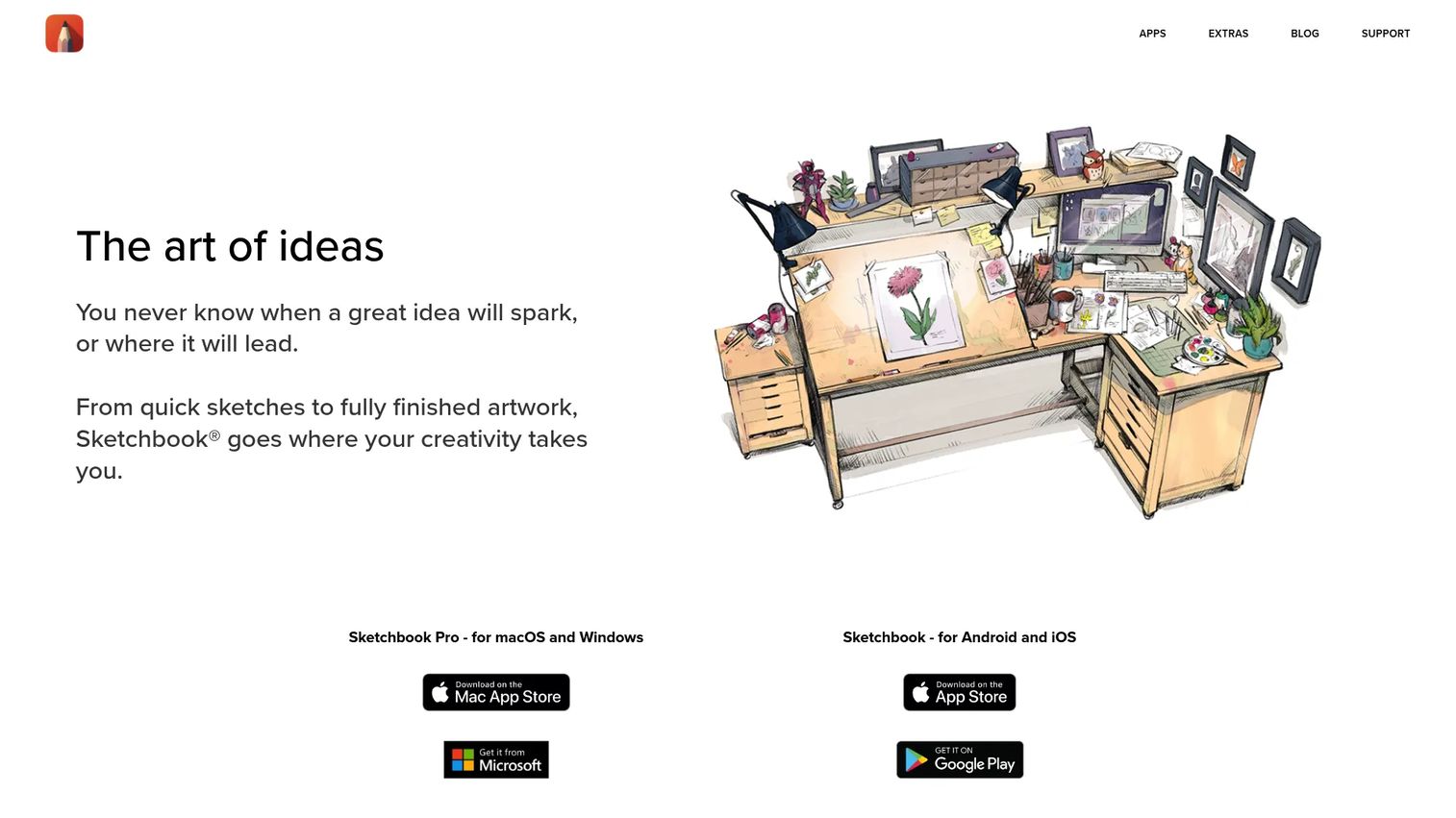
Sketchbook is a digital drawing and painting application built around the drawing experience itself. It runs on macOS, Windows, Android, and iOS, and its interface stays out of the way so you can focus on the work. Autodesk developed the tool, and it has a strong following among professional illustrators and concept artists who want a natural drawing feel on any device.
Best for: Digital artists, illustrators, and creative professionals who want natural-feeling sketching and painting tools across desktop and mobile.
Key features
- Customizable brushes, pens, and pencils
- Layers and blend modes for illustration depth
- Guides, rulers, symmetry tools, and predictive stroke
- Desktop apps for macOS and Windows
- Mobile apps for Android and iOS
Why choose Sketchbook: Sketchbook fits when drawing quality matters more than templates or campaign collaboration. For marketers, it earns its place for concept art, storyboard frames, and rough creative directions where you want a natural hand-drawn feel rather than a polished design output.
Sketchbook pricing: The mobile app is free to download with an optional one-time Premium Bundle purchase at $2.99 on iOS. Sketchbook Pro direct licensing, aimed at enterprises and educational institutions, runs $24.99 per seat per year with a 10-seat minimum for enterprise purchases.
2. Sketchpad

Sketchpad is a browser-based drawing and design tool made by Sketch.IO. It runs in any web browser without installation and covers basic to intermediate drawing needs with 18 brushes, over 5,000 clipart assets, 14 customizable shapes, and 800+ fonts. It also has a desktop app for users who prefer working offline.
Best for: Beginners, students, teachers, and digital marketers who need fast online drawing without committing to a heavier creative suite.
Key features
- Browser-based drawing with no install required
- Autosave and recent projects panel
- 18 brushes and 14 customizable shapes
- Layer selection and gradient overlays
- Image import and multiple export formats
Why choose Sketchpad: Sketchpad is the right call when speed and low friction matter most. For a marketer marking up a visual idea during a campaign review, creating a quick sketch for a social post concept, or exporting a rough layout for feedback, Sketchpad gets you in and out fast. It is less suited for professional illustration depth or UI design workflows.
Sketchpad pricing: The web app is free. The desktop app costs $4.95 as a one-time purchase (the product page also lists $4.99 in some locations, so check the current page before buying).
G2 rating: 4.3/5 (verified from G2 listing for Sketch.IO)
3. Sketch
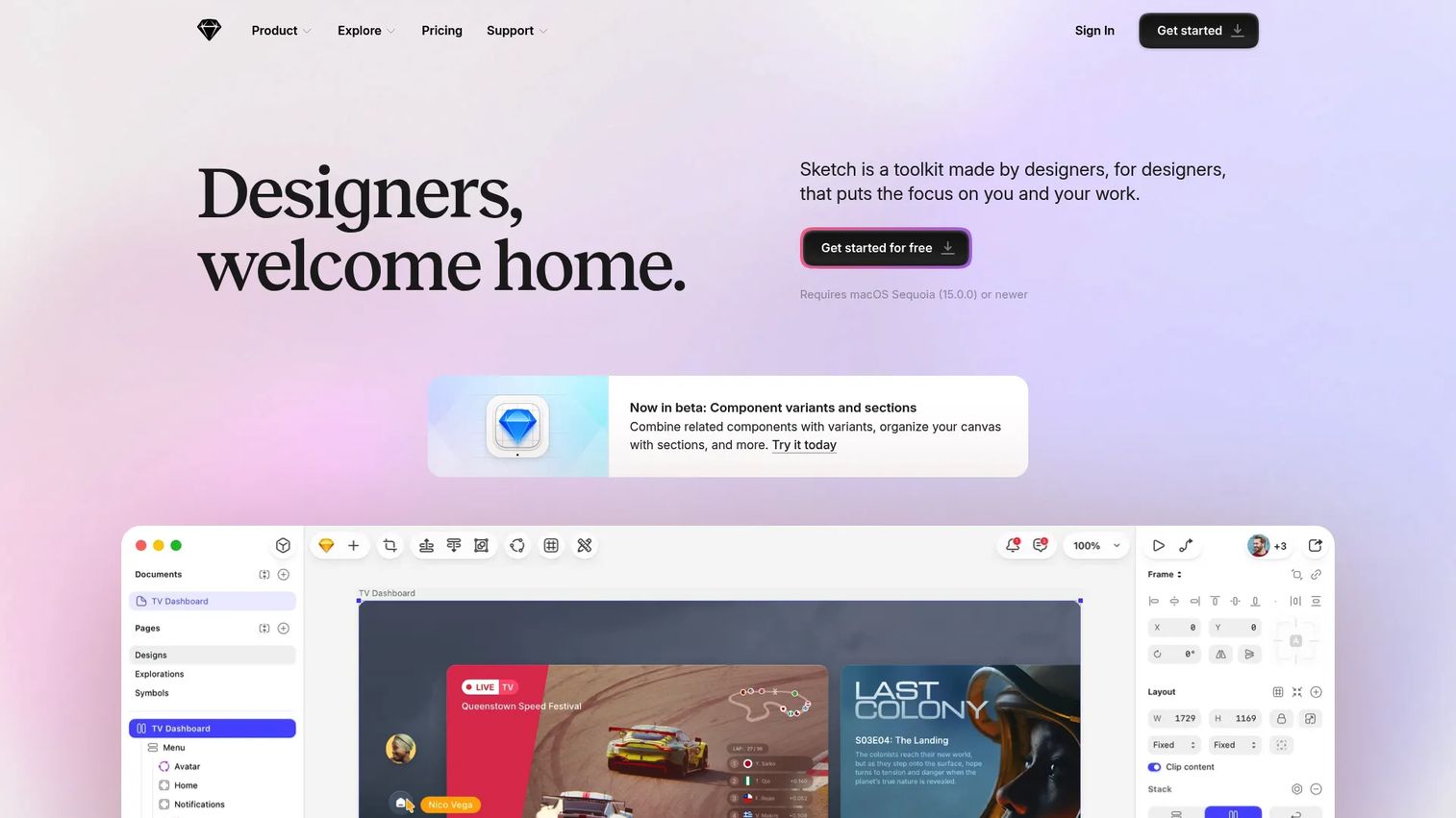
Sketch is a Mac-first platform for designing, prototyping, collaborating on, and handing off digital products. It handles vector editing, design systems, reusable components, interactive prototypes, and developer handoff inside a native macOS app paired with a browser-based workspace for collaboration and feedback. It is not a freehand drawing app. Sketch belongs in product design and UI workflows, not illustration.
Best for: Mac-based product design teams, product marketers, and growth teams who sketch interfaces, build landing page mockups, or prototype onboarding flows before engineering handoff.
Key features
- Native macOS vector editing and canvas
- Design systems, components, and shared libraries
- Interactive prototyping with animation and gestures
- Browser-based collaboration, inspection, and developer handoff
- Real-time shared cloud workspaces
Why choose Sketch: Choose Sketch when the output is a wireframe, an app screen, a landing page mockup, or an interactive prototype. For growth experiments involving landing page variants, onboarding flow mockups, or campaign microsites requiring accurate interface visuals, Sketch provides the precision and handoff tooling that a drawing app cannot. Users who only need freehand concept sketches will find Sketch more than they need.
Sketch pricing: The Standard plan starts at $12 per editor per month, billed yearly. The Professional plan is $24 per editor per month (billed yearly), and Enterprise runs $44 per editor per month (billed yearly). A Mac-only one-time license costs $120 per seat and includes one year of updates. A Private Cloud plan is available by contacting Sketch directly. No free plan exists, but a 30-day free trial is available. Viewer seats and Education workspaces are free.
4. Canva Draw
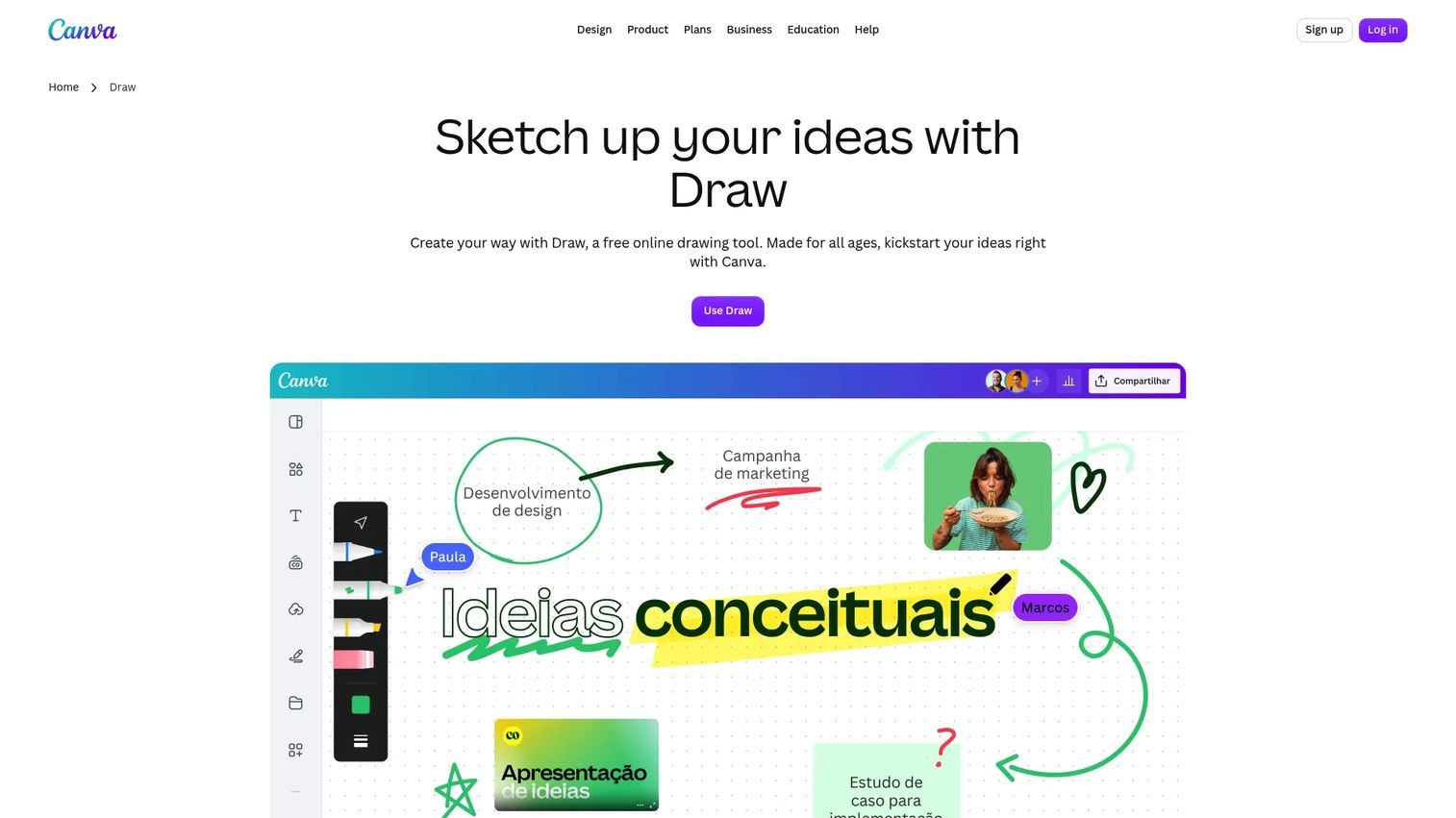
Canva Draw is a free online drawing tool built directly into Canva's design workspace. It gives you pens, markers, highlighters, an eraser, adjustable colors, and line thickness controls alongside Canva's templates, whiteboards, graphics library, and cloud storage. Shape Assist converts rough shapes into polished diagrams and flowcharts automatically. Everything you draw can become part of a social post, presentation, whiteboard, or ad creative in the same session.
Best for: Marketers, teachers, and collaborative teams that need sketching integrated into a broader design and campaign workflow.
Key features
- Freehand drawing with pens, markers, and highlighters
- Shape Assist for diagrams and cleaner visual communication
- Real-time collaboration and annotation across web and mobile
- Full access to Canva templates, graphics, and cloud storage
- Export to social, presentation, and marketing formats
Why choose Canva Draw: Canva Draw's strength is not raw drawing depth. Its strength is moving from sketch to shareable campaign creative without switching tools. For ad concept mockups, landing page annotations, content ideation whiteboards, or stakeholder feedback sessions, the integration with Canva's broader design stack saves the extra export and import step. Teams already on Canva get this for free. If you need professional illustration control, a dedicated drawing app will serve you better.
Canva Draw pricing: Canva Draw is completely free for all users. The broader Canva platform offers a Free plan at $0, a Pro plan at $144 per person per year, a Business plan at $250 per person per year, and Enterprise pricing by contacting sales.
Considerations when choosing sketching software
Drawing feel and input support
Brush quality, pressure sensitivity, line smoothing, and stylus behavior determine whether a tool feels natural or fights you on every stroke. This matters most for artists and illustrators who draw frequently. If you plan to use a stylus on a tablet, check whether the tool supports pressure sensitivity on your specific device before committing.
Platform fit for your workflow
A browser-based tool is fast to open and requires no installation, which suits marketers and casual users who draw occasionally. Native desktop or mobile apps tend to offer better performance for intensive illustration work. Sketch is Mac-only, which eliminates it immediately for Windows-first teams. Sketchbook and Canva Draw work across devices, so evaluate where most of your drawing actually happens.
Export formats and campaign handoff
PNG and JPG cover most sharing and presentation needs. SVG and PDF matter when files go to a designer or printer who needs vector output. PSD compatibility helps teams working inside Adobe workflows. If you're exporting sketches into campaign tools, ad platforms, or slide decks, check whether the tool's output formats match your downstream stack. See also our roundup of best online whiteboards for tools that combine drawing with real-time collaboration.
Collaboration requirements
Real-time collaboration separates tools built for teams from those built for solo creators. Canva Draw and Sketch both support multi-user editing and feedback workflows. Sketchpad and Sketchbook are primarily single-user tools. If multiple stakeholders annotate, comment, or co-create in the same session, pick a tool that supports that natively rather than relying on export and re-import cycles.
Workflow depth versus simplicity
A lightweight drawing app is faster to start and easier to maintain. A professional design platform gives you more control but takes longer to learn. Match the tool to the output. A quick social sketch needs far less structure than a prototype heading to engineering handoff. Start with the simplest tool that produces the output you need, and move to a more capable platform only when that ceiling becomes a real constraint. For teams exploring how design tools connect to broader marketing workflows, our AI design tools roundup covers adjacent creative software options.
Conclusion
The four tools in this guide cover the main use cases for digital sketching in 2026, and each one fits a different job.
Choose Sketchbook when drawing quality and illustration depth are the priority. Its brushes, layers, and blend modes are built for artists who want a natural feel on desktop or mobile.
Choose Sketchpad when you need to draw something quickly in a browser. It's free, requires no setup, and handles basic to intermediate drawing tasks without commitment.
Choose Sketch when the output is a wireframe, an interface mockup, or a prototype heading to a developer. It's a Mac-first platform built for product design, not freehand illustration.
Choose Canva Draw when you need sketching integrated into a campaign workflow. It sits inside Canva, costs nothing, and lets you move from rough concept to shareable creative in one session.
The practical next step: Identify the output you need first, then pick the tool that produces it fastest. A marketer who needs an ad concept sketched and exported before the end of the day has a different answer than a product designer building a full design system.
Start your journey with Guideflow today!
FAQs
Browser-first tools with simple interfaces are the easiest starting point. Sketchpad and Canva Draw both run in a browser without installation, offer a clean set of drawing tools, and let you export quickly. Canva Draw has the added advantage of connecting directly to templates and design assets, which helps beginners produce presentable results faster than a blank canvas would.
Canva Draw and Sketchpad both offer free access with no payment required. Canva Draw is free for all Canva users, including those on the Free plan. Sketchpad's web app is free, with a one-time fee of around $4.95 for the desktop version. Sketchbook's mobile app is also free to download, with an optional one-time Premium Bundle purchase on iOS.
The terms overlap, and most tools in this category do both. "Sketching software" typically emphasizes quick ideation, rough concepts, and speed to a shareable output. "Drawing software" often implies deeper illustration capabilities: More brush control, more layers, painting modes, and finishing tools for detailed artwork. In practice, tools like Sketchbook sit firmly in the drawing and illustration category, while Sketchpad and Canva Draw lean toward the lighter sketching end.
Yes, and it's one of the more practical use cases for growth marketers. Rough sketches help align a team on a landing page layout, ad creative direction, email visual, or storyboard frame before design resources get involved. Canva Draw is particularly useful here because sketches can become shareable campaign assets without leaving the platform. The goal is reducing design bottlenecks and communicating visual ideas faster, not replacing professional design work.
Sketch is the clearest choice for UI design, interface prototyping, and developer handoff. It handles vector editing, design systems, reusable components, and interactive prototyping natively on Mac. Freehand drawing tools are better suited to early visual thinking and concept exploration; they don't produce the precision or component structure that engineering handoff requires. For more on best web design software in adjacent categories, the linked guide covers UI and design platform options in more depth.
Sketchpad and Canva Draw both run entirely in a browser with no download needed. Sketchpad opens directly at sketch.io/sketchpad and starts immediately. Canva Draw is accessible from any Canva project or whiteboard. Both tools autosave to the cloud, so you don't lose work if you close the tab. For marketers who switch between devices or work from multiple locations, browser-first access removes the friction of syncing files or installing apps.
The answer depends on your output. For illustration and digital artwork, brush quality, layers, and blend modes matter most. For quick marketing sketches, browser access, fast export, and collaboration tools are more important. For UI and product design, vector editing, components, and developer handoff are non-negotiable. Start by identifying the file you need to produce, then check whether the tool's features match that output. Avoid choosing based on the longest feature list rather than the most relevant one.
Paid tools typically add stronger brush control, deeper layer support, broader file format compatibility, and professional workflows that free tiers don't cover. For serious illustration work, Sketchbook Pro's $24.99 per year annual plan provides access to the full feature set. That said, Sketchpad's free web version is enough for concept sketching, classroom projects, and straightforward marketing visuals. The gap between free and paid tools matters most when output quality and illustration depth are critical to the final deliverable. For teams evaluating best digital adoption platforms or broader creative tooling stacks, those guides cover adjacent software decisions.