You just need to move files to a server. Then the questions start. FTP or SFTP? Windows or macOS? Free client or paid tool with scripting support? One-time upload or a recurring sync job that runs every night?
For presales and solutions engineers, the stakes go a bit further. You may need to move demo assets into a temporary environment, pull export logs from a customer-controlled server, or coordinate a POC data handoff under your buyer's security requirements. Picking the wrong tool, or using plain unencrypted FTP when SFTP is available, creates avoidable risk. According to Kiteworks (2025), only 76% of organizations use end-to-end encryption for data in transit, which means a meaningful share of file transfers still happen over unprotected channels.
The global FTP software market reached $1.8 billion in 2025, according to Verified Market Research, and the category keeps expanding as teams move more workflows to hosted and cloud environments. This guide cuts through the noise and gives you a practical shortlist.
What's inside
This guide compares 7 FTP software tools for technical and GTM teams who need reliable file transfers across servers, hosting environments, and cloud storage.
Tools were chosen based on:
- Protocol coverage: FTP, SFTP, FTPS, WebDAV, and cloud storage support
- Platform fit: Windows, macOS, and cross-platform availability
- Automation depth: scripting, sync, scheduling, and transfer logging
- Pricing clarity: free and paid options, with verified current pricing
Ratings and pricing were verified from each vendor's live pricing page and G2 listing.
TL;DR
- Best free FTP software: FileZilla (cross-platform) and WinSCP (Windows)
- Best for Windows automation: WinSCP, with scripting and directory synchronization built in
- Best paid Windows FTP client: SmartFTP, which adds managed transfers, scheduling, and cloud storage
- Best macOS FTP software: Transmit, with a polished interface and broad cloud service support
- Best open-source option with cloud storage: Cyberduck, available for both macOS and Windows
- Best simple Mac option: Fetch, for straightforward FTP and SFTP access without complexity
- Best no-install option for hosting customers: DreamHost panel file manager, for quick browser-based uploads
What is FTP software?
FTP software is a file transfer application that lets users upload, download, manage, sync, and automate files between a local computer and a remote server using the File Transfer Protocol or related protocols.
FTP stands for File Transfer Protocol, the original standard for moving files between systems over a network. Traditional FTP sends data without encryption, which makes it unsuitable for transferring sensitive files in most modern environments. Two alternatives address this:
- SFTP (SSH File Transfer Protocol) runs over SSH and is a completely separate protocol from FTP, despite the similar name
- **FTPS** adds TLS encryption to the original FTP protocol
Most serious FTP clients today support all three. Some also handle WebDAV, Amazon S3, Backblaze B2, Google Drive, OneDrive, and other cloud storage services, which matters when your workflow crosses between traditional hosting and object storage.
An FTP client is different from an FTP server. The client is what you install on your computer to connect and transfer files. The server is what runs on the remote machine and receives the connection.
Key features of FTP software
- FTP, SFTP, and FTPS support
- Folder browsing and transfer queues
- Drag-and-drop uploads
- File synchronization and directory comparison
- Transfer resume and automatic retries
- Site bookmarks and saved connection credentials
- Permission and chmod editing
- Cloud storage connections (S3, WebDAV, and others)
- Transfer logs and error messages
- Scripting and automation support
A hosting panel file manager is not a full FTP client. It handles basic uploads and edits inside a browser, but it lacks saved connections, automation, bulk sync, and advanced protocol options.
When to use FTP software
Upload website files to a server
Developers, agencies, and hosting customers use FTP clients to upload themes, static assets, configuration files, and backups to a web root. For any host that supports it, use SFTP or FTPS rather than plain FTP. Most modern shared hosting providers support SFTP, and the setup difference is minimal.
Move large files during technical evaluation
Presales and solutions engineers often need to move demo assets into temporary environments, pull logs or export files for troubleshooting, or coordinate data handoffs during a POC. Before transferring anything tied to a customer, confirm whether your organization and the customer's IT team have security requirements that govern which protocols and tools are approved. Plain FTP is rarely acceptable in these scenarios. For context on how presales teams build their broader toolset, see the best presales software tools guide.
Automate recurring file transfers
Nightly exports, backup jobs, and scheduled sync workflows require more than a drag-and-drop client. Look for tools with scripting support, transfer scheduling, sync rules, retry behavior, and detailed logs. Not every FTP client handles automation equally, which is one of the key differences in this comparison.
FTP software comparison
The table below compares each tool by primary use case, core differentiator, pricing, and G2 rating. Pricing reflects the verified entry point as of October 2026. Tools without a G2 listing are marked N/A.
| # | Product | Best for | Key differentiator | Pricing | G2 rating |
|---|---|---|---|---|---|
| 1 | FileZilla | Free cross-platform transfers | Free FTP client with FTP, FTPS, and SFTP | Free (Pro from \~€12.99) | 4.5/5 |
| 2 | WinSCP | Windows automation and sync | Scripting, synchronization, and secure transfer | Free | 4.6/5 |
| 3 | SmartFTP | Paid Windows workflows | Managed transfers, scheduling, and cloud storage | From $79.99/user/year | 4.0/5 |
| 4 | Cyberduck | Cloud storage and open-source use | Broad cloud protocol support on macOS and Windows | Free (optional $10 key) | N/A |
| 5 | Transmit | Polished macOS file transfer | Mac-native interface with wide cloud service support | From $45 one-time | 4.3/5 |
| 6 | Fetch | Simple Mac FTP access | Long-running Mac client for straightforward transfers | From $29 one-time | 4.6/5 |
| 7 | DreamHost panel file manager | Browser-based hosting uploads | No install required, included with DreamHost hosting | Included with hosting | 4.1/5 |
Best 7 FTP software tools for 2026
1. FileZilla
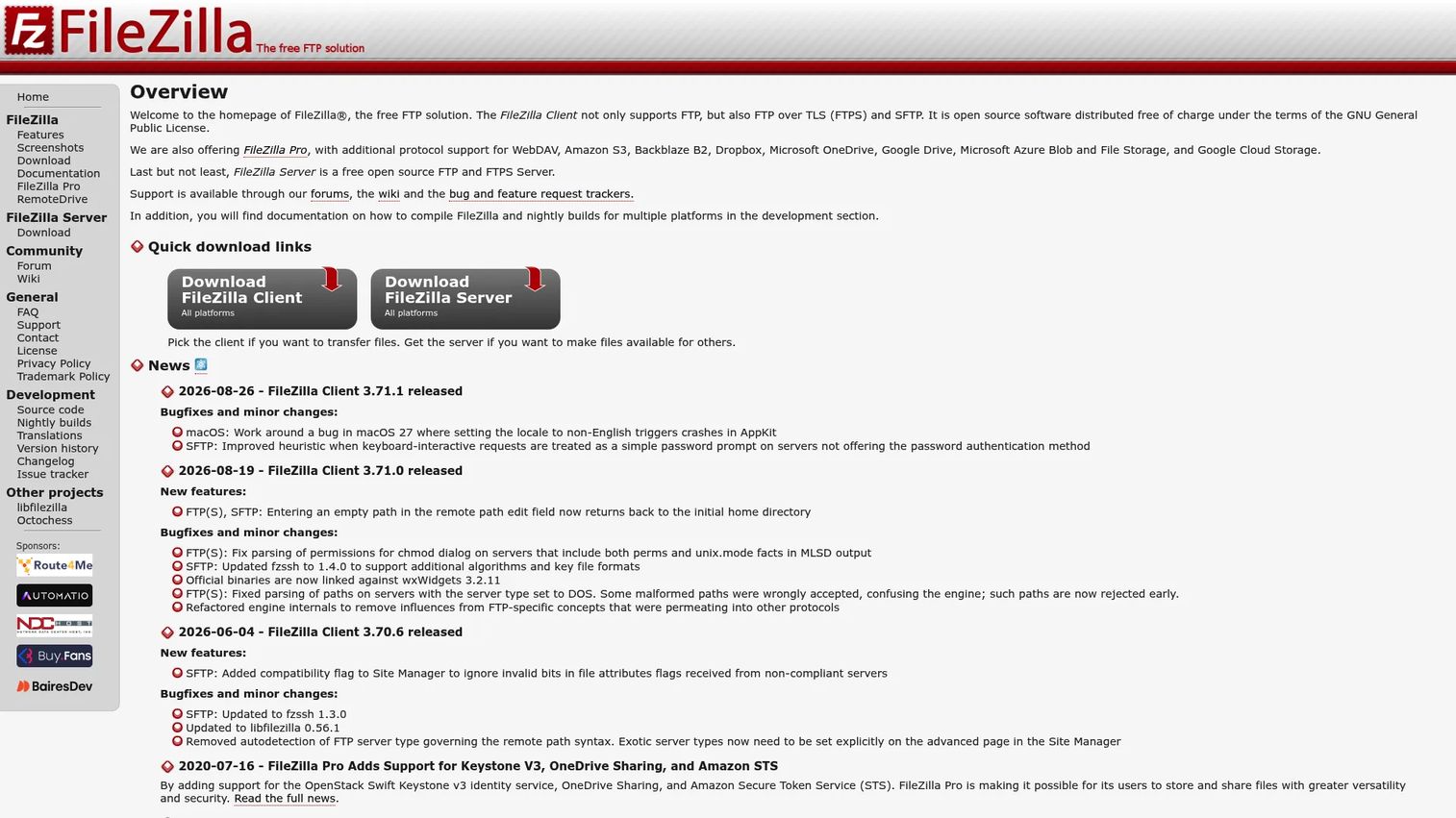
FileZilla is one of the most widely used free FTP clients available, covering FTP, FTPS, and SFTP across Windows, macOS, and Linux. The free client handles the large majority of transfer scenarios without requiring a paid upgrade. FileZilla Pro extends the base client with cloud storage connections, and FileZilla Server is a separate product for teams that also need to run an FTP server.
Best for: Developers, IT teams, and hosting customers who need free, proven FTP software that works across operating systems.
Key features
- FTP, FTPS, and SFTP support across platforms
- Transfer queue with pause and resume
- Site manager for saved server connections
- Drag-and-drop file uploads and downloads
- FileZilla Pro cloud storage integrations (Amazon S3, Google Drive, and others)
Why choose FileZilla: It covers the most common transfer scenarios without cost, and the Pro upgrade makes sense only when you need direct cloud storage connections. Cross-platform availability makes it a sensible default for mixed Windows and macOS teams.
FileZilla pricing: The FileZilla client is free. FileZilla Pro starts at €12.99 for a single-device license, with a CLI Power Bundle at €24.99 and multi-device licensing at €29.99. The Enterprise Server runs at €199 per year.
G2 rating: 4.5/5
2. WinSCP
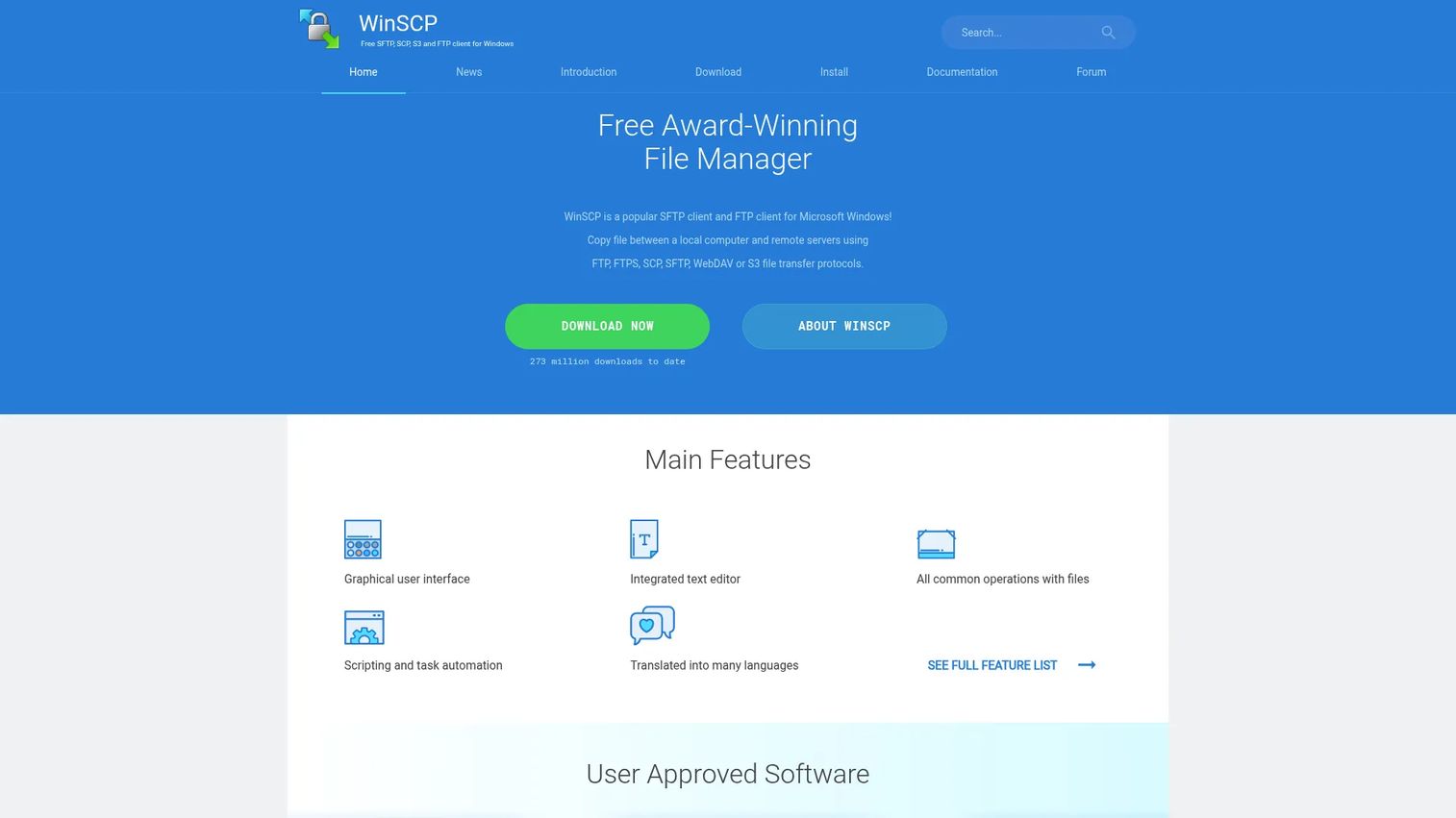
WinSCP is a free, open-source file transfer client and file manager for Windows, supporting SFTP, FTP, FTPS, SCP, WebDAV, and Amazon S3. Its scripting and command-line interface make it the go-to choice for Windows admins who need to automate recurring transfers, run scheduled sync jobs, or integrate file movements into larger workflows. A portable version is also available, which is useful when you cannot install software on a customer environment. For teams evaluating their broader sales automation software stack, WinSCP handles the file transfer layer without adding cost.
Best for: Windows users who need SFTP, synchronization, and scripting-based automation for technical or recurring transfer workflows.
Key features
- SFTP, FTP, FTPS, SCP, WebDAV, and S3 support
- Explorer and Commander dual-pane interface options
- Scripting, CLI, and .NET assembly for automation
- Directory synchronization with configurable rules
- Integrated text editor and master-password credential protection
Why choose WinSCP: It handles both one-off transfers and complex automated workflows without a license cost. Teams using Windows as their primary operating system will find it covers most transfer scenarios, including those involving customer-controlled SFTP servers during POC work.
WinSCP pricing: Completely free, licensed under GPL. Donations are optional and supported through the project site.
G2 rating: 4.6/5
3. SmartFTP
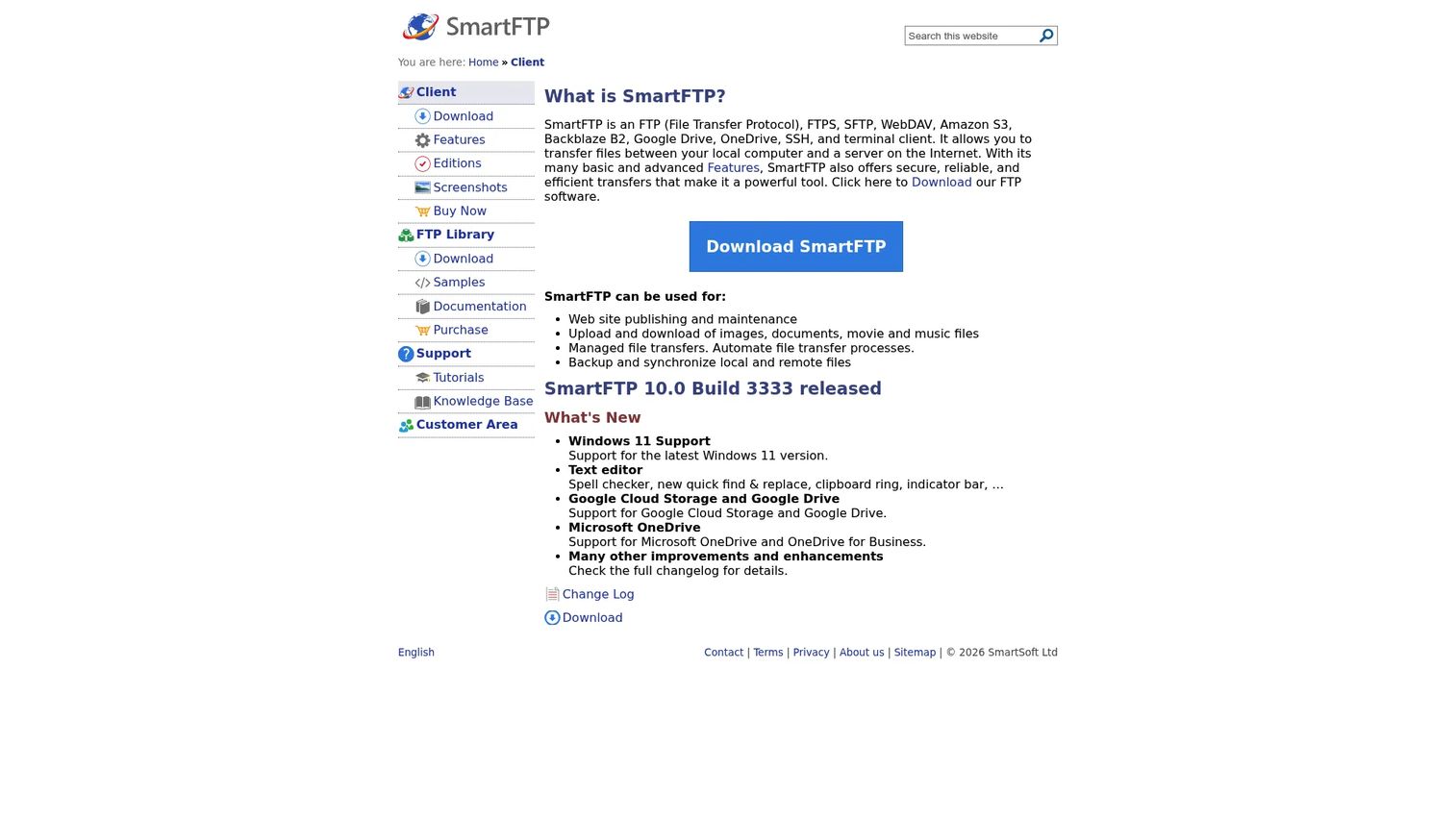
SmartFTP is a commercial FTP client for Windows that goes beyond basic transfers. It supports FTP, FTPS, SFTP over SSH, WebDAV, and cloud storage services, and adds workflow tools that free clients typically omit: Scheduling, visual comparison, a terminal emulator, and managed transfer queues. The platform targets businesses and technical teams running regular transfer, backup, and sync operations. A fully functional 30-day evaluation period lets you test the full feature set before committing.
Best for: Windows teams that need paid FTP software with scheduling, synchronization, cloud storage, and managed transfer capabilities.
Key features
- FTP, FTPS, SFTP, WebDAV, and cloud storage protocols
- Transfer scheduling and managed queue management
- Folder synchronization with visual comparison tools
- Integrated source-code editor and terminal emulator
- Cloud connections for OneDrive, Google Drive, Amazon S3, and Google Cloud Storage (tier-dependent)
Why choose SmartFTP: It suits teams that have outgrown free clients and need support, predictable updates, and deeper workflow control. The subscription model means you get ongoing access to updates without managing perpetual license keys.
SmartFTP pricing: The Professional subscription runs $79.99 per user per year, with Ultimate at $119.99 and Enterprise at $399.99. Perpetual licenses are also available: Professional at $399.95, Ultimate at $599.95, and Enterprise at $1,995.95 per user. A 30-day free trial is available.
G2 rating: 4.0/5
4. Cyberduck
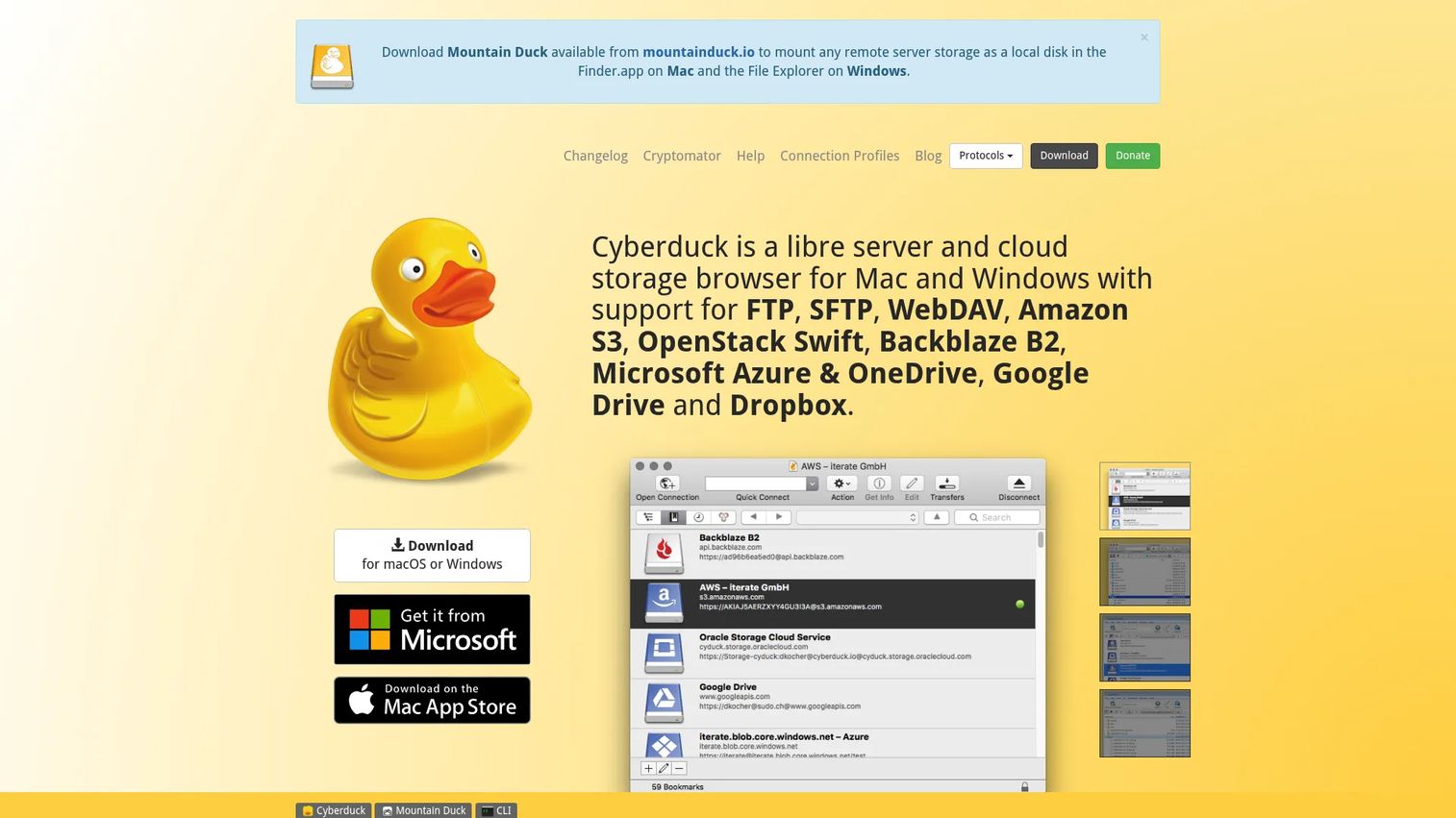
Cyberduck is an open-source server and cloud storage browser available for both macOS and Windows. It supports FTP, SFTP, WebDAV, Amazon S3, Google Drive, Dropbox, OneDrive, and several other storage protocols from a single graphical interface. That breadth makes it practical for teams that regularly move files between traditional hosting servers and object storage buckets. Cyberduck also includes client-side encryption through Cryptomator-compatible vaults for users who need an extra layer of data protection.
Best for: Individuals and teams who want open-source FTP software with broad cloud storage support across macOS and Windows.
Key features
- FTP, SFTP, WebDAV, S3, Google Drive, Dropbox, OneDrive support
- Client-side encryption via Cryptomator interoperable vaults
- Resumable uploads and server-to-server copying
- Bookmark-based connection management
- External editor integration for editing remote files in place
Why choose Cyberduck: It covers more storage protocols than most free clients, making it particularly useful when your transfer workflow spans hosted servers and cloud storage in the same session. The open-source licensing also makes it easier to get past security reviews in enterprise environments.
Cyberduck pricing: Free to download and use. A registration key, which removes the donation prompt, requires a minimum contribution of $10 USD as a one-time payment.
5. Transmit
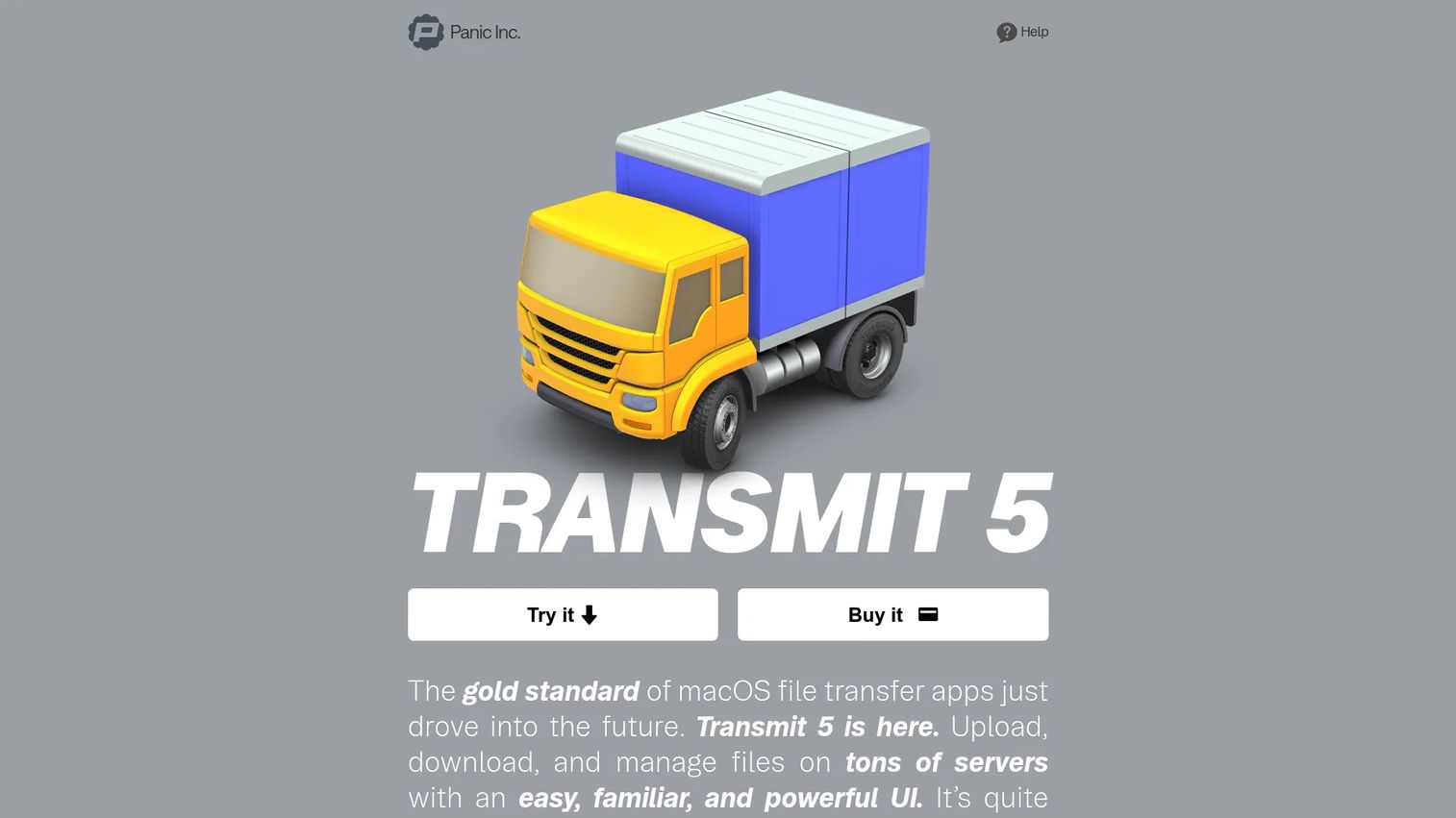
Transmit is a macOS-native file transfer client built by Panic, designed for people who spend serious time in file transfer workflows. It handles FTP, SFTP, WebDAV, and Amazon S3, plus a long list of cloud services including Backblaze B2, Box, Dropbox, Google Drive, Azure, and OneDrive. Dual-pane browsing, Panic Sync for keeping favorites across Macs, and built-in SSH key management make it a polished choice for designers, developers, and agencies on macOS. A 7-day free trial gives you full access before purchase. For teams evaluating their best-in-class sales enablement tools, Transmit solves the Mac file transfer piece cleanly.
Best for: Mac users who want a well-maintained, paid FTP client for professional file management across servers and cloud services.
Key features
- FTP, SFTP, WebDAV, and S3 support
- Cloud connections for Backblaze B2, Box, Dropbox, Google Drive, Azure, and OneDrive
- Local-to-local and remote-to-remote file synchronization
- Panic Sync for sharing server bookmarks across Macs
- Built-in editor, SSH key management, and batch file renaming
Why choose Transmit: It covers a wider range of cloud services than most Mac FTP clients, and the dual-pane interface speeds up common copy-between-locations workflows. For Mac-first teams that need more than a basic client, the one-time price is straightforward.
Transmit pricing: Available as a $45 one-time purchase direct from Panic. The Mac App Store version uses a subscription at $24.99 per year. A 7-day free trial is available.
G2 rating: 4.3/5
6. Fetch
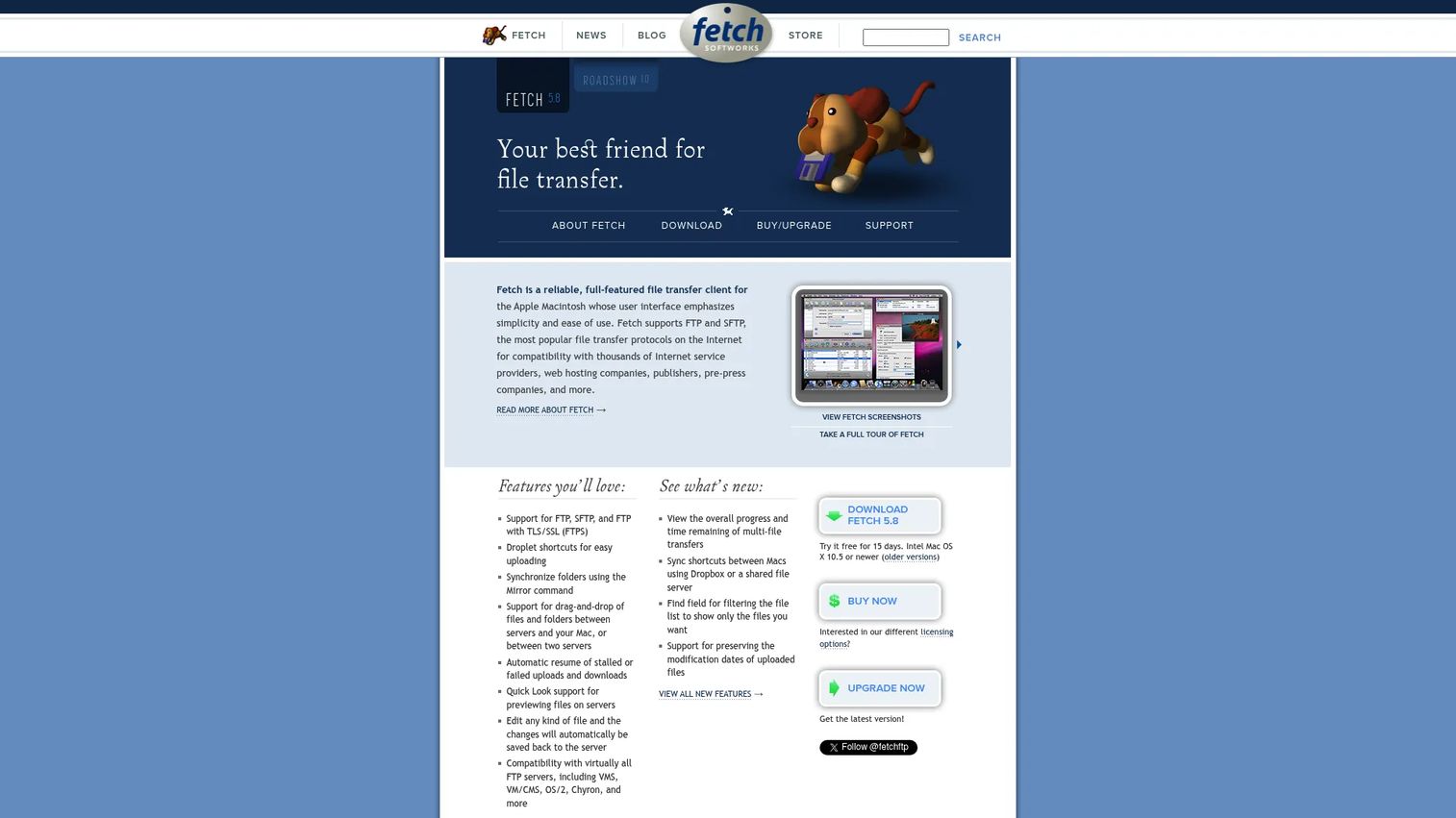
Fetch is one of the longest-running Mac FTP clients, focused on straightforward FTP, SFTP, and FTPS transfers without a complex feature set. It handles uploads, downloads, folder synchronization via Mirror, and file browsing. Quick Look previews and automatic resume of stalled transfers cover the basics well. Free licenses are available for qualifying educational and charitable organizations. Fetch suits Mac users who need simple, reliable server access without a steep learning curve.
Best for: Mac users who want simple FTP and SFTP access for website publishing and basic server management.
Key features
- FTP, SFTP, and FTPS support
- Quick Look file preview
- Folder synchronization with Mirror
- Automatic resume of stalled or failed transfers
- Drag-and-drop uploads and server shortcuts
Why choose Fetch: Its value is simplicity. If you upload files a few times a week and want a Mac-native client that works without configuration overhead, Fetch gets the job done without requiring you to learn scripting or advanced sync rules.
Fetch pricing: Single-user license is $29 as a one-time purchase. Volume pricing drops to $24 per user for 10 to 99 seats and $18 per user for 100 to 999. A 15-day free trial is available.
G2 rating: 4.6/5
7. DreamHost panel file manager

The DreamHost panel file manager is a built-in browser-based tool included with DreamHost hosting accounts. It lets users upload, download, create, edit, delete, and manage files and folders directly inside the hosting panel without installing any desktop software. The tool has limits: A 1GB total upload/download cap per session, no ZIP extraction for already-uploaded archives, and no transfer logs. For straightforward file edits and quick uploads within a DreamHost account, it removes the setup step entirely.
Best for: DreamHost customers who need quick browser-based file access for basic hosting maintenance without a desktop FTP client.
Key features
- Browser-based file upload and download
- File creation, editing, deletion, and folder management
- File permission changes
- No desktop installation required
- Included with DreamHost hosting accounts
Why choose DreamHost panel file manager: It solves the "I just need to change one file on the server" scenario without installing or configuring anything. For recurring transfers, bulk sync, or automation workflows, a full FTP client will serve you better.
DreamHost panel file manager pricing: Access comes included with any DreamHost hosting plan. Web Hosting Launch starts at $2.89/month for the first year (renews at $10.99/month), Growth at $3.99/month first year (renews at $12.99/month), and Scale at $9.99/month first year (renews at $25.99/month).
G2 rating: 4.1/5
Considerations when choosing FTP software
Protocol support
Start with the protocols your environment requires. If your host or customer IT team supports SFTP, use it. Plain FTP offers no encryption and should only appear in isolated, non-sensitive local network scenarios. Check whether the tool supports SFTP, FTPS, and WebDAV before committing, since not every client covers all three.
Security requirements
Before using any FTP software to transfer customer files during a POC or technical evaluation, confirm your organization's approved protocols. Customer IT and security teams often have specific requirements around which tools and transfer methods are acceptable. Document how files move and who has access. This is especially relevant when working with regulated industries or enterprise accounts.
Operating system fit
Windows and macOS have different strong options. Windows users get the most automation depth from WinSCP (free) and SmartFTP (paid). Mac users benefit from Transmit's polish or Cyberduck's open-source breadth. Teams using both operating systems regularly should look at cross-platform options like FileZilla or Cyberduck, both of which run on Windows and macOS. For teams managing a broader client management software stack, OS fit affects adoption directly.
Automation and sync
One-off uploads and recurring workflows have different requirements. If you need scheduled transfers, sync rules, retry logic, or integration with scripts, evaluate the tool specifically on those capabilities. WinSCP and SmartFTP both support automation; FileZilla and Fetch do not offer scripting. Confirm whether the tool provides transfer logs, since logs matter for troubleshooting and audit trails.
Pricing and support
Free tools cover most common scenarios well. Paid tools like SmartFTP add scheduling, managed queues, and vendor support, which matter for teams running frequent, business-critical transfers. Verify support channels, update cadence, and licensing model before standardizing on any paid tool across a team.
Conclusion
For most teams, the choice comes down to platform and workflow complexity.
FileZilla is the sensible free starting point for cross-platform use and covers FTP, FTPS, and SFTP with no cost. WinSCP is the strongest Windows option for teams that need automation, scripting, and directory sync. SmartFTP adds scheduling and managed transfer workflows for Windows teams willing to pay for those capabilities.
On macOS, Transmit handles the broadest range of cloud services with a polished interface, while Fetch covers straightforward FTP and SFTP for users who want simplicity. Cyberduck works well on both operating systems and suits teams moving files between traditional servers and cloud storage.
The DreamHost panel file manager fits one narrow job: Quick browser-based file access for DreamHost customers who do not want to install a desktop client.
To choose: Narrow by operating system first, then check protocol support against your specific host or customer environment, then test with a small, non-sensitive transfer before moving production files or customer data.
Start your journey with Guideflow today!
FAQs
The answer depends on your operating system and workflow. FileZilla is the most widely used free cross-platform FTP client. WinSCP is the strongest free option for Windows users who need automation. Transmit leads for polished macOS workflows, and Cyberduck works well when you need open-source software with broad cloud storage support.
FTP is the original file transfer protocol and sends data without encryption. FTPS adds TLS encryption to the FTP protocol. SFTP is a completely separate protocol that runs over SSH and provides encrypted transfers; despite the similar abbreviation, it is not an encrypted version of FTP. For sensitive transfers, choose SFTP or FTPS when your server supports either.
Free FTP software can be safe when downloaded from the official vendor site and configured to use SFTP or FTPS. The risk comes from using unencrypted FTP, not from the software being free. Download only from official sources, avoid plain FTP for sensitive files, and use a password manager or master-password feature to protect saved credentials.
WinSCP is the strongest free FTP client for Windows, covering SFTP, FTP, FTPS, WebDAV, and S3 with scripting and synchronization built in. FileZilla is a solid alternative for users who want a simpler interface or cross-platform support between Windows and macOS.
Transmit is the most feature-complete paid option for Mac, with a native interface and connections to a broad list of cloud services. Cyberduck is the best free open-source alternative, available for both macOS and Windows. Fetch fits Mac users who need simple FTP and SFTP access without additional workflow complexity.
Yes, but the level of automation varies significantly. WinSCP supports scripting, a command-line interface, and .NET assembly for building automated workflows. SmartFTP adds scheduling and managed transfer queues. FileZilla and Fetch handle manual transfers well but do not offer scripting or scheduling. Evaluate whether the tool provides transfer logs and retry behavior, both of which matter for unattended automation.
Not for simple edits or quick uploads. A hosting panel file manager works for changing a configuration file or uploading a single asset. For bulk transfers, saved server connections, scheduled sync, or working with multiple hosts, a desktop FTP client gives you capabilities the panel tool does not. The DreamHost file manager also has a 1GB session limit and cannot extract ZIP archives already on the server.
It depends on what the customer environment requires and what your organization allows. FTP software is appropriate when the customer's server uses SFTP or FTPS and both teams have agreed on the transfer method. Avoid plain FTP for customer data. Document the protocol used, who initiated the transfer, and what was moved. For teams managing client portal software or secure evaluation environments, FTP is one layer in a broader data handoff process, not a standalone answer.