The release looked clean in staging. Then a support ticket arrives: "App crashes on my phone." Engineering can't reproduce it. QA didn't catch it. And you're stuck mediating between customer impact, your release calendar, and an engineering team chasing a ghost.
Mobile app debugging is where release confidence either holds or collapses. With 142.2 billion apps downloaded worldwide in 2025 (Business of Apps, 2026), the stakes for app stability have never been higher. A crash that surfaces on one Android version or one iPhone model can drive uninstalls, trigger negative reviews, and raise your support load before anyone on the team can even pinpoint the cause.
The tools that close that gap range from IDE-level debuggers to crash reporting platforms, log filters, WebView inspectors, and device simulators. Each answers a different operational question. The right mobile app debugging stack depends on your platform, your bug type, and where in the release cycle you're catching issues.
This guide maps all 12 tools to the situations where they matter most, written for PMs who need to understand the toolchain well enough to prioritize, triage, and align engineering without becoming the debugger themselves.
What's inside
This guide covers 12 mobile app debugging tools selected for Android and iOS teams in 2026.
- Who it's for: Product managers, QA leads, and mobile engineering teams evaluating or improving their debugging stack
- How tools were chosen: Platform fit (Android, iOS, WebView, native), debugging depth, team workflow relevance, and PM-facing usefulness
- Pricing and ratings: Verified against official sources at time of drafting
- Coverage: IDE debuggers, log tools, crash reporting, device inspection, emulators, and protocol-level inspection
TL;DR
- Best all-around Android debugger: Android Studio, the official Google IDE, covers code-level debugging, emulators, native support, and log inspection in one environment
- Best for Android logs: Logcat gives you real-time system and app log filtering directly inside the Android toolchain
- Best for mobile web and WebView issues: Chrome DevTools handles remote inspection of Chrome tabs and embedded WebView content on physical devices
- Best for crash reporting after release: Firebase Crashlytics groups production crashes by impact and app version, so you can prioritize fixes by affected user count
- Best for iOS debugging: Xcode is the only fully supported Apple-platform IDE, covering Swift, simulators, device debugging, and profiling
- Best lightweight Android app inspector: App Debug surfaces package metadata, permissions, and manifests without opening an IDE
What are mobile app debugging tools?
Mobile app debugging tools are software utilities that help teams find, reproduce, inspect, diagnose, and resolve defects in Android, iOS, hybrid, and web-powered mobile applications.
For a PM, the practical value is this: These tools reduce the distance between "a user says something broke" and "engineering has a reproducible ticket with enough context to fix it." Without them, that gap gets filled with guesswork, escalation chains, and delayed releases.
The category spans several distinct layers:
Key capabilities to look for:
- Breakpoints and step-through code execution
- Log streaming and event filtering
- Crash reports with stack traces and affected-user counts
- Device and file inspection
- WebView and mobile browser inspection
- Native C/C++ debugging for SDK and game layers
- Emulator and simulator testing across OS versions
- App metadata and permission inspection
- Performance profiling tied to retention and activation risk
Some tools operate before release, IDE debuggers, emulators, and log filters catch issues during development and QA. Others operate after release: Crash reporting surfaces what slips through to production, and performance monitoring ties stability to retention metrics.
For PMs, the distinction matters. Pre-release tools affect your confidence in a release candidate. Post-release tools affect how quickly you can prioritize a fix based on user impact, app version, and device segment.
Debugging quality feeds directly into activation rate, time to first value, app store ratings, support ticket volume, and the cost of a hotfix release. Building the right toolchain is an investment in release cadence predictability, not just an engineering concern.
Pair your application performance monitoring tools with a solid debugging stack to get full visibility from development through production.
When to use mobile app debugging tools
Diagnose release-blocking bugs before launch
QA identifies a crash during regression testing on a specific Android version. The fix window is 48 hours before the release candidate is locked. This is where IDE-level debugging (Android Studio, Xcode), log inspection, and emulator testing do their best work. The team needs fast reproduction, a stack trace, and enough variable context to isolate whether the issue is in the app layer, a third-party SDK, or a device-specific hardware interaction.
Reproduce customer issues after launch
A cluster of one-star reviews mentions a blank screen on checkout. Engineering can't reproduce it in staging. This is the post-release debugging scenario: Crash reports, log artifacts, and device metadata from production move the conversation from anecdote to engineering ticket. Firebase Crashlytics is the primary tool here, surfacing which app version, device model, and OS combination is at the center of the failure pattern.
Inspect mobile web and WebView behavior
Many mobile apps depend on embedded web content: Authentication flows, payment pages, support documentation, or onboarding screens powered by a WebView. When those flows break, the issue often sits between the native shell and the web layer. Chrome DevTools, connected to a physical Android device via USB debugging, lets the team inspect DOM state, network requests, console errors, and WebView-specific rendering behavior that wouldn't show up in a standard app debugger.
Mobile app debugging tools comparison
The 12 tools below cover the full debugging lifecycle, from local development to production monitoring. Most are free, and the paid exceptions (IntelliJ IDEA Ultimate) offer free tiers or trials. G2 ratings are noted where a verified listing exists; most platform-bundled tools don't have standalone G2 pages.
| # | Product | Best for | Key differentiator | Pricing | G2 rating |
|---|---|---|---|---|---|
| 1 | Android Studio | Full Android debugging | Official Android IDE with integrated debugger and emulator | Free | 4.5/5 |
| 2 | Logcat | Android log inspection | Real-time system and app log filtering with tag and severity filters | Free | N/A |
| 3 | Chrome DevTools | Mobile web and WebView debugging | Remote inspection of Chrome tabs and WebView content on physical devices | Free | N/A |
| 4 | App Debug | Android app metadata inspection | Package, manifest, permission, and component visibility without an IDE | Free (ad-supported) | N/A |
| 5 | LLDB | Native C/C++ debugging | Low-level native debugger used across Android NDK and Apple toolchains | Free | N/A |
| 6 | Android Emulator | Device simulation | Virtual Android devices covering multiple OS versions and hardware profiles | Free | N/A |
| 7 | Device Explorer | App files and device data | File and data inspection inside Android Studio | Free | N/A |
| 8 | IntelliJ IDEA | JVM and Kotlin debugging | JetBrains IDE for Java, Kotlin, and shared-code debugging | Free (Community); from $100/user/year (Ultimate) | N/A |
| 9 | Android Debug Bridge | Device control and automation | Command-line device access for logs, app installs, and debugging setup | Free | N/A |
| 10 | Chrome DevTools Protocol | Protocol-level browser automation | Remote debugging and instrumentation interface for Chromium-based browsers | Free | N/A |
| 11 | Firebase Crashlytics | Crash reporting | Production crash grouping and stability monitoring with affected-user data | Free | N/A |
| 12 | Xcode | iOS debugging | Official Apple IDE for iOS, iPadOS, and Apple platform debugging | Free | 4.2/5 |
Best 12 tools for mobile app debugging in 2026
1. Android Studio
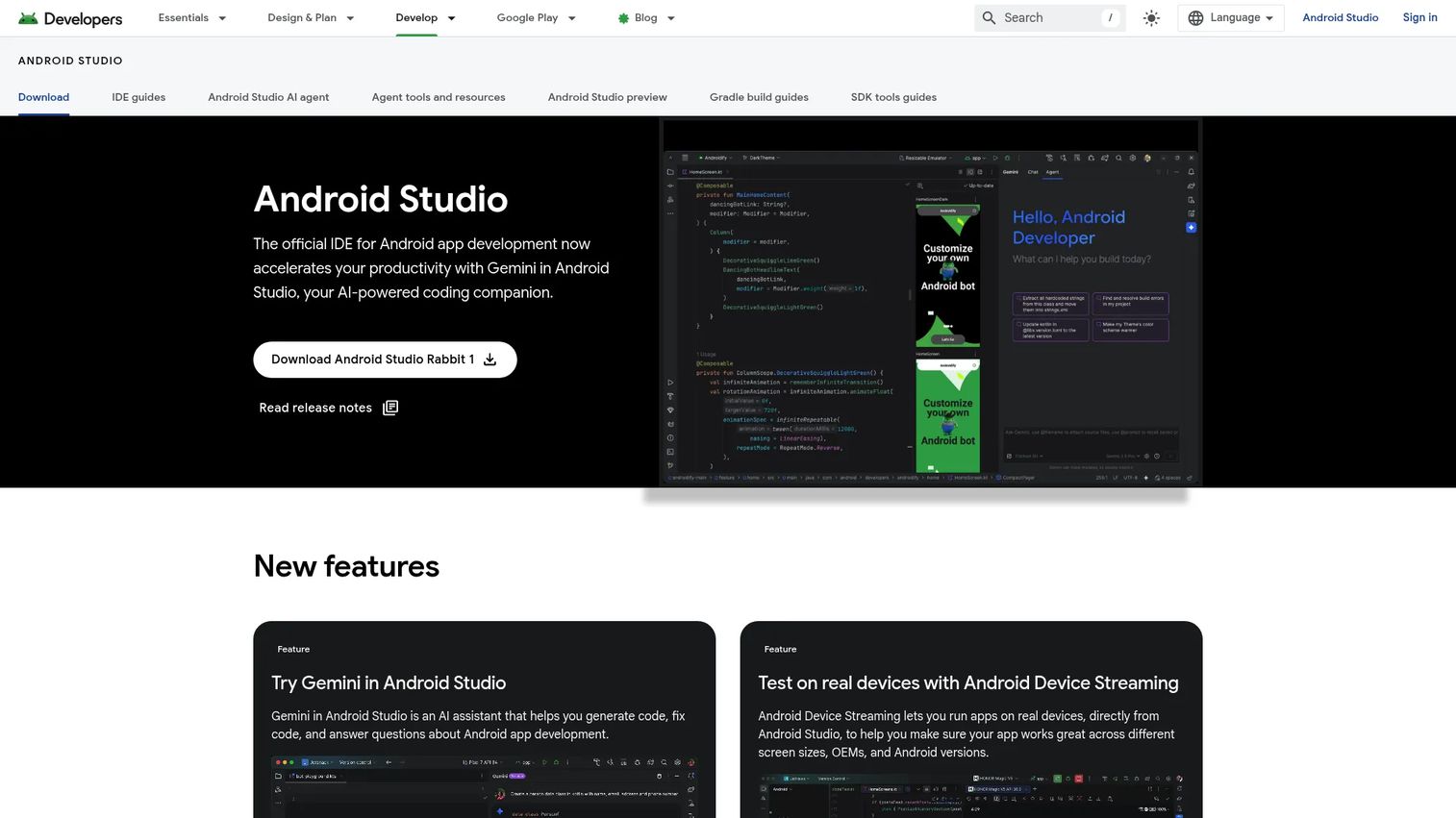
Android Studio is Google's official integrated development environment for Android app development and debugging. It wraps the full Android debugging workflow into a single environment: Code editor, emulator, debugger, profiler, and Logcat. The IDE supports Java and Kotlin debugging natively, and it includes an entry point for native C/C++ debugging through LLDB.
Best for: Android teams that need a complete development and debugging environment from code to device.
Key features
- Java and Kotlin debugger with breakpoints, watches, and expression evaluation
- Attach debugger to a running process without restarting the app
- Integrated Android Emulator for virtual device testing
- Native debugging support via LLDB
- Gemini AI assistant for code generation and debugging suggestions
Why choose Android Studio: Use it when the team needs one environment to handle code-level debugging, device simulation, log inspection, and native code issues together. It's the starting point for any serious Android debugging stack.
Android Studio pricing: Free to download and use under Google's Android SDK license. No subscription or paid tier applies to the IDE itself.
G2 rating: 4.5/5
2. Logcat
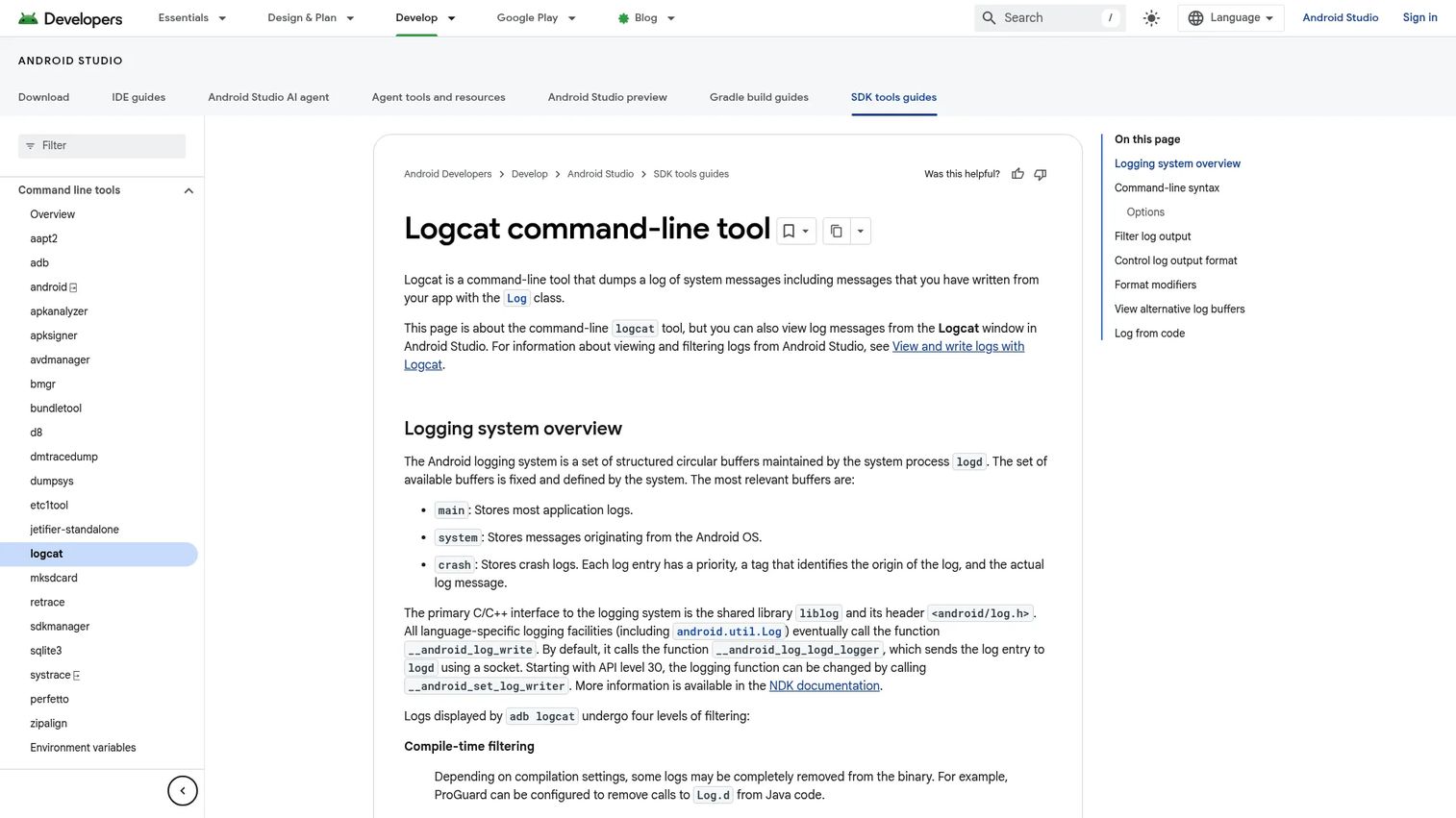
Logcat is the core Android logging stream, available both as a command-line tool and as a panel inside Android Studio. It captures messages from the application, system, and crash layers in real time. Engineers use it to watch what the app and OS are doing while a bug is occurring, making it indispensable for diagnosing lifecycle issues, API failures, and crash sequences.
Best for: Android developers and QA teams who need to see runtime behavior while a bug is actively happening.
Key features
- Real-time system and app log streaming
- Filter by tag, process, severity level, and keyword search
- Multiple circular log buffers: Main, system, crash, radio, and events
- Configurable output formats and format modifiers
- Crash stack trace capture directly in the log view
Why choose Logcat: When you're past a crash report and need to understand what the app was doing in the seconds before failure, Logcat provides the sequential event context that stack traces alone don't. It turns a vague support report into a reproducible engineering ticket.
Logcat pricing: Free. Included as part of the Android toolchain with no additional cost.
3. Chrome DevTools
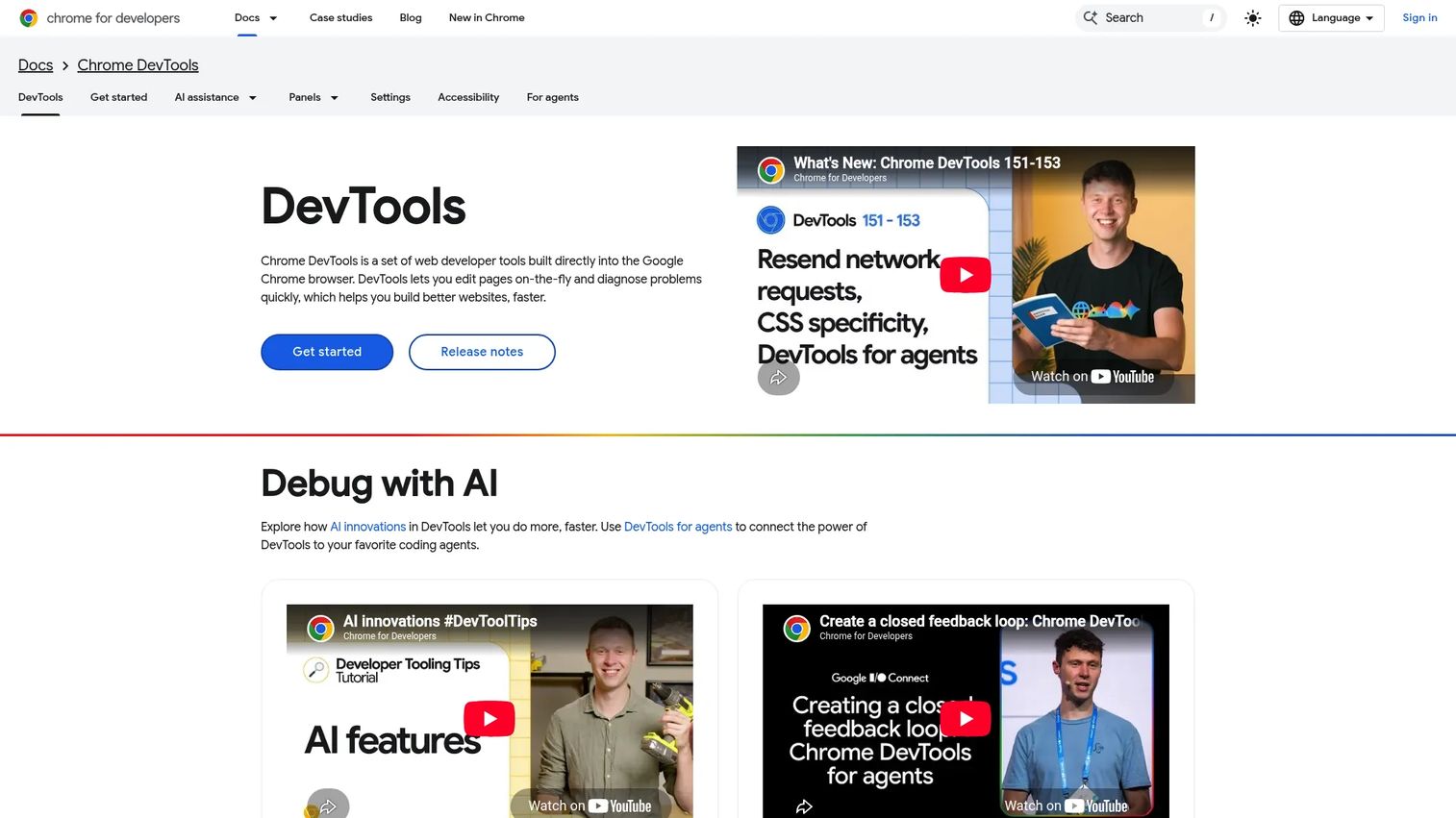
Chrome DevTools is Google's browser-based debugging suite, built into Chrome. For mobile teams, its remote debugging capability is the primary use case: Connect a physical Android device via USB, open chrome://inspect/#devices, and inspect Chrome tabs or WebView content running on the device in real time. The inspector gives access to DOM, CSS, JavaScript console, network requests, performance timelines, and local storage.
Best for: Teams debugging mobile web, hybrid app, and WebView issues where the defect lives between the native shell and embedded web content.
Key features
- Remote inspection of Chrome tabs on connected Android devices
- WebView debugging for embedded browser content inside native apps
- Network panel for request timing, headers, and response inspection
- Device screencasting to interact with the device from the desktop
- Console and JavaScript debugger for web-layer issues
Why choose Chrome DevTools: This is the tool for bugs that sit at the boundary of native and web. Login flows, checkout pages, embedded help centers, and onboarding screens built on WebView all benefit from remote inspection that a native Android debugger can't reach.
Chrome DevTools pricing: Free. Built into Google Chrome with no paid tier.
4. App Debug
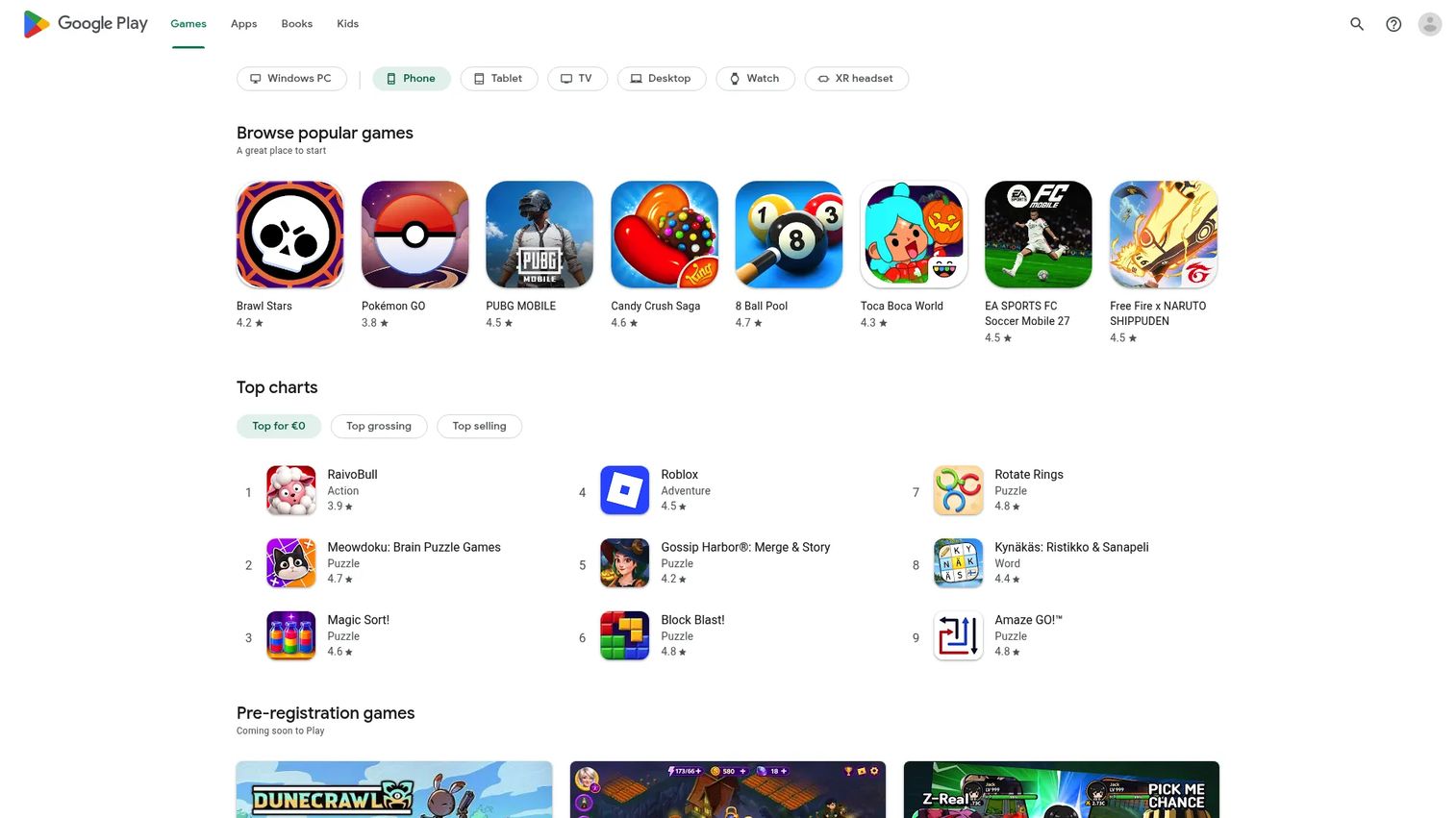
App Debug is a lightweight Android utility for inspecting the metadata of installed apps without opening an IDE. It surfaces package names, version codes, permissions, activities, services, broadcast receivers, content providers, and the full manifest file. QA teams and support engineers reach for it when they need quick app-level facts during triage.
Best for: QA and support teams that need to check Android app metadata quickly during triage, without spinning up Android Studio.
Key features
- Package name, version code, and version name visibility
- Permission inspection for installed apps
- Activities, services, broadcast receivers, and content providers listed
- Manifest file viewing and export
- App component details without requiring a connected development environment
Why choose App Debug: It's not a replacement for a full debugger, but it fills a real gap. When a support ticket mentions a version mismatch or a permission error, this app produces the answer in seconds. It's a triage tool, not a development environment.
App Debug pricing: Free on Google Play. The app is ad-supported with no paid upgrade tier listed.
5. LLDB
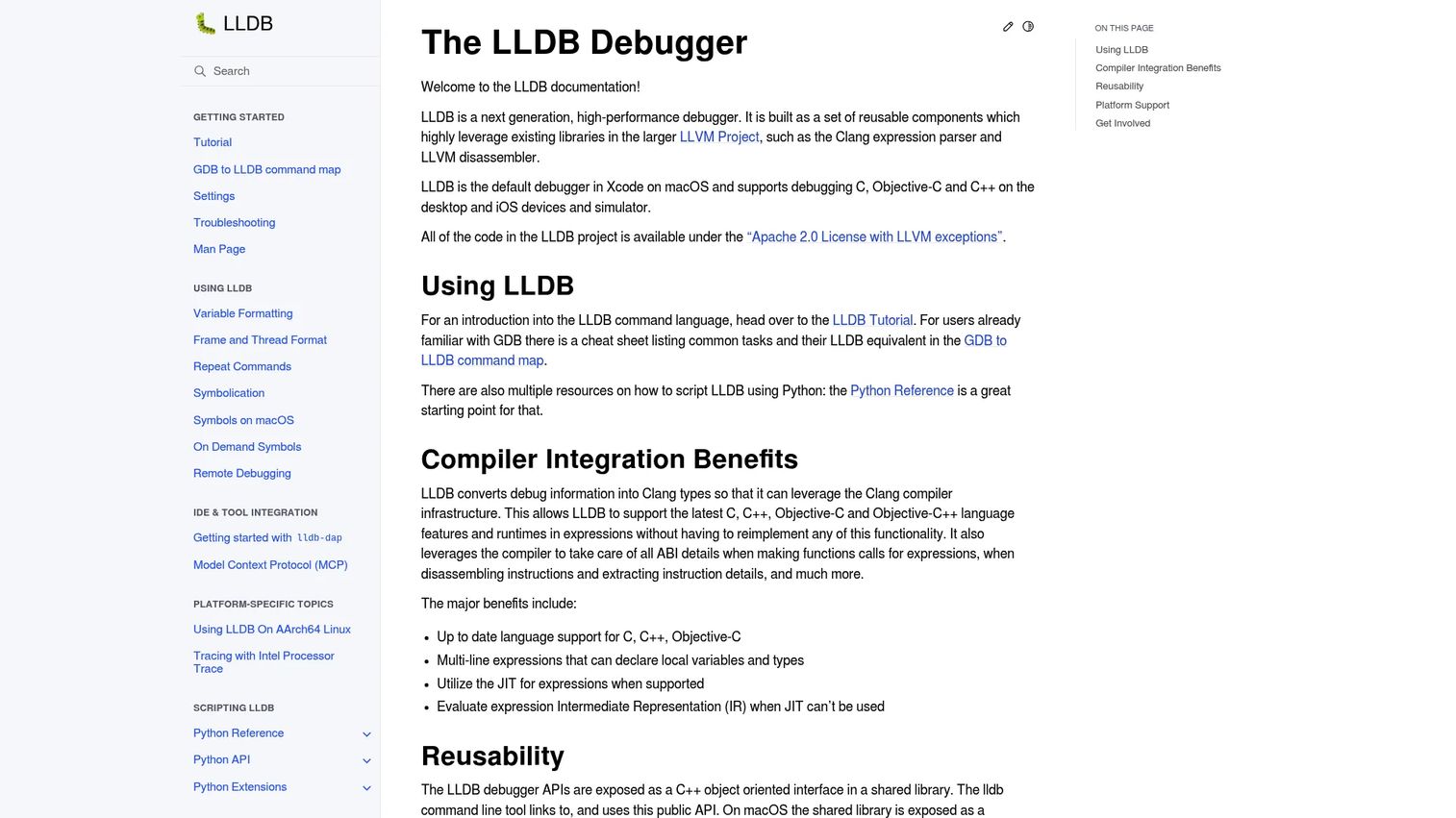
LLDB is a high-performance native debugger built from LLVM components. It handles C, C++, and Objective-C debugging across desktop, mobile, and Unix-like platforms. For Android teams, LLDB powers native debugging within Android Studio through the Android NDK. For Apple teams, it's the debugger that Xcode uses under the hood for native Swift and Objective-C code.
Best for: Teams debugging native mobile code, SDK integrations, performance-sensitive layers, or C/C++ code in games and media applications.
Key features
- Native breakpoints and watchpoints for C, C++, and Objective-C
- Stack frame inspection and memory-level debugging
- Multi-line expressions with JIT support via Clang integration
- Remote debugging through a client-server architecture
- Python and C++ APIs for scripting custom debugging workflows
Why choose LLDB: Native bugs often look like random crashes when viewed from a Java or Kotlin layer. LLDB lets engineering inspect what's actually happening in native memory and code paths. Use it when crash reports point to native libraries or SDK layers that higher-level tools can't reach.
LLDB pricing: Free. Distributed under the Apache 2.0 license with LLVM exceptions as part of the LLVM project.
6. Android Emulator
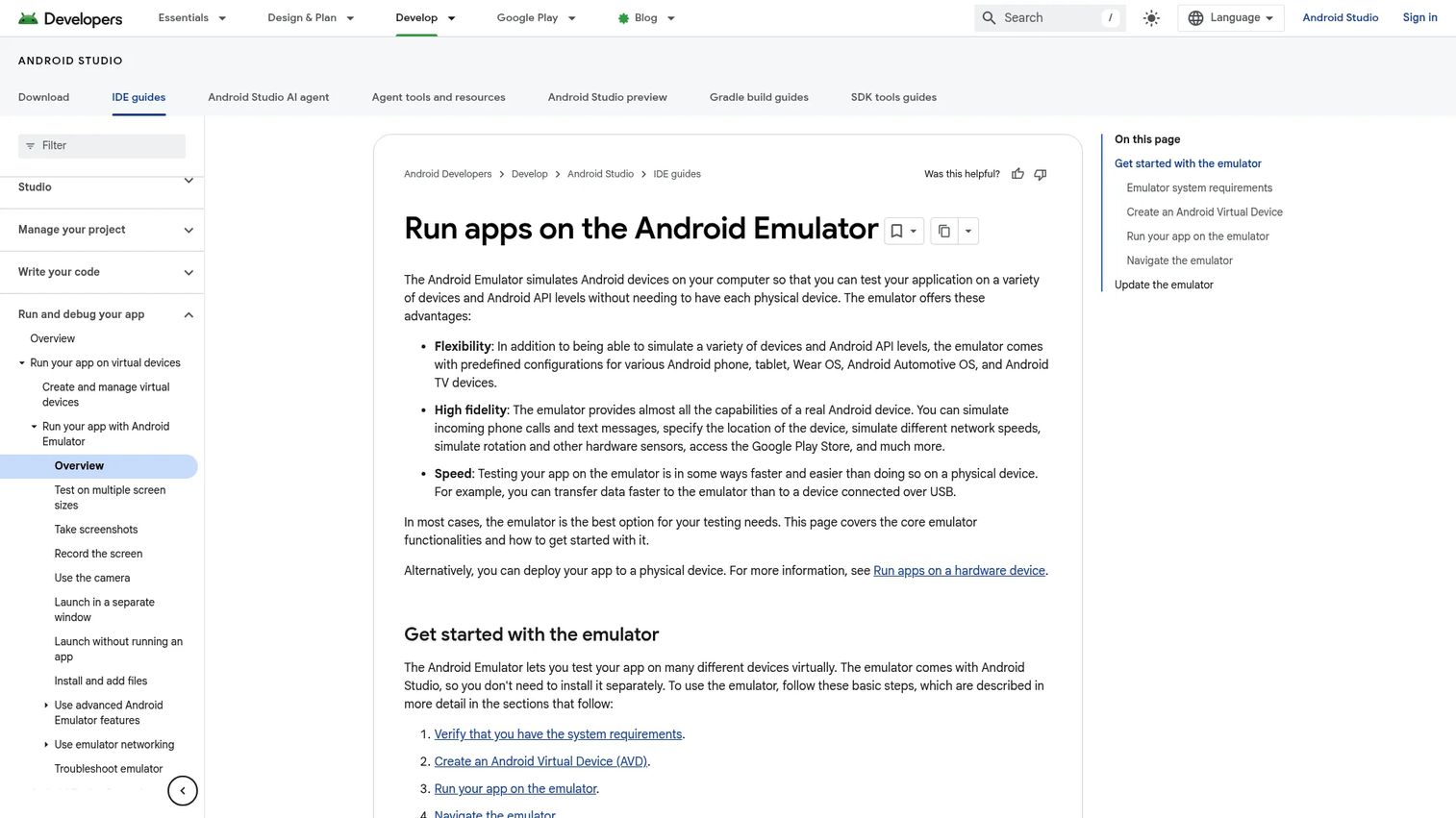
Android Emulator creates virtual Android devices (Android Virtual Devices, or AVDs) that run on your development machine. Teams use it to test against specific OS versions, screen sizes, and hardware profiles without owning every physical device variant. The emulator supports simulated calls, SMS, locations, and hardware sensors, and it integrates directly with Android Studio's debugging workflow.
Best for: Android teams that need reproducible testing across multiple OS versions and device classes without maintaining a physical device lab.
Key features
- Virtual device profiles covering phones, tablets, Wear OS, and Android TV
- OS version and API level selection for regression testing
- Hardware sensor simulation (location, accelerometer, camera, network speed)
- Snapshot support for saving and restoring device states quickly
- Direct integration with Android Studio's debugger and Logcat
Why choose Android Emulator: Device-specific bugs are a real PM risk: A layout that breaks only on a low-density screen or a crash that appears only on Android 12 won't surface without the right virtual profile. Pair emulator testing with physical-device runs for hardware-sensitive issues that emulation can't fully replicate.
Android Emulator pricing: Free, included with Android Studio.
7. Device Explorer
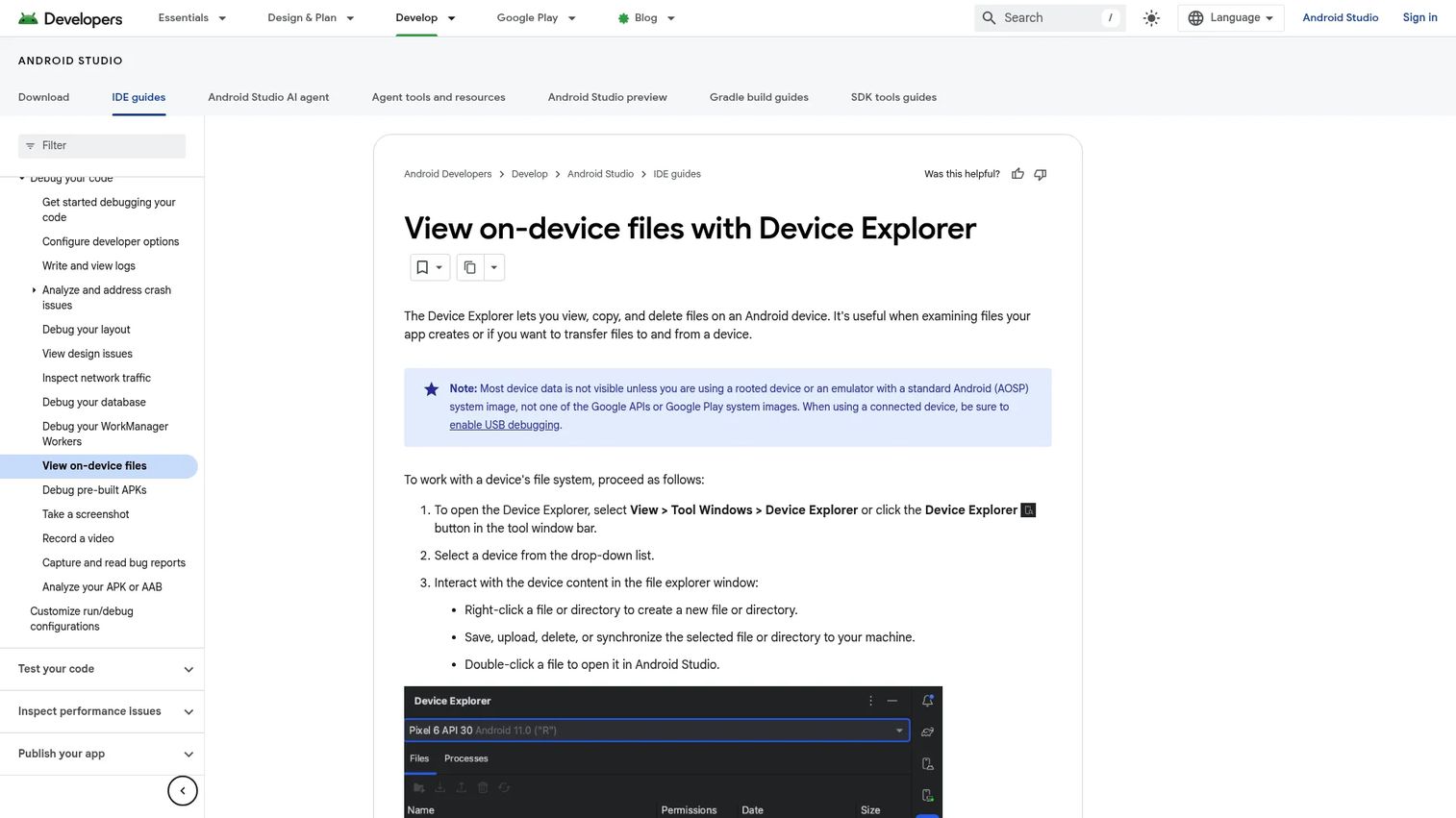
Device Explorer is a panel inside Android Studio for browsing and managing files on connected Android devices and emulators. Engineers use it to inspect app-created data: Caches, preferences, local databases, and files written during a user flow. It supports viewing, copying, uploading, deleting, and synchronizing files between the device and the development machine.
Best for: Android teams investigating bugs tied to local state, cached data, or files written during onboarding and activation flows.
Key features
- File system browsing on connected devices and emulators
- App-specific data directory inspection (where permissions allow)
- File transfer between device and development machine
- Create, delete, and sync files or directories
- Works with both physical devices and emulators inside Android Studio
Why choose Device Explorer: State-dependent bugs are some of the hardest to reproduce. When a user reports that their onboarding flow breaks on the second launch, Device Explorer lets the team inspect what was written to local storage the first time and verify whether the issue is a data persistence problem or a logic error. It's a targeted tool, not a general debugger.
Device Explorer pricing: Free. Included with Android Studio.
8. IntelliJ IDEA
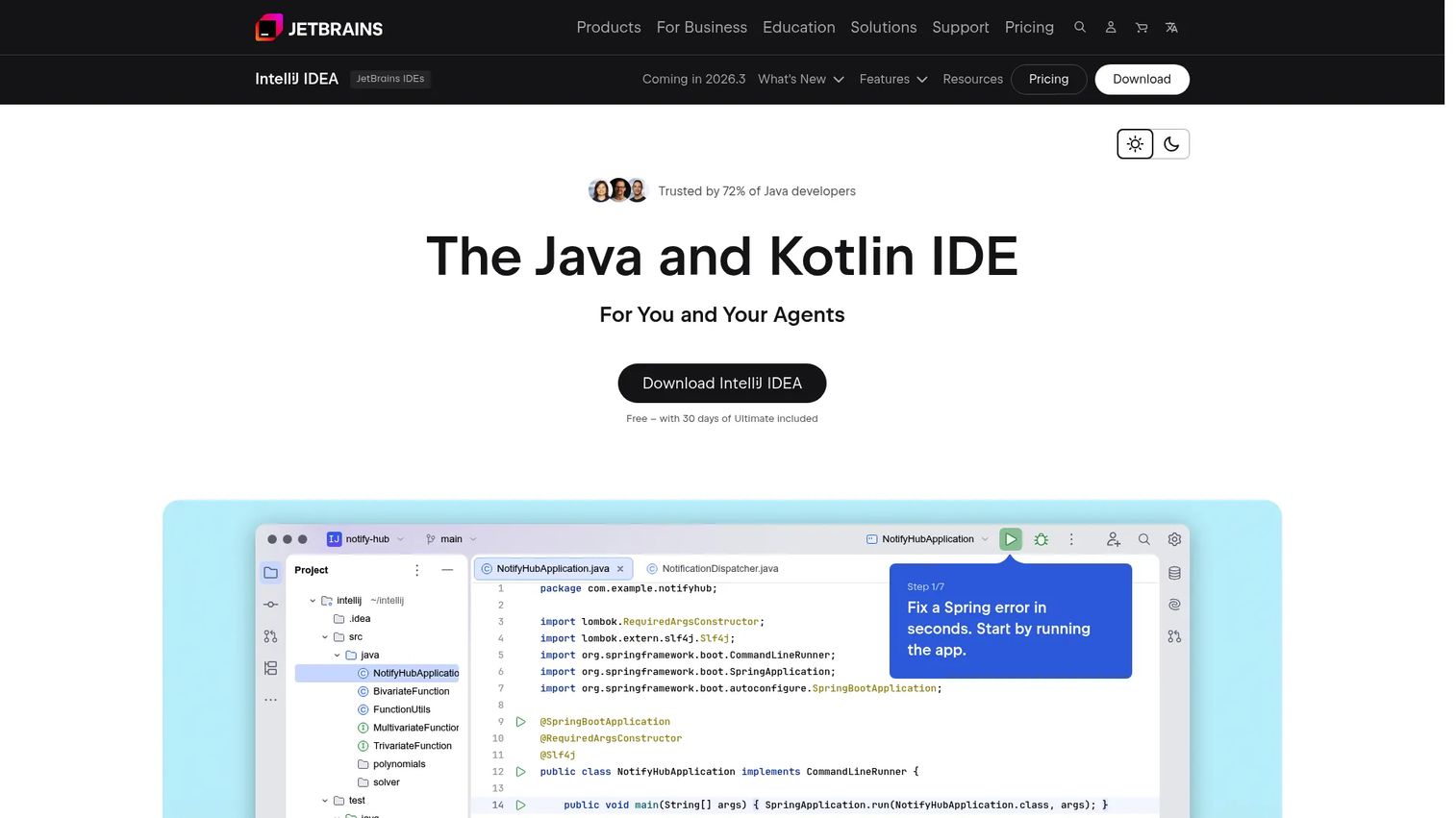
IntelliJ IDEA is JetBrains' flagship IDE for Java and Kotlin development. Android Studio itself is built on IntelliJ, so the debugging fundamentals are familiar. IntelliJ IDEA becomes the stronger choice for teams working on shared JVM code, Kotlin Multiplatform projects, backend-connected mobile architectures, or libraries that span mobile and server contexts.
Best for: Teams debugging shared Java and Kotlin code, JVM libraries, or Kotlin Multiplatform projects where Android Studio's mobile-first focus isn't the right fit.
Key features
- Java and Kotlin debugger with smart breakpoints and conditional evaluation
- Kotlin Multiplatform support for shared-code debugging
- Test runner integration for unit and integration test debugging
- Git, Gradle, Maven, and database tool integrations
- Refactoring tools that reduce the risk of introducing new defects
Why choose IntelliJ IDEA: If your mobile team's debugging extends into shared business logic, server-side code, or a Kotlin Multiplatform codebase, IntelliJ IDEA's scope matches that breadth better than a mobile-only IDE. Teams already standardized on JetBrains workflows avoid context switching by keeping everything in one environment.
IntelliJ IDEA pricing: The Community edition is free. IntelliJ IDEA Ultimate starts at $100 per user for the first year, $199 for the second year, and $159 per user annually from the third year onward. A 30-day trial of Ultimate is available.
9. Android Debug Bridge
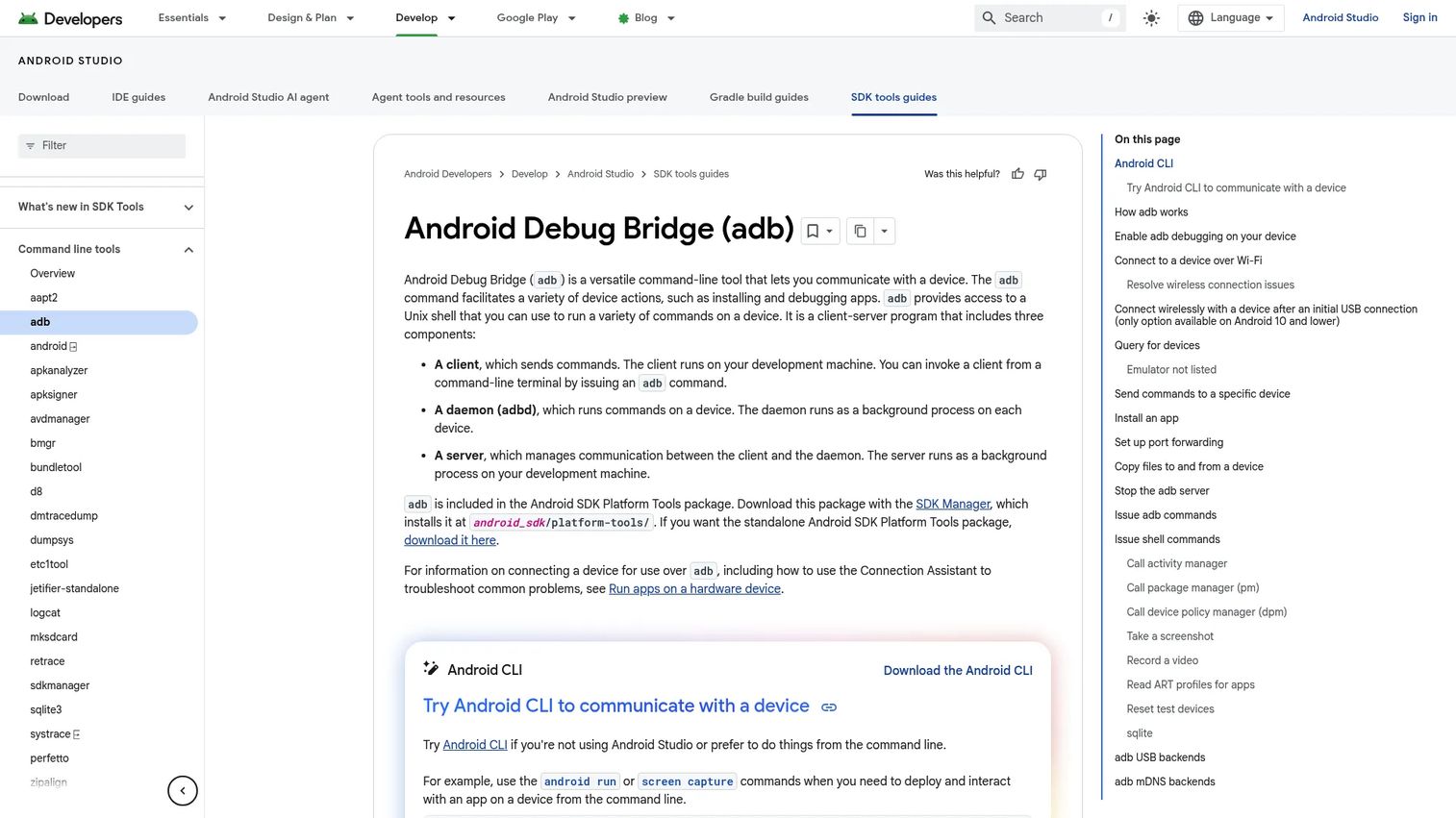
Android Debug Bridge (ADB) is the command-line tool for communicating with Android devices and emulators. It operates through a client-server-daemon architecture: The client issues commands, a server manages communication, and a daemon runs on the device. ADB installs apps, reads logs, forwards ports, opens a device shell, and sets up the USB debugging connections that Chrome DevTools and other remote inspection tools require.
Best for: Android developers and QA engineers who need command-line device control, automation, or debugging setup that a GUI tool doesn't cover.
Key features
- App installation and uninstallation via command line
- Logcat access and log file export
- Port forwarding for remote debugging setup
- Device shell for direct file and system access
- USB and wireless debugging connection support
Why choose ADB: Many advanced debugging workflows, including Chrome remote debugging, require ADB as a prerequisite. It also matters when device discovery problems are blocking bug reproduction entirely: Authorization failures, driver issues, and connection drops all get diagnosed and fixed through ADB commands. Understanding ADB basics helps PMs communicate more precisely with engineering when setup delays are slowing down incident response.
Android Debug Bridge pricing: Free. Included in the Android SDK Platform-Tools package.
10. Chrome DevTools Protocol
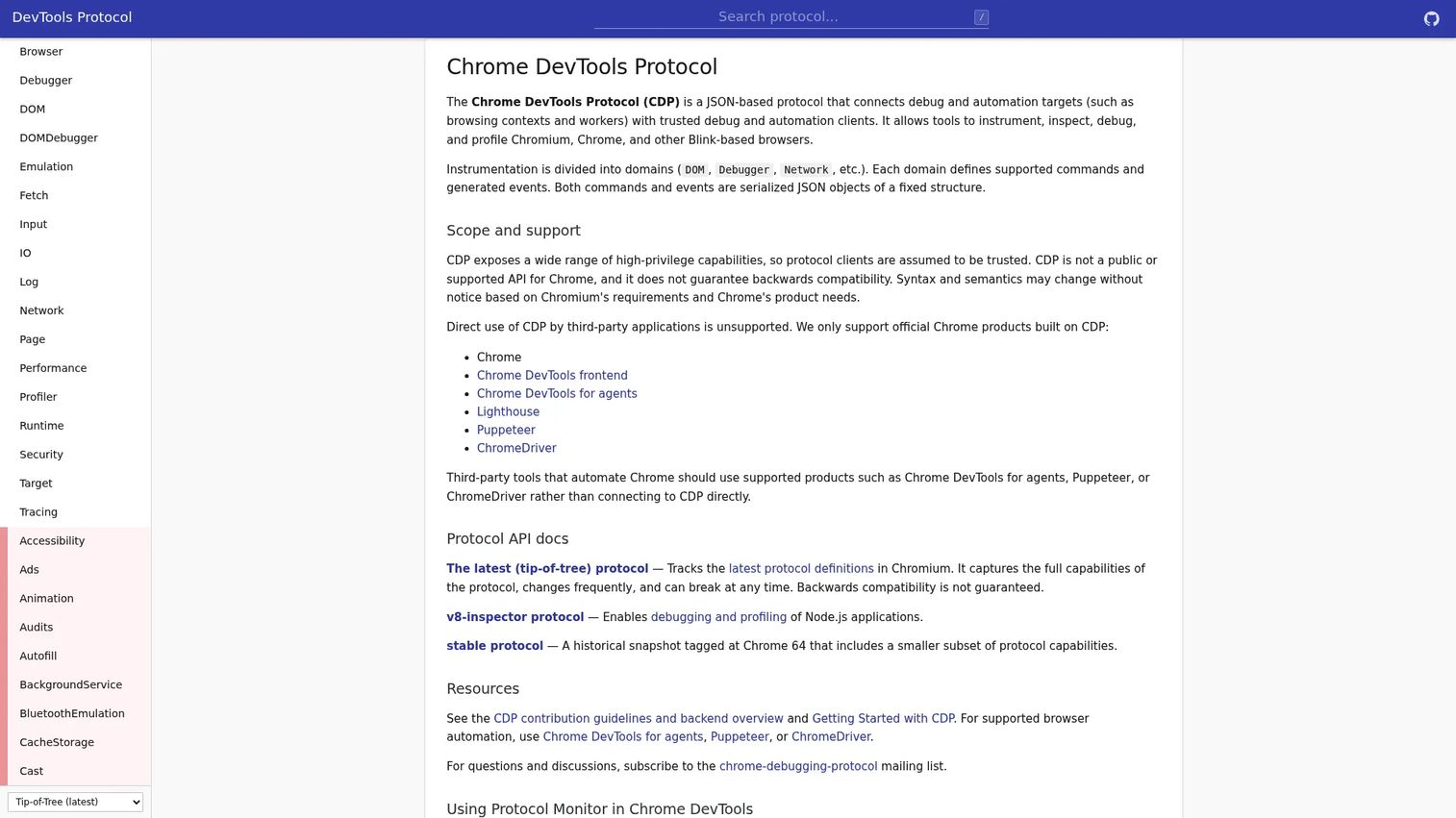
Chrome DevTools Protocol (CDP) is the JSON-based protocol that powers Chrome's remote debugging capabilities. Where Chrome DevTools is the manual inspector, CDP is the programmatic layer underneath it. Teams that need repeatable, automated debugging workflows, browser instrumentation pipelines, or custom inspection tooling build on top of CDP rather than clicking through DevTools manually.
Best for: Engineering teams building custom debugging tools, automated browser inspection pipelines, or advanced WebView automation workflows.
Key features
- DOM inspection and manipulation via protocol commands
- JavaScript debugging with breakpoints, stepping, and stack inspection
- Network activity tracking and request/response interception
- Browser instrumentation and automation hooks
- Port-forwarding integration for remote device debugging
Why choose Chrome DevTools Protocol: This is the tool for teams that have outgrown manual inspection. When QA needs to automate WebView regression tests, or when an engineering team wants to build a custom debugging harness, CDP provides the protocol-level access that makes it possible. It requires more setup than the DevTools UI, but it produces repeatable results that manual inspection can't.
Chrome DevTools Protocol pricing: Free. Open specification maintained by the Chrome team.
11. Firebase Crashlytics
Firebase Crashlytics is Google's realtime crash and error reporting tool for Android, iOS, Flutter, and Unity apps. It automatically groups crashes by underlying cause, surfaces affected user counts, tracks stability across app versions, and integrates with Google Analytics, Jira, Slack, BigQuery, and Android Studio. For PMs, it's the primary tool for translating production instability into a prioritized backlog item.
Best for: Mobile teams that need production crash visibility, user impact data, and stability trends to prioritize post-release fixes.
Key features
- Crash grouping by root cause with severity insights
- Realtime alerts for new, regressed, trending, and high-velocity issues
- Custom keys, logs, breadcrumbs, and non-fatal event tracking
- Realtime release monitoring tied to app version
- AI-powered crash insights for faster root cause analysis
- Integration with Google Analytics, Jira, Slack, and BigQuery
Why choose Firebase Crashlytics: Pre-release debugging catches what you can reproduce. Crashlytics catches everything else. It tells you which crash is affecting 12 users versus which one is affecting 12,000, across which app version and device combination. That's the prioritization signal PMs need to decide whether a hotfix ships tonight or waits for the next sprint. Check our guide on best mobile attribution platforms to connect crash data to acquisition and retention metrics.
Firebase Crashlytics pricing: Free on both the Spark (no-cost) and Blaze (pay-as-you-go) Firebase plans. Crashlytics itself carries no usage charge.
12. Xcode
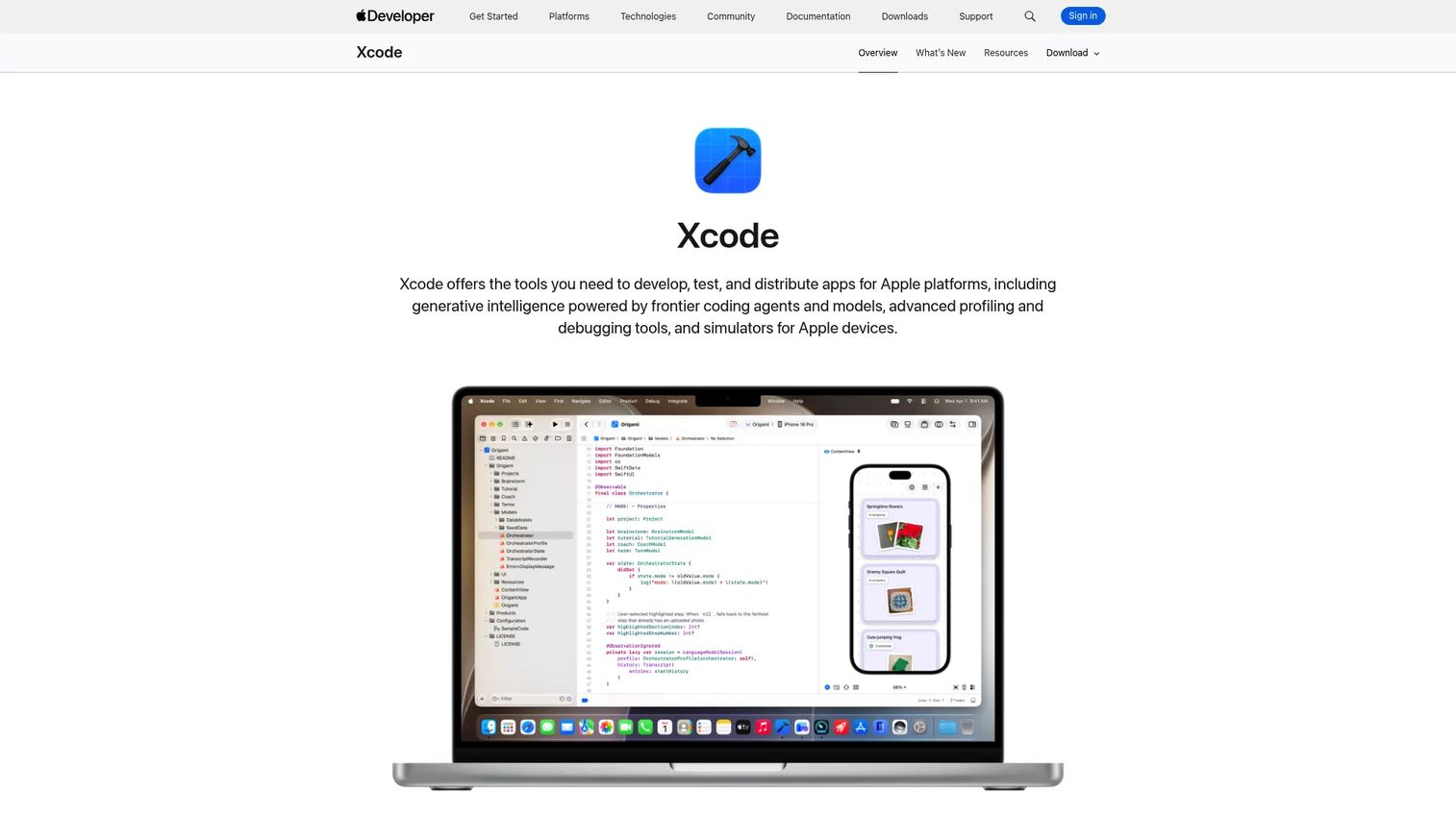
Xcode is Apple's official IDE for building, testing, and debugging apps across iOS, iPadOS, watchOS, and other Apple platforms. It supports Swift and Objective-C debugging with breakpoints, variable inspection, a console, and a simulator for dozens of Apple device configurations. Xcode also integrates with Instruments for performance profiling, and with Xcode Cloud for continuous integration.
Best for: iOS and Apple-platform teams that need a native debugging environment for Swift code, device-specific issues, and release build diagnostics.
Key features
- Swift debugger with breakpoints, console, and variable inspection
- iOS Simulator for testing across device models and OS versions
- Device debugging on physical iPhones and iPads via USB
- Integration with Instruments for performance profiling
- Xcode Cloud for continuous integration and delivery automation
Why choose Xcode: There's no substitute for iOS debugging. Android tools can't reach Apple-platform code, and simulator testing with Xcode catches device-specific UI regressions, Swift runtime behavior, and Apple API interactions before they reach the App Store. For any team shipping an iOS app, Xcode is a non-negotiable part of the debugging stack.
Xcode pricing: Free to download and use. Xcode Cloud compute plans start at $49.99/month for 100 compute hours. Distributing apps to the App Store requires an Apple Developer Program membership.
G2 rating: 4.2/5
Considerations when choosing mobile app debugging tools
Platform coverage
Map every tool against the platforms your app ships on before committing to a stack. Android-only tools leave iOS bugs invisible, and vice versa. Teams shipping on both platforms need at minimum Android Studio and Xcode, plus platform-agnostic tools for crash reporting and WebView debugging.
Debugging depth
Log tools show what happened. Debuggers show why. A crash report gives you the stack trace; a breakpoint-based debugger lets you step through the execution path and inspect variable state at the moment of failure. Match the tool to the question: Logging for runtime visibility, IDE debugging for root cause, crash reporting for production priority.
Reproduction workflow
A debugger only helps if the team can reproduce the issue consistently. Evaluate emulator coverage for OS version and hardware class, physical-device access for hardware-specific bugs, and whether crash reporting gives enough device and version context to route the reproduction attempt correctly. Poor reproduction workflow is often the real bottleneck, not tool availability.
Team handoff clarity
PMs, QA, support, and engineering extract different outputs from the same debugging event. The best stack produces artifacts that each role can use: A stack trace for engineering, an affected-user count for PM prioritization, a device and version summary for QA reproduction, and a version reference for support triage. Build the stack around handoff quality, not just technical depth.
Production visibility
Local debugging catches issues before release. Post-release, without crash reporting, you're learning about production failures from support tickets, not from instrumentation. Mature mobile teams run both layers: A pre-release debugging environment and a production monitoring layer like Firebase Crashlytics. One without the other leaves a blind spot in either the release confidence or the post-ship response window.
For a broader look at application health tooling, see our roundup of application security testing software and AI software testing tools.
Conclusion
Start with the platform-native IDE: Android Studio for Android, Xcode for iOS. Both are free and cover the code-level debugging, emulation, and log inspection your team needs before a line ships to production.
Add Logcat and ADB as foundational Android diagnostic tools. They're the layer between the IDE and the device, and they're required for setting up most remote debugging workflows. Chrome DevTools handles the mobile web and WebView layer that native debuggers can't reach.
Firebase Crashlytics is the post-release layer every mobile team needs. It converts production instability from a support anecdote into a prioritized, evidence-backed engineering ticket. App Debug and Device Explorer fill the narrower gaps: Metadata triage and local state inspection.
For teams with native code, add LLDB. For teams with shared Kotlin or JVM code, IntelliJ IDEA extends Android Studio's reach. For teams that need automated WebView inspection, Chrome DevTools Protocol provides the programmatic layer beneath the manual tooling.
The right stack isn't one tool; it's a set of tools mapped to specific bug types, lifecycle stages, and team workflows. Build it intentionally, and you reduce the time from "user reports a crash" to "engineering has a fixable ticket."
Once your app is stable and your debugging stack is in place, the next challenge is showing that product experience clearly to users and stakeholders. Start your journey with Guideflow today!
FAQs
Mobile app debugging tools are utilities that help teams find, reproduce, inspect, and resolve defects in Android, iOS, hybrid, and web-powered mobile apps. The category includes IDE debuggers, log filters, crash reporting platforms, emulators, device inspectors, and WebView debugging utilities. Each tool answers a different question about where and why a defect occurred.
Android Studio is the strongest all-around choice for Android debugging, covering code-level breakpoints, variable inspection, emulators, Logcat, and native debugging in one environment. Logcat, ADB, Android Emulator, and Device Explorer are complementary Android tools that most teams add to that foundation.
Xcode is the only fully supported Apple-platform debugging environment and a required part of any iOS debugging stack. It covers Swift and Objective-C debugging, the iOS Simulator, physical-device debugging, and integration with Instruments for performance profiling.
Logging records runtime events as they happen: Messages, errors, warnings, and state changes that the app writes to a stream. Debugging is active inspection: Pausing execution at a breakpoint, stepping through code, and examining variable values and stack frames in real time. Both are useful. Logging tells you what happened; debugging lets you explore why.
Local debugging is most useful before release and during reproduction of a known issue in a controlled environment. Crash reporting becomes essential after release, when defects surface on customer devices that the team can't access or reproduce locally. Firebase Crashlytics captures the stack trace, device model, OS version, and affected user count from production, giving engineering and PMs the data they need to prioritize a fix.
Connect a physical Android device via USB, enable USB debugging on the device, and open chrome://inspect/#devices in Chrome on the desktop. Chrome DevTools will list the WebView targets running on the connected device. From there, you can inspect DOM state, network requests, console errors, and JavaScript execution inside the embedded WebView. ADB is required to establish and maintain the device connection.
PMs don't need to run every debugger, but understanding which tool answers which question significantly improves prioritization, triage speed, and engineering alignment. Knowing the difference between a crash report (post-release, production) and a breakpoint debugger (pre-release, local) helps a PM ask better questions, set more accurate severity levels, and reduce the round-trips between support, QA, and engineering during incident response.
Start with the native IDE for each platform you ship on. Add log tooling and crash reporting as the minimum viable production monitoring layer. Extend with WebView debugging if your app embeds web content, and native debugging tools if your codebase includes C/C++ or SDK layers. For teams with shared code across platforms, a JVM-capable IDE like IntelliJ IDEA adds coverage beyond what mobile-only IDEs provide. Review the best mobile marketing software guide to connect your stable app to growth channels once the debugging stack is solid.