A file lands in your downloads folder. You double-click it. Windows shrugs: "How do you want to open this file?" You scroll the list, recognize nothing, and close the dialog. The file just sits there, useless.
This is the daily reality for anyone who works with mixed file formats. A vendor sends a .xps invoice. A designer hands over a .heic photo. A developer ships a .7z archive packed with source code. Your default apps cover maybe a third of what actually crosses your desk. The rest demands a new download, a new install, and a new tab in your already-crowded brain.
The right file reader software collapses that mess into one window. Good file viewer software opens documents, spreadsheets, presentations, images, audio, video, and archives without forcing you to guess which single-purpose app you need. The best tools go further and identify a file even when its extension is missing or wrong.
This matters more every year. The global PDF reader software market alone was valued at $3.8 billion in 2025 and is forecast to reach $7.6 billion by 2034, growing at 8.1% CAGR, according to Dataintelo (2025). The broader file analysis software market is projected to grow from $11.66 billion in 2025 to $56.96 billion by 2035 at 17.19% CAGR, per Market Research Future (2024). Translation: more file types, more formats, more reasons to need one reliable file opener instead of a dozen.
If you also build product walkthroughs or visual content, our roundups of the best AI image generators and the best image optimization software pair well with a good image viewer. And if you handle code files, the best AI code generation tools cover the editor side of that workflow.
What's inside
This guide ranks the 12 best file reader software options for 2026, focused on the people who feel the pain most: Windows users and Android users who need broad compatibility from a single app.
We selected and ordered these tools using four criteria:
- Format coverage - how many file types the tool opens, previews, or identifies.
- Platform fit - whether it serves Windows, Android, or both, including Windows 11.
- File identification - how well it handles files with missing or wrong extensions.
- Practical extras - archive extraction, media playback, metadata inspection, conversion, and ease of use.
The list spans true universal readers, document-first viewers, PDF specialists, an Android multi-format app, and a power-user file manager. Each entry tells you exactly who it fits.
TL;DR
- Best for Windows power users who need the broadest coverage: File Viewer Plus opens 400+ formats and identifies thousands more, making it the most complete universal file viewer on this list.
- Best for Android: File Viewer for Android opens 200+ file types locally, with archive extraction, media playback, and document conversion built in.
- Best for free, document-first reading: Okular and Sumatra PDF both read PDFs, ebooks, images, and more at no cost.
- Best for PDF-heavy work: Adobe Acrobat Reader and Foxit PDF Reader handle viewing, annotating, and signing.
- Best for heavy file browsing on Windows: Xplorer² adds dual-pane management and quick preview to the everyday file workflow.
- Best lightweight Windows opener: File Viewer Lite opens 500+ file types with no file-size limit.
What is file reader software?
File reader software is an application that opens and displays the contents of many different file types in a single program, so you can view a document, image, archive, or media file without installing the app that originally created it.
Modern readers do more than show a file. The strongest options combine viewing, previewing, identification, conversion, and basic file management in one place. A true universal file viewer treats a .docx, a .png, a .zip, and a .heic as equal citizens, rendering each natively instead of bouncing you to a separate tool.
A capable file reader generally handles these file families:
- Office documents and spreadsheets - Word, Excel, PowerPoint, OpenDocument, and plain text.
- PDFs and XPS - the dominant fixed-layout document formats, where a strong PDF viewer or XPS viewer matters.
- Image formats - JPEG, PNG, GIF, TIFF, plus newer formats where a HEIC viewer or AVIF support is now table stakes, and a raw photo viewer for camera files.
- Audio and video - common media containers with built-in multimedia playback.
- Archives - ZIP, 7Z, RAR, and TAR, where an archive extractor saves a separate install.
- Source code and text - where a source code viewer with syntax highlighting helps developers read files quickly.
The capability that separates a basic file opener from a serious tool is file identification. Plenty of files arrive with missing, generic, or flat-out wrong extensions. A reader with a real identification engine inspects the file signature and metadata to tell you what you actually received, then opens it correctly. That is the difference between a frustrating dead end and a file you can read.
When to use file reader software
Open mixed file types from one place
A universal reader earns its keep the moment your work spans formats. Instead of opening one app for office files, another for archives, a third for images, and a fourth for media, you point a single file opener at everything.
A typical workflow: you receive a project handoff as a ZIP. Inside are a .docx brief, a folder of .heic reference photos, an .mp4 walkthrough, and a .json config file. One reader extracts the archive, previews the document, displays the images, plays the video, and shows the code with syntax highlighting. No tab-switching, no extra installs.
This is where universal file viewer software beats stacking single-purpose apps: fewer programs to maintain, fewer formats that catch you off guard, and one consistent interface for every file.
Identify files with missing or wrong extensions
Filenames lie. A file named report with no extension could be a PDF, a Word doc, or a database export. A .dat file could be almost anything. When you can't trust the extension, you need a reader that can open unknown files by reading what's actually inside them.
Identification engines look at the file signature, the first bytes that mark a format, plus embedded metadata. That lets the tool tell a JPEG from a TIFF even when both are mislabeled .img. For support staff, IT-adjacent users, and anyone who receives files from many sources, file identification turns a guessing game into a quick answer.
Handle Windows and Android workflows
Platform comes first when you choose a reader. A heavy desktop user and a mobile-first user need different tools, and the best pick depends on where your files actually land.
| Workflow | What to prioritize | Typical pick |
|---|---|---|
| Desktop-heavy (Windows) | Broad format coverage, conversion, file management | A file reader for Windows like File Viewer Plus |
| Mobile-heavy (Android) | Local viewing, archives, media, document support | A file reader for Android like File Viewer for Android |
| Document-first, any OS | PDF, ebook, and image rendering | A cross-platform document viewer like Okular |
Think platform first, then format coverage, then extras. A brilliant Windows tool does nothing for an Android user, and vice versa.
Comparison table
Here is the full ranked list at a glance before the detailed sections. Ratings come from G2 where a verified score exists for the exact product; some tools have no listed G2 rating.
| # | Product | Intent | Key differentiation | Pricing | G2 rating |
|---|---|---|---|---|---|
| 1 | File Viewer Plus | Windows universal viewer | Opens 400+ formats, identifies thousands more | $25/yr or $50 one-time | 4.6/5 |
| 2 | Universal File Viewer | Android quick opener | Fast opening of many file types on mobile | Free (ad-supported) | - |
| 3 | File Viewer Lite | Lightweight Windows viewer | Opens 500+ file types, no size limit | Free | 4.1/5 |
| 4 | File Viewer Lite for Windows | Windows download path | Standalone Windows viewer, 500+ types | Free | 4.1/5 |
| 5 | File Viewer for Android | Android universal viewer | Opens 200+ types, archives, conversion | Free with Pro upgrade | - |
| 6 | Okular | Cross-platform document viewer | PDF, ebook, image, Markdown with annotation | Free | - |
| 7 | Fileloom | Android multi-content viewer | 100+ types, resume playback, TTS | Free | - |
| 8 | Adobe Acrobat Reader | PDF reader | Industry-standard PDF view, annotate, sign | Free | 4.5/5 |
| 9 | Foxit PDF Reader | Lightweight PDF reader | Free PDF read, annotate, sign across devices | Free | 4.6/5 |
| 10 | Sumatra PDF | Lightweight Windows reader | Fast PDF, EPUB, CBZ, DjVu, XPS reader | Free | - |
| 11 | Xplorer² | Windows file manager | Dual-pane browsing with preview and search | $29.95 one-time | - |
One read of the table: if you want the widest coverage on Windows, start at the top; if you live on Android, jump to rows 2, 5, and 7; if your real need is PDFs, rows 8 through 10 cover it.
1. File Viewer Plus
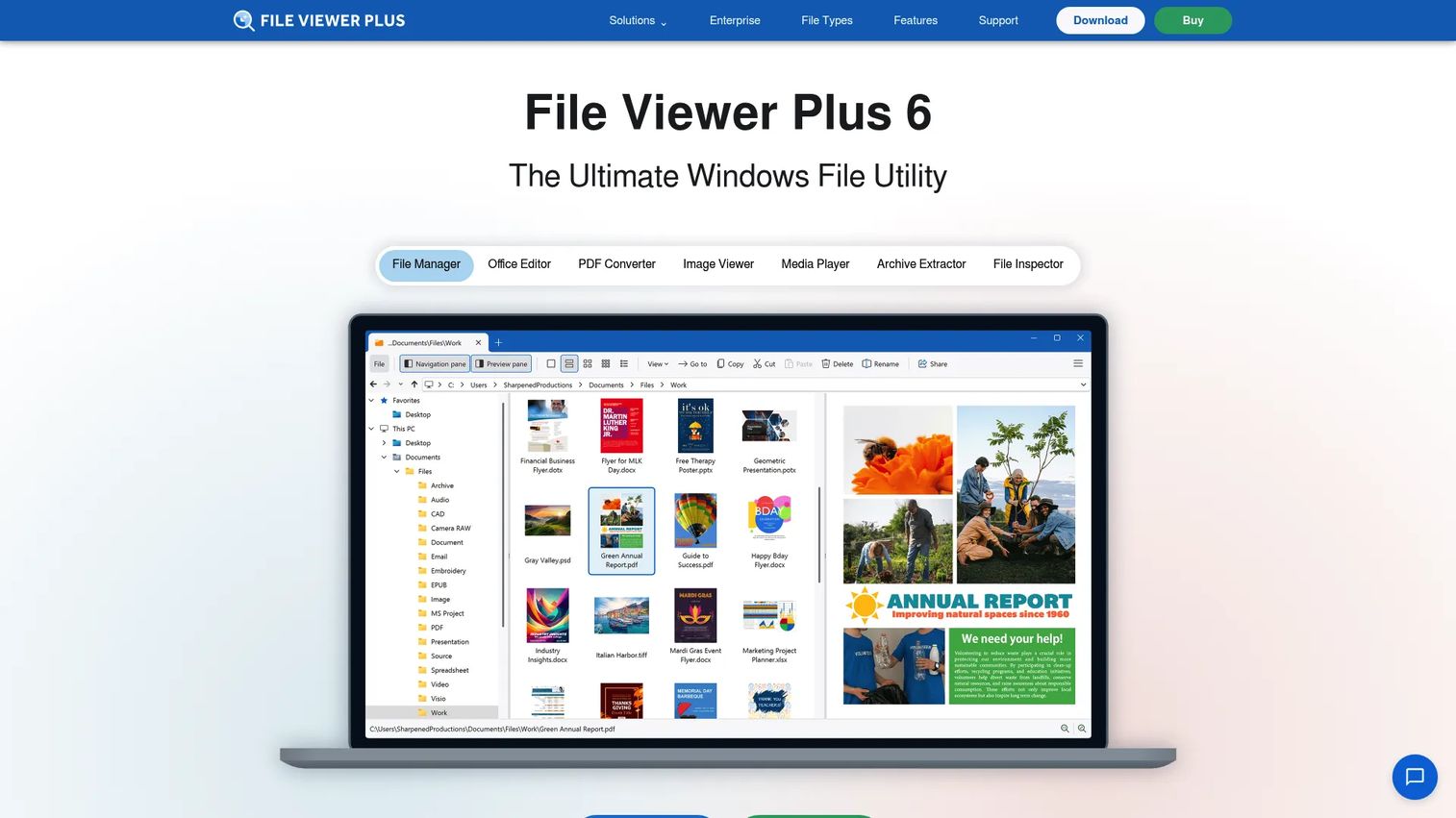
File Viewer Plus is the most complete universal file viewer on this list for Windows users. It opens 400+ file formats natively, and its proprietary identification system recognizes thousands more, so files with odd or missing extensions still resolve to something you can read. Beyond viewing, it edits, saves, and converts across documents, images, media, email, CAD, and source code, all from one window.
Best for: Windows users and small teams who need one app to open, edit, and convert nearly any file type.
Key strengths
- Broad format coverage: Opens 400+ formats covering documents, spreadsheets, presentations, images, audio, video, archives, and code.
- File identification engine: Inspects file signatures and metadata to open unknown files correctly, even with wrong extensions.
- Built-in conversion and browsing: Includes a file browser and batch converter, so you can move from viewing to converting without leaving the app.
Why choose File Viewer Plus: If your work regularly throws unfamiliar formats at you, this is the tool that handles the most without sending you back to the download page. The combination of native rendering, identification, metadata inspection, and conversion makes it the strongest single-app answer for a file reader for Windows, including Windows 11.
File Viewer Plus pricing: A one-time purchase is listed at $50 per user, and an annual subscription at $25 per year per user. There is no permanent free tier, but a fully featured 14-day trial lets you test the format coverage before you commit. It holds a 4.6/5 rating on G2.
2. Universal File Viewer
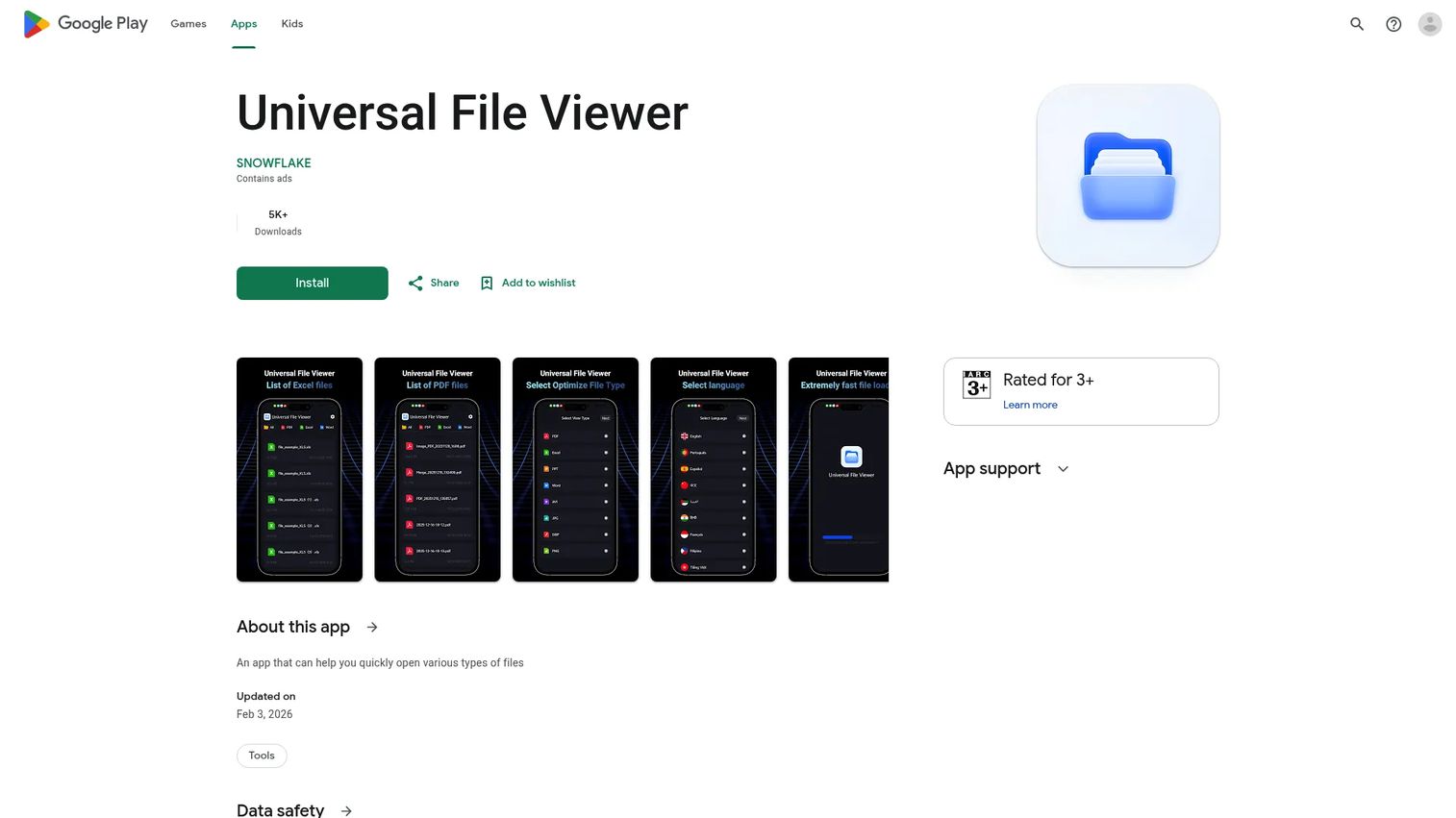
Universal File Viewer is an Android app built to quickly open a range of common file types on your phone or tablet. It keeps the job simple: tap a file, see its contents, move on. For mobile users who mostly need a fast file opener rather than a deep editing suite, it covers the basics.
Best for: Android users who want a straightforward utility for opening various file types on the go.
Key strengths
- Quick opening: Designed to open many common file types fast, without setup.
- Mobile-first: Built for the Android file workflow where you receive files in messaging apps and email.
- Lightweight footprint: Focuses on viewing rather than a heavy feature stack.
Why choose Universal File Viewer: It fits the moment when a file arrives on your phone and the default app can't open it. As an Android-first file viewer, it gets you to the contents quickly. Note that the listing discloses ads and some data collection, so review the Play Store data-safety section before installing.
Universal File Viewer pricing: The Google Play listing is free to download and ad-supported. No public paid plan or price was visible on the listing at the time of writing.
3. File Viewer Lite
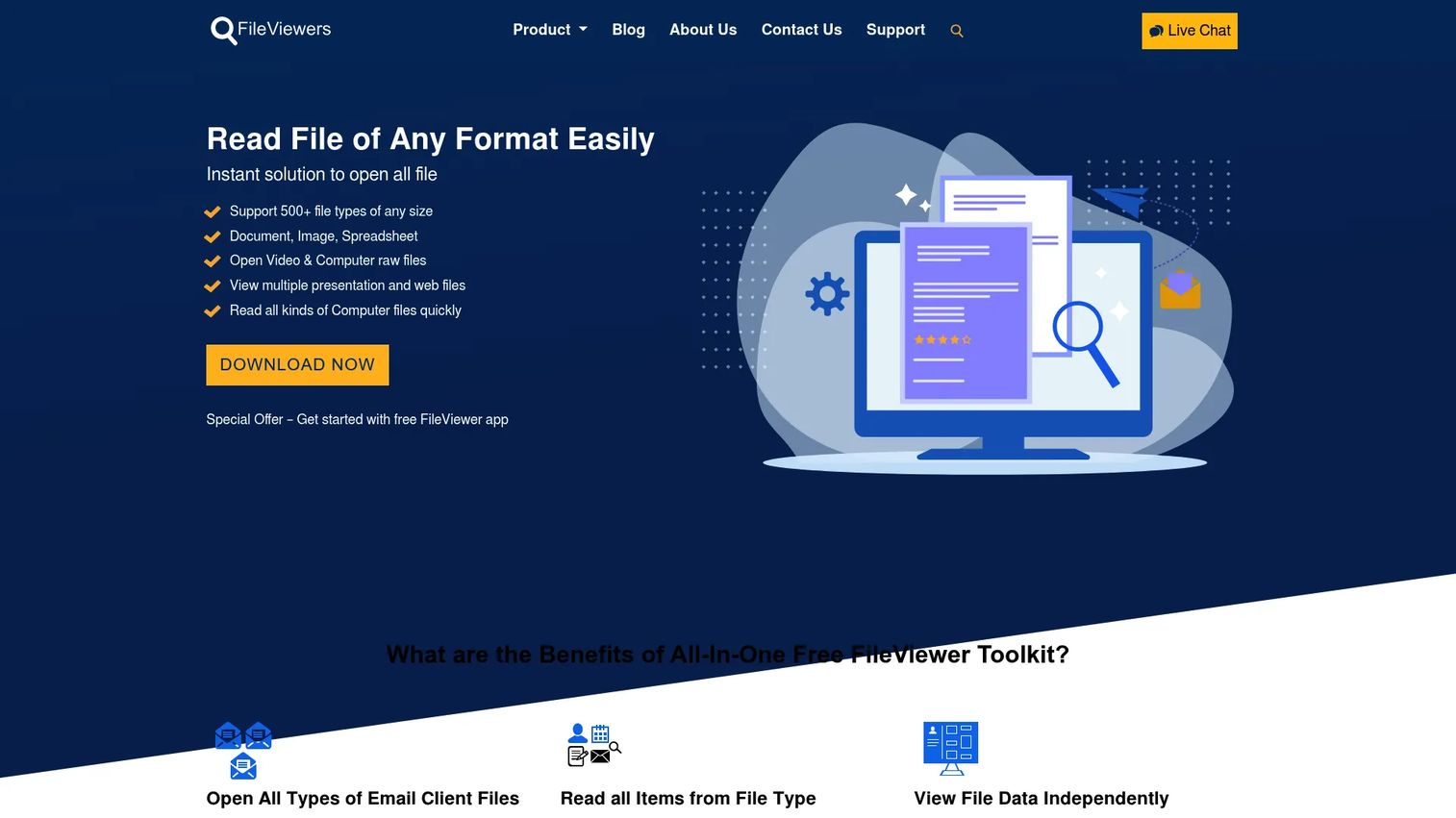
File Viewer Lite is the lighter Windows line for users who want broad file-opening without a heavy install. It opens 500+ file types and applies no file-size limit, so large files don't get truncated. For people who mostly need to view and inspect rather than edit and convert, it covers a wide range of everyday formats.
Best for: Windows users who want a simple, free utility to open many file formats.
Key strengths
- Wide viewing range: Opens 500+ file types in a single app.
- No size cap: Handles large files without a size limitation.
- Batch viewing: Supports batch viewing for some formats, useful when you have many files to scan.
Why choose File Viewer Lite: This is the comparison pick for readers weighing a free or lighter path before stepping up to a fuller toolset. It opens a broad set of formats, and if you later need editing, conversion, and deeper identification, there's a clear upgrade route to the fuller File Viewer Plus line.
File Viewer Lite pricing: The brand describes the toolkit as free for Windows. It carries a 4.1/5 rating on G2.
4. File Viewer Lite for Windows
File Viewer Lite for Windows is the Windows-specific download path for the lighter viewer. It functions as a standalone Windows viewer that supports 500+ file types and applies no file-size limit, making it a practical option for users who just want to install one app and start opening files.
Best for: Windows users looking for the lighter, free viewer as a direct download.
Key strengths
- Standalone Windows install: Runs as a self-contained Windows viewer.
- 500+ formats: Covers a broad set of document, image, and media types.
- No file-size limitation: Opens large files without capping them.
Why choose File Viewer Lite for Windows: Treat this as the transitional option. It gives you broad viewing on Windows for free, and when your needs grow toward editing, batch conversion, and stronger file identification, the fuller File Viewer Plus line is the next step. For users who want viewing now and room to grow later, it's a sensible starting point.
File Viewer Lite for Windows pricing: The site describes the software as free for Windows computers. The associated product line holds a 4.1/5 rating on G2.
5. File Viewer for Android
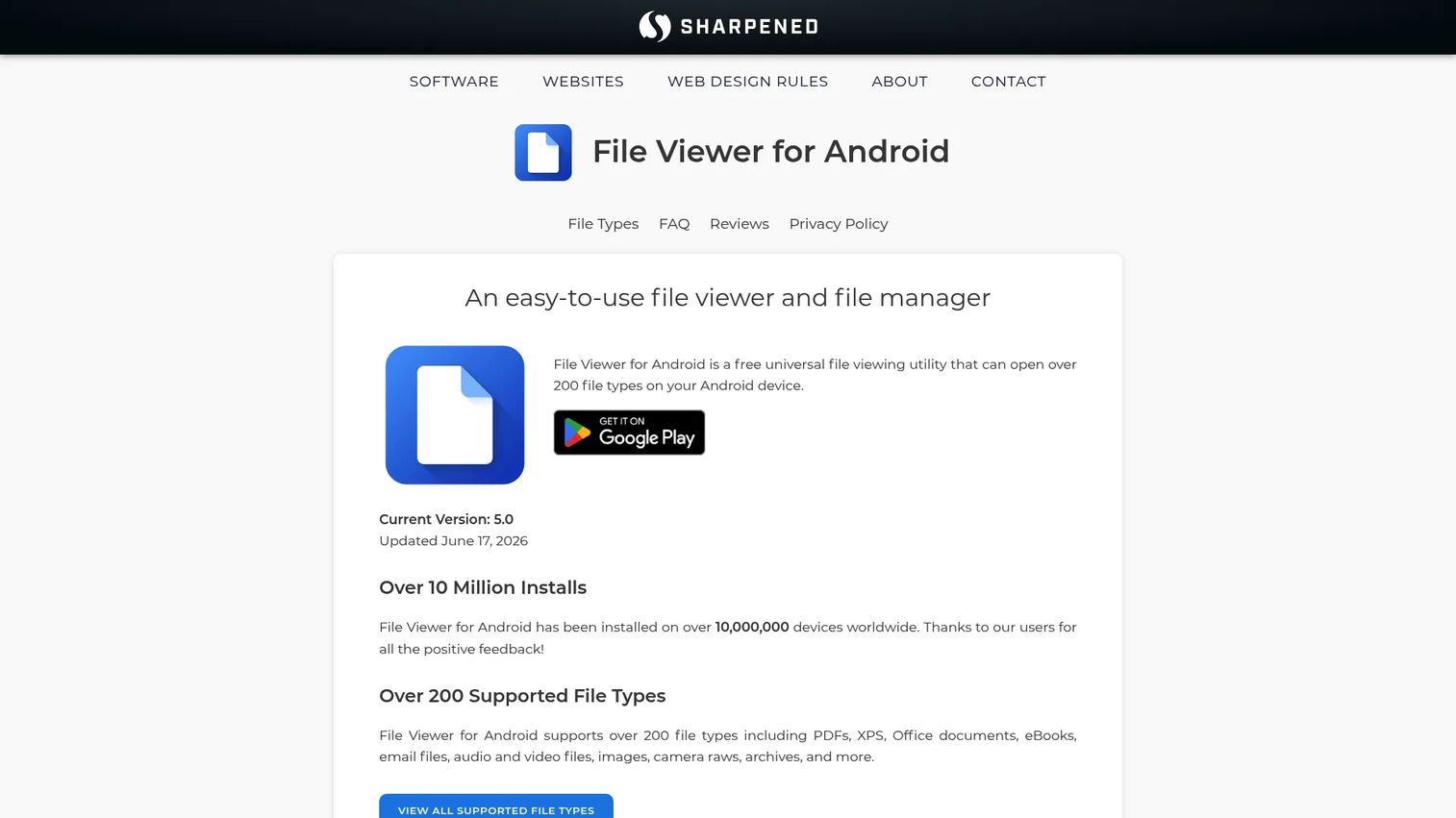
File Viewer for Android is the strongest Android-first pick for opening mixed file types on mobile. It opens over 200 file types locally on-device, with a built-in file explorer for managing what you find. Crucially for mobile work, it converts documents to PDF, extracts archives, and shows file metadata, so you don't need three separate apps to handle one downloaded ZIP.
Best for: Android users who need a local file viewer for many formats plus basic file management.
Key strengths
- 200+ file types: Opens documents, office files, images, audio, video, and text on-device.
- Built-in archive extractor and converter: Extracts archives and converts documents to PDF without a second app.
- File management and metadata: Includes a file explorer and surfaces file metadata for quick inspection.
Why choose File Viewer for Android: Android's default tools cover a narrow slice of what people actually receive. A broad reader fills the gap, opening office docs, images, archives, and media, plus syntax-highlighted text for anyone reading code on mobile. The on-device processing means your files don't need to leave the phone to open.
File Viewer for Android pricing: It's free to use with ads, and a Pro upgrade is available via in-app purchase. No public Pro price was listed on the brand's pages at the time of writing.
6. Okular
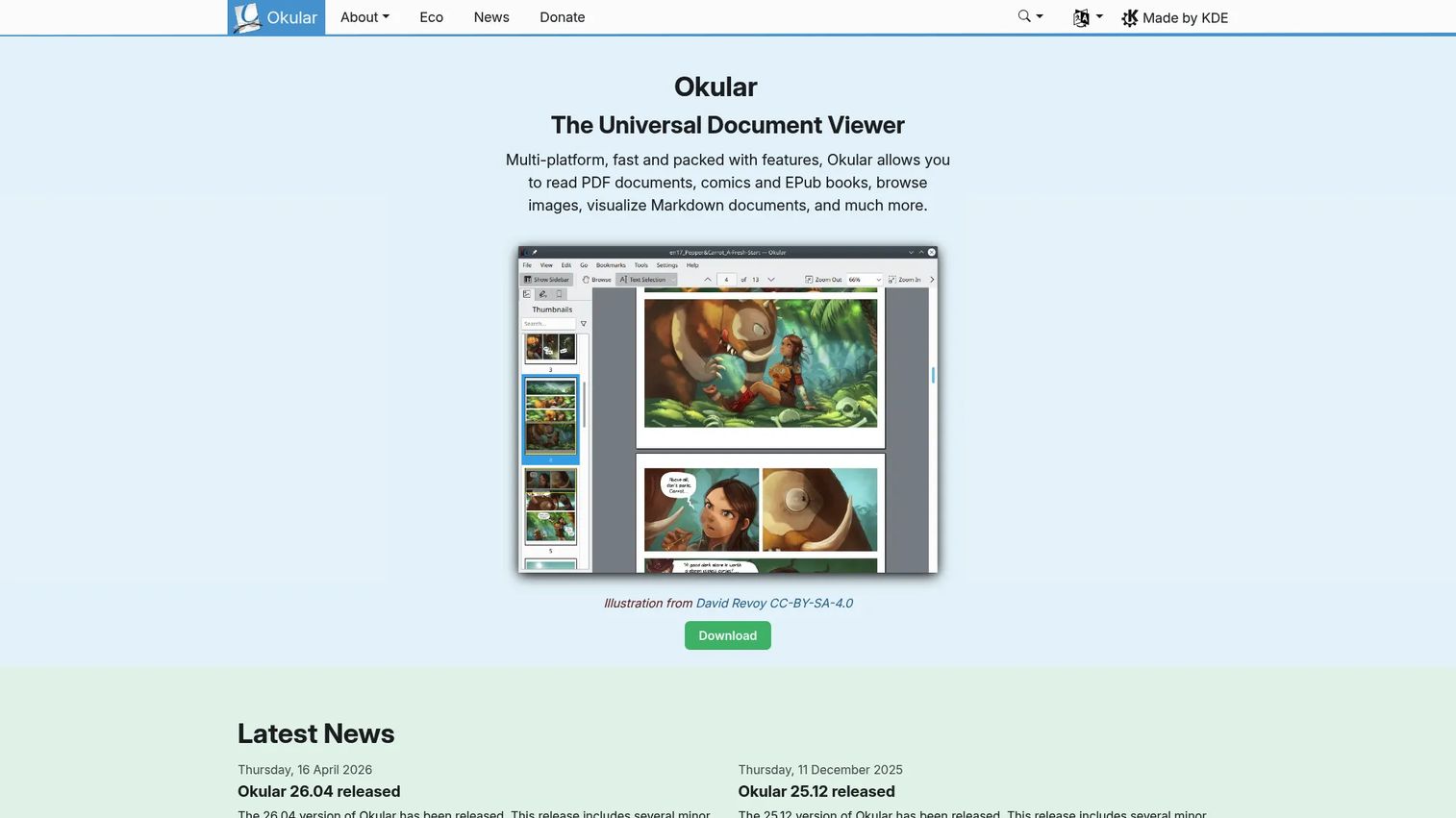
Okular is KDE's free, multi-platform universal document viewer, and it's the document-first pick for readers who want a focused, fast experience. It reads PDFs, comics, ePub books, images, and Markdown documents, and it runs across Windows, Linux, and more. For people whose daily files are documents rather than archives or raw camera output, it hits the sweet spot.
Best for: Users who need a free document viewer with annotation and signature support.
Key strengths
- Multi-format document reading: Opens PDF, comics, ePub, images, and Markdown in one viewer.
- Annotation mode: Adds notes, highlighting, underlining, and custom text directly on documents.
- Signature support: Views, verifies, and creates PDF signatures.
Why choose Okular: It's free and open source, cross-platform, and quick, which makes it a clean choice for document-heavy users who don't need archive handling or media playback. If your work is reading, marking up, and signing documents, a focused document viewer like this is often more pleasant than a heavier all-in-one.
Okular pricing: Okular is free to download and use, with optional donations to KDE. There is no paid plan.
7. Fileloom
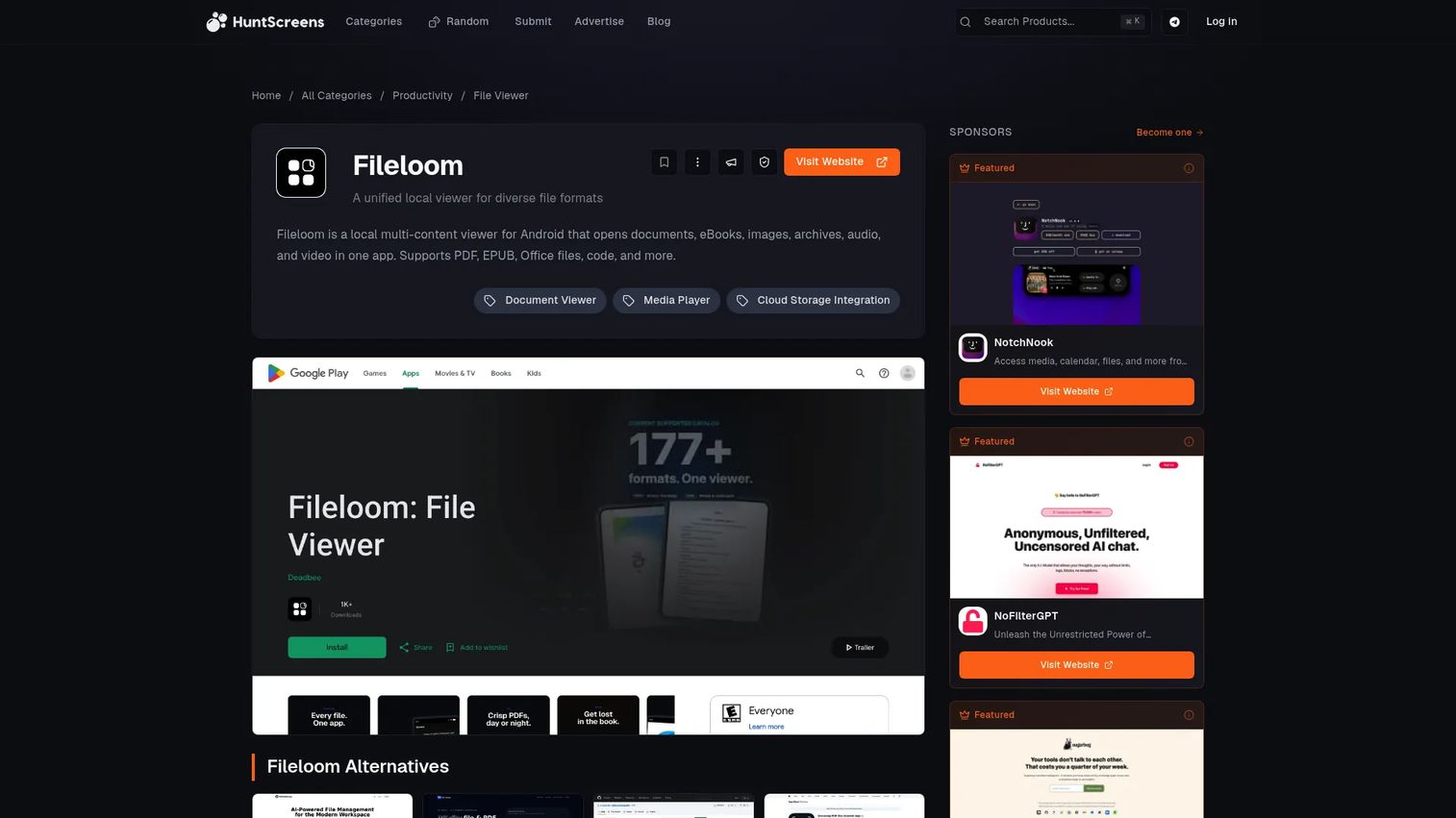
Fileloom is a newer Android viewer built for mixed file workflows in a single offline app. It supports 100+ file types and adds quality-of-life touches like remembering your reading or playback position, browsing inside archives, in-file search, and text-to-speech. For Android users who want broad coverage without leaving the device, it's a capable option.
Best for: Android users who want one offline viewer for documents, books, images, archives, audio, and video.
Key strengths
- 100+ file types: Opens and plays a wide range of documents, images, archives, and media.
- Resume memory: Remembers reading and playback position across sessions.
- Archive browsing and TTS: Browses inside archives, supports search, and reads text aloud.
Why choose Fileloom: It fits the Android user who wants a free, ad-free, offline experience across many formats, including multimedia playback. The resume-position feature is a small thing that matters a lot when you read long documents or watch video on a phone.
Fileloom pricing: No first-party pricing page or public price was found for Fileloom at the time of writing. The product is positioned as a free Android viewer.
8. Adobe Acrobat Reader
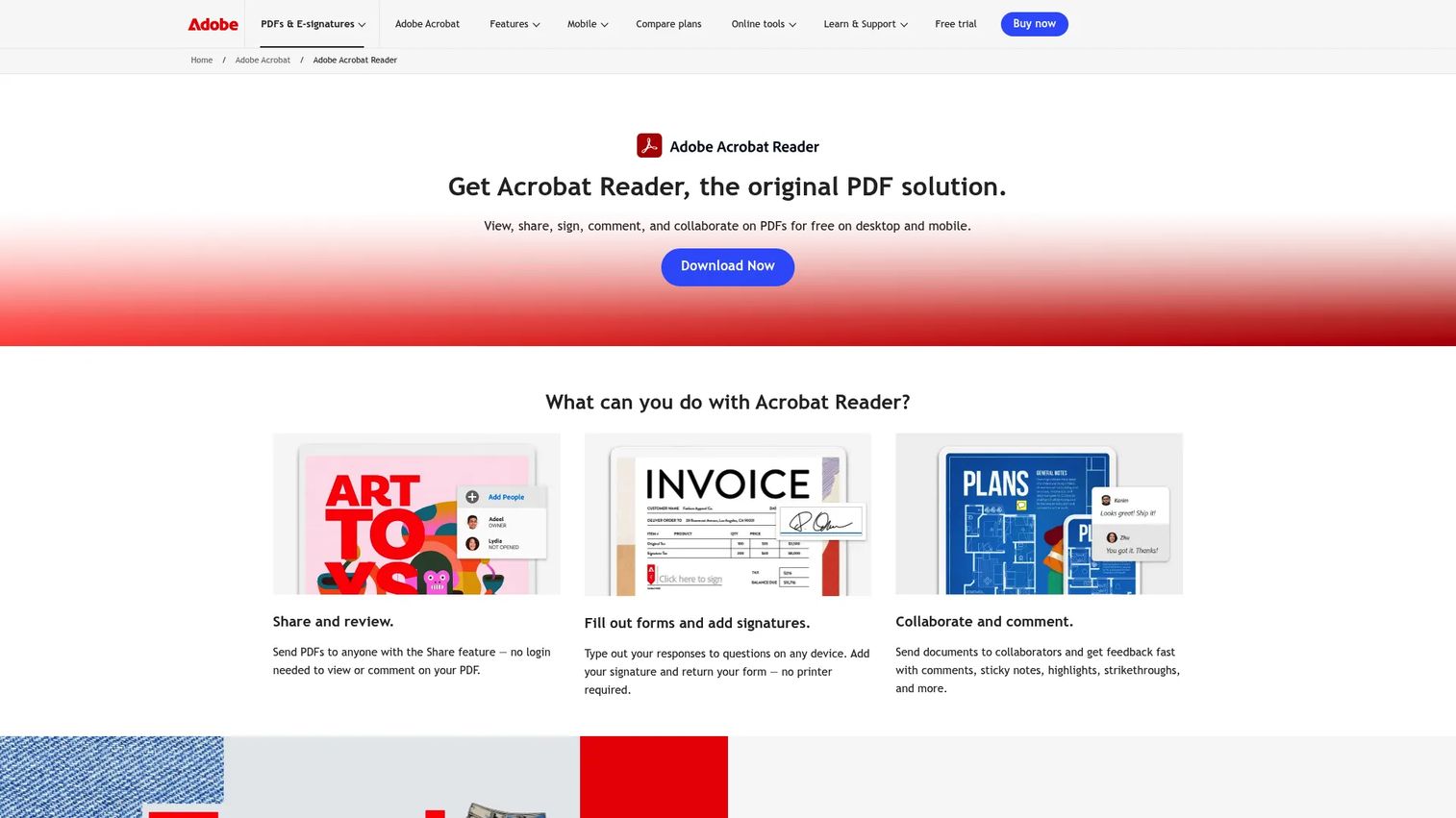
Adobe Acrobat Reader is the industry-standard PDF viewer, and it belongs here because many people searching for file reader software actually need rock-solid PDF support. It views, prints, shares, comments on, and collaborates on PDFs, fills and saves forms, and signs documents with Fill & Sign. If PDFs dominate your day, this is the reference point.
Best for: Individuals who mainly need to view, annotate, fill, and sign PDFs.
Key strengths
- Reliable PDF rendering: Displays complex PDFs faithfully, the format Adobe created.
- Annotation and forms: Adds highlights, sticky notes, and free-text comments; fills and saves forms.
- Signing: Signs documents with Fill & Sign.
Why choose Adobe Acrobat Reader: When the file in front of you is a PDF and the stakes are high, the Adobe reader is the safe default for fidelity and compatibility. It won't extract archives or show raw camera files, but for viewing, marking up, and signing PDFs, it's hard to beat.
Adobe Acrobat Reader pricing: Acrobat Reader is free to download and use without a subscription. It holds a 4.5/5 rating on G2.
9. Foxit PDF Reader
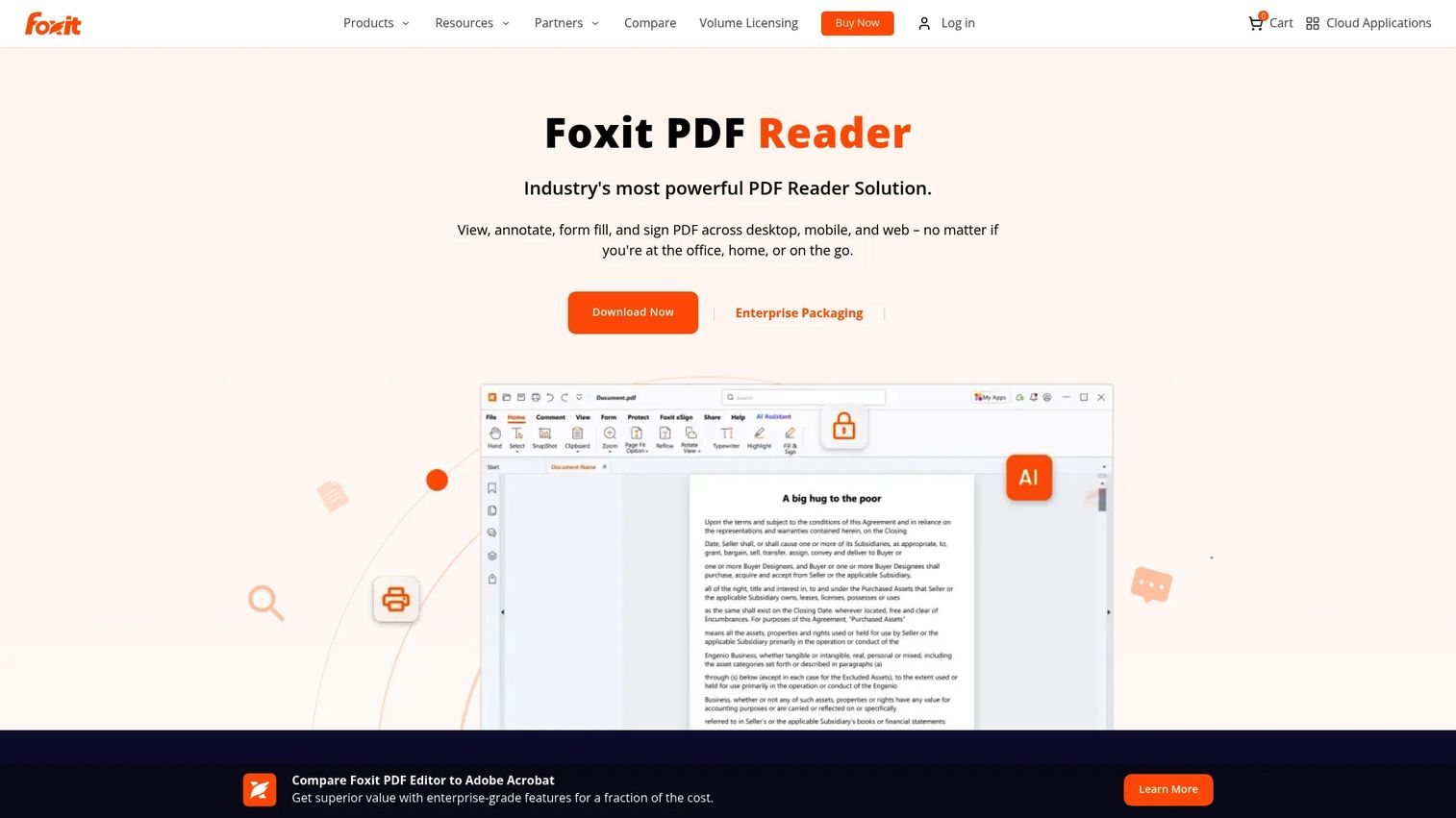
Foxit PDF Reader is a lighter, alternative PDF reader for users who want a fast workflow across desktop, mobile, and web. It reads and prints PDFs, supports annotation and collaboration, and handles form-filling and signing. For document-heavy environments that want a capable free reader without the full Adobe footprint, it's a solid choice.
Best for: Users and teams needing a free, lightweight PDF reader with annotation and signing.
Key strengths
- Cross-surface reading: Works across desktop, mobile, and web.
- Annotation and collaboration: Comments, highlights, and collaborates on documents.
- Forms and signing: Fills forms and signs PDFs.
Why choose Foxit PDF Reader: It plays the role of the nimble PDF alternative in document-heavy teams. If you want PDF reading, annotation, and signing without committing to a heavier suite, Foxit covers the core jobs and stays out of your way.
Foxit PDF Reader pricing: Foxit states that PDF Reader is its only completely free product; paid PDF Editor plans exist for users who need editing. The reader holds a 4.6/5 rating on G2.
10. Sumatra PDF
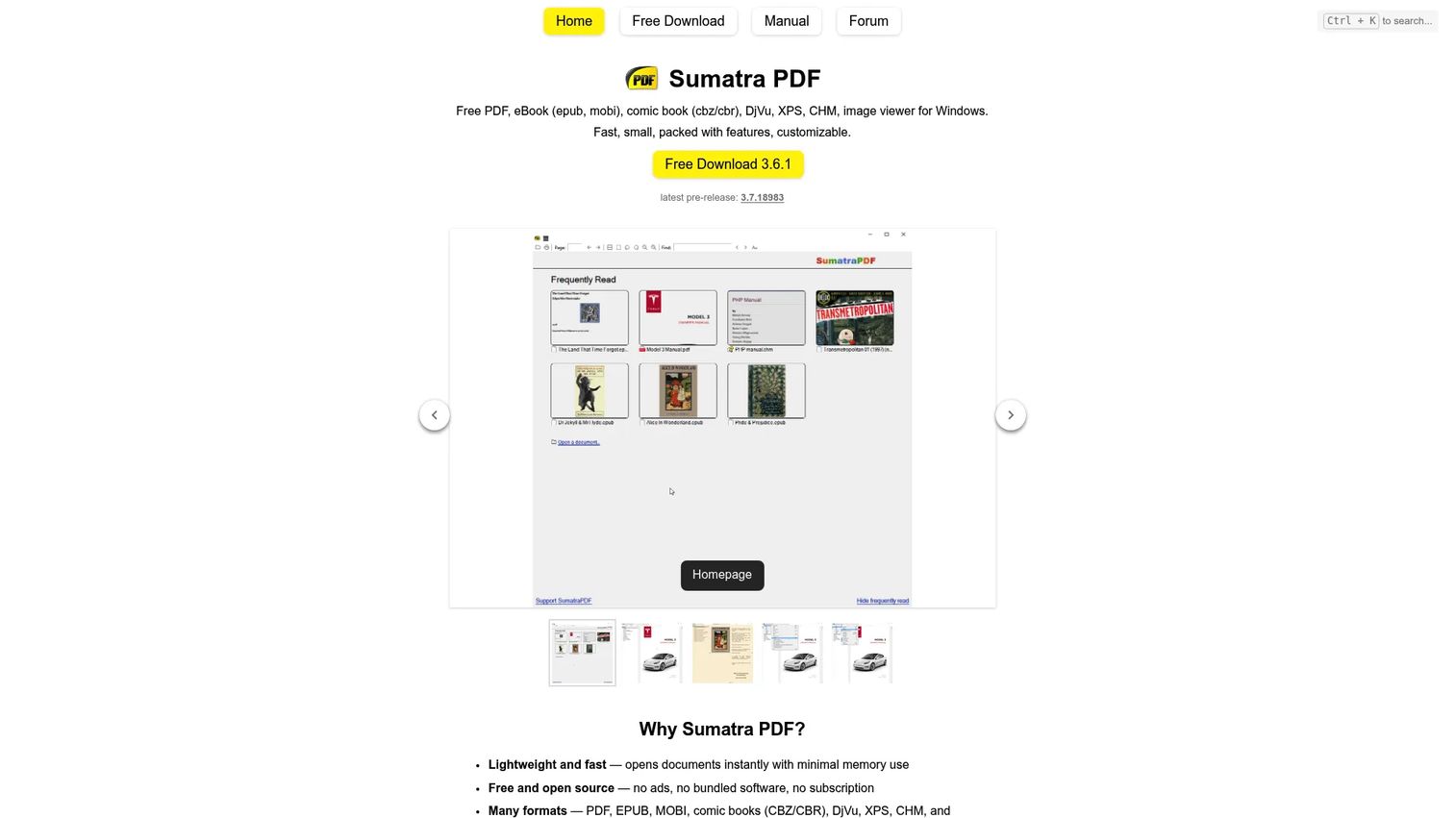
Sumatra PDF is a fast, lightweight Windows reader that does far more than its name suggests. It opens PDF, EPUB, MOBI, CBZ/CBR comic archives, DjVu, XPS, CHM, and images. There's a portable option and a customizable interface, and it stays out of your way with no ads, no bundled software, and no subscription.
Best for: Users who want a lightweight, free document reader on Windows.
Key strengths
- Broad document support: Reads PDF, EPUB, MOBI, CBZ/CBR, DjVu, XPS, CHM, and images.
- Speed and small footprint: Launches fast and stays light on resources.
- Portable and clean: Offers a portable build with no ads or bundled extras.
Why choose Sumatra PDF: For some users, speed and simplicity beat editing depth. If you mostly read PDFs, ebooks, comics, and the occasional XPS file, and you want a reader that opens instantly, Sumatra is purpose-built for that. Its XPS viewer support is a bonus that many lightweight readers skip.
Sumatra PDF pricing: Sumatra PDF is completely free and open source, with no ads, no bundled software, and no subscription.
11. Xplorer²
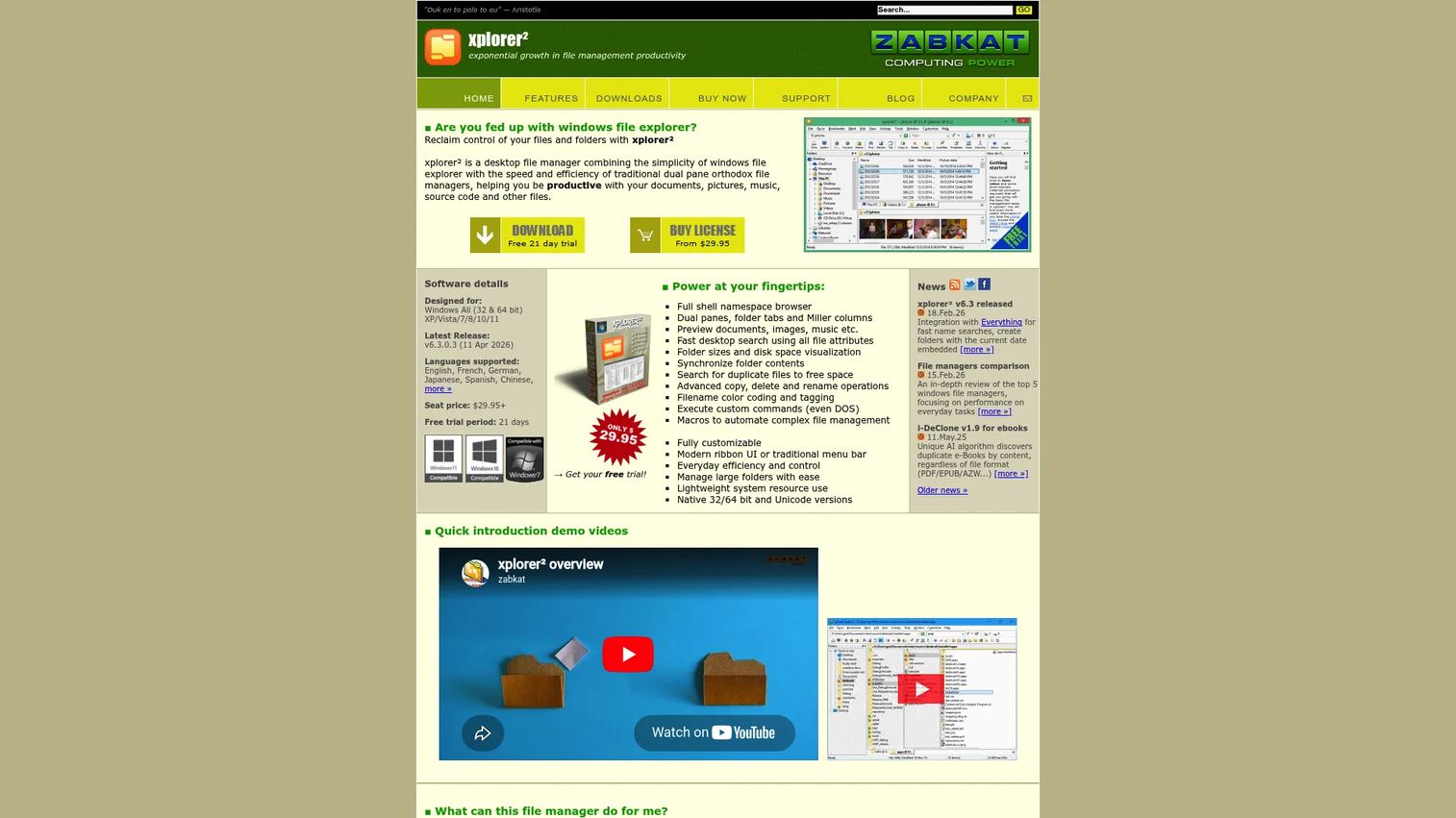
Xplorer² is a Windows file manager and Explorer replacement for people who browse a lot of files and need more than the default. With dual panes, folder tabs, advanced search, and quick preview, it's built for users who live in their file system and want to inspect files fast without opening each one fully.
Best for: Windows users who need a power-user file manager for heavy browsing, search, and file operations.
Key strengths
- Dual panes and tabs: Manages files across two panes and multiple folder tabs.
- Advanced search: Finds files quickly with deep search and filtering.
- Preview and bulk tools: Previews files and includes sync, duplicate-finder, and bulk rename utilities.
Why choose Xplorer²: When your real bottleneck is navigating and previewing large volumes of files, a stronger file manager helps more than a viewer alone. Xplorer² speeds up browsing, search, and bulk operations, with quick preview to check contents before you open anything.
Xplorer² pricing: A Professional edition is listed at $29.95 and an Ultimate edition at $49.95, both one-time purchases. A free 21-day trial is offered, and the site mentions a free lite version.
How to choose the right file reader software
Before you install anything, run through this short checklist. It maps the buying criteria to your actual situation.
Platform fit
Decide where your files land first. A file reader for Windows like File Viewer Plus does nothing for a phone, and a file reader for Android like File Viewer for Android won't help on a desktop. Confirm Windows 11 or current Android support before you commit.
Format breadth vs. depth
A universal file viewer opens the widest range, while a document viewer or PDF viewer goes deep on fewer formats. If you receive unpredictable file types, prioritize breadth. If 90% of your files are PDFs, a focused PDF reader is the cleaner fit.
File identification
If you regularly get files with missing or wrong extensions, prioritize a tool with a real identification engine. The ability to open unknown files by reading their signatures and metadata is the feature that separates a serious reader from a basic opener.
Extras you'll actually use
Be honest about which extras matter: archive extraction, raw photo viewer support, HEIC and AVIF support, multimedia playback, syntax highlighting, or batch conversion. Pay for depth only where you need it, and don't let a long feature list talk you into a heavier tool than your workflow requires.
Conclusion
The right file reader software turns "How do you want to open this file?" from a daily dead end into a non-event. Your best pick depends on platform and format mix more than anything else.
For Windows users who need the broadest coverage and the strongest file identification, File Viewer Plus is the most complete universal file viewer here. For Android, File Viewer for Android opens the widest range on-device with archives, conversion, and media built in. For document-first reading on any OS, Okular gives you free, fast PDF, ebook, and image viewing with annotation. And if your real need is PDFs, Adobe Acrobat Reader, Foxit PDF Reader, and Sumatra PDF cover viewing, annotating, and signing without the extra weight.
Next step: match the platform first, then the format breadth, then the extras. Install the one that fits, run a few of your trickiest files through it, and keep the tool that opens everything you throw at it.
FAQs
File reader software is an application that opens and displays the contents of many different file types in a single program, without requiring the app that originally created each file. Common file families it opens include office documents, PDFs, images, audio, video, archives, and source code.
On this list, File Viewer Plus opens the most, with 400+ native formats plus a file identification engine that recognizes thousands more. "Most" in practice means two things: how many formats render natively, and how well the tool identifies files with missing or wrong extensions. A reader that scores high on both opens the widest range of real-world files.
For breadth, File Viewer Plus is the strongest file reader for Windows, combining 400+ formats, file identification, conversion, and metadata inspection in one app. For a lighter, free path, File Viewer Lite opens 500+ file types, and Sumatra PDF is excellent for fast document reading. Your choice depends on whether you need editing and conversion or just viewing.
File Viewer for Android is the broadest Android pick, opening 200+ file types on-device with archive extraction, document-to-PDF conversion, and media playback. Fileloom is a strong free, offline alternative with 100+ types, resume playback, and text-to-speech. Both cover documents, images, archives, and media that Android's default tools often can't.
Yes, if the tool includes a file identification engine. Instead of trusting the filename, it reads the file signature, the first bytes that mark a format, plus embedded metadata, to determine what the file actually is. That lets a strong reader open unknown files or mislabeled ones correctly. File Viewer Plus is built around this capability.
Usually not. A universal file viewer can open PDFs, extract ZIP and other archives, and display images from one interface, which replaces several single-purpose apps. You only need a separate tool when you require deep, specialized work in one format, such as heavy PDF editing or professional raw photo editing.
For most people, yes. Free tools like Okular, Sumatra PDF, Adobe Acrobat Reader, and Foxit PDF Reader cover viewing, annotating, and basic document work well. Paid tools make sense when you need broad format coverage, strong file identification, batch conversion, or editing, which is where a tool like File Viewer Plus earns its price.
Match the tool to your file mix. If most of your files are documents and PDFs, a focused document viewer like Okular or a PDF reader gives you a faster, cleaner experience. If you regularly receive a mix of documents, images, archives, and media, a universal file viewer that opens all of them from one place will save you the most time.