

91% of businesses use video as a marketing tool, according to Wyzowl's 2026 State of Video Marketing report. Yet inside most product orgs, the gap between "we need a clip by Thursday" and "it's ready to share" is still measured in days, not hours.
The launch recording is too long. The onboarding explainer needs captions. Design is in sprint planning. Marketing wants a cut for LinkedIn, a resized version for email, and a shorter clip for the help center, all before the retrospective.
Editor software is what closes that gap. The right tool lets a PM turn raw footage into a polished asset without waiting in a creative queue or learning a full postproduction workflow. The wrong tool means another half-finished project sitting in someone's Downloads folder.
This guide compares 11 options across professional desktop editors, browser-based tools, mobile apps, and AI-assisted platforms. The goal is to help you match the tool to the asset type, the team's skill level, and your release cadence.
What's inside
This guide covers 11 editor software tools evaluated for video editing capability, feature breadth, pricing clarity, and PM-adjacent workflows.
Tools were selected based on:
- Workflow fit: Browser-based, desktop, or mobile, depending on where your team already works
- Asset range: From professional postproduction to quick social clips and onboarding videos
- Pricing clarity: Free tiers, paid plans, and watermark-free export options
- AI features: Captions, transcript editing, background removal, and auto-trim
- Accessibility: Short learning curves for non-specialist teams
TL;DR
- Best for professional video editing: Adobe Premiere Pro, with advanced timeline, color, and AI-assisted postproduction
- Best for fast team-friendly creation: Canva, with templates, brand kits, and browser-based editing
- Best free browser editor: Adobe Express, with clean MP4 export at no cost
- Best for transcript-based editing: Descript, for cutting interviews and narrations by editing text
- Best for color grading and postproduction: DaVinci Resolve, with a free version that handles serious workflows
- Best mobile-first option: CapCut, for fast social clips with auto captions and templates
What is editor software?
Editor software is a category of tools used to create, modify, enhance, and export digital content such as videos, images, audio, and social assets.
The category spans several distinct types. Video editing software focuses on timeline-based cuts, transitions, and sequencing. Photo editing tools handle image enhancement, retouching, and compositing. Browser-based creative suites combine both in an accessible web interface. Mobile editing apps bring clip creation to iOS and Android. AI-assisted editors automate captions, transcription, background removal, and content generation. Transcript-based editors let users edit video by editing the spoken-word transcript.
Key capabilities to look for
- Timeline editing for clips, layers, and sequence control
- Templates for faster social and launch assets
- Captions for accessibility and silent autoplay
- Audio cleanup for interviews and product recordings
- AI editing for auto-trim, generation, and background removal
- Export controls for MP4, aspect ratios, and resolution
- Collaboration for PMM, design, and leadership review
- Brand controls for consistent product storytelling
How PMs should think about the category
Product managers rarely need the most powerful editor in the room. The metric that matters is how fast you can go from raw recording to a shareable asset that improves adoption or alignment. A tool that requires specialist training adds opportunity cost to every sprint. Prioritize the one that fits your team's skills, integrates with your existing review workflow, and can be maintained as your release cadence increases.
If you're also evaluating AI content creation tools for your product team, the considerations overlap significantly.
When to use editor software
Create product launch assets without waiting on a full creative cycle
You shipped a new feature, and the changelog entry does not do it justice. Editor software lets PMs produce a two-minute walkthrough, a short teaser for social, or an annotated clip for the help center without filing a design request. Speed is the point here, not cinema quality.
Turn research, demos, and calls into usable content
Customer interviews, usability recordings, and internal walkthroughs contain real signal. With transcript-based or caption-first editing, you can trim a 40-minute session into a three-minute clip, add subtitles, and share it internally or embed it in a release note. The raw material already exists; the editor is what makes it accessible.
Adapt one asset for multiple channels
A product demo recorded for a webinar can become a LinkedIn clip, an email thumbnail, and an onboarding embed. Resizing presets, social format templates, and mobile editing tools make this practical across TikTok, Instagram, YouTube, and LinkedIn without rebuilding each asset from scratch.
Editor software comparison
The table below reflects pricing and ratings verified at time of writing. G2 ratings come from each tool's live G2 listing. Use this as a starting point before clicking into each tool section.
| # | Product | Best for | Key differentiator | Pricing | G2 rating |
|---|---|---|---|---|---|
| 1 | Adobe Premiere Pro | Professional video editing | Advanced timeline, AI, color, and postproduction | From $22.99/mo | 4.5/5 |
| 2 | Canva | Fast team-friendly creation | Templates, Brand Kit, and browser editing | Free; Pro from $144/year | 4.7/5 |
| 3 | Adobe Express | Free browser editing | Clean MP4 export with no account required | Free; Premium $9.99/mo | 4.5/5 |
| 4 | Picsart | Mobile photo and video creation | AI photo tools plus short-form video | Free; Pro from $10.50/mo | 4.5/5 |
| 5 | DaVinci Resolve | Color grading and postproduction | Editing, color, VFX, and audio in one suite | Free; Studio $236 one-time | N/A on G2 |
| 6 | CapCut | Mobile-first social video | Short-form editing with captions and templates | Free; Pro $19.99/mo | 4.3/5 |
| 7 | Final Cut Pro | Mac video editing | Professional editing optimized for Apple hardware | $299.99 one-time | 4.4/5 |
| 8 | Wondershare Filmora | Beginner-friendly video editing | Guided effects and approachable timeline | Free trial; from $19.99/mo | 4.4/5 |
| 9 | Descript | Transcript-based editing | Edit video by editing the transcript | Free; Hobbyist $16/mo | 4.6/5 |
| 10 | VEED | Browser-based captioning | Online editing, captions, and collaboration | Free; paid plans available | 4.6/5 |
| 11 | Kapwing | Lightweight online editing | Browser-based team editing and subtitles | Free; Pro $16/mo | 3.9/5 |
Best 11 editor software tools for 2026
1. Adobe Premiere Pro
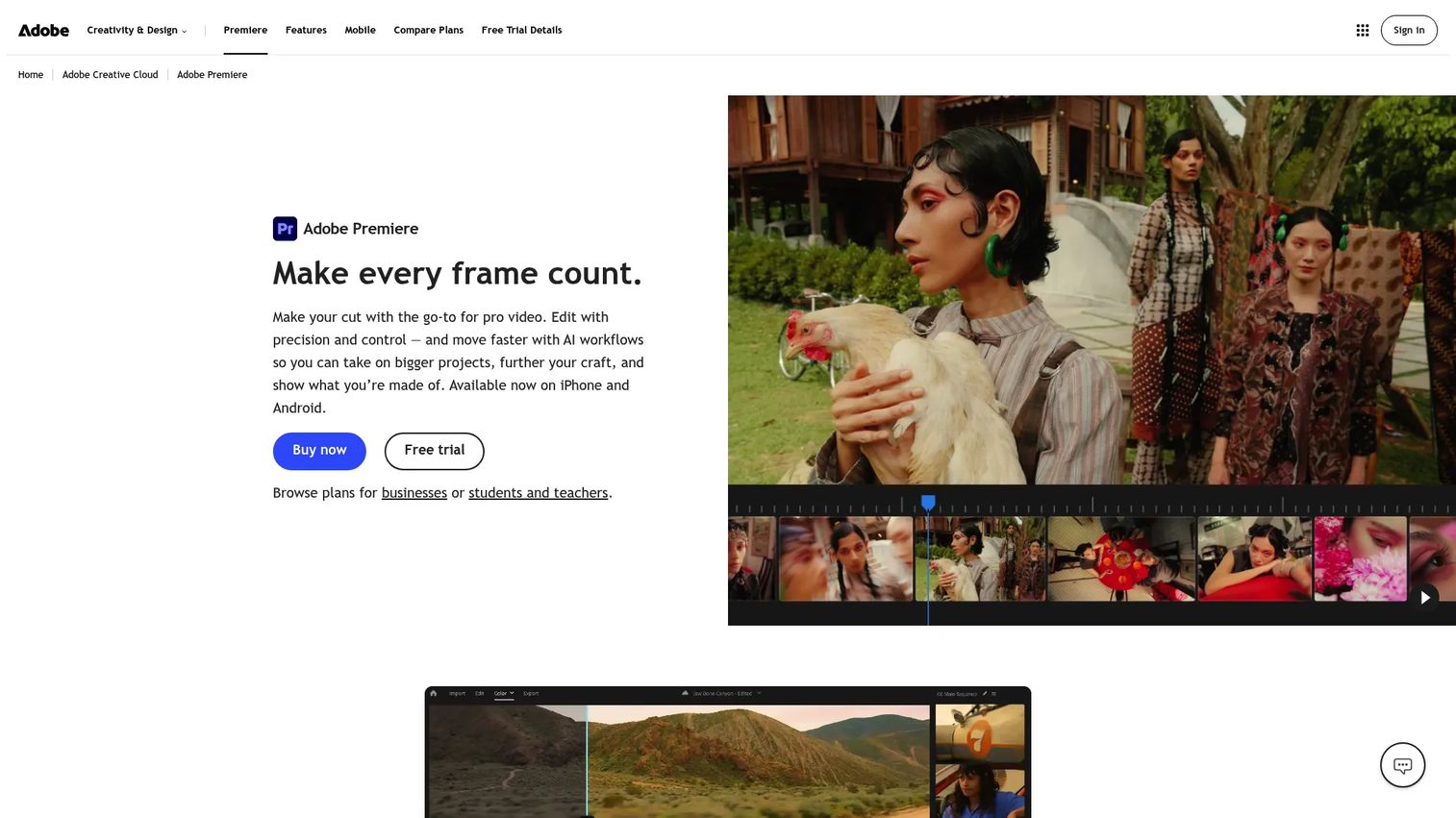
Adobe Premiere Pro is the professional standard for video editing software, used across film, broadcast, and marketing teams worldwide. It combines a full timeline editor with AI-assisted text editing, object masking, Generative Extend, and media search. Frame.io integration keeps review and approval workflows inside a single environment, which matters for teams with multiple stakeholders reviewing launch videos.
Best for: PMs working with video specialists or teams producing polished launch films, event recaps, and customer stories.
Key features
- Professional timeline editing with multilayer sequences
- AI text-based editing and Generative Extend
- Advanced color grading and HDR workflows
- Enhance Speech audio cleanup for interviews
- Creative Cloud integration for asset management
Why choose Adobe Premiere Pro: Choose it when production quality cannot be compromised and your team includes an experienced editor. It is heavier than browser tools, but no desktop editor matches its depth for long-form and professional content.
Adobe Premiere Pro pricing: A 7-day free trial is available. The single-app plan runs $22.99/month (annual, billed monthly). Creative Cloud Pro costs $34.99/month at a promotional rate.
G2 rating: 4.5/5
2. Canva
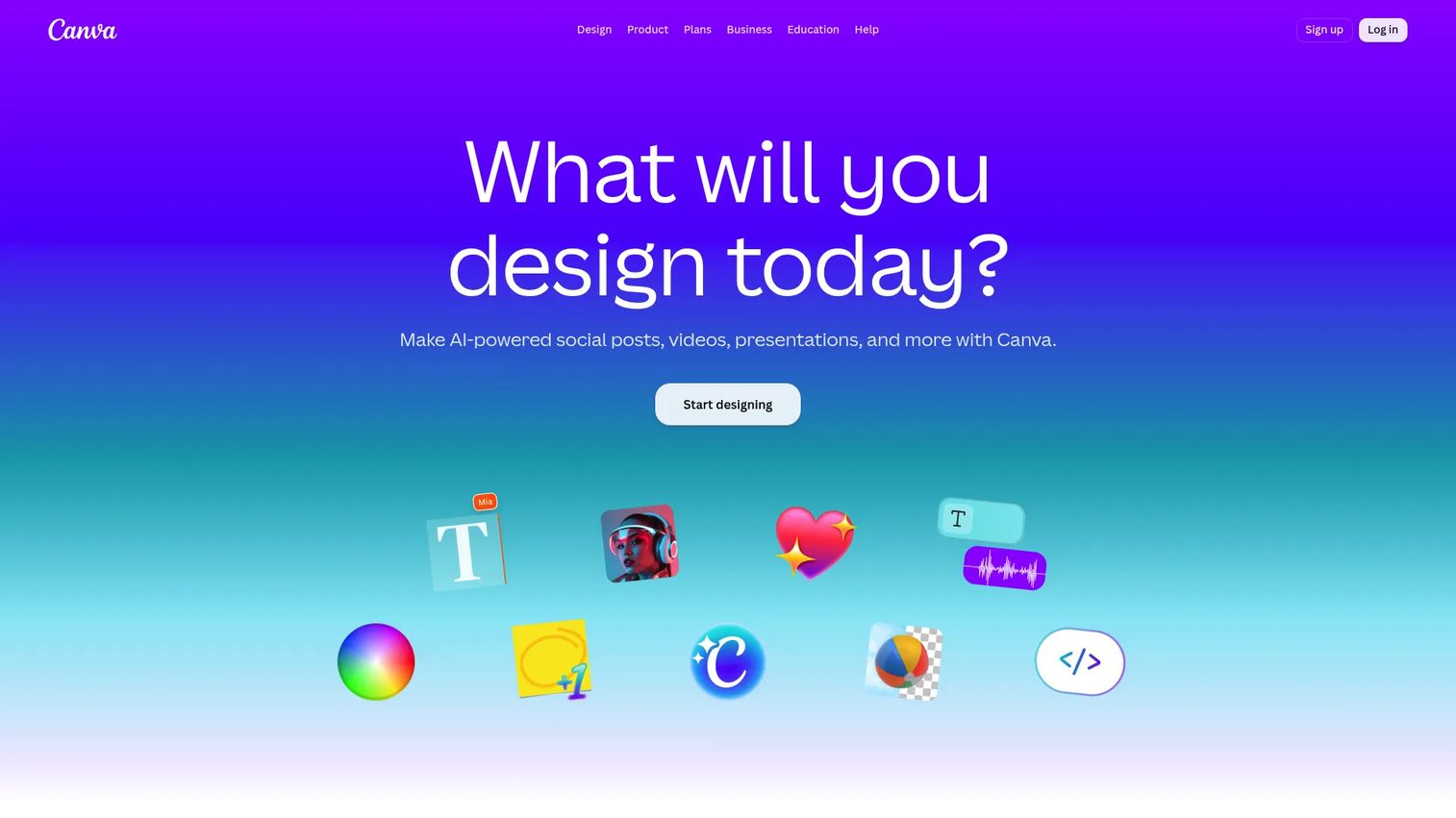
Canva is a browser-based design and publishing platform used by over 220 million people. For product teams, it hits the intersection of fast and good-enough: Templates cover launch announcements, onboarding videos, internal explainers, and social clips. Brand Kit keeps logos, colors, and fonts consistent across every asset without a design handoff. If you pair this with your best social media management tools stack, Canva's direct-to-social scheduling removes an extra step entirely.
Best for: PMs and cross-functional teams creating launch visuals, short videos, and stakeholder updates without a dedicated designer.
Key features
- Drag-and-drop editor with 1,000+ design types
- Video templates for social, presentations, and onboarding
- Brand Kit for logos, colors, and fonts
- Stock photos, videos, and audio assets
- Social format resizing and scheduling
Why choose Canva: Choose Canva when speed, brand consistency, and stakeholder access all matter. Its Pro tier adds AI tools, expanded stock assets, and 100 GB storage, which suits teams creating high-volume assets around releases and social media marketing campaigns.
Canva pricing: Free plan available. Pro costs $144/year per person (billed annually). Business runs $250/year per person. Enterprise pricing requires contacting sales.
G2 rating: 4.7/5
3. Adobe Express
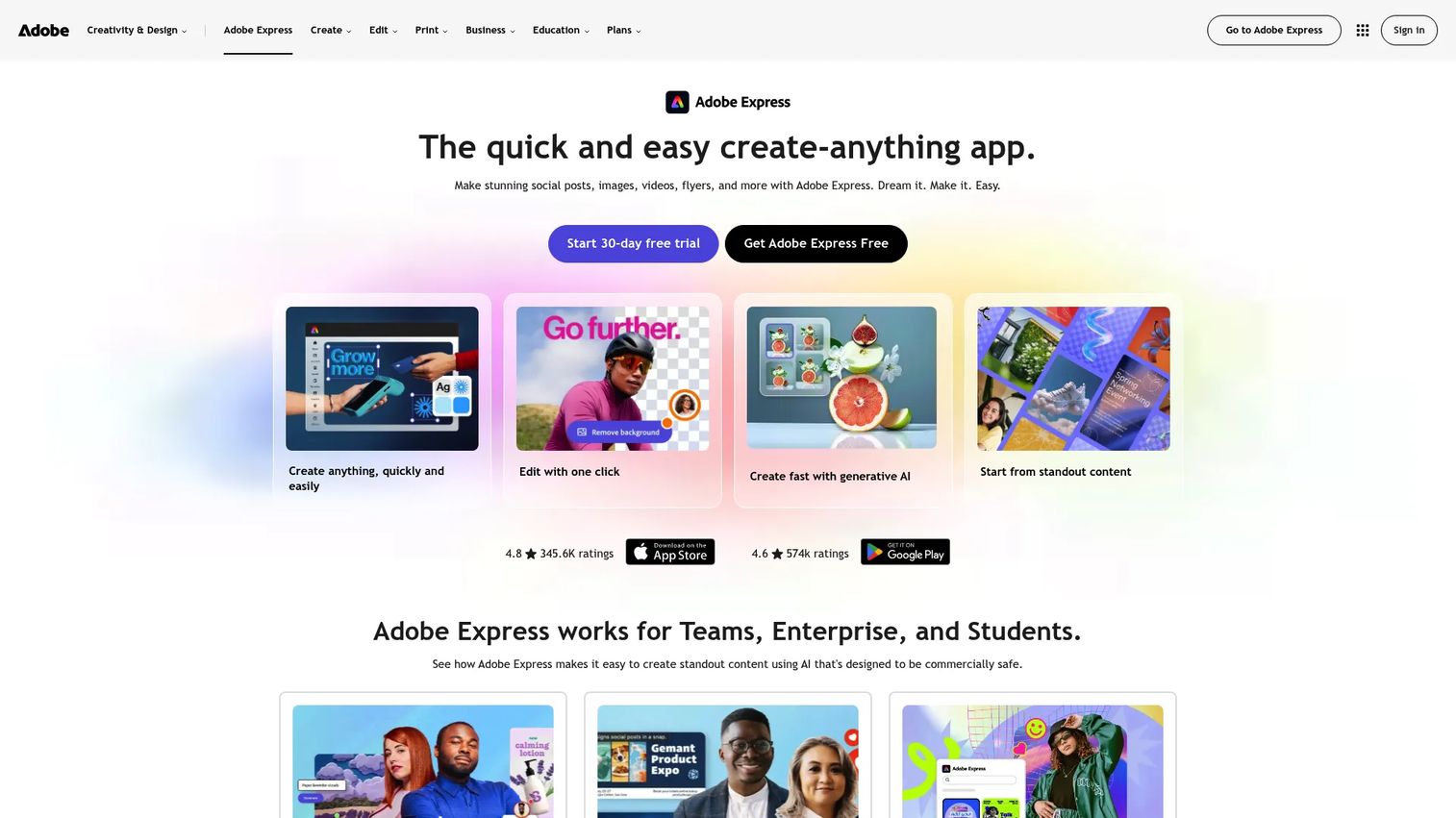
Adobe Express is Adobe's lightweight browser-based editor for fast graphics, photos, and short-form video. Its free tier covers crop, trim, resizing, captions, text overlays, and MP4 export, which is a meaningful starting point for a PM who needs a quick asset without opening a full professional editor. Adobe Firefly generative AI features add image creation and background removal on the Premium plan.
Best for: Teams that need a free or low-cost browser editor for simple product and social clips without watermarks.
Key features
- Browser-based video editing with templates
- AI photo and video tools via Adobe Firefly
- Captions and text overlays
- One-click resizing for multiple social formats
- Adobe Stock asset library
Why choose Adobe Express: Choose it when the edit is simple and speed is the priority. The free plan exports clean MP4 files, which makes it practical for quick launch clips, announcement graphics, and onboarding visuals without committing to a subscription.
Adobe Express pricing: Free plan available at $0. Premium costs $9.99/month (billed monthly). Teams plans start at $4.99/month per license for the first year (annual subscription, 2-seat minimum).
G2 rating: 4.5/5
4. Picsart
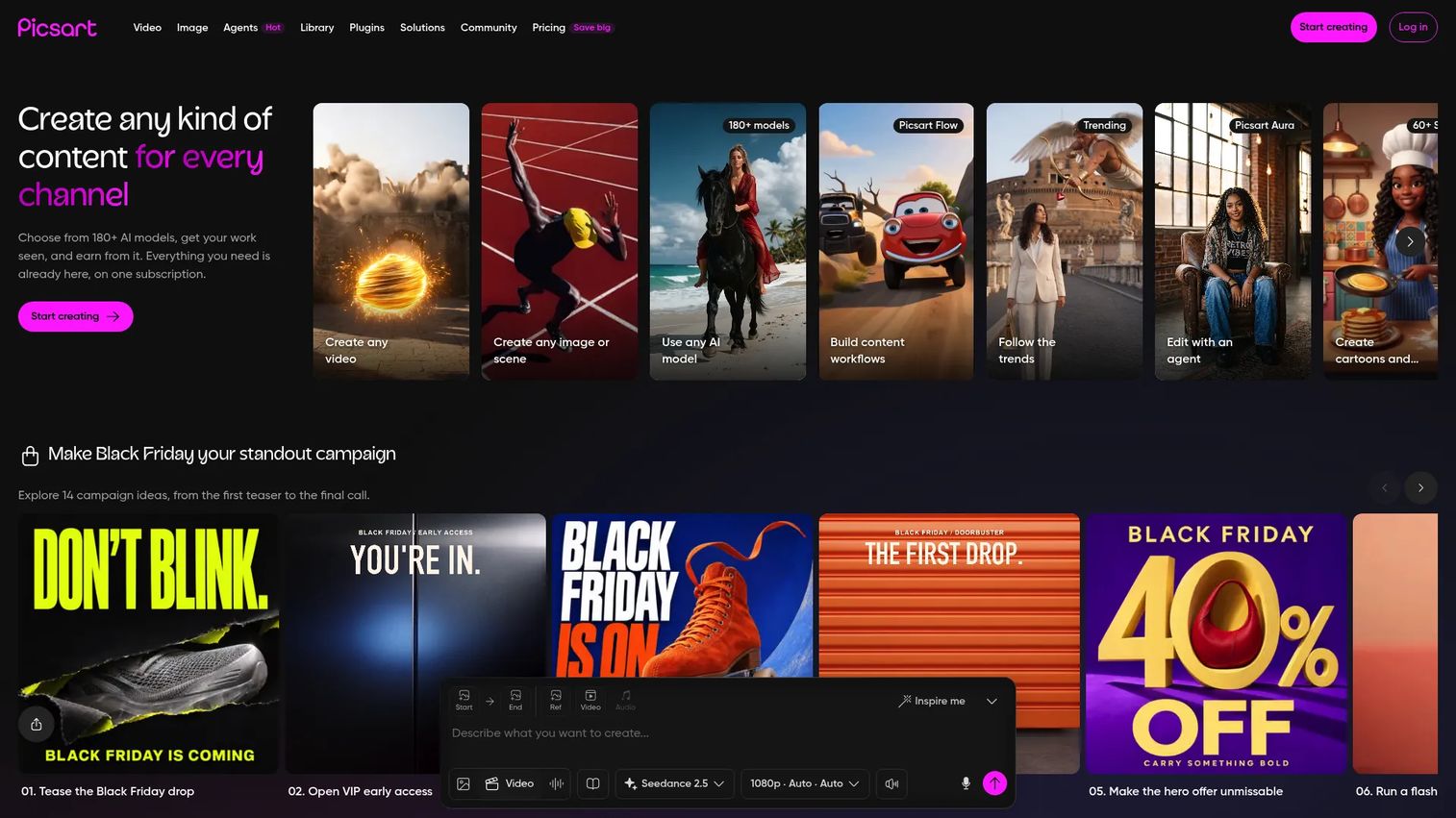
Picsart is an AI-powered creative platform for image and short-form video editing. Where most video editors treat photos as a secondary concern, Picsart treats photo and video editing as equally important. Its AI tools handle background removal, object removal, image generation, and image-to-video creation, which suits product teams building social assets around feature launches or brand moments. For teams who need standalone background removal software capabilities, Picsart bundles that into its broader creative workflow.
Best for: Product teams creating social visuals, short-form clips, and AI-generated brand content without a full video workflow.
Key features
- AI photo editing with background and object removal
- Image-to-video creation tools
- Short-form video editing with templates
- Bulk editing up to 100 images (Ultra plan)
- Mobile and web workflows
Why choose Picsart: Choose Picsart when visual assets matter as much as video, particularly for social-first product storytelling. It is better suited to creator-style content than structured postproduction workflows.
Picsart pricing: Free tier available. Pro costs $10.50/month (billed annually). Ultra runs $55/month (billed annually) and adds more AI credits and team capabilities.
G2 rating: 4.5/5
5. DaVinci Resolve
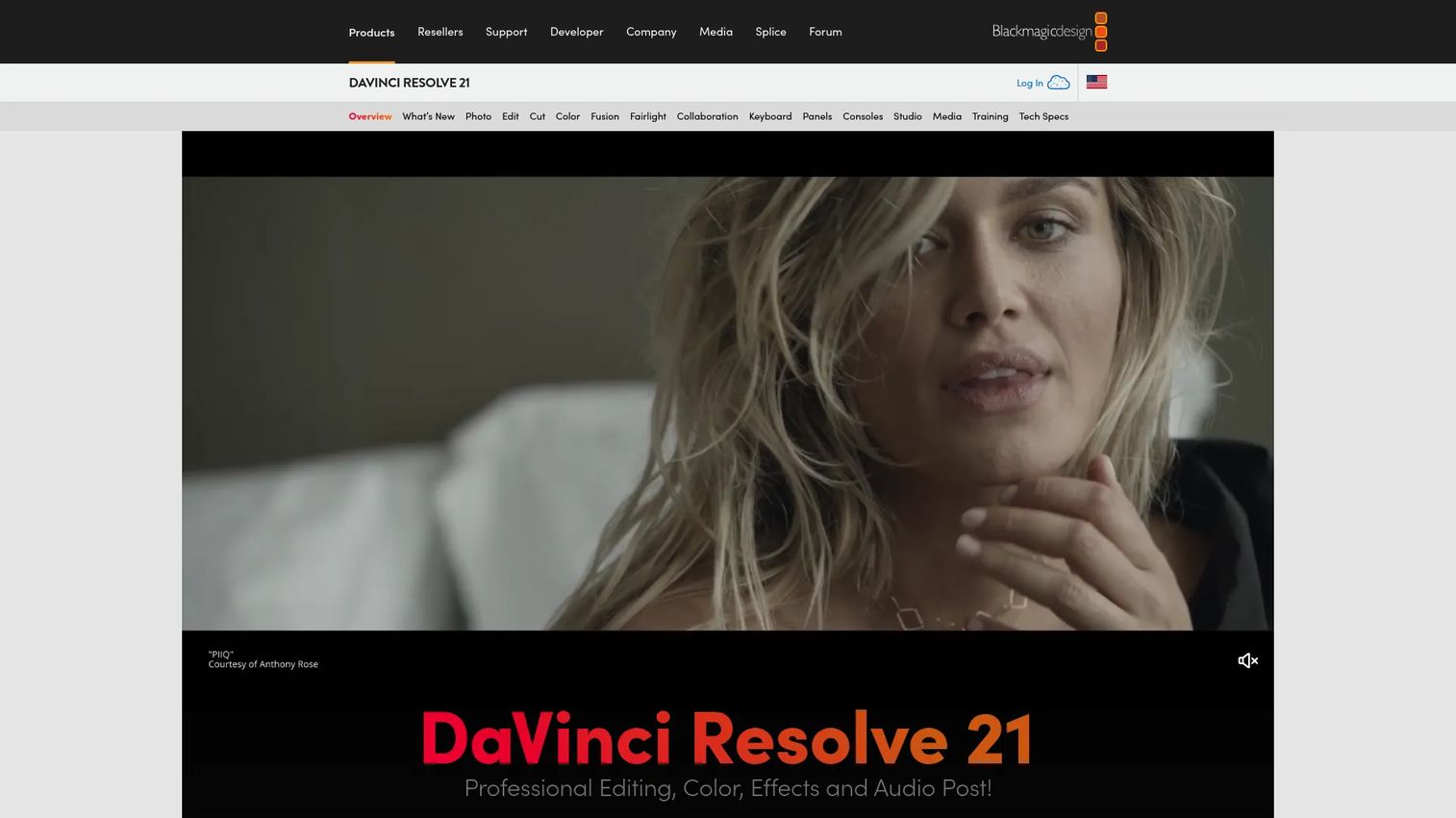
DaVinci Resolve by Blackmagic Design is a full postproduction suite covering editing, color correction, visual effects, motion graphics, and audio postproduction. The free version handles demanding professional workflows, which is unusual at that price point. Studio adds AI tools, advanced HDR grading, higher-resolution support, and collaborative cloud features. Product teams that produce high-quality launch films or event recap videos will find this competes with tools that cost considerably more per year.
Best for: Teams that need advanced postproduction and color workflows without committing to a subscription model.
Key features
- Professional timeline editing and cutting tools
- Color correction and HDR grading
- Fusion VFX and motion graphics
- Fairlight audio postproduction
- Multi-user collaboration via Blackmagic Cloud
Why choose DaVinci Resolve: Choose it when visual polish and color accuracy matter, particularly for product films, event recaps, or customer story videos where the brand's production quality is on the line. It has a steeper learning curve than template-first tools, but the depth is unmatched at no recurring cost.
DaVinci Resolve pricing: DaVinci Resolve 21 is free. DaVinci Resolve Studio 21 is a one-time purchase at $236.
6. CapCut
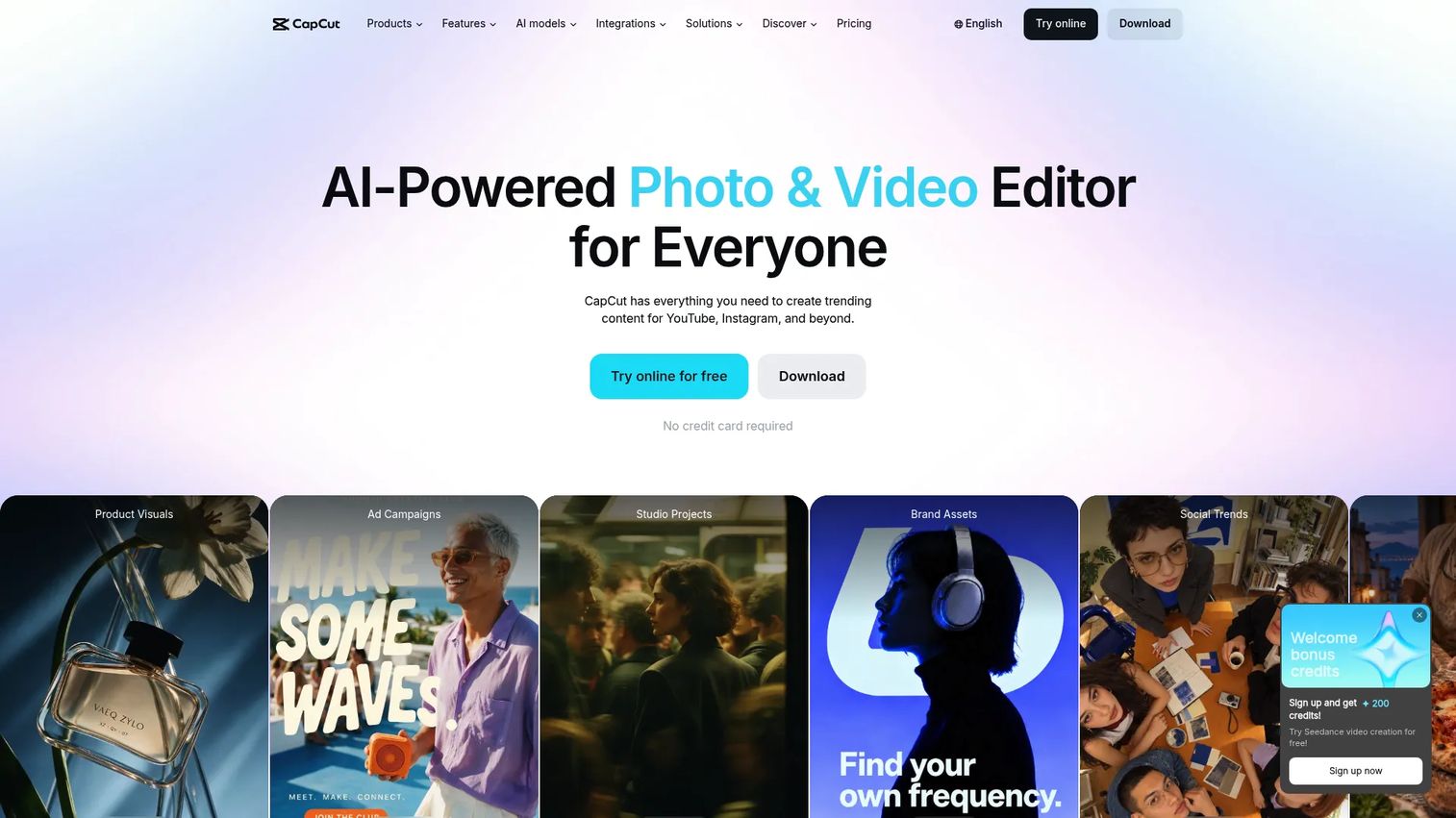
CapCut is an AI-powered video editing platform built for short-form social content across browser, desktop, tablet, and mobile. Auto captions, effects libraries, and social-ready templates make it fast to produce TikTok, Instagram Reels, and YouTube Shorts content. For product teams running social media analytics on their content, CapCut's output integrates naturally with most publishing and analytics workflows.
Best for: PMs and marketing partners producing short, social-first videos that need captions and templates without a production timeline.
Key features
- Mobile and browser video editing
- AI automatic captions with customizable styles
- Social templates for Reels, Shorts, and TikTok
- Background removal and image upscaling
- Teams plan with Brand Kit and collaboration
Why choose CapCut: Choose CapCut when the asset is short, social, and time-sensitive. It is less suited to controlled enterprise video workflows, long-form content, or teams that need robust review permissions.
CapCut pricing: Free plan available. Pro costs $19.99/month or $179.99/year. Ultra runs $79/month or $900/year. Teams plans start at $12.49/month per seat (2-seat minimum).
G2 rating: 4.3/5
7. Final Cut Pro
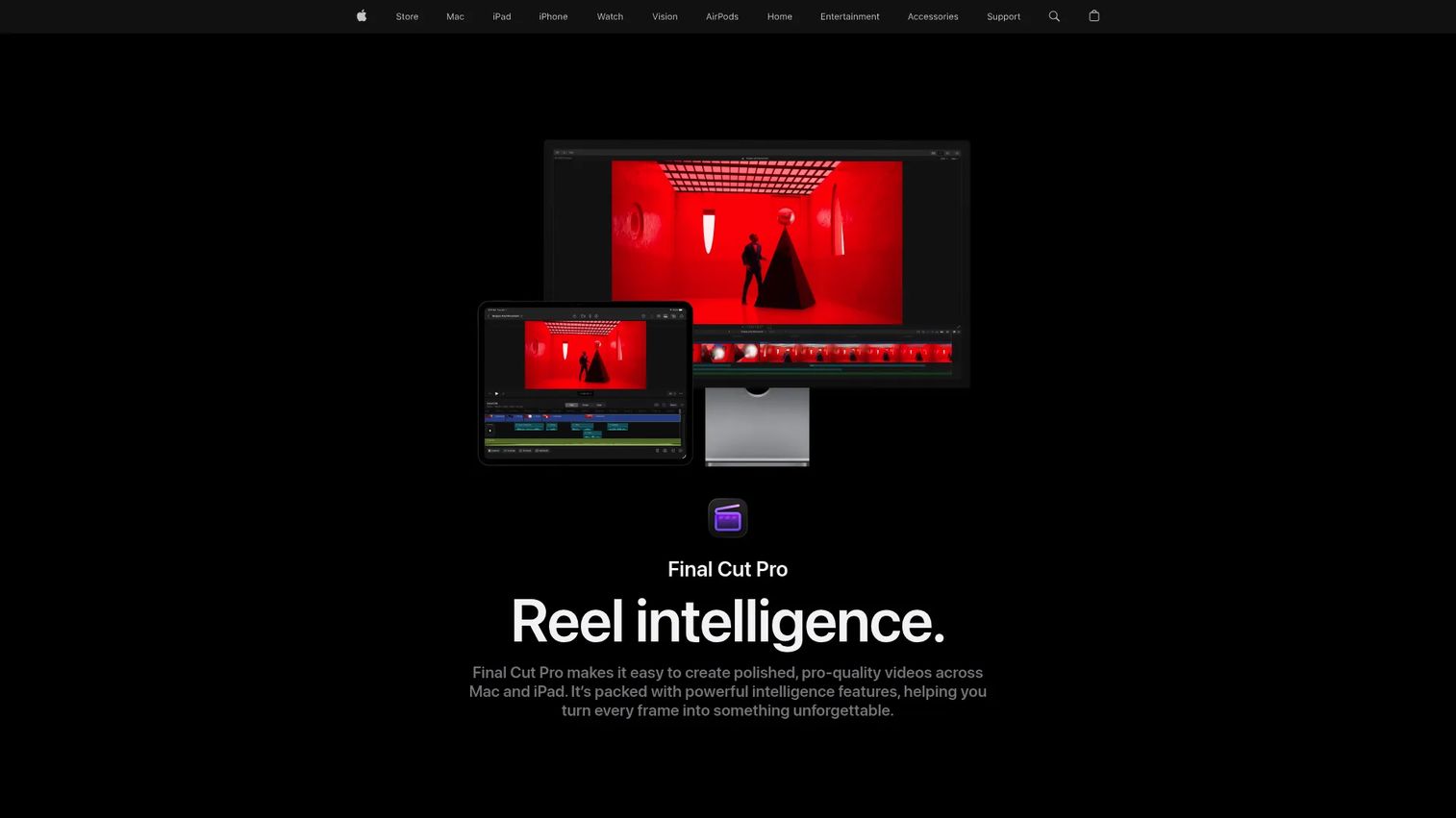
Final Cut Pro is Apple's professional video editor, built specifically for Mac and optimized for Apple silicon. Its magnetic timeline removes many of the friction points that slow down non-specialist editors compared to traditional track-based timelines. Automatic captions from spoken audio, Magnetic Mask for isolating subjects without green screen, and deep integration with Motion make it a strong choice for Mac-based product teams already in the Apple ecosystem.
Best for: Mac-based teams that need professional video editing with a one-time purchase instead of a recurring subscription.
Key features
- Magnetic Timeline for flexible, track-free editing
- Magnetic Mask for subject isolation
- Automatic captions from spoken audio
- Object tracking and machine-learning color enhancement
- Motion integration for graphics
Why choose Final Cut Pro: Choose it when your team edits on Macs and wants professional output without a monthly fee. The one-time cost pays off quickly for teams producing regular product content. It is a poor fit for mixed-OS environments since it is Mac-only.
Final Cut Pro pricing: One-time purchase at $299.99 from the Mac App Store.
G2 rating: 4.4/5
8. Wondershare Filmora
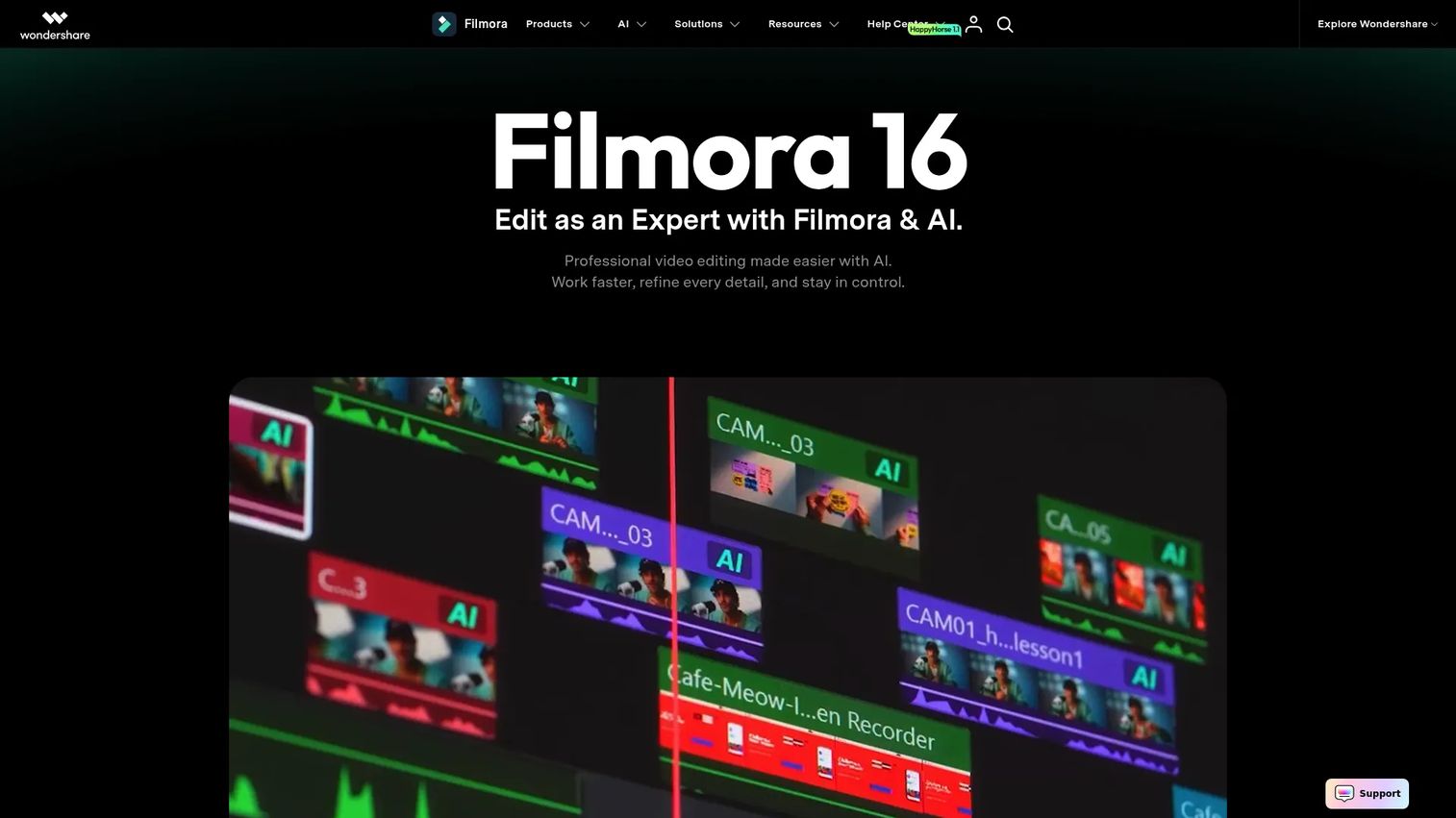
Wondershare Filmora is a video editing software designed for creators, marketers, and teams that want more control than a template editor but less complexity than professional postproduction tools. AI features cover media analysis, color matching, noise removal, and beat synchronization. Screen recording is built in, which makes it practical for creating product walkthroughs and onboarding explainers directly from a PM's desktop.
Best for: PMs and product teams producing polished explainer videos, training clips, and feature walkthroughs without a postproduction background.
Key features
- Timeline editing with keyframing and color correction
- AI media analysis and AI-powered editing
- Audio denoise, ducking, and beat synchronization
- Screen recording built in
- Effects templates and transitions library
Why choose Filmora: Choose it when your team wants structured editing capabilities and guided effects without the learning curve of professional tools. It fits recurring workflows like release notes, feature update videos, and customer education content.
Wondershare Filmora pricing: Free trial available. Monthly plan costs $19.99. Annual plan runs $49.99/year. A perpetual license is available at $79.99 as a one-time fee.
G2 rating: 4.4/5
9. Descript
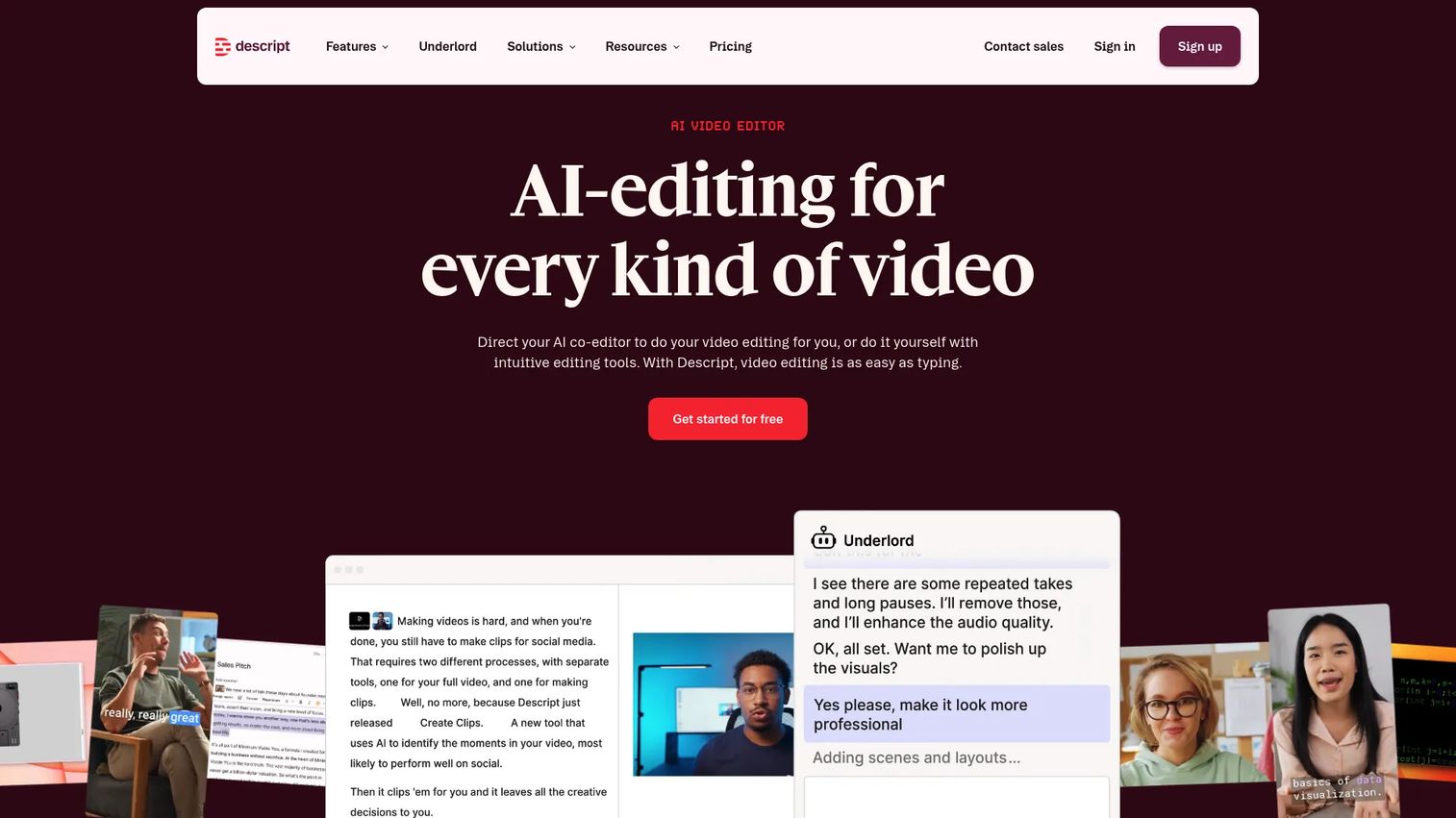
Descript is built around a different editing model: Instead of scrubbing a timeline, you edit the transcript and the video follows. That approach is faster for spoken content, interviews, narrated explainers, and podcasts. Underlord, its AI co-editor, handles filler word removal, Studio Sound audio enhancement, clip creation, and translation. Remote 4K multitrack recording makes Descript a reasonable all-in-one for teams producing narrated product demos or internal briefings.
Best for: PMs editing customer interviews, usability recordings, internal explainers, or any asset where the script drives the structure.
Key features
- Text-based editing tied directly to the transcript
- AI co-editor Underlord for cleanup and clip creation
- Studio Sound for audio enhancement
- Screen recording built in
- Automatic captions, translation, and subtitles
Why choose Descript: Choose it when the fastest edit is a word edit rather than a frame scrub. Descript excels at spoken content. For cinematic editing, visual effects, or color grading, the other tools in this list are better fits.
Descript pricing: Free plan available. Hobbyist costs $16/month. Creator runs $24/month. Business is $50/month. Enterprise pricing is custom.
G2 rating: 4.6/5
10. VEED
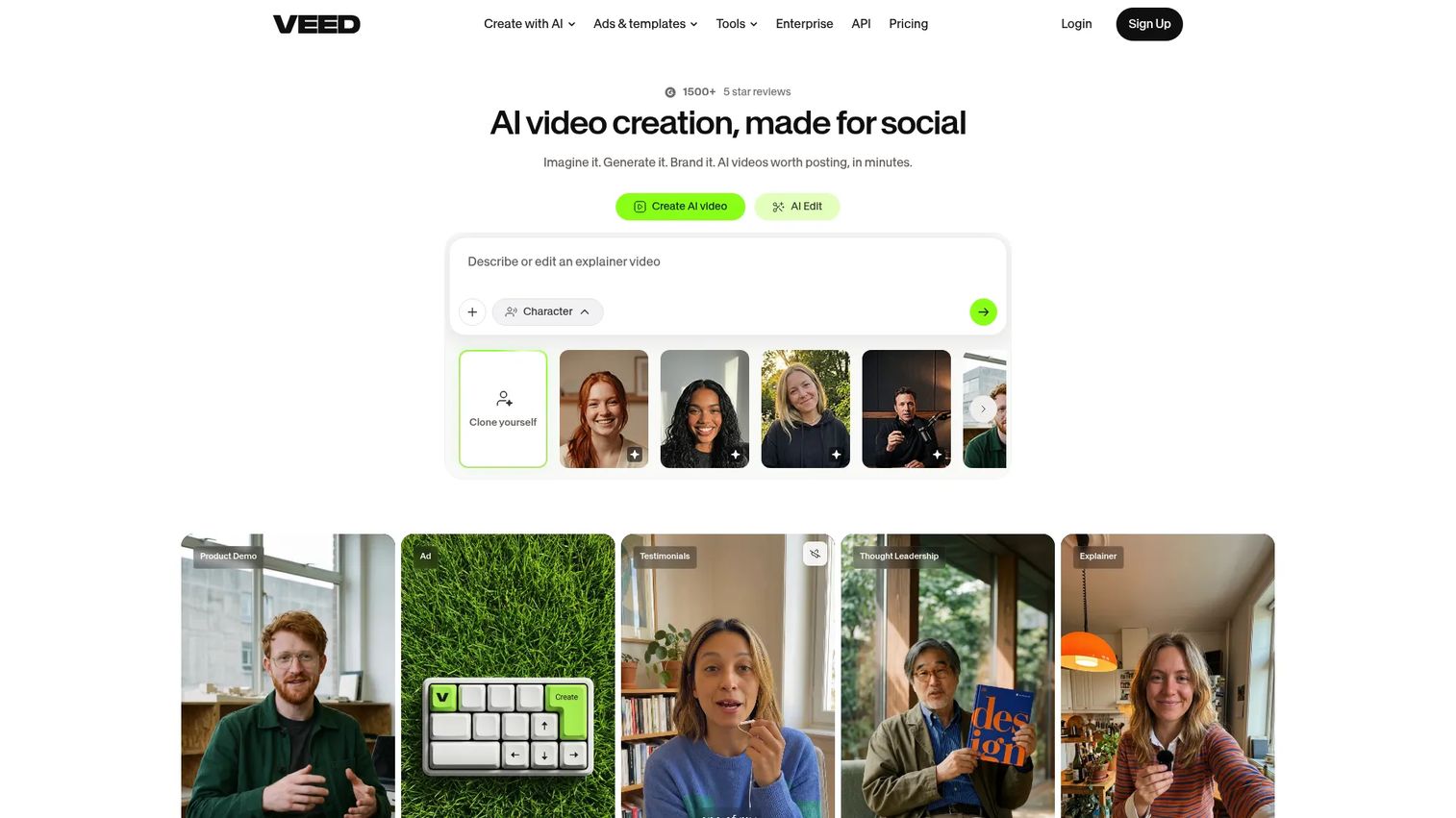
VEED is a browser-based video creation and editing platform with strong AI features for subtitles, dubbing, avatars, and voice generation. Its automatic subtitle tools handle transcription, translation, and styling in a single workflow, which matters for product teams distributing content across global audiences or accessibility-conscious channels. Brand kits and team collaboration keep assets consistent across multiple contributors without a file-sharing dependency.
Best for: Marketing teams and founders creating branded short-form video with captioning and browser-based collaboration.
Key features
- Browser-based video editing with templates
- Automatic subtitles, transcription, and translation
- AI avatars and voice generation
- Brand kits and team collaboration
- Video API for custom integrations
Why choose VEED: Choose VEED when captions, translation, and quick browser edits are the priority. It suits product explainers, short training clips, and social edits where accessibility and reach matter more than postproduction depth.
VEED pricing: Free plan available. Paid plans are billed monthly or annually on a per-seat basis. Enterprise pricing is bespoke.
G2 rating: 4.6/5
11. Kapwing
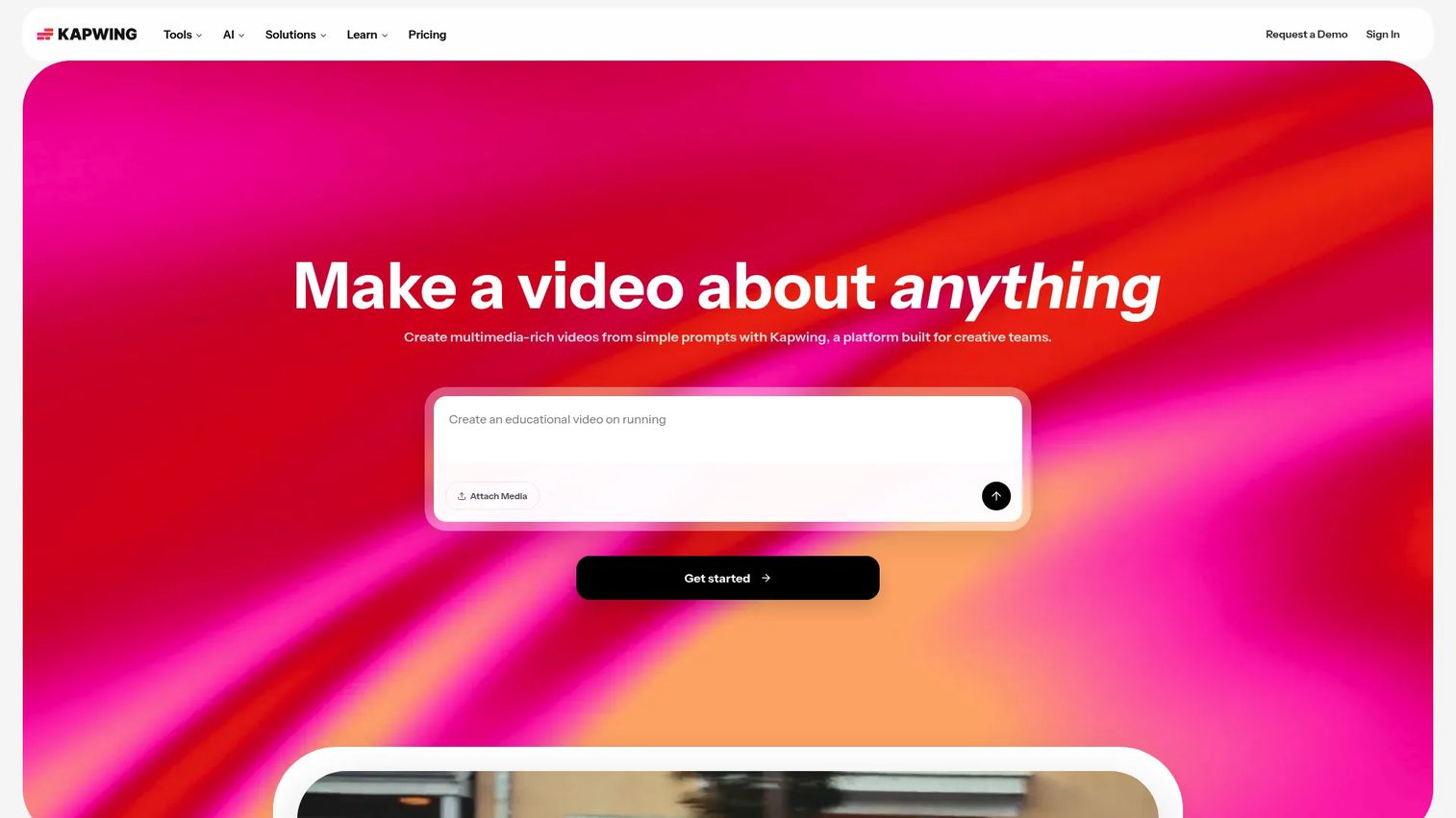
Kapwing is a browser-based content creation platform focused on collaborative editing, subtitles, translation, and video repurposing. Shared projects, comments, and Brand Kits make it practical for small cross-functional teams that need to review and iterate on assets without passing files back and forth. The free plan exports with a watermark; Pro removes the watermark and adds 4K export and 100 GB storage.
Best for: Small teams that need fast, collaborative browser editing for social clips and captioned product content.
Key features
- Browser video editing with timeline and canvas
- AI subtitles, translation, dubbing, and text-to-speech
- Collaborative workspace with shared projects and Brand Kits
- Resize presets for social formats
- Audio cleanup and noise reduction
Why choose Kapwing: Choose Kapwing when fast iteration and team collaboration in the browser are more important than postproduction depth. It is a practical tool for scrappy product, marketing, and support content loops where the edit cycle is short.
Kapwing pricing: Free plan available (watermarked exports). Pro costs $16/month per member (billed annually; $24 billed monthly). Business runs $50/month per member (billed annually). Enterprise pricing requires contacting sales.
G2 rating: 3.9/5
Considerations when choosing editor software
Match the tool to the asset, not the loudest feature list
A product launch video, a captioned support clip, and a polished customer story each have different production requirements. Identify the asset type you create most often before evaluating features. A PM producing weekly two-minute release notes has no use for DaVinci Resolve's color pipeline, while a team delivering quarterly customer films will outgrow Kapwing quickly.
Check export limits before your first real deadline
Watermarks, resolution caps, MP4 export availability, file size limits, and aspect ratio restrictions vary significantly by tool and plan. The free plan that looked sufficient in testing may not meet the standard for a customer-facing launch asset. Verify export settings on the actual plan you plan to use, not just the marketing page.
Prioritize collaboration and review flow
Product work crosses design, PMM, support, and leadership. Look for shared projects, inline comments, version history, and permission controls. A tool that only one person can access or update creates a bottleneck every sprint, which runs counter to the PM goal of reducing engineering cost and supporting faster release cadence.
Evaluate AI as an accelerator, not the whole workflow
AI trimming, captions, background removal, and generation save real time on routine tasks. Manual review is still necessary for product naming accuracy, UI detail fidelity, and brand compliance. The best AI features are the ones that handle repetitive steps, not the ones that claim to replace judgment.
Confirm fit with your release cadence
The tool that gets used every sprint is better than the tool with the most features. If updating a demo clip requires a specialist or a long setup process, your team will skip it. Prioritize tools that fit your team's current skill level and can scale as the team grows.
Conclusion
For professional postproduction, Adobe Premiere Pro and DaVinci Resolve are the strongest choices. Final Cut Pro earns its place for Mac-based teams that want a one-time purchase. Canva and Adobe Express cover the majority of fast-turnaround, team-friendly asset creation without a learning curve. Picsart and CapCut serve mobile-first and social-first workflows. Descript is the clear pick for interview editing and narrated explainers, while VEED and Kapwing handle lightweight browser editing with strong captioning.
The best editor software is the one your team can use on a Tuesday without filing a request. Match it to the asset type, check the export limits, and confirm it fits the review workflow you already run.
One note for PMs thinking beyond video: Editor software helps you polish clips and visuals. When your goal is to let users click through the product itself, consider building an interactive demo instead. A clickable product experience delivers a fundamentally different engagement model for launches, onboarding, and sales handoffs.
Start your journey with Guideflow today!
FAQs
Canva, Adobe Express, CapCut, and Kapwing are the most accessible starting points. All four prioritize templates, clear export paths, and short learning curves. Wondershare Filmora is a good step up for beginners who want a proper timeline without the complexity of professional tools.
Adobe Express and Canva's free tier both export without watermarks for most use cases. DaVinci Resolve's free version is a full professional editor with no watermark and no time limit. CapCut and Kapwing offer free tiers, but Kapwing's free exports include a watermark. Check each tool's free plan export rules before committing to a workflow.
Adobe Premiere Pro, DaVinci Resolve, and Final Cut Pro are the professional-grade choices. Premiere Pro leads on AI features and Creative Cloud integration. DaVinci Resolve leads on color and VFX depth. Final Cut Pro is the strongest option for Mac teams that want a one-time purchase. The right pick depends on your operating system, team structure, and production volume.
Canva covers the highest percentage of PM asset types: Launch visuals, onboarding clips, social cuts, and internal explainers. Descript is the fastest option for editing interviews, narrated walkthroughs, and customer calls. VEED or Kapwing work well for quick captioned clips. Adobe Premiere Pro is the right call when polished launch video requires a dedicated editor's involvement.
CapCut, Picsart, Canva, and Adobe Express all support iOS and Android. CapCut and Picsart are the most capable for mobile-first workflows. Canva and Adobe Express work well for quick edits and social resizing on the go. Mobile editing performs best on short clips and fast social updates rather than long-form production.
Adobe Express, Canva Pro, DaVinci Resolve, and Final Cut Pro all export without watermarks. CapCut and VEED remove watermarks on paid plans. Kapwing's Pro tier removes the watermark and adds 4K export. Always verify the specific plan tier before using a tool for customer-facing or public-facing assets.
Online editors run in a browser, require no installation, and are easier to share and collaborate on without file transfers. Desktop editors typically handle larger files, offer deeper postproduction control, and perform better on demanding timelines with many layers. For most PM workflows, an online editor is faster and sufficient. Desktop editors earn their place for polished long-form content where visual quality is non-negotiable.