
You built a help doc. Nobody read it.
You recorded a training video. Completion rate: 12%.
Meanwhile, your support queue keeps growing with the same questions you've already answered three times this week.
Static content fails because it asks users to translate information into action on their own. Interactive tutorials flip that model by letting users practice tasks as they learn them. This guide covers what makes interactive tutorials effective, how to evaluate tools, and nine platforms worth considering for product education, onboarding, and training.
What is an interactive tutorial
An interactive tutorial is a hands-on instructional format that combines content presentation with active user participation. Instead of passively watching a video or reading documentation, users click, drag, type, or make decisions to progress through the material.
Four characteristics separate interactive tutorials from static content:
- Active learning: Users interact to advance. Clicking buttons, completing fields, or navigating interfaces replaces passive observation.
- Real-time feedback: The tutorial responds immediately when users make correct or incorrect choices, reinforcing learning and catching mistakes early.
- Step-by-step guidance: Content follows a sequential structure that walks users through specific tasks. Each step builds on the previous one.
- Branching scenarios: Paths adapt based on user decisions. A sales rep might see different content than a support agent, even within the same tutorial.
You might be thinking: isn't this just a product tour? Not quite. Product tours typically guide first-time users through an interface in a linear fashion.
Interactive tutorials teach specific skills or workflows and can exist anywhere, including websites, emails, help centers, or learning management systems.
Why interactive tutorials outperform static content
Retention improves when users do rather than watch. Static content creates a fundamental problem: viewers disengage. Video completion rates drop significantly after the first few minutes, and PDFs get skimmed or ignored entirely.
Interactive formats hold attention because they can drive 2 to 3x higher engagement.
Format | User action | Feedback | Personalization |
|---|---|---|---|
Static PDF | Read only | None | None |
Video | Watch only | None | Limited |
Interactive tutorial | Click, type, decide | Immediate | Branching paths |
Interactive tutorials also let learners progress at their own pace and increase retention by 25 to 67%.
For marketing teams and product educators, the format offers another advantage: measurable engagement. You can see exactly where users spend time, where they drop off, and which paths they choose.
Static content gives you a view count. Interactive content gives you behavioral data.
How to choose the right interactive tutorial tool
Not every tool fits every use case. Before evaluating specific platforms, clarify what matters most for your situation.
Ease of creation without code
The best tools let non-technical users build tutorials without developer support. Look for drag-and-drop editors and browser-based capture that records your actions as you click through a workflow.
If creating a single tutorial requires engineering time or design resources, you'll produce fewer tutorials and update them less often.
Personalization and branching capabilities
Different users need different paths. A beginner exploring your product for the first time has different questions than a power user learning a new feature.
Look for tools that support conditional logic, dynamic variables, and persona-based customization. The ability to personalize demos for every prospect with CRM data or role-based content makes each tutorial feel relevant rather than generic.
Analytics and engagement tracking
What gets measured gets improved. The right tool shows completion rates, drop-off points, and time spent per step.
This data reveals where users struggle and which content converts. Without it, you're guessing about what works.
Distribution and embedding options
A tutorial only works if people actually see it. Consider how the tool lets you reach users: public links, website embeds, email campaigns, help center integration, or LMS compatibility.
The best tools let you share demos via link or embed across multiple touchpoints.
Integrations with your GTM stack
Engagement data becomes more valuable when it flows into your existing workflows. Look for connections to CRM platforms, marketing automation tools, and analytics systems.
Tools that integrate with HubSpot, Salesforce, and more make this possible without manual data entry.
9 best interactive tutorial tools
The tools below serve different use cases, from quick video walkthroughs to full enterprise learning platforms.
1. Guideflow

Guideflow is purpose-built for B2B teams creating interactive product demos that double as tutorials. Capture any workflow directly from your browser, then refine it with a no-code editor to add tooltips, CTAs, branching paths, and knowledge checks.
The platform stands out for speed: most teams create their first tutorial in under 30 minutes. AI-powered features handle translations, voiceovers, and content suggestions.
Built-in analytics track completion rates, drop-off points, and engagement by step. Data syncs to CRM and marketing automation platforms for lead scoring and follow-up prioritization.
- Best for: Product marketing, sales enablement, customer onboarding
- Standout feature: Browser-based capture with instant personalization
- Limitation: Focused on product-related tutorials rather than general e-learning courses
2. Loom
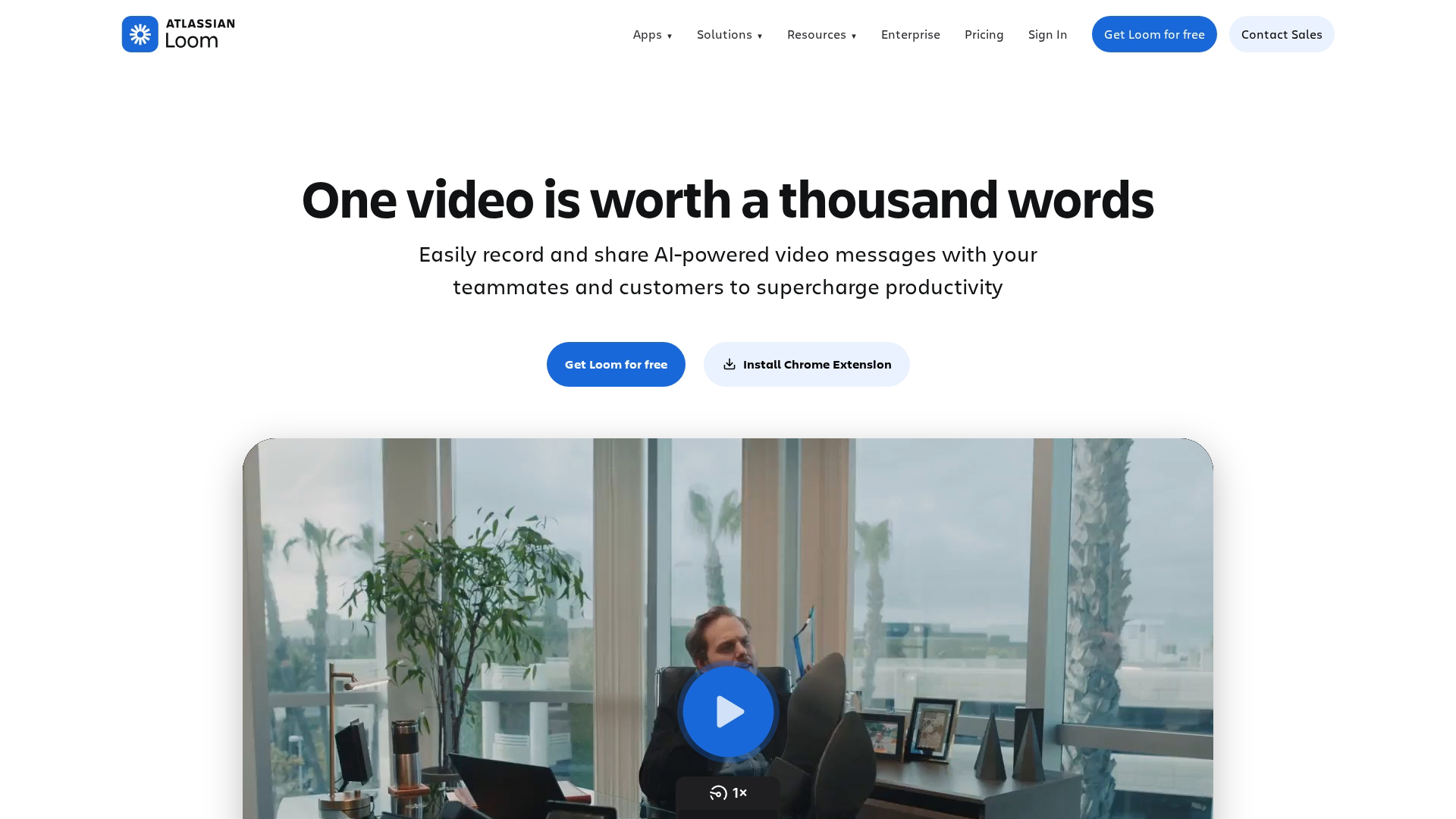
Loom excels at quick, asynchronous video tutorials with light interactivity. Record your screen and camera simultaneously, then share a link. Viewers can react with emoji, leave timestamped comments, and access transcripts.
- Best for: Internal teams, quick explanations, asynchronous communication
- Standout feature: Fast recording and sharing with viewer engagement features
- Limitation: No true branching or clickable simulations
3. Vidyard
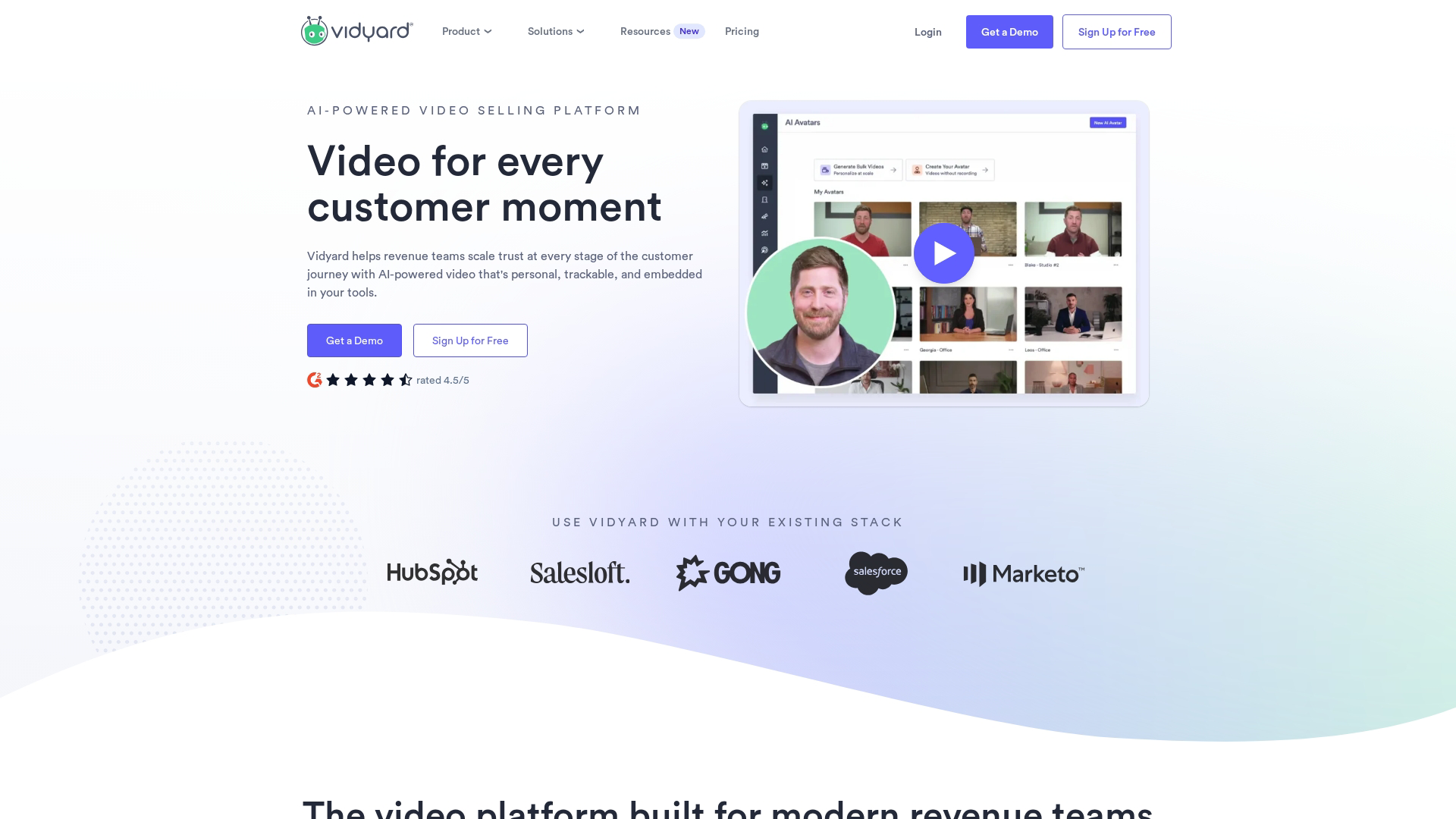
Vidyard is a video-first platform with strong engagement analytics and CRM integrations. Track who watches your videos, how long they engage, and which sections they rewatch.
- Best for: Sales teams, marketing campaigns, video-based prospecting
- Standout feature: Detailed viewer analytics with CRM sync
- Limitation: Interactivity is limited to in-video CTAs rather than hands-on simulation
4. Camtasia
Camtasia is desktop screen recording and editing software for polished tutorial videos. The editor offers professional-grade features: transitions, annotations, callouts, and audio editing.
- Best for: Teams with video production experience, polished training content
- Standout feature: Professional editing capabilities in a single application
- Limitation: Requires more production time and lacks real-time interactivity
5. Synthesia
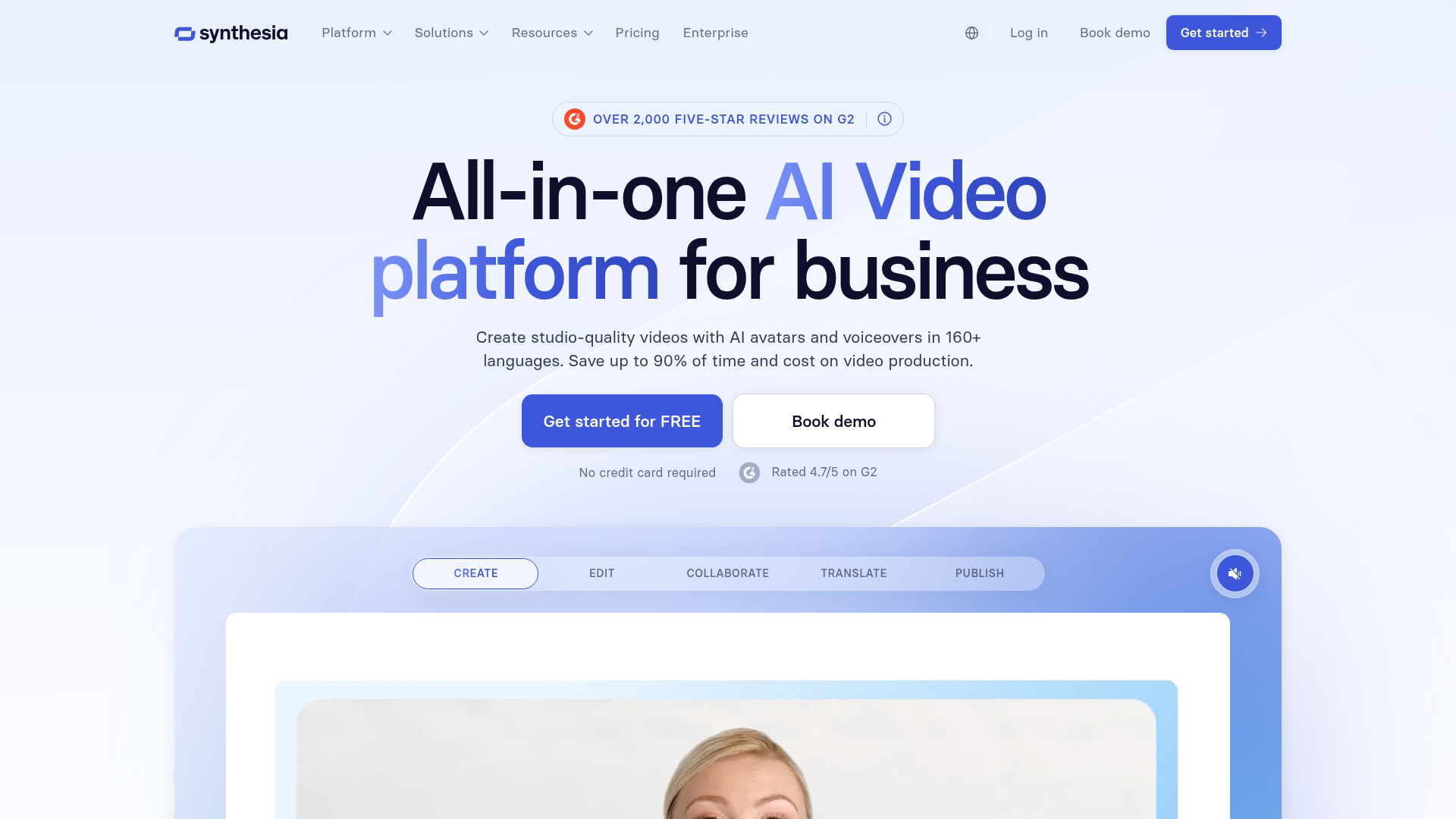
Synthesia generates video tutorials with AI-created presenters. Type a script, choose an avatar, and the platform produces a video with realistic speech and lip sync.
- Best for: Global teams, multilingual training, scaling video production
- Standout feature: AI avatars that speak any language from text input
- Limitation: Output is video-based, not truly interactive or clickable
6. Articulate 360
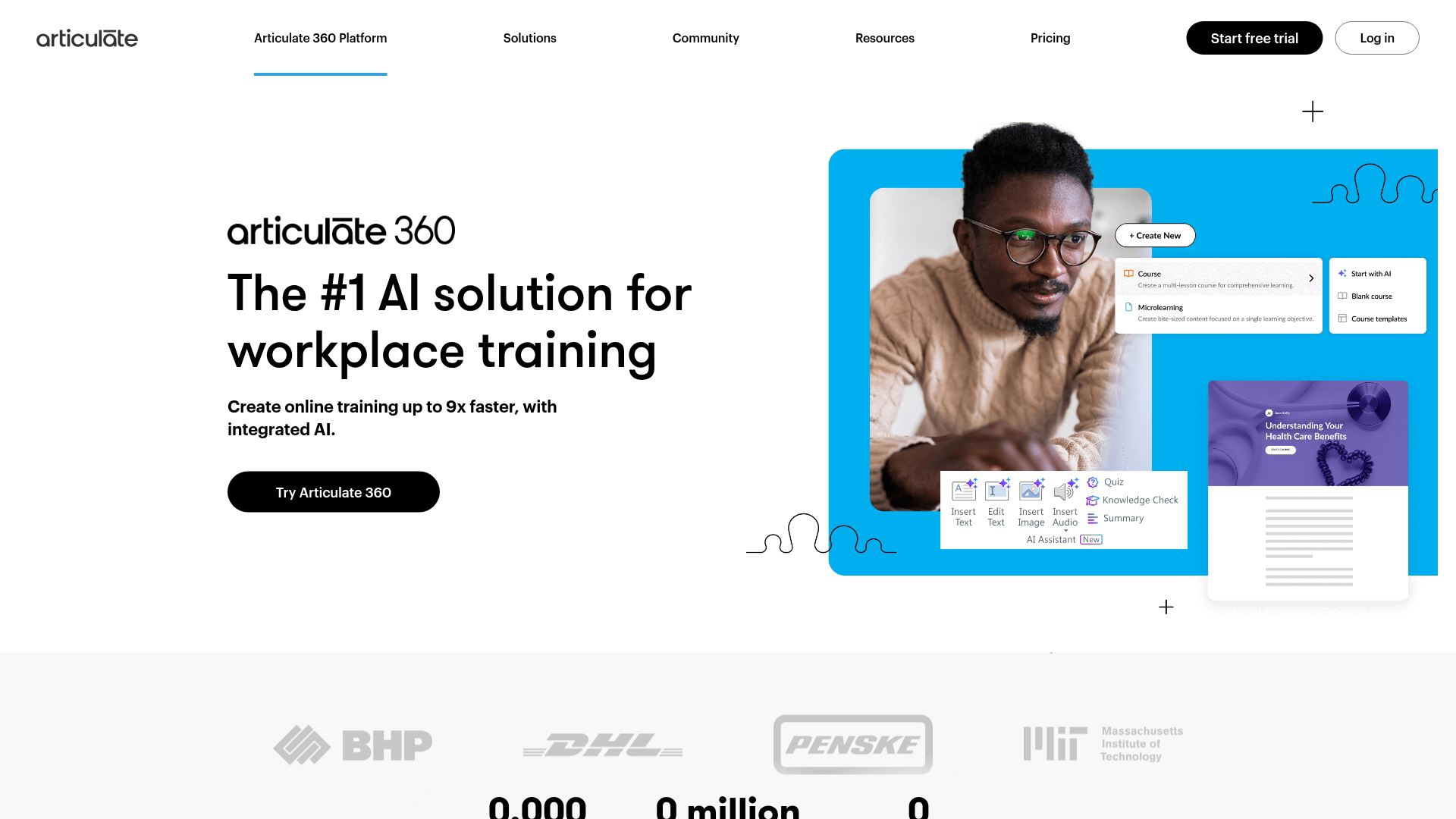
Articulate 360 is an enterprise e-learning suite for building SCORM-compliant courses with quizzes, branching scenarios, and assessments. The platform includes Storyline for complex interactions and Rise for responsive web-based courses.
- Best for: Learning and development teams, compliance training, formal certification programs
- Standout feature: Full-featured authoring with LMS integration and SCORM compliance
- Limitation: Steeper learning curve and higher price point
7. Adobe Captivate
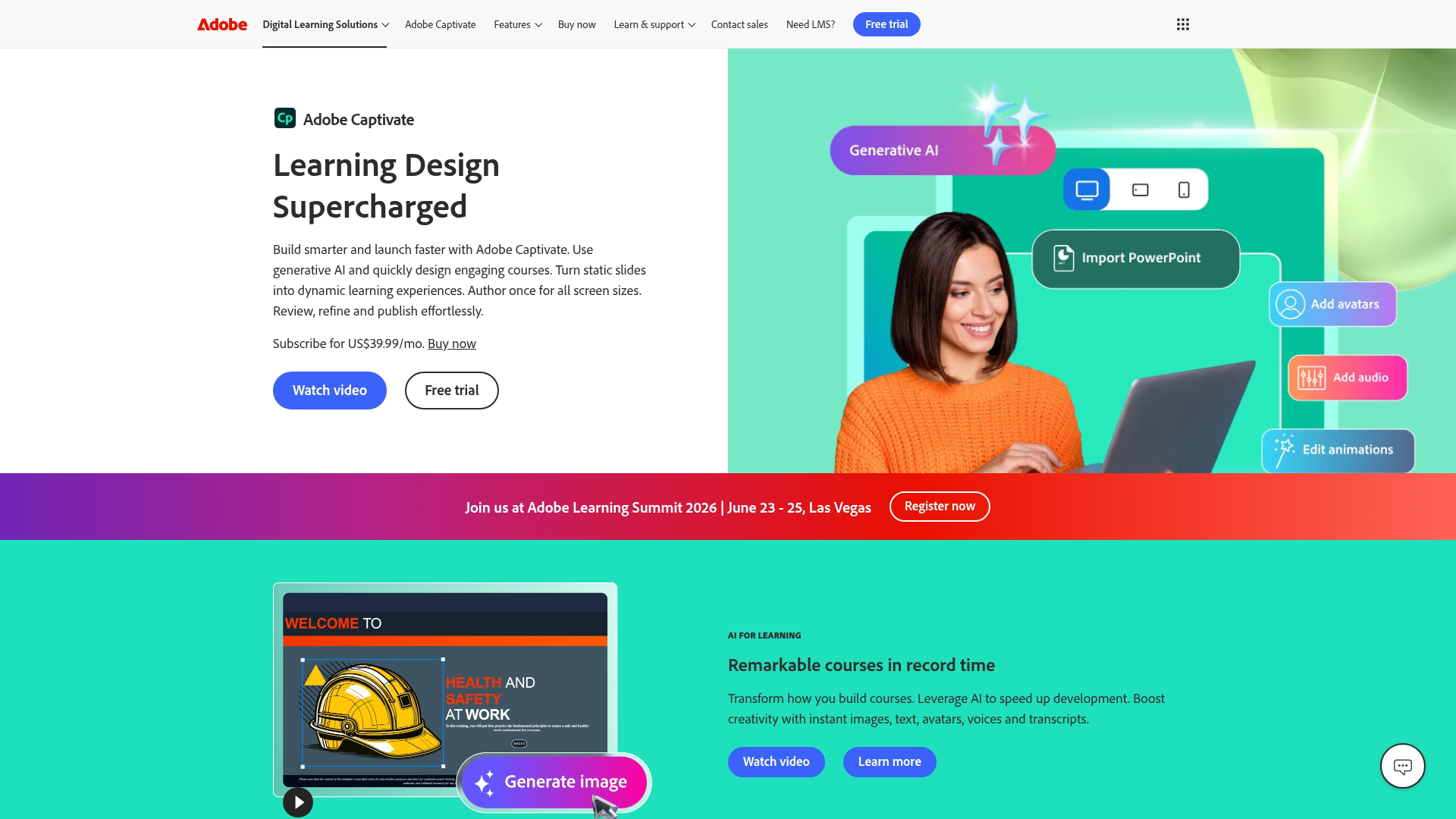
Adobe Captivate is a full-featured authoring tool for interactive e-learning with software simulations and responsive design. Create click-through demos of applications, add quizzes, and publish to multiple formats.
- Best for: Organizations using Adobe products, complex software simulations
- Standout feature: Software simulation mode that captures application interactions
- Limitation: Requires significant training to use effectively
8. iSpring Suite
iSpring Suite turns PowerPoint presentations into interactive training courses. Add quizzes, dialogue simulations, and screen recordings directly within the familiar PowerPoint interface.
- Best for: Teams with PowerPoint expertise, converting existing presentations
- Standout feature: PowerPoint-based workflow with no new interface to learn
- Limitation: Less flexibility for non-slide-based content
9. Elucidat

Elucidat is a cloud-based authoring platform for collaborative course creation at scale. Multiple authors can work on content simultaneously, and the platform includes templates and brand controls for consistency.
- Best for: Large L&D teams, distributed content creation, enterprise-scale training
- Standout feature: Collaboration features and brand governance for multi-author environments
- Limitation: Focused on formal e-learning rather than product-specific tutorials
How to create an interactive tutorial in 5 steps
Building effective tutorials follows a consistent process regardless of which tool you choose.
Step 1. Define your audience and objective
Start with who the tutorial is for and what task they need to complete. One tutorial, one objective.
Create a simple user persona: What role does this person have? What do they already know? What specific outcome do they need to achieve?
Step 2. Map the user journey
Outline the steps before building anything. Identify decision points where branching makes sense. Sketch the flow on paper or in a simple diagram.
This planning prevents scope creep and reveals gaps in your thinking. You might realize that step three actually requires two sub-steps, or that certain users need an alternative path.
Step 3. Capture or record your content
Use screen capture, video recording, or HTML capture depending on your tool. Walk through the actual workflow as a user would. Keep each segment focused on a single action.
Avoid the temptation to show everything. If you're teaching someone to create a report, show them how to create a report. Save the advanced filtering options for a separate tutorial.
Step 4. Add interactions and branching
Insert clickable hotspots, tooltips, quizzes, or decision points. Guide users with clear instructions at each step. Add knowledge checks at critical moments to reinforce learning.
The interactions serve two purposes: they keep users engaged, and they confirm understanding before users advance.
Step 5. Test, publish, and iterate
Preview the full experience before publishing. Share with a small group first, collect feedback, then refine. Use analytics to identify and fix problem areas after launch.
No tutorial is perfect on the first version. The data will show you where users struggle.
Best practices for interactive training videos
Keep each step under 60 seconds
Short segments maintain attention and let users restart specific sections easily. Long unbroken sequences cause drop-off.
When a step runs longer than a minute, look for ways to split it. What feels like one action to an expert often contains multiple sub-steps for a learner.
Use branching to match skill levels
Offer beginner and advanced paths so experienced users can skip basics. A simple branch at the start ("Are you new to this feature or looking for advanced tips?") routes users to relevant content.
Add knowledge checks at decision points
Quick quizzes or micro-assessments confirm understanding before users advance. Keep checks lightweight: a single question after a key concept, not a formal exam.
Personalize content for different roles
Sales, support, and product teams need different examples even when learning the same tool. Use dynamic variables or separate paths to tailor the experience.
How to measure interactive tutorial performance
Completion rate
The percentage of users who finish the entire tutorial. Low completion suggests content is too long, unclear, or irrelevant to the audience.
Healthy completion rates typically fall between 60-80% for interactive tutorials. If you're below 50%, investigate where users drop off.
Drop-off points
Where users abandon the tutorial. A cluster of exits at a specific step indicates a confusing or broken interaction.
This metric is more actionable than completion rate alone. It tells you exactly which step needs attention.
Time spent per step
Unusually long dwell time suggests the step is confusing. Very short time may mean users are skipping without learning.
Compare time across steps to identify outliers.
Conversion to next action
Did users complete the intended follow-up? This might be signing up, booking a call, starting a trial, or completing a related task.
This metric ties tutorial engagement to business outcomes.
Where to distribute interactive tutorials
Website and landing pages
Embed tutorials on product pages or feature landing pages for self-serve education. Visitors can explore functionality without scheduling a call since 61% prefer buying without reps.
Email campaigns and outreach
Include tutorial links in nurture sequences or sales follow-ups. Interactive content gets higher click-through than static attachments.
A pre-sales team sending a personalized tutorial after a discovery call gives prospects something to explore on their own time.
Help centers and knowledge bases
Replace or supplement text documentation with interactive walkthroughs. Users can practice tasks in a safe environment before attempting them in the real system.
Sales follow-ups and deal rooms
Send personalized tutorials after discovery calls. Buyers can explore on their own time and share with stakeholders who weren't on the call.
When a customer success team sends an onboarding tutorial, new users get hands-on practice without waiting for a training session.
Start building interactive tutorials that convert
Interactive tutorials outperform passive content because users learn by doing. The format holds attention, improves retention, and generates behavioral data you can act on.
For B2B teams focused on product education, onboarding, and sales enablement, Guideflow offers the fastest path from idea to published tutorial.
FAQs about interactive tutorials
What is the difference between an interactive tutorial and a product tour?
A product tour typically guides first-time users through an interface in-app, while an interactive tutorial teaches a specific skill or workflow. Tutorials can exist outside the product and focus on task completion rather than interface orientation.
How long should an interactive tutorial be?
Most effective tutorials take between two and ten minutes to complete. Break longer content into multiple focused tutorials rather than one extended session.
Can interactive tutorials be created without design or coding skills?
Yes. Modern tools use browser-based capture and drag-and-drop editors so anyone can build tutorials without technical expertise.
Do interactive tutorials work on mobile devices?
Most platforms support responsive design, but always test on mobile before publishing. Some interaction types work better on desktop.
How do you translate interactive tutorials for global audiences?
Look for tools with built-in localization features or AI-powered translation. Guideflow offers automatic translation and AI voiceovers to scale tutorials across languages.
What is the ROI of interactive tutorials compared to live training?
Interactive tutorials eliminate scheduling overhead, reduce trainer time, and allow learners to revisit content on demand. They scale without adding headcount.