You downloaded a 4K screen recording. The platform you need to upload it to caps files at 100MB. So you open a browser tab, find a free conversion site, wait for the upload bar to crawl, sit through an ad, and then get told your file is too large for the free tier anyway.
That loop repeats more than most people admit. A different site for audio. Another for PDFs. A fourth for images. Each one wants an email, an upload, or a credit card before it does the one job you came for.
There is a faster way, and it lives on your own machine. A good file converter software runs locally, handles audio, video, images, documents, archives, and even 3D meshes, and often plugs straight into the Windows right-click menu so conversion is two clicks from File Explorer. No upload. No waiting. No third party touching your files.
That last point matters more every year. The global file conversion software market sat at roughly USD 3.48B in 2023 and is projected to reach USD 7.88B by 2032 at a 9.5% CAGR, according to Dataintelo (2024). G2 now tracks over 1,400 products in its file converter category as of June 2026. The category is crowded, and most of the noise is browser tools that trade your privacy for convenience.
This guide cuts through that. We compared desktop and utility-style converters built for fast, local, Windows-friendly work. If you also need to communicate visually rather than just convert files, formats like an interactive demo solve a different problem, but here we stay tightly focused on conversion. For software roundups in adjacent categories, our guides to ai app builder software and application performance monitoring tools follow the same comparison logic.
What's inside
This guide is for Windows users, office workers, content creators, IT-adjacent operators, and anyone who values privacy and wants conversion done on their own device. We focused on tools you install or run yourself, not generic web utilities.
We selected and ranked the 11 picks on five criteria:
- Format breadth across audio, video, image, document, archive, and 3D formats
- Local and offline processing that keeps files on your machine
- Batch conversion for folders, libraries, and repeated jobs
- Workflow access, including right-click and File Explorer integration
- Pricing and install model, from free open source to paid suites
Each entry below covers what the tool does, who it fits, its key strengths, and pricing where a public figure exists.
TL;DR
Short on time? Here are the decision shortcuts:
- Best for Windows right-click conversion: File Converter. Open source, free, and built into the Explorer context menu.
- Best for privacy-first browser conversion: Convertify. Runs locally in your browser with no signup.
- Best for broad offline format coverage: CoolUtils File Converters. A Windows suite spanning 1,400+ formats.
- Best for media conversion: Prism for video, Switch for audio, Pixillion for images.
- Best for documents and PDFs: Doxillion for batch document jobs, Adobe Acrobat Pro for heavy PDF work.
- Best for free home use: Most NCH converters offer a free non-commercial version.
What is file converter software?
File converter software is a program that changes a file from one format to another, often with optional compression, so the file works in a different app, platform, or workflow.
Most converters fall into a few clear categories. Knowing which one fits your job saves time before you download anything.
- Desktop converters: Installed Windows programs that process files locally. Fast, offline, and often batch-capable. Examples include dedicated audio, video, image, and document tools.
- Right-click and File Explorer converters: Lightweight utilities that add conversion straight to the Windows context menu, so you convert without opening a separate app.
- Browser-based converters: Web tools you reach from any device. Convenient for one-off jobs, though some process files on a server and others run locally in the browser.
- Suite-based converters: Bundles that group many format-specific converters, or one all-in-one program covering audio, video, images, documents, and more.
Key traits buyers compare:
- Format breadth: MP4, MOV, MKV, MP3, WAV, FLAC, JPG, PNG, WEBP, PDF, DOCX, EPUB, ZIP, 7Z, STL, and more.
- Offline processing: Whether files stay on your machine or get uploaded.
- Batch handling: Converting entire folders or libraries in one pass.
- Compression: Shrinking files for upload limits, email, or storage.
- Install model: Free, open source, one-time license, subscription, or trial.
The practical question is rarely "which tool is best" in the abstract. It is "which converter matches the formats, volume, and privacy level my work actually needs."
When to use file converter software
A dedicated converter beats ad hoc online tools in several recurring situations. Here are the ones that come up most.
Converting media for upload or playback
You record video in one codec and a platform demands another. You have FLAC files a car stereo won't read. A media converter software tool handles the format swap locally, with batch support so an entire library converts in one pass instead of one file at a time on a slow web uploader.
Converting and sharing office documents
A client needs DOCX, your draft is in ODT, and the recipient only opens PDF. A document converter software tool moves between Office, text, and PDF formats without forcing you to install a full office suite for a single conversion. Batch mode turns a folder of mismatched documents into one consistent format.
Compressing files for delivery
Email attachment limits and storage caps are real. Compression and conversion often live in the same tool. You can shrink a video, flatten a PDF, or zip an archive before sending, all without leaving your desktop.
Batch converting folders
The biggest time sink is repetition. A batch file converter processes hundreds of files in one job: a photo shoot exported to WEBP, a podcast back catalog to MP3, a documentation folder to PDF. Set the output format once, point it at the folder, and walk away.
Working offline or with sensitive files
When a file contains contracts, financials, or anything private, an offline file converter keeps it off third-party servers entirely. Secure local conversion is the default reason IT-conscious buyers skip web tools.
Comparison table
Here is how the 11 tools compare at a glance. Pricing reflects publicly listed figures at the time of writing; where a vendor shows no public price, we note the free tier instead. Ratings come from G2 where a current listing exists.
| # | Product | Intent | Key use case | Pricing | G2 rating |
|---|---|---|---|---|---|
| 1 | File Converter | Right-click Windows conversion | Context-menu audio, video, image, document conversion | Free, open source | Not listed |
| 2 | Convertify | Privacy-first browser conversion | Local in-browser PDF and file conversion | Free | Not listed |
| 3 | Prism | Video conversion | Convert and compress across 100+ video formats | Free non-commercial version | Not listed |
| 4 | Switch MP3 Converter | Audio conversion | Batch audio format conversion | From $39.95 (home use) | Not listed |
| 5 | Pixillion Image Converter | Image conversion | Batch image convert, resize, compress | From $11.64/quarter | Not listed |
| 6 | Doxillion Document Converter | Document conversion | Batch document and PDF conversion with OCR | Free non-commercial version | 4.4/5 |
| 7 | Spin 3D | 3D mesh conversion | Convert 3D model formats including STL | Free non-commercial version | Not listed |
| 8 | Express Rip CD Ripper | CD-to-digital conversion | Rip audio CDs to MP3, WAV, AAC | Free non-commercial version | Not listed |
| 9 | Express Zip | Archive compression | Create and extract ZIP, RAR, 7Z, and more | Free non-commercial version | Not listed |
| 10 | SwiftConverter | Online multi-format conversion | Browser conversion for image, audio, video, docs, 3D | Free; Premium $4.95/mo | Not listed |
| 11 | Adobe Acrobat Pro | PDF conversion and editing | Convert, edit, and export PDFs | From $19.99/mo | 4.5/5 |
| - | CoolUtils File Converters | Broad offline Windows conversion | 1,400+ formats, specialized or all-in-one | From $24.90 one-time | Not listed |
1. File Converter
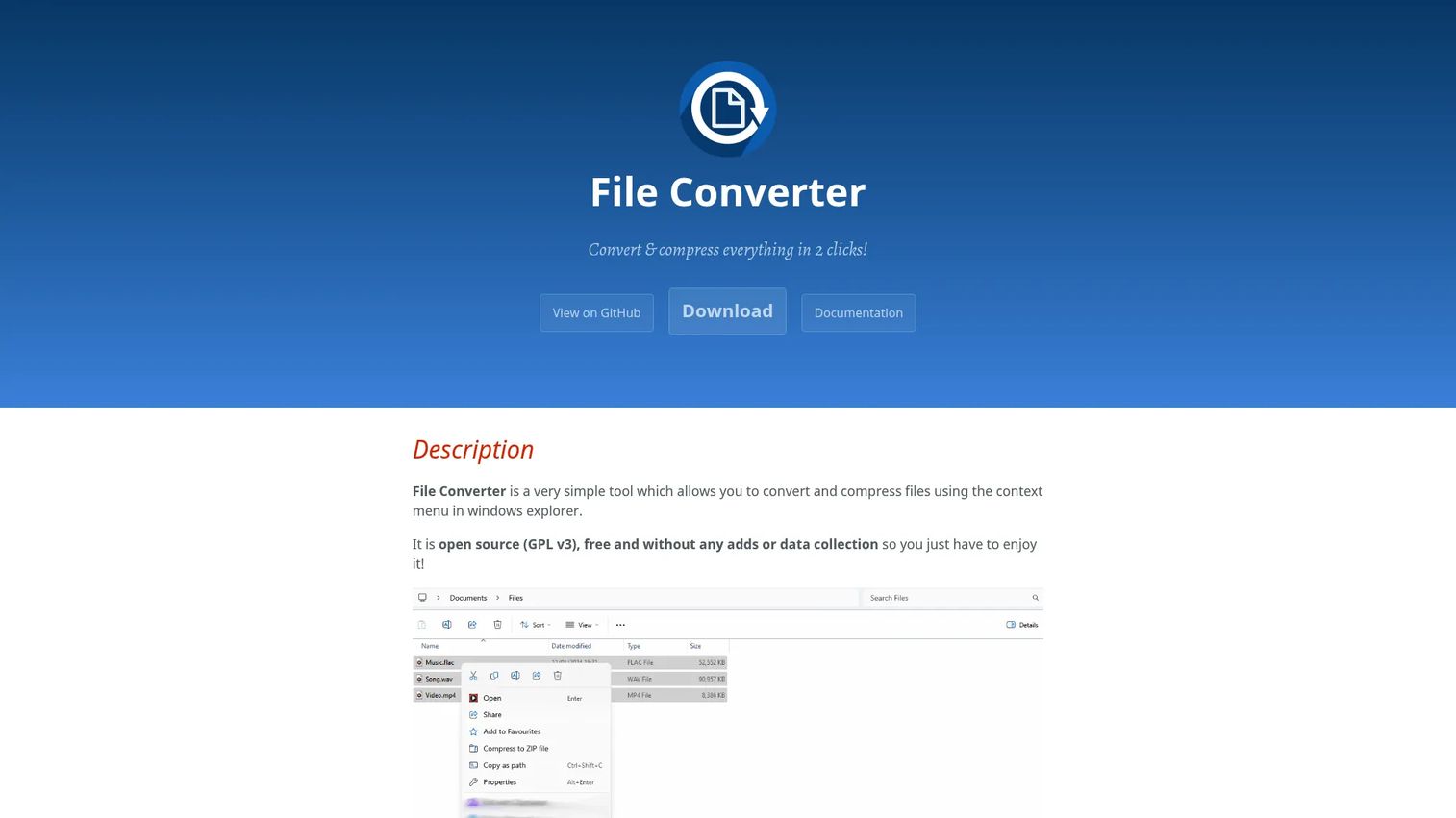
File Converter is the benchmark for simple Windows workflow. It is a free, open-source utility that adds conversion and compression directly to the Windows Explorer right-click menu. You select one or more files, right-click, pick a target format, and the job runs locally. No separate window to open, no upload, no account. For people who convert files several times a week, that two-click loop is the entire pitch, and it delivers.
It handles audio, video, image, and document conversions, and it lets you customize presets so your most common conversions are one click away. Because it is licensed under GPL v3, the code is open to inspection, and the project states it carries no ads and collects no data. That combination, free plus open source plus local-only, is exactly what privacy-conscious Windows users look for in a right click file converter.
Best for: Windows users who want quick local file conversion and compression straight from File Explorer.
Key strengths
- Context-menu workflow: Convert and compress from the right-click menu without opening a separate app.
- Local processing: Files never leave your machine, so conversion stays private and fast.
- Open source, no data collection: GPL v3 licensing with no ads and no tracking.
Why choose File Converter: If your main need is fast, repeatable conversion of common formats on Windows, this is the cleanest fit. The preset customization means your weekly jobs stay one right-click away, and the open-source model gives IT-conscious users a transparency standard the paid web tools rarely match. It is the natural starting point before you decide you need anything heavier.
File Converter pricing: Free. The project is open source under GPL v3 with no paid tiers and no public pricing, because there is nothing to buy. It is a genuine free file converter download rather than a trial that nags you toward an upgrade.
2. Convertify
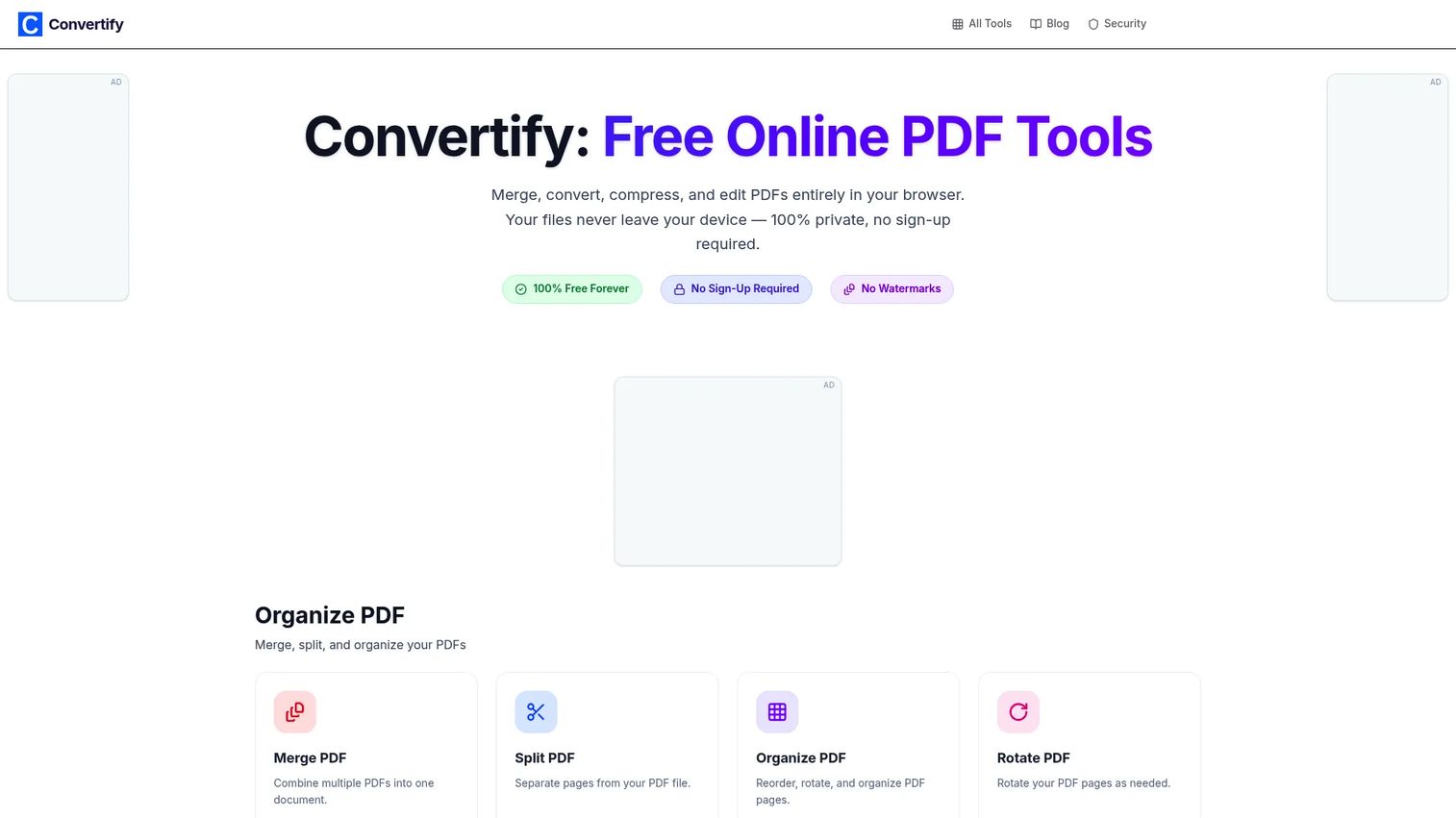
Convertify takes the privacy angle and applies it to the browser. Instead of uploading your file to a server, it runs conversions locally in your browser, so the data stays on your device even though you never install anything. There is no signup and no credit card, which makes it a fast option for one-off PDF, image, and data conversions when you do not want to commit to a desktop install.
For office workers who bounce between machines, a browser tool that does not phone home solves a real tension: the convenience of web access without the usual privacy cost of uploading sensitive documents. It positions itself squarely as a privacy-first file converter, and the local-in-browser processing is what backs that claim up.
Best for: Individuals and teams that want private, no-cost PDF and file conversion without installing software.
Key strengths
- Local in-browser processing: Conversions run on your device, not a remote server.
- No signup required: Start converting immediately with no account or email gate.
- Free, unlimited tools: PDF, image, and data conversion with no per-file caps.
Why choose Convertify: Pick it when you want browser convenience but refuse to upload private files to a stranger's server. It fills the gap between clunky ad-heavy web converters and a full desktop install, which makes it handy on locked-down work machines where you cannot install programs freely.
Convertify pricing: Free forever. The site shows a single Forever Free offering at $0, with no subscriptions and no credit card required. That makes it one of the more straightforward free file converter options for browser-based work.
3. Prism
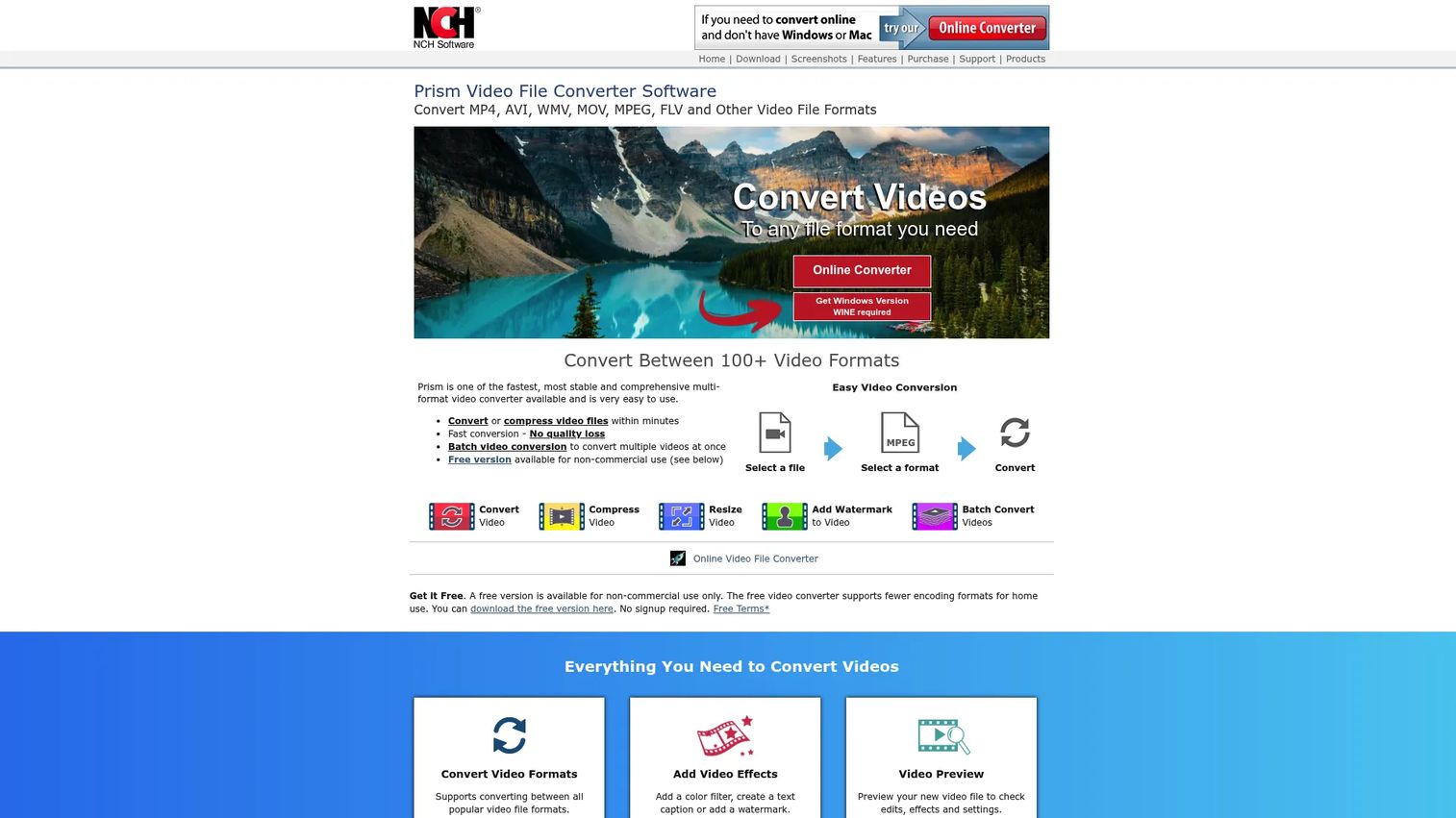
Prism is NCH Software's video converter, and it keeps a narrow, useful focus. It converts between 100+ video formats, runs batch conversion across many files at once, and includes editing touches like trim, split, rotate, flip, crop, and watermarking. For anyone who regularly wrangles MP4, MOV, MKV, AVI, and the rest into a single playable or uploadable format, that breadth covers nearly every codec headache.
This is a file converter program with a media specialty, not a do-everything suite. That focus is the point. If your problem is video specifically, a dedicated converter gives you compression controls and format options a general tool often skips. It runs on Windows as a desktop install, so conversion happens locally and batches process without uploading anything.
Best for: Users who need a straightforward video format converter with batch processing and basic editing.
Key strengths
- 100+ video formats: Convert between nearly any common and uncommon video codec.
- Batch video conversion: Queue many files and convert them in a single pass.
- Built-in editing: Trim, split, rotate, crop, and add effects or watermarks before export.
Why choose Prism: Choose it when video is your recurring conversion job and you want compression plus light editing in the same tool. The batch queue saves real time on libraries, and the local desktop model means large 4K files never crawl through a web uploader.
Prism pricing: A free version is available for non-commercial use. NCH offers paid licenses for commercial use, though the public pricing page did not surface a confirmed figure at the time of writing. For home users, the free download covers most personal video conversion needs.
4. Switch MP3 Converter
Switch MP3 Converter is NCH's audio specialist. It converts audio files between a wide range of formats, supports batch conversion for whole folders, and lets you drag and drop files or play them back before converting. If you have a music library in FLAC that needs to become MP3, or voice recordings in one format your editing app refuses to open, this is the tightly scoped tool for the job.
Audio conversion sounds simple until you hit a format wall, and a dedicated converter handles the edge cases a general tool fumbles. Switch keeps the workflow direct: load files, pick an output format, batch convert. As a Windows desktop install, it works offline, which matters for large libraries you do not want to push through a browser.
Best for: Users who need a straightforward desktop audio-format converter with batch support.
Key strengths
- Wide format support: Convert across many common and less-common audio formats.
- Batch conversion: Process entire folders of audio in one job.
- Drag-and-drop with preview: Load files easily and play them back before converting.
Why choose Switch: Pick it when audio is your core conversion need and you want speed plus batch handling without a media suite's overhead. The preview before conversion is a small but genuinely useful guard against converting the wrong file.
Switch pricing: A free download is available, with home use licensing from $39.95 one-time. NCH also lists a Commercial License at $59.95 and a Professional License at $79.99, plus subscription options. The free version covers basic personal audio conversion.
5. Pixillion Image Converter
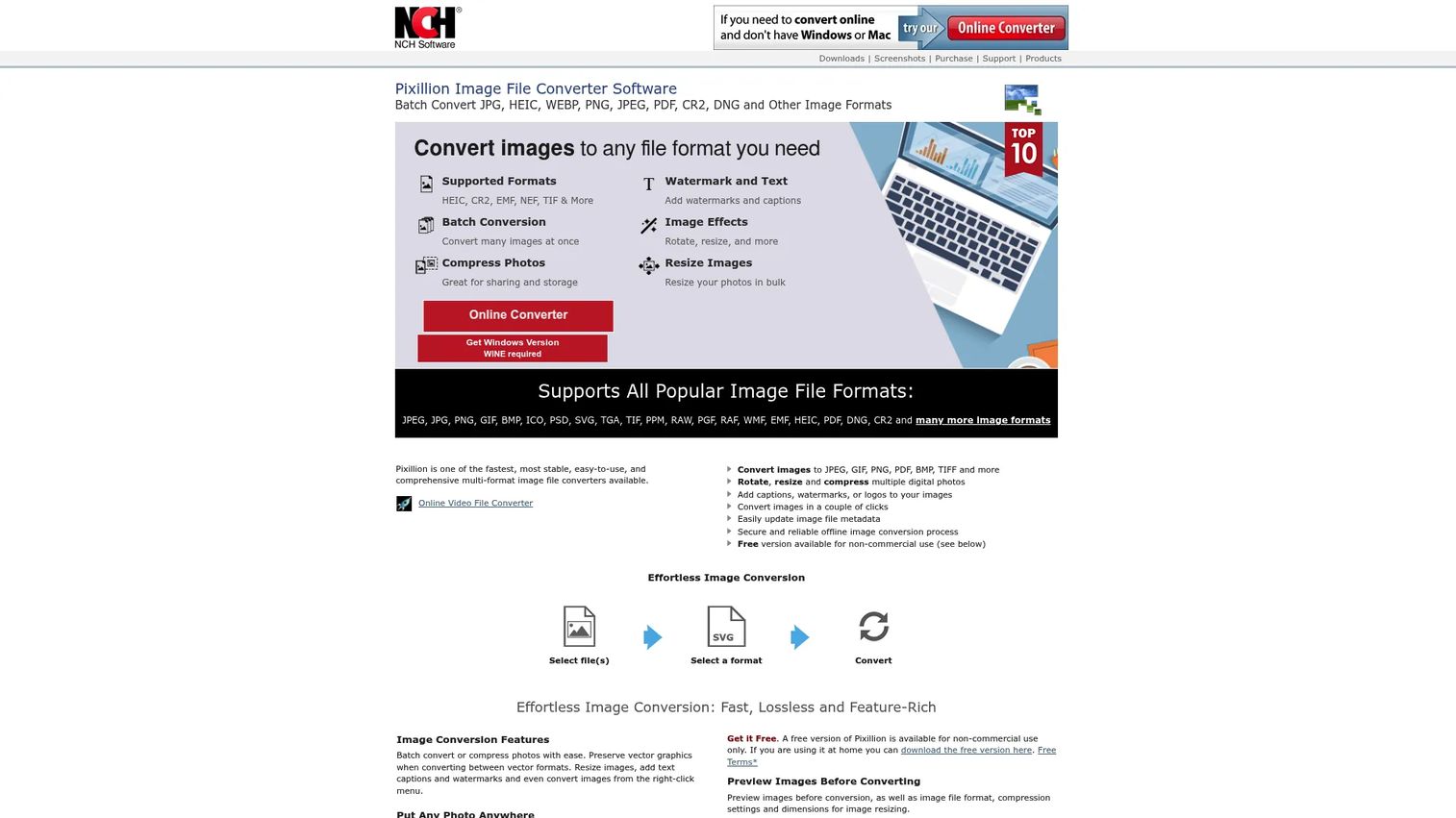
Pixillion Image Converter handles images at scale. It batch converts or compresses photos, resizes, rotates, crops, and flips them, and adds captions, watermarks, logos, or metadata in the same pass. For anyone converting screenshots to PNG, photos to JPG, or graphics to WEBP for the web, the batch handling turns a tedious one-by-one task into a single operation.
This is where image-heavy workflows get efficient. A designer exporting a shoot, a marketer prepping graphics, or an office worker shrinking screenshots for a doc all hit the same wall: too many files, too many manual steps. Pixillion's combination of conversion, compression, and light editing covers that in one Windows desktop tool that runs locally.
Best for: Users who need a simple desktop tool for bulk image format conversion and light edits.
Key strengths
- Batch convert and compress: Process whole folders of images in one job.
- Resize and edit: Rotate, crop, flip, and resize during conversion.
- Watermarks and metadata: Add captions, logos, watermarks, and update metadata.
Why choose Pixillion: Choose it when image volume is your bottleneck and you want conversion plus resizing and watermarking together. The batch compression is especially handy for prepping images that need to fit upload or page-weight limits.
Pixillion pricing: A free version is available for non-commercial use. Paid plans include a Premium Edition Quarterly Plan at $11.64 quarterly, a Standard Edition Annual Plan at $34.99+VAT/year, and a Premium Edition Annual Plan at $49.99+VAT/year.
6. Doxillion Document Converter
Doxillion Document Converter is NCH's document specialist, and it earns a 4.4/5 on G2. It batch converts across many document types including PDF, Word, HTML, and EPUB, runs OCR to turn scanned files or images into editable text, and includes PDF utilities like merge and compress. For office workers juggling DOCX, ODT, TXT, and PDF, it removes the need to install a full office suite just to change one format.
Document conversion is deceptively fiddly because formatting breaks easily. A dedicated document converter software tool handles the common Office-to-PDF and PDF-to-text moves cleanly, and the OCR feature is a real differentiator when you need editable text out of a scanned contract or image. Batch mode makes it practical for folders of mixed documents.
Best for: Users who need a simple batch document converter with OCR and PDF utilities.
Key strengths
- Batch document conversion: Convert folders across PDF, Word, HTML, EPUB, and more.
- OCR support: Turn scanned files and images into editable, searchable text.
- PDF utilities: Merge and compress PDFs alongside conversion.
Why choose Doxillion: Pick it when documents are your main conversion job and you occasionally need OCR or PDF merging without buying heavier software. Its 4.4/5 G2 rating reflects a tool that does a focused job reliably, which is exactly what most office document workflows need.
Doxillion pricing: A free version is available for non-commercial use. NCH offers paid licenses for commercial use, though a confirmed public price did not surface at the time of writing. For personal document conversion, the free tier covers the core formats.
7. Spin 3D
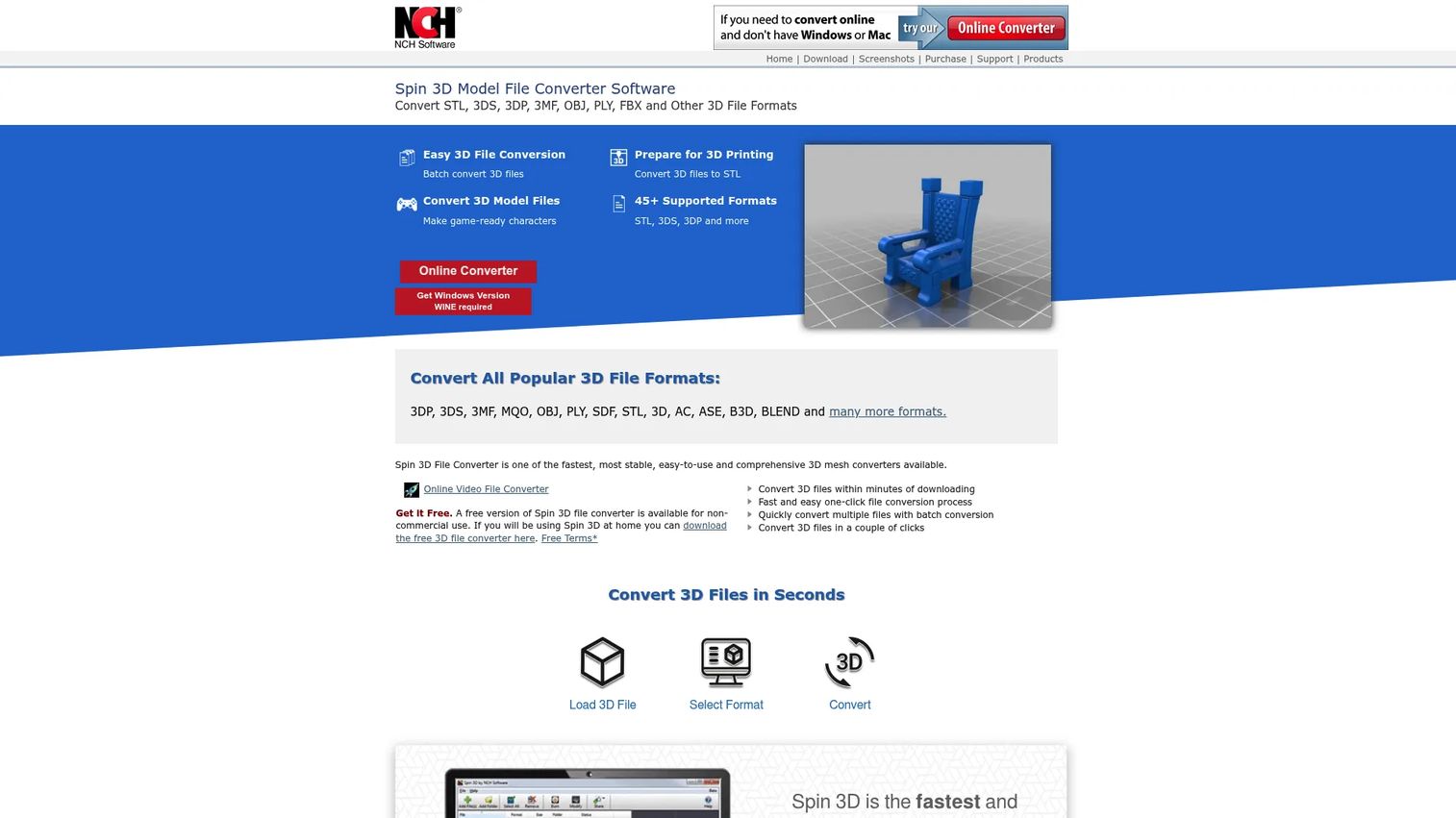
Spin 3D covers a corner most converters ignore: 3D meshes. It converts between popular 3D file formats, including STL for 3D printing, runs batch conversion, and previews models before you convert them. For designers, makers, and technical users moving assets between modeling tools, slicers, and game engines, that format flexibility removes a real friction point.
This is a file format converter software tool with a genuinely specialized job. If you 3D print or work with game assets, you know the pain of a mesh that opens in one program and breaks in another. Spin 3D bridges those formats locally on Windows, and the preview step lets you confirm you are converting the right model before committing.
Best for: Users who need quick 3D mesh conversion, especially for 3D printing or game asset workflows.
Key strengths
- Multi-format 3D conversion: Convert between popular 3D mesh formats including STL.
- Batch conversion: Process multiple models in one pass.
- Model preview: Inspect each model before converting it.
Why choose Spin 3D: Choose it when your work involves 3D printing or 3D asset pipelines and you need a fast, local mesh converter. It is the kind of narrow utility that does one job well, which beats wrestling with a general modeling tool just to change a file format.
Spin 3D pricing: A free version is available for non-commercial use. NCH offers paid licensing for commercial use, though a confirmed public figure was not available at the time of writing. The free download suits hobbyist and personal 3D printing workflows.
8. Express Rip CD Ripper
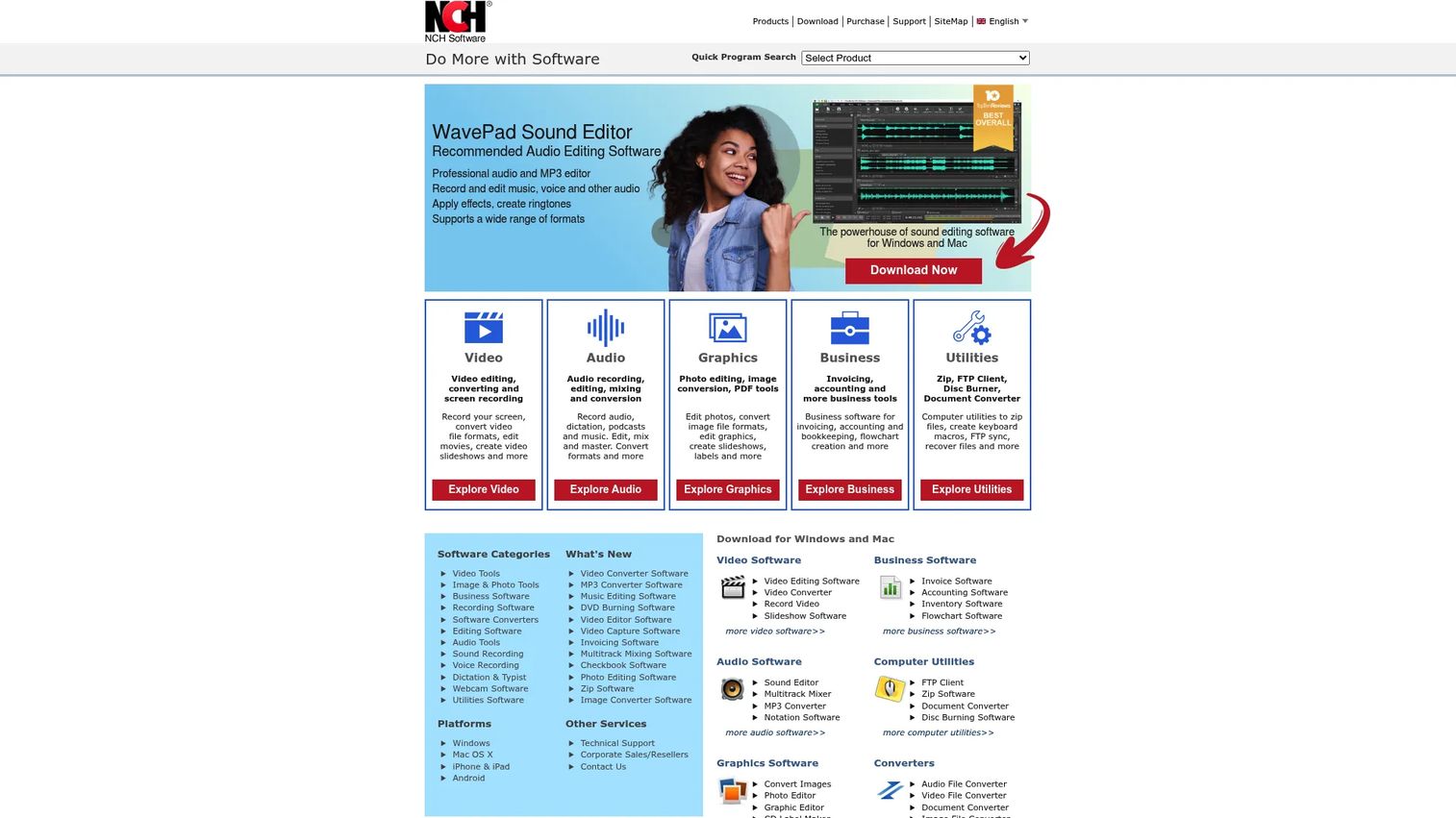
Express Rip CD Ripper handles a specific job well: pulling audio off CDs into digital files. It does direct digital extraction from audio CDs, converts to formats including WAV, MP3, Ogg Vorbis, and AAC, and can automatically fetch album and track info from the internet so your files arrive tagged. For anyone digitizing a physical music collection, that combination saves hours of manual labeling.
It is niche, and that is fine. CD ripping is not a daily task for most people, but when you need it, a dedicated tool beats fighting with a general media player. As a Windows utility, it ripping happens locally and the output formats cover both lossless WAV and compressed MP3 depending on whether you want quality or storage savings.
Best for: Users who need a simple Windows utility to rip audio CDs to common file formats.
Key strengths
- Direct digital extraction: Pull audio straight off CDs without quality loss in the transfer.
- Multiple output formats: Save to WAV, MP3, Ogg Vorbis, or AAC.
- Automatic tagging: Fetch album and track details from the internet.
Why choose Express Rip: Pick it when you are digitizing a CD collection and want tagged, correctly formatted output without manual work. It sits neatly inside the broader NCH conversion suite if you also need audio, video, or document tools alongside it.
Express Rip pricing: A free version is available for non-commercial use, with a Plus version adding extra formats and features. A confirmed public price for the Plus edition was not available at the time of writing, so the free tier is the clear starting point for personal use.
9. Express Zip
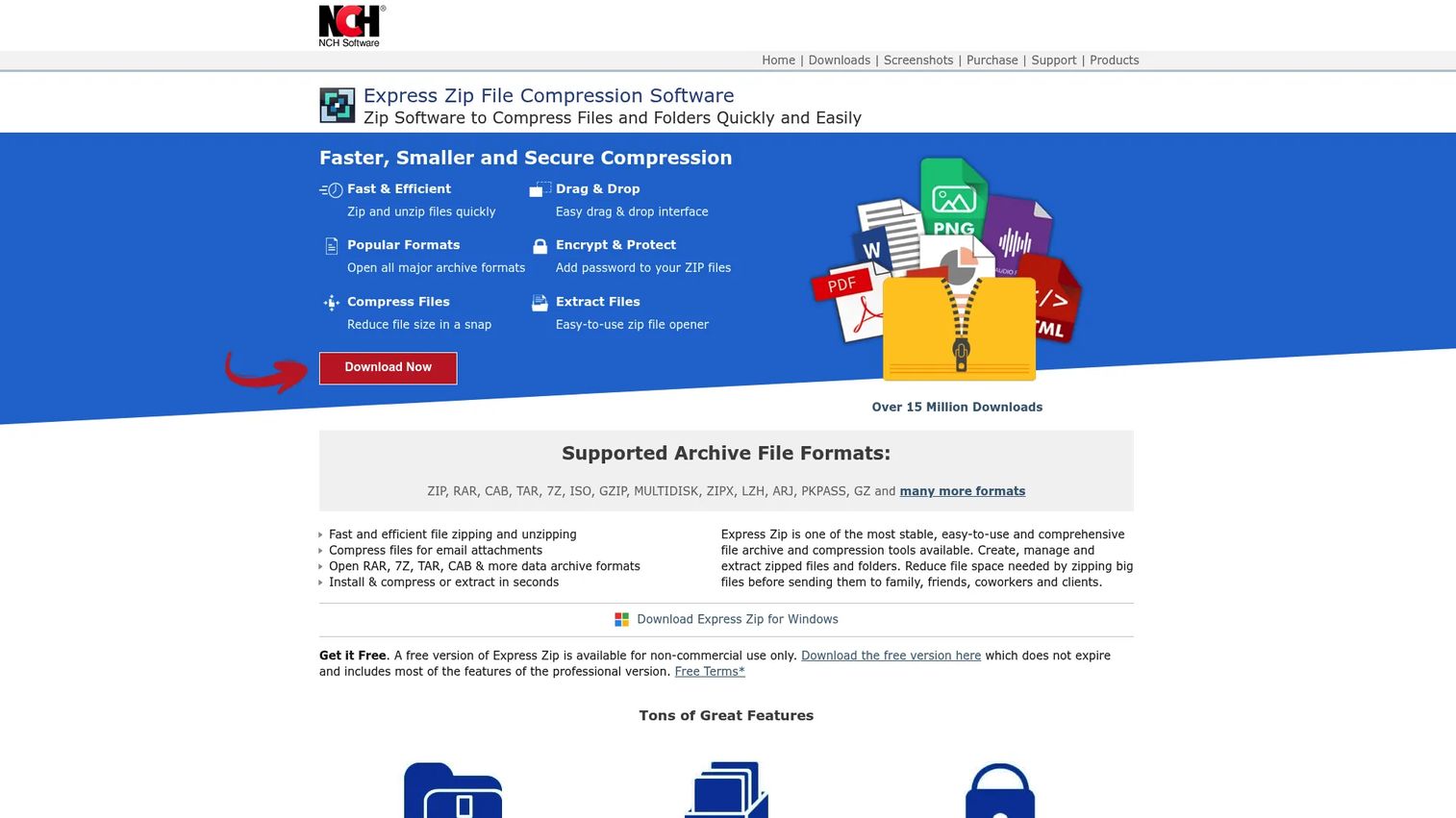
Express Zip covers the compression side of the conversion workflow that buyers often forget they need. It zips and unzips quickly, supports major archive formats including ZIP, RAR, CAB, TAR, 7Z, ISO, and GZIP, and adds password protection and encryption. When you need to bundle a folder of files for delivery or open an archive someone sent you, this handles both directions.
Compression is conversion-adjacent for a reason: shrinking and packaging files is often the last step before sending them. A dedicated archive utility manages the format variety that the built-in Windows zip tool cannot, and the encryption option matters when the archive contains anything sensitive. It runs locally on Windows, so nothing gets uploaded.
Best for: Individuals or teams needing basic file compression and archive extraction.
Key strengths
- Fast zip and unzip: Compress and extract archives quickly.
- Broad archive support: Handles ZIP, RAR, CAB, TAR, 7Z, ISO, GZIP, and more.
- Encryption: Password-protect and encrypt archives for secure delivery.
Why choose Express Zip: Choose it when you regularly send or receive archives in formats Windows does not natively handle, or when you need encrypted bundles. The broad format support means you stop hunting for a separate RAR or 7Z opener.
Express Zip pricing: A free version is available for non-commercial use and does not expire. NCH also offers a Plus Edition with additional features, though a confirmed public price was not available at the time of writing. The non-expiring free tier is unusually generous for personal compression needs.
10. SwiftConverter
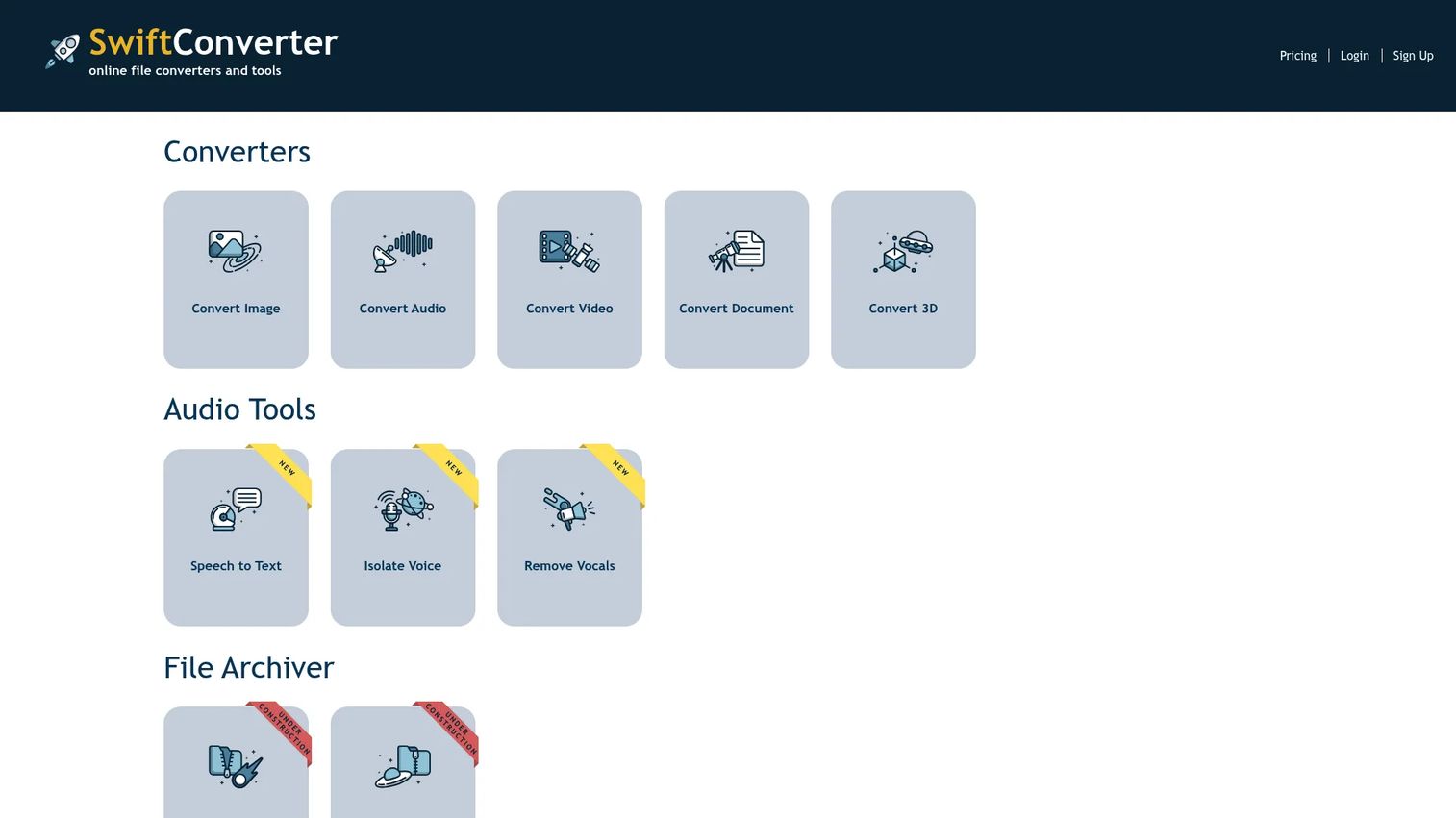
SwiftConverter is the online companion option on this list. It runs in the browser and covers image, audio, video, document, and 3D conversion, plus extras like speech to text and audio tools. For readers who want web-based conversion they can reach from any device without installing anything, it is a flexible catch-all. The breadth across so many file types is its main draw.
Browser convenience comes with the usual web-tool reality: files route through the service rather than staying on your machine, which suits non-sensitive, occasional jobs better than confidential ones. If you only convert files now and then and value access over local processing, an online file converter like this earns its place. For private or high-volume work, the desktop tools above remain the stronger fit.
Best for: Users who need occasional browser-based file conversion with a free tier.
Key strengths
- Multi-format coverage: Convert image, audio, video, document, and 3D files in one place.
- Extra tools: Includes speech to text and additional audio utilities.
- No install: Works in any browser on any device.
Why choose SwiftConverter: Pick it when you want a single web tool for occasional conversions across many formats and do not want to install anything. It is a sensible browser fallback when you are on a machine where you cannot install desktop software.
SwiftConverter pricing: The Free plan includes 50 Conversion Points per month. Premium runs $4.95/month for 2,000 Conversion Points per month, no ads, and card or PayPal payment. The free tier suits light, occasional use.
11. Adobe Acrobat Pro
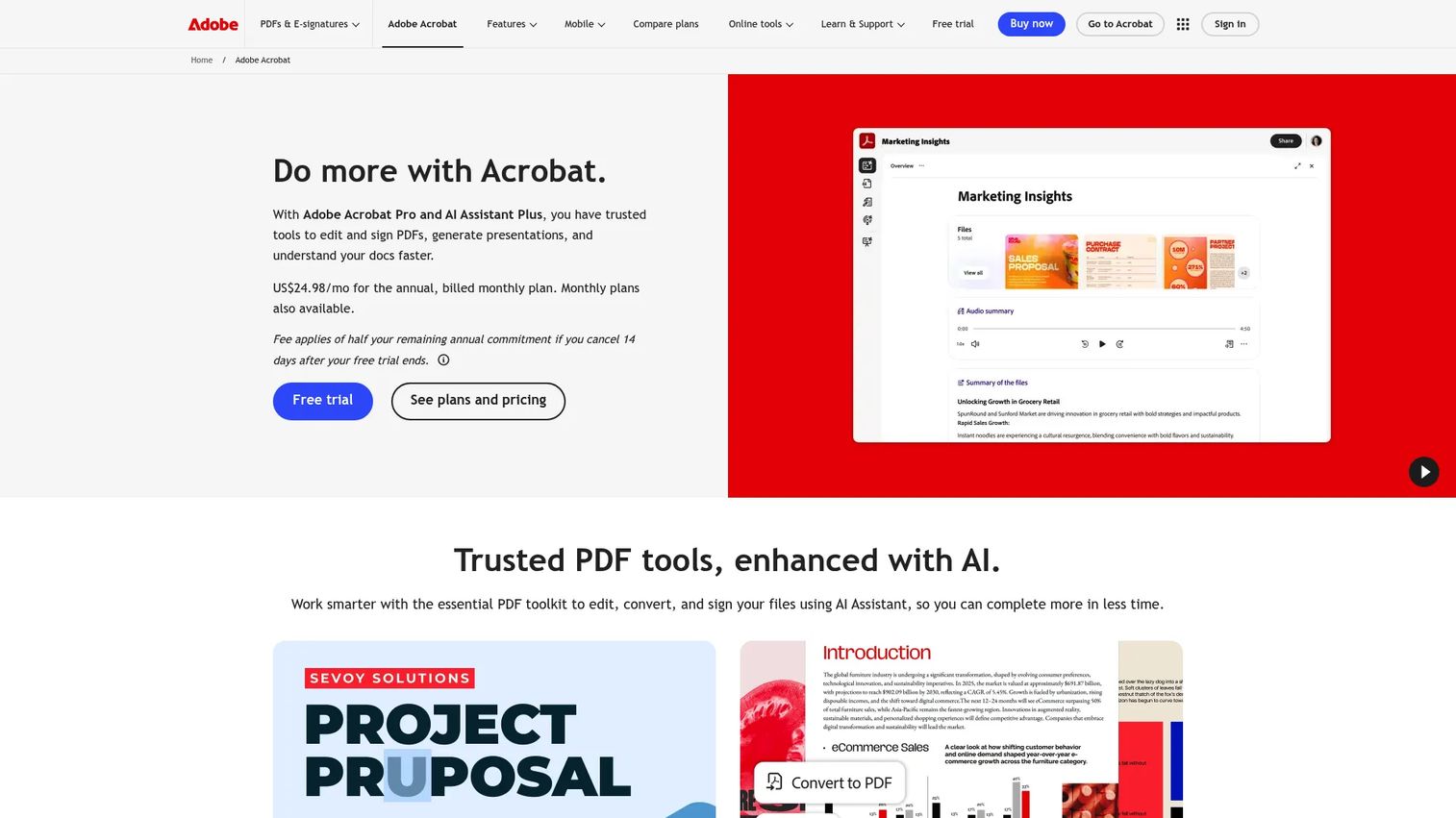
Adobe Acrobat Pro is the heavyweight for PDF-centric office work, and it holds a 4.5/5 on G2. While it does far more than convert, many buyers choose it specifically for reliable PDF creation, export, and conversion: turning Office files into PDFs, exporting PDFs back to editable Word or Excel, and converting scanned documents into searchable PDFs through OCR. For teams that live in PDFs all day, the conversion fidelity is the reason they pay.
This is not a lightweight utility, and it does not pretend to be. If your work centers on documents that move between PDF and Office formats constantly, and you also need editing, redaction, and e-signature workflows, the conversion piece comes bundled with serious document tooling. For pure occasional conversion, the desktop tools above cost less, but for heavy PDF workflows Acrobat is the established standard.
Best for: Teams and professionals who need advanced PDF editing plus reliable PDF conversion and e-sign workflows.
Key strengths
- High-fidelity PDF conversion: Convert between PDF and Office formats with formatting intact.
- OCR conversion: Turn scanned documents into editable, searchable PDFs.
- Editing and e-sign: Edit text and images, redact, compare, and build e-sign templates.
Why choose Adobe Acrobat Pro: Choose it when PDFs are central to your daily work and conversion needs to preserve complex formatting reliably. The trade-off is cost and scope: you are buying a full PDF platform, not just a converter, so it fits document-heavy professionals more than occasional users.
Adobe Acrobat Pro pricing: Acrobat Pro for students and teachers runs $19.99/mo, billed annually. Acrobat Pro for teams is $23.99/mo per license, and Acrobat Studio for teams is $29.99/mo per license, both billed annually. There is no free tier, though Adobe typically offers a trial.
Bonus pick: CoolUtils File Converters
CoolUtils File Converters deserves a mention for buyers who want the broadest possible offline coverage. It is a Windows suite that supports over 1,400 formats, offers both specialized format-specific converters and a single all-in-one app, and runs batch conversion through a GUI or the command line. For IT-adjacent operators who need to script repeatable conversions across many file types, the command-line option is a genuine differentiator.
It is paid software with one-time licenses, which suits buyers who prefer owning a tool outright over a subscription. Individual converters like Total Audio Converter and Total Image Converter start at $24.90, Total PDF Converter at $39.90, the all-in-one Coolutils Converter at $169, and a Gold Bundle of 30 apps at $99. For offline, format-heavy Windows work at scale, it is a strong converter software option alongside the picks above.
Considerations before you choose
Before you commit to a file converter download, run through this checklist. It maps directly to the criteria that separate a tool you keep from one you uninstall in a week.
File type coverage
Match the tool to the formats you actually convert. A media converter that ignores your specific codec is useless, and an all-in-one suite may be overkill if you only ever touch images. List your three most common conversions and confirm the tool handles all of them before installing.
Offline versus online workflow
Decide where your files should live during conversion. Offline desktop tools keep everything local, which matters for contracts, financials, and anything private. Browser tools win on convenience and cross-device access. Some browser options now process locally too, which narrows the privacy gap.
Batch support
If you ever convert more than a handful of files at once, batch processing is not optional. Confirm the tool can point at a folder, apply one output format, and run unattended. The time difference between batch and one-by-one conversion compounds fast on large libraries.
Pricing and install model
Free open source, free non-commercial tiers, one-time licenses, and subscriptions all exist in this category. Decide whether you want to own a tool outright or pay monthly, and check whether the free version covers your real needs or just teases the paid one. Many strong options here are genuinely free for home use.
Installer trust and support
Download from the official source, not a mirror. Open-source tools let you inspect the code, and reputable vendors document their privacy practices. Check for a help center, troubleshooting docs, or an active project before relying on a tool for important work.
Conclusion
The right file converter software comes down to what you convert, how often, and how private it needs to stay. For fast, local, right-click conversion on Windows, File Converter is the clean default: free, open source, and built into the Explorer menu. For privacy-first browser work, Convertify keeps files on your device. For the widest offline format coverage, CoolUtils spans 1,400+ formats.
By file type, the picks are clear. Prism owns video, Switch owns audio, Pixillion owns images, Doxillion owns documents with its 4.4/5 rating, Spin 3D covers meshes, Express Rip handles CDs, and Express Zip manages archives. SwiftConverter is the browser catch-all for occasional jobs, and Adobe Acrobat Pro is the standard for PDF-heavy professionals at a 4.5/5.
Start with the tool that matches your most common conversion and your privacy needs. If that is everyday Windows conversion, download File Converter first and add a specialized tool only when a specific format demands it. Match the tool to the job, and the format-switching loop stops being a daily tax.
Start your journey with Guideflow today!
FAQs
File converter software changes a file from one format to another so it works in a different app, platform, or device, often with optional compression. It covers common categories like audio (MP3, WAV, FLAC), video (MP4, MOV, MKV), images (JPG, PNG, WEBP), documents (PDF, DOCX, EPUB), archives (ZIP, 7Z), and even 3D meshes (STL). Many tools also batch process whole folders at once.
The best choice depends on your workflow. For right-click conversion straight from File Explorer, File Converter is the standout, since it is free, open source, and adds conversion to the context menu. For broad offline coverage, a suite like CoolUtils spans 1,400+ formats, while specialized NCH tools handle audio, video, images, documents, and 3D individually. Pick based on the formats and volume you work with most.
It depends on the job. An offline file converter keeps files on your machine, avoids upload limits, runs faster on large files, and protects sensitive data, which makes it the better fit for private or high-volume work. Online converters win on convenience and cross-device access for occasional, non-sensitive jobs. Some browser tools now process locally too, which closes part of the privacy gap.
Yes, most desktop converters support batch conversion, which is one of the main reasons to use a dedicated tool over a one-off web utility. A batch file converter points at a folder, applies a single output format, and processes hundreds of files unattended. This matters most for media libraries, photo exports, and repeated office document tasks where converting one file at a time would take hours.
Many tools combine conversion and compression, though not all do. Image converters like Pixillion compress photos during conversion, video tools like Prism reduce file size, and archive utilities like Express Zip package and shrink folders. Compression is useful when you hit an email attachment limit, a platform upload cap, or a storage constraint and need a smaller file without changing its core format.
Look for coverage of the formats you actually use. For media, that usually means MP4, MOV, and MKV for video, plus MP3, WAV, and FLAC for audio. For images, JPG, PNG, and WEBP cover most needs. For documents, PDF, DOCX, and EPUB are the common ones, and ZIP and 7Z cover archives. If you work in 3D, check for STL and other mesh formats.
It depends on the tool. Open-source, offline desktop tools like File Converter are among the safest because the code is inspectable, processing stays local, and reputable projects state they collect no data. Ad-supported or upload-based web tools carry more risk, since your files pass through a server. Always download from the official source, check the privacy policy, and prefer local processing for sensitive files.
All-in-one tools and suites fit broad, everyday use where you convert many file types and want one program to manage. Specialized converters often suit one file type or workflow better, giving you deeper format options and controls for, say, audio or 3D meshes. If your needs span audio, video, images, and documents regularly, an all-in-one or suite saves clutter. If you mostly convert one type, a dedicated tool is simpler.