You measured twice. You cut once. The panel still came out 3mm short, and now the whole face frame is off.
Most woodworkers blame the saw. It is rarely the saw. It is the plan. A sketch on a scrap of paper, a spreadsheet that tracks half the parts, or a dimension you carried in your head from the lumberyard. Every one of those is a place where an error hides until the material is already cut and the mistake is expensive.
The market has noticed. The global woodworking software market is expected to grow from USD 2.81 billion in 2026 to USD 4.28 billion by 2032, a 7.25% CAGR, according to 360iResearch (2025). The woodworking 3D modeling segment is moving even faster, projected to grow from USD 1.38 billion in 2026 to USD 2.78 billion by 2032 at a 12.18% CAGR, per Research and Markets (2025). More makers are moving from pencil to pixels before they touch a board.
The problem is not whether to use software. It is which one. The wrong tool becomes a maintenance burden: a steep learning curve you abandon, a subscription you resent, or a program that models beautiful furniture but cannot produce a usable cut list. Choose based on your project type and skill level, not the longest feature list. This guide gives you a clearer way to evaluate the options and pick the tool that gets you to a first successful project fast.
What's inside
This guide covers woodworking CAD software, general 3D design software for woodworking, and purpose-built planner tools. It spans beginners through advanced makers, and DIY hobbyists through cabinetmaking and CNC workflows.
We evaluated each tool on five criteria that matter when you are choosing what to learn and pay for:
- Ease of use and how quickly you reach a first usable design
- Woodworking-specific outputs like cut lists, parts lists, materials lists, and BOMs
- 3D visualization and rendering so you can catch problems before cutting
- Cloud vs desktop access, including web apps and offline mode
- Pricing, including free tiers, maker plans, and subscriptions
Every pricing figure and rating here is drawn from each vendor's current pages.
TL;DR
- Best for beginners and visual planning: SketchUp. Fast to learn, strong 3D visualization, and a free web tier to start.
- Best for serious CAD and manufacturing: Autodesk Fusion. Parametric modeling plus integrated CAM for CNC-ready output.
- Best for browser-based, multi-device access: Onshape. Cloud-native with built-in version control and a free non-commercial plan.
- Best free or low-cost entry: SketchUp's free web tier or SOLIDWORKS for Makers at $48/year for professional-grade CAD.
- Best purpose-built woodworking planner: SketchList 3D. Cabinet and furniture layouts that generate cut lists and shop drawings directly.
- Best for cabinetmaking and CNC: Autodesk Fusion for integrated CAM, or SketchList 3D for fast shop-ready parts lists.
What is woodworking software?
Woodworking software is a category of design and planning tools that let you model furniture, cabinets, jigs, and fixtures in 2D or 3D, then generate the accurate dimensions, cut lists, and material outputs you need before cutting real stock.
It overlaps heavily with CAD, but the two are not identical. Generic CAD for woodworking is built for mechanical parts, tolerances, and assemblies. Woodworking design software adds or emphasizes the outputs a shop actually needs: board-foot calculations, grain direction, sheet-goods optimization, hardware placement, and cut lists that map directly to a table saw or CNC router.
The best woodworking CAD software sits on a spectrum. On one end, purpose-built planners handle cabinet carcasses and cut lists with minimal setup. On the other, full parametric CAD gives you total control over every joint, curve, and assembly, at the cost of a steeper learning curve.
Core capabilities to expect across the category:
- 2D drafting and 3D modeling for parts, panels, and full assemblies
- Cut lists, parts lists, and materials lists that translate a model into a buildable plan
- BOMs and hardware planning for screws, hinges, slides, and fasteners
- 3D visualization and rendering to preview fit, proportion, and finish
- Sheet-goods and board optimization to reduce waste
- Export formats like DXF, STEP, and toolpaths for CNC machines
- Cloud vs desktop access, including browser-based web apps and offline mode
The right mix depends on whether you are a weekend DIY builder, a production cabinetmaker, or running a CNC-driven shop.
When to use woodworking software
Not every project needs CAD. A single shelf from dimensional lumber does not. But a few situations make software worth the learning time.
When you need accurate project planning
The value of a woodworking project planner shows up before the first cut. Modeling to exact dimensions catches interference, bad joinery, and parts that will not fit long before you have wasted a $90 sheet of plywood. You see the finished piece, check proportions, and confirm every measurement resolves. Reducing material waste alone often pays for the software.
When you need woodworking-specific outputs
If your project has more than a handful of parts, a cut list stops being optional. Cabinetry, built-ins, and furniture with drawers and doors generate dozens of components, each with its own dimensions, edge banding, and hardware. Software that produces cut lists, parts lists, materials lists, and BOMs turns a complex model into a shopping list and a cutting sequence. Jigs and fixtures benefit too, since a repeatable plan means a repeatable jig.
When you need a visual or collaborative workflow
3D previews and rendering matter when you are selling a design to a client or checking a concept before committing. For solo hobby projects, a quick 3D view is often enough. For shop or team workflows, cloud sharing and revision control keep everyone on the same version. A cabinetmaker sending a design to a client, or a shop with multiple builders, needs the version history that browser-based tools provide.
Comparison table
The table below sorts the eight tools by how directly they fit common woodworking software use cases, from accessible 3D planners to full parametric CAD. Read the Intent column to match a tool to your skill level and goal, then use Key use case to confirm it produces the outputs your projects need. Pricing reflects each vendor's current published rates, and G2 ratings are shown where a current listing was verified.
| # | Product | Intent | Key use case | Pricing | G2 rating |
|---|---|---|---|---|---|
| 1 | Autodesk Fusion | Full CAD/CAM for design to manufacturing | Parametric furniture and CNC-ready toolpaths | $57/month billed annually; free trial and free personal use | 4.5/5 |
| 2 | Shapr3D | Fast, tactile 3D modeling | Quick prototyping on iPad, Mac, or Windows | Free plan; Pro $299/year | Not listed |
| 3 | Onshape | Cloud-native CAD with data management | Browser-based team design and version control | Free (non-commercial); Standard $1,500/user/year | Not listed |
| 4 | SketchUp | Accessible 3D modeling and visualization | Furniture and cabinetry concepting with LayOut docs | Go $10.75/user/month billed annually | 4.5/5 |
| 5 | SOLIDWORKS for Makers | Professional CAD for personal use | Detailed assemblies, jigs, and joinery | $48/year or $15/month | 4.5/5 |
| 6 | Autodesk Inventor | Mechanical solid modeling and assemblies | Complex assemblies and manufacturing documentation | Monthly, annual, and Flex plans | Not listed |
| 7 | AutoCAD | Precise 2D drafting and 3D | Shop drawings and dimensioned documentation | $2,095/year | 4.4/5 |
| 8 | SketchList 3D | Purpose-built woodworking planner | Cabinet and furniture cut lists and shop drawings | $37.50/month (2-year); $999.99 one-time | 4.4/5 |
1. Autodesk Fusion
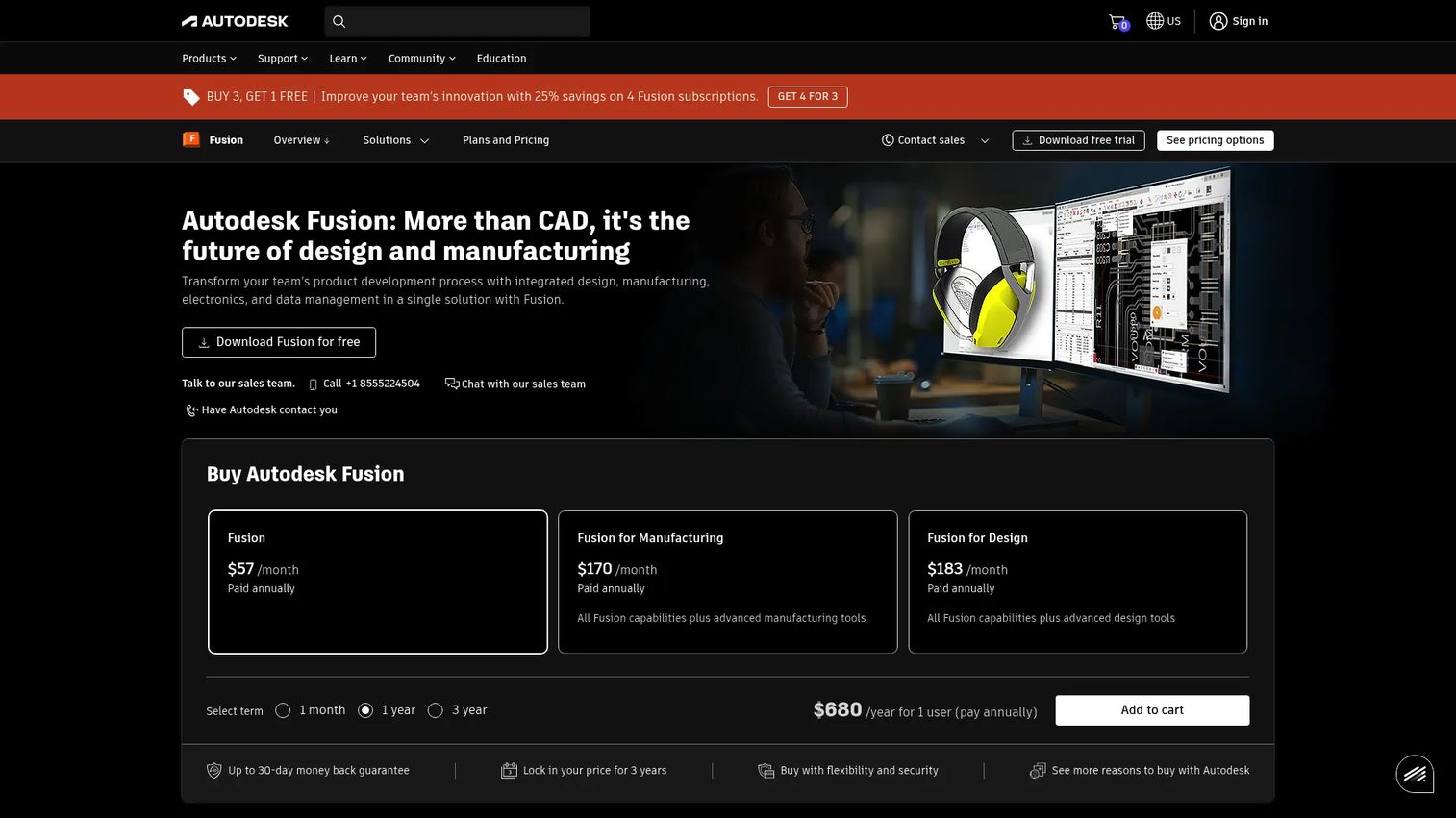
Autodesk Fusion is a cloud-based CAD/CAM/CAE platform that covers design, engineering, and manufacturing in one program. For woodworkers, its draw is the combination of parametric modeling and integrated CAM: you design the furniture, then generate the CNC toolpaths from the same file. That single-tool workflow is why it lands high on lists of woodworking CAD software for anyone moving past pure planning into machining.
Best for: Makers who want parametric control and CNC output in one platform, not just a planning tool.
Key strengths
- Integrated CAD/CAM: Design a part and generate router toolpaths from the same model, no export handoff.
- Parametric modeling: Change one dimension and dependent parts update, which keeps joinery accurate.
- Real-time collaboration: Cloud storage and team access make it usable across a shop.
Why choose Autodesk Fusion: If your work is CNC-driven or you value the ability to iterate on a design and see joinery update automatically, Fusion earns its place. The honest tradeoff is depth. The parametric workflow has a real learning curve, and a first-time user will spend hours before a first cut list. For a hobbyist building a bookshelf, that is more tool than the job needs.
Autodesk Fusion pricing: Fusion is listed at $57/month billed annually. Autodesk also offers a 30-day free trial, free personal use for eligible individuals, and free access for students and educators. That free personal-use path makes it one of the more approachable ways to try professional CAD without a subscription.
2. Shapr3D
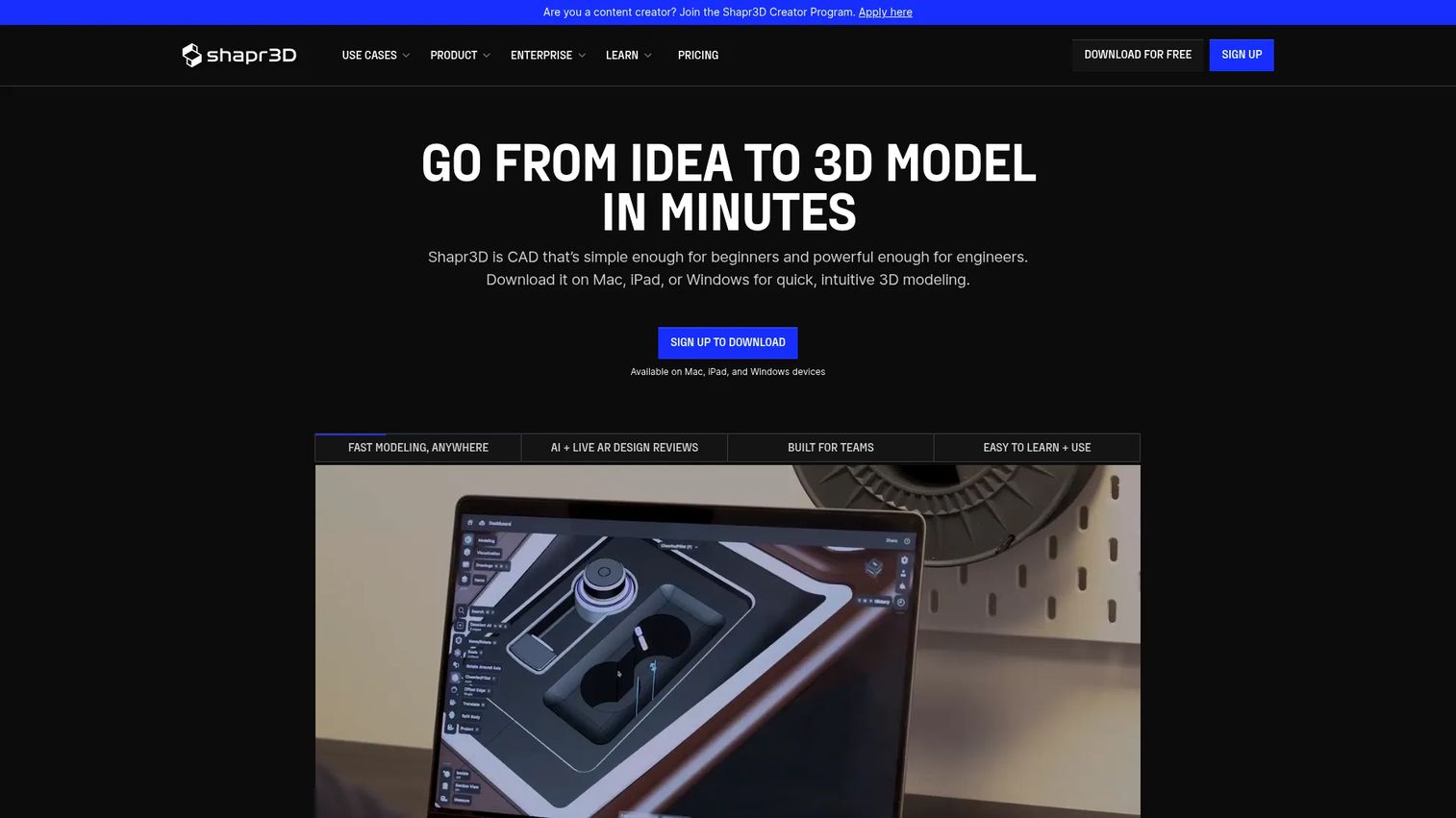
Shapr3D is cross-platform 3D CAD built for speed and tactile modeling. It runs on Mac, iPad, Windows, and Vision Pro, and the iPad-plus-Apple-Pencil workflow is what sets it apart. For visual thinkers who want to shape geometry by hand rather than typing coordinates, it is the fastest way to get a 3D design software for woodworking idea out of your head.
Best for: Designers who think visually and want to prototype furniture shapes quickly on a tablet.
Key strengths
- Direct and parametric modeling: Push and pull geometry directly, or use history-based parametric edits when precision matters.
- Technical drawings and export: Generate 2D drawings and export to standard formats for downstream work.
- Visualization and AR: Preview designs in AR to check scale and proportion before building.
Why choose Shapr3D: The speed-to-prototype is real. If you sketch furniture ideas and want to see them in 3D within minutes, Shapr3D removes the friction that heavier CAD adds. It appeals most to makers who value fluid geometry shaping over exhaustive parts management, so pair it with a dedicated planner if your projects generate large cut lists.
Shapr3D pricing: Shapr3D offers a Free plan, a Solo plan, a Pro plan at $299 billed annually per Editor seat, and an Enterprise plan with custom pricing. A 14-day free trial is available. The free tier makes it easy to test the modeling experience before committing.
3. Onshape
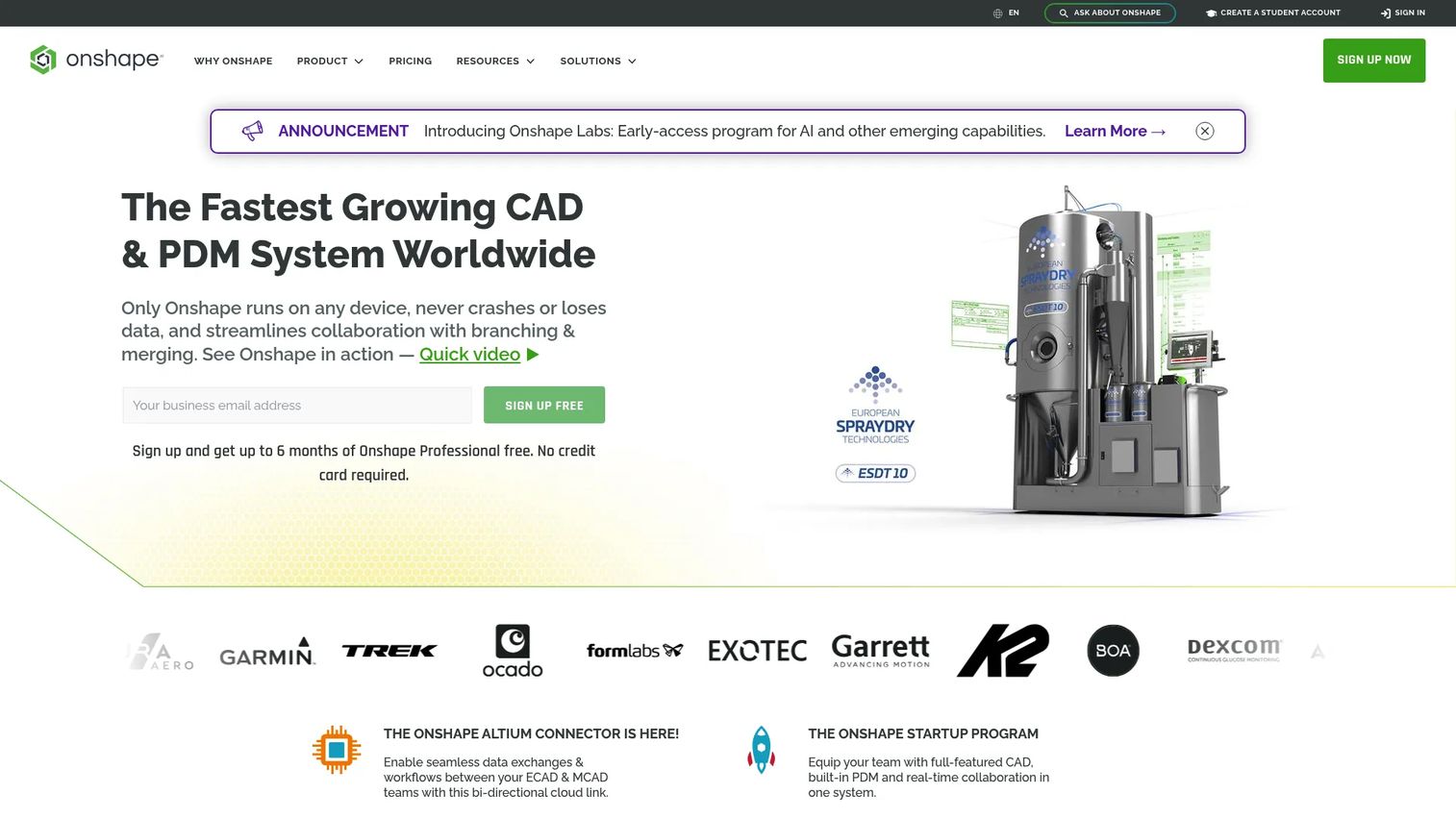
Onshape is cloud-native CAD that runs entirely in the browser, with product data management built in. There is nothing to install, and your files, version history, and release management live in the cloud. For anyone weighing the cloud vs desktop decision, Onshape is the clearest argument for cloud: open the same project on a laptop, a shop tablet, or a phone without syncing files.
Best for: Makers and small teams who want browser-based CAD with real version control.
Key strengths
- Part and assembly modeling: Full parametric modeling for furniture and cabinet assemblies.
- Built-in PDM and version history: Every change is tracked, so you can roll back or branch a design.
- Simulation, rendering, and CAM: Visualize, validate, and export for manufacturing from one environment.
Why choose Onshape: The version control is the differentiator. If more than one person touches a design, or you iterate heavily and want to compare revisions, Onshape's built-in PDM saves the file-naming chaos that desktop tools invite. It suits a workflow where multi-device access and revision history matter more than offline modeling.
Onshape pricing: Onshape offers a Free plan for non-commercial use, a Standard plan at $1,500 per user per year, a Professional plan at $2,500 per user per year, and custom Enterprise pricing. Education access is free. The free non-commercial tier is a genuine option for hobbyists who accept that their designs are publicly visible.
4. SketchUp
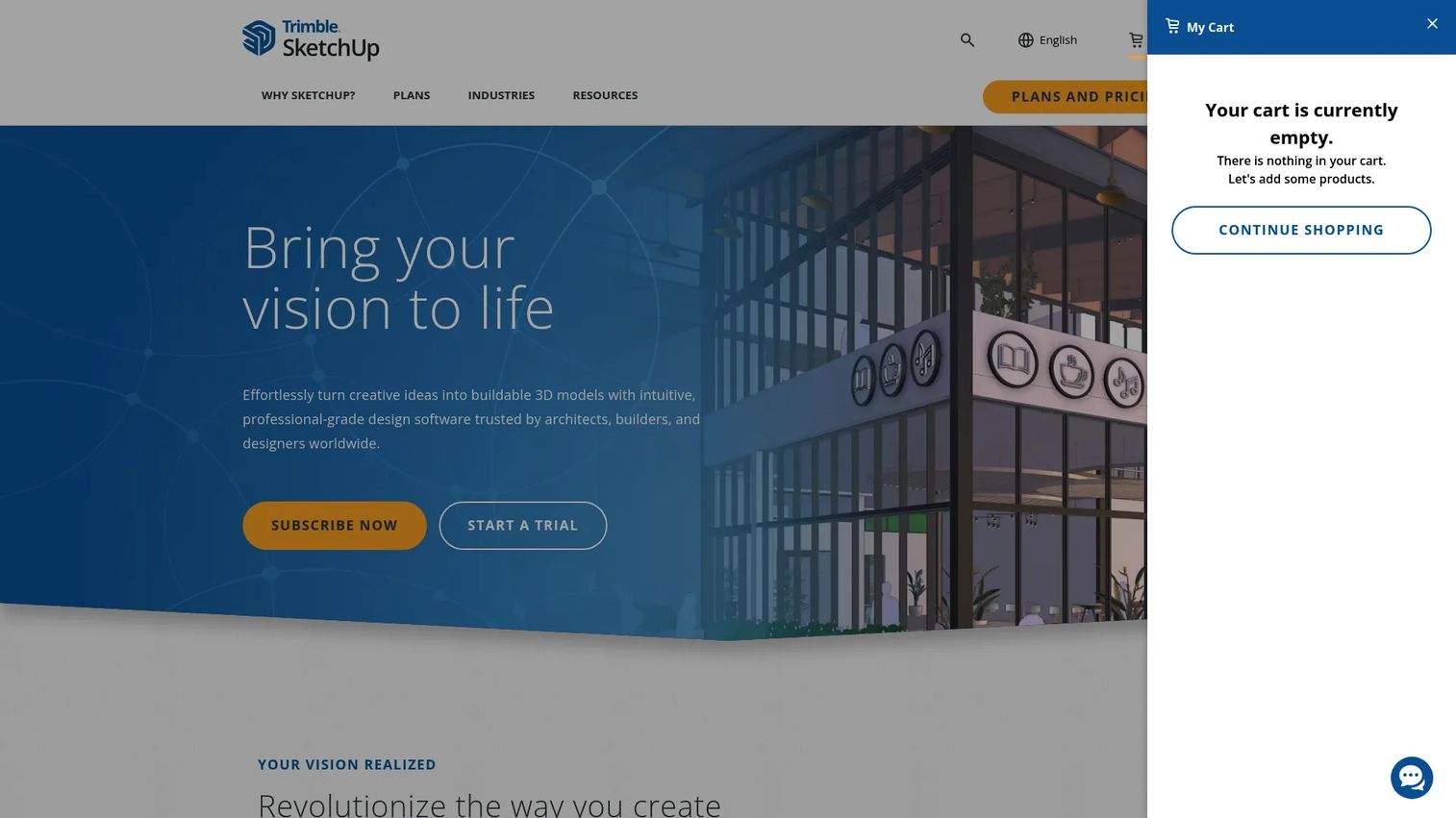
SketchUp is 3D modeling software known for being genuinely easy to learn, and it has stayed a favorite in woodworking for exactly that reason. The push-pull modeling metaphor is intuitive, the visualization is strong, and LayOut turns a 3D model into dimensioned 2D documentation. For woodworking design software free enough to start with, the web tier lowers the barrier further.
Best for: Beginners and visual planners designing furniture and cabinetry who want fast concepting.
Key strengths
- Fast, intuitive 3D modeling: The push-pull workflow gets beginners to a usable model quickly.
- LayOut 2D documentation: Turn 3D models into dimensioned shop drawings.
- Interoperability and extensibility: A large plugin ecosystem adds cut list generators and woodworking-specific tools.
Why choose SketchUp: SketchUp shines for furniture, cabinetry, and quick concepting where you want to see the piece and communicate it, not engineer every tolerance. The plugin ecosystem is important here: cut lists and joinery tools come from extensions rather than the core app, so factor in setup time for those. For the majority of DIY and hobby builders, it is the shortest path to a design you can actually build from.
SketchUp pricing: SketchUp offers Go at $10.75 per user per month billed annually, Pro at $33.25, and Studio at $68.25, each billed annually. A 7-day free trial is available, and SketchUp for Schools is free with eligible education accounts. Match the plan to whether you need web-only modeling or the full desktop and LayOut documentation set.
5. SOLIDWORKS for Makers
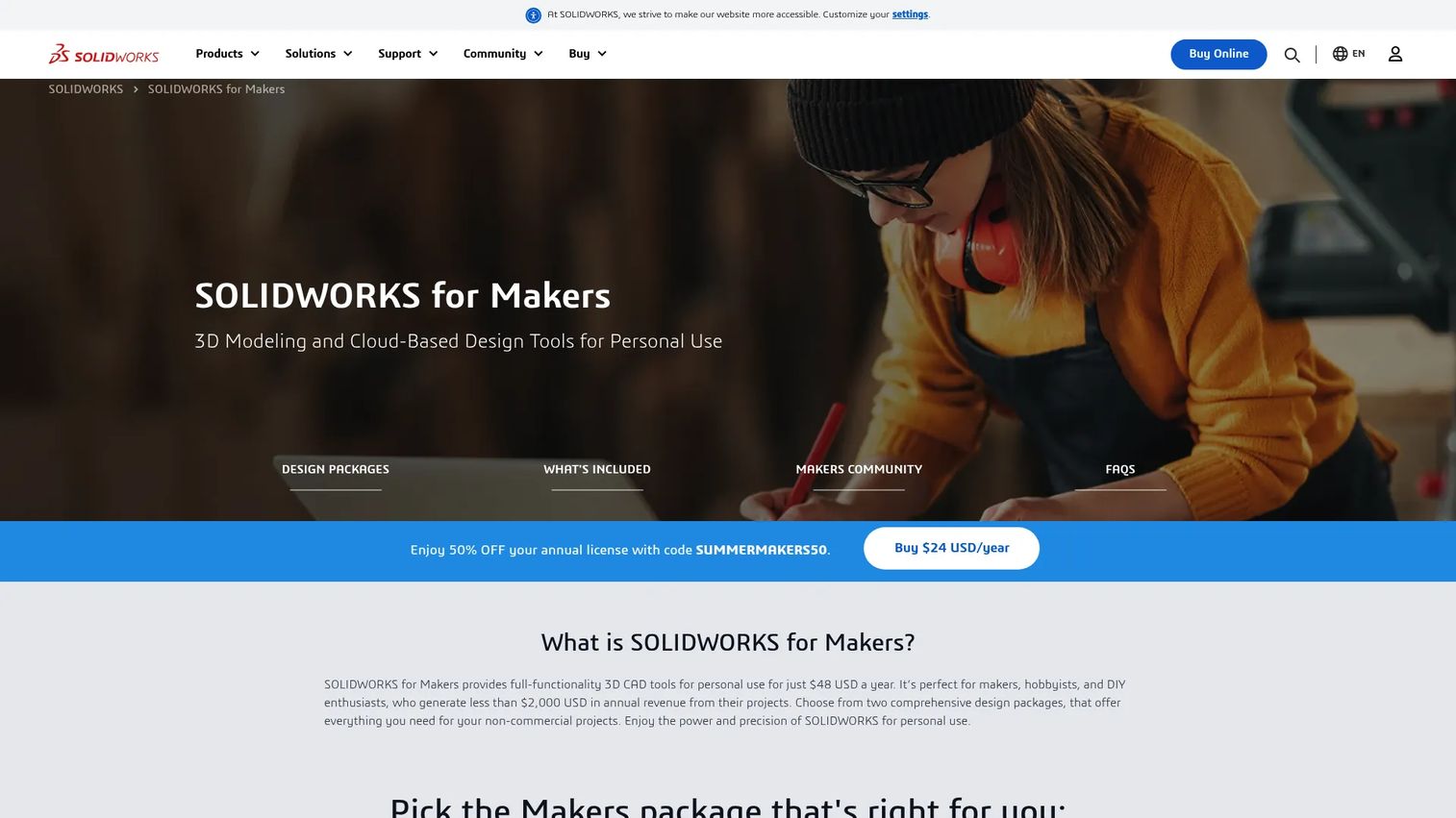
SOLIDWORKS for Makers brings the full-functionality professional CAD used across manufacturing to personal, non-commercial projects at a maker price. It includes both desktop and browser-based packages, plus learning content and maker communities. For woodworkers who want engineering-grade control over jigs, fixtures, joinery, and detailed assemblies, this is a serious step up from lighter planners.
Best for: Hobbyists and DIY makers who want professional-grade CAD depth for personal projects.
Key strengths
- Full-functionality 3D CAD: The same core modeling used in industry, scoped for personal use.
- Desktop and browser packages: Work locally or in the browser depending on the project.
- Learning content included: Built-in tutorials and communities shorten the ramp.
Why choose SOLIDWORKS for Makers: The appeal is depth at a hobbyist price. If you want to model complex assemblies, design precise joinery, or build repeatable jigs and fixtures with tight control, this delivers professional capability. Plan for the learning investment; SOLIDWORKS rewards time spent, and it is worth it when your projects justify the detail.
SOLIDWORKS for Makers pricing: Two maker plans are offered, 3DEXPERIENCE SOLIDWORKS for Makers and SOLIDWORKS xDesign for Makers, each at $48 per year or $15 per month, excluding taxes. The page also shows a limited-time discounted offer. These plans are for non-commercial personal use, which is the tradeoff for the low price.
6. Autodesk Inventor
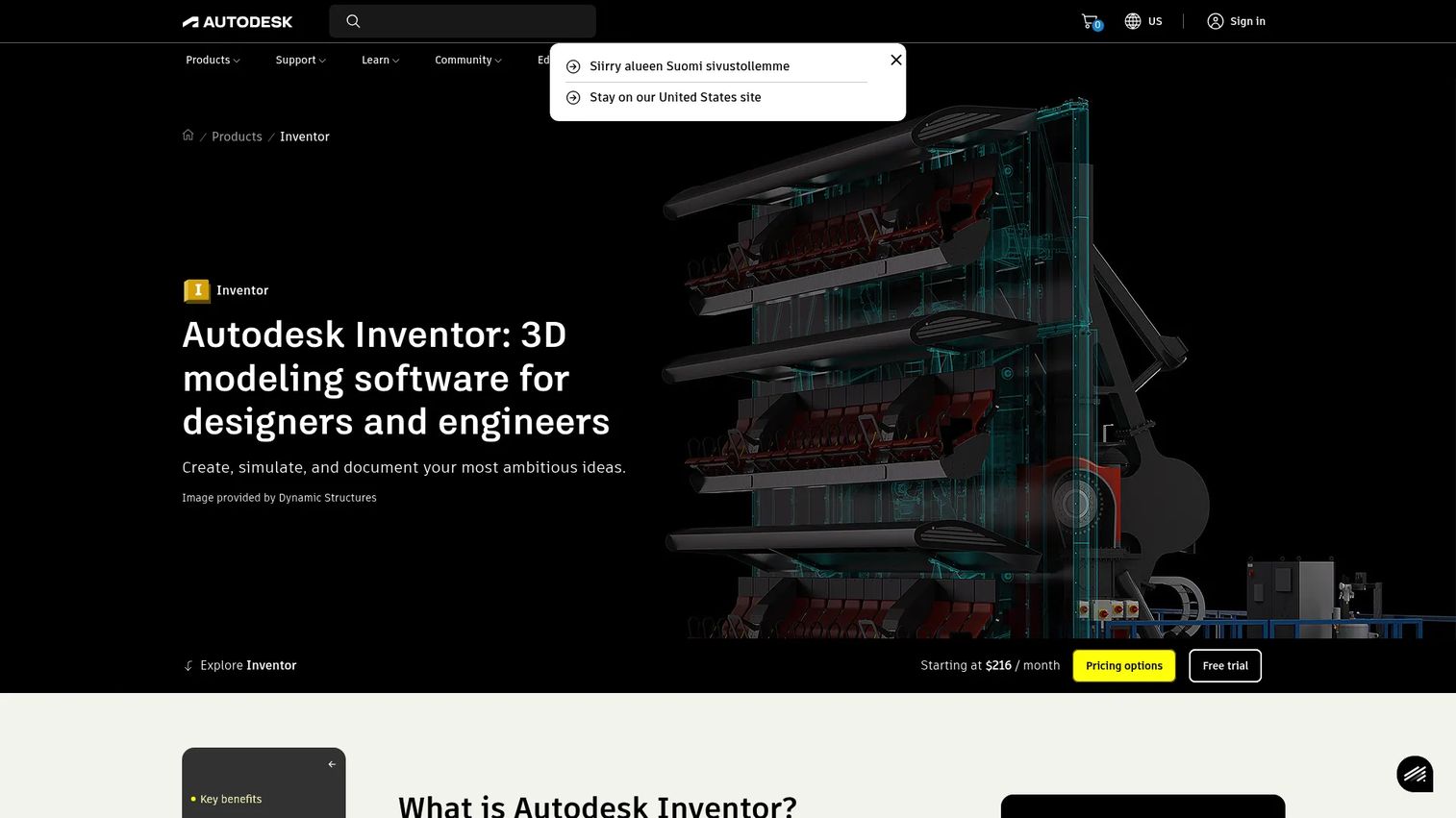
Autodesk Inventor is 3D CAD built for mechanical design, documentation, and simulation. It is heavier and more engineering-oriented than most woodworking tools, with parametric, direct, freeform, and rules-based design plus dedicated tools for frame design and sheet metal. Woodworkers who build complex, part-heavy assemblies with rigorous documentation needs are the ones who benefit.
Best for: Advanced makers who need deep assembly management and manufacturing documentation.
Key strengths
- Multiple modeling modes: Parametric, direct, freeform, and rules-based design in one tool.
- Assembly management: Handles large, complex assemblies with many parts.
- Model-Based Definition: Embed manufacturing information directly in the 3D model.
Why choose Autodesk Inventor: Consider Inventor over lighter tools when your projects behave more like engineered products than furniture, think large built-in systems, mechanized fixtures, or shop equipment you are fabricating. It is more than most hobby woodworking needs, and its mechanical orientation is the honest tradeoff. When your work truly demands assembly-heavy documentation, that depth pays off.
Autodesk Inventor pricing: Inventor is sold on monthly, one-year term, three-year term, and Flex pay-as-you-go plans. A free trial is available, and eligible students and educators get free access. Because it targets professional engineering, expect pricing well above the maker-focused tools on this list.
7. AutoCAD
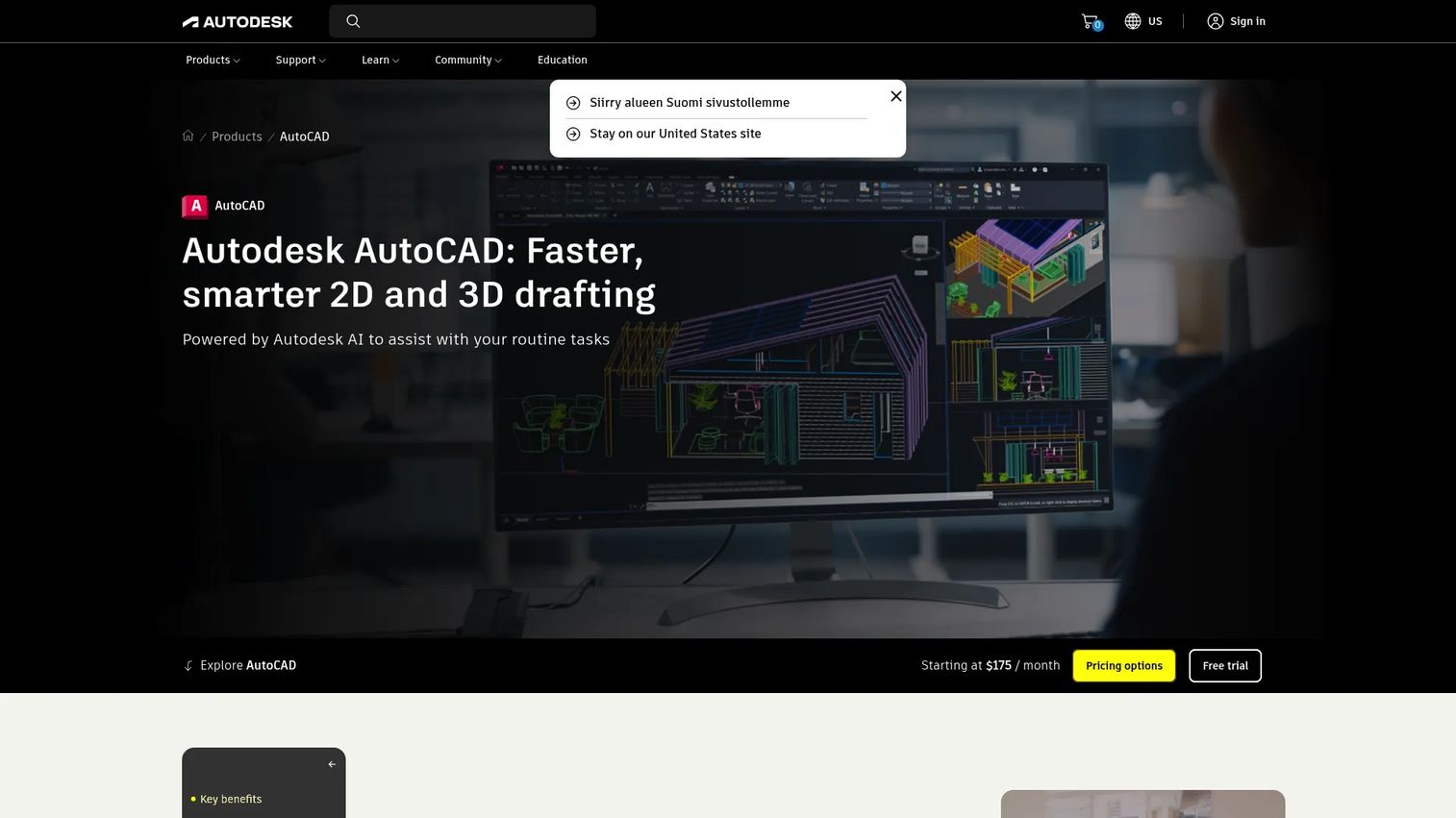
AutoCAD is the long-standing standard for 2D drafting, with 3D modeling and seven industry-specific toolsets. Its strength for woodworking is precise, dimensioned 2D documentation: shop drawings, layouts, and detail sheets. Some woodworkers keep it in the mix specifically for that drafting precision and its compatibility across the Autodesk ecosystem.
Best for: Woodworkers who need precise 2D shop drawings and documentation more than 3D planning.
Key strengths
- 2D drafting and 3D modeling: Industry-standard precision for dimensioned drawings.
- Smart Blocks and markup: Reusable components and streamlined revision markup.
- Industry toolsets: Seven specialized toolsets extend it beyond general drafting.
Why choose AutoCAD: Be honest with yourself here. AutoCAD is excellent at 2D drafting, but it is not usually the best first choice for 3D woodworking planning. If your workflow is documentation-heavy or you already live in the Autodesk ecosystem, it fits. If you want to model furniture in 3D and generate cut lists, a purpose-built or parametric 3D tool will serve you better.
AutoCAD pricing: AutoCAD is sold as a subscription, with a 1-year plan at $2,095 and a 3-year plan at $6,285. A free trial is offered, and eligible students and educators get free access. It is the priciest general option here, which reflects its professional drafting focus rather than a woodworking-specific fit.
8. SketchList 3D
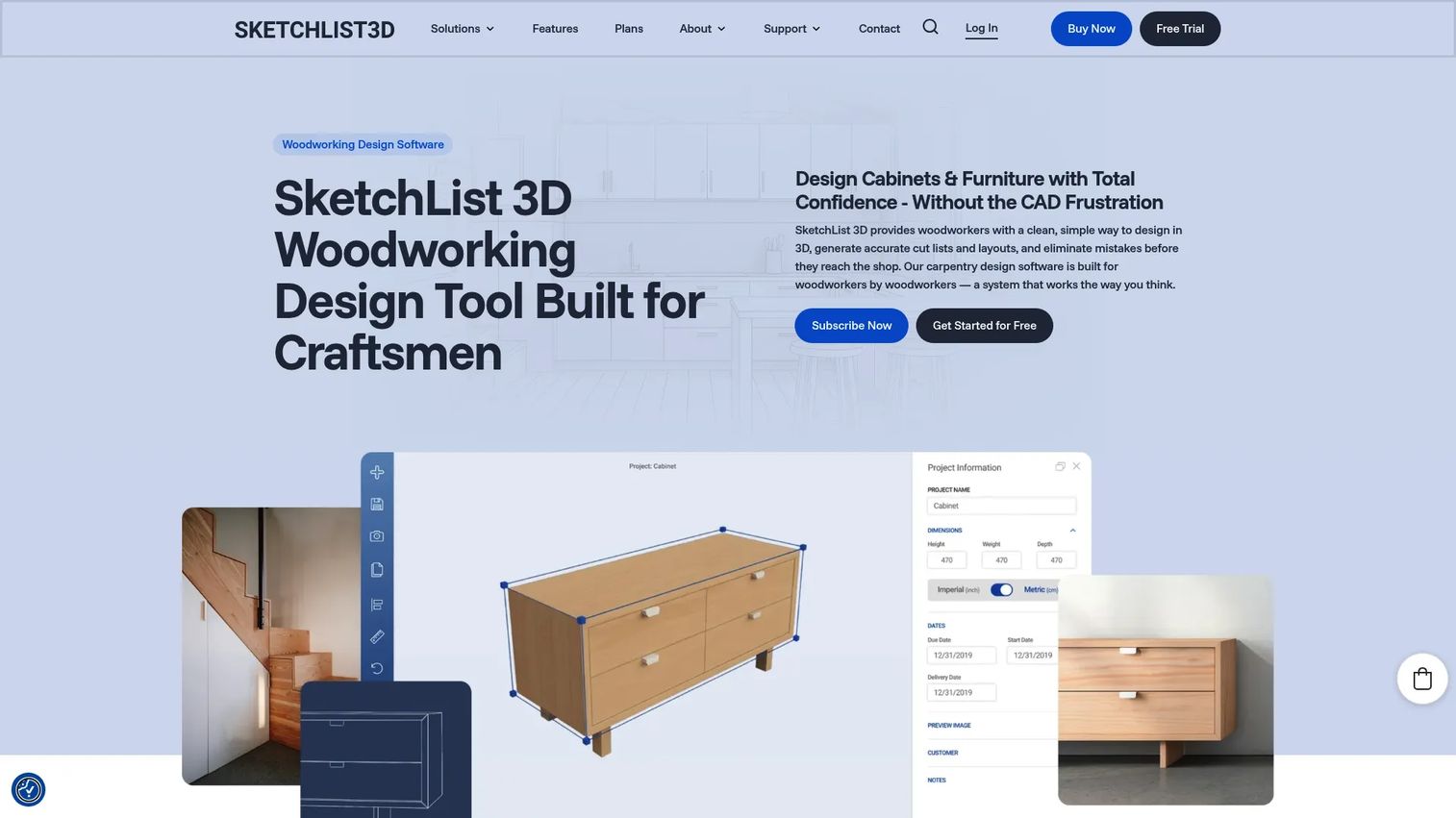
SketchList 3D is one of the few tools on this list built specifically for woodworking. It handles 3D woodworking design and, critically, generates cut lists and shop reports from your model. Because it is purpose-built for cabinets and furniture, the path from design to a buildable parts list is short, which is exactly what a busy shop wants.
Best for: Woodworkers and cabinet or furniture designers who need 3D layouts and cut lists fast.
Key strengths
- Purpose-built woodworking design: Cabinet and furniture modeling without general-CAD overhead.
- Cut lists and reports: Generate cut lists, board optimization, and shop drawings directly from the model.
- Multiple plan options: Monthly, annual, two-year, and one-time license choices.
Why choose SketchList 3D: The case for a purpose-built tool is speed on common shop projects. You are not learning a general CAD environment and then bolting on a cut list plugin; the woodworking outputs are the point. For cabinetmakers and furniture builders who repeat similar project types, that focus turns hours of setup into minutes.
SketchList 3D pricing: SketchList 3D offers a One-Month plan at $79.99, a One-Year plan at $49.99/month billed at $599.99 annually, a Two-Year plan at $37.50/month billed at $899.99, and a One-Time License at $999.99. A 14-day free trial with full access is available, no credit card required. All subscription plans include maintenance and updates.
Considerations before you buy
Before you commit to a subscription or spend weeks learning a tool, run through this checklist.
Match the tool to your project type
A single tool rarely fits every job. A DIY builder making shelves does not need parametric CAM. A CNC shop does. Decide whether your work is mostly planning, mostly documentation, or mostly machining, then shortlist tools that lead with that strength rather than the ones with the most features.
Confirm the woodworking outputs you need
Not every CAD tool produces a usable cut list out of the box. Some rely on plugins or extensions for cut lists, parts lists, and BOMs. If shop-ready outputs are non-negotiable, verify the tool generates them natively or confirm the plugin exists and is maintained before you buy.
Weigh cloud vs desktop honestly
Cloud tools give you multi-device access and version control, but depend on connectivity. Desktop tools give you offline reliability and local files. If you work in a shop with spotty wifi, offline mode matters. If you switch between machines or collaborate, browser-based access wins.
Account for the learning curve
The most powerful tool is worthless if you abandon it. Parametric CAD rewards time invested, but that time is real. Be honest about how many hours you will spend before a first successful project, and weigh that against a simpler tool that gets you building this weekend.
Check the free tier and trial terms
Most tools here offer a free tier or trial, but the terms vary. Free plans are often non-commercial only, and some limit exports or features. Test the actual workflow you plan to use during the trial, not just the modeling, so you know the cut list or export step works before you pay.
Conclusion
The right woodworking software depends less on the feature list and more on what you actually build. For beginners and visual planners, SketchUp is the shortest path to a usable design, with a free web tier to start. For serious CAD users who want manufacturing output, Autodesk Fusion pairs parametric modeling with integrated CAM. For cloud-first makers and small teams, Onshape delivers browser-based access with real version control.
If you want professional depth at a hobby price, SOLIDWORKS for Makers is hard to beat at $48 a year. If you want a tool built for woodworking that produces cut lists without extra setup, SketchList 3D earns the pick. And if your work is documentation-heavy, AutoCAD and Autodesk Inventor bring drafting and assembly depth that lighter tools do not.
Choose by project type, not spec sheet. Then use the free trial to build one real project start to finish, from model to cut list, before you commit. That single test will tell you more than any comparison table.
FAQs
SketchUp is the most common recommendation for beginners because its push-pull 3D modeling is intuitive and there is a free web tier to start. It gets you to a usable furniture or cabinet design quickly without a steep CAD learning curve. Pair it with a cut list extension once you are comfortable.
Often, yes. Free woodworking software design tiers like SketchUp's web version or Onshape's non-commercial plan can model complete furniture and cabinet projects. The main catch is that free tiers are usually non-commercial only and may limit exports or advanced features, so confirm the terms match how you plan to use the tool.
Cabinetmakers gravitate toward tools that produce cut lists and shop drawings efficiently. Purpose-built options like SketchList 3D handle cabinet carcasses and parts lists directly, while parametric tools like Autodesk Fusion suit shops that also run CNC. SketchUp with cut list plugins remains popular for its speed and visualization.
For a single simple piece, sketches and plans work fine. But once a project has many parts, joinery, or hardware, CAD for woodworking pays off by catching fit errors before you cut and generating accurate cut lists. A woodworking project planner reduces wasted material, which usually justifies the learning time.
Autodesk Fusion is the strongest all-in-one choice for CNC because it combines parametric CAD with integrated CAM, so you design and generate router toolpaths in one file. Onshape and Inventor also support CAM and manufacturing export. Confirm the tool exports the toolpath formats your specific CNC machine accepts.
SketchList 3D generates cut lists, board optimization, and shop reports natively, which is its main draw for shop use. SketchUp produces them through plugins, and full CAD tools like Fusion generate BOMs from assemblies. If native cut lists are your priority, a purpose-built woodworking tool saves the most setup time.
Neither is universally better; it depends on your workflow. Cloud vs desktop comes down to access versus reliability. Cloud tools like Onshape give you multi-device access and built-in version control but need connectivity. Desktop tools give you offline reliability and local files. Choose based on whether you collaborate and switch machines, or work in one place with unreliable wifi.
Compare five things: ease of use and learning curve, the woodworking-specific outputs like cut lists and BOMs, 3D visualization quality, cloud vs desktop access, and pricing including free tiers and trial terms. Then test one real project end to end during the trial to confirm the tool fits your actual project type before you subscribe.