Paper is still everywhere. It shouldn't be.
Roughly 80% of businesses still handle paper-based processes in some form, according to a 2024 AIIM industry report on paper-based processes. That's filing cabinets full of invoices, contracts stuffed in folders, and receipts crammed into shoeboxes. Document scanning software exists to fix this - turning physical pages into searchable, shareable, storable digital files.
But the category has grown complicated. You've got free mobile scanner apps, open-source desktop programs for scanning, AI-powered enterprise platforms, and everything in between. Some tools focus on Optical Character Recognition technology. Others prioritize batch processing or legacy scanner compatibility. Picking the wrong one means wasted money, wasted time, or both.
This guide reviews 15 document scanning software tools across desktop, mobile, and enterprise categories. We tested features, compared pricing, reviewed user feedback, and assessed compatibility so you don't have to run that gauntlet yourself. If your workflow also involves collecting signed agreements or other files from clients, you might find our roundup of document collection software useful as a complement to scanning.
What's inside
You'll find a quick comparison table up front for fast scanning (pun intended), followed by individual reviews covering what each tool does well and where it falls short. Every review includes pricing, key strengths, and a clear "best for" recommendation.
After the reviews, there's a buyer's guide with a decision framework based on your actual needs - individual, small business, or enterprise. We also cover security and compliance considerations that most competitor guides skip entirely.
Tl;dr
- Best mobile scanner app: Adobe Scan - free, polished, tight Acrobat integration
- Best OCR accuracy: ABBYY FineReader - 190+ languages, near-perfect text recognition
- Best free desktop option: NAPS2 - open-source, no watermarks, no upsells
- Best for old scanners: VueScan - supports 7,600+ models, including discontinued hardware
- Best for enterprise automation: Nanonets - AI-powered data extraction at scale
- Best privacy-focused mobile app: Genius Scan - all processing stays on-device
How we evaluated these document scanning software tools
Not every scanning program needs the same things. A freelancer scanning receipts has different priorities than an IT admin processing 10,000 invoices a month. Here's what we looked at for each document scanner and software combination:
- Scan quality and OCR accuracy - How reliably does the software capture text? Can it produce searchable PDFs from handwritten or low-contrast documents?
- Supported file formats - PDF, JPEG, TIFF, PNG, DOCX, and others. More options mean more flexibility.
- Platform compatibility - Windows, macOS, Linux, iOS, Android. Cross-platform support matters for distributed teams.
- Batch scanning and automation - Can it handle multi-page documents through an automatic document feeder? Does it support unattended workflows?
- Cloud integration and export options - Google Drive, Dropbox, OneDrive, SharePoint, email. Scanning is only useful if the files go where you need them.
- Security and compliance - Encryption, password protection, HIPAA and GDPR considerations. Non-negotiable for regulated industries.
- Pricing and value - Free tiers, one-time purchases, subscriptions, enterprise licensing. We note exactly what you're paying for.
Quick comparison table - 15 best document scanning software at a glance
| Software | Best For | Platform | OCR? | Starting Price | Standout Feature |
|---|---|---|---|---|---|
| Adobe Scan | Mobile PDF scanning | iOS, Android | Yes | Free | AI boundary detection + Acrobat integration |
| ABBYY FineReader | Advanced OCR and conversion | Windows, Mac | Yes | $199/yr | 190+ language OCR engine |
| VueScan | Legacy scanner compatibility | Windows, Mac, Linux | Yes | $39.95 one-time | 7,600+ scanner models supported |
| NAPS2 | Free open-source scanning | Windows, Mac, Linux | Yes | Free | Zero limitations, no upsells |
| CamScanner | On-the-go mobile scanning | iOS, Android, Web | Yes | Free (ads) | 750M+ downloads, multi-mode scanning |
| Nanonets | AI document processing | Web-based | Yes | Free tier | Custom AI model training |
| Doxis AI.dp. | Enterprise document management | Web/On-prem | Yes | Contact sales | Full document lifecycle management |
| Windows Scan | Basic Windows scanning | Windows | No | Free | Built into Windows, zero setup |
| PaperScan | Budget desktop scanning | Windows | Yes | Free edition | Annotation and barcode recognition |
| SwiftScan | Premium mobile business scanning | iOS, Android | Yes | Free tier | Enterprise encryption + fax capability |
| Scan2x | High-volume MFP workflows | MFP-based | Yes | Contact sales | MFP touchscreen integration |
| MyQ | Print and scan fleet management | MFP-based | Yes | Contact sales | Unified print + scan cost tracking |
| Readiris | Multilingual OCR | Windows, Mac | Yes | $99 one-time | 130+ language support |
| Genius Scan | Privacy-focused mobile scanning | iOS, Android | Add-on | Free | On-device processing only |
| Epson ScanSmart | Epson scanner owners | Windows, Mac | Basic | Free (bundled) | Guided step-by-step scanning workflow |
Click any tool name to jump to its full review below.
1. Adobe Scan - best mobile scanning app with Acrobat integration
Adobe Scan is a free mobile scanner app for iOS and Android that uses AI to detect document boundaries, correct perspective, and produce searchable PDFs from your phone's camera.
What sets it apart is the tight integration with Adobe Acrobat and Document Cloud. You scan on your phone, and the file is immediately available for editing, signing, or annotating in Acrobat on any device. For anyone already paying for an Adobe subscription, this pdf scanner slots right into the existing workflow.
Best for: Professionals in the Adobe ecosystem who need mobile scanning with robust PDF editing
Key strengths
- AI auto-crop and perspective correction in real time
- Built-in OCR produces searchable PDFs automatically
- Multi-page scanning with automatic edge detection
- Business card scanning extracts contacts directly
- Cloud sync across all Adobe-connected devices
Pricing: Free for basic scanning; premium features require Adobe Acrobat subscription starting at $12.99/month
The main trade-off: if you don't use other Adobe products, you're paying for an ecosystem you won't fully use. The free tier handles basic scanning well, but cloud storage limits and advanced editing features sit behind the paywall. For a free-only mobile scanner app, CamScanner or Genius Scan may be better fits.
2. ABBYY FineReader - best for advanced OCR and document conversion
ABBYY FineReader is the benchmark for OCR technology - a desktop application for Windows and Mac that recognizes text across 190+ languages with near-perfect accuracy, including handwritten notes.
If your work involves converting scanned documents into editable Word files, searchable PDFs, or Excel spreadsheets, FineReader handles it with a level of precision that other document image scanning software can't consistently match. The document comparison feature is particularly useful for legal teams spotting differences between contract versions. Teams that also need to manage the full contract lifecycle beyond just scanning may want dedicated CLM software alongside FineReader.
Best for: Legal firms, financial institutions, and multilingual organizations needing the most accurate OCR available
Key strengths
- OCR engine supports 190+ languages including handwriting
- Batch processing with hot folder automation
- PDF editing, comparison, and format conversion
- Document version comparison highlights changes instantly
- Automated document scanning via unattended workflows
Pricing: Starts at $199/year for the Standard subscription; Corporate licensing available for volume deployments
The honest downside: it's expensive compared to most alternatives. The learning curve is steeper, too. And there's no dedicated mobile app - ABBYY offers separate mobile products, but they're not the same thing. If you need top-tier OCR and can justify the cost, nothing else comes close. If you just need to scan a receipt, this is overkill.
3. VueScan - best for legacy scanner compatibility
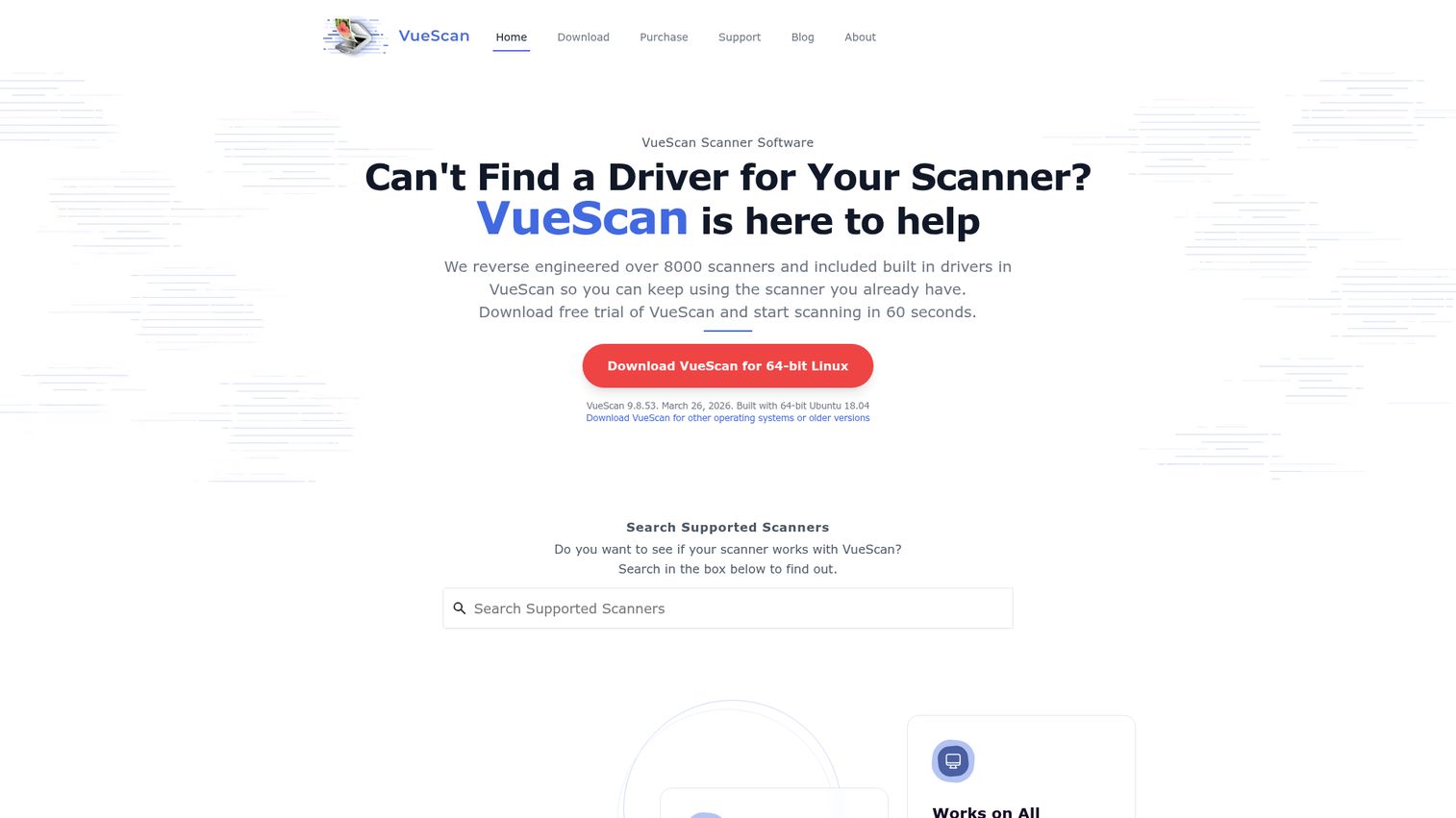
VueScan is a veteran scanning software that's been around for over 25 years, supporting 7,600+ scanner models - including discontinued devices that manufacturers like HP, Canon, and Epson no longer provide drivers for.
This is the tool that breathes new life into old hardware. If you've got a perfectly functional flatbed scanner gathering dust because the manufacturer dropped driver support, VueScan likely has you covered. It runs on Windows, macOS, and Linux, making it the most cross-platform scanning software on this list.
Best for: Photographers, archivists, and anyone with older scanners that lack manufacturer driver support
Key strengths
- Supports 7,600+ scanner models including legacy devices
- Film and slide scanning with dust and scratch removal
- Cross-platform: Windows, macOS, and Linux support
- Color correction and image enhancement tools built in
- One-time purchase with no recurring subscription
Pricing: Standard Edition at $39.95 one-time; Professional Edition at $89.95 one-time
The trade-offs are real. The UI looks like it hasn't been updated since 2005. OCR capabilities exist but don't compete with ABBYY or Readiris for accuracy. Cloud integration is minimal. But if scanner compatibility is your primary concern - especially scanning software for Windows, Mac, or Linux with older hardware - VueScan is the clear pick.
4. NAPS2 - best free open-source document scanner
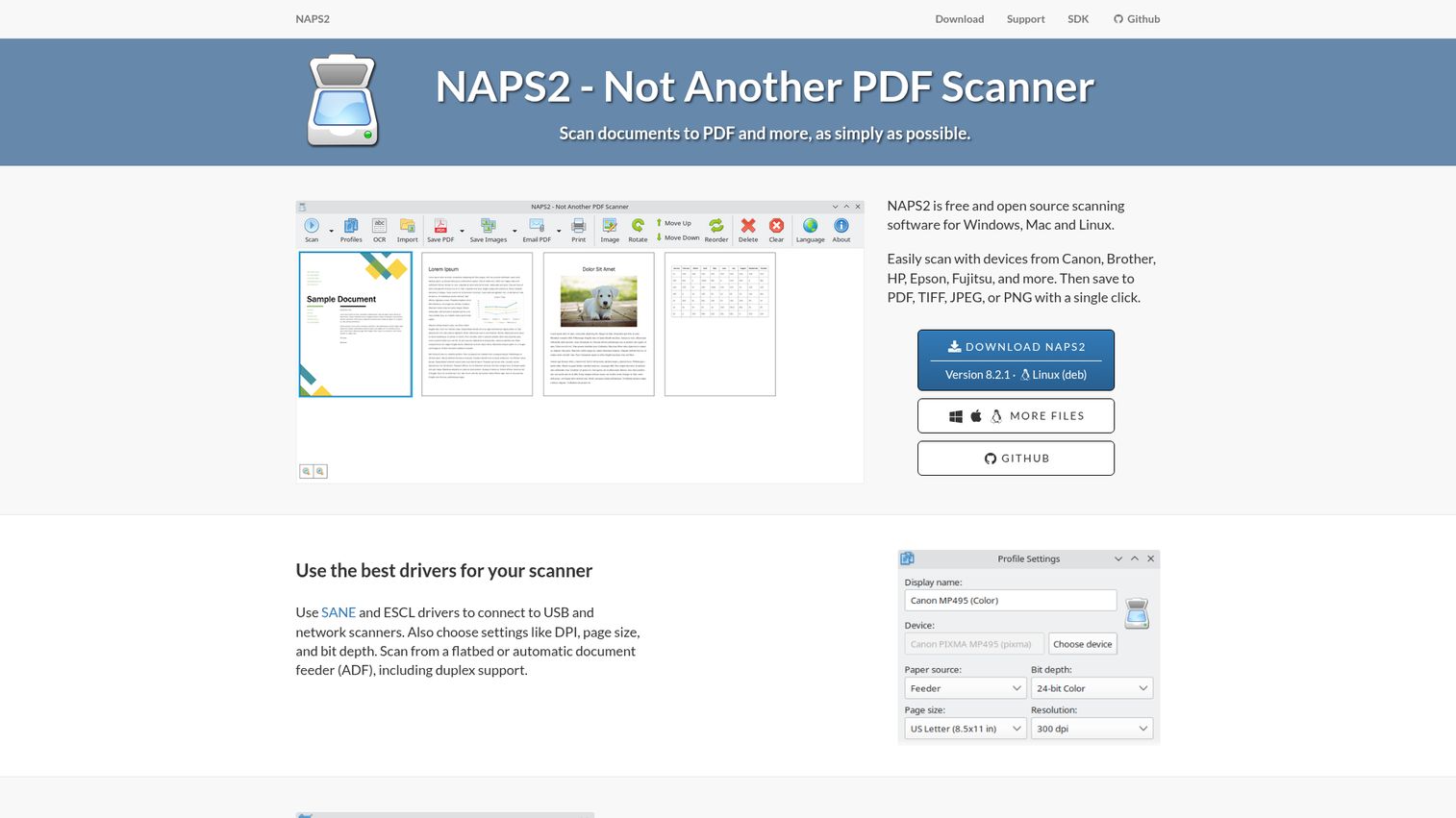
NAPS2 (Not Another PDF Scanner 2) is a completely free, open-source scanning application for Windows, macOS, and Linux. No ads. No watermarks. No premium upsells. Genuinely, entirely free.
It handles the basics well: scan to PDF, TIFF, JPEG, or PNG, with built-in OCR powered by the Tesseract open-source OCR engine. There's batch scanning support for automatic document feeders, customizable profiles for different scan types, and even a portable version you can run from a USB drive without installation. For the best free scanning program available, NAPS2 is hard to beat.
Best for: Budget-conscious users and small offices needing a reliable no-cost scanning program
Key strengths
- 100% free with zero limitations or hidden costs
- Open-source under MIT open-source license, fully transparent code
- Built-in OCR via Tesseract engine for searchable PDFs
- Portable version runs without installation from USB
- Command-line interface available for scripted automation
Pricing: Free (open-source, MIT license)
Where does it fall short? The interface is basic - functional, but not polished. OCR accuracy sits below commercial alternatives like ABBYY or Readiris. There's no built-in cloud integration, and image enhancement tools are limited. But for a program that costs nothing and does its core job reliably, these are reasonable trade-offs.
5. CamScanner - best mobile scanner for on-the-go professionals
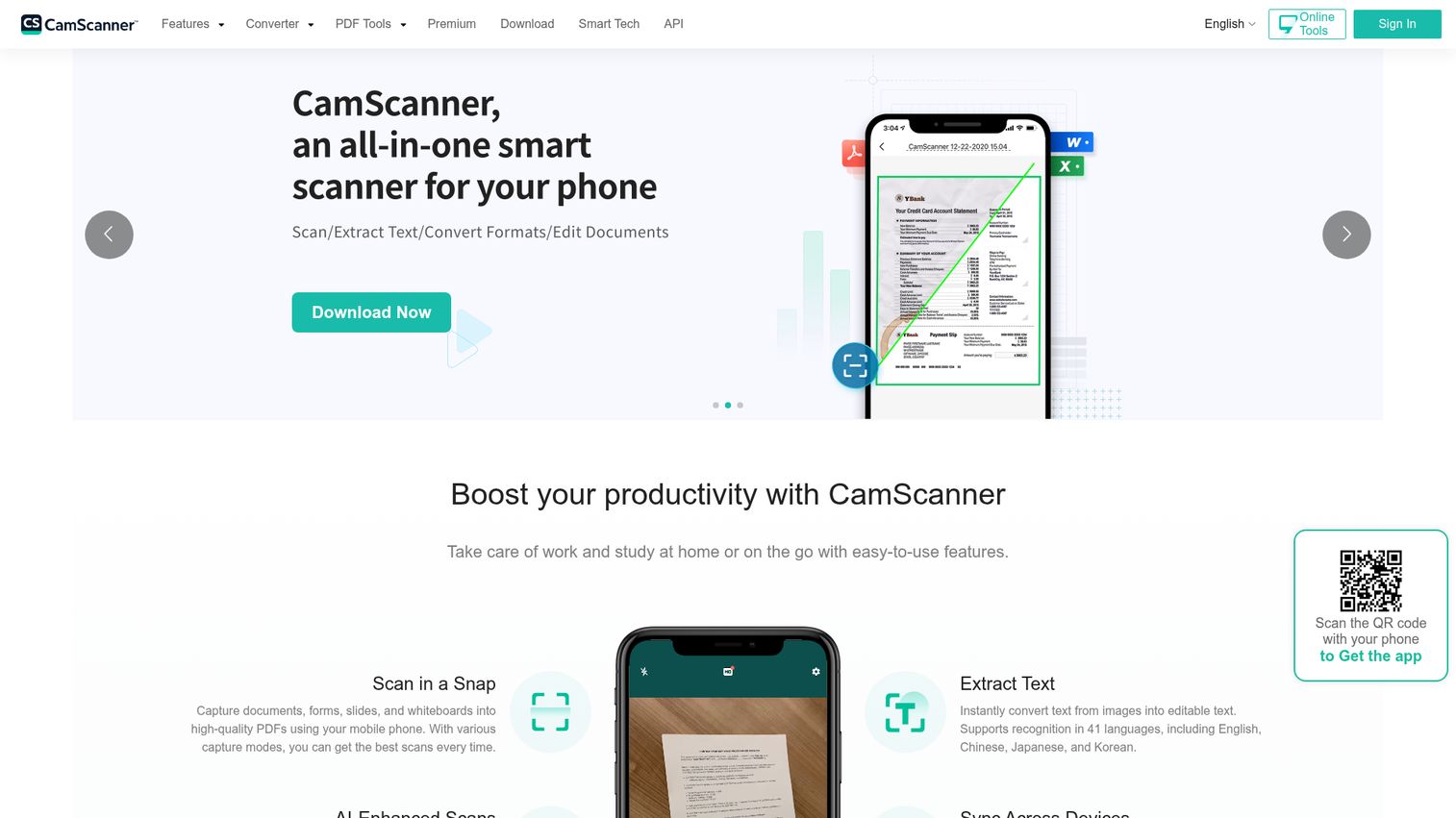
CamScanner is one of the most popular mobile scanning apps worldwide, with over 750 million downloads across iOS, Android, and web platforms.
The feature set is broad for a mobile scan app: AI-powered edge detection, multiple scanning modes (documents, ID cards, books, QR codes), cloud sync across devices, and collaboration tools for sharing scans with teammates. It's the Swiss Army knife of mobile scanning.
Best for: Mobile-first users who scan frequently on the go and need cross-device sync
Key strengths
- AI edge detection with automatic image enhancement
- Multiple scanning modes for documents, IDs, books, QR codes
- Cloud sync keeps scans accessible across all devices
- Collaboration and sharing tools built into the app
- Annotation and watermark tools for document markup
Pricing: Free tier with ads; Premium starts at $4.99/month
A note on trust: in 2019, CamScanner was temporarily removed from the Google Play Store after a malicious ad SDK was found in the app. The issue was identified, the SDK was removed, and the app was restored. It's been clean since. But if that history concerns you, Adobe Scan or Genius Scan are solid alternatives. The free version also includes ads, and full OCR functionality requires a premium subscription.
6. Nanonets - best for AI-powered automated document processing
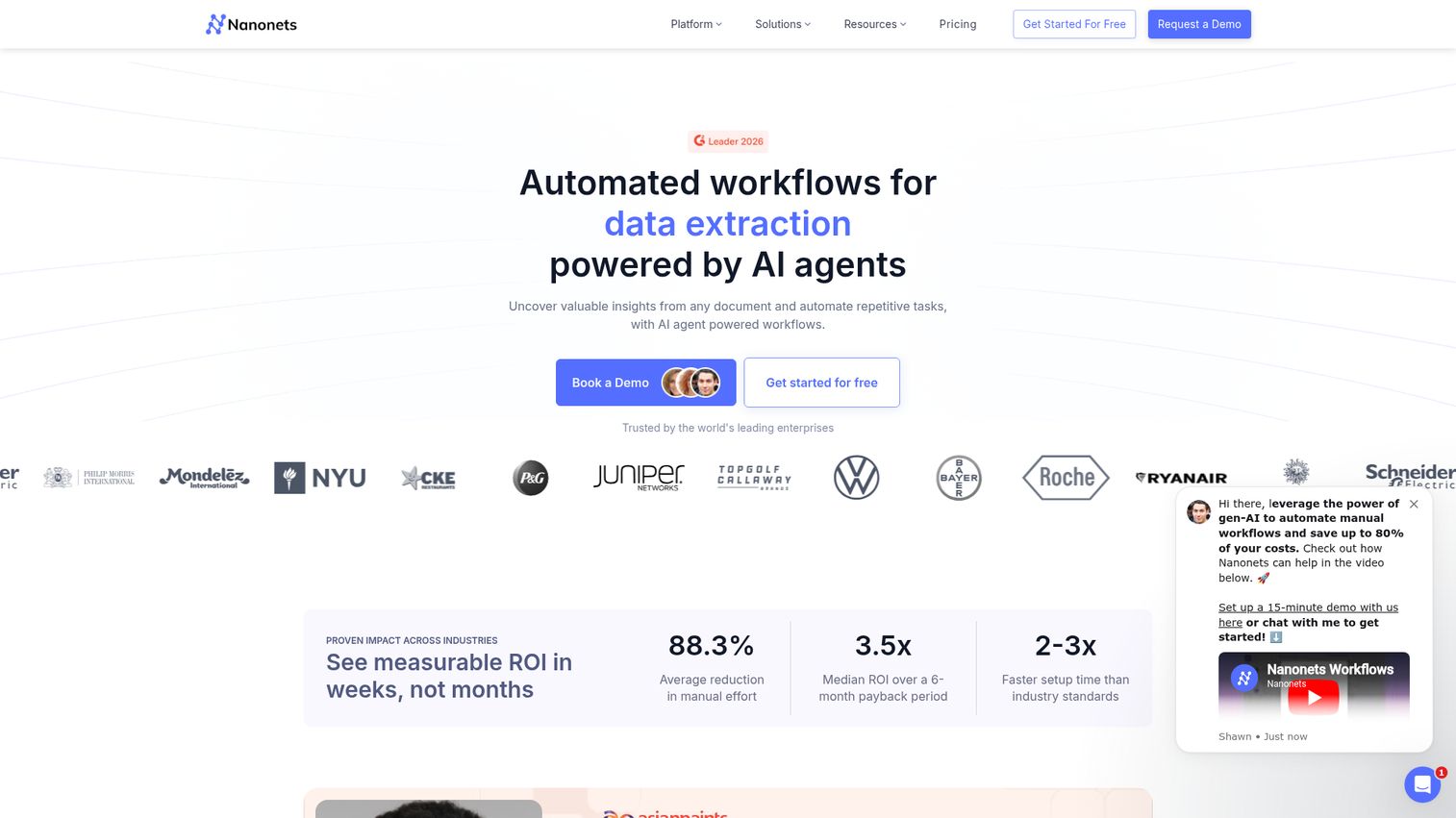
Nanonets isn't traditional scanning software. It's an AI and machine learning platform for the intelligent document processing market - designed for businesses that need to extract structured data from invoices, receipts, purchase orders, and forms at scale.
Think of it this way: where Adobe Scan digitizes a document, Nanonets reads it, understands it, and routes the data where it needs to go. A finance team processing 10,000 invoices a month can train custom AI models to extract vendor names, amounts, and dates automatically, then push that data into their ERP or accounting system. That's automated document scanning taken to its logical endpoint. Organizations exploring this level of automation across their sales and operations workflows may also benefit from AI sales tools that apply similar intelligence to revenue processes.
Best for: Enterprises and finance teams automating invoice processing and data extraction at scale
Key strengths
- AI-based data extraction for invoices, receipts, and forms
- Custom model training for unique document types
- API-first architecture integrates into existing workflows
- Automated validation and approval routing built in
- Connects to ERP, CRM, and accounting systems directly
Pricing: Free tier for limited usage; Pro and Enterprise tiers available (contact for pricing)
The trade-off is clear: if you just need to scan a document to PDF, Nanonets is massive overkill. Setup requires technical configuration. Enterprise pricing can be significant. But for high-volume document scanning systems that need intelligence, not just digitization, it's in a class of its own.
7. Doxis AI.dp. - best enterprise document management with scanning
Doxis, built by SER Group, is an enterprise content management platform with integrated intelligent document processing. It covers the full document lifecycle - capture, store, manage, archive - not just the scanning step.
For large organizations in regulated industries like healthcare, finance, or government, Doxis provides the compliance infrastructure that standalone scanning tools can't, meeting HIPAA compliance requirements for digital documents. AI-powered classification sorts incoming documents automatically, workflow automation routes them for approval, and audit trails track every action for compliance purposes. It integrates with SAP, Microsoft 365, and other enterprise systems.
Best for: Large enterprises in regulated industries needing end-to-end scanned document management systems
Key strengths
- AI-powered document classification and data extraction
- Full document lifecycle management from capture to archive
- Compliance-ready audit trails and retention policies
- Deep integration with SAP and Microsoft 365
- Workflow automation with approval routing built in
Pricing: Enterprise pricing (contact SER Group for a quote)
This is not for individuals or small teams. Implementation is complex, pricing is opaque, and you'll need IT resources to deploy it. But if you need a document scanning system that handles compliance, retention, and enterprise-scale workflows, Doxis is built for exactly that.
8. Windows Scan - best free built-in scanner for Windows users
Windows Scan is Microsoft's free scanning utility, available from the Microsoft Store for Windows 10 and 11. It does one thing: scans documents and photos from a connected scanner. That's it.
No OCR. No batch scanning. No cloud integration. No image enhancement. Just a clean, one-click interface that outputs to PDF, JPEG, TIFF, PNG, BMP, or XPS. If you need a scan app for Windows and don't want to install third-party scanning software, this is already on your machine.
Best for: Windows users who need occasional, basic scanning without installing anything extra
Key strengths
- Completely free and included with Windows 10/11
- Extremely simple one-click scanning interface
- Outputs to six file formats including PDF and TIFF
- Lightweight with zero bloatware or advertisements
- Auto-detects connected scan sources automatically
Pricing: Free (included with Windows)
The limitations are obvious. No OCR means your scanned documents are just images - you can't search or copy text from them. No batch scanning means multi-page documents require manual effort. For anything beyond the most basic scanning needs, you'll want NAPS2 or VueScan instead. But for "I need to scan this one page right now," Windows Scan does the job.
9. PaperScan - best budget desktop scanner with annotation tools
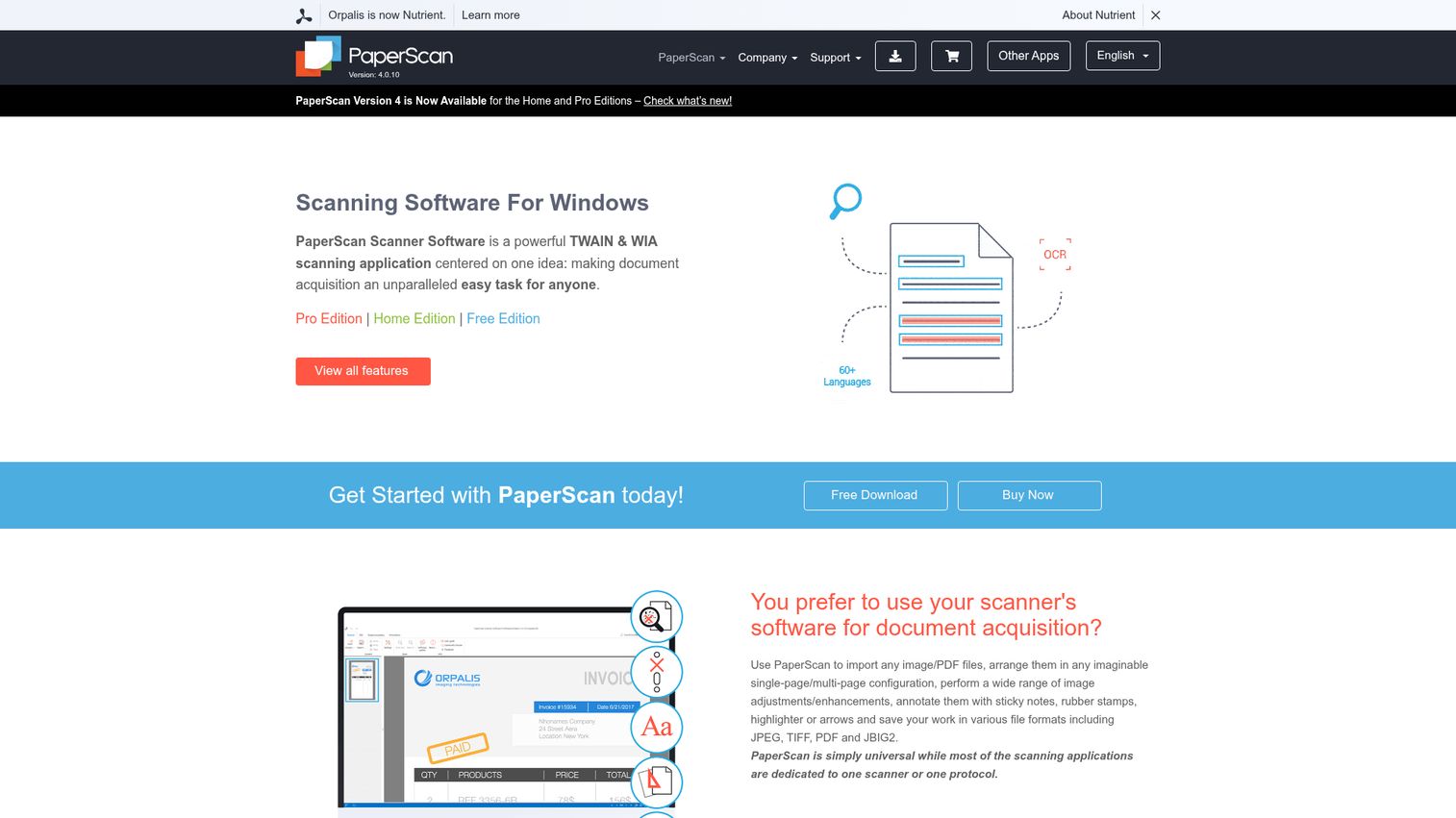
PaperScan, developed by ORPALIS, is a Windows desktop scanning application that combines scanning, OCR, and annotation in one package - at a price point that won't strain a small office budget.
What distinguishes PaperScan from other document image scanning software is the built-in annotation toolkit. You can highlight, stamp, redact, and draw directly on scanned documents. Barcode recognition is another uncommon feature at this price range, making it useful for inventory or document sorting workflows.
Best for: Small offices needing affordable scanning with built-in annotation and basic OCR
Key strengths
- TWAIN and WIA scanner support for broad compatibility
- Built-in annotation tools including highlight and redact
- Barcode and QR code recognition for document sorting
- Image enhancement with deskew and despeckle filters
- Batch scanning with multi-page PDF creation support
Pricing: Free edition (limited features); Home Edition at $29; Professional Edition at $149
The free edition is quite restricted - it's more of a trial than a usable product. The UI feels dated compared to modern alternatives. OCR accuracy doesn't approach ABBYY's level. And it's Windows-only. But for the price, the annotation and barcode features offer genuine value that competing programs for scanning at this tier don't include.
10. SwiftScan - best premium mobile scanner for business
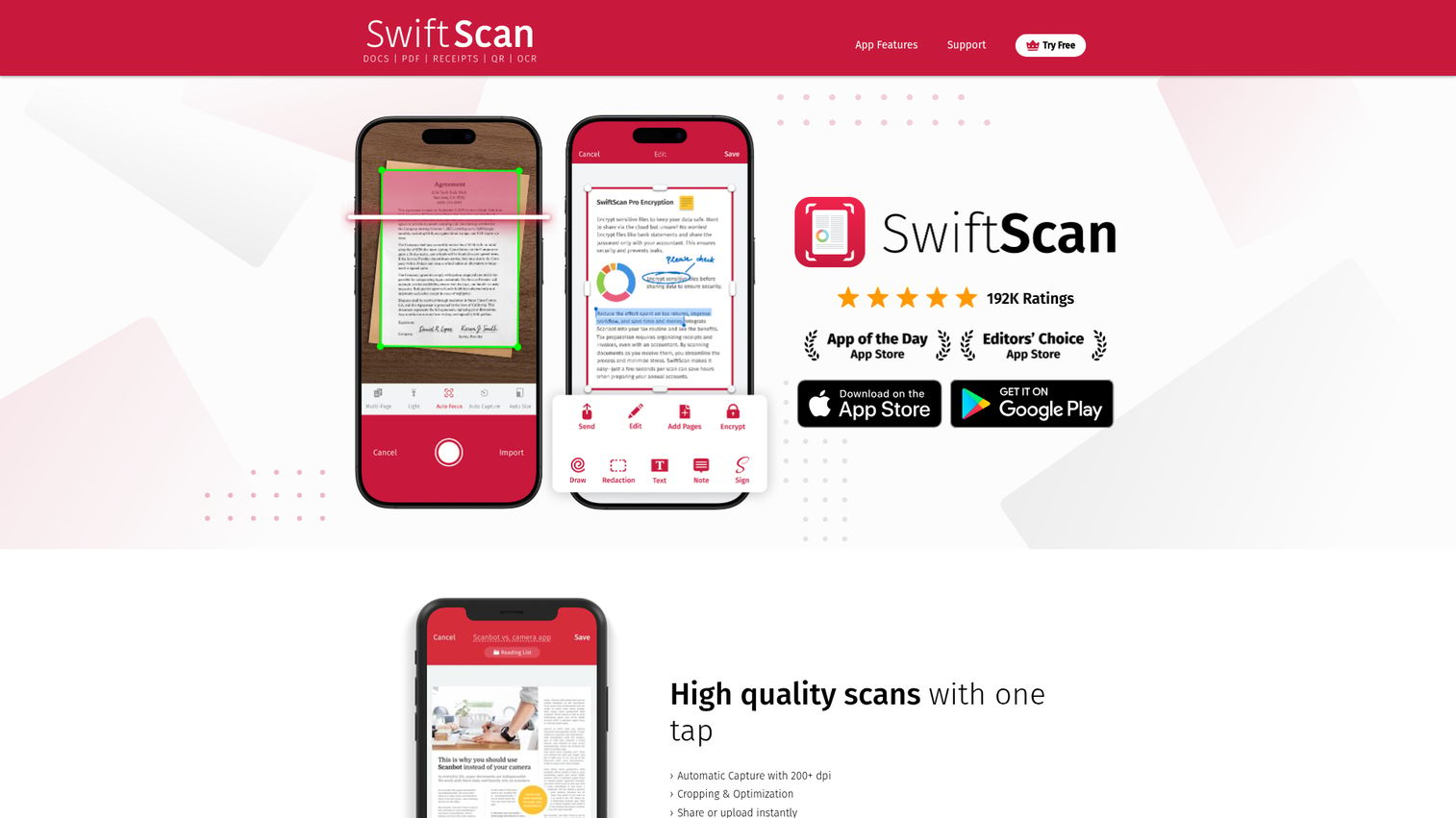
SwiftScan (formerly Scanbot) is a premium mobile scanner app built for business users who need high-quality scans, strong security, and automatic cloud backup on iOS and Android.
Where Adobe Scan leans on the Adobe ecosystem and CamScanner targets the mass market, SwiftScan occupies the professional middle ground. Enterprise-grade encryption protects sensitive documents. Automatic upload pushes scans to iCloud, Google Drive, Dropbox, OneDrive, Box, or WebDAV without manual steps. There's even a fax sending capability - surprisingly useful for industries that still require it.
Best for: Business professionals needing a secure, reliable mobile scanner app with automatic cloud backup
Key strengths
- Smart edge detection with perspective correction
- Automatic upload to seven cloud storage services
- Enterprise-grade encryption for sensitive documents
- QR and barcode scanning built into the app
- Fax sending capability for legacy workflow needs
Pricing: Free tier with basic features; Premium subscription at $2.99/month or $21.99/year
SwiftScan is less well-known than Adobe Scan or CamScanner, which means a smaller community and fewer tutorials. Premium features require a subscription. But for the price, you're getting a polished, security-conscious scanner app that handles business scanning needs without the bloat.
11. Scan2x - best for high-volume enterprise scanning workflows
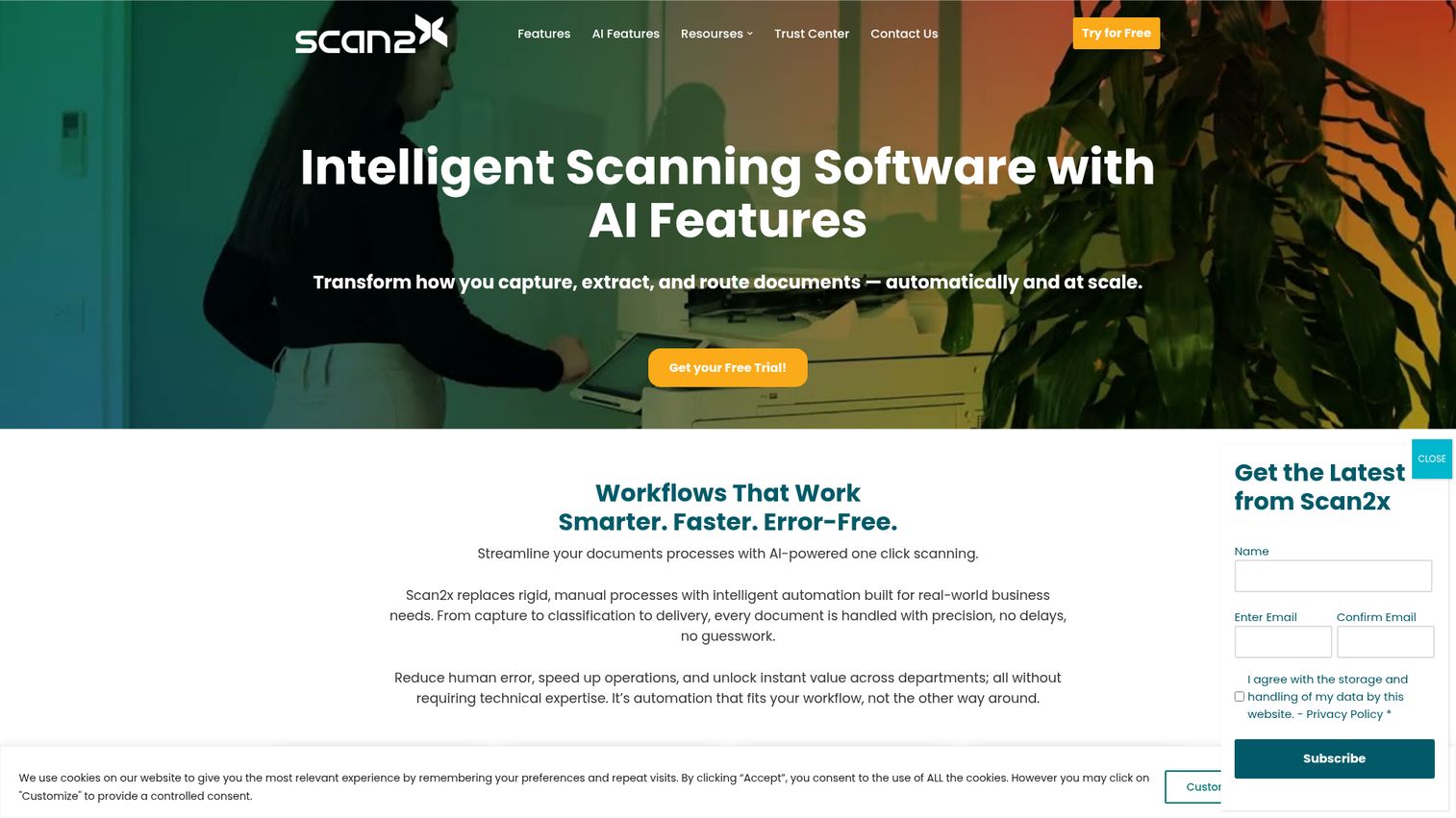
Scan2x is an enterprise scanning solution designed specifically for integration with multi-function printers (MFPs). It turns your existing MFP hardware into an intelligent document capture station.
The key differentiator is MFP touchscreen integration. Users walk up to the printer, select a scanning workflow on the touchscreen, and Scan2x handles classification, metadata extraction, and routing automatically. Documents get sent to the right destination - email, cloud storage, DMS, or ERP - without manual sorting.
Best for: Large offices with existing MFP infrastructure needing automated document capture workflows
Key strengths
- Direct MFP touchscreen integration for walk-up scanning
- AI-powered document classification and routing automation
- Barcode and QR code recognition for document sorting
- Metadata extraction and indexing for searchability
- Compliance-ready audit trails for regulated industries
Pricing: Enterprise pricing (contact Scan2x for a quote)
This isn't for individual users. You need existing MFP hardware, IT resources for setup, and a volume of documents that justifies the investment. But for organizations already running fleets of multi-function printers, Scan2x turns those devices into a document scanning system instead of just a copier.
12. MyQ - best for print and scan management in large organizations
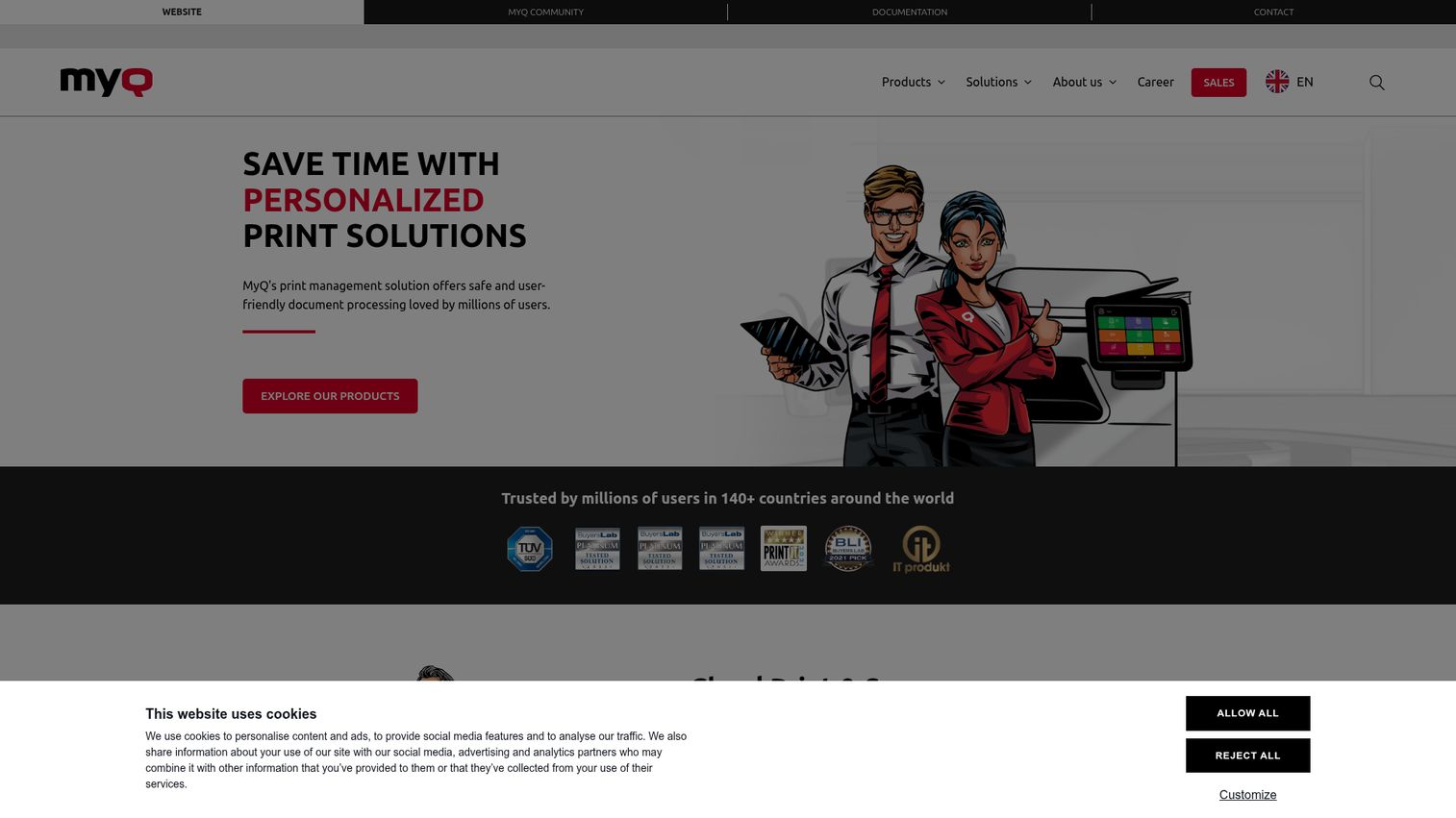
MyQ is a print and scan management platform for organizations managing fleets of printers and MFPs. It's not just scanning software - it's a governance layer that combines scanning with print cost control, user authentication, and workflow automation.
Users authenticate at MFP devices via card, PIN, or mobile app before scanning. Scans route automatically to cloud services, email, or folders based on predefined workflows. IT departments get cost tracking, usage reporting, and centralized management across every device in the fleet.
Best for: IT departments managing document workflows across multiple printers and scanners in medium-to-large organizations
Key strengths
- Centralized print and scan management across device fleets
- User authentication via card, PIN, or mobile app
- Scan-to-cloud, scan-to-email, and scan-to-folder workflows
- Cost tracking and usage reporting for budget control
- Integration with Microsoft 365 and Google Workspace
Pricing: Per-device or per-user licensing (contact MyQ for a quote)
Like Scan2x, MyQ requires MFP infrastructure and IT setup. It's not a document scanning system for individuals. The value is in the management layer: knowing who scanned what, where it went, and how much it cost. For organizations spending significant budget on print and scan infrastructure, that visibility pays for itself.
13. Readiris - best for multilingual OCR and PDF management
Readiris, developed by IRIS (a Canon Group company), is a powerful OCR and PDF management application supporting 130+ languages - including Asian and Arabic scripts that many competitors struggle with.
If you work in a multilingual environment, Readiris often handles non-Latin scripts more reliably than tools that treat multilingual support as an afterthought. It's available for Windows and macOS, with batch processing, watched folder automation, and cloud connectors for Google Drive, Dropbox, OneDrive, SharePoint, and Evernote. This is document image scanning software built for international workflows.
Best for: Multilingual organizations, translators, and international businesses needing OCR across diverse scripts
Key strengths
- OCR supporting 130+ languages including Asian and Arabic
- PDF creation, editing, compression, and format conversion
- Batch processing with watched folder automation
- Cloud connectors for five major storage services
- Handwriting and barcode recognition included
Pricing: One-time purchase starting at $99 for the Standard edition; higher tiers available
The UI could use a refresh - it's functional but not modern. OCR occasionally stumbles on complex multi-column layouts. And Readiris doesn't have the name recognition of ABBYY, which means fewer community resources. But for the price (a one-time purchase vs. ABBYY's annual subscription), the multilingual OCR capability offers strong value. If you're processing documents in 5+ languages regularly, Readiris deserves serious consideration.
14. Genius Scan - best lightweight mobile scanner for quick captures
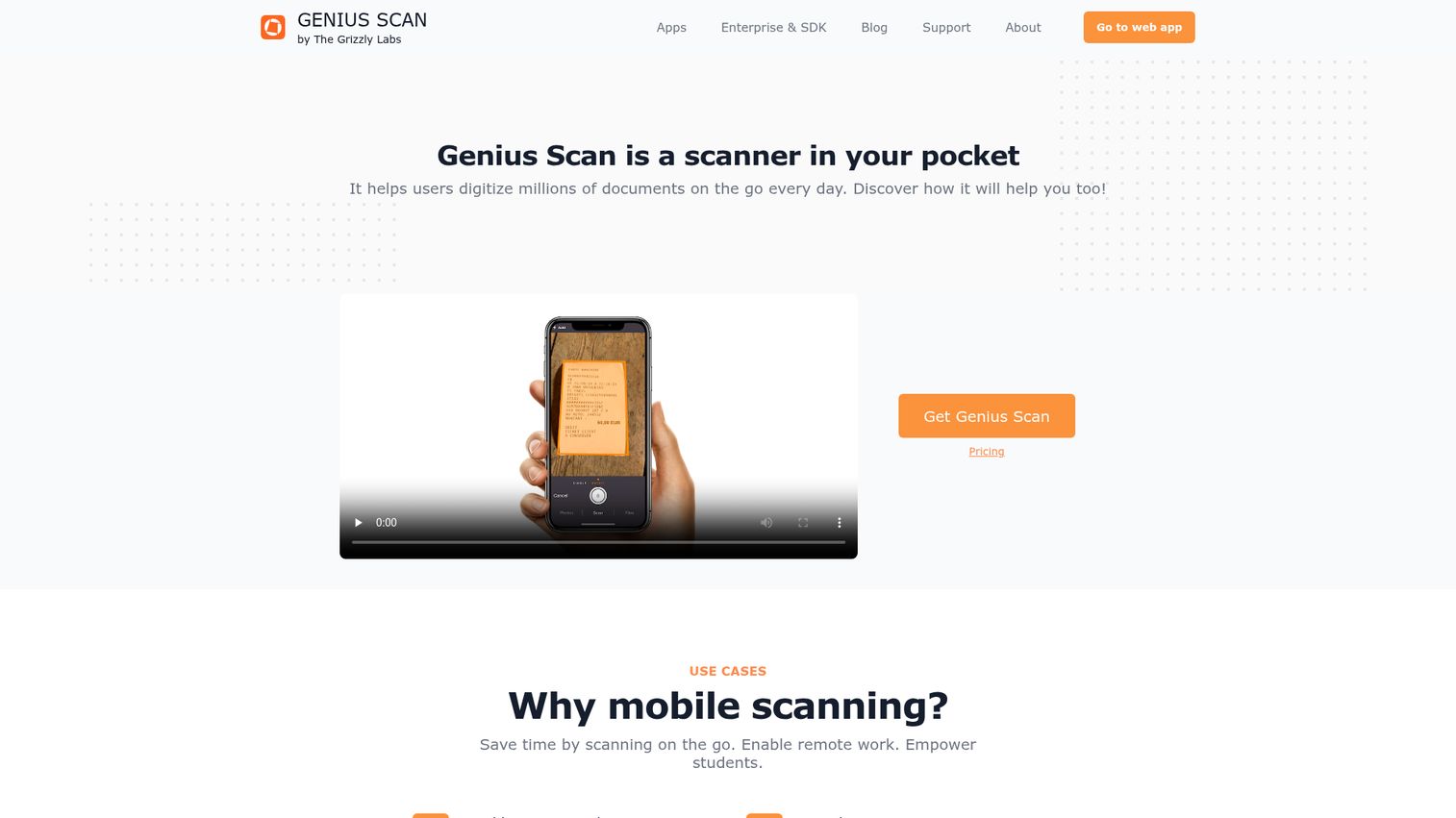
Genius Scan is a lightweight, privacy-focused mobile scan app for iOS and Android. It's designed for speed: open the app, point your camera, and the scan is done in seconds.
The privacy angle is the real differentiator. All processing happens on-device - no data gets sent to external servers. In a category where most scanner apps route your documents through cloud services for processing, Genius Scan keeps everything local. For anyone scanning sensitive personal documents, medical records, or financial paperwork, that matters.
Best for: Privacy-conscious users wanting a fast, simple mobile scanner without subscriptions
Key strengths
- On-device processing keeps all data local and private
- Smart page detection with automatic perspective correction
- One-time purchase option with no recurring subscription
- Organize scans into folders with tags for retrieval
- Cloud export available but optional, not required
Pricing: Free version with basic features; Genius Scan+ one-time purchase at $9.99
OCR is only available in the premium version. The feature set is thinner than Adobe Scan or SwiftScan. There's no desktop version. But Genius Scan isn't trying to be everything - it's trying to be fast, simple, and private. For users who value those three things above all else, it delivers.
15. Epson ScanSmart - best bundled software for Epson scanner owners
Epson ScanSmart is the scanning software bundled with Epson document scanners, including the WorkForce and FastFoto lines. It provides a guided, step-by-step scanning workflow that's designed for users who don't want to think about settings.
The software walks you through each scan: choose your document type, preview the result, edit if needed, then save or upload. Automatic file naming and organization by date keeps your scans sorted without manual effort. Cloud upload to Google Drive, Dropbox, and other services is built in.
Best for: Epson scanner owners who want a simple, no-cost scanning solution optimized for their hardware
Key strengths
- Guided three-step workflow requires zero scanning expertise
- Automatic file naming and date-based organization
- Cloud upload to Google Drive, Dropbox, and more
- Basic image editing with crop, rotate, and color adjust
- Optimized specifically for Epson scanner hardware
Pricing: Free (bundled with Epson scanners)
The limitation is baked into the name: it only works with Epson scanners. OCR capabilities are basic compared to dedicated tools. The feature set is intentionally simple. But if you already own an Epson scanner and want scanning software that just works with your hardware, ScanSmart is the path of least resistance.
How to choose the right document scanning software for your needs
The best scanning program depends entirely on what you're scanning, how often, and where the files need to go. Here's a framework to narrow your options.
Individual vs. business vs. enterprise needs
Individual or personal use: Start with free tools. NAPS2 handles desktop scanning with no cost. Windows Scan covers basic needs. Adobe Scan's free tier or Genius Scan work well on mobile. You don't need to spend anything unless you have specific OCR or batch processing requirements.
Small business: CamScanner Premium, SwiftScan, PaperScan, or Readiris tend to hit the right balance of features and cost. Look for OCR accuracy, cloud integration, and multi-page document support. One-time purchases (Readiris, VueScan) often make more financial sense than subscriptions for small teams.
Enterprise: Nanonets, Doxis, Scan2x, and MyQ are built for scale, compliance, and automation. Expect longer implementation timelines and contact-for-pricing models. The ROI comes from volume - these tools pay for themselves when you're processing thousands of documents monthly. Enterprises evaluating scanning alongside broader digital transformation should also explore digital adoption platforms that help teams actually adopt new software once it's rolled out.
Mobile vs. desktop vs. both
| Category | Tools |
|---|---|
| Mobile-only | Adobe Scan, CamScanner, Genius Scan |
| Desktop-only | NAPS2, VueScan, PaperScan, Windows Scan, Readiris, Epson ScanSmart |
| Both/Cross-platform | SwiftScan, Nanonets (web-based) |
| Enterprise (MFP-based) | Scan2x, MyQ, Doxis |
Key features to prioritize
Your top priority should drive your choice. Here's a quick mapping:
- OCR accuracy → ABBYY FineReader or Readiris
- Legacy scanner support → VueScan
- AI automation → Nanonets or Doxis
- Privacy → Genius Scan
- Zero budget → NAPS2 or Windows Scan
- Ecosystem integration → Adobe Scan (Adobe) or Epson ScanSmart (Epson)
- Multilingual documents → Readiris (130+ languages) or ABBYY FineReader (190+ languages)
If you're still unsure, start with a free tool. NAPS2 for desktop, Adobe Scan for mobile. Use it for a week. You'll quickly discover which features you actually need vs. which ones sound nice on a comparison table.
Document scanning software security and compliance considerations
If you're scanning contracts, medical records, financial documents, or anything containing personal data, security isn't optional. Here's what to look for. For organizations dealing with contracts specifically, pairing your scanning tool with contract management software adds version control, access permissions, and audit-ready workflows on top of basic digitization.
Encryption standards matter at two levels: data at rest (stored files) and data in transit (files being uploaded or synced). Look for AES-256 encryption standard and TLS 1.2+ for transfers.
On-device vs. cloud processing has real privacy implications. Tools like Genius Scan process everything locally - your documents never leave your phone. Cloud-based tools like Nanonets and CamScanner send data to external servers for processing. Neither approach is inherently wrong, but you need to know which model your tool uses.
Compliance frameworks to consider by industry:
| Framework | Industry | Tools with Coverage |
|---|---|---|
| HIPAA | Healthcare | Nanonets, Doxis, SwiftScan |
| GDPR | EU data handling | Nanonets, Doxis, MyQ |
| SOC 2 | Enterprise/SaaS | Nanonets, Doxis |
| FERPA | Education | Verify with vendor |
Best practices regardless of tool:
- Password-protect sensitive PDFs after scanning
- Use encrypted cloud storage for scanned document management
- Review your vendor's data processing agreement before uploading sensitive files, ensuring alignment with GDPR data processing requirements
- Enable two-factor authentication on any cloud accounts connected to your scanner app
The market for document scanning software in 2026 spans from free single-purpose apps to AI-powered enterprise platforms - and the right choice depends on your volume, budget, and compliance requirements. Start with a free tool to test your workflow, then upgrade only when you hit a clear limitation.
Once your documents are digitized, consider how you present and share that information. For SaaS teams, interactive demos can turn static documentation into guided, clickable walkthroughs that prospects and customers actually engage with.
Bookmark this guide and revisit as your scanning needs evolve.
Frequently asked questions about document scanning software
Document scanning software converts physical paper documents into digital files - typically PDF, JPEG, or TIFF - using a flatbed scanner, document feeder, or smartphone camera. Most modern tools include OCR (Optical Character Recognition), which makes the scanned text searchable and editable rather than just saving it as a static image. The category ranges from free mobile apps to enterprise platforms handling thousands of documents daily.
Connect your scanner to your computer, then open your scanning software (NAPS2, Windows Scan, and VueScan all work). Place the document face-down on the scanner glass or into the automatic document feeder. Select PDF as your output format, click Scan, and save the file. If you don't have a physical scanner, mobile apps like Adobe Scan can create PDFs using your phone's camera with automatic edge detection and perspective correction.
NAPS2 is the strongest free desktop option - it's open-source with no watermarks, no ads, and no feature limitations. For basic Windows scanning without installing anything, Windows Scan is already on your machine. On mobile, Adobe Scan's free tier offers AI-powered scanning with OCR included. Each excels in a different context: NAPS2 for features, Windows Scan for simplicity, Adobe Scan for mobile.
Security depends on both the software you use and how you store the resulting files. Tools like SwiftScan and Doxis offer enterprise-grade AES-256 encryption, while Genius Scan processes everything on-device so documents never reach external servers. For regulated industries, look for tools with explicit HIPAA, GDPR, or SOC 2 compliance certification. At minimum, password-protect sensitive PDFs and store them in encrypted cloud storage. If you need to collect signed or sensitive documents from external parties, dedicated e-signature software adds another layer of security and legal validity to the process.
OCR (Optical Character Recognition) converts scanned images of text into machine-readable, searchable, and editable text. Without OCR, a scanned document is just a picture - you can't search for words, copy text, or convert it to a Word file. OCR accuracy varies significantly by tool: ABBYY FineReader and Readiris consistently lead for accuracy, while free options like NAPS2 (using the Tesseract engine) handle standard documents reasonably well.
Yes. Apps like Adobe Scan, CamScanner, SwiftScan, and Genius Scan turn any smartphone camera into a capable document scanner. AI-powered edge detection, automatic perspective correction, and built-in OCR mean phone scans are often good enough for most personal and small business needs. For high-volume or archival-quality work, a dedicated flatbed scanner still produces better results - but for day-to-day scanning, your phone works fine.
The most common formats are PDF (the universal standard for scanned documents), JPEG and PNG (for images), and TIFF format for archival-quality preservation. Many tools with OCR can also export to DOCX or XLSX, converting scanned text into editable Word or Excel files. Searchable PDF - a PDF with an embedded OCR text layer - is the most versatile option, combining visual fidelity with text searchability.
Scanning software focuses on one job: capturing physical documents and converting them to digital files. Document management software (DMS) handles the full lifecycle after capture - storage, organization, retrieval, version control, access permissions, and compliance. Some tools bridge both categories: Doxis and MyQ combine scanning with document management features. Most individuals and small businesses only need scanning software; enterprises in regulated industries often need a full DMS. For teams that also need a centralized hub to share product knowledge internally, a knowledge base can complement your scanning setup by making digitized documents easy to find and reference.