
Your G2 profile gets views. Your Capterra listing ranks in the right category. Buyers land on your page, scan three screenshots, skim two reviews, and click over to the next vendor.
You know this pattern. The profile is doing half its job: attracting attention but not converting interest into action. The problem is structural. Static screenshots and text descriptions don't let prospects experience your product. They read about it. They look at it. But they never touch it.
Here's why that matters: software review platforms like G2 and Capterra attract buyers who are actively comparing 3 to 5 vendors side by side. According to G2's own data, prospects are 2 to 3x more likely to engage with an interactive demo than with screenshots or videos. The listing that lets buyers click through the actual product wins a structural advantage over every competitor still relying on static images.
This guide walks you through the full process, from creation to measurement, for both platforms.
What's inside
This guide covers:
- What interactive demos are and how they appear on software review platforms
- Step-by-step instructions for adding demos to your G2 profile
- Step-by-step instructions for adding demos to your Capterra listing
- How to choose the right product flow to showcase
- How to optimize demos for review site context and buyer engagement
- How to measure demo performance and iterate based on data
These steps reflect the current 2026 platform interfaces and integration options for both G2 and Capterra.
TL;DR
- G2 supports native interactive demo embeds through its partner integrations. Capterra supports custom media and demo links. Both can be set up in minutes.
- Interactive demos on review profiles generate materially higher engagement than static screenshots because buyers click through actual product flows instead of scanning images.
- The demo you show on a review site performs best when it's short (3 to 7 steps), focused on a single high-value workflow, and ends with a clear CTA.
- Guideflow is a native G2 integration partner that lets you capture, personalize, and embed interactive demos with built-in analytics.
- Track impressions, completion rates, and CTA clicks to measure impact and iterate quarterly.
What is an interactive demo on a review site
An interactive demo on a review site is a clickable, guided walkthrough of your product that prospects can experience directly from your G2 or Capterra profile. No signup, no scheduled call, no login required. The buyer clicks through your actual product interface, step by step, and forms an impression based on what they see and do.
There are two main ways interactive demos appear on G2, plus a distinct approach for Capterra.
G2 interactive demo slot. This is a dedicated embed on your G2 profile where the demo loads inline. G2 supports this through its partner integration program. Buyers click through the demo experience without leaving the G2 page. The demo appears in the Media section of your profile and opens in a lightbox that keeps the buyer within the G2 experience.
G2 custom CTA. This is a button on your profile (typically top-right) that links to an external product demo experience hosted on your site or via a public link. The buyer clicks the button and opens the demo in a new tab.
Capterra custom media and links. Capterra allows product screenshots, videos, and vendor-provided links within your listing. Interactive demos can be linked through the product description, media gallery, or CTA fields. The buyer clicks the link to open the demo experience externally.
Here's how the three options compare:
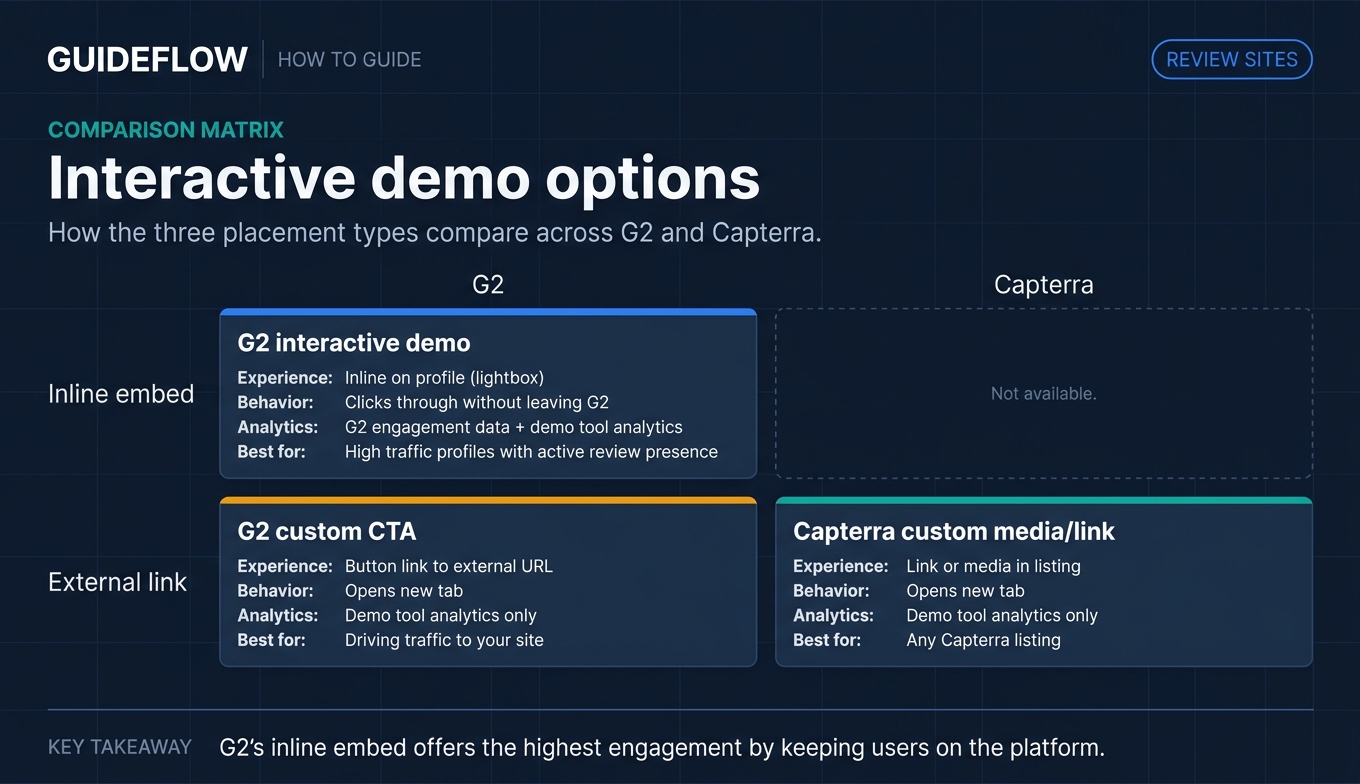
| Feature | G2 interactive demo | G2 custom CTA | Capterra custom media/link |
|---|---|---|---|
| Embed type | Inline on profile (lightbox) | Button link to external URL | Link or media in listing |
| Buyer experience | Clicks through demo without leaving G2 | Opens new tab/window | Opens new tab/window |
| Analytics | G2 engagement data + demo tool analytics | Demo tool analytics only | Demo tool analytics only |
| Best paired with | High-traffic profiles with active review presence | Profiles where you want to drive traffic to your site | Any Capterra listing |
The key distinction: G2's inline embed keeps the buyer on the platform while they explore your product. The custom CTA and Capterra approaches send the buyer to an external experience. Both work. The inline embed delivers the highest engagement because there's zero navigation friction between reading reviews and experiencing the product.
Why interactive demos on review sites matter for SaaS marketers
You already know you want to add a demo. You searched for how to do it. But if you need to justify the effort internally or prioritize this against other projects, here's the business case.
Review site buyers are high-intent and comparison-ready. G2 and Capterra visitors aren't casually browsing. They're in active evaluation mode, comparing your product against 3 to 5 alternatives on the same category page. Every vendor gets the same layout: screenshots, description, reviews, pricing. The listing that lets buyers experience the product creates a fundamentally different impression than the one that only shows static images. When a buyer can click through your core workflow and see your UI in action, they carry that experience into their internal evaluation. That's a structural advantage no amount of polished screenshots can replicate.
Interactive demos deliver materially higher engagement than static content. G2's own data shows prospects are 2 to 3x more likely to engage with interactive demos than with screenshots or videos. This isn't a marginal improvement. It's a fundamentally different engagement model. Clicking through a product flow creates understanding. Scanning a screenshot creates a vague impression. For growth marketers, this translates directly to KPIs: higher engagement on review profiles leads to more qualified clicks to your site, better conversion from review site traffic, and lower CAC from a channel you're already investing in.
You get intent signals from demo engagement. Demo analytics show which features prospects explored, how far they progressed through the flow, and whether they clicked the CTA. This data feeds into lead scoring and follow-up prioritization. For growth marketers dealing with attribution ambiguity across channels, interactive demo engagement creates a clearer signal from a channel that's traditionally hard to measure beyond "they came from G2." When your sales team can see that a prospect spent time exploring your integration workflow on G2 before booking a demo, the follow-up conversation starts from a stronger position.
How to create an interactive demo for your review site profile
Before you touch your G2 or Capterra settings, you need a demo ready to go. Here's how to prepare one optimized for review site context.
Step 1: Choose the product flow to showcase
The demo for a review site should be different from a full product tour on your website. Review site visitors are comparing vendors. They want to see your core differentiator in action, not a 15-step onboarding walkthrough.
Pick one high-value workflow that takes 3 to 7 steps. The flow should answer the buyer's number one question: "What does this product actually look like in use?"
Good flows to showcase: the core dashboard with real data populated, the main workflow your product is known for, or the specific feature that differentiates you from competitors listed on the same category page. If you're listed under "Marketing Automation" on G2, show a marketing automation workflow. If your differentiator is reporting, show the reporting view.
Step 2: Capture and build the demo
Open your product in the browser. Start the Guideflow capture. Click through the flow as you normally would. Hit Finish. The interactive demo is generated automatically from your captured screens.
From there, refine in the builder: add tooltips to highlight key features, insert callouts that explain what the buyer is seeing, and place a CTA at the final step. Customize branding (colors, logo) to match your review site profile. Blur or hide any sensitive customer data.
Guideflow's AI features auto-generate step descriptions and CTAs, so the demo is polished and ready to share in minutes. No design resources needed. No engineering tickets.
Step 3: Optimize for review site context
A few specific optimizations make a meaningful difference for review site placement:
- Keep it short. 3 to 7 steps drives the highest completion rates for review site context. Buyers are scanning multiple vendors. A focused demo that delivers a clear impression in under 60 seconds outperforms a comprehensive walkthrough. Longer, branching demos excel at mid-funnel evaluation on your own site.
- Make the first step visually compelling. It's the thumbnail or preview that entices the click. Choose a screen that looks distinct, data-rich, and recognizably "your product."
- End with a clear CTA. "Start free trial," "Book a demo," or "See pricing." Every demo needs a next step.
- Consider a review-site-specific version. If your demo tool supports personalization, create a version focused on comparison-relevant features with industry-neutral sample data, since review site visitors come from many verticals.
How to add an interactive demo to your G2 profile
G2 offers two paths: the native interactive demo integration (inline embed) and the custom CTA button. Here's how to set up both.
Option A: Using the G2 interactive demo integration
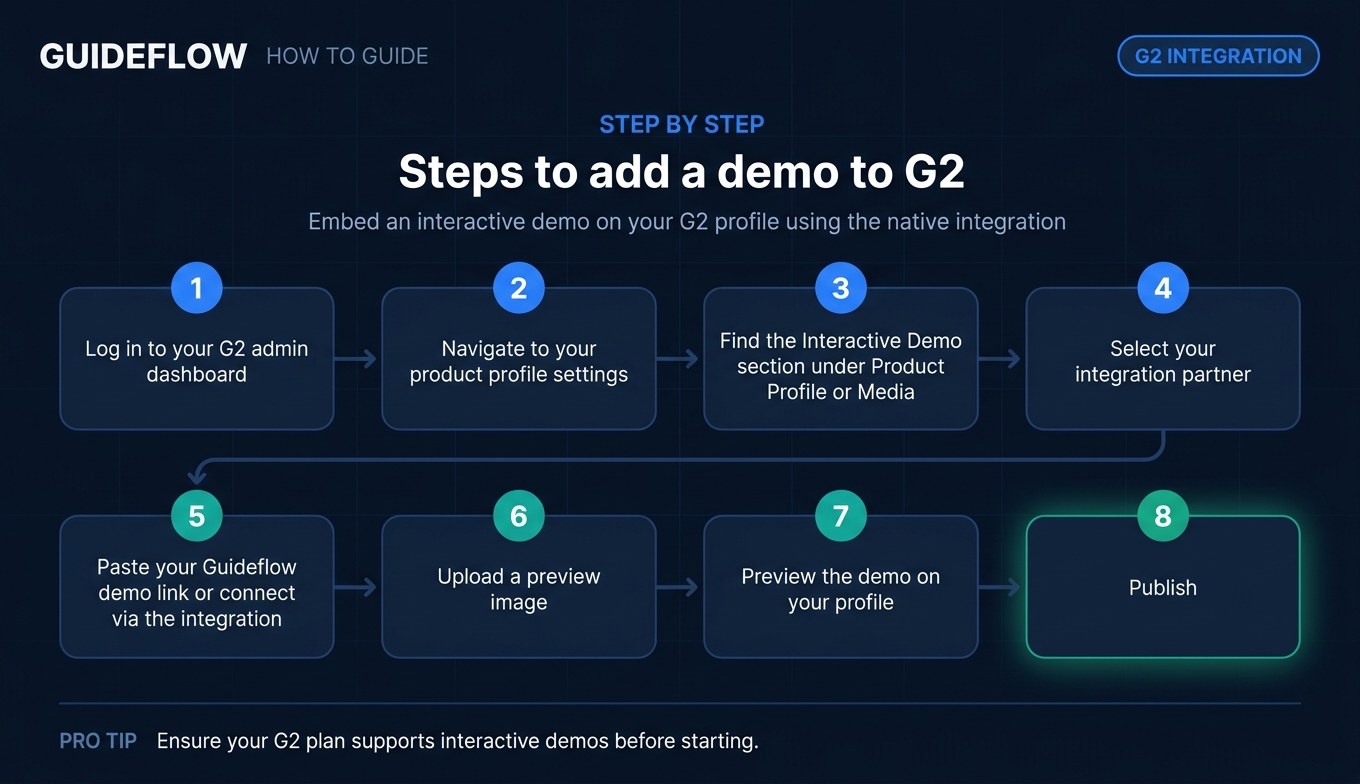
This is the preferred approach. It embeds your demo inline on your G2 profile so buyers can click through without leaving the page.
- Log in to your G2 admin dashboard at my.g2.com
- Navigate to your product profile settings
- Find the "Interactive Demo" section under Product Profile or Media
- Select your integration partner (Guideflow is a native G2 integration partner listed on the G2 Partner Hub)
- Paste your Guideflow demo link or connect via the integration
- Upload a preview image that will serve as the demo thumbnail on your profile
- Preview the demo on your profile to confirm it loads correctly
- Publish
Note: G2 requires at least an Essentials Plan or higher to access interactive demo features. Check your specific G2 plan details or contact your G2 account representative to confirm which media and integration options are included.
The demo appears in the Media section of your G2 profile and opens in a lightbox when buyers click it. This keeps them within the G2 experience while they explore your product.
Option B: Using the G2 custom CTA
For teams that want to link to an external demo experience rather than embedding inline:
- Log in to your G2 admin dashboard
- Navigate to profile settings and find the Custom CTA section
- Add a CTA button label (e.g., "Try interactive demo" or "See product in action")
- Paste the public link to your Guideflow demo
- Save and publish
The custom CTA button appears at the top-right of your G2 profile. This option works well when you want to drive traffic to a Demo Center on your website with multiple flows, or when you want to gate the demo with a lead capture form before the buyer enters the experience.
Verification and testing
After publishing, visit your G2 profile as a logged-out user to verify:
- The demo loads correctly and all steps are clickable
- Tooltips, callouts, and annotations display properly
- The CTA at the end of the demo works and routes to the correct destination
- The demo is visible and functional on both desktop and mobile
- The preview image or thumbnail is clear and compelling
Check analytics within 24 to 48 hours: confirm that impressions and engagement data are flowing in both your G2 analytics dashboard and your Guideflow analytics.
How to add an interactive demo to your Capterra listing
This section is a key differentiator for this guide. No existing resource covers how to add interactive demos to Capterra. Here's the full process.

Understanding Capterra's listing options
Capterra's vendor profile structure includes a product description, screenshot and media gallery, videos, and vendor-provided links and CTAs. Unlike G2, Capterra does not currently offer a native inline interactive demo embed through a partner integration program. However, there are multiple ways to add interactive demo access to your listing that drive buyer engagement.
Adding your demo link to Capterra
- Log in to your Capterra vendor portal
- Navigate to your product listing editor
- In the product description or "Additional Information" section, add a CTA sentence with the public link to your interactive demo (e.g., "See the product in action: [link]")
- In the media gallery, upload a compelling screenshot from your interactive demo as one of your visual assets. Use the caption or description field to reference the demo link
- If Capterra offers a "Free Demo," "Get Started," or "Visit Website" CTA field, use your Guideflow public link as the destination URL
- If video uploads are supported, export a short video version of your Guideflow demo as a teaser that drives viewers to the full interactive experience
- Save and publish
Maximizing demo visibility on Capterra
Since Capterra doesn't embed demos inline, visibility depends on how well you surface the demo link within the listing:
- Use the first screenshot slot strategically. Upload a visually compelling frame from your interactive demo. This is the first image buyers see when they land on your listing.
- Reference the demo in your product description copy. A line like "Click through the product yourself: [demo link]" in the first paragraph of your description puts the demo front and center.
- Use the video slot as a teaser. A 30-second screen recording of someone clicking through the interactive demo, with a text overlay pointing to the full experience, creates a visual hook that static screenshots can't match.
The goal is to make the interactive demo the most visible and clickable element on your Capterra listing, even without a native embed.
How to optimize your review site demos for higher engagement
Setup is step one. Optimization is what separates a demo that sits on your profile from one that drives pipeline.

No existing guide covers this, so here's the playbook.
Choose the right flow for comparison shoppers
Review site visitors are in comparison mode. They're looking at your product alongside 3 to 5 alternatives. The demo should answer: "How is this different from the other options I'm evaluating?"
Show:
- Your most differentiated feature or workflow
- The "aha moment" that makes prospects lean in during live demos
- A flow that's visually distinct from competitors (unique UI, unique approach to the problem)
Avoid showing: generic settings pages, admin configuration, or flows that look identical to every other product in the category. The demo needs to create a distinct impression in under 60 seconds.
Keep demos short and focused
For review site context, 3 to 7 steps drives the highest completion rates. The buyer is scanning multiple profiles in a single session. A short, focused demo that delivers a clear impression outperforms a comprehensive walkthrough for this specific context.
For teams that want to offer deeper exploration, link the review site demo to a full Demo Center on your website where buyers can explore additional flows at their own pace. The review site demo is the hook. Your site is where they go deep.
Personalize for your review site audience
If your demo tool supports personalization, create a version specifically for review site traffic:
- Use industry-neutral sample data (review site visitors come from many verticals, so healthcare-specific data alienates everyone else)
- Highlight features that map to the category criteria on the review site (e.g., if you're listed under "Project Management," show project management workflows, not your reporting module)
- Include a CTA that references the review site context: "Like what you see on G2? Start your free trial" or "See the full product"
Update demos when your product changes
When your product UI updates, your review site demo should reflect the current experience. An outdated demo creates a disconnect between what the buyer sees on the review site and what they encounter when they sign up.
With Guideflow, updating a demo takes minutes: re-capture the updated flow, and the same public link automatically serves the new version. No need to re-upload or re-configure anything on the review site side.
A/B test different demo flows
If your demo tool supports analytics, run experiments:
- Test different starting screens (dashboard view vs. workflow view)
- Test different demo lengths (3 steps vs. 7 steps)
- Test different CTAs at the end of the demo ("Start free trial" vs. "Book a demo" vs. "See pricing")
Use completion rate and CTA click rate as your primary metrics. Swap in the winning version and test again next quarter.
How to measure the impact of interactive demos on review sites
Another gap no existing guide covers. Here's how to track performance and iterate.

Metrics to track
| Metric | What it tells you | Where to find it |
|---|---|---|
| Demo impressions | How many profile visitors see the demo | G2 analytics dashboard, Guideflow analytics |
| Demo starts | How many visitors click to begin the demo | Guideflow analytics |
| Completion rate | Percentage who finish all steps | Guideflow analytics |
| CTA click rate | Percentage who click the end-of-demo CTA | Guideflow analytics |
| Profile-to-site conversion | Visitors who click through to your website after viewing the demo | G2 analytics + UTM tracking |
| Leads from review site traffic | Signups or demo requests attributed to review site referral | CRM + UTM tracking |
Setting up attribution
Connect demo engagement to downstream metrics so you can prove ROI:
- Use UTM parameters on your demo CTA links (utm_source=g2, utm_medium=interactive-demo, or utm_source=capterra)
- Connect Guideflow analytics to your CRM (Salesforce, HubSpot) via integrations to see which leads engaged with the review site demo before converting
- Set up Slack alerts for high-engagement sessions so sales can follow up with context: "This prospect spent 4 minutes exploring your integration workflow on G2 yesterday"
Benchmarks and iteration
Realistic benchmarks to calibrate against:
- A completion rate above 50% indicates the demo length and content are well-calibrated for review site context
- CTA click rates above 10% suggest strong alignment between the demo content and the CTA offer
- If completion is below 30%, the demo performs best when shortened or when the opening screen is changed to something more visually compelling. Shorten the flow or swap the first step, then re-measure
Review performance monthly. Swap in updated demos quarterly or whenever your product ships a significant UI change. The data tells you what's working. Adjust from there.
Common mistakes when adding demos to review sites
These patterns reduce demo effectiveness on review sites. Each one is paired with the fix.
- Showing a 15-step product tour instead of a focused flow. Review site visitors are comparison shopping. They want a quick impression, not a comprehensive walkthrough. Show 3 to 7 steps focused on your core differentiator. Save the full tour for your website.
- Using the same demo on your review profile and your homepage. The context is different. Review site visitors are comparing you to specific competitors. Your homepage visitors may be discovering your category for the first time. Create a version optimized for each context. With Guideflow, spinning up a review-site-specific version takes minutes.
- Forgetting to add a CTA at the end of the demo. A demo without a CTA is a dead end. The buyer finishes, feels impressed, and has nowhere to go. Always end with a clear next step: start a trial, book a demo, or visit your site.
- Setting it up and never checking it again. If your product UI changes and the demo still shows the old interface, buyers will notice the disconnect. Check your review site demos quarterly. With Guideflow, re-capturing the updated flow and serving it through the same link is a minutes-long process.
- Not tracking performance. If you don't know how many people start the demo, how many finish it, and how many click the CTA, you can't optimize. Set up analytics from day one. The demo is a conversion asset, not a decoration.
Conclusion
G2 and Capterra profiles are high-intent touchpoints where buyers are actively comparing vendors. Adding an interactive demo gives them a way to experience your product instead of just reading about it. That's a structural advantage over every competitor in your category who's still relying on static screenshots.
The process: capture a short, focused product flow with Guideflow. Add it to your G2 profile through the native integration (inline embed) or custom CTA. Add it to your Capterra listing through the product description, media gallery, and CTA fields. Set up UTM tracking and analytics. Monitor completion rates and CTA clicks. Iterate quarterly.
The listing that lets buyers click through the product wins more attention, more engagement, and more qualified traffic. Every quarter you wait is a quarter your competitors' static screenshots get to compete on equal footing.
Start your journey with Guideflow today!
FAQ
Yes. G2 offers a native interactive demo integration through its partner program. Supported platforms include Guideflow, which is listed on the G2 Partner Hub. You can embed the demo inline on your G2 profile so buyers click through the experience without leaving the page. You need at least a G2 Essentials Plan to access this feature.
Capterra doesn't currently offer a native inline demo embed like G2. However, you can add your interactive demo link in your product description, media gallery, and CTA fields within the Capterra vendor portal. Buyers click the link to open the full demo experience.
For review site context, 3 to 7 steps drives the highest completion rates. Review site visitors are comparing multiple vendors in a single session and want a quick, focused impression of your product. Save longer, branching demos for your website or mid-funnel evaluation where buyers are ready to go deeper.
Yes. Interactive demo features on G2 are available to vendors with an Essentials Plan or higher. Check your specific G2 plan details or contact your G2 account representative to confirm which media and integration options are included in your current subscription.
G2 supports interactive demos through its partner integration program. Guideflow is listed on the G2 Partner Hub as a supported integration. You capture your product flow in a few clicks, generate a public link, and connect it to your G2 profile through the admin dashboard. The demo embeds inline on your profile page.
Use your interactive demo tool's analytics (Guideflow tracks impressions, completion rates, step-level engagement, and CTA clicks) combined with UTM parameters on your demo CTA links. Connect demo engagement data to your CRM to see which leads interacted with the review site demo before converting. Set up Slack alerts for high-engagement sessions to enable timely sales follow-up.
Yes. If your demo tool supports personalization, create a version specifically for review site traffic. Use industry-neutral sample data, highlight features that map to the review site category criteria, and include a CTA that references the review site context. This version should be distinct from the demo on your homepage or in your outbound sequences.
You can use the same demo on both platforms if the flow is relevant to both audiences. Since G2 supports inline embedding and Capterra uses external links, the buyer experience will differ slightly, but the demo content itself can be identical. If your category positioning differs between the two platforms (e.g., you're listed under different categories), consider tailoring the flow to match each platform's audience and category criteria.