How to add quickbooks time tracking power-up in Trello
Here is how to add quickbooks time tracking power-up in trello
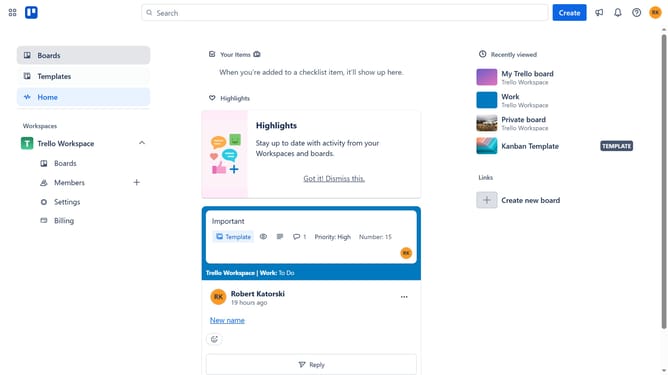
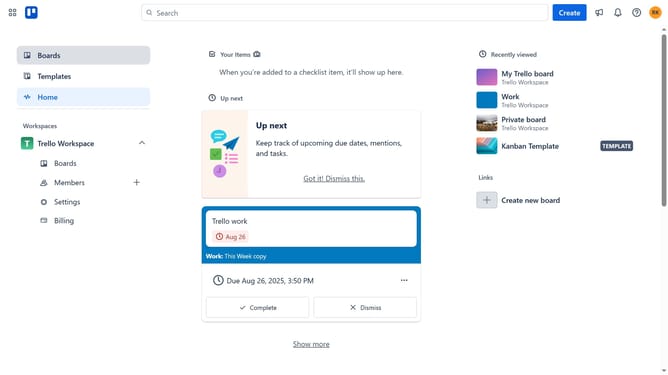
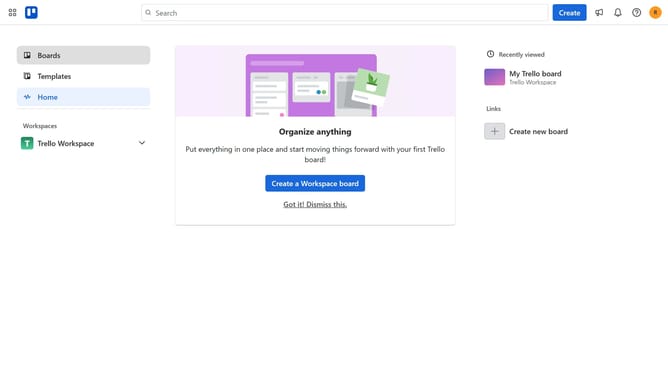
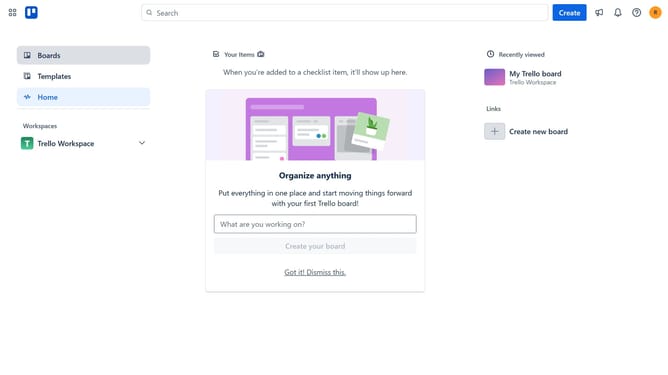
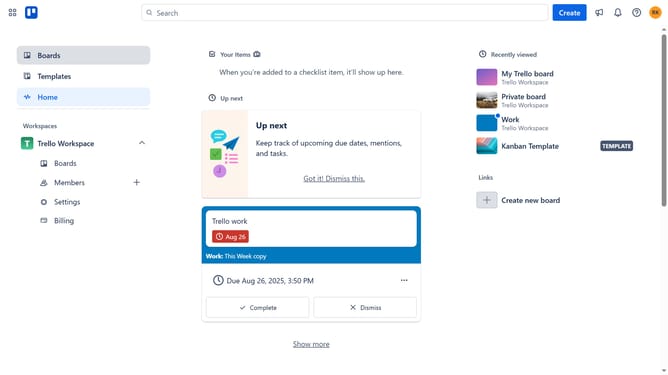
- First click on the "Boards" option in the left sidebar
- Then click a board in the workspace section
- Next click on the "More options" menu (three dots) in the top-right corner of the board
- Click on "Power-Ups" option in the board menu
- Select "Analytics & reporting" category from the left sidebar in Power-Ups window
- Scroll down to find "Quickbooks Time Tracking" power-up
- Click the "Add" button under the Quickbooks Time Tracking
- Finally click the "Add" button in the confirmation dialog to install the power-up
Why should you add quickbooks time tracking power-up in Trello
Trello is a dynamic project management tool designed to streamline your workflow and enhance productivity.
The QuickBooks Time Tracking Power-Up in Trello effortlessly integrates time management with project tasks, enriching your project oversight capabilities.
By adding time tracking, it provides an accurate picture of time allocation, helping teams improve efficiency and accountability.
This integration ensures that no minute goes unaccounted for, making budget management and project assessments both intuitive and precise.
Last update