You picked a code editor, shipped a few pages, and then hit the wall everyone hits. The design lived in one file, the code in another, nobody could tell which browser broke the layout, and the API returned something nobody expected. Choosing one tool is easy. Building a stack that actually works together is the hard part.
Most teams do not need a single piece of web development software. They need a working chain: design, code, version control, browser testing, and API validation, all handing off cleanly. When those handoffs leak, work slows down and small bugs turn into launch delays.
The stakes are not trivial. The global web development market is projected to reach $82.4 billion in 2026, according to Business Research Insights (2026), and cloud-based web development solutions made up 69.2% of the web development services market in 2025, per Mordor Intelligence (2026). More of the work is happening in the browser, across devices, and across teams. That makes tool interoperability a real decision, not a footnote.
This guide walks through nine web development tools that cover the full workflow, not just editing. If you are a product manager trying to standardize a stack, a founder picking a lean setup, or a newer builder figuring out what belongs where, the goal is the same: pick software that fits the process you actually have. If you also research demo and onboarding software, our roundup of the best AI app builder software and our guide to the best marketing automation software tools cover adjacent parts of the Guideflow content library, and Guideflow itself helps teams turn finished products into a self-serve interactive demo once the site or app is live.
What's inside
This is a stack-building guide, not a code-editor beauty contest. The list spans the whole web development workflow: design and handoff, code editing, version control, browser and device testing, in-browser debugging, and API validation.
We chose tools on four criteria that matter to teams and solo builders alike:
- Workflow fit: Does it cover a real job in the build-to-ship chain?
- Beginner-friendly setup: Can someone adopt it without a week of onboarding?
- Interoperability: Does it play well with source control, design handoff, and testing?
- Maintenance burden: Will it stay usable as your product and team change?
Every pick includes what it does best, who it fits, pricing, and a G2 rating where one is published.
TL;DR
- Best all-around stack pick: Pair Visual Studio Code with Git and GitHub. It is the default backbone for most web development teams in 2026.
- Best for beginners: Visual Studio Code plus Google Chrome DevTools gives you editing and debugging with almost no setup and a free price tag.
- Best for browser testing: BrowserStack covers real desktop and mobile devices so you catch cross-browser issues before users do.
- Best for API testing: Postman is the standard for validating that your front end and backend actually agree.
- Best for teams shipping quickly: GitHub combines version control hosting, pull requests, and CI/CD in one coordination layer.
- Best heavier IDE: WebStorm gives JavaScript and TypeScript teams deep refactoring and code analysis in one opinionated environment.
What is web development software?
Web development software is the set of tools used to design, code, version-control, test, debug, and ship websites and web apps. No single product does all of it well, which is why teams assemble a stack.
A practical web development stack usually spans these categories:
- Design and planning: Tools that turn ideas into layouts, components, and developer-ready specs before any code is written.
- Code editor or IDE: Where you write, navigate, and refactor code, with autocomplete, linting, and terminal access.
- Version control: The system that tracks every change, supports branching, and lets you roll back mistakes.
- Source control hosting and collaboration: Where code lives, gets reviewed, and gets shipped through pull requests and automation.
- Cross-browser testing tools: Software that checks your site across browsers and devices so layouts do not break for real users.
- Browser developer tools: In-browser debugging for inspecting the DOM, network calls, performance, and responsive behavior.
- API testing: Tools that validate requests, responses, and environments so front end and backend stay in sync.
- End-to-end testing: Automated tests that simulate real user flows and catch regressions before release.
Most software for web development falls into one of those buckets. The skill is not collecting every tool. It is choosing one strong option per category and making sure they hand off cleanly.
What web development software should do
The best web dev tools are not the ones with the longest feature lists. They are the ones that remove friction at a specific point in the build-to-ship chain. Here is what to expect from each layer.
Design and planning
Ambiguity is expensive. When design lives in a static file with no specs, developers guess at spacing, colors, and states, then rework it after review. Good design tools fix that before a line of code is written.
Look for component reuse, so a button defined once stays consistent everywhere. Look for clear design-to-code handoff, so developers can pull exact values instead of eyeballing them. And look for real-time collaboration, so product, design, and engineering are looking at the same source of truth instead of trading screenshots. Strong design tools also make responsive design intent explicit, which saves hours of back-and-forth later.
Code and edit efficiently
A strong code editor or IDE changes daily work more than any single feature. It is where developers spend most of their time, so small efficiencies compound.
The criteria that matter:
- Autocomplete and IntelliSense: Fewer typos, faster writing, and inline documentation.
- Extensions: A marketplace to add language support, linters, and formatters without switching tools.
- Linting and formatting: Catch errors and enforce style automatically instead of in code review.
- Integrated terminal: Run commands, git, and build scripts without leaving the editor.
- Project navigation: Jump to definitions, search across files, and refactor safely in large codebases.
For product managers, this is not a detail. Editor adoption and developer productivity affect release cadence directly. The faster the team writes and refactors, the faster you validate.
Test in real environments
Testing and debugging belong in the software stack, not bolted on at the end. A layout that looks perfect on your machine can break on an older browser or a specific phone. That is not an edge case. It is what your users experience.
Real testing covers three things: cross-browser compatibility, responsiveness across screen sizes, and device coverage on actual hardware, not just resized windows. Pair automated end-to-end tests with real-device and in-browser testing, and you catch most regressions before they reach production.
When to use web development software
Different moments call for different parts of the stack. Here is how to pattern-match to your situation.
Build a new site or app from scratch
Early on, you need the minimum viable stack: one code editor, one version control system, and a browser with dev tools. That combination gets you from idea to working pages fast. Add a design tool if you are working from mockups, and add API testing the moment your app starts talking to a backend. Do not over-buy. Start lean and expand when a real bottleneck appears.
Standardize a team workflow
Teams drift. One person uses a different editor, another skips code review, and suddenly every merge is a surprise. Standardizing on a shared editor, a common Git host, and an agreed testing layer reduces that drift. For a product manager, this maps directly to maintainability and release cadence. A consistent stack means predictable handoffs, fewer "works on my machine" tickets, and onboarding new engineers in days instead of weeks.
Validate before launch
Before you ship, validate three things: layouts across browsers and devices, API behavior under real requests, and critical user flows through automated tests. Browser developer tools handle rapid diagnosis, cross-browser testing tools confirm compatibility, and end-to-end tests guard against regressions. This validation layer is where debugging and automated tests pay for themselves, because catching a bug pre-launch costs a fraction of catching it in production.
Comparison table
The table below sorts the nine tools by relevance to a full web development workflow, not alphabetically. Use the Intent column to find the category you are missing, then read the Key use case to confirm fit.
| # | Product | Intent | Key use case | Pricing | G2 rating |
|---|---|---|---|---|---|
| 1 | Figma | Design and handoff | Collaborative design, components, and design-to-code handoff | Free; Professional from US$16/month | 4.7/5 |
| 2 | Visual Studio Code | Code editor | Lightweight, extensible editing with built-in Git and debugging | Free | 4.7/5 |
| 3 | GitHub | Source control hosting | Repos, pull requests, code review, and CI/CD | Free; Team from $4/user/month | 4.7/5 |
| 4 | Git | Version control | Branching, change tracking, and rollback | Free and open source | 4.7/5 |
| 5 | BrowserStack | Cross-browser testing | Real-device desktop and mobile testing | Free trial; Desktop from $29/month | 4.4/5 |
| 6 | Google Chrome DevTools | Browser developer tools | In-browser debugging and performance inspection | Free | 4.4/5 |
| 7 | Postman | API testing | Designing, testing, and monitoring APIs | Free; Solo from $9/month | 4.6/5 |
| 8 | Cypress | End-to-end testing | Automated E2E and component tests in CI | Free Starter; Team from $67/month | 4.7/5 |
| 9 | WebStorm | IDE | Deep JavaScript and TypeScript development | Free non-commercial; Commercial from $7.90/month | 4.5/5 |
1. Figma

Figma is the collaborative design and prototyping platform where most product teams plan interfaces before writing code. Design files are multiplayer, so product, design, and engineering can work in the same document at once. Dev Mode turns those designs into developer-ready specs, closing the gap between what the design says and what gets built.
Best for: Product teams that want design, prototyping, and design-to-code handoff in one collaborative place.
Key strengths
- Multiplayer editing: Real-time collaboration on a single source of truth, so nobody works from a stale screenshot.
- Dev Mode: Developers pull exact values, measurements, and code snippets straight from the design.
- Components and libraries: Define a component once and reuse it everywhere, keeping responsive design consistent.
Why choose Figma: For web development, Figma removes the ambiguity that kills velocity. When a developer can read spacing, tokens, and states directly from Dev Mode, rework drops and the design-to-code handoff stops being a guessing game. It fits teams where design and engineering ship together rather than in sequence.
Figma pricing: Figma has a free Starter plan that covers solo work and small projects. Paid plans are seat-based, with Professional starting at US$16/month and Enterprise at US$90/month per Full seat. Dev and Collab seats are priced separately, so you only pay for the access each person needs. Figma holds a 4.7/5 rating on G2.
2. Visual Studio Code
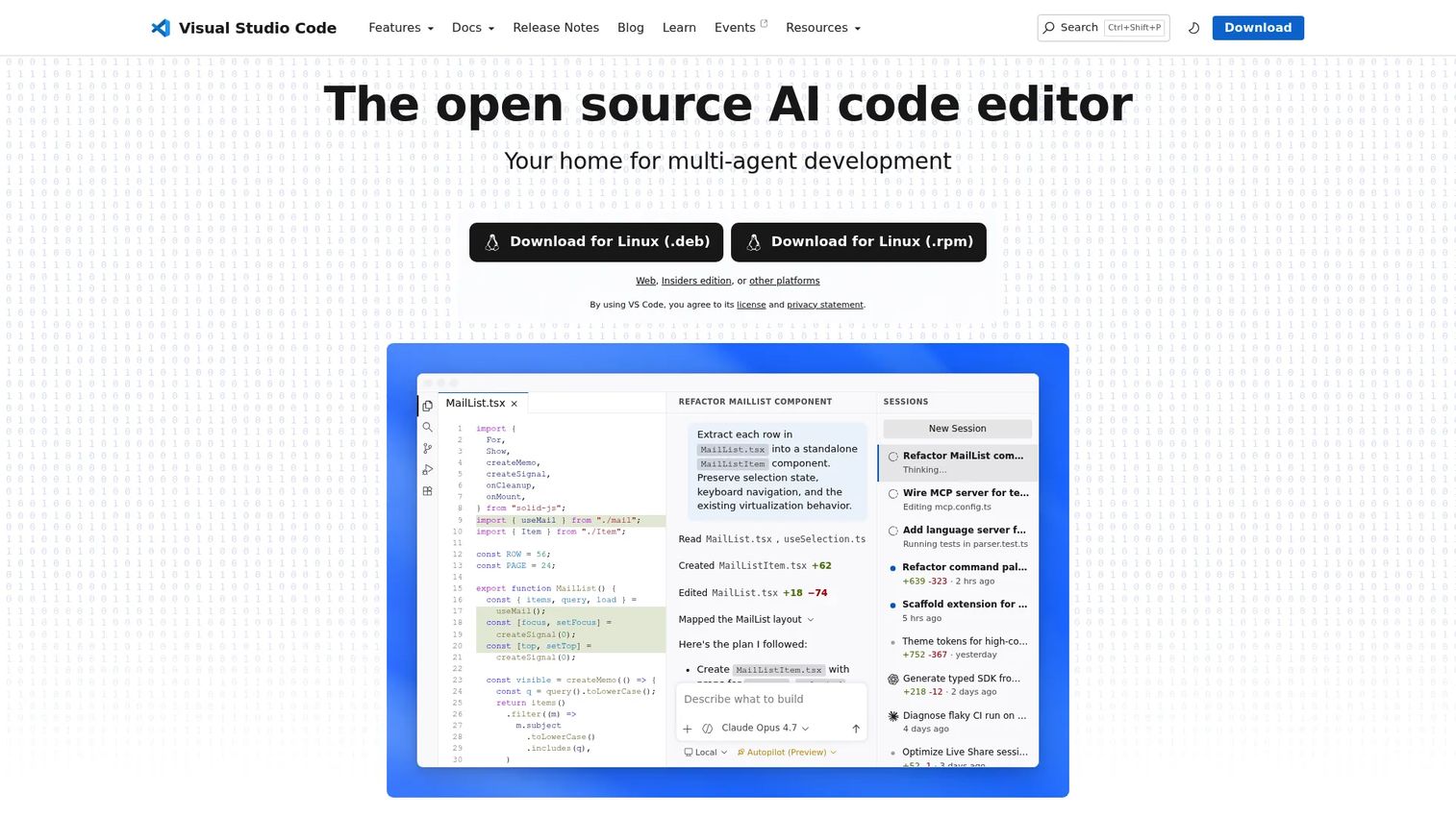
Visual Studio Code is the free, open-source code editor from Microsoft that has become the default for a large share of web development teams. It runs on Windows, macOS, and Linux, and it ships with the essentials built in: IntelliSense, debugging, and Git integration. Everything else you add through extensions.
Best for: Developers who want a fast, extensible editor that scales from a first HTML file to a large production codebase.
Key strengths
- Built-in Git and debugging: Version control and step-through debugging without installing anything extra.
- Extensions marketplace: Add language support, linters, formatters, and AI assistance for almost any stack.
- IntelliSense and terminal: Smart autocomplete plus an integrated terminal keep you in one window.
Why choose Visual Studio Code: VS Code wins on the combination of zero cost, low setup, and near-universal extension coverage. For a product manager, the practical upside is developer adoption. When the whole team already knows the editor, onboarding is fast and release cadence stays steady. It is also genuinely beginner-friendly, which makes it a safe default for mixed-skill teams.
Visual Studio Code pricing: VS Code is free. GitHub Copilot features are available through a paid Copilot subscription or a free Copilot plan, but the editor itself costs nothing. It holds a 4.7/5 rating on G2.
3. GitHub
GitHub is the platform where code lives, gets reviewed, and gets shipped. It hosts your repositories, runs pull requests and code review, tracks issues, and automates builds and deployments through GitHub Actions. For teams, it is the coordination layer that keeps everyone shipping to the same branch without chaos.
Best for: Teams that want code hosting, collaboration, and CI/CD in a single platform.
Key strengths
- Pull requests and code review: Structured review before code merges, so quality checks happen by default.
- GitHub Actions: Built-in CI/CD to test and deploy automatically on every push.
- Issues and project tracking: Keep work, discussion, and code in one place for cleaner team collaboration.
Why choose GitHub: GitHub is where version control becomes team collaboration. Git tracks the changes; GitHub gives them a home, a review process, and an automation pipeline for publishing and deployment. If your team ships web apps and needs predictable handoffs, this is the hub that makes it repeatable.
GitHub pricing: GitHub has a Free plan with unlimited public and private repositories. Team runs $4 per user/month for the first 12 months, and Enterprise runs $21 per user/month for the first 12 months, adding security and governance features. It holds a 4.7/5 rating on G2.
4. Git
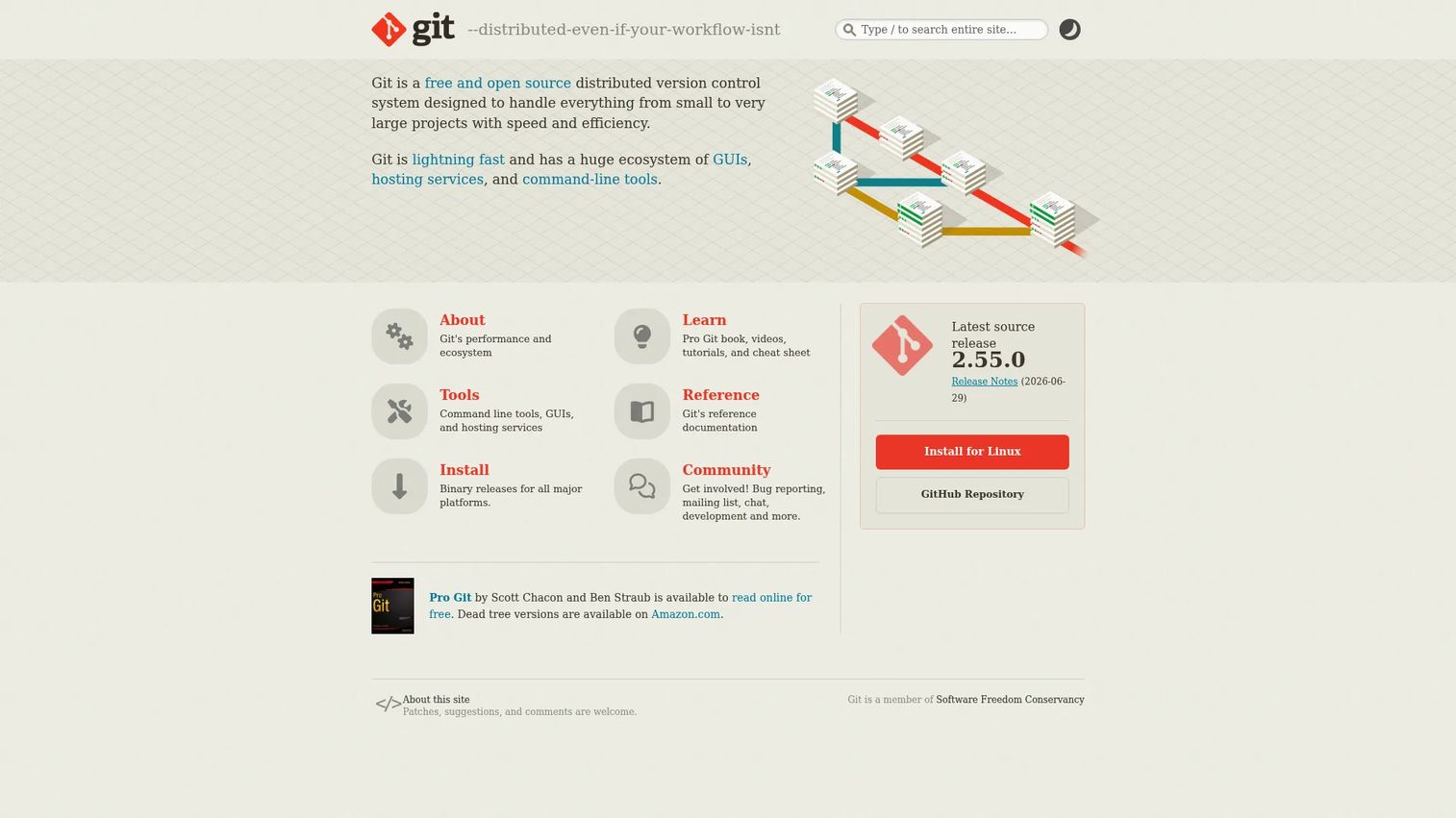
Git is the free, open-source distributed version control system that underpins nearly every modern web development workflow. It tracks every change, supports branching so people can work in parallel, and lets you roll back to any earlier state. Git is not a nice-to-have utility. It is infrastructure.
Best for: Any developer or team that needs reliable, open-source version control.
Key strengths
- Distributed version control: Every clone is a full copy of history, so work continues even offline.
- Branching and merging: Isolate features, experiment safely, and merge when ready.
- Broad ecosystem: Works with a huge range of GUIs, hosting services, and command-line tools.
Why choose Git: Git is the layer that makes everything else safe. Branching lets a team work on features in parallel without stepping on each other, and rollback turns a bad deploy into a two-command fix instead of a crisis. It handles projects from a single file to a massive monorepo without slowing down.
Git pricing: Git is free and open source. There is no paid tier and no license cost. It holds a 4.7/5 rating on G2.
5. BrowserStack
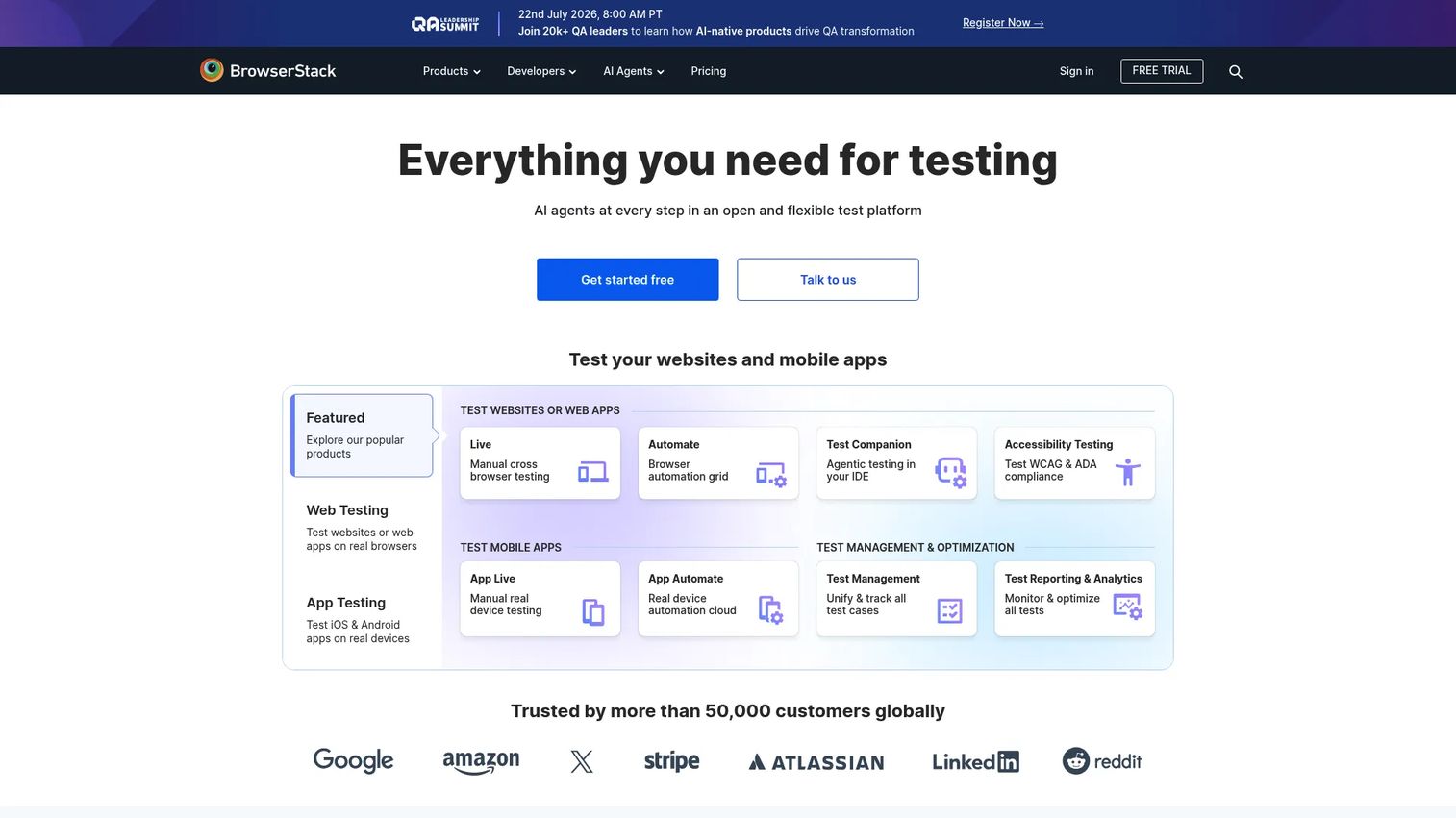
BrowserStack is a cloud testing platform that lets you run your site and app across real browsers and real devices. Instead of maintaining a shelf of test phones, you get a real-device cloud covering desktop and mobile, plus Local Testing for staging and internal environments and automated accessibility scans.
Best for: Teams that need real-device cross-browser and mobile testing at scale.
Key strengths
- Real-device cloud: Test on actual hardware, not just resized browser windows, for accurate results.
- Local Testing: Point the cloud at your staging or internal environment before anything goes public.
- Accessibility testing: Automated scans catch compliance and usability issues early.
Why choose BrowserStack: Cross-browser testing is one of the highest-leverage uses of web development software, because compatibility bugs are invisible until a specific user hits them. BrowserStack turns "we think it works everywhere" into evidence. That matters most before launch and during any redesign that touches layout or responsive behavior.
BrowserStack pricing: BrowserStack offers a free trial. The Desktop plan starts at $29/month billed annually, Desktop & Mobile is $39/month billed annually, and Desktop & Mobile Pro is $225/month billed annually. Enterprise pricing is available on request. It holds a 4.4/5 rating on G2.
6. Google Chrome DevTools
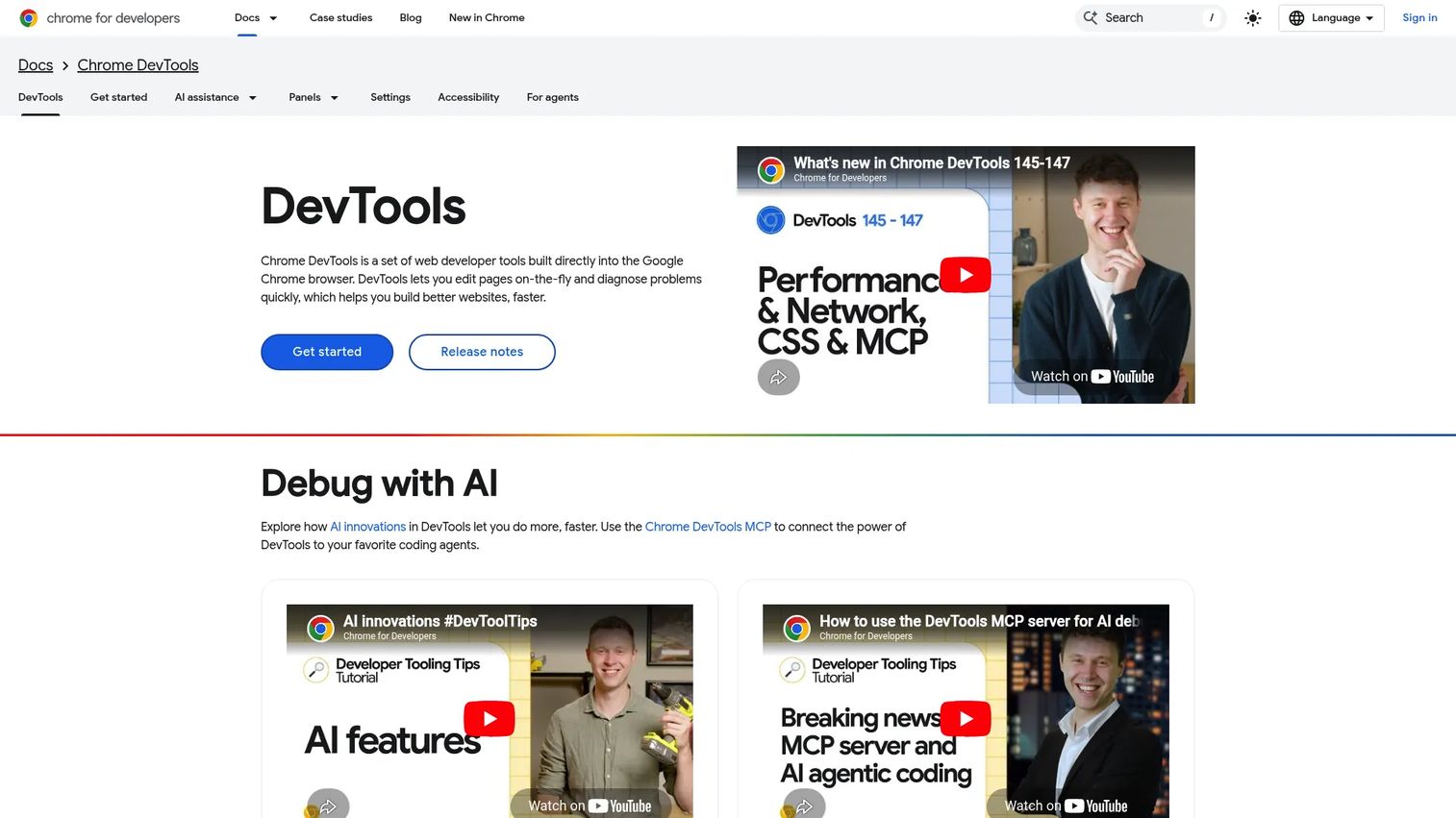
Google Chrome DevTools is the set of browser developer tools built directly into Chrome. Open it and you can inspect and edit the DOM and CSS, debug JavaScript in the Console, and analyze network requests, performance, and memory. It is the fastest way to diagnose what a page is actually doing.
Best for: Web developers who need in-browser debugging and performance inspection with zero setup.
Key strengths
- DOM and CSS inspection: Edit styles live to test fixes before touching your code.
- JavaScript debugging and Console: Set breakpoints, step through code, and read errors in real time.
- Network and performance analysis: See what loads, how long it takes, and where the bottlenecks are.
Why choose Google Chrome DevTools: DevTools is essential for rapid iteration. When a layout breaks or a page loads slowly, you diagnose it in the browser in seconds instead of guessing in the editor. It also handles responsive design checks with device emulation, so you can spot mobile issues before reaching for a full cross-browser testing run.
Google Chrome DevTools pricing: Chrome DevTools is built into Google Chrome and is free. There is no separate license or tier. It holds a 4.4/5 rating on G2.
7. Postman
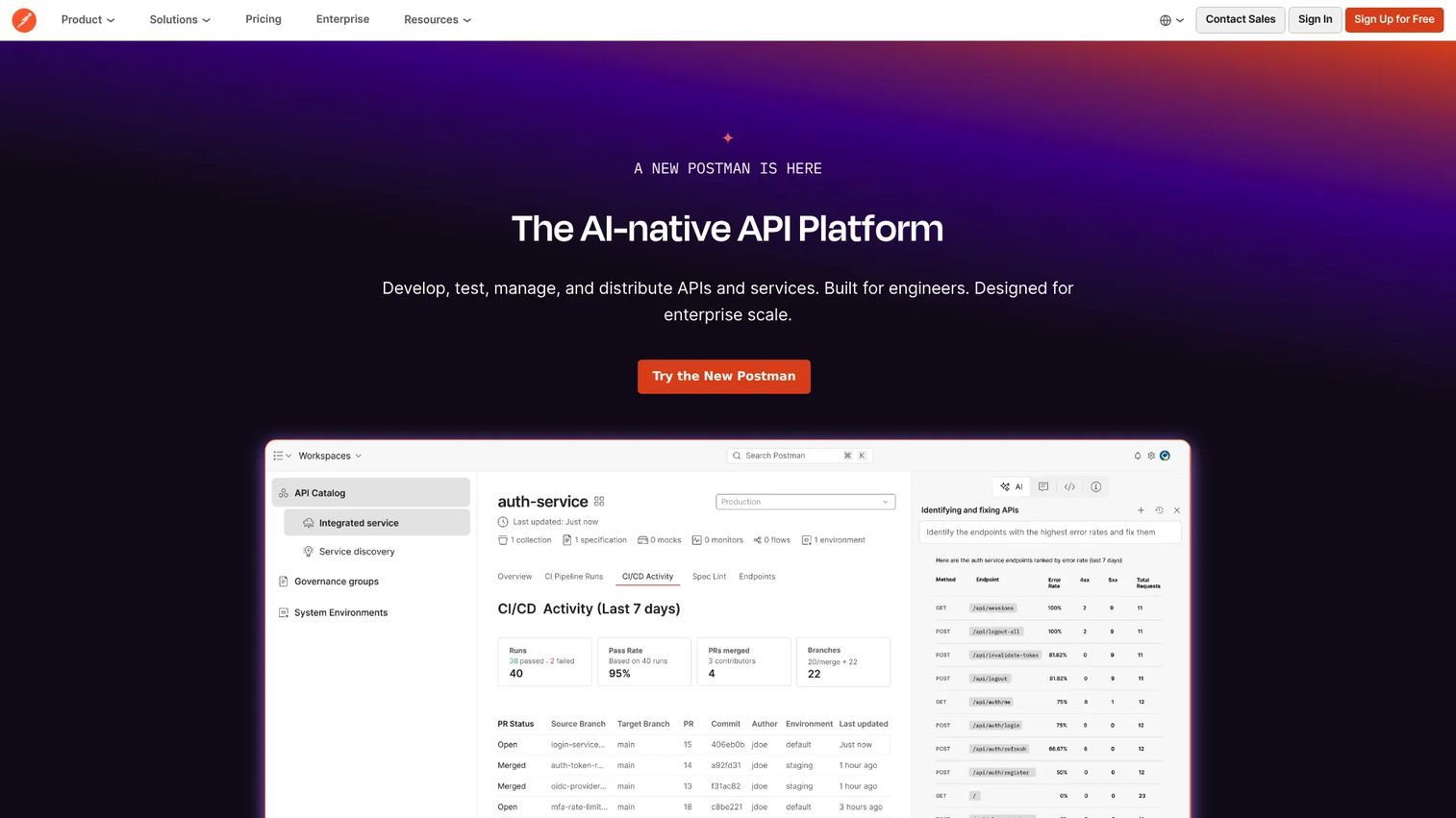
Postman is the API platform for designing, testing, documenting, and monitoring APIs. It gives you an API client with built-in authentication, environments, variables, and history, plus design tools like Spec Hub and mock servers. For any web app where the front end and backend need to agree, Postman is where you prove they do.
Best for: Teams and individuals who build, test, and govern APIs in one place.
Key strengths
- API client: Send requests with auth, environments, and variables, and keep a full history.
- Collections and environments: Organize related requests and switch between dev, staging, and prod cleanly.
- Mock servers and docs: Prototype against mock endpoints and generate documentation from your work.
Why choose Postman: In web app development, most painful bugs live at the seam between front end and backend. Postman makes that seam testable. Collections let a team share reproducible API tests, environments keep credentials organized, and the shared workspace supports real team collaboration instead of everyone hitting endpoints from their own scratch files.
Postman pricing: Postman has a free plan for single users. Solo is $9/month billed annually, Team is $19 per user/month billed annually, and Enterprise is $49 per user/month billed annually with organization-wide governance and security. It holds a 4.6/5 rating on G2.
8. Cypress
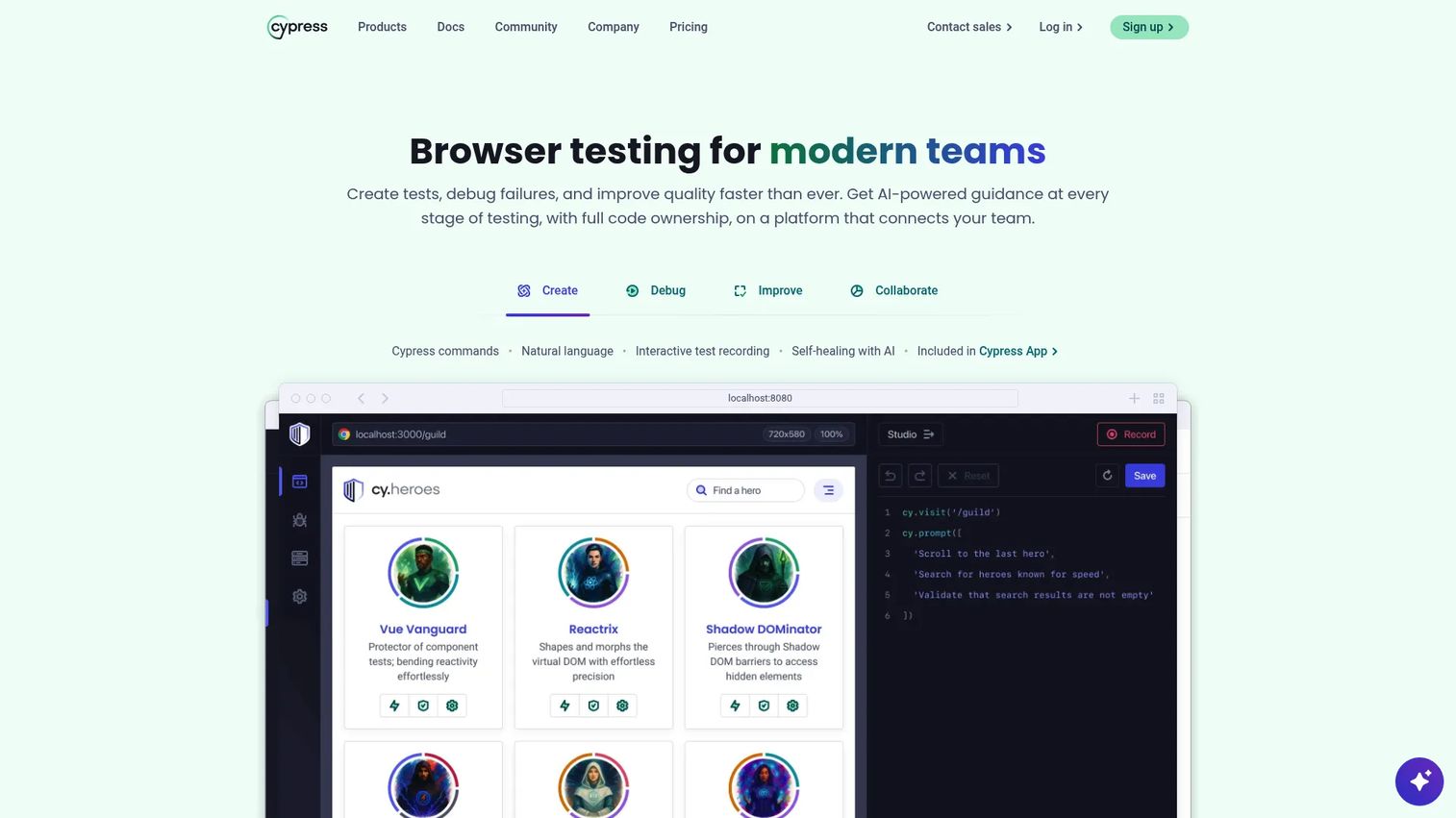
Cypress is an end-to-end testing platform built for modern web applications. It runs E2E, component, and accessibility tests, and it gives fast feedback during local development so you see failures as you code. Wire it into CI, and every push runs your test suite automatically.
Best for: Teams that want to run web app tests in CI and catch regressions before release.
Key strengths
- End-to-end testing: Simulate real user flows to confirm the whole app works, not just individual pieces.
- Component testing: Test UI components in isolation for faster, more targeted feedback.
- Accessibility checks: Build accessibility validation into the same test run.
Why choose Cypress: Automated test coverage is how you reduce release risk without slowing down. Cypress gives immediate local feedback while you build, then guards main with CI/CD runs on every change. For teams shipping frequently, that safety net is the difference between confident releases and hoping nothing broke.
Cypress pricing: Cypress Cloud has a free Starter tier. Team is $67/month billed annually at $799, and Business is $267/month billed annually at $3,199. The open-source test runner itself is free to use. It holds a 4.7/5 rating on G2.
9. WebStorm
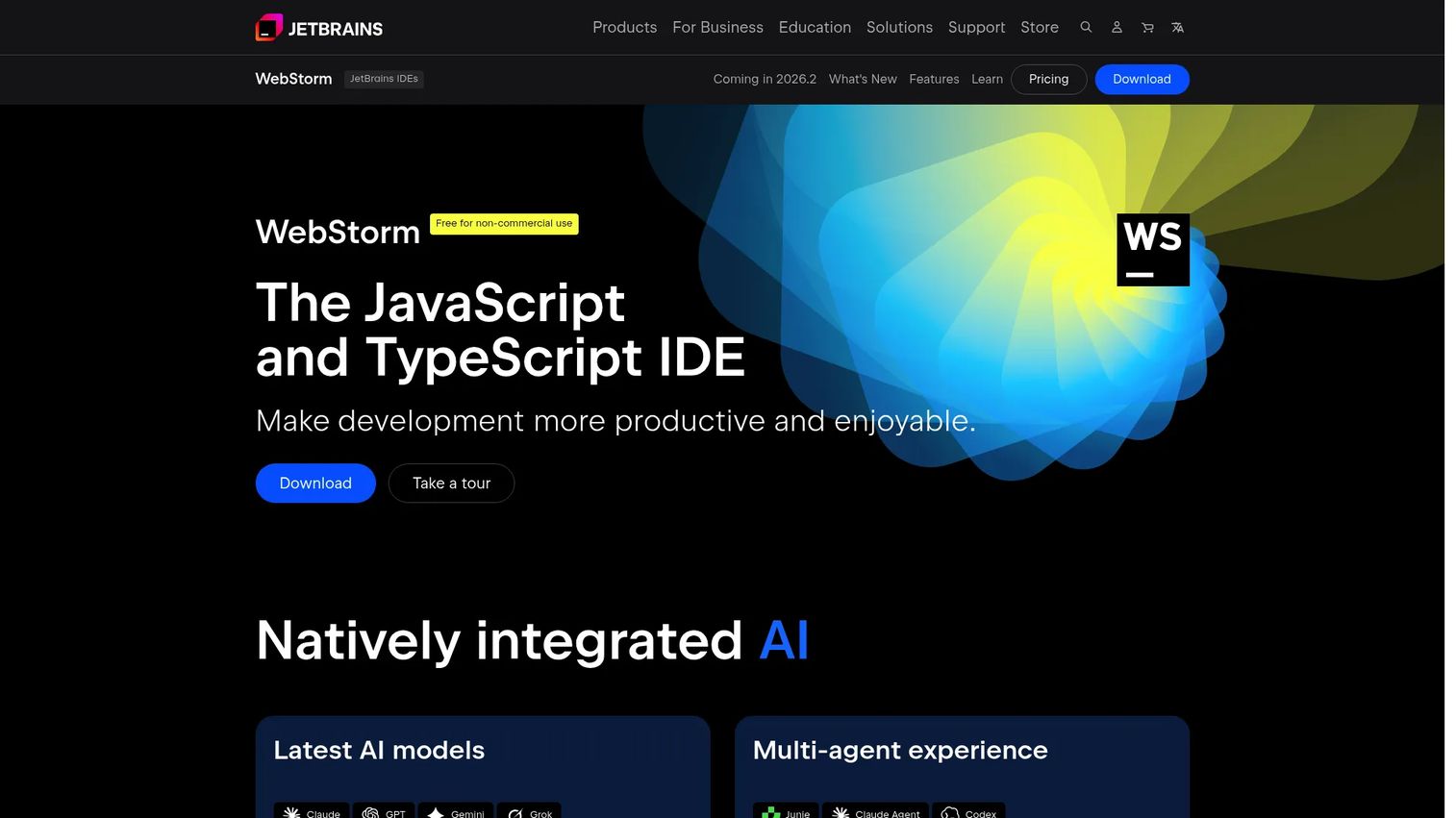
WebStorm is JetBrains' JavaScript and TypeScript IDE, built for developers who want a heavier, more opinionated environment than a lightweight editor. It brings deep code analysis, smart completion, and powerful refactoring out of the box, along with built-in debugging, testing, and Git integration.
Best for: Developers building JavaScript and TypeScript apps who want a full-featured IDE with strong refactoring.
Key strengths
- Code analysis and completion: Context-aware suggestions and real-time code quality checks.
- Refactoring and navigation: Rename, extract, and move code safely across large projects.
- Built-in debugging and Git: Debugging, testing, remote development, and version control in one place.
Why choose WebStorm: WebStorm fits teams and developers who work in large JavaScript and TypeScript codebases where deep refactoring and code analysis save real time. It is the more opinionated end of the code editor spectrum, giving you power tools configured out of the box instead of assembled from extensions. That ergonomics payoff grows with project size.
WebStorm pricing: WebStorm is free for non-commercial use. The commercial WebStorm plan is $7.90 per month, and the All Products Pack is $29.90 per month, with yearly billing also offered. It holds a 4.5/5 rating on G2.
Considerations
Feature lists do not tell you whether a tool fits your team. These four questions do.
Does it fit the workflow you actually have?
Map each tool to a real step in your process before you buy. A powerful cross-browser testing platform adds nothing if nobody runs it, and a heavy IDE is overkill for a two-page marketing site. Stack fit beats feature count every time. Start from your current workflow and fill gaps, rather than adopting tools because they are popular.
Can beginners adopt it without friction?
Look at learning curve, setup time, and documentation quality. Visual Studio Code and Chrome DevTools are near-instant to start, while a full IDE rewards investment but asks for more upfront. Match the tool to your team's current skill level. The best web dev tools for a mixed-skill team are the ones people actually open on day one.
Will it integrate cleanly?
Check the connections that matter: source control, design-to-code handoff, testing tooling, and browser coverage. A tool that ignores your Git host or design workflow creates the exact handoff chaos you were trying to avoid. Interoperability is what turns separate tools into a stack.
Can you maintain it over time?
Think about updates, plugins, team standards, and who owns configuration. Every tool carries some ongoing overhead through extension updates, version bumps, and onboarding docs. For a product manager weighing opportunity cost, low-maintenance defaults usually beat a maximal setup that needs constant tending.
Conclusion
The right web development software is not one product. It is a small, well-chosen stack where every handoff is clean. For most teams in 2026, that starts with Visual Studio Code as the editor, Git and GitHub for version control and collaboration, Google Chrome DevTools for fast debugging, BrowserStack for cross-browser testing, Postman for API validation, and Cypress for automated end-to-end coverage. Figma anchors the design-to-code handoff, and WebStorm is the heavier IDE for JavaScript and TypeScript teams that want more power out of the box.
The practical next step is simple: pick one editor, one version control system, and one testing layer, get them working together, then expand only when a real bottleneck appears. Do not buy the whole toolbox on day one. Once your product is live and you need to show it off to prospects, teammates, or new users, that is when a self-serve interactive demo earns its place in the workflow.
Start your journey with Guideflow today!
FAQs
At minimum, you need a code editor, a version control system, a browser, and a testing tool. Visual Studio Code for editing, Git for tracking changes, Chrome with DevTools for building and debugging, and a cross-browser testing option before launch. Add a design tool like Figma if you are working from mockups, and Postman once your site talks to an API.
Start with a forgiving editor, a source control host, and browser dev tools. Visual Studio Code plus GitHub plus Google Chrome DevTools covers editing, version control, and debugging at zero cost. The best choice also depends on your focus. If you are learning design, add Figma. If you are learning front end or full-stack work, add API testing with Postman as you go.
You do not strictly need GitHub to write code. Git alone tracks changes on your machine. But GitHub is extremely useful the moment more than one person is involved, because it adds pull requests, code review, issue tracking, and CI/CD. For any team workflow, it is close to essential for keeping collaboration and version control organized.
A code editor like Visual Studio Code is lightweight and extensible, adding capabilities through extensions. An IDE like WebStorm bundles deep code analysis, refactoring, debugging, and testing out of the box. A lightweight editor is enough for most web work and smaller projects. An IDE helps more on large JavaScript or TypeScript codebases where heavy refactoring is routine.
The core combination is BrowserStack for real-device cross-browser testing plus Google Chrome DevTools for in-browser checks. Chrome DevTools handles fast responsive and debugging work locally, while BrowserStack confirms behavior on actual browsers and devices you do not own. Together they cover both quick diagnosis and true device coverage before you ship.
Yes. Figma is used before coding, during design, and at handoff. Teams design interfaces and prototypes in Figma, then use Dev Mode to pull specs, measurements, and code snippets into development. It helps align design and implementation so developers build what was actually designed, which reduces rework across the web development workflow.
Postman is the common choice for API testing in web app development. It lets you send requests with authentication, organize them into collections, and switch between environments like dev, staging, and prod. Team collaboration features mean shared, reproducible tests instead of everyone hitting endpoints from separate setups, which keeps front end and backend in sync.
A lean stack works well solo: Visual Studio Code as your editor, Git with GitHub for version control and hosting, Google Chrome DevTools for debugging, Postman for API testing, and at least one cross-browser testing option like BrowserStack before launch. It keeps costs low, most tiers are free, and it scales cleanly if you later bring on collaborators.