You need a logo that stays sharp on a billboard and a favicon. Same file. Same tool. That is the promise of vector graphics software, and also the reason choosing one feels harder than it should. Every vendor claims to do everything. Pricing ranges from free to hundreds of dollars a year. And the differences that actually matter, like SVG export quality and file interoperability, are buried three clicks deep on a features page.
The market backs up the confusion. Global vector graphics software is projected to grow from USD 3.46B in 2025 to USD 5.7B by 2030, a roughly 10% CAGR, according to Research and Markets (2026). Digital media and content creation alone drive about 41% of demand, per Congruence Market Insights (2025). Translation: more marketers, product teams, and creators are producing scalable assets than ever, and most of them are picking tools blind.
If you run product marketing or manage brand assets, the stakes are practical. Your logo files, campaign visuals, and launch graphics all live or die on how cleanly they scale and hand off. The wrong tool means rework before every launch. This guide compares eight vector tools for 2026 by the criteria that decide fit: SVG editing, raster to vector conversion, file format support, pricing model, and cross-platform access.
If your team also produces raster campaign assets or explainer visuals, our roundups of the best AI image generators and best image optimization software pair well with this one.
What's inside
This guide is for marketers, product marketing managers, designers, and anyone producing scalable brand assets who wants a clear shortlist instead of a spec sheet. We chose the eight tools based on four criteria that matter most to real buyers: quality of SVG and vector editing, raster to vector conversion, file format support and interoperability, and pricing plus cross-platform access. Every tool here earns its spot for a specific workflow, whether that is pro-grade illustration, free open source editing, browser-based collaboration, or lightweight SVG cleanup. No filler, no "best for everyone" claims.
TL;DR
- Best overall for pros and teams: Adobe Illustrator, for ecosystem depth and advanced illustration.
- Best for print and layout-heavy work: CorelDRAW, a mature all-in-one suite.
- Best value for individual creators: Affinity Designer, with a split vector and raster workflow.
- Best free and open source option: Inkscape, the standard for SVG-first editing without a license fee.
- Best browser-based beginner tool: Vectr, for quick, lightweight vector work.
- Best for collaboration-first product teams: Figma, strong vector editing inside a shared workspace.
What is vector graphics software?
Vector graphics software is a program for creating and editing artwork built from mathematical paths, points, and curves rather than pixels, so images stay sharp at any size.
The difference from raster matters. A raster image, like a JPG or PNG, is a fixed grid of pixels. Scale it up and it blurs. A vector file stores instructions ("draw a curve from here to there"), so it renders crisply whether it is a 16-pixel icon or a stadium banner. That resolution independence is why logos, icons, and print-ready graphics almost always start as vectors.
Here is what a capable vector editor should handle:
- SVG support: Native reading, editing, and clean export of Scalable Vector Graphics, the standard format for web and app assets.
- Raster to vector conversion: Tracing a JPG or PNG into editable paths, useful for cleaning up old logos or reusing scanned artwork.
- Scalability and print-ready output: Resolution-independent files that export correctly for web, print, and presentation.
- Export and interoperability: Support for SVG, AI, EPS, PDF, PNG, and JPG so files move between tools and teams without breaking.
- Cross-platform availability: Access on Mac, Windows, Linux, or the browser, depending on how your team works.
A vector drawing program that nails these five is a tool you can build a brand asset workflow around. One that skips a couple will create friction every time you hand off a file.
When to use vector graphics software
Not every image job needs a vector editor. Here is where it earns its place.
Create logos and brand assets that must scale
A logo has to work everywhere: a website header, a business card, a trade show backdrop, a social avatar. That range of sizes is exactly what vectors are built for. Design the mark once as a vector, then export SVG for web, PDF or EPS for print, and PNG for slides. No re-drawing, no pixelation. For product marketing teams maintaining a consistent brand across every touchpoint, vector source files are the single source of truth.
Convert raster images into editable vectors
You inherit a logo as a low-res PNG. Or you find a scanned illustration you want to reuse. Raster to vector tracing turns that flat image into editable paths you can recolor, resize, and export cleanly as SVG. This is the workhorse move behind brand refreshes and asset cleanup, taking something locked in pixels and making it flexible again.
Build graphics for teams and campaigns
Marketers and content teams lean on vector tools for launch assets, diagrams, social graphics, and infographics that need to look sharp across channels. When the tool supports real-time collaboration and version control, cross-functional work gets faster: design, product marketing, and content can edit the same file without emailing versions back and forth.
Comparison table
Start by comparing intent and pricing model. A pro illustrator and a marketer doing quick SVG edits need very different tools. Here is the shortlist at a glance, sorted by relevance to vector work.
| # | Product | Intent | Key use case | Pricing | G2 rating |
|---|---|---|---|---|---|
| 1 | Adobe Illustrator | Professional illustration | Logos, icons, scalable artwork | From US$22.99/mo | 4.6/5 |
| 2 | CorelDRAW | All-in-one design suite | Print, layout, illustration | From US$305.00/year | 4.3/5 |
| 3 | Affinity Designer | Value vector and raster | Illustration and branding | Free download | 4.6/5 |
| 4 | Inkscape | Free open source editing | SVG-first vector design | Free | 4.4/5 |
| 5 | Vectr | Browser-based beginner | Quick vector and logo work | Free tier available | Not listed |
| 6 | Graphite | Procedural open source | Node-based vector design | Free | 3.8/5 |
| 7 | Boxy SVG | SVG-native web editing | Icons and web SVG | Subscription | 4.5/5 |
| 8 | Figma | Team collaboration | Shared UI and vector editing | Free tier available | 4.7/5 |
1. Adobe Illustrator
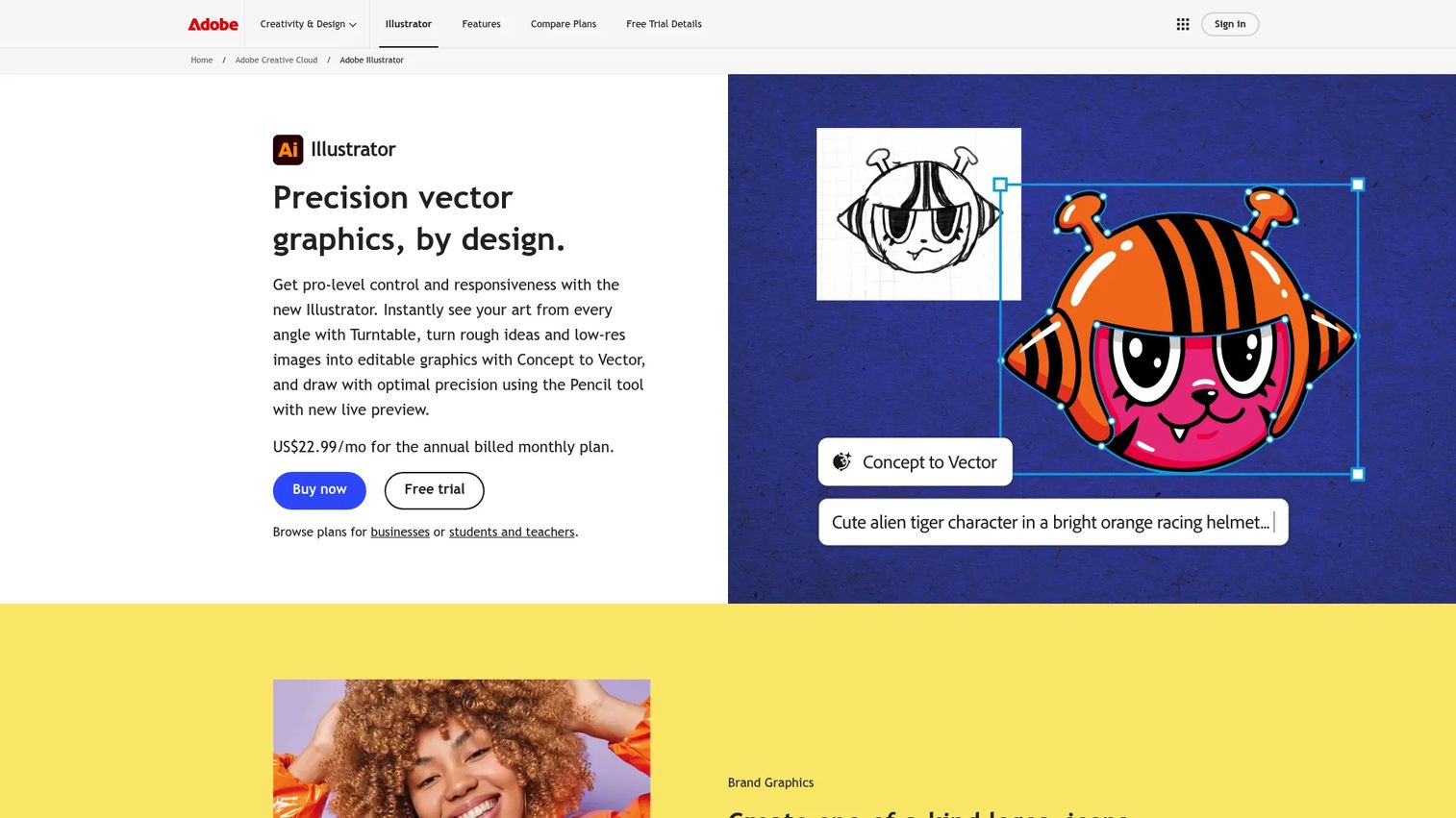
Adobe Illustrator is the tool most designers name when someone says "vector graphics software." It is the industry standard for professional illustration, logo design, and scalable graphic production, and it plugs directly into the rest of Adobe Creative Cloud. If your design team already lives in Photoshop and InDesign, Illustrator is the path of least friction for vector work.
The depth is the draw. Illustrator handles complex typography, precise path editing, gradient meshes, and clean export across SVG, PDF, EPS, and every print-oriented format you are likely to need. For a product marketing manager coordinating with a design team, that matters: the files reps and agencies expect are the files Illustrator produces natively.
Best for: Design teams and professionals producing polished, print-ready vector artwork at scale.
Key strengths
- Deep illustration toolset: Create, edit, and combine shapes with precise control over paths, curves, and effects.
- Professional typography: Advanced type tools for logos, wordmarks, and layout-heavy graphics.
- Ecosystem integration: Files move cleanly between Illustrator, Photoshop, InDesign, and the wider Creative Cloud.
Why choose Adobe Illustrator: Choose it when vector work is core to your job and you need the format compatibility, precision, and ecosystem depth that agencies and design teams expect. It is more capability than a marketer doing occasional SVG edits will use, but for anyone producing brand assets professionally, it is the reliable default.
Adobe Illustrator pricing: Illustrator starts at US$22.99/mo on an annual plan billed monthly. A Creative Cloud Pro plan runs US$69.99/mo, and team licenses start at US$37.99/mo per seat. There is no free tier, but Adobe offers a 7-day free trial. Pricing is subscription-based across all plans.
2. CorelDRAW
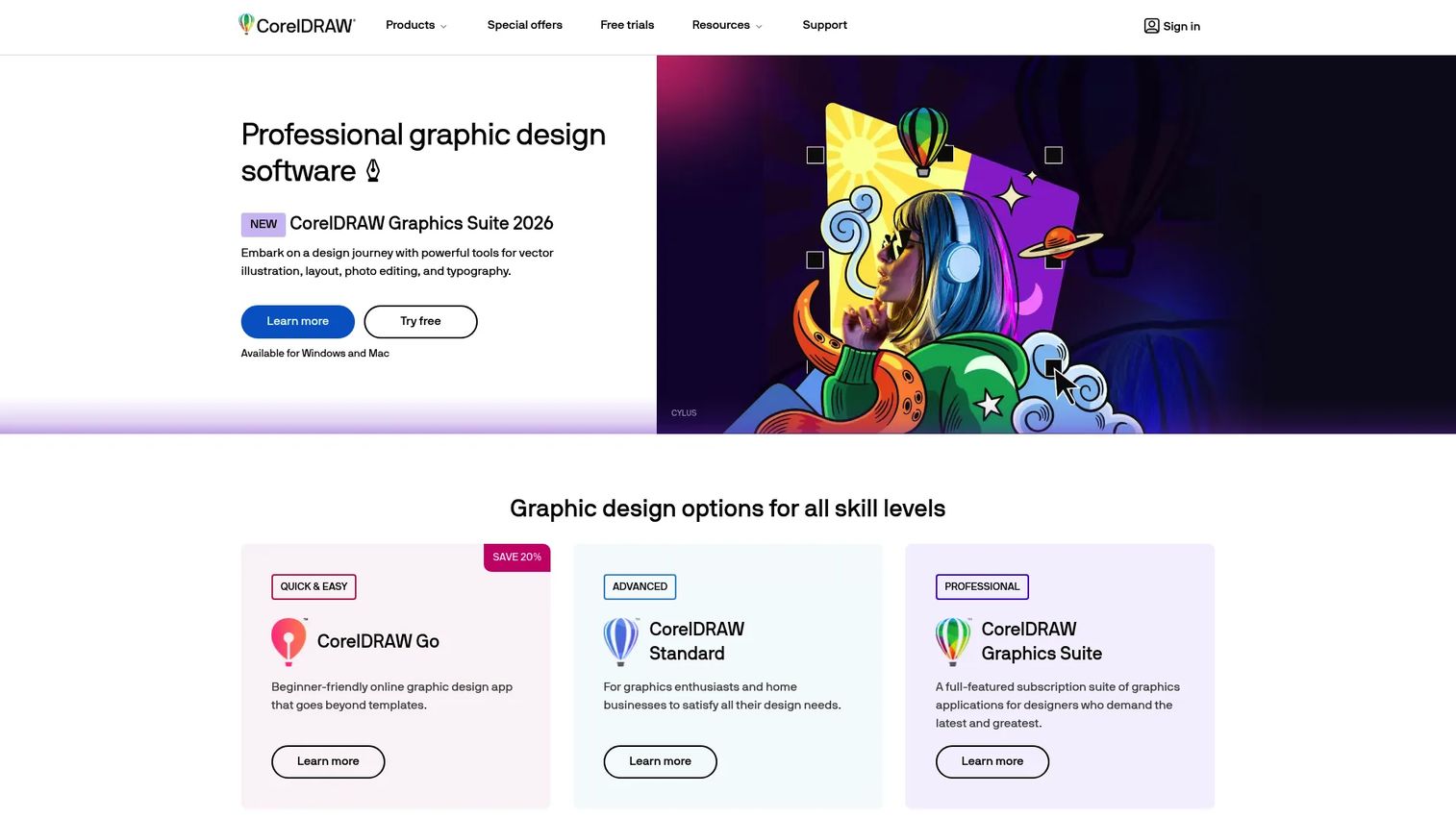
CorelDRAW is the mature all-in-one alternative for teams that want vector illustration, page layout, and photo editing under one roof. It has a long history in print and signage, and it appeals to buyers who want licensing flexibility rather than a subscription-only model. For design-adjacent teams doing layout work alongside vector art, that breadth is the selling point.
CorelDRAW leans into print workflows and file interoperability. It reads and writes a wide range of formats, which matters when files pass between printers, partners, and internal teams using different software. The suite also bundles background removal and photo editing, so a lot of a marketing team's day-to-day design lives in one place.
Best for: Design teams and print-focused creators who want a complete vector suite with flexible licensing.
Key strengths
- Vector illustration tools: A full set of drawing, shaping, and path tools for logos, illustrations, and marks.
- Layout and page design: Multi-page layout for brochures, flyers, and print collateral.
- Photo editing and background removal: Built-in raster tools so image work stays inside the same suite.
Why choose CorelDRAW: Choose it if you want a mature suite that covers vector, layout, and photo work together, especially for print-heavy output. Buyers who prefer a one-time purchase option over a pure subscription often land here for the licensing flexibility.
CorelDRAW pricing: The CorelDRAW Graphics Suite runs from US$305.00/year as a 365-day subscription. Other options include CorelDRAW Standard at US$419.00 one-time, CorelDRAW Technical Suite at US$1,459.00 one-time, and CorelDRAW Go at US$79.99/year. A free trial is available.
3. Affinity Designer
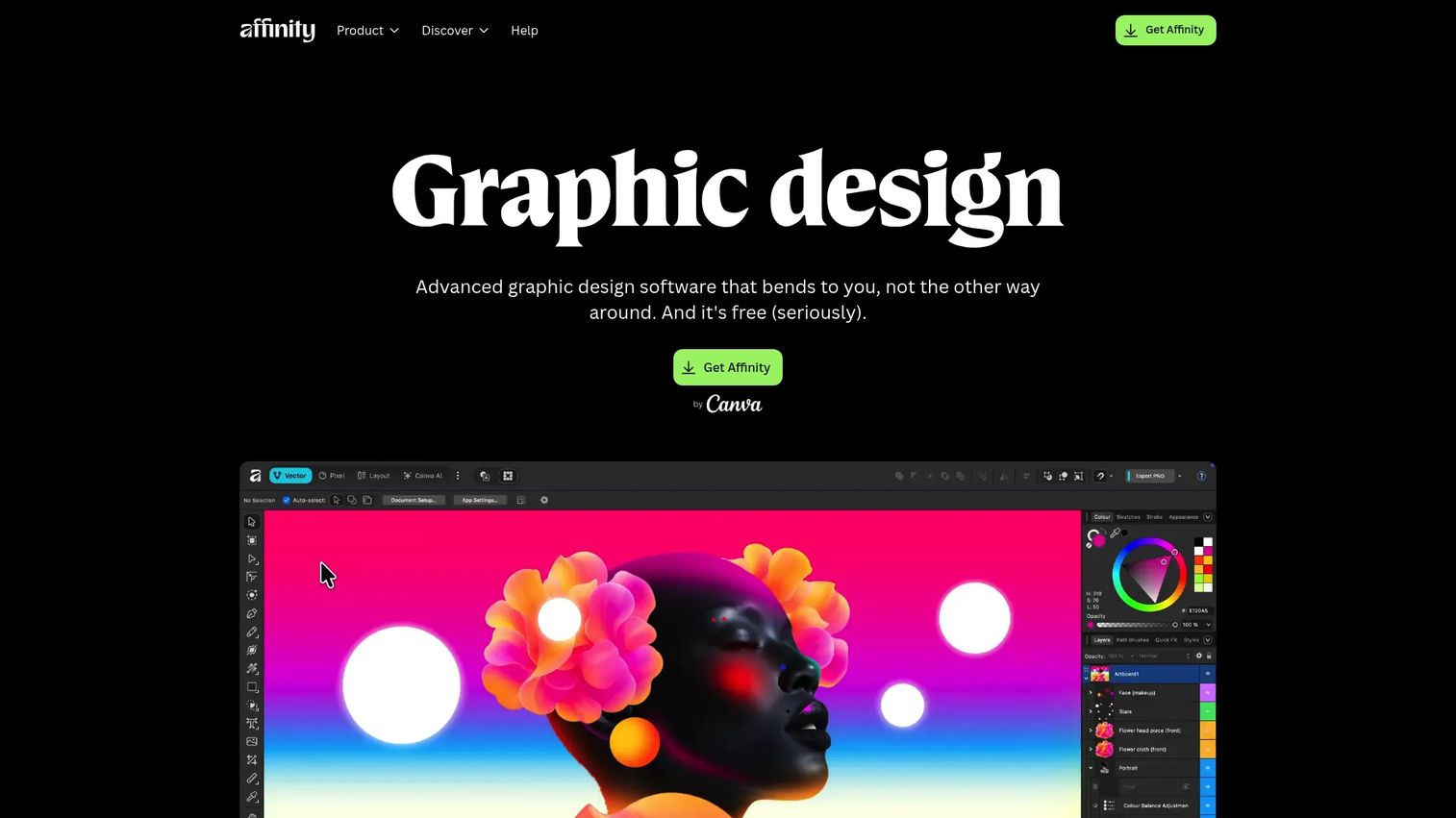
Affinity Designer built its reputation as a professional-grade vector app that individual creators could actually afford. It combines vector editing with genuine raster finishing tools in one program, letting you switch between drawing crisp paths and doing pixel-level touch-ups without leaving the app. For freelancers, marketers, and small teams, that dual workflow removes a whole tool from the stack.
The standout is value. Affinity is available to download for free, which puts a professional vector editor within reach of anyone who does not want a recurring subscription. The Convert to Curves feature and precise vector tools cover the core of logo and illustration work, while the raster side handles the finishing touches.
Best for: Freelancers, marketers, and small teams who want a professional vector app without a subscription.
Key strengths
- Vector editing: Precise pen and shape tools for logos, icons, and illustration.
- Raster finishing: Pixel-level editing built in, so vector and raster work live together.
- Convert to Curves: Turn text and shapes into editable vector paths for full control.
Why choose Affinity Designer: Choose it when you want professional vector capability and a raster toolset in one app, without committing to a monthly fee. It fits marketers and small teams who produce brand assets regularly but do not need the full Adobe ecosystem.
Affinity Designer pricing: The current Affinity offering is available to download for free. Check the official site for the latest on plans and any premium features before you commit your workflow.
4. Inkscape
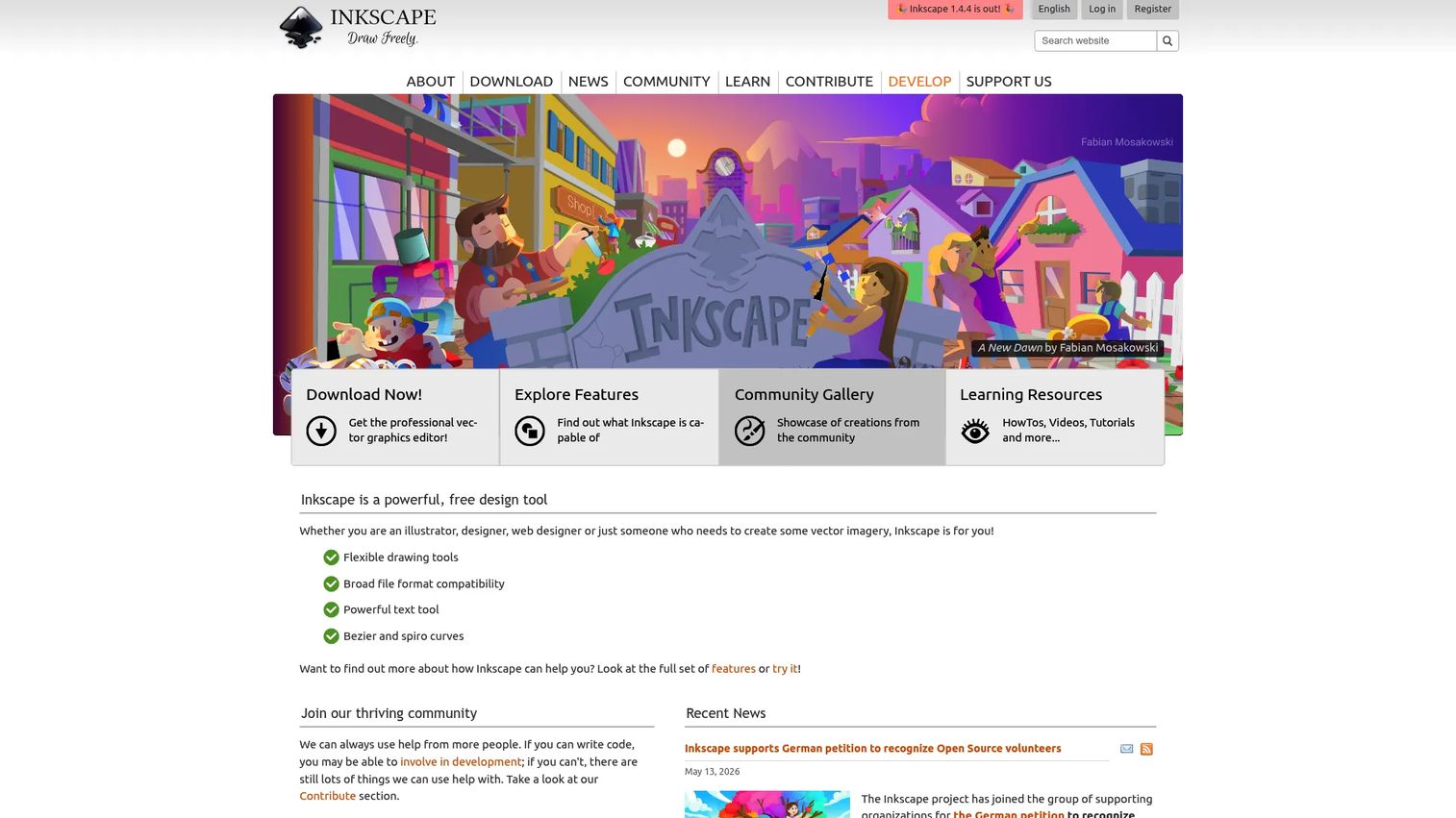
Inkscape is the leading free and open source vector editor, and for many teams it is all the vector software they need. It is SVG-native, which means it reads and writes the web's standard vector format cleanly, and it runs on Mac, Windows, and Linux. If your budget is zero and your work is SVG-centric, Inkscape is the obvious starting point.
The tool covers the fundamentals well: shapes, paths, node editing, text, and layers, plus import and export across PNG, PDF, EPS, AI, and PS. An extension ecosystem adds power for those who want it. There is a learning curve, and the interface rewards patience, but the payoff is a capable, no-cost vector drawing program with no strings attached.
Best for: Individuals and teams who need a free, open source vector editor for SVG-first design work.
Key strengths
- SVG-based workflow: Native SVG editing with broad import and export support for PNG, PDF, EPS, AI, and PS.
- Full editing toolset: Shapes, paths, text, layers, and node editing for logos, illustrations, and diagrams.
- Extensible and cross-platform: Runs on Mac, Windows, and Linux with an extension ecosystem for added power.
Why choose Inkscape: Choose it when you want serious vector editing without a license cost, especially for SVG-heavy work. It fits budget-conscious teams and anyone who prefers open source. Plan for a short ramp-up on the interface, then treat it as a genuine workhorse.
Inkscape pricing: Inkscape is completely free, open source, and free to distribute. There are no paid tiers.
5. Vectr
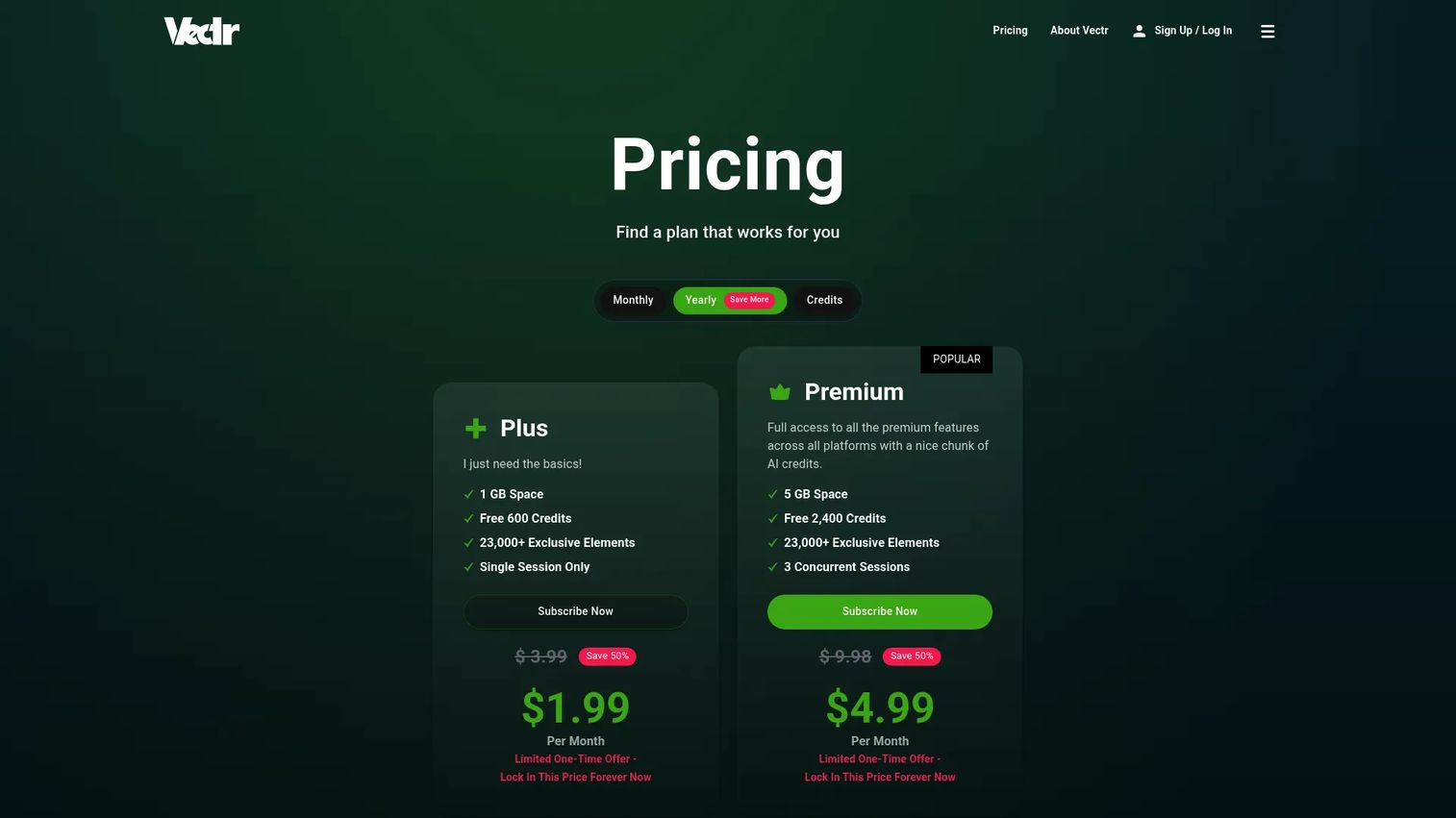
Vectr is a browser-based vector editor built for speed and simplicity. It performs best when you need quick, lightweight vector work without installing anything: simple logos, basic SVG edits, and fast image-to-vector conversion. For beginners and marketers who just need to make a clean graphic and move on, the low barrier to entry is the whole point.
Vectr runs in the browser with real-time collaboration and AI-powered tools, including image-to-vector and text-to-vector features. It is designed to be approachable rather than exhaustive, so it excels at everyday vector tasks rather than deep illustration. That focus makes it a solid pick for teams that want a shared, no-install editor for straightforward work.
Best for: Beginners and small teams creating simple vector graphics and logos directly in a browser.
Key strengths
- Browser-based access: No install required, works from any machine with a browser.
- Real-time collaboration: Multiple people can work on the same file together.
- AI-powered tools: Image-to-vector and text-to-vector features speed up simple conversions.
Why choose Vectr: Choose it when you want the fastest path to a simple vector graphic and value browser access and collaboration over depth. It fits beginners and marketers who need quick SVG work rather than a full illustration suite.
Vectr pricing: Vectr offers browser-based access with a free tier. Public pricing for any paid plans was not clearly listed at the time of writing, so check the site for current details before committing.
6. Graphite
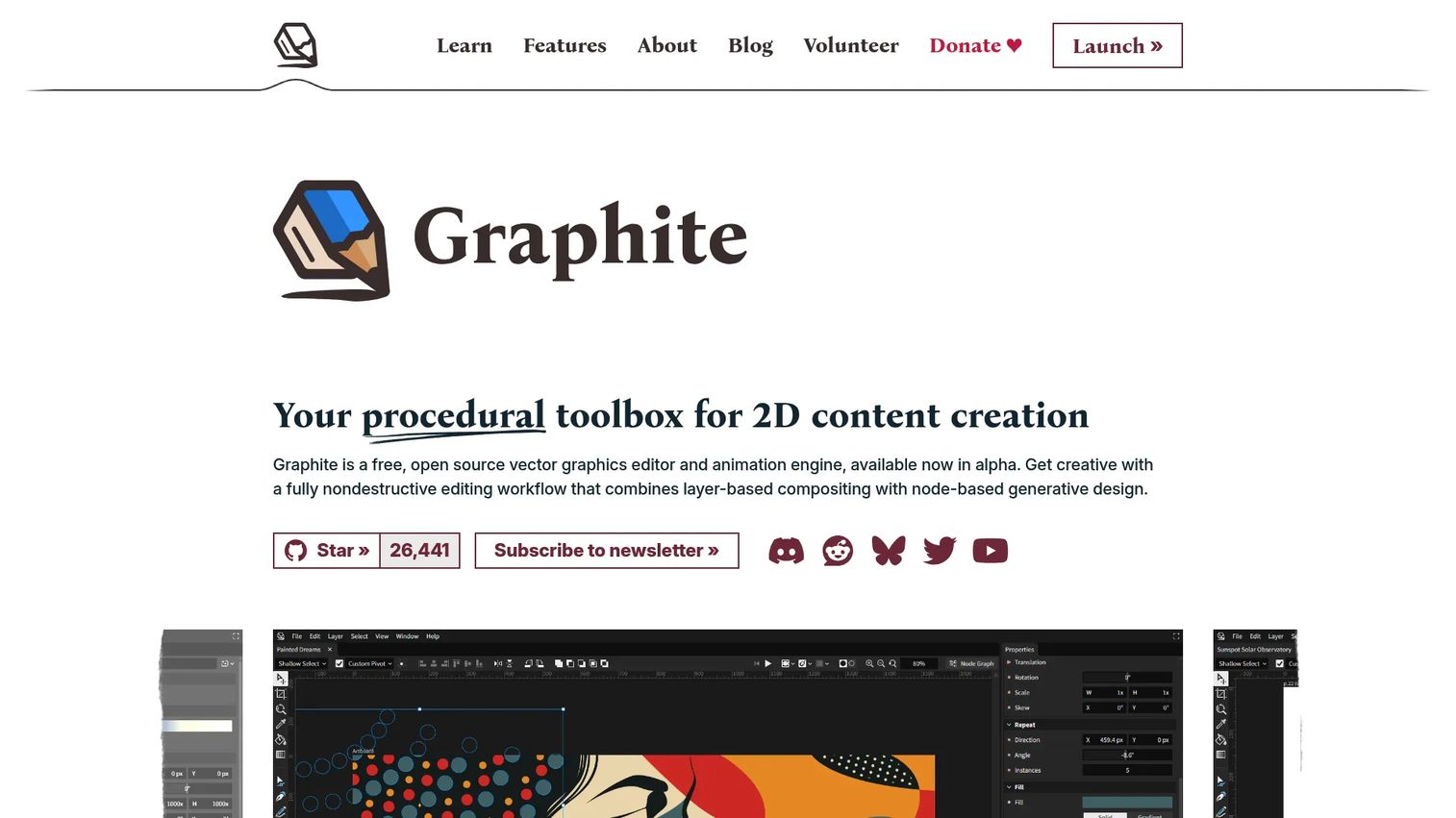
Graphite is a free, open source vector and raster editor with a distinctive angle: a procedural, node-based workflow. Instead of only editing artwork directly, you build it through a graph of nondestructive operations, which appeals to designers and artists who want repeatable, adjustable design systems. It runs in the browser and as a PWA, so there is nothing to install.
This is the forward-looking pick on the list. Graphite is actively evolving, and its node-based approach represents a next-generation take on vector creation. If you are curious about procedural design or want to experiment with a nondestructive 2D workflow, it is worth a serious look. Treat it as an emerging tool to explore rather than the safe default for a production brand pipeline.
Best for: Designers and artists who want a procedural, nondestructive 2D graphics tool and enjoy exploring newer workflows.
Key strengths
- Procedural workflow: Build graphics through nondestructive, adjustable operations.
- Node-based layers: A graph-driven approach to composing and editing artwork.
- Free and open source: Browser and PWA delivery with no cost.
Why choose Graphite: Choose it if node-based, procedural design appeals to you and you want to experiment with a next-generation open source editor. It fits early adopters and creative technologists more than teams that need a fully settled production tool today.
Graphite pricing: Graphite is forever free and open source. There are no paid plans.
7. Boxy SVG
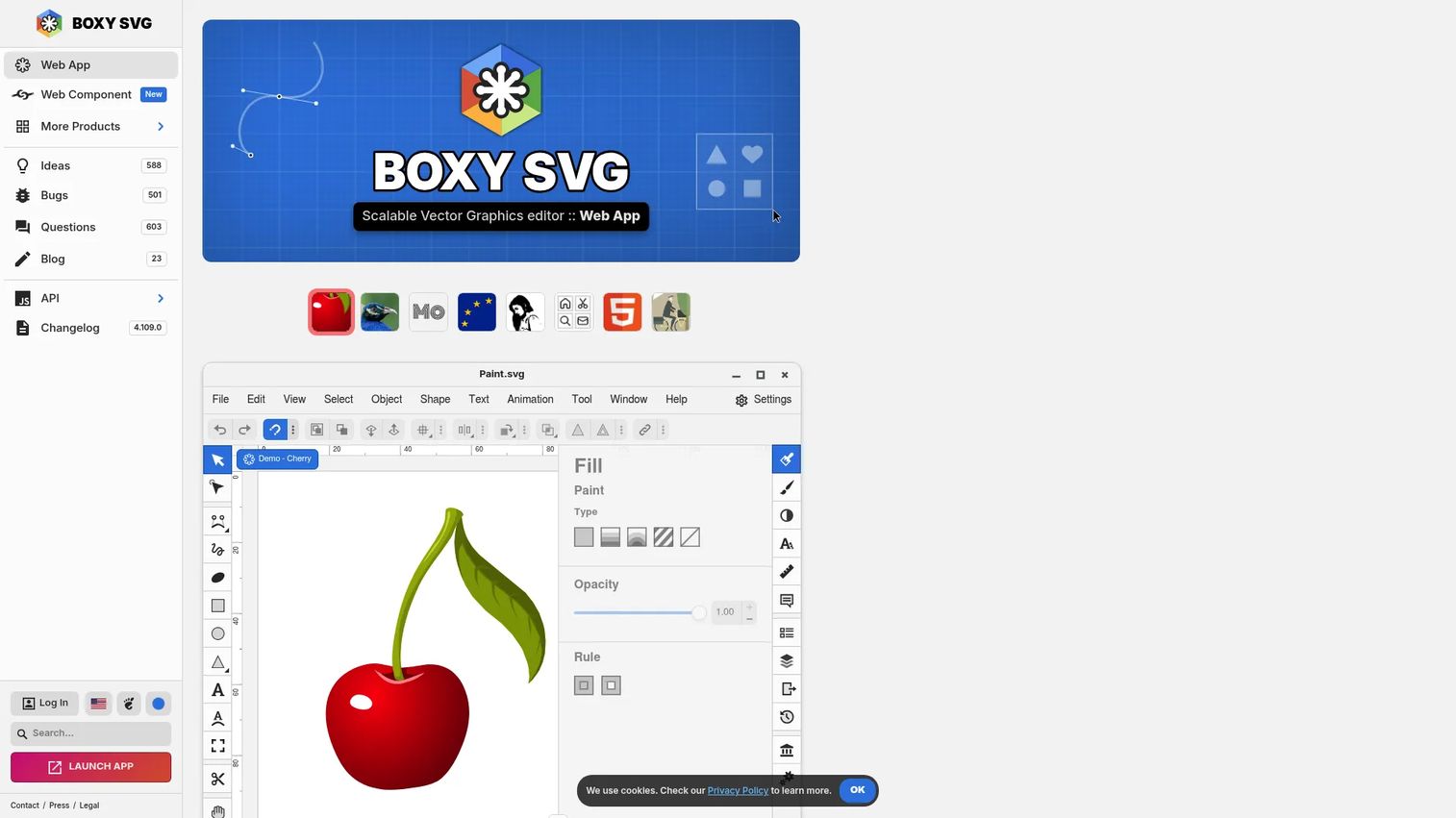
Boxy SVG is built around one goal: being an excellent tool for editing SVG files. It is a web-first, SVG-native editor aimed at web designers and developers who live in vector code. If your day involves icons, web graphics, and clean SVG output, Boxy SVG's focused interface keeps you close to the file.
The tool renders with a Chromium engine and includes an SVG and CSS code inspector plus SVG sprite support, which developers appreciate. It edits and exports SVG and SVGZ, and it outputs PNG, JPG, WebP, PDF, and HTML5. On-canvas editing plus path and arrangement operations cover the core drawing needs. For anyone who thinks in SVG, this is a purpose-built home.
Best for: Web designers and developers who need a focused SVG editor with developer-friendly export and inspection.
Key strengths
- SVG-native editing: Edit and export SVG and SVGZ, plus PNG, JPG, WebP, PDF, and HTML5.
- Developer tooling: Built-in SVG and CSS code inspector and SVG sprite support.
- On-canvas editing: Direct path and arrangement operations with Chromium-based rendering.
Why choose Boxy SVG: Choose it when SVG is your primary format and you want a lightweight, web-focused editor that plays well with development workflows. It fits designers and developers who prioritize clean SVG output over a broad illustration suite.
Boxy SVG pricing: Boxy SVG uses a subscription model with Basic, Standard, and Enterprise tiers. Specific public prices were not clearly listed at the time of writing, so check the official site for current figures before you buy.
8. Figma
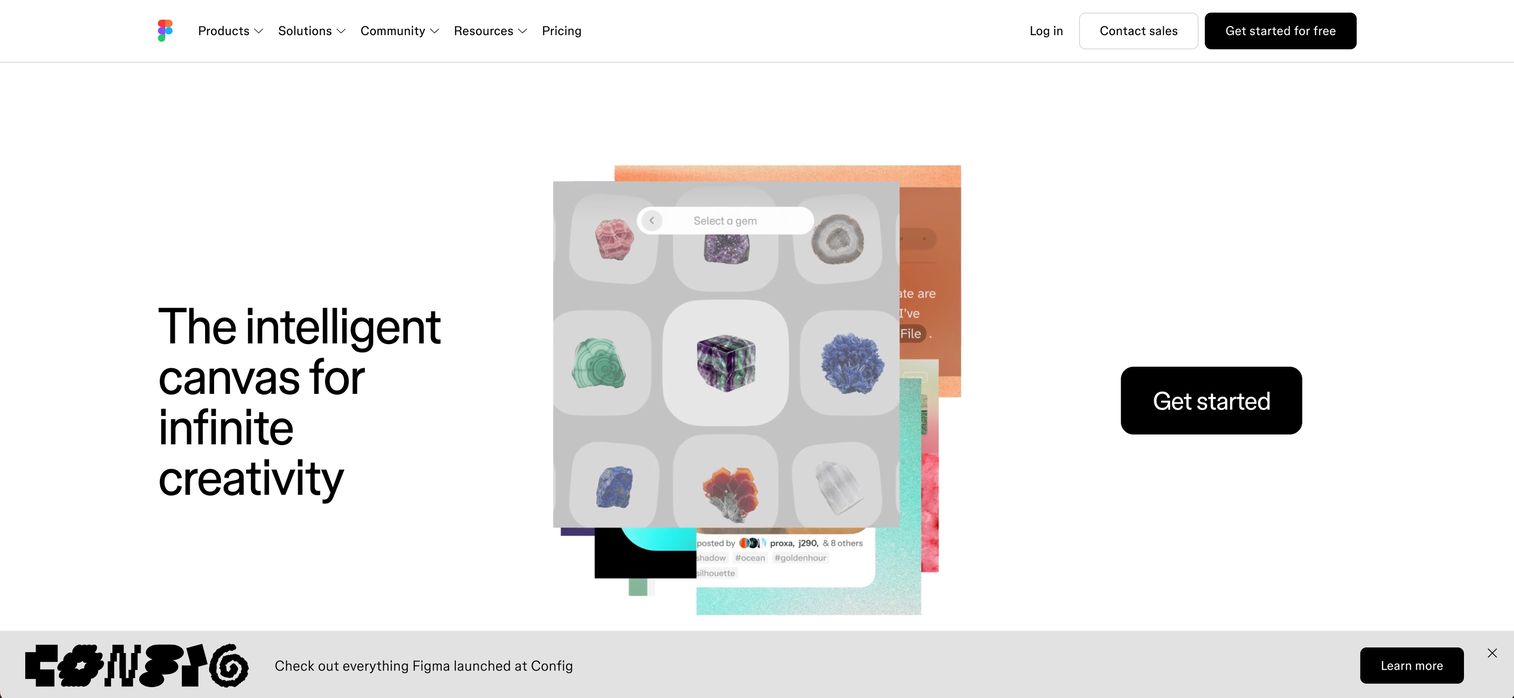
Figma is a collaborative design platform with strong vector editing built in, not a dedicated illustration suite. That distinction matters. For product teams and product marketing managers, Figma shines because everyone can edit in the same shared workspace in real time, and design-to-development handoff lives in one place. It handles vector work well while being purpose-built for team collaboration.
The pen tool, components, and auto layout make Figma capable for icons, UI vectors, and quick brand graphics, and its Dev Mode streamlines handoff. Figma lives in the browser and works on Windows, Chrome, Mac, and Linux, so access is never a blocker. It is a strong adjacent fit for teams that need shared editing and speed, rather than the deepest pure-vector illustration engine.
Best for: Product and marketing teams who need shared, real-time vector editing and clean design-to-dev handoff.
Key strengths
- Real-time collaboration: Multiple people edit the same file at once in a shared workspace.
- Components and auto layout: Reusable design elements that keep assets consistent.
- Dev Mode handoff: Streamlined design-to-development handoff in one place.
Why choose Figma: Choose it when collaboration and handoff matter more than deep illustration, and your team already works in a shared design environment. It fits product marketing and product teams producing UI vectors, icons, and quick brand assets. For pure logo and illustration depth, pair it with a dedicated vector editor.
Figma pricing: Figma's Starter plan is free with limited access. Professional runs US$16/mo, Organization is US$55/mo billed annually, and Enterprise is US$90/mo billed annually. Seat types and AI credits vary by plan.
Considerations before you choose
The right tool depends on your files, your team, and your budget. Run through these five checks before committing.
File formats and interoperability
Confirm the tool imports and exports the formats you actually use: SVG, AI, EPS, PDF, PNG, and JPG. Format support is not just about storage, it decides whether files move cleanly between your team, your printers, and your partners. A tool that mangles SVG export or cannot open an AI file will cost you rework on every handoff.
Learning curve and interface complexity
A powerful tool can still be the wrong fit. If your team is mostly non-designers doing occasional graphics, a deep pro suite may slow them down more than it helps. Match tool complexity to team skill. A marketer needing quick SVG edits and a full-time illustrator have different needs, and forcing one tool on both usually frustrates someone.
Pricing model and licensing
Compare subscription, one-time purchase, free, and open source honestly against how you work. A subscription makes sense for constant professional use; a one-time license or free tool fits occasional work. Check how many users and devices each plan allows so you do not get surprised by per-seat costs as the team grows.
Collaboration and platform support
Decide whether your team needs shared workspaces or solo editing, and whether you want browser, desktop, or cross-platform access. Browser-based tools remove installs and ease collaboration. Desktop apps often go deeper on features. Cross-platform support matters when your team runs a mix of Mac, Windows, and Linux.
Export quality and print readiness
Before you standardize on any tool, run a real test export for each use case: a web SVG, a print PDF, and a slide-ready PNG. Validate that the output holds up at the sizes and formats you ship. A quick test now beats discovering a broken export the night before a launch.
Conclusion
Choosing vector graphics software comes down to matching the tool to your workflow, not chasing the longest feature list. Here is the short version.
- Best overall for pros and teams: Adobe Illustrator, for depth and ecosystem fit.
- Best free option: Inkscape, the open source standard for SVG-first work.
- Best browser-based option: Vectr, for fast, simple vector tasks with no install.
- Best collaboration-first option: Figma, for shared editing and handoff.
If you want the best value in a professional desktop app, Affinity Designer is hard to beat. If print and layout dominate your work, CorelDRAW covers it. And if SVG is your whole world, Boxy SVG or Graphite deserve a look.
The practical next step: pick two tools from this list and test them with the same SVG file. Import it, make an edit, export it back out, and check the result. The tool that handles your real files cleanly is the one worth keeping.
FAQs
Vector graphics software is used to create and edit scalable artwork like logos, icons, illustrations, diagrams, and marketing visuals. Because vector files stay sharp at any size, they are the default for anything that needs to appear at multiple dimensions, from a favicon to a billboard. Marketers, designers, and product teams rely on it for brand assets and campaign graphics.
Vector graphics are built from mathematical paths, so they scale to any size without losing quality. Raster graphics, like JPGs and PNGs, are made of a fixed grid of pixels, so enlarging them causes blur. Use vectors for logos and print work that must scale, and raster for photographs and detailed images.
At a minimum, a vector editor should handle SVG, AI, EPS, and PDF for vector work, plus PNG and JPG for raster export. SVG is the web standard, PDF and EPS matter for print, and AI is common when working with Adobe files. Broad file format support keeps your artwork moving cleanly between tools, teams, and printers.
For most SVG editing, logo work, and everyday brand graphics, free and open source tools like Inkscape are more than good enough. They cover shapes, paths, text, and clean export without a license fee. You may want a paid suite when you need advanced illustration features, deep ecosystem integration, or dedicated print and layout tools.
Browser-based tools like Vectr are the most beginner-friendly because they require no install and keep the interface simple. Figma is also approachable for teams that want collaboration built in. If you prefer a free desktop option, Inkscape is powerful but takes a bit more time to learn.
Yes. Most vector editors include raster to vector conversion, often called image tracing, which turns a JPG or PNG into editable paths you can export as SVG. Tools like Vectr offer image-to-vector features, and desktop apps like Inkscape and Illustrator include tracing tools. Expect to clean up the traced result for the best output.
Inkscape runs on Mac, Windows, and Linux, making it a strong cross-platform desktop choice. Figma and Vectr work in the browser and across operating systems, so they suit mixed-device teams. Boxy SVG and Graphite also offer web-based access for SVG-focused work.
Product marketing managers and marketers should prioritize clean SVG and file format support, speed for producing brand and launch assets, and collaboration if they work with a design team. Match the tool's complexity to the team's skill level, and confirm export quality with a real test file before standardizing. The goal is consistent brand assets across every touchpoint without rework.