You open a fresh laptop, spin up the default terminal, and within a week you hit the wall. No proper tabs. Sluggish rendering when logs scroll fast. No clean way to save an SSH session you use ten times a day. So you start searching, and the results are overwhelming: dozens of terminal emulator options across Linux, Windows, and macOS, each claiming to be the fastest or the most configurable.
The stakes are higher than a nicer color scheme. The global terminal emulator software market is projected to grow from $9.33 billion in 2025 to $17.76 billion in 2030 at a 13.3% CAGR, driven by cloud-native IT adoption and distributed workforces, according to The Business Research Company (2025). That growth reflects a simple reality: more work now happens over remote shells, serial links, and cloud instances than ever before. The terminal you pick shapes how fast you move through all of it.
For technical evaluators, this is the same lens you apply to any tool. Does it fit the workflow, does it match the environment, and can you prove the fit before you commit. The difference between a good terminal and a bad default compounds across every session. If you spend your day validating environments, running demos, or supporting remote access, the same evaluation discipline that makes you good at vetting SaaS applies here. The same instinct that draws presales teams to ab testing tools and ai content creation tools applies to the terminal too: pick the one that removes friction from the work you actually do.
What's inside
This guide is for developers, system administrators, and technical power users choosing a terminal emulator program in 2026. It covers modern development terminals, cross-platform options for mixed OS teams, and legacy-friendly clients for SSH, serial, and mainframe access, all in one place.
We selected tools based on four criteria: operating system support (Linux, Windows, macOS), connectivity depth (SSH, telnet, serial, legacy protocols), workflow features (tabs, split panes, session management, customization), and performance (including GPU acceleration where relevant). Both free and open-source terminals and commercial clients made the list, sorted by relevance to the primary keyword rather than alphabetically.
TL;DR
- Best for Linux performance: Alacritty, a minimal GPU-accelerated terminal built for speed.
- Best Windows default replacement: Windows Terminal, with native tabs, panes, WSL, and PowerShell support.
- Best for power-user workflows: WezTerm, a cross-platform terminal with built-in multiplexing.
- Best for feature-rich customization: Kitty, GPU-based with image and graphics support.
- Best for legacy remote connections: PuTTY, Tera Term, and ZOC for SSH, serial, and mainframe access.
- Best commercial client: ZOC, a paid, mature terminal for Windows and macOS.
- Best drop-down access: Guake, a Quake-style terminal for GNOME desktops.
What is terminal emulator software?
Terminal emulator software is a desktop application that reproduces the behavior of a hardware text terminal, giving you a window where you type commands and read output from a shell or a remote system. The terminal emulator handles rendering, input, and connection management. The shell (bash, zsh, PowerShell, and others) interprets the commands you type. The two work together but do different jobs.
In practice, a modern terminal emulator program does far more than echo text. Core features across today's terminal software include:
- Tabs and split panes: Run multiple sessions in one window and view them side by side.
- Themes and fonts: Customize colors, ligatures, and typography for readability.
- SSH and remote access: Connect to remote servers securely, often with saved profiles.
- Serial connection support: Talk to network hardware, embedded devices, and console ports.
- Session persistence and management: Save connections, restore layouts, and reattach to running sessions.
- GPU acceleration: Offload text rendering to the graphics card for smoother scrolling under heavy load.
Platform context matters when you choose. On Linux, terminal emulators are deeply integrated with the desktop and shell, and options range from minimalist to fully scriptable. On Windows, the story shifted with the arrival of a modern first-party terminal plus WSL, so windows terminal emulators now cover both native shells and Linux distributions. On macOS, developers often reach for cross-platform tools that behave the same across their fleet. Cross-platform terminal emulators matter most when a team runs mixed environments and wants one consistent experience everywhere.
When to use each type of terminal emulator
Choose a modern terminal for everyday development
If you spend your day writing code, running builds, and tailing logs, prioritize a terminal with fast rendering, tabs, split panes, theming, and simple session management. GPU-accelerated terminals shine here because they keep the interface responsive when output floods the screen. This is the category where a linux terminal emulator or a polished Windows option pays off daily.
Choose a cross-platform terminal when your team works across OSs
Mixed environments create friction when every machine behaves differently. A cross-platform terminal emulator gives your team one configuration, one keybinding set, and one mental model across Linux, Windows, and macOS. That consistency reduces onboarding time and cuts the small errors that come from switching contexts. For teams validating deployments across operating systems, it keeps the evaluation clean and repeatable.
Choose a legacy-friendly terminal for SSH, serial, or mainframe access
When your work involves remote servers, network devices, or older systems, connectivity depth matters more than rendering speed. A legacy terminal emulator with SSH, telnet, serial, and broad protocol support becomes the tool you reach for. Admins managing routers, switches, and console ports, or teams connecting to mainframe systems, need this coverage. Session directories and saved profiles turn repetitive connections into one-click actions.
Comparison table: terminal emulator software at a glance
The table below sorts the ten tools by relevance to the primary keyword. Pricing reflects verified values from official sources, and G2 ratings are shown where a current product listing was available. Where a rating is not publicly listed, the field is left blank rather than estimated.
| # | Product | Intent | Key use case | Pricing | G2 rating |
|---|---|---|---|---|---|
| 1 | Alacritty | Fast dev terminal | Minimal, GPU-accelerated cross-platform terminal | Free, open source | 4.3/5 |
| 2 | Windows Terminal | Windows default | Tabs, panes, WSL, PowerShell on Windows | Free | - |
| 3 | WezTerm | Power-user workflows | Cross-platform terminal with multiplexing and SSH | Free, open source | - |
| 4 | Kitty | Feature-rich customization | GPU-based terminal with graphics support | Free, open source | - |
| 5 | PuTTY | Remote access | Lightweight SSH and telnet client | Free, open source | 4.5/5 |
| 6 | Tera Term | Legacy connectivity | Serial, telnet, and SSH on Windows | Free, open source | 4.4/5 |
| 7 | ZOC | Commercial client | Broad protocol SSH/telnet terminal, Windows and macOS | US$ 79.99 one-time | - |
| 8 | ConEmu | Windows customization | Tabbed console emulator with GUI enhancements | Free | 4.8/5 |
| 9 | Tabby | Connection management | Cross-platform terminal with SSH and serial | Free, open source | 3.9/5 |
| 10 | Guake | Drop-down access | Quake-style terminal for GNOME | Free, open source | - |
The 10 best terminal emulator software options for 2026
1. Alacritty
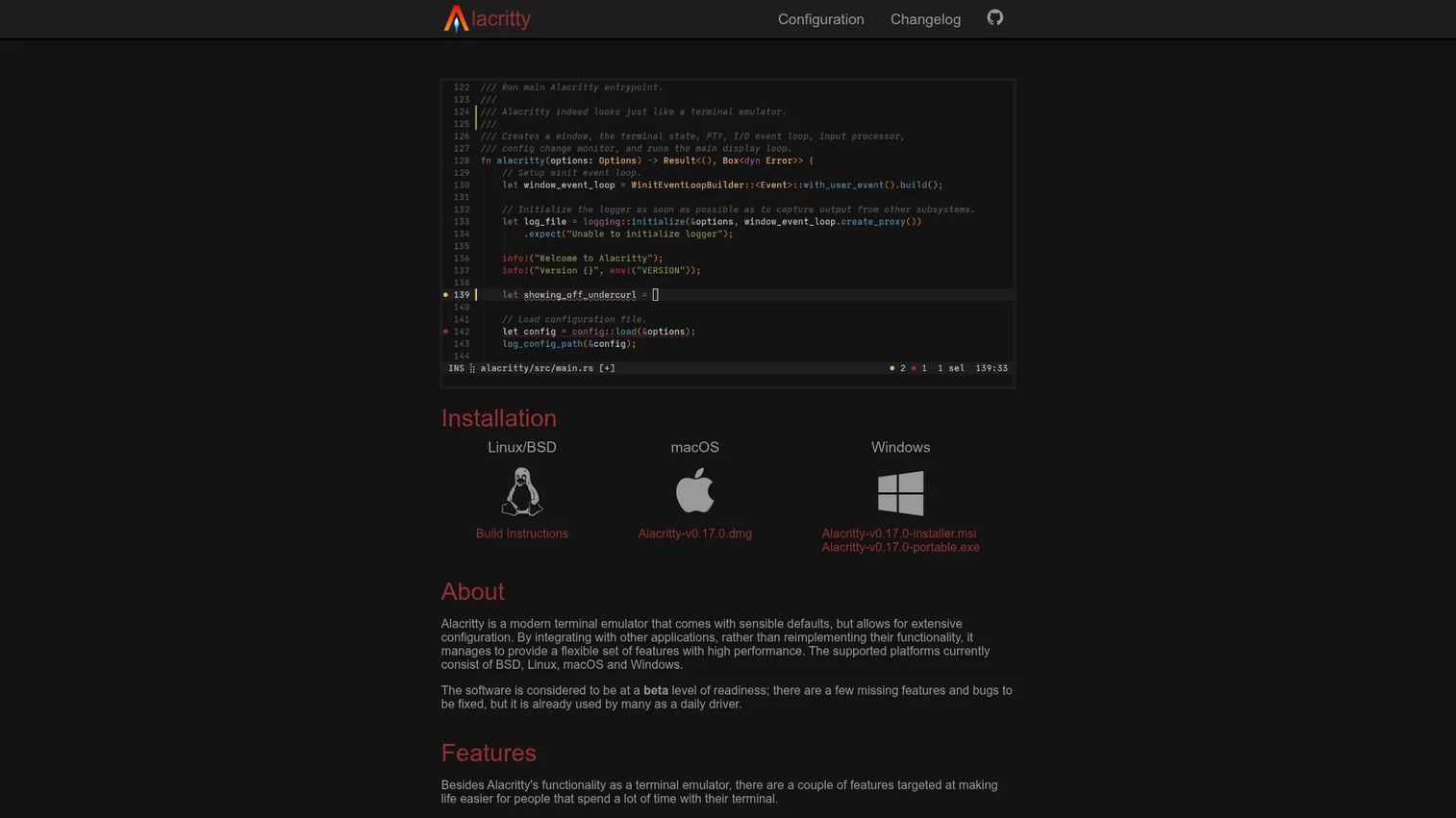
Alacritty is a fast, cross-platform OpenGL terminal emulator built for speed and simplicity. It offloads text rendering to the GPU, which keeps it responsive even when logs scroll rapidly, and it runs on Linux, macOS, and Windows. Configuration lives in a plain text file, so your setup travels with you and stays version-controllable.
Best for: Developers who want a minimal, high-performance terminal emulator without a feature-heavy interface.
Key strengths
- Vi mode: Navigate and select scrollback using familiar keyboard motions, no mouse required.
- Search in scrollback buffer: Jump straight to the line you need in long output.
- Regex hints: Match and act on URLs, paths, and patterns directly in the terminal.
Why choose Alacritty: Alacritty performs best when you want raw speed and a clean, text-configured setup rather than a built-in tab manager or multiplexer. Many developers pair it with a separate multiplexer like tmux to add tabs and splits, keeping the terminal itself lean. If your priority is a linux terminal emulator that renders fast and stays out of your way, this is a strong default.
Alacritty pricing: Alacritty is free and open source. There are no paid tiers or license fees, and the project is distributed openly through its official site and package managers. It holds a 4.3/5 rating on G2.
2. Windows Terminal
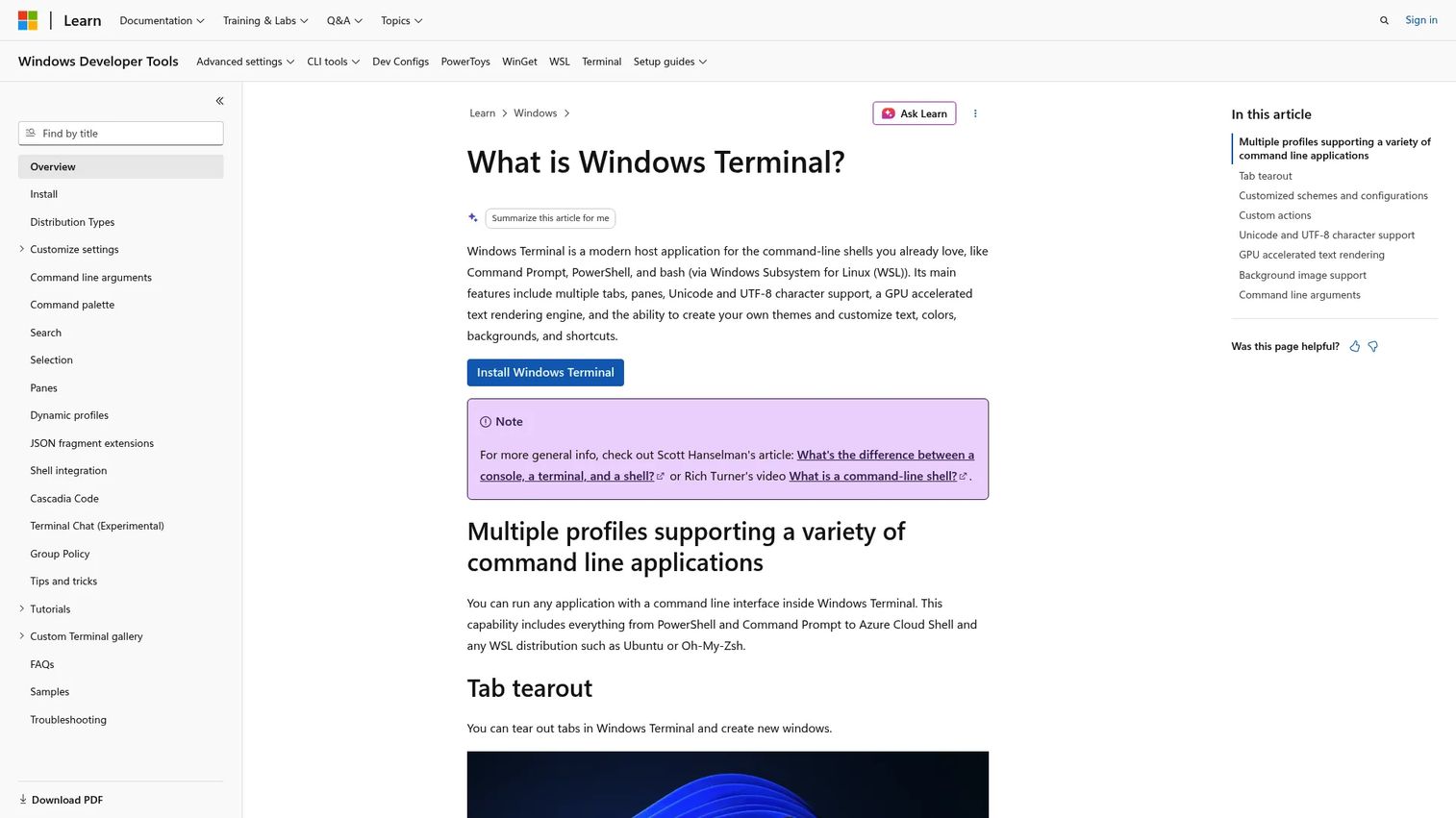
Windows Terminal is Microsoft's modern terminal host for command-line shells on Windows 10 and 11. It brings a single tabbed window that can run PowerShell, Command Prompt, and WSL Linux distributions side by side, which historically required juggling separate windows. For Windows-first teams, it is the obvious upgrade over the classic console.
Best for: Windows users who want a customizable, tabbed command-line terminal with native WSL and PowerShell support.
Key strengths
- Multiple tabs and panes: Run different shells at once and split them within one window.
- Unicode and UTF-8 support: Render international text, emoji, and modern glyphs correctly.
- GPU-accelerated text rendering: Keep the interface smooth during heavy output.
Why choose Windows Terminal: Windows Terminal is the natural default for anyone working across PowerShell, Command Prompt, and WSL on the same machine. Profiles let you set a distinct shell, theme, and startup directory per environment, which is ideal when you move between native Windows tooling and Linux workflows. It is one of the strongest windows terminal emulators for mixed shell work.
Windows Terminal pricing: Windows Terminal is free. Microsoft distributes it through the Microsoft Store and open source on its project repository, with no paid tiers.
3. WezTerm
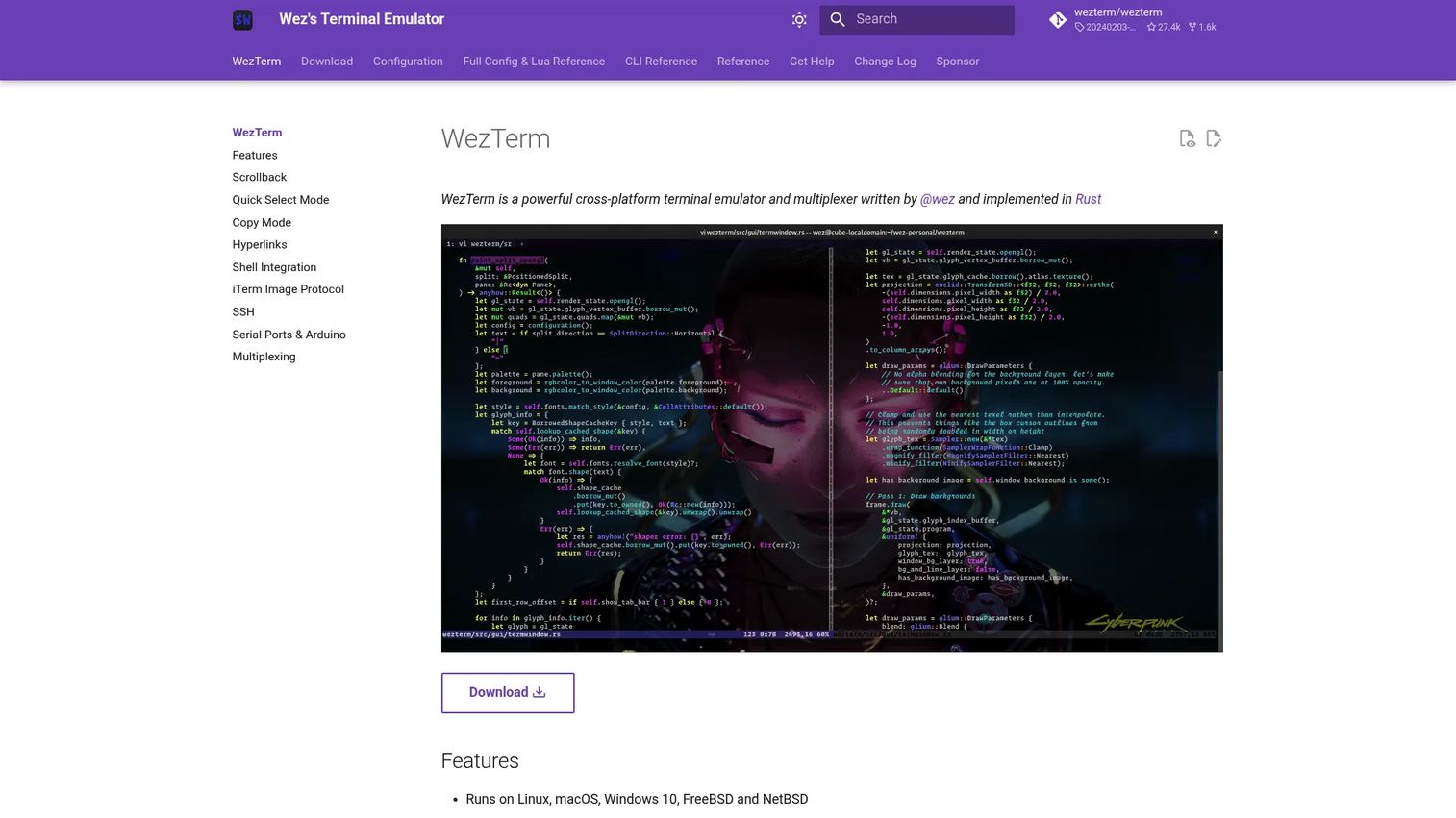
WezTerm is a cross-platform terminal emulator and multiplexer written in Rust. It runs on Linux, macOS, Windows 10, FreeBSD, and NetBSD, and it multiplexes panes, tabs, and windows across local and remote hosts. That built-in multiplexing means you can manage complex layouts without bolting on a separate tool.
Best for: Power users who want one configurable terminal with native multiplexing and SSH across every operating system they touch.
Key strengths
- Cross-platform coverage: One config runs across Linux, macOS, Windows, and BSD systems.
- Built-in multiplexing: Manage panes, tabs, and windows on local and remote hosts natively.
- Rich rendering and SSH: Ligatures, color emoji, font fallback, hyperlinks, searchable scrollback, and SSH built in.
Why choose WezTerm: WezTerm suits power users who want a single terminal that behaves identically across a mixed fleet. Because multiplexing is native, you avoid the setup and quirks of running a separate multiplexer, and remote sessions feel like local ones. It is a strong cross-platform terminal emulator for teams that standardize on one tool everywhere.
WezTerm pricing: WezTerm is free and open source. There are no paid plans; the project is distributed openly through its official site and package repositories.
4. Kitty
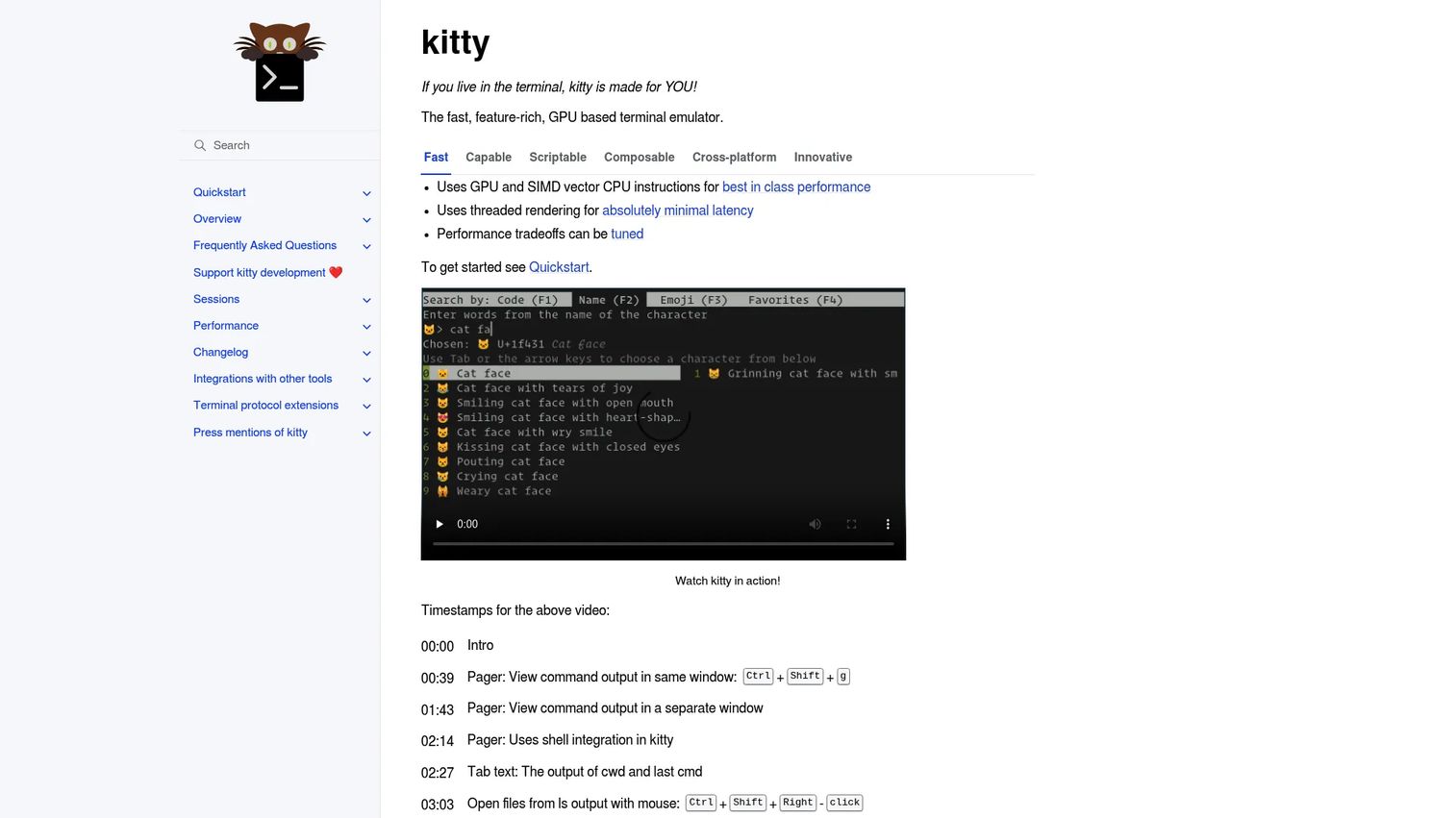
Kitty is a fast, feature-rich, GPU-based terminal emulator. It uses both GPU and SIMD acceleration for performance, and it supports graphics, including images and animations, directly in the terminal. Tabs, splits, and multiple layouts round out a toolkit built for keyboard-driven, high-throughput work.
Best for: Developers who want a highly configurable terminal for power-user workflows that value performance and rich features together.
Key strengths
- GPU and SIMD-accelerated performance: Smooth rendering even under heavy load.
- Graphics support: Display images and animations inline, useful for plots and previews.
- Tabs, splits, and layouts: Organize multiple sessions with flexible arrangements.
Why choose Kitty: Kitty excels when you want both speed and depth in one terminal rather than choosing between them. Its graphics protocol and layout system reward users who invest in configuration and lean on keyboard control. If you want a linux terminal emulator that pairs performance with genuinely rich features, Kitty is a top contender.
Kitty pricing: Kitty is free and open source. It is distributed through its official site and common package managers, with no paid tiers or license costs.
5. PuTTY
PuTTY is a free SSH and telnet client for Windows and Unix that includes an xterm terminal emulator. It has been a staple for remote access and administration for years because it is lightweight, dependable, and requires no installation ceremony. For quick SSH sessions and serial console work, it remains a go-to.
Best for: Teams and admins needing a lightweight, reliable SSH and telnet terminal client.
Key strengths
- SSH and telnet support: Connect securely to remote servers and network devices.
- Windows and Unix platforms: Run the same familiar client across environments.
- xterm terminal emulation: Handle standard terminal behavior for remote sessions.
Why choose PuTTY: PuTTY is the pragmatic choice when you need a dependable SSH terminal emulator without heavy configuration. It is small, launches instantly, and handles saved sessions for the hosts you connect to repeatedly. Note that the official project lives at chiark.greenend.org.uk, and the site notes that putty.org is not the official source, so download from the canonical page.
PuTTY pricing: PuTTY is free and open source with no paid plans. It holds a 4.5/5 rating on G2, reflecting long-standing trust among administrators.
6. Tera Term
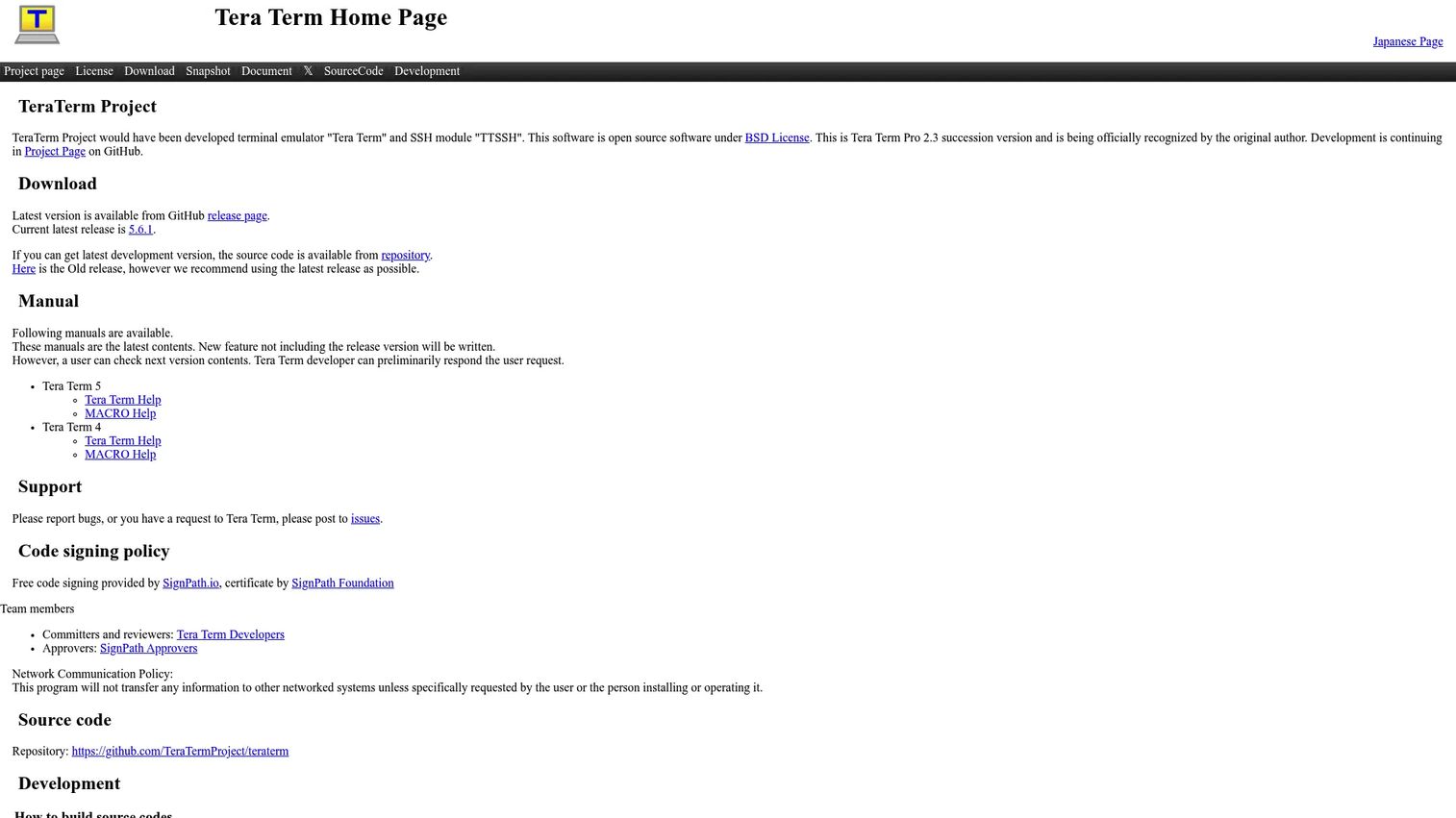
Tera Term is an open-source terminal emulator for Windows with serial, telnet, SSH1, and SSH2 support. It has a long history in network engineering and hardware workflows because its serial port handling and macro scripting make repetitive console tasks fast. For anyone provisioning switches, routers, or embedded devices, it earns its place.
Best for: Windows users needing a lightweight serial, telnet, and SSH terminal emulator for network and device work.
Key strengths
- Serial port connections: Talk directly to console ports on network and embedded hardware.
- TCP/IP connections: Telnet, SSH1, and SSH2 support for remote access.
- Macro scripting language: Automate repetitive login and configuration sequences.
Why choose Tera Term: Tera Term shines in legacy and network device workflows where serial access and scripting matter more than a polished modern interface. Its macro language turns tedious console procedures into repeatable scripts, which is invaluable when you configure hardware at scale. It is a proven legacy terminal emulator for Windows-based admin work.
Tera Term pricing: Tera Term is free and open source. No numeric price is published because the project is distributed openly, and it holds a 4.4/5 rating on G2.
7. ZOC
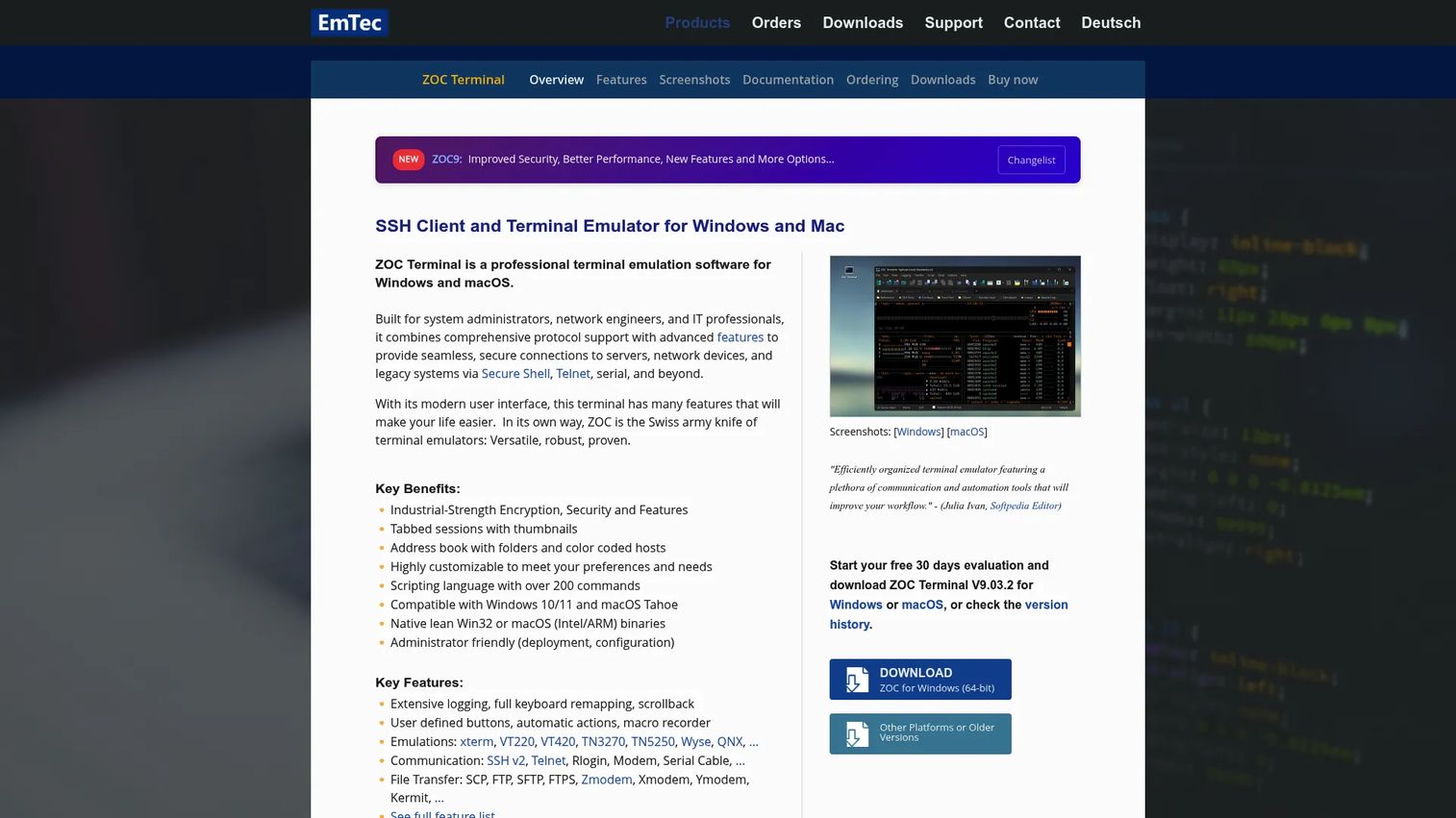
ZOC is a commercial terminal emulator and SSH/telnet client for Windows and macOS. It targets professionals who want broad protocol support and polished tooling in a single paid product. Tabbed sessions, a host directory, and a wide range of terminal emulations make it well suited to admins managing many different systems.
Best for: IT professionals who need a configurable, mature SSH and telnet terminal across Windows and macOS.
Key strengths
- Tabbed sessions and host directory: Organize and reconnect to many hosts quickly.
- Broad connectivity: SSH, telnet, rlogin, serial, and modem support in one client.
- Terminal emulations and file transfer: Multiple emulation modes plus built-in transfer protocols.
Why choose ZOC: ZOC fits teams that prefer a paid, supported client with deep protocol coverage over assembling free tools. Its host directory and emulation range make it comfortable for admins who touch mainframe, network, and Unix systems in the same day. The perpetual license model appeals to those who dislike recurring fees.
ZOC pricing: A ZOC9 license is US$ 79.99 as a one-time purchase, with no recurring fees and all v9.xx updates included. Upgrades run US$ 29.99 from v8.xx and US$ 49.99 from v7.xx or older. Support is included with the perpetual license.
8. ConEmu
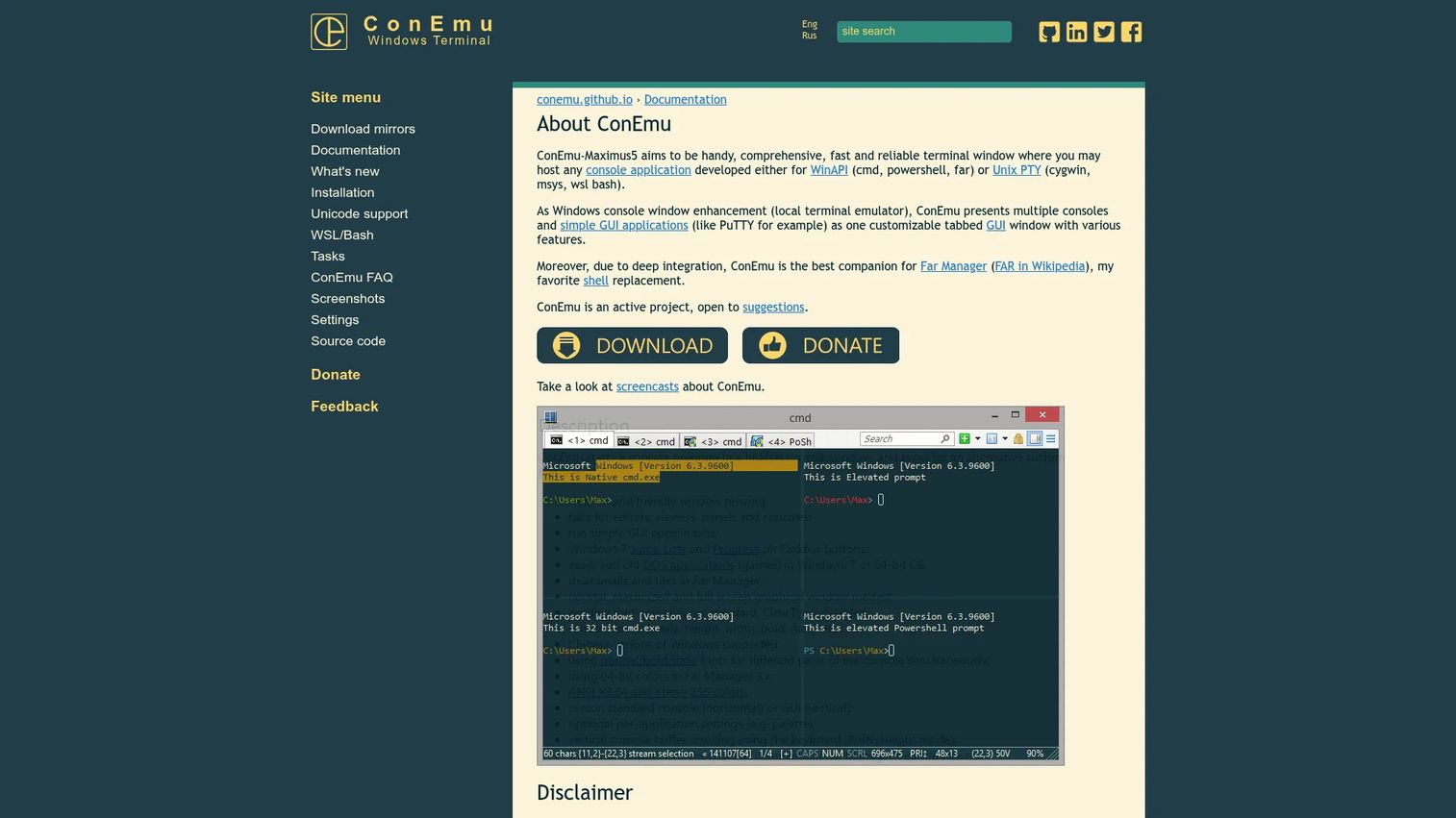
ConEmu is a Windows console emulator and terminal window that adds tabs and GUI enhancements to native Windows consoles. It predates the modern first-party terminal and still appeals to users who want deep customization over window behavior, fonts, colors, and transparency. It can host multiple consoles and GUI apps in a single tabbed interface.
Best for: Windows users who want a highly customizable, tabbed console emulator experience.
Key strengths
- Tabbed interface: Run multiple consoles and GUI apps in one window.
- Deep customization: Adjust window layout, fonts, colors, and transparency to taste.
- Console integration: Support for ANSI/xterm sequences and reusable task presets.
Why choose ConEmu: ConEmu suits Windows users who want granular control over how their console looks and behaves. Task presets let you launch preconfigured shells with one click, and its customization runs deeper than most defaults offer. It remains a favorite among users who built their workflow around it before newer options arrived. It holds a 4.8/5 rating on G2.
ConEmu pricing: ConEmu is free. It is distributed openly through its project site with no paid tiers, and it carries a 4.8/5 rating on G2.
9. Tabby
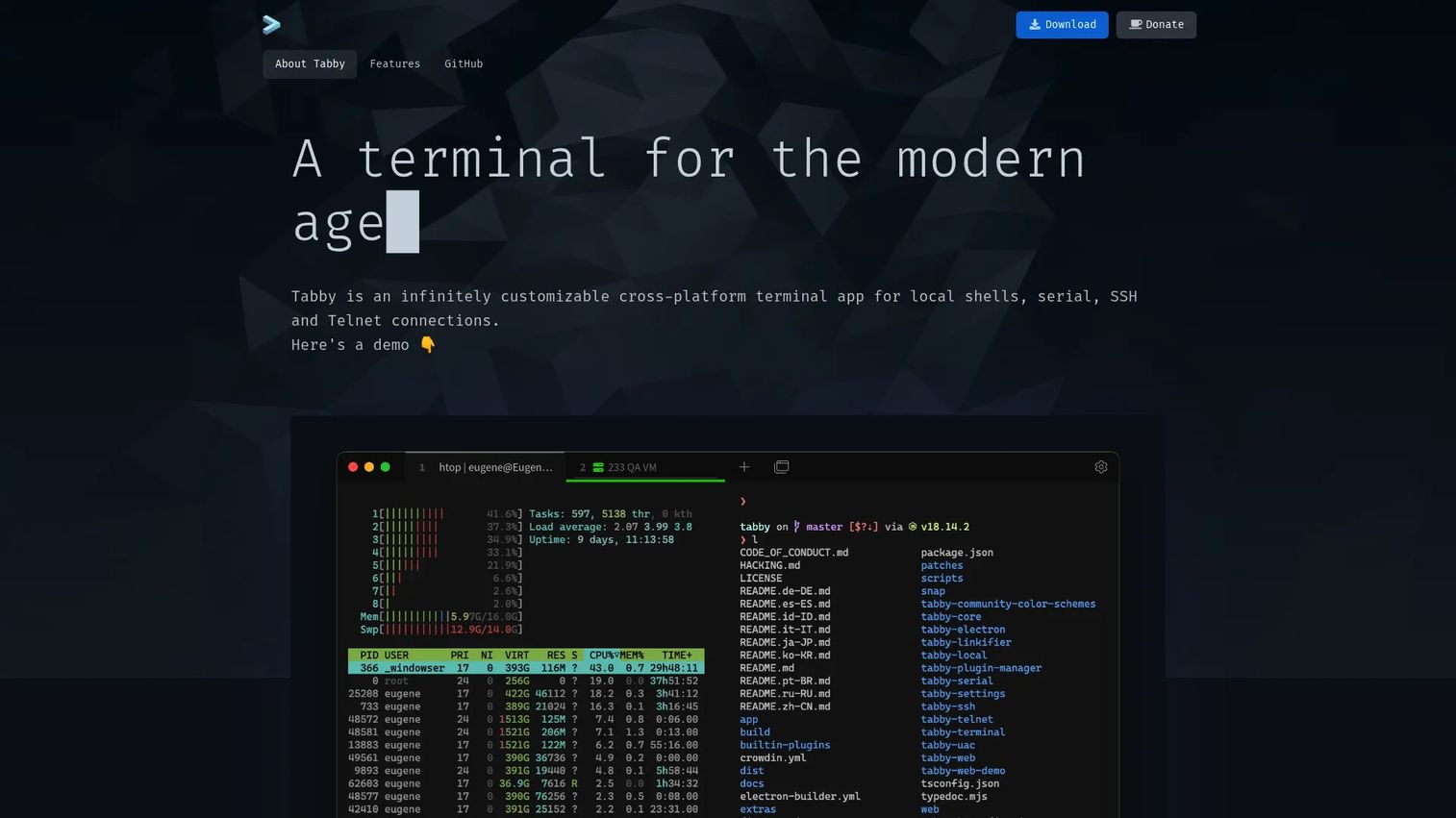
Tabby is a cross-platform terminal app for local shells, serial, SSH, and telnet connections. It pairs a modern, polished interface with a genuinely useful connection manager, which makes it a strong pick for anyone who juggles many saved SSH sessions. It runs on Windows, macOS, and Linux from a single codebase.
Best for: Developers and operators who want a polished, cross-platform terminal with built-in SSH and serial management.
Key strengths
- Cross-platform support: One app across Windows, macOS, and Linux.
- Integrated SSH client: SFTP, key management, jump hosts, and port forwarding built in.
- Serial and telnet: Serial terminal support plus telnet, theming, and custom shortcuts.
Why choose Tabby: Tabby is a good fit when saved connections and a clean UI matter as much as raw terminal work. Its SSH manager handles jump hosts, keys, and port forwarding without dropping to config files, which speeds up recurring remote access. For teams that want a modern remote access terminal with a friendly front end, it delivers. It holds a 3.9/5 rating on G2.
Tabby pricing: Tabby is free and open source. The project presents itself as FOSS with no public paid plans, distributed through its official site and package channels.
10. Guake
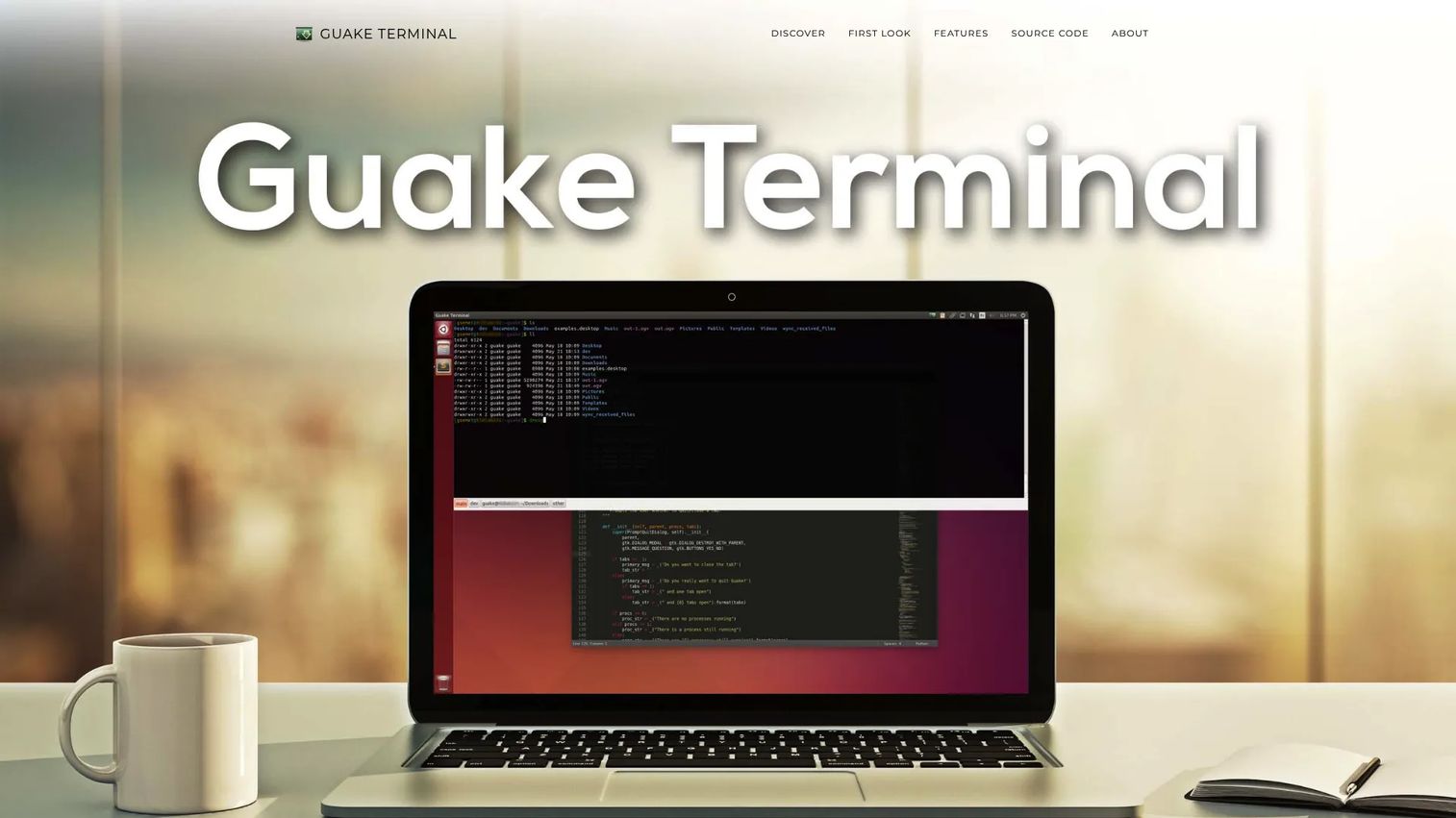
Guake is an open-source, drop-down terminal for GNOME. Instead of a full window, it slides down from the top of your screen with a single keystroke and hides again just as fast. That instant access model makes it a niche but genuinely useful option for desktop Linux users who want a terminal always a keypress away.
Best for: GNOME users who want a fast, keyboard-driven drop-down terminal for quick commands.
Key strengths
- Top-down access: Show and hide the terminal with a single keystroke.
- Multi-monitor support: Position the drop-down where you want it across displays.
- Named tabs and quick open: Manage multiple tabs and open items straight from output.
Why choose Guake: Guake wins when instant access beats a persistent full-screen terminal. For quick commands, a package install, or a fast log check, sliding a terminal down and dismissing it keeps you in flow. It works best as a companion to a primary terminal rather than a replacement, filling the gaps where speed of access matters most.
Guake pricing: Guake is free and open source. It is distributed through Linux package managers and its project site, with no paid tiers.
What to look for when choosing terminal emulator software
Operating system and platform fit
Start with where you actually work. A linux terminal emulator that shines on GNOME may not exist on Windows, and a Windows-first tool may not run on macOS. If your fleet is mixed, weight cross-platform terminals higher so one configuration serves everyone. Check that the tool supports your primary OS versions before anything else.
Connectivity and protocol support
Match the tool to your connections. If you live in SSH, prioritize saved sessions and key management. If you touch network hardware or embedded devices, confirm serial port support. For older systems, verify telnet and mainframe emulation. The best terminal software for you is the one that speaks the protocols your work demands.
Performance and rendering
If you tail large logs or run output-heavy commands, GPU-accelerated terminals keep the interface smooth. For light, occasional use, rendering speed matters less. Be honest about your load pattern rather than chasing benchmarks you will never stress.
Workflow features and customization
Tabs, split panes, session management, and theming shape your day more than headline specs. Decide whether you want these built into the terminal or handled by a separate multiplexer. Then pick the tool that matches your preference, since both approaches work well for different people.
Conclusion
The right terminal emulator software comes down to platform and protocol needs, not hype. For fast everyday development, Alacritty and Kitty lead on performance, while Windows Terminal is the clear default for Windows-first teams. WezTerm and Tabby stand out for cross-platform consistency and connection management. For remote and legacy work, PuTTY, Tera Term, and ZOC cover SSH, serial, and mainframe access, and Guake adds instant drop-down convenience on GNOME.
A practical next step: test three terminals side by side. Pick one minimal, fast option (Alacritty or Kitty), one feature-rich or cross-platform option (WezTerm, Tabby, or Windows Terminal), and one remote-access client (PuTTY, Tera Term, or ZOC). Run your real workflow through each for a week. The one that disappears into your work, letting you focus on the commands instead of the tool, is the right terminal program for you.
FAQs
Terminal emulator software is a desktop application that recreates a text terminal, giving you a window to type commands and read output from a shell or remote system. It handles rendering, input, tabs, and connections like SSH and serial, while the shell interprets the commands. Modern terminal emulators add features such as split panes, theming, session management, and GPU acceleration.
For most Windows 10 and 11 users, Windows Terminal is the best default because it runs PowerShell, Command Prompt, and WSL in one tabbed window with profiles and GPU rendering. If you want deeper console customization, ConEmu is a strong alternative. For remote and legacy work, PuTTY and Tera Term remain reliable choices.
Alacritty and Kitty are top picks for a linux terminal emulator, both GPU-accelerated and fast under heavy output. Alacritty favors minimalism and pairs well with a multiplexer, while Kitty bundles rich features like graphics and layouts. Guake is worth adding for instant drop-down access on GNOME.
For a dedicated SSH terminal emulator, PuTTY is the lightweight standard, and Tabby offers a polished connection manager with SFTP, key management, and jump hosts. ZOC is a strong paid option with broad protocol coverage. WezTerm also includes built-in SSH for developers who want it in a modern cross-platform terminal.
Many do. Tera Term and Tabby both support serial port connections, which is essential for configuring routers, switches, and embedded hardware over console ports. ZOC also includes serial and modem connectivity. If serial access is central to your work, confirm the feature explicitly before choosing.
If you tail large logs or run output-heavy commands, yes. A GPU-accelerated terminal emulator like Alacritty, Kitty, or WezTerm keeps scrolling smooth when text floods the screen. For light, occasional use the difference is smaller, so weigh it against the workflow features you actually need.
The terminal emulator is the application that displays text, captures input, and manages connections and tabs. The shell, such as bash, zsh, or PowerShell, is the program that reads your commands and runs them. You type into the terminal emulator, and it passes your input to the shell, which returns output the terminal then renders.
WezTerm and Kitty are favorites among power users. WezTerm offers native multiplexing, cross-platform consistency, and SSH in one tool, while Kitty combines GPU performance with graphics support and a flexible layout system. Both reward users who invest in configuration and lean heavily on keyboard-driven workflows.