Too many screen sharing tools. Not enough honest comparisons.
You've probably tried at least two or three screen sharing apps already. Maybe your current one lags during demos, costs too much for what it does, or forces your clients to download something before they can see your screen. You're here because you want something better - or at least something that actually fits your use case. If your primary goal is walking prospects through your product, you might also want to explore interactive demo software as a complement to live screen sharing.
We installed, configured, and tested 15 screen sharing software tools across Windows, macOS, and mobile. We ran multi-participant sessions, compared latency, checked pricing pages (twice), and noted every limitation the marketing sites don't mention.
What's inside
This guide covers every major category of screen share software: video conferencing platforms with built-in sharing, dedicated remote access tools, browser-based options that need zero downloads, and even async alternatives. Each tool gets a structured review with specific strengths, honest trade-offs, and clear pricing.
We also built a side-by-side comparison table (something no other roundup offers), a use-case decision framework, and a dedicated security section. Whether you're an IT admin managing 500 endpoints or a freelancer who just needs to share your screen with a client once a week, you'll find your match here.
TL;DR
- Best overall for meetings: Zoom - reliable, ubiquitous, strong free tier with a 40-minute cap
- Best for enterprise: Microsoft Teams - deep Microsoft 365 integration, compliance certifications, PowerPoint Live
- Best completely free: Chrome Remote Desktop (remote access) and Discord (live screen sharing with no time limits)
- Best for real-time collaboration: CoScreen - multiple people share and interact with screens simultaneously
- Best for IT support: TeamViewer - unattended access, multi-platform, enterprise-grade remote control
What is screen sharing software (and why you still need it in 2026)
Screen sharing software lets you broadcast your screen - or a specific window, tab, or region - to one or more viewers in real time. Under the hood, most tools use either WebRTC (browser-based, peer-to-peer), server-relayed video streams, or proprietary codecs to compress and transmit your display.
In 2026, with hybrid and remote work firmly established as the default for knowledge workers, the need to share your computer screen hasn't decreased. It's shifted. AI-assisted features like automatic meeting summaries, real-time translation, and smart annotations are now table stakes for the bigger platforms. Security standards have tightened too - end-to-end encryption and compliance certifications matter more than they did even two years ago.
The tools have evolved from clunky desktop-only clients to lightweight, browser-based, mobile-friendly screen sharing apps. But more options also means more confusion. To help you cut through it, we tested 15 tools across six specific criteria.
How we evaluated these screen sharing tools
We didn't just read feature pages. We installed each tool (or opened it in-browser where applicable), ran screen share sessions with 2-5 participants, and tested across Windows, macOS, and mobile. Here's what we measured:
- Ease of use: How many clicks from launch to active screen share? Does the viewer need to install anything?
- Cross-platform compatibility: Windows, macOS, Linux, iOS, Android, and browser support
- Video/audio quality and latency: Visual clarity during motion, audio sync, delay between action and viewer display
- Security and encryption: Encryption standards (AES-256, TLS 1.2+), compliance certifications, permission controls
- Pricing and free tier availability: What you actually get for free, and what the first paid tier costs
- Collaboration features: Annotation, remote control, whiteboard, recording, and multi-user interaction
Every tool was evaluated against these same criteria. Where a tool excels in one area but falls short in another, we say so.
Quick comparison table - 14 best screen sharing tools at a glance
Here's a side-by-side snapshot of every screen share software tool we reviewed. Scroll down for full breakdowns.
| Tool | Best For | Free Plan | Starting Price | Platforms | Key Standout |
|---|---|---|---|---|---|
| Zoom | Video meetings | Yes (40-min limit) | $13.33/mo/user | Win, Mac, Linux, iOS, Android, Web | Ubiquitous adoption |
| Microsoft Teams | Enterprise / M365 users | Yes | $6/user/mo | Win, Mac, Linux, iOS, Android, Web | PowerPoint Live |
| Google Meet | Google Workspace users | Yes (60-min limit) | $7/user/mo | Web, iOS, Android | Zero downloads needed |
| TeamViewer | IT support / remote access | Yes (personal only) | $24.90/mo | Win, Mac, Linux, iOS, Android, ChromeOS | Unattended access |
| AnyDesk | Low-latency performance | Yes (limited) | $14.90/mo | Win, Mac, Linux, iOS, Android, ChromeOS, Raspberry Pi | DeskRT codec |
| Slack | Quick informal shares | Yes (limited) | $8.75/user/mo | Win, Mac, Linux, iOS, Android, Web | In-chat huddle sharing |
| Discord | Free community sharing | Yes | $9.99/mo (Nitro) | Win, Mac, Linux, iOS, Android, Web | 4K 60fps streaming |
| CoScreen | Real-time collaboration | Yes | Contact for pricing | Win, Mac | Multi-user simultaneous sharing |
| Surfly | Co-browsing / support | No | Custom pricing | Web (browser-based) | Interactive co-browsing |
| Chrome Remote Desktop | Completely free access | Yes (fully free) | Free | Chrome browser (all OS) | No paid tier exists |
| Webex by Cisco | Large enterprise meetings | Yes (limited) | Contact for pricing | Win, Mac, iOS, Android, Web | Immersive share overlay |
| Screenleap | Instant no-install sharing | Yes (8 viewers) | $19/mo | Web, Win, Mac | Fastest time-to-share |
| Jitbit | Lightweight P2P sharing | Yes (fully free) | Free | Web (browser-based) | Peer-to-peer, no data stored |
| Whereby | Embedded screen sharing | Yes (1 room) | $8.99/mo | Web (browser-based) | Embeddable via API |
1. Zoom - best screen sharing software for video meetings
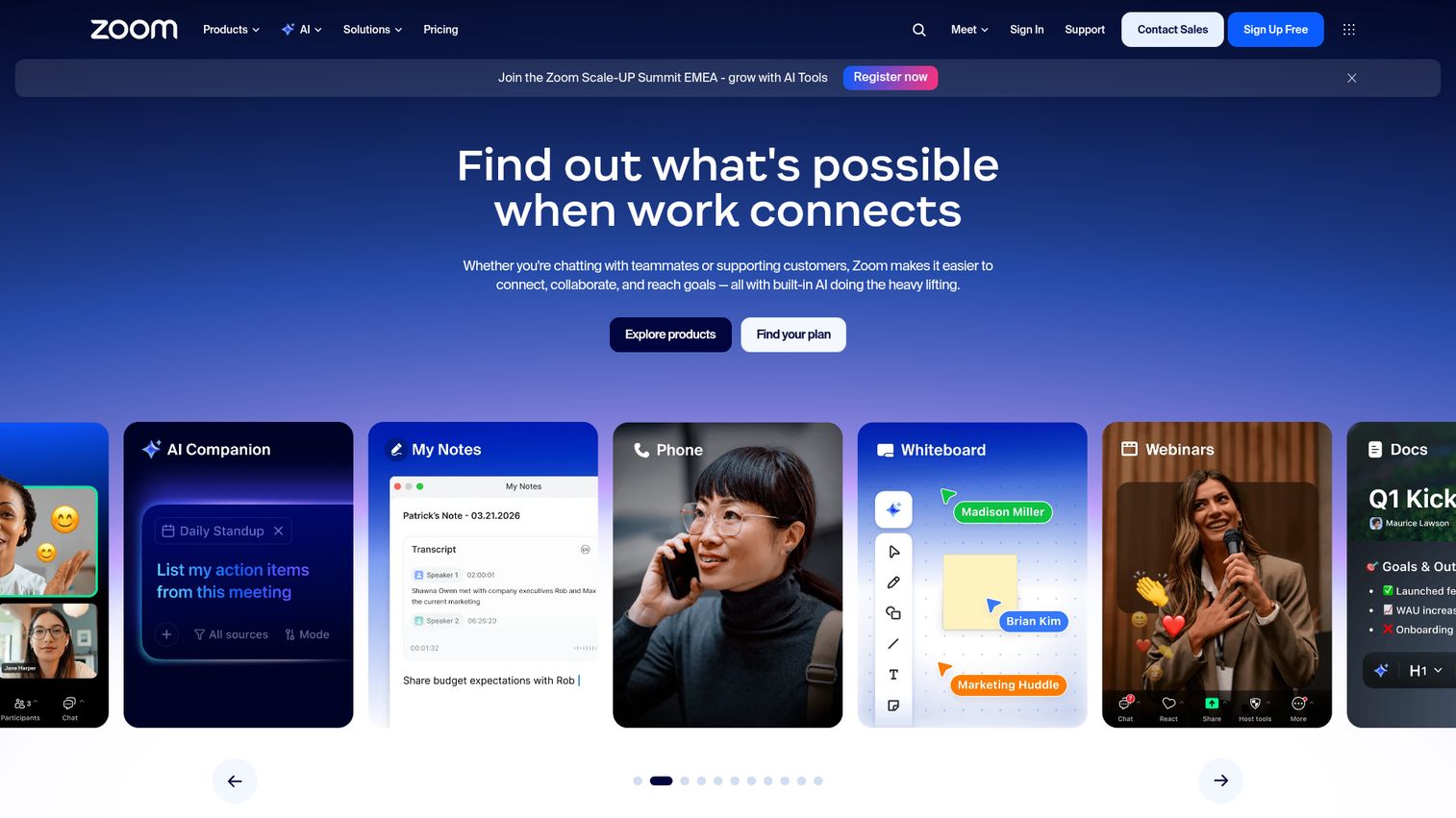
Zoom is the video conferencing platform that made screen sharing a default reflex for remote teams - and its sharing tools remain among the most full-featured available.
If your team already runs meetings in Zoom, adding a separate screen sharing app makes little sense. You can share your full screen, a specific window, a portion of your display, or just your iPhone/iPad screen via AirPlay. The annotation tools let viewers draw on your shared content, and you can hand over remote control with a click. One often-missed feature: the "Share Sound" toggle, which pipes your computer audio directly to viewers - essential when presenting videos or audio clips. You can also explore the Zoom interactive demo to see the platform's interface before committing.
Best for: Teams already using Zoom for meetings who want integrated screensharing without adding another tool.
Key strengths
- Full screen, window, portion, and device sharing options
- Built-in annotation and remote control during sessions
- Share computer audio toggle for video presentations
- Available on Windows, macOS, Linux, iOS, and Android
- Breakout room screen sharing for training sessions
Pricing: Free plan (40-minute group limit), Pro at $13.33/month/user, Business at $18.33/month/user.
The main trade-off: Zoom's free tier caps group calls at 40 minutes, which can cut demos short. And while Zoom has addressed its earlier privacy controversies, some organizations still carry residual hesitation about the platform. For pure screen sharing without the video conferencing overhead, lighter tools on this list may serve you better.
2. Microsoft Teams - best for enterprise and Microsoft 365 users
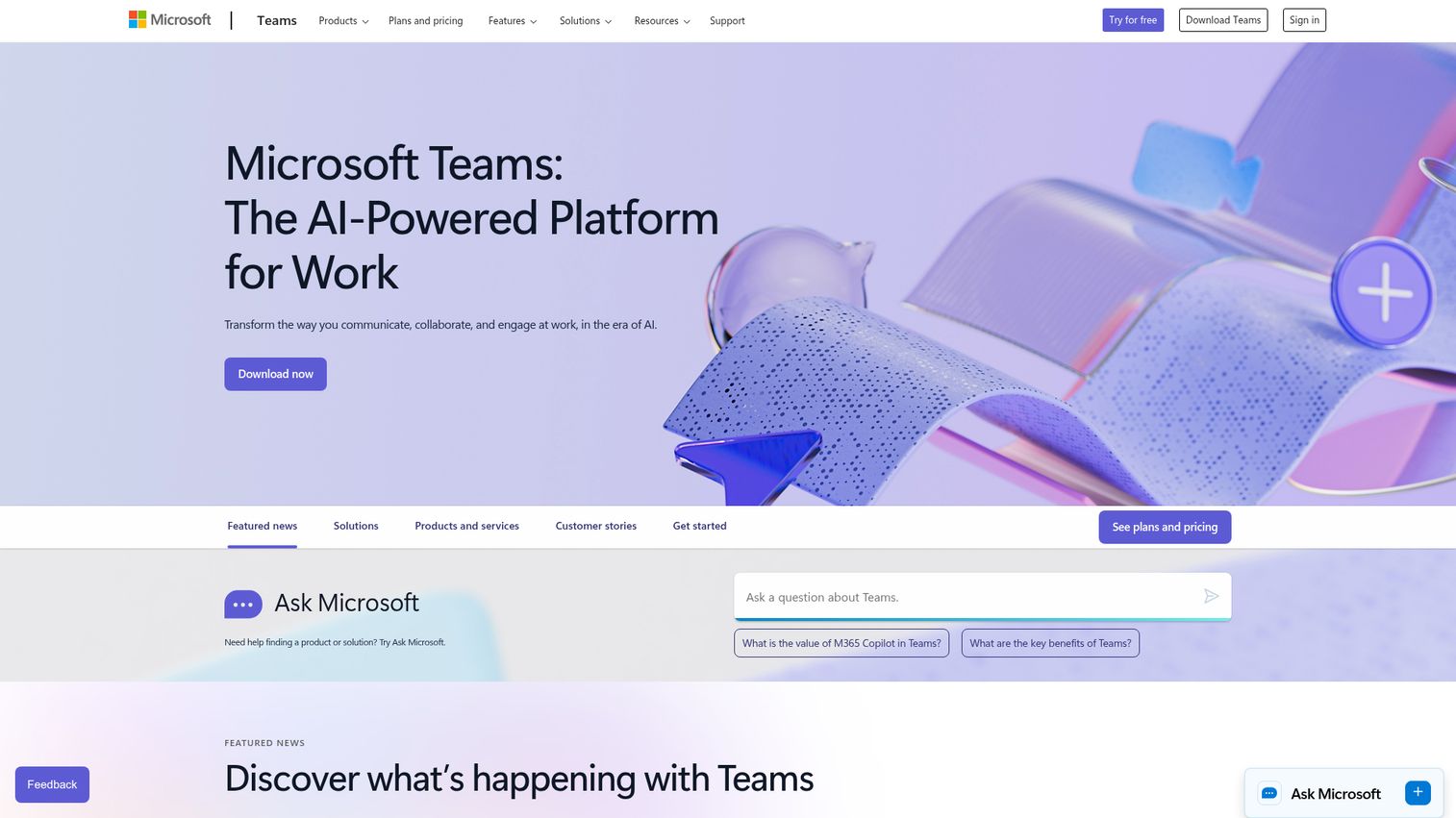
Microsoft Teams bundles screen sharing into Microsoft's broader collaboration ecosystem, and for organizations already paying for Microsoft 365, it's the obvious default.
Teams tends to get overlooked as a screen sharing tool because people think of it as a chat app. That's a mistake. Its PowerPoint Live feature is genuinely unique - you present slides within Teams while seeing your speaker notes, upcoming slides, and audience reactions on your own screen, all without the audience seeing any of it. No other tool on this list does this. The whiteboard integration and presenter mode (where your video overlays your shared content) add polish for client-facing presentations.
Best for: Organizations in the Microsoft ecosystem needing compliance-certified screen sharing for business.
Key strengths
- PowerPoint Live with private speaker notes and slide preview
- Deep integration with Microsoft 365 apps and calendar
- Enterprise compliance certifications including HIPAA and SOC 2
- Presenter mode overlays video on shared content
- Give-and-take remote control during screen share sessions
Pricing: Free plan available, Microsoft 365 Business Basic at $6/user/month.
The downsides are real. Teams can feel sluggish on older hardware, and the interface isn't intuitive for people outside the Microsoft world. If your collaborators don't use Microsoft products, you'll spend time explaining how to join. For cross-ecosystem teams, Zoom or Google Meet tend to create less friction.
3. Google Meet - best free screen sharing for Google Workspace users
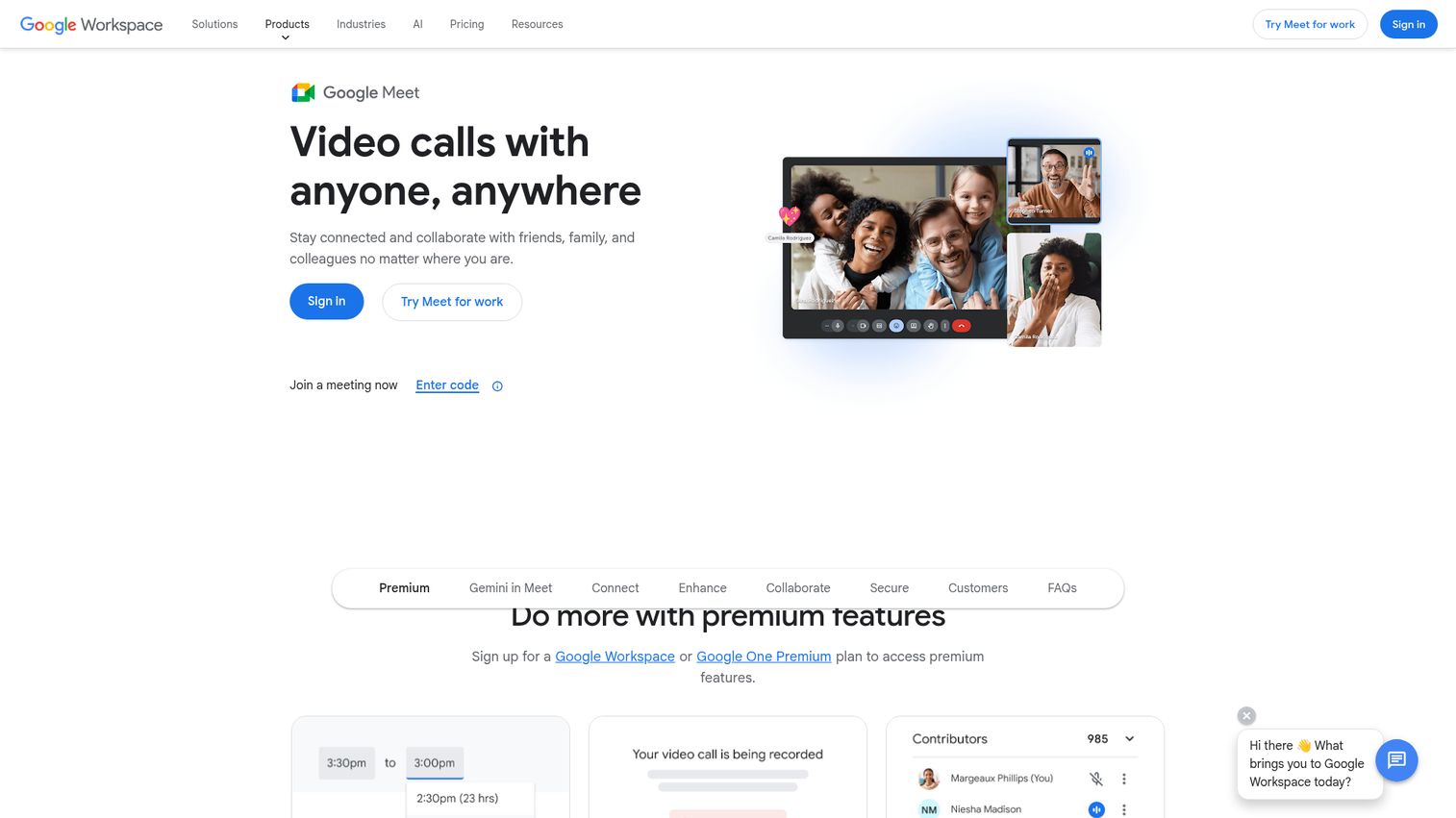
Google Meet is Google's video meeting tool with built-in screen sharing that runs entirely in the browser - no download, no plugin, no installer popup.
The zero-download advantage is Google Meet's strongest card. You send a link, the other person clicks it, and you're sharing your screen within seconds. That matters when you're working with clients or external partners who won't install software. Sharing a Chrome tab (rather than your entire screen) preserves audio from that tab - a common pain point with other tools where video playback goes silent for viewers. The free tier gives you 60-minute group meetings, which is more generous than Zoom's 40-minute cap.
Best for: Individuals and small teams who want browser-based screen sharing with no setup friction.
Key strengths
- Fully browser-based with zero downloads for any participant
- Chrome tab sharing preserves audio from that tab
- 60-minute free tier for group meetings
- Tight integration with Google Calendar, Docs, and Slides
- Real-time captions during presentations
Pricing: Free (60-minute group limit), Google Workspace Starter at $7/user/month.
The trade-off: Google Meet's collaboration features during a screen share are thin compared to Zoom or Teams. There's no annotation, no remote control, and no whiteboard. If you need viewers to interact with your content beyond watching, you'll want a different tool. But for straightforward "let me show you my screen" moments, it's hard to beat the simplicity.
4. TeamViewer - best for remote IT support and unattended access
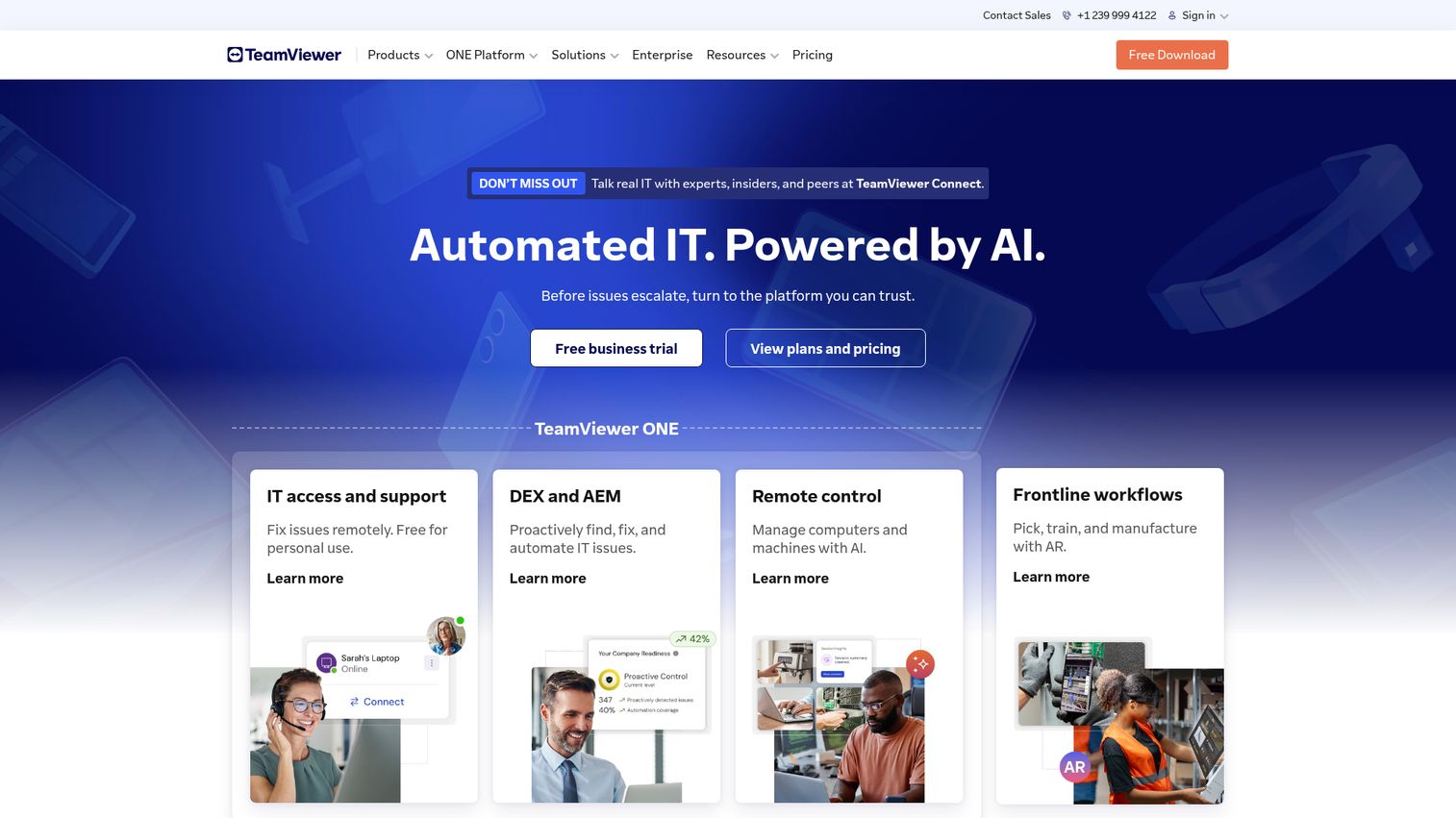
TeamViewer is the remote access software that IT departments have relied on for over a decade - built for remote troubleshooting, not casual screen sharing.
This is the heavyweight of the list. TeamViewer supports unattended access (connect to devices even when nobody's sitting at them), file transfers mid-session, multi-monitor navigation, session recording, and remote printing. It works across virtually every platform including IoT devices, POS systems, and embedded hardware. Security runs on 256-bit AES encryption with two-factor authentication.
Best for: IT departments, MSPs, and support teams managing remote devices at scale.
Key strengths
- Unattended access for managing devices without user present
- Cross-platform including IoT, POS, and embedded systems
- File transfer and remote printing during active sessions
- Session recording for audit trails and training
- 256-bit AES encryption with two-factor authentication
Pricing: Free (personal use only), Remote Access at $24.90/month, Business at $50.90/month.
The honest limitation: TeamViewer is expensive for commercial use, and the free tier is personal-only with aggressive enforcement. If you're flagged for commercial use on a free license, your sessions get cut short. The interface also feels dated compared to newer tools. For simple screen sharing in meetings, TeamViewer is overkill - you're paying for remote access capabilities you may not need.
5. AnyDesk - best for low-latency, high-performance screen sharing
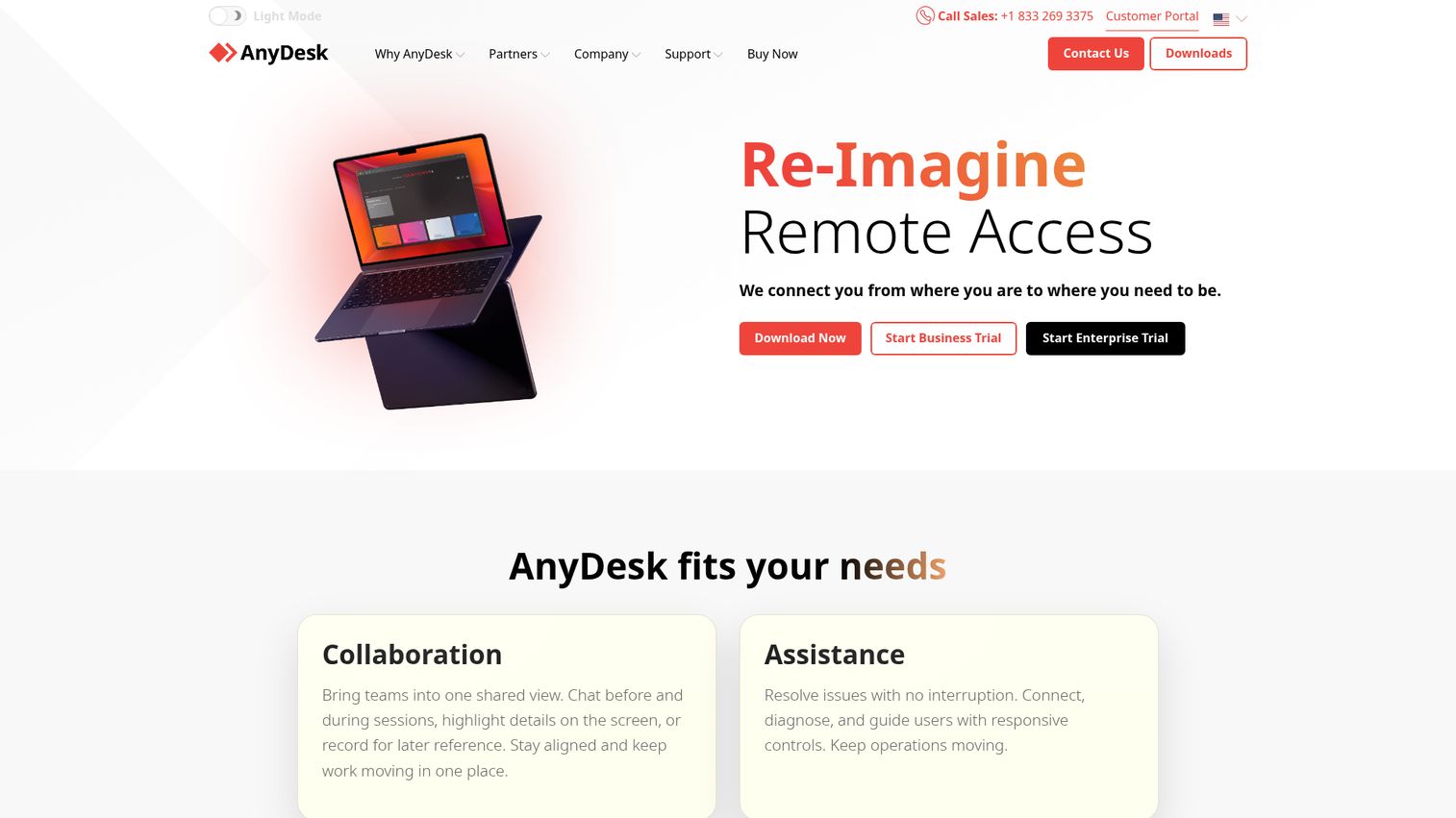
AnyDesk is a lightweight remote desktop tool that prioritizes speed above everything else, powered by its proprietary DeskRT codec.
DeskRT compresses screen data more efficiently than standard codecs, which means AnyDesk maintains usable frame rates even on low-bandwidth or unreliable connections. If you've ever tried to share your screen over hotel Wi-Fi and watched it turn into a slideshow, AnyDesk is built for exactly that scenario. The app itself is tiny - under 5 MB - and supports Windows, macOS, Linux, Android, iOS, ChromeOS, and even Raspberry Pi.
Best for: Users who need fast, responsive screen sharing on limited or unreliable internet connections.
Key strengths
- Proprietary DeskRT codec for minimal latency on low bandwidth
- Application file under 5 MB for instant deployment
- Cross-platform including Raspberry Pi and ChromeOS support
- Custom branding options for enterprise white-labeling
- Session recording and file transfer built in
Pricing: Free (personal, with occasional commercial-use interruptions), Solo at $14.90/month, Standard at $29.90/month.
How it compares to TeamViewer: AnyDesk is typically faster and cheaper, but TeamViewer has deeper enterprise features like unattended access management at scale and broader IoT support. If raw performance and price are your priorities, AnyDesk wins. If you need a full remote access software suite for an IT department, TeamViewer is still the safer bet.
6. Slack - best for quick, informal screen shares within chat
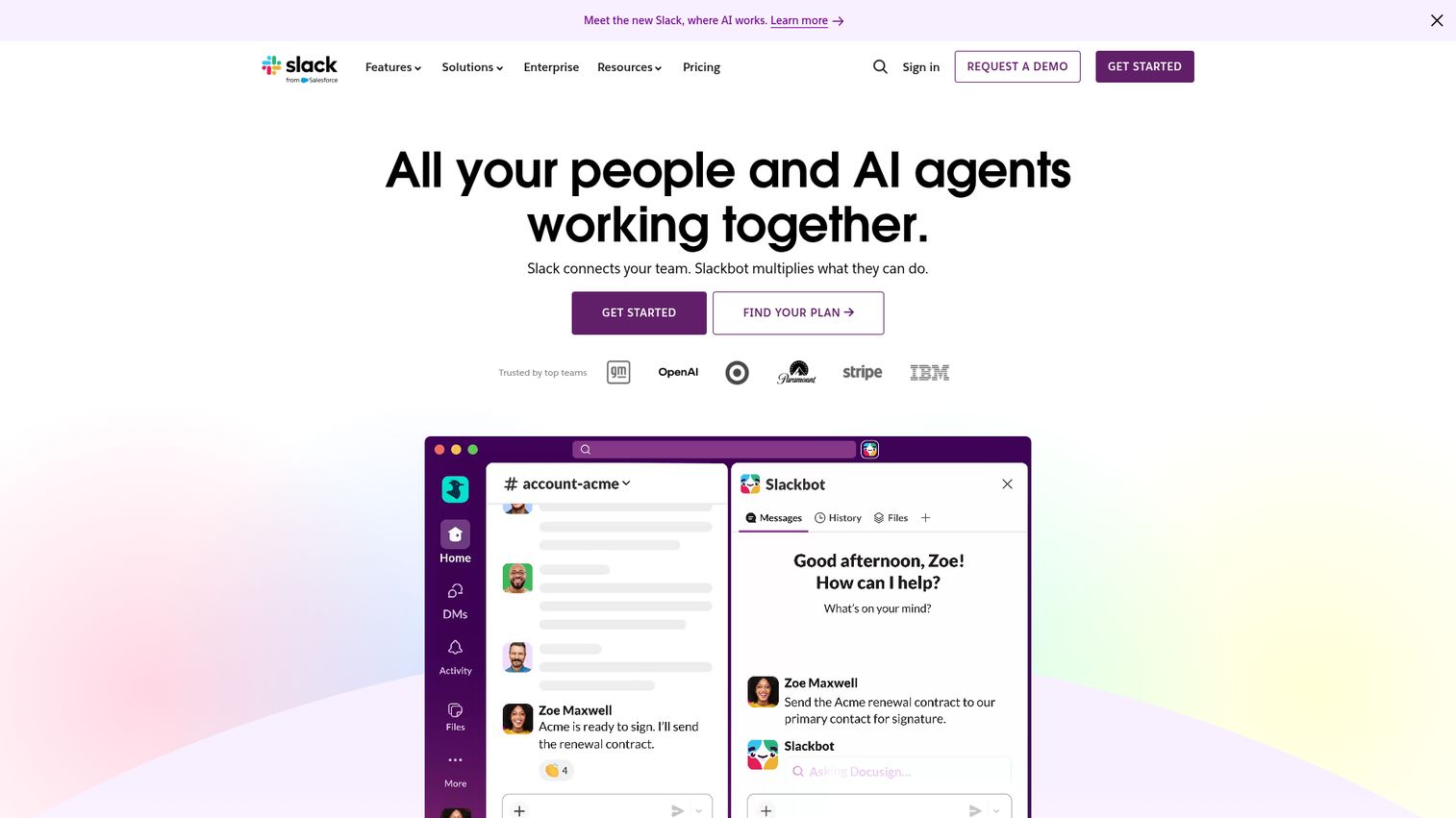
Slack has a built-in screen sharing feature inside its huddles - and most teams don't even realize it's there.
You're already in a Slack conversation. Someone asks a question that's easier to show than explain. You start a huddle, click share screen, and you're broadcasting - without pinging someone on a separate meeting link. The drawing tool lets you annotate directly on the shared screen, which is handy for pointing out UI bugs or walking through a design. No time limit on paid plans.
Best for: Teams already in Slack who need ad-hoc "let me show you" screen shares during conversations.
Key strengths
- Screen share directly within Slack huddles and channels
- Drawing and annotation tools on shared content
- No time limits on paid plans for screen sharing
- Zero context-switching from chat to screen share
- Available on Windows, macOS, Linux, iOS, and Android
Pricing: Free (limited features), Pro at $8.75/user/month, Business+ at $12.50/user/month.
Be clear about what this isn't: Slack's screen sharing won't replace Zoom for formal presentations, large meetings, or webinars. There's no recording, limited viewer controls, and it's designed for small-group, informal use. But for the "quick, can you see my screen?" moments that happen 10 times a day on remote teams, it's the fastest path from question to answer.
7. Discord - best free screen sharing for communities and casual teams
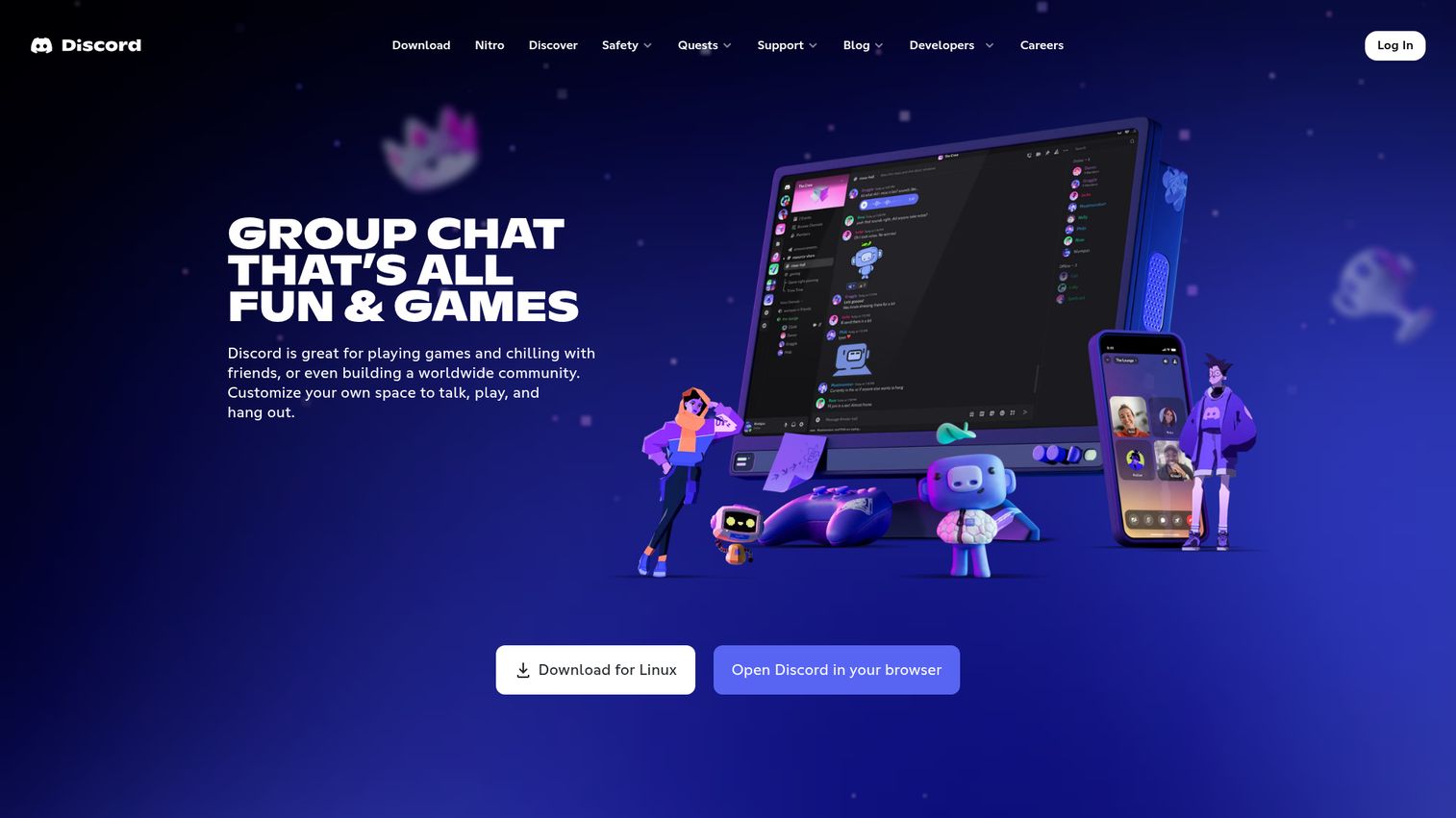
Discord started as a gaming platform, but its screen sharing is surprisingly capable - and free for most use cases.
You can share your screen in any voice channel or DM with no time limits and no participant cap on standard quality. With Nitro ($9.99/month), you can stream at up to 4K 60fps - a spec that most paid video conferencing tools don't match. The Go Live feature lets you broadcast to your entire server. Many startups and indie teams use Discord as their daily workspace, and screen sharing is a natural part of that workflow.
Best for: Startups, indie teams, gaming communities, and casual collaborators who want a free screen share without limits.
Key strengths
- Completely free screen sharing with no time limits
- Up to 4K 60fps streaming with Nitro subscription
- Go Live server-wide broadcasting in voice channels
- Available on Windows, macOS, Linux, iOS, and Android
- Massive existing user base reduces onboarding friction
Pricing: Free (standard quality), Nitro at $9.99/month for HD/4K streaming.
The trade-off is perception. Discord doesn't feel "enterprise." There are no admin compliance controls, no annotation tools, and no remote control. If you need to share your screen with a Fortune 500 client, Discord probably isn't the right call. But for internal team use where nobody cares about formality, it's one of the best free screen sharing apps available.
8. CoScreen - best for real-time collaborative screen sharing
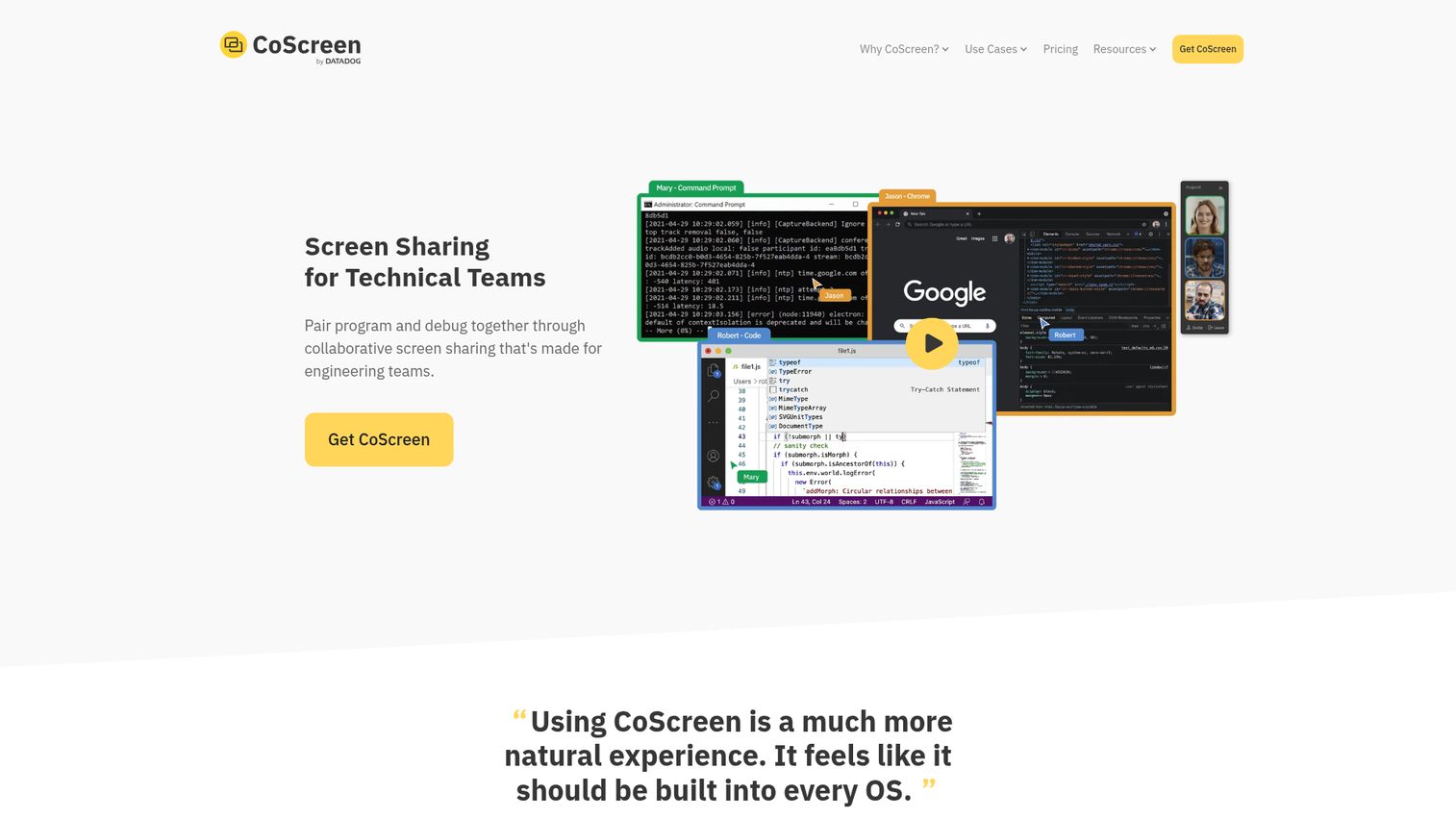
CoScreen rethinks screen sharing entirely - instead of one person broadcasting, multiple users share and interact with each other's screens simultaneously.
Traditional screensharing is a one-way street: one person drives, everyone else watches. CoScreen makes it a multi-lane highway. Two or more people can share windows at the same time, and any participant can click into and interact with any shared window. It's pair programming for everyone, not just developers. CoScreen was acquired by Datadog, which gives it engineering credibility and ongoing investment.
Best for: Engineering and design teams doing pair programming, collaborative debugging, or real-time co-working.
Key strengths
- Multiple users share and interact with screens simultaneously
- Click into and control any shared window from any participant
- Integrated voice and video alongside shared windows
- Drawing tools for visual annotation during collaboration
- Acquired by Datadog with active development and support
Pricing: Free tier available; paid plans - contact CoScreen for current 2026 pricing.
The limitations: CoScreen has a smaller user base than the big platforms, fewer integrations, and a less polished interface than Zoom or Teams. It's also currently limited to Windows and macOS. For standard presentations or one-to-many screen sharing, it's more than you need. But for teams that genuinely co-work on the same problems in real time, nothing else on this list comes close.
9. Surfly - best for browser-based co-browsing and customer support
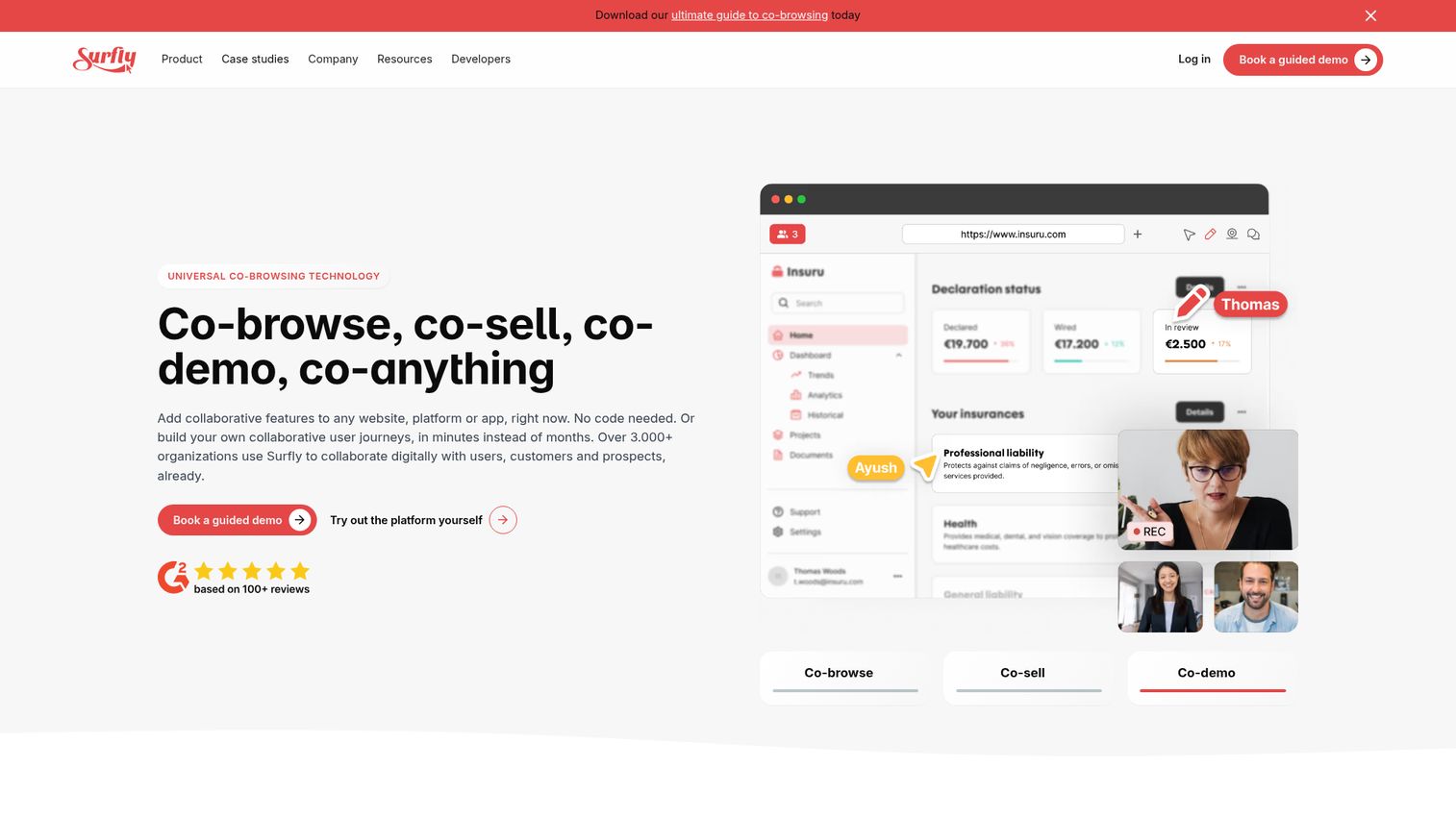
Surfly isn't traditional screen sharing - it's co-browsing, which means both you and your viewer can interact with the same web page at the same time.
The distinction matters. With screen sharing, you broadcast your display and the viewer watches. With Surfly's co-browsing, both parties can scroll, click, and fill in forms on the same page. This is particularly valuable for customer support (walking a customer through a checkout flow) and sales demos (guiding a prospect through your product). For sales teams looking for more structured demo experiences, presales software tools can complement co-browsing with guided walkthroughs. Surfly's session masking feature lets you hide sensitive fields - credit card numbers, personal data - during a session, which makes it viable for compliance-heavy industries like finance and healthcare.
Best for: Customer support and sales teams doing guided web-based demos or co-browsing sessions.
Key strengths
- True interactive co-browsing, not just view-only sharing
- Session field masking hides sensitive data during sessions
- Embeddable via API into your own product or website
- Video and audio chat overlay during co-browsing sessions
- Fully browser-based with no downloads or plugins required
Pricing: Custom enterprise pricing - contact Surfly for a quote.
The downside: Surfly is focused on web-based co-browsing, so you can't easily share desktop applications. The pricing is enterprise-oriented, which puts it out of reach for freelancers and small teams. But if your use case is guiding someone through a web experience in real time, Surfly does something no general-purpose screen sharing app can match.
10. Chrome Remote Desktop - best completely free option (no strings)
Chrome Remote Desktop is Google's free remote access tool - and "free" here means genuinely free, with no paid tier, no time limits, and no upsell.
You install a Chrome extension, generate an access code, and share it with whoever needs to see your screen. The viewer doesn't need an account. It works on any device with Chrome, which covers most computers and Chromebooks. You can also set up persistent remote access to your own machines, making it useful for accessing your work computer from home.
Best for: Individuals who need occasional remote access or a simple free screen share with zero cost.
Key strengths
- 100% free with no paid tier and no usage limits
- No account required for the viewer to connect
- Works on any device running the Chrome browser
- Persistent remote access to your own machines
- Backed and maintained by Google
Pricing: Free. That's it.
The trade-offs are significant. There's no annotation, no file transfer, no multi-monitor support, and no built-in audio or video chat. It's not a meeting tool - it's a remote access utility with basic screen sharing. If you need to share your screen online for a presentation or team meeting, look elsewhere. But if you just need to show someone your screen (or access your own computer remotely) and don't want to pay a cent, Chrome Remote Desktop is the answer.
11. Webex by Cisco - best for large-scale enterprise meetings
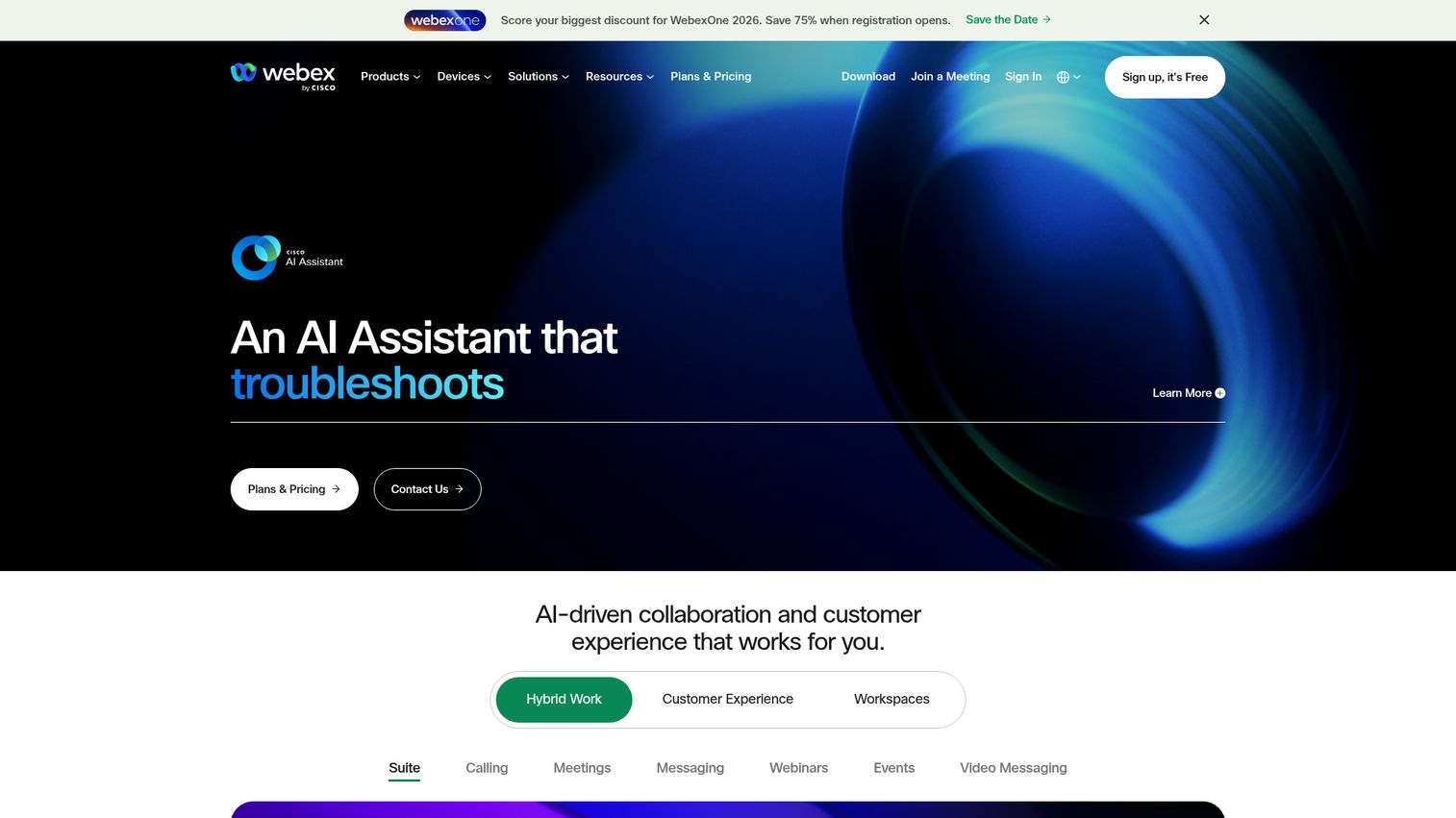
Webex is Cisco's enterprise video conferencing software with screen sharing capabilities built for regulated, large-scale organizations.
The standout feature is "immersive share" - it overlays your video feed directly onto your presentation, so you appear as if you're standing in front of your slides. It's a visual differentiator that makes presentations feel more human. Beyond that, Webex offers noise cancellation, real-time translation across 100+ languages, and Webex Whiteboard for collaborative annotation. Compliance certifications include FedRAMP, HIPAA, and SOC 2 compliance certifications.
Best for: Large enterprises, government agencies, and regulated industries needing compliance-first screen sharing for business.
Key strengths
- Immersive share overlays your video onto shared presentations
- Real-time translation across more than 100 languages
- FedRAMP, HIPAA, and SOC 2 compliance certifications
- AI-powered noise cancellation for cleaner audio quality
- Webex Whiteboard for collaborative annotation during sessions
Pricing: Free plan (limited features); Starter, Business, and Enterprise tiers - contact Webex for current 2026 pricing.
The honest take: Webex can feel bloated compared to Zoom or Google Meet, and the interface isn't the most intuitive for casual users. Pricing isn't transparent on their website, which is a common frustration. If you're not in a regulated industry or running large-scale enterprise meetings, you're probably paying for capabilities you won't use. But for organizations where compliance isn't optional, Webex is a strong choice.
12. Screenleap - best for instant, no-install screen sharing
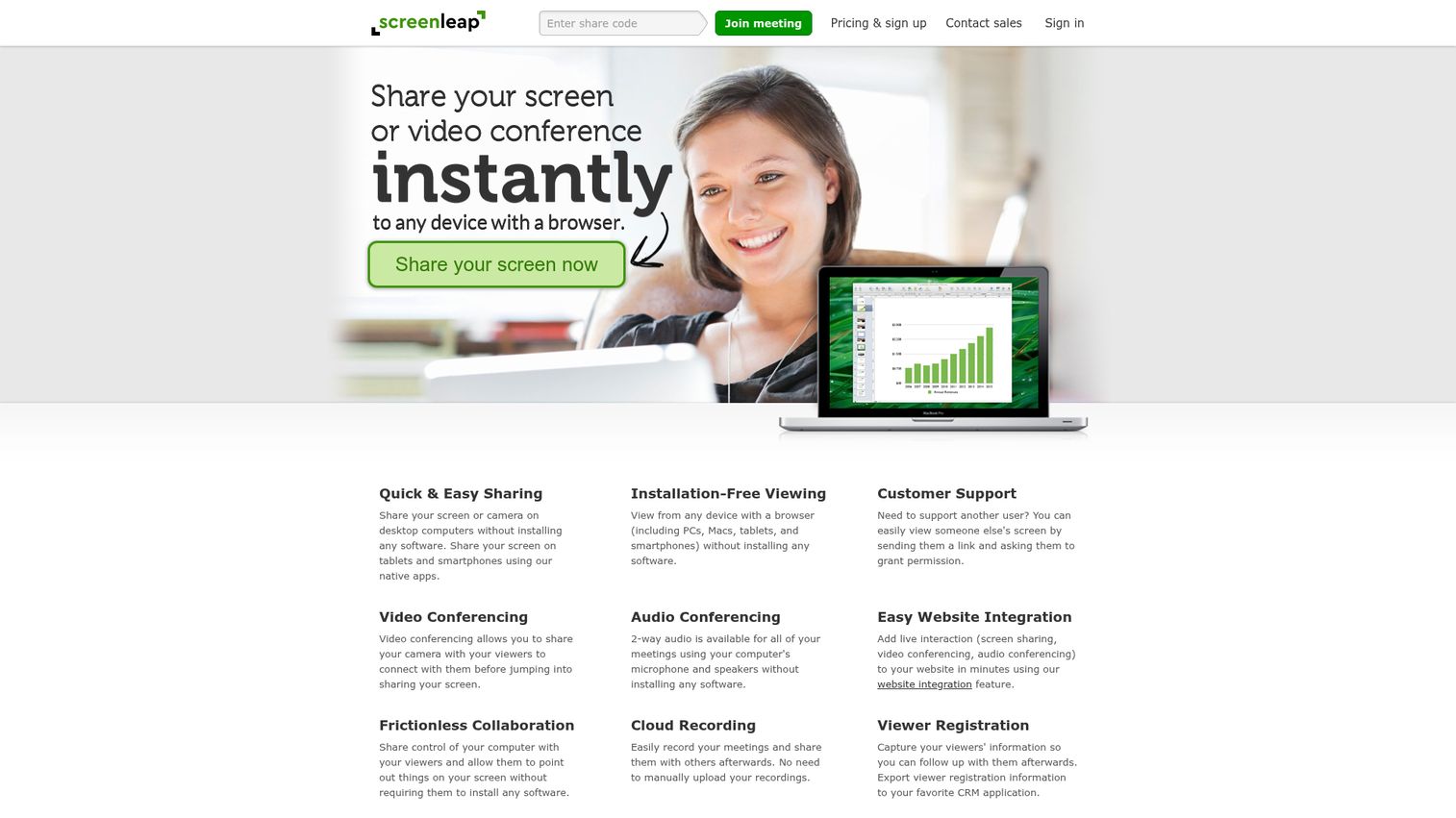
Screenleap gets you from "I need to share my screen" to actually sharing it faster than any other tool on this list.
The value proposition is simple: you click one button, get a link or code, and send it to your viewer. They open it in any browser - no download, no account, no plugin. For sharing with non-technical clients, prospects, or anyone who won't install software, this zero-friction approach is the entire point. The free tier supports up to 8 viewers for 40 minutes per session.
Best for: Quick, one-off screen shares with external parties who won't install software.
Key strengths
- One-click sharing with the fastest time-to-share available
- Viewers need zero downloads, accounts, or browser plugins
- Free tier supports up to 8 simultaneous viewers
- Works across all major platforms via browser
- Share via link or numeric code for easy access
Pricing: Free (8 viewers, 40-minute limit), Basic at $19/month, Pro tier available.
The features beyond basic sharing are thin. There's no annotation, no remote control, and no built-in audio or video. The presenter does need a small browser extension. Compared to Jitbit (similar concept), Screenleap is more established and supports more viewers. But if you need collaboration features during your screen share, you'll want a fuller tool.
13. Jitbit Screen Sharing - best lightweight browser-based option
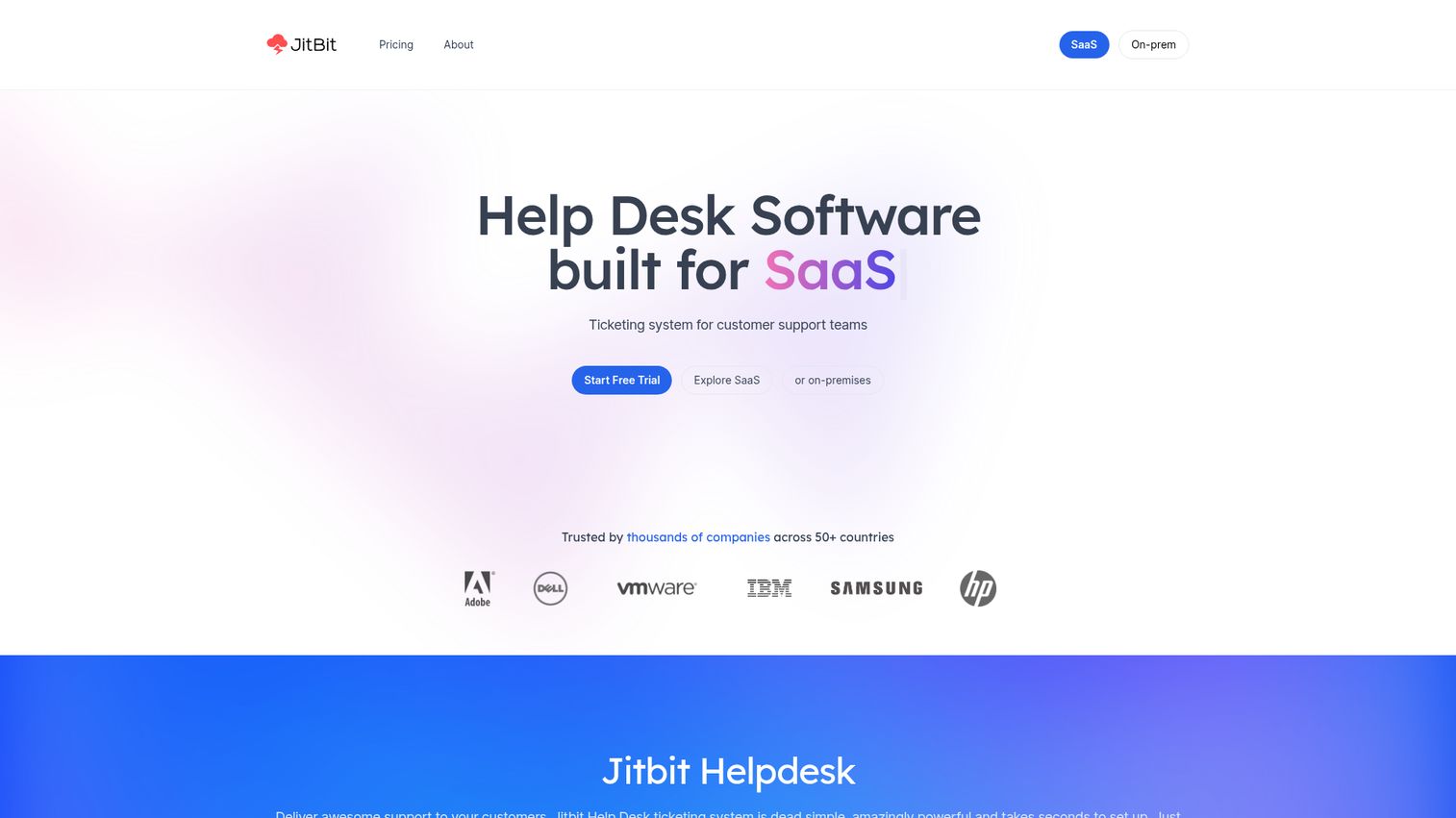
Jitbit offers a minimalist, peer-to-peer screen sharing website that requires no accounts, no downloads, and stores no data on its servers.
The privacy angle is the key differentiator. Because Jitbit uses peer-to-peer technology, your screen data travels directly between you and your viewer - it never touches Jitbit's servers. For privacy-conscious users who need a quick share screen online without creating yet another account, this is the simplest option available.
Best for: Privacy-conscious users who need a quick, no-account, no-data-stored screen share.
Key strengths
- Peer-to-peer architecture means no data on servers
- No registration or account creation required
- Completely free with no paid tier
- Fully browser-based on modern browsers
- Minimal interface with near-zero learning curve
Pricing: Free. No paid tier.
The limitations are proportional to the simplicity. There's no annotation, no recording, no audio or video chat, and it works only on modern browsers. It's designed for small-scale, one-to-one sharing - not team meetings or presentations. Think of Jitbit as the screen sharing equivalent of a disposable email address: use it when you need privacy and speed, not features.
14. Whereby - best for embedded screen sharing in your own product
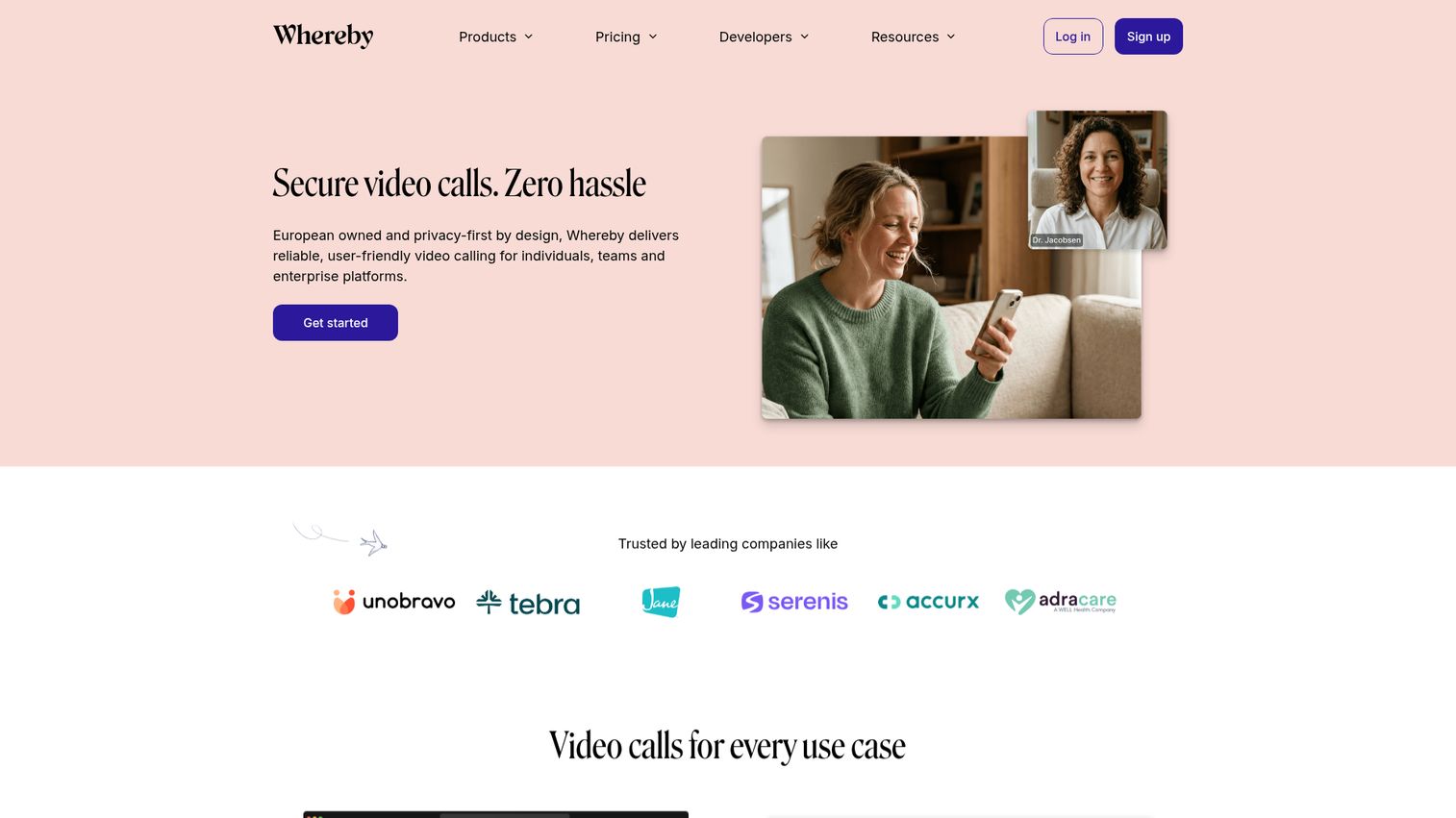
Whereby is a browser-based video meeting tool with screen sharing that can be embedded directly into your own app or website via API.
The embedding capability is what sets Whereby apart. If you're building a SaaS product and want to offer screen sharing or video calls inside your application - without sending users to a third-party platform - Whereby's API handles that. For teams that just want a meeting tool, Whereby offers clean, minimal rooms with no downloads required for any participant. It's a strong alternative for teams experiencing fatigue with heavier platforms.
Best for: SaaS companies embedding screen sharing into their product, and small teams wanting a lightweight meeting tool.
Key strengths
- Embeddable video and screen sharing rooms via API
- Zero downloads required for any meeting participant
- Custom branding options for white-labeled meeting experiences
- Breakout groups and recording on paid plans
- Clean, minimal interface that's fast to load
Pricing: Free (1 room, up to 100 participants), Pro at $8.99/month, Business at $11.99/month.
The trade-off: Whereby's feature set is smaller than Zoom's or Teams'. Embedding requires developer resources to implement. And outside of the tech community, brand recognition is low - your clients may not have heard of it. But for the specific use cases of embedded online collaboration software or a no-fuss meeting tool, Whereby delivers exactly what it promises.
How to choose the right screen sharing software for your needs
The "best" tool depends entirely on what you're using it for. Here's a use-case map to narrow your options fast.
For video meetings and presentations
Zoom, Google Meet, Microsoft Teams, or Webex. These are full video conferencing platforms with screen sharing built in. Choose Zoom for cross-ecosystem compatibility, Teams for Microsoft 365 shops, Google Meet for browser-based simplicity, or Webex for regulated industries. If you're presenting product demos specifically, consider pairing your screen share with a demo center where prospects can revisit the walkthrough on their own.
For IT support and remote access
TeamViewer, AnyDesk, or Chrome Remote Desktop. TeamViewer is the most feature-rich remote access software for managing fleets of devices. AnyDesk wins on speed and price. Chrome Remote Desktop is the zero-cost option for basic needs.
For real-time team collaboration
CoScreen, Slack, or Discord. CoScreen is purpose-built for multi-user collaboration. Slack works for ad-hoc screen shares within existing conversations. Discord is the free option for casual teams.
For customer-facing co-browsing and demos
Surfly, Whereby, or Screenleap. Surfly offers true interactive co-browsing. Whereby lets you embed meetings in your product. Screenleap gets you the fastest viewer-side experience with zero installs. For a different approach to customer-facing demos, product tour software lets you create self-guided walkthroughs that don't require a live call at all.
For maximum privacy and simplicity
Jitbit (peer-to-peer, no data stored) or Screenleap (no viewer-side installation).
If you're in a regulated industry, prioritize tools with end-to-end encryption and compliance certifications - Microsoft Teams, Webex, and TeamViewer tend to check those boxes most thoroughly.
Screen sharing security - what to look for in 2026
Most reputable screen sharing tools already handle security well. But knowing what to look for helps you avoid the ones that don't.
Key security features to evaluate
- Encryption standards: Look for AES-256 or TLS 1.2+ encryption. Most major tools use these by default.
- Permission controls: Who can share? Who can view? Can viewers take remote control without explicit permission?
- Session passwords or PINs: Prevents uninvited viewers from joining your screen share.
- Unattended access safeguards: If you use remote access tools, ensure unattended sessions require strong authentication.
- Compliance certifications: SOC 2, HIPAA, GDPR, and FedRAMP matter for regulated industries.
Common risks (and how to avoid them)
The biggest security risks with screen sharing come from user behavior, not the software itself. Sharing your full screen instead of a specific window can accidentally expose sensitive tabs, notifications, or files. Skipping meeting passwords invites unauthorized viewers.
Quick tips: always share a specific window rather than your full screen when possible, enable meeting passwords, disable remote control unless you've explicitly granted it, and verify your participant list before sharing anything sensitive. If you're evaluating security across your entire demo and sharing stack, Guideflow's security and compliance page outlines how interactive demos handle data protection.
Find your perfect screen sharing tool
There's no single winner across all 15 tools - just the right fit for your specific workflow, budget, and audience. Start with the free tiers (most tools offer one), test with your actual use case, and pay only when you've confirmed the tool solves your problem.
The screen sharing apps on this list cover every scenario from enterprise compliance meetings to peer-to-peer private shares - and the category keeps evolving with AI-powered features, real-time translation, and async-first workflows in 2026. For teams focused on sales and product demos, combining live screen sharing with interactive demos you can share via link gives prospects the best of both worlds - a live walkthrough and a self-serve experience they can revisit anytime.
Find the right screen sharing software for your team today.
Screen sharing software FAQ
Yes, when you're using reputable tools. Most screen sharing software on this list uses AES-256 or TLS 1.2+ encryption by default. The main risks come from user behavior - sharing the wrong window, skipping meeting passwords, or granting remote control to unverified participants. Use meeting passwords, share specific windows instead of your full screen, and verify your participant list.
Many tools offer free tiers. Zoom, Google Meet, Discord, Chrome Remote Desktop, and Jitbit all let you share your screen for free. Typical limitations on free plans include time caps (Zoom's 40-minute limit), participant limits (Screenleap's 8-viewer cap), or reduced recording length. Chrome Remote Desktop and Jitbit are fully free with no paid tier at all.
The core flow is the same across tools: (1) open your screen sharing tool or join a meeting, (2) click "Share Screen" and choose what to share - full screen, a specific window, or a browser tab, (3) invite your viewer via a meeting link or access code. Steps vary slightly by tool, but you can typically go from launch to active share in under 30 seconds.
It depends on your use case. Google Meet is the best free option for meetings - no download needed and a 60-minute group limit. Discord offers free screen sharing with no time limits at standard quality. Chrome Remote Desktop is the best fully free option for remote access with zero restrictions. Each has trade-offs: Meet lacks annotation, Discord isn't enterprise-friendly, and Chrome Remote Desktop has no built-in video chat.
Yes. Zoom, Microsoft Teams, Google Meet, AnyDesk, TeamViewer, and Discord all support mobile screen sharing on both iOS and Android. On iOS, you'll need to grant a system-level broadcast permission the first time. Note that some tools have reduced features on mobile compared to desktop - annotation and remote control are often limited or unavailable on phone screens. If you need to demo a mobile app specifically, mobile demo tools let you create interactive walkthroughs of mobile interfaces without a live screen share.
Screen sharing means broadcasting your display so others can see it - it's one-way viewing. Remote access means someone else can control your computer - it's two-way interaction. Tools like TeamViewer and AnyDesk do both. If you need someone to troubleshoot your machine, you need remote access. If you just need to show something, screen sharing is enough.
AnyDesk tends to lead here thanks to its proprietary DeskRT codec, which is specifically designed for low-latency screen transmission even on limited bandwidth. CoScreen is optimized for real-time multi-user collaboration with minimal delay. Discord also performs well - its infrastructure was built for game streaming, which demands consistent low latency. That said, your internet connection quality affects latency as much as the software does.
Not always. Google Meet, Jitbit, Screenleap, Whereby, and Surfly are all browser-based - no downloads required for either the presenter or the viewer. Tools like Zoom, Teams, TeamViewer, and AnyDesk require a desktop client for full functionality, though some offer limited browser versions. If your viewers are non-technical or won't install anything, prioritize browser-based screen sharing options.