Background noise ruins important calls. You're mid-pitch to a client on Zoom, and your neighbor fires up a leaf blower. Your dog decides this is the moment to lose it at the mail carrier. The keyboard clatter from your co-working space turns your podcast recording into an ASMR nightmare.
Built-in microphones can't handle this. Even decent headsets let enough through to distract everyone on the call. That's where noise cancellation software comes in - AI-powered tools that filter unwanted sound from your mic input, speaker output, or recorded files in real time.
We researched and compared 12 of the best noise cancellation software tools available in 2026, covering free and paid noise suppression software for Windows, Mac, web, and specific hardware setups. Whether you need background noise removal for meetings, streaming, podcasting, or call center operations, there's a tool here that fits.
In a hurry? Top 3 picks: Krisp for meetings, NVIDIA Broadcast for gaming and streaming, and Audacity for free post-production editing.
What's inside
This guide covers every major noise cancelling software option in 2026 - from GPU-accelerated tools that process audio locally to web-based apps that clean up recordings in your browser. Each tool gets an honest breakdown of strengths, limitations, pricing, and ideal use case.
You'll also find a side-by-side comparison table, a decision framework for picking the right tool, and answers to the most common questions about noise suppression software. The goal is to save you the trial-and-error of testing a dozen apps yourself. If you're also evaluating tools for other parts of your workflow, check out our roundups of the best content creation software tools and best digital adoption platforms for complementary picks.
TL;DR
- Best overall for meetings: Krisp - works with any app, processes audio on-device, includes transcription
- Best free for NVIDIA GPU users: NVIDIA Broadcast - stellar noise suppression at zero cost
- Best free for AMD users: AMD Noise Suppression - built into Adrenalin software, no extra install
- Best free post-production tool: Audacity - open-source, cross-platform, powerful noise reduction effect
- Best for streamers: OBS Studio's built-in RNNoise filter - already part of your streaming setup
- Best for enterprise call centers: SoliCall Pro - per-seat licensing with echo cancellation and API access
How noise cancellation software works
Most noise cancellation software uses one of two approaches: real-time noise suppression or post-production noise reduction.
Real-time tools process your mic input (and sometimes speaker output) live, stripping out background noise before it reaches your communication app. They work by creating a virtual audio device - essentially a fake microphone that sits between your physical mic and apps like Zoom or Discord. Your real mic feeds audio into the software, the AI removes noise, and the clean signal comes out the other side.
Post-production tools work on recorded files. You upload or import audio, the software analyzes and removes noise patterns, and you export the cleaned version.
Under the hood, both approaches rely on deep neural networks trained on thousands of noise profiles. The AI learns to distinguish human speech from keyboard clicks, fan hum, traffic, and dog barks. Hardware-accelerated options from NVIDIA and AMD offload this processing to your GPU's dedicated AI cores, which keeps CPU usage low.
One clarification worth making: in the headphone world, "noise cancellation" means generating anti-phase sound waves to cancel external noise. In software, the term typically refers to algorithmic sound suppression - filtering unwanted audio digitally. The terms "noise suppression" and "noise cancellation" are used interchangeably in the software context.
When to use each approach:
- Real-time - live meetings, calls, streaming, gaming voice chat
- Post-production - podcast editing, cleaning up interview recordings, fixing audio in video projects
How we evaluated these tools
Every tool in this list was assessed against eight criteria:
- Noise suppression quality - effectiveness against common noises like typing, fans, traffic, pets, and echo
- Latency - whether it introduces noticeable audio delay during real-time use
- Platform compatibility - Windows, macOS, Linux, web, or mobile support
- Ease of setup - one-click install vs. complex configuration
- Integration support - compatibility with Zoom, Teams, Discord, OBS, and DAWs
- Pricing and value - free tier availability and cost of paid plans
- Privacy and data handling - local processing vs. cloud-based audio upload
- Resource usage - CPU and GPU impact during operation
We prioritized tools that offer real-time noise suppression but also included top post-production options for content creators who need to remove background noise from audio after recording.
Comparison table - all 12 noise cancellation tools
| Tool | Best For | Platform | Real-Time / Post | Free Plan? | Starting Price | Key Feature |
|---|---|---|---|---|---|---|
| Krisp | Meetings & calls | Win, Mac, iOS, Android | Real-time | Yes (limited) | ~$8/mo | Works with 800+ apps |
| NVIDIA Broadcast | NVIDIA GPU users | Windows | Real-time | Yes (fully free) | Free | GPU-accelerated AI |
| AMD Noise Suppression | AMD hardware users | Windows | Real-time | Yes (fully free) | Free | Built into Adrenalin |
| Noise Reducer | Quick online cleanup | Web | Post-production | Yes (limited) | Free tier | No install needed |
| Utterly | Lightweight suppression | Win, Mac | Real-time | Yes | Free | Minimal resource usage |
| SoliCall Pro | Enterprise call centers | Windows | Real-time | No | ~$30–50/seat | API + echo cancellation |
| Audacity | Post-production editing | Win, Mac, Linux | Post-production | Yes (fully free) | Free | Open-source, noise profiles |
| OBS Studio | Streamers & creators | Win, Mac, Linux | Real-time | Yes (fully free) | Free | RNNoise + filter stacking |
| Noise Blocker | Budget Windows users | Windows | Real-time | Yes | Free/low-cost | Simple virtual mic |
| Noise Gator | Basic noise gating | Windows | Real-time | Yes (fully free) | Free | Open-source noise gate |
| Windows & macOS built-in | No-install solution | Win, Mac | Real-time | Yes | Free | Already on your device |
| Adobe Podcast | AI audio rescue | Web | Post-production | Yes (limited) | Free tier | Studio-quality enhancement |
1. Krisp - best overall noise cancellation for meetings
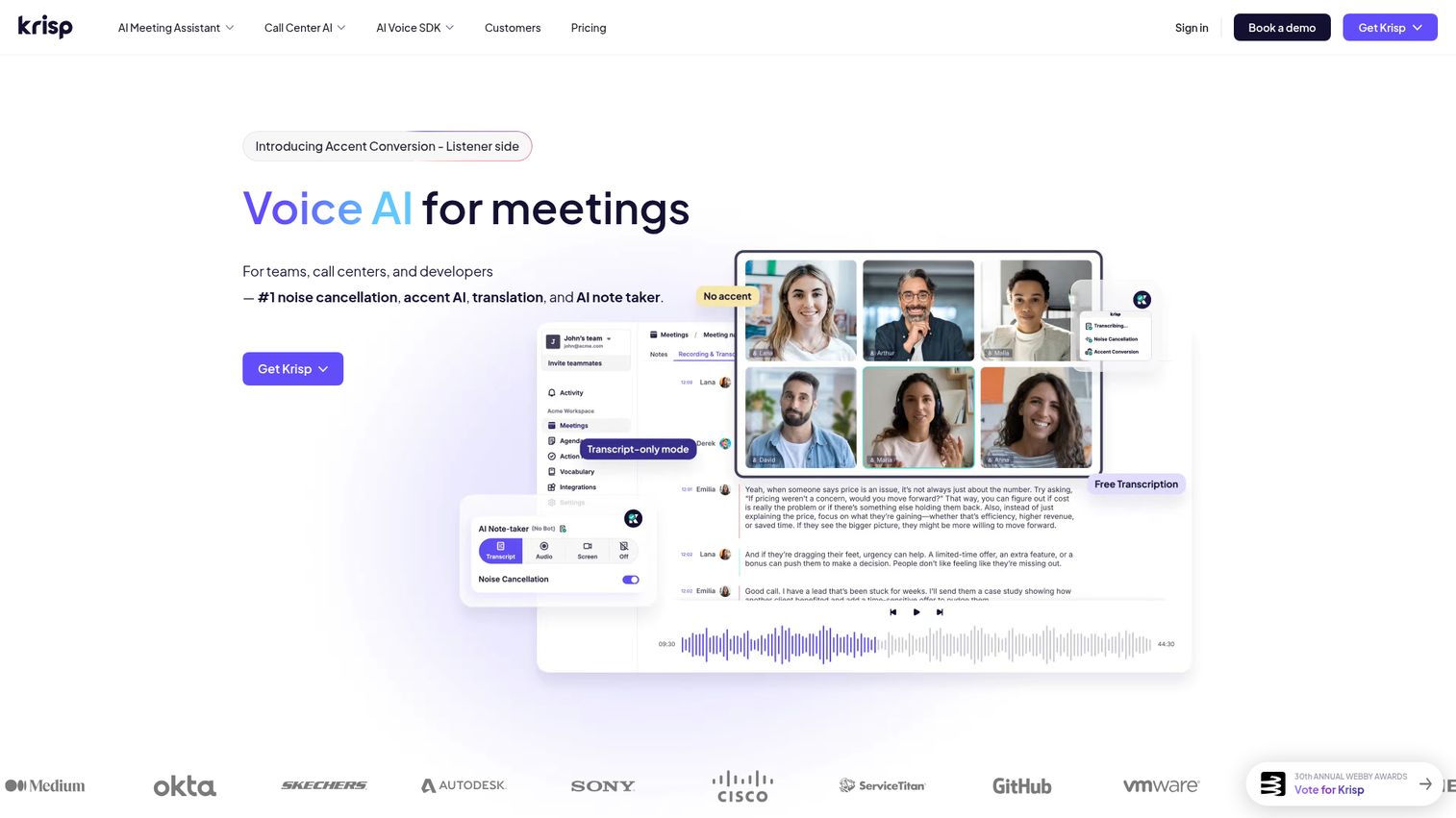
Krisp is an AI-powered noise cancellation app that creates a virtual microphone and speaker, filtering background noise in both directions on any communication app.
It handles the full spectrum of meeting audio problems - not just your noise, but the noise coming from other participants too. Krisp also bundles AI note-taking, meeting transcription, and an accent localization feature that adjusts how your speech sounds to listeners in different regions.
Best for: Remote workers, sales teams, and call center agents on frequent video calls.
Key strengths
- Cancels noise on both inbound and outbound audio
- Works with Zoom, Teams, Meet, Slack, Discord, and 800+ apps
- On-device processing - audio never leaves your machine
- SOC 2 Type II and HIPAA-ready for enterprise compliance
- Includes AI transcription and meeting summaries
Pricing: Free tier with daily minute limits; Pro plan starts at approximately $8/month.
The main trade-off is that free tier. You get limited daily minutes, which is fine for occasional calls but not enough for a full workday. At aggressive suppression settings, Krisp can occasionally clip loud consonants. But for most users, it's the most versatile noise cancelling application available - it works on any hardware, any OS, and any communication platform. Sales teams looking to pair clean audio with compelling product walkthroughs should also explore interactive demo software to elevate their pitch beyond just sound quality.
2. NVIDIA Broadcast - best free option for NVIDIA GPU users
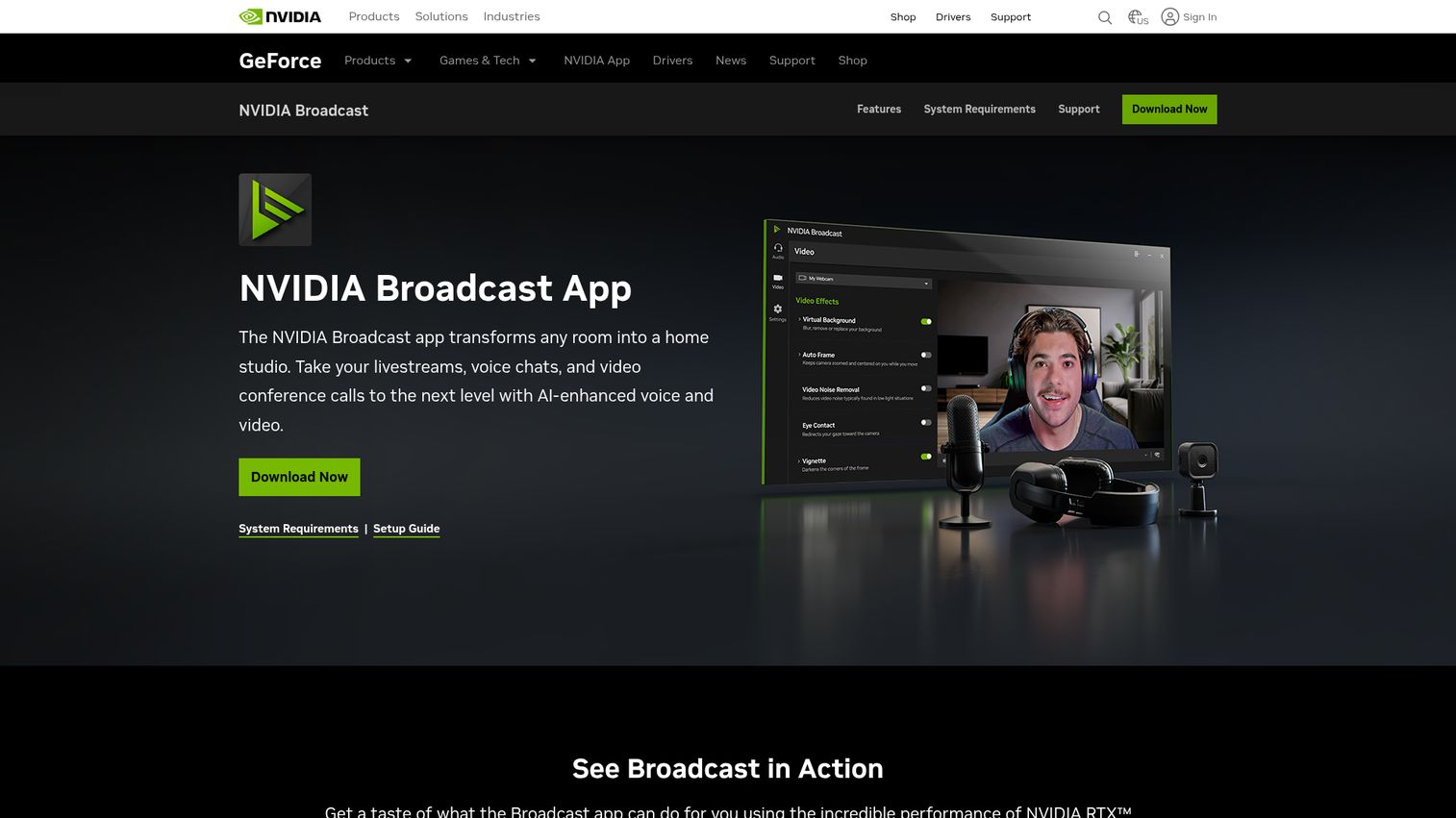
NVIDIA Broadcast is a free AI-powered suite that uses your RTX GPU's Tensor cores for real-time mic noise suppression software, room echo removal, virtual backgrounds, and auto-framing.
If you already own an NVIDIA RTX card, this is the strongest free noise suppression software available. It replaced the older RTX Voice app and added video features alongside the audio processing. Because the heavy lifting happens on dedicated GPU cores, CPU impact stays minimal.
Best for: Gamers, streamers, and content creators who already have an NVIDIA RTX GPU.
Key strengths
- Completely free with no usage limits or tiers
- GPU-accelerated processing keeps CPU usage near zero
- Removes noise from both your mic and incoming audio
- Includes virtual background and auto-frame camera features
- Works system-wide as a virtual microphone device
Pricing: Free (bundled with NVIDIA drivers).
Setup is straightforward: download NVIDIA Broadcast, enable noise removal, then select "NVIDIA Broadcast" as your microphone in any app. The catch is the hardware requirement - you need a GeForce RTX 2060 or higher. If you're on AMD or Intel graphics, this isn't an option. Windows only, no macOS or Linux support. At the most aggressive noise removal setting, you may notice slight voice artifacts, so starting at moderate levels tends to work best.
3. AMD Noise Suppression - best for AMD hardware users

AMD Noise Suppression is AMD's hardware-accelerated noise suppression, built directly into the AMD Software: Adrenalin Edition driver package for Ryzen processors and Radeon GPUs.
There's nothing extra to install. If you're already running AMD Adrenalin, you open the Audio & Video tab, toggle noise suppression on, and set your aggressiveness level. It handles both input (your mic) and output (incoming audio from others).
Best for: Gamers and professionals already running AMD Ryzen 5000+ or Radeon RX 6000+ hardware.
Key strengths
- Free and built into existing AMD driver software
- Hardware-accelerated with low latency processing
- Works system-wide across all communication apps
- Adjustable aggressiveness from subtle to strong filtering
- No separate download or virtual device configuration needed
Pricing: Free (included with AMD Adrenalin software).
The limitations are similar to NVIDIA's offering. It's Windows only and locked to specific AMD hardware - Ryzen 5000 series or newer, or Radeon RX 6000 series or newer. It's also less feature-rich than NVIDIA Broadcast (no virtual backgrounds or camera features). At higher aggressiveness settings, voices can sound muffled. But as a free, zero-setup microphone noise cancelling software option for AMD users, it's hard to argue with.
4. Noise Reducer - best free online noise removal tool
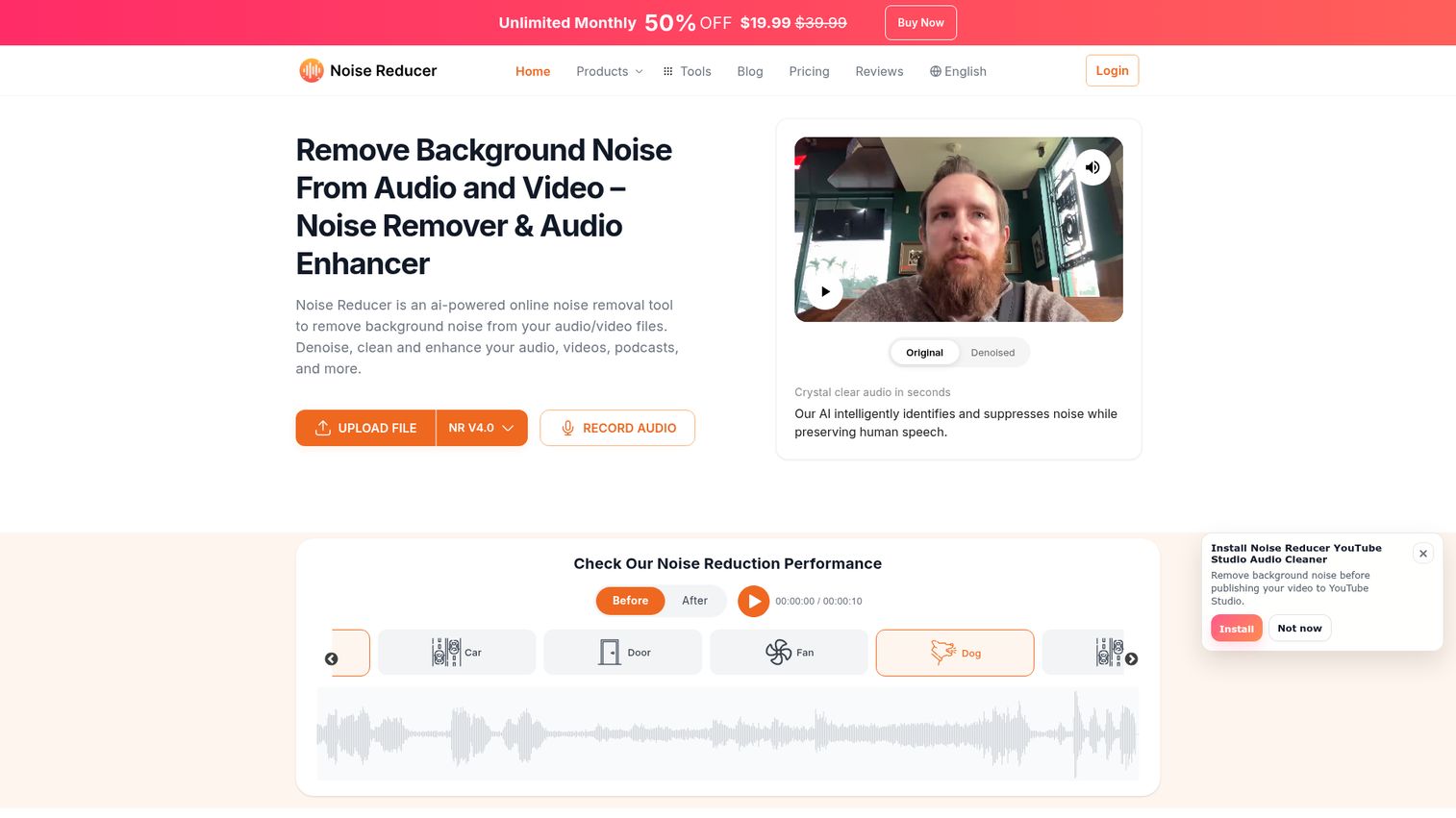
Noise Reducer is a web-based AI tool for removing background noise from audio and video files - no software installation required.
You upload your file, the AI processes it, and you download the cleaned version. It supports MP3, WAV, MP4, MOV, and other common formats. The interface is drag-and-drop simple, which makes it ideal for quick one-off cleanups when you don't want to open a full audio editor.
Best for: Podcasters, video editors, and students who need fast audio cleanup without installing software.
Key strengths
- No installation - runs entirely in your browser
- Works on any operating system with web access
- Supports multiple audio and video file formats
- Adjustable noise reduction intensity slider
- Batch processing available on paid plans
Pricing: Free tier with file size and duration limits; paid plans for larger files and batch processing.
This is strictly a post-production tool - you can't use it for live calls or streaming. The bigger concern is privacy: your audio gets uploaded to their servers for processing. If you're working with confidential recordings (legal depositions, medical consultations, internal strategy calls), a local tool like Audacity is the safer choice. Quality also varies with complex noise profiles - it handles steady hum and hiss well but can struggle with irregular, overlapping noise sources.
5. Utterly - best lightweight noise cancellation app
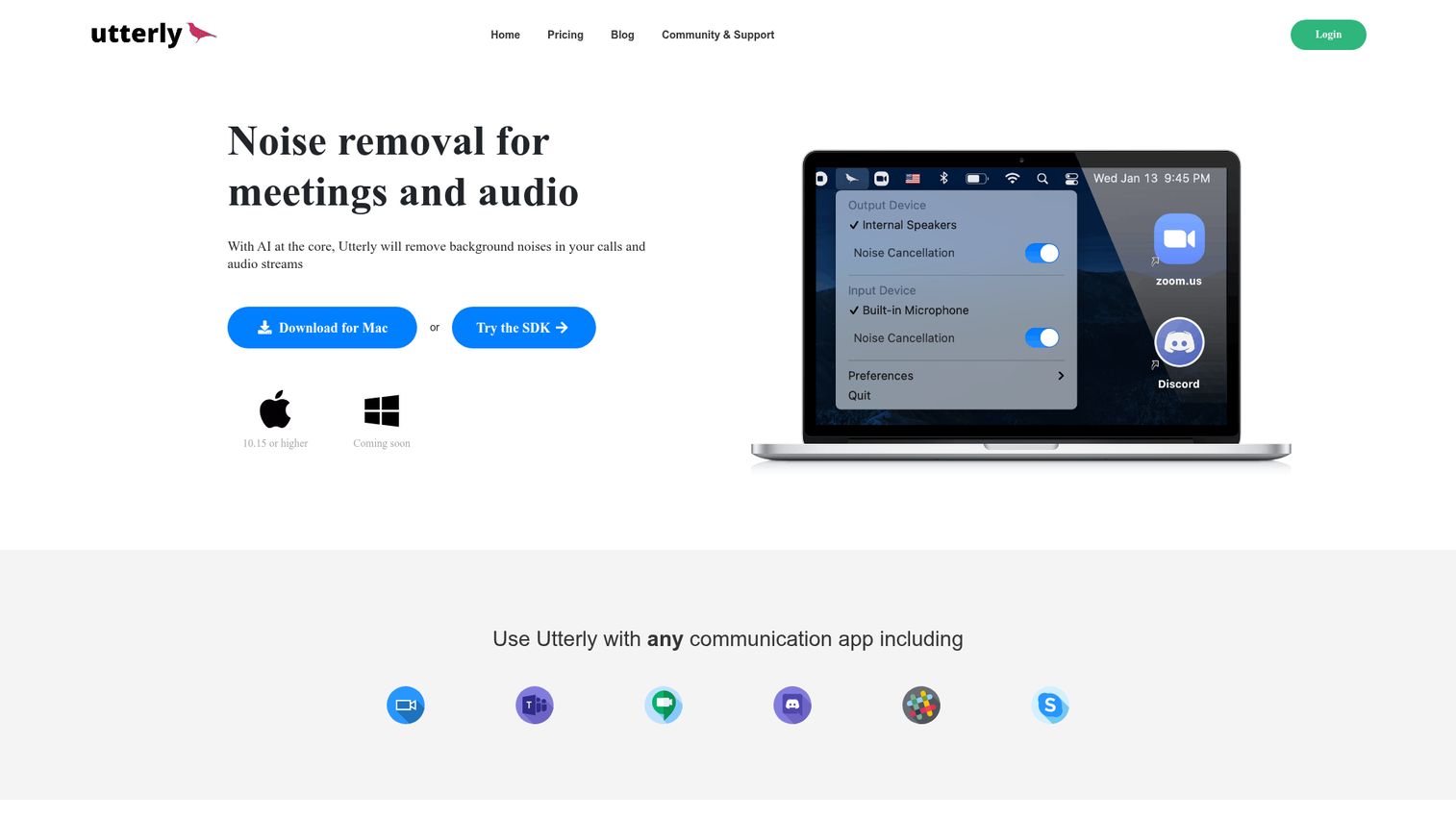
Utterly is a stripped-down noise cancellation app that does one thing: create a virtual microphone with real-time AI noise suppression.
Think of it as the minimalist alternative to Krisp. There's no transcription, no echo cancellation, no meeting summaries. You install it, select the Utterly virtual mic in your communication app, and background noise drops out. The UI is clean and the resource footprint is small.
Best for: Users who want simple, no-configuration noise suppression without paying for features they won't use.
Key strengths
- Extremely simple setup - under two minutes to working
- Low CPU usage compared to full-featured alternatives
- Works with any communication app via virtual mic
- Clean, minimal interface with no clutter
- Available on both macOS and Windows
Pricing: Free.
The trade-off for simplicity is capability. Utterly doesn't match the suppression aggressiveness of GPU-accelerated options like NVIDIA Broadcast, and it lacks the additional features (echo cancellation, transcription) that make Krisp worth paying for. Development updates have also been infrequent. But if you want a noise cancelling app that just works without demanding your attention, Utterly fits.
6. SoliCall Pro - best enterprise-grade noise suppression
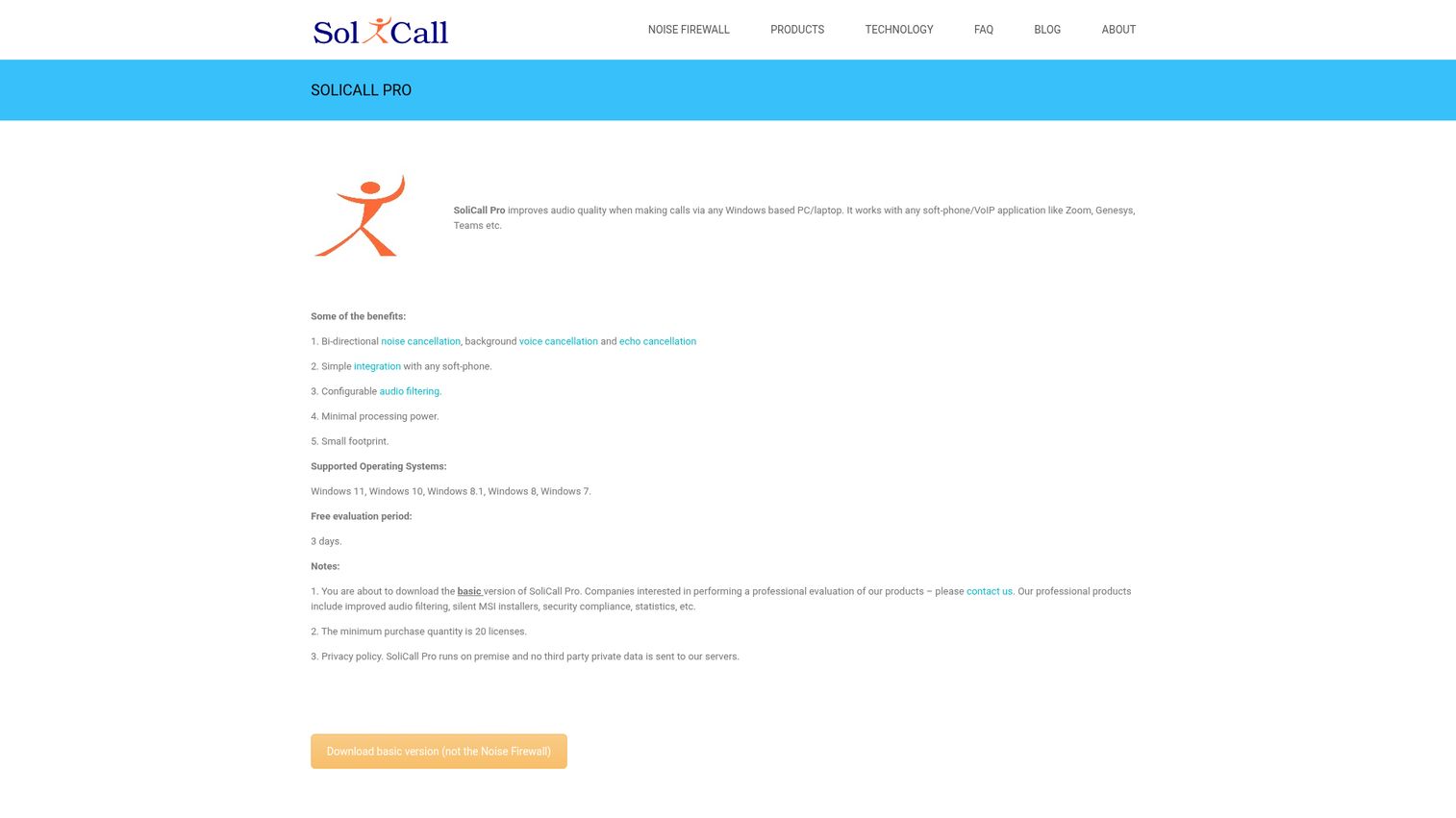
SoliCall Pro is professional noise suppression and echo cancellation software built for call centers and enterprise telephony environments.
This isn't a consumer product. SoliCall Pro uses reference-based noise cancellation with dual-channel processing, which means it can isolate and remove noise more precisely than single-channel consumer tools. It also offers profile-based noise filtering and an API for integration into custom applications.
Best for: Call center managers, BPO operations, and enterprise telephony deployments needing per-seat noise suppression.
Key strengths
- Enterprise-grade noise suppression with echo cancellation
- Reference-based dual-channel processing for superior accuracy
- API available for custom application integration
- Profile-based filtering adapts to specific environments
- Compatible with softphones and SIP-based call platforms
Pricing: Paid per-seat licensing, typically in the $30–50/seat range.
SoliCall Pro isn't trying to win on design or consumer appeal. The UI feels dated, setup requires more configuration than a drag-and-drop install, and it's Windows only with no free tier. But for organizations running hundreds of agent seats where call audio quality directly impacts revenue and customer satisfaction, it's purpose-built in a way consumer tools aren't. Enterprise teams also investing in their presales software stack will find that pairing clean call audio with polished demo experiences creates a stronger buyer impression.
7. Audacity (noise reduction effect) - best free post-production noise removal
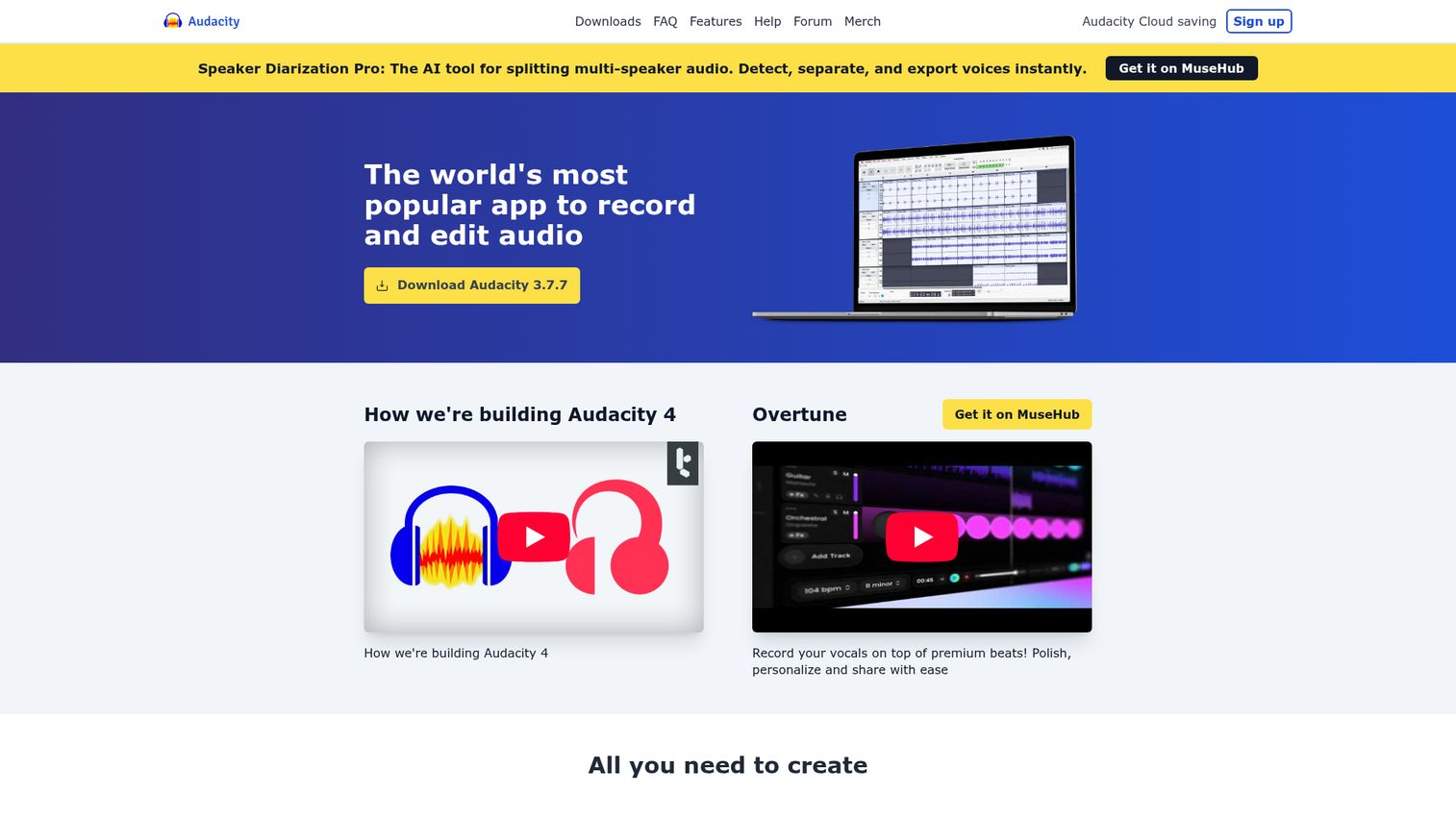
Audacity is a free, open-source audio editor with a built-in Noise Reduction effect that's been a go-to for podcasters and audio editors for over two decades.
It's not real-time - you can't use it during live calls. But for cleaning up recorded audio, it's remarkably powerful. The noise reduction workflow uses a "noise profile" approach: you teach Audacity what your background noise sounds like, then it subtracts that profile from your entire recording.
Best for: Podcasters, musicians, audio editors, and students editing recorded audio on a budget of zero dollars.
Key strengths
- Completely free and open-source with no usage limits
- Cross-platform support for Windows, macOS, and Linux
- Noise profile approach allows precise, targeted reduction
- Extensive plugin ecosystem for additional audio processing
- All processing happens locally - no cloud upload needed
Pricing: Free and open-source.
Here's the four-step noise reduction process:
- Select a section of your recording that contains only background noise (no speech)
- Go to Effect → Noise Reduction → click "Get Noise Profile"
- Select your entire audio track
- Apply Noise Reduction with your preferred settings (start with defaults and adjust)
Tip: Always record a few seconds of "room silence" at the start of every session. This gives Audacity a clean noise profile to work with, and the difference in results is significant.
The downsides are the learning curve and manual workflow. Every file needs individual processing. The UI is functional rather than pretty. But as a noise reduction software for microphone recordings, nothing free comes close.
8. OBS Studio (noise suppression filters) - best for streamers and content creators
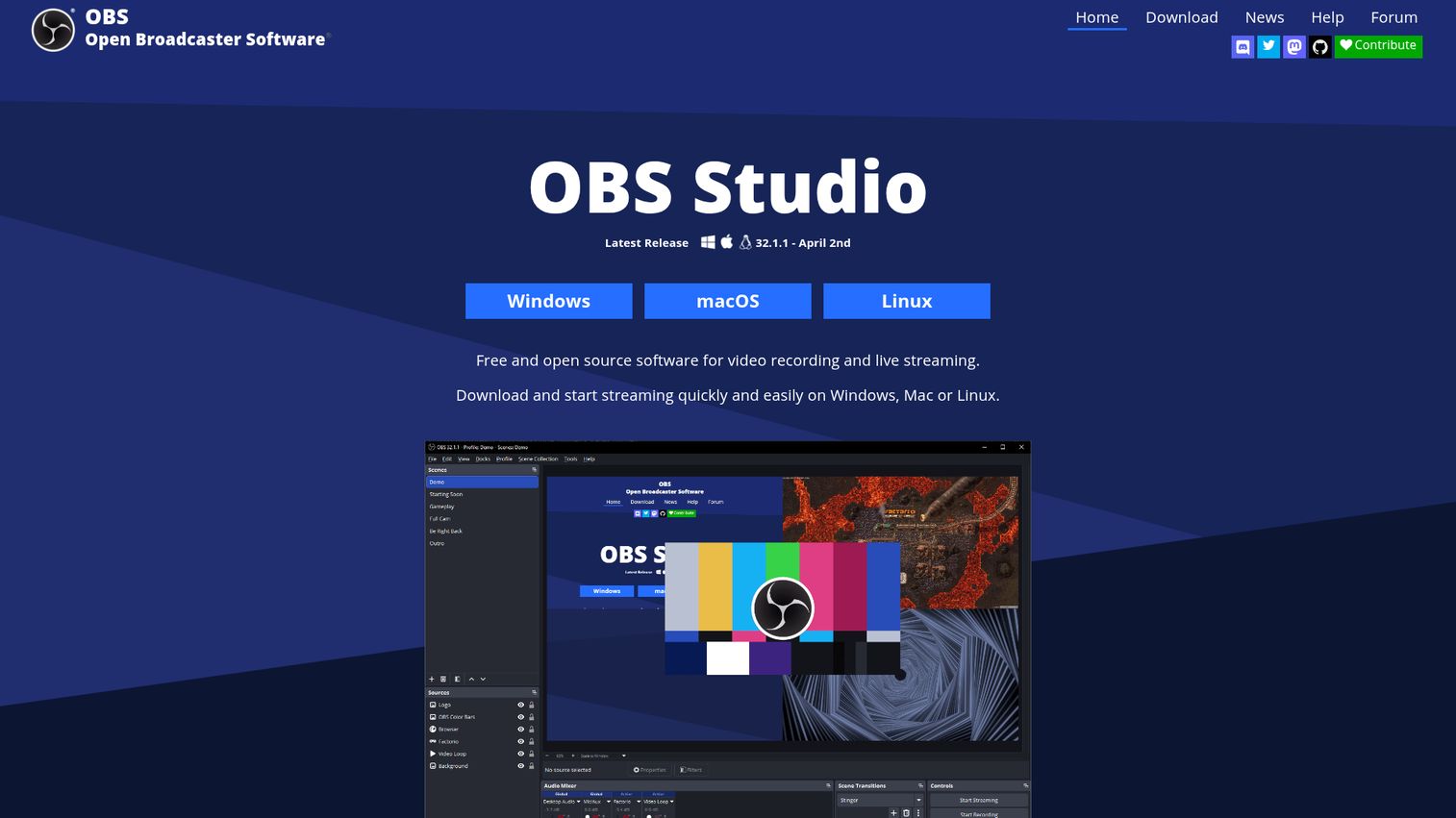
OBS Studio is the most widely used free streaming and recording software, and it includes built-in noise suppression filters that many users don't know about.
OBS offers two noise suppression options: RNNoise (AI-based, high quality) and Speex (lighter, with adjustable suppression level). Both can be applied to any audio source in your OBS scene, and they stack with other built-in filters like noise gates, compressors, and expanders.
Best for: Twitch and YouTube streamers, content creators already using OBS for streaming or recording.
Key strengths
- Free and open-source with cross-platform support
- RNNoise filter provides surprisingly strong AI suppression
- Stackable with noise gate, compressor, and expander filters
- No additional software install if you already use OBS
- Works on Windows, macOS, and Linux
Pricing: Free and open-source.
To enable it: right-click your audio source → Filters → Add "Noise Suppression" → choose RNNoise or Speex. That's it.
Pro tip: Stack RNNoise suppression with a Noise Gate filter for the cleanest results. RNNoise handles constant background noise, and the gate cuts all sound when you're not speaking. Together, they cover both persistent and intermittent noise.
The limitation is scope. OBS filters only work within OBS - they're not system-wide. You can't use them for Zoom calls or Discord voice chat directly. For that, you'd pair OBS with a virtual audio cable setup, which adds complexity. RNNoise can also clip aggressive sounds at times, so test your settings before going live.
9. Noise Blocker - best budget noise suppression for Windows
Noise Blocker is a lightweight Windows noise suppression tool that creates a virtual microphone with adjustable noise reduction for any communication app.
It sits in the same category as Utterly - focused, simple, and low on resource usage. You install it, configure the suppression level, and select the Noise Blocker mic in your app of choice.
Best for: Budget-conscious Windows users who need basic mic noise suppression software for calls without paying a subscription.
Key strengths
- Simple interface with minimal configuration needed
- Low system resource usage during operation
- Virtual microphone works with any communication app
- Adjustable suppression level for different environments
- Affordable pricing for the feature set offered
Pricing: Free or low-cost (pricing model varies).
Noise Blocker won't match the suppression quality of Krisp or NVIDIA Broadcast. Its AI model is less sophisticated, and it lacks features like echo cancellation or outbound noise filtering. It's also Windows only with minimal development updates. But if you need a basic, affordable noise cancelling software option and don't want a subscription, it handles common background noises (keyboard clicks, fan hum, light traffic) adequately.
10. Noise Gator - best open-source noise gate tool
Noise Gator is a free, open-source noise gate application - and the distinction between "gate" and "suppression" matters here.
A noise gate silences all audio below a set volume threshold. When you're not speaking, it mutes the mic entirely. When you speak, the gate opens and lets everything through - including any background noise present at that moment. It does not intelligently separate voice from noise the way AI-based tools do.
Best for: Users who primarily need to mute ambient noise between speaking turns, similar to push-to-talk behavior.
Key strengths
- Completely free and open-source with no restrictions
- Simple threshold-based approach that's easy to understand
- Virtual audio cable routing for flexible setup
- No cloud processing - everything stays local
- Lightweight with minimal system resource requirements
Pricing: Free and open-source.
Important distinction: If noise is present while you're speaking, a noise gate won't help. It only silences the gaps. For constant background noise like a fan or AC unit, you need AI-based noise suppression instead.
Noise Gator is also Java-based, has a dated interface, and is no longer actively maintained. It's a niche tool for a specific scenario - not a general-purpose noise cancellation app. But for that specific scenario (killing dead-air noise between speaking turns), it works.
11. Windows and macOS built-in noise suppression
Before installing anything, check what your operating system and meeting apps already offer. You might not need third-party software at all.
Windows 11 Voice Clarity uses AI-based noise suppression built into the OS. It works system-wide on supported devices. Check Settings → System → Sound → your input device to see if Voice Clarity is available on your hardware.
macOS Voice Isolation (macOS Ventura and later) is Apple's AI voice isolation mode. Enable it during any call: open Control Center → click Mic Mode → select Voice Isolation. It works in FaceTime and most third-party communication apps.
Zoom, Teams, and Google Meet each have native noise suppression settings:
- Zoom: Settings → Audio → Background Noise Suppression → set to High
- Teams: Settings → Devices → Noise Suppression → set to High
- Google Meet: Settings → Audio → Noise Cancellation → toggle on
Best for: Users who want a "good enough" solution without installing anything new.
Key strengths
- No additional software to install or configure
- Free and included with your existing tools
- Zero additional CPU or memory overhead in most cases
- Updated automatically with OS and app updates
- Available across multiple platforms and meeting apps
Pricing: Free (built into your OS or meeting app).
The quality of built-in noise suppression varies. It tends to handle steady, low-level noise well but struggles with louder or more irregular sounds. Platform-specific options (Zoom's suppression only works in Zoom) don't help with other apps. Still, start here first - if it's sufficient for your environment, you've saved yourself the trouble of managing another tool.
12. Adobe Podcast (Enhance Speech) - best AI audio cleanup for recordings
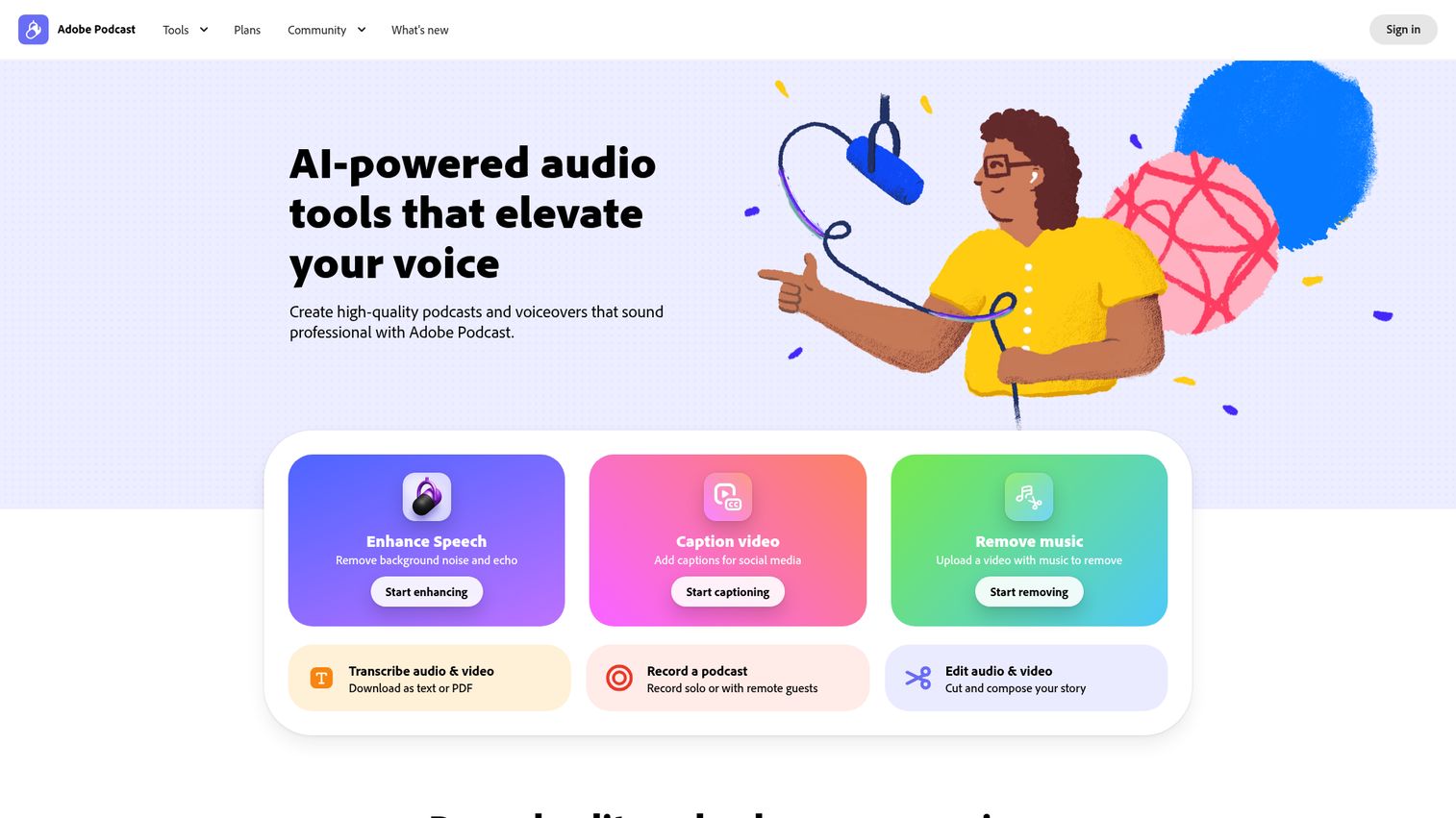
Adobe Podcast offers an AI-powered Enhance Speech tool that doesn't just remove background noise - it makes your voice sound like it was recorded in a professional studio.
Upload a recording made on a laptop mic in a noisy café, and the output often sounds like it came from a treated recording booth. The AI handles noise removal, echo reduction, and voice clarity enhancement in a single pass. It's web-based, so there's nothing to install.
Best for: Podcasters, video creators, and journalists who need to rescue poorly recorded interviews or audio clips.
Key strengths
- Dramatic audio quality improvement beyond just noise removal
- Removes noise and enhances voice clarity simultaneously
- Web-based interface works on any operating system
- Free tier available for shorter audio files
- Backed by Adobe's deep investment in AI audio models
Pricing: Free tier with file length and size limits; expanded access for Adobe Creative Cloud subscribers.
The results can be genuinely impressive. But there are trade-offs. This is post-production only - no real-time use for calls or streaming. Your audio gets uploaded to Adobe's cloud for processing, so avoid it for confidential recordings. The free tier has duration limits. And at times, the AI can over-process audio, giving voices a slightly artificial, "too clean" quality. For most content creators, though, that's a trade-off worth making when the alternative is unusable audio.
How to choose the right noise cancellation software
With 12 options on the table, the right choice depends on three things: what you're using it for, what hardware you have, and how much you're willing to spend.
By use case
For live meetings and calls: Start with your OS or meeting app's built-in noise suppression. If that's not enough, Krisp works with any hardware and any app. If you have an NVIDIA or AMD GPU, their free tools work system-wide.
For streaming and gaming: OBS Studio's RNNoise filter is the obvious first choice if you're already in OBS. Pair it with NVIDIA Broadcast for system-wide suppression that also covers Discord voice chat.
For post-production audio cleanup: Audacity is free and powerful if you don't mind a manual workflow. Adobe Podcast's Enhance Speech produces better results with less effort but requires cloud upload. Noise Reducer works for quick, one-off cleanups in the browser.
For enterprise and call centers: Krisp Enterprise or SoliCall Pro. Krisp offers broader app compatibility and on-device processing; SoliCall Pro offers deeper telephony integration and reference-based cancellation.
By budget
If you're spending nothing, your options are strong: NVIDIA Broadcast, AMD Noise Suppression, Audacity, OBS filters, Noise Gator, and built-in OS features are all completely free. Krisp and Adobe Podcast offer limited free tiers. The only tools requiring payment are SoliCall Pro and Krisp's full-featured plans.
By privacy requirements
This matters more than most people realize. Local processing tools (Krisp, NVIDIA Broadcast, AMD, Audacity, OBS, Noise Gator, Utterly, Noise Blocker) never send your audio to external servers. Cloud-based tools (Noise Reducer, Adobe Podcast) require uploading audio for processing. For anything confidential, stick with local processing.
| If you need... | Choose... |
|---|---|
| All-around meeting noise suppression | Krisp |
| Free suppression with NVIDIA GPU | NVIDIA Broadcast |
| Free suppression with AMD hardware | AMD Noise Suppression |
| Free post-production noise removal | Audacity |
| Quick browser-based audio cleanup | Noise Reducer or Adobe Podcast |
| Streaming noise suppression | OBS Studio filters |
| Enterprise call center deployment | SoliCall Pro |
| No-install, good-enough solution | Built-in OS/app suppression |
Noise cancellation software has become a standard part of the remote work and content creation toolkit. The good news in 2026: the best options are either free or affordable, and they work with whatever mic you already have. Start with your built-in options, move to dedicated tools if you need more, and prioritize local processing if privacy matters to your work. If you're building out your sales or marketing tech stack alongside better audio, explore our guides to the best AI sales tools and best sales engagement tools for more curated recommendations.
Try Guideflow free to create interactive product demos that pair well with your polished, noise-free presentations.
FAQs about noise cancellation software
Noise cancellation software uses AI and machine learning algorithms to analyze audio input, identify background noise patterns (typing, fans, traffic, pets), and filter them out while preserving the human voice. Real-time tools create a virtual microphone that sits between your physical mic and your communication app, processing audio on the fly. Post-production tools apply the same filtering to recorded files after the fact.
Yes, several options are fully free. NVIDIA Broadcast (requires an RTX GPU), AMD Noise Suppression (requires AMD hardware), Audacity, OBS Studio filters, and Noise Gator are all completely free with no usage limits. Built-in noise suppression in Windows, macOS, Zoom, Teams, and Google Meet is also free. Krisp and Adobe Podcast offer free tiers with daily or file-size limits.
Krisp is the top dedicated option - it works with both platforms and processes audio locally on your device. However, both Zoom and Teams have their own built-in noise suppression settings that may be sufficient for moderate background noise. NVIDIA Broadcast and AMD Noise Suppression also work as system-wide virtual microphones that feed clean audio into any meeting app. For teams running demos on these platforms, pairing noise suppression with a demo center can make the entire buyer experience significantly more professional.
Modern AI-based tools add minimal latency, typically 5–20 milliseconds - imperceptible in normal conversation. GPU-accelerated options from NVIDIA and AMD tend to have the lowest latency. At aggressive suppression settings, some tools can slightly muffle or clip the voice. Starting at moderate settings and adjusting upward is the safest approach.
Most tools excel at constant, predictable noise like fans, air conditioning, traffic hum, and keyboard clicks. They handle intermittent noise (dog barking, door slams) reasonably well but may not catch every instance. Very loud, sudden noises or sounds that overlap with the frequency range of the human voice are the hardest to suppress completely.
It depends on the tool. Local-processing tools like Krisp, NVIDIA Broadcast, AMD Noise Suppression, Audacity, and OBS never send audio to external servers - these are the safest for privacy-sensitive work. Cloud-based tools like Noise Reducer and Adobe Podcast require uploading audio to their servers for processing. Avoid cloud tools for confidential recordings, and always check the specific tool's privacy policy.
In the software context, these terms are used interchangeably. Technically, "noise cancellation" refers to generating anti-phase sound waves to neutralize noise (more relevant to headphone hardware), while "noise suppression" refers to algorithmically filtering out unwanted sound. When you see either term describing a software tool, they're referring to the same functionality - AI-based removal of background noise from audio.
Most tools work on any standard computer. Krisp, Utterly, Noise Blocker, Audacity, and OBS run on typical consumer hardware without special requirements. The exceptions are NVIDIA Broadcast (requires a GeForce RTX 2060 or higher GPU) and AMD Noise Suppression (requires a Ryzen 5000+ processor or Radeon RX 6000+ GPU). No special microphone is needed - these tools improve the audio from whatever mic you already have.