You screenshot a landing page. You scribble feedback in one tool, export it, drop it into a doc, then paste a second version into Slack because the first one lost the arrows. The reviewer opens it, squints, and still asks "which button do you mean?"
That loop is the real cost of bad markup. Not the markup itself, the back-and-forth around it.
Most marketing teams already feel this. You are reviewing campaign creative, live web pages, PDFs, and product screens every week, and the markup happens across four or five disconnected apps. Each one adds a tab, a login, and a slightly different export format. Nobody owns the workflow, so feedback gets lost between the screenshot and the sign-off.
Markup tools exist to close that gap. A good one lets you annotate an image, a PDF, or a live website with text, arrows, highlights, and blur, then share it as a single link that anyone can open and comment on. The better ones plug into the tools you already use, so feedback stops living in screenshots emailed back and forth. When that annotated asset needs to become something prospects can click through, an interactive demo changes the game entirely.
This guide covers the 10 markup tools worth evaluating in 2026, ranked by how well they handle the three jobs marketers actually do: marking up screenshots, annotating PDFs, and reviewing web pages for feedback. We verified pricing and G2 ratings against live sources, and we are honest about which tool fits which job. No tool wins every category, and we say so.
What's inside
This guide is for marketers, designers, QA, and support teams who annotate visual assets and need feedback to move faster than it does today. If you are tired of tool sprawl and want something that slots into your stack, this is built for you.
We chose the 10 tools below against four criteria that matter when markup is part of a real workflow, not a one-off:
- Annotation depth: Does it handle screenshots, PDFs, and live websites, or just one asset type?
- Sharing and collaboration: Sharable links, comment threads, approval workflows, multi-user review.
- Stack integrations: Does it fit Slack, Notion, Drive, and your CRM, or add another silo?
- Pricing and free tier: What is free, what is gated, and how does it scale per seat.
TL;DR
Short on time? Here are the decision shortcuts by job.
- Best all-in-one screenshot capture and markup: Snagit.
- Best markup tool for Mac: CleanShot X.
- Best free browser-based annotation tool: Markup Hero.
- Best for native iPhone, iPad, and Mac markup: Apple Markup.
- Best for live website and design review: Markup.io.
- Best for team approval workflows: Filestage.
What is a markup tool?
A markup tool is software that lets you annotate images, screenshots, PDFs, documents, and web pages with text, shapes, highlights, arrows, and other visual cues to communicate feedback clearly. Instead of describing a change in words, you show it directly on the asset, which removes ambiguity from review.
The category overlaps heavily with the term annotation tool. In practice, people use markup tool and annotation app interchangeably, and most products in this space do both: they capture or load an asset, then let you draw on it.
Markup spans more than screenshots. You can markup photos, redline a contract PDF, highlight a competitor page with a website markup tool, or annotate a design file for a stakeholder. The asset changes, the job stays the same: make feedback unmistakable.
Core capabilities you will find across markup tools:
- Drawing tools: Pen, highlighter, and pencil for freehand annotation, with adjustable opacity and thickness.
- Text and shapes: Text boxes, callouts, arrows, rectangles, ellipses, and lines to point at exactly what you mean.
- Numbered steps: Sequential callouts for documenting multi-step flows or tutorials.
- Blur and redaction: Hide sensitive data like names, emails, or pricing before you share, a step recommended in blur and redaction of sensitive data guidance.
- Signatures: Sign PDFs and documents directly, useful for contracts and sign-off.
- Lasso and eraser: Select, move, or remove annotations without starting over.
- Undo and redo: Iterate on feedback without fear of losing work.
- Cross-platform reach: Coverage across iPhone, iPad, Mac, Windows, web, and mobile so the tool meets you wherever the asset lives.
- Save, share, and collaborate: Export files, generate sharable links, and let teammates comment in one place.
The strongest markup tools treat sharing and collaboration as first-class, not an afterthought. That is what separates a tool you use once from one your whole team adopts.
When to use a markup tool
Markup tools earn their place at three recurring moments. If any of these describe your week, the right tool pays for itself fast.
Give visual feedback on screenshots and designs
When you are reviewing campaign creative, a new landing page, or a UI mockup, words are slow and easy to misread. A markup tool lets you drop an arrow on the misaligned CTA and a note next to the off-brand color. Cross-functional reviewers see the change instantly, which cuts the number of clarifying replies. This is the most common use case for screenshot markup tools across marketing and design teams. If your designs ultimately need to be captured and shared as guided walkthroughs, Guideflow's capture feature turns the same screens into something interactive.
Mark up PDFs and documents for sign-off
Briefs, one-pagers, contracts, and proposals all move through review as PDFs. Marking them up directly, with highlights, comments, and signatures, keeps the feedback attached to the document instead of scattered across email threads. For anything that needs legal or executive sign-off, an inline signature plus tracked comments speeds approval and leaves a clear record. For teams handling contracts at scale, our roundup of the best e-signature software covers tools purpose-built for sign-off.
Annotate live websites and web pages
Reviewing a live page is different from reviewing a screenshot of it. A website markup tool lets you comment directly on the rendered URL, so responsive issues, broken links, and copy edits get flagged in context. Marketers use this for campaign landing pages, pre-launch QA, and competitor teardowns where you want to capture and annotate a live competitor page without rebuilding it. If you are building those pages too, our list of the best landing page builders pairs well with this workflow.
The 10 best markup tools for 2026 at a glance
The table below sorts the 10 tools by relevance to the core markup jobs: screenshots, PDFs, and web. Pricing and G2 ratings were verified against live vendor and G2 pages as of June 2026. Use it as a fast shortlist, then read the detailed reviews for fit.
| # | Product | Intent | Key use case | Pricing | G2 rating |
|---|---|---|---|---|---|
| 1 | Snagit | All-in-one capture and markup | Documentation and tutorials | From $39.00/year | 4.7/5 |
| 2 | CleanShot X | Mac-native markup | Polished screenshots and recordings on Mac | From $29 one-time | 4.9/5 |
| 3 | Markup Hero | Free browser annotation | Quick image, PDF, and web markup | Free, Premium from $3/mo | 4.5/5 |
| 4 | Guideflow | Interactive annotated experiences | Shareable, trackable product and web flows | Free, paid from $35/mo | 5.0/5 |
| 5 | Apple Markup | Native Apple annotation | iPhone, iPad, and Mac markup | Free with Apple devices | Not rated |
| 6 | ShareX | Free open-source Windows markup | Capture, annotate, automate on Windows | Free | 4.8/5 |
| 7 | Greenshot | Lightweight Windows annotator | Fast, no-frills screenshot markup | Free | 4.8/5 |
| 8 | Annotely | Web-based image annotation | Quick online image markup | Free | Not rated |
| 9 | Markup.io | Live website and design review | Client and team visual review | From $79/mo | 4.7/5 |
| 10 | Filestage | Approval workflows | Creative review and sign-off | Free, paid from $199/mo | 4.6/5 |
The 10 best markup tools for 2026
1. Snagit (TechSmith), best all-in-one screenshot capture and markup
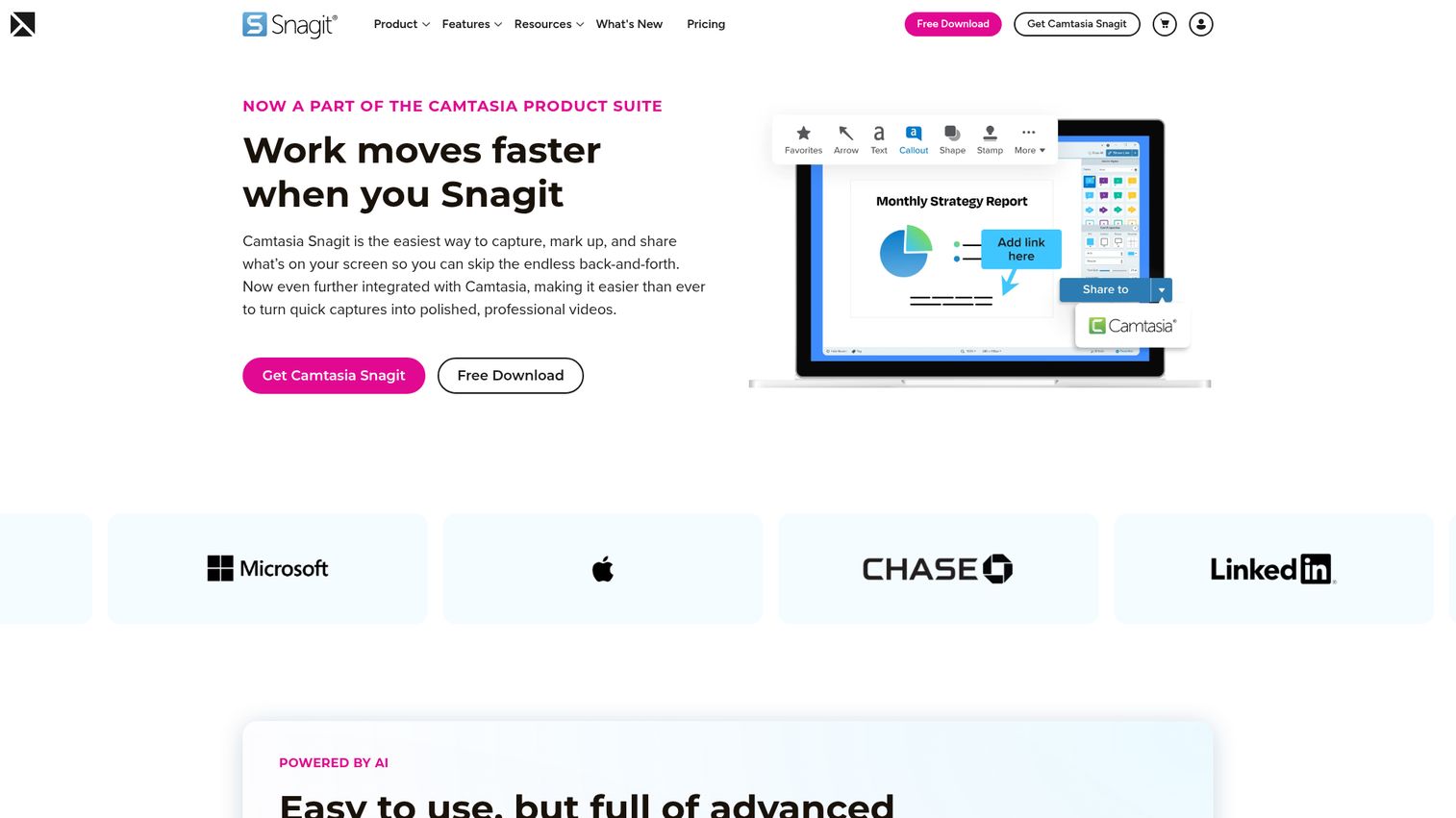
Snagit is TechSmith's screen capture, recording, and markup tool, built for people who turn screens into instructions. It pairs deep capture with a rich annotation library, so a raw screenshot becomes a finished, branded visual in a few clicks. For teams producing documentation and tutorials, it is the most complete single tool in this list.
Its standout capture trick is scrolling screen capture technique, which grabs an entire web page or long document that runs off-screen. Combine that with step-by-step numbered callouts and AI-assisted editing, and you can document a multi-screen flow without stitching images by hand.
Best for: Teams creating documentation, tutorials, and support content that need polished, repeatable visual instructions.
Key strengths
- Capture breadth: Screenshot, scrolling capture, and screen recording with webcam and audio in one tool.
- Annotation library: Arrows, callouts, stamps, and numbered steps that keep documentation consistent.
- AI-assisted editing: Step recorder, smart redact, text recognition, and background noise removal speed up cleanup.
Why choose Snagit: It is established, deep, and runs on both Windows and Mac, which matters for mixed teams. If your job is producing clear visual instructions at volume, Snagit handles capture, markup, and light recording without forcing you into a second app.
Snagit pricing: Snagit Individual starts at $39.00 per year, billed yearly. There is no free tier, though TechSmith offers a trial. Teams and Business packages are available through Contact Sales. Snagit holds a 4.7 out of 5 rating on G2.
2. CleanShot X, best markup tool for Mac
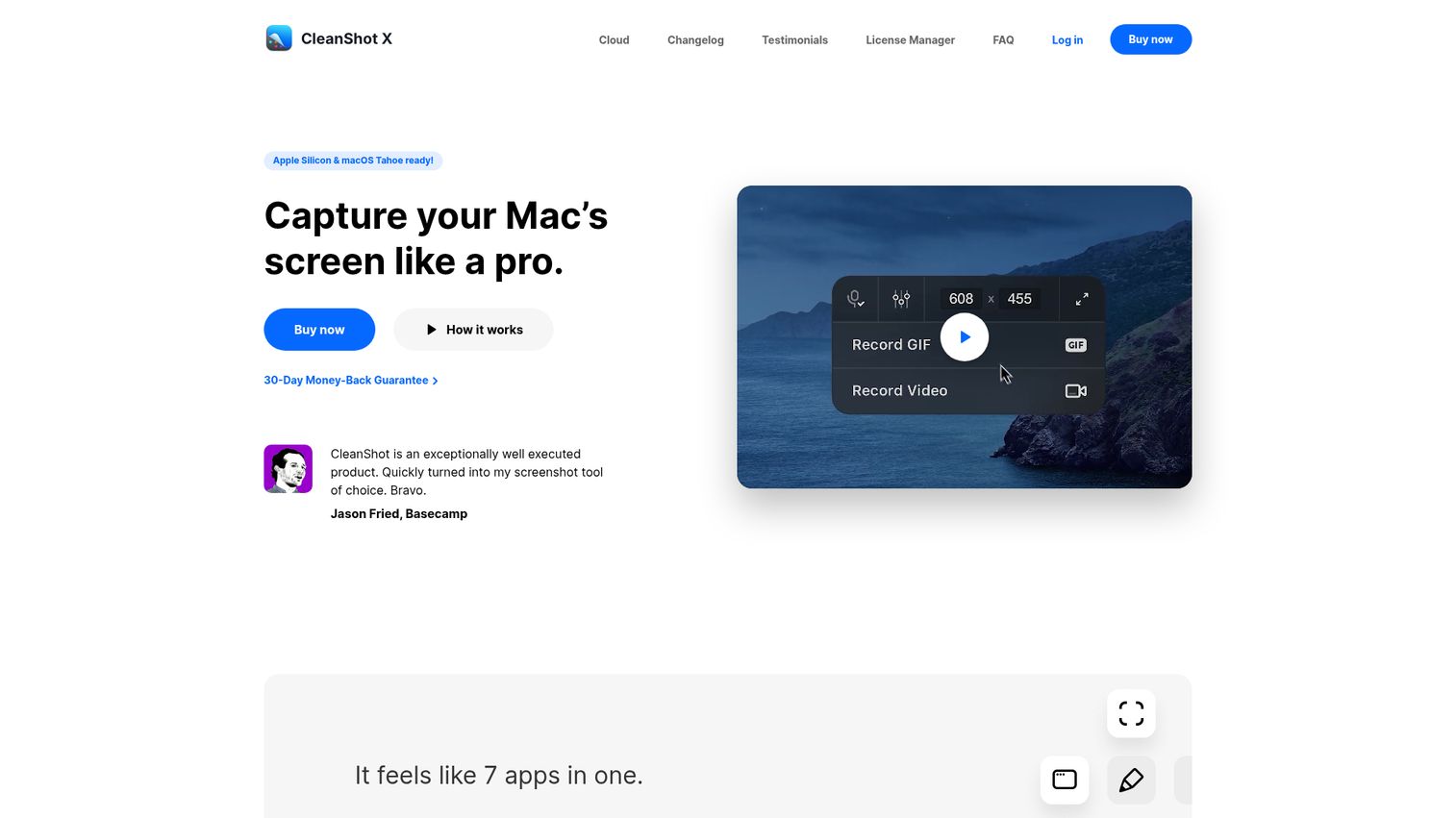
CleanShot X is a Mac-native capture tool that makes polished screenshots and recordings feel effortless. It captures areas, windows, full screens, and scrolling content, then drops you straight into a clean annotation editor. For Mac power users, the speed from capture to shareable markup is the draw.
The annotation editor covers the essentials and then some: arrows, shapes, blur, pixelate, spotlight, a step counter, and text. Cloud sharing means you can capture, annotate, and hand off a link without saving a file first, and built-in optical character recognition from images extracts text from captures.
Best for: Mac users and teams who want fast, good-looking screenshots and quick shareable annotations.
Key strengths
- Speed: Capture to annotated, shareable link in seconds, with a UI that stays out of the way.
- Clean annotation tools: Blur, pixelate, spotlight, and a step counter for clear, professional markup.
- Recording plus OCR: Screen recording as MP4 or GIF, a built-in video editor, and text recognition from captures.
Why choose CleanShot X: If you live on a Mac and want a one-time purchase instead of another subscription, CleanShot X fits cleanly. The annotation experience is among the most polished in this list, and the workflow utilities reduce the friction between seeing a problem and sharing it.
CleanShot X pricing: CleanShot X is a one-time purchase, starting at $29 for 1 Mac, $49 for 2 Macs, $119 for 5 Macs, and $229 for 10 Macs, all in USD. One year of free updates is included, with optional renewal at $19 per year. There is no free tier. It holds a 4.9 out of 5 rating on G2.
3. Markup Hero, best free browser-based annotation tool
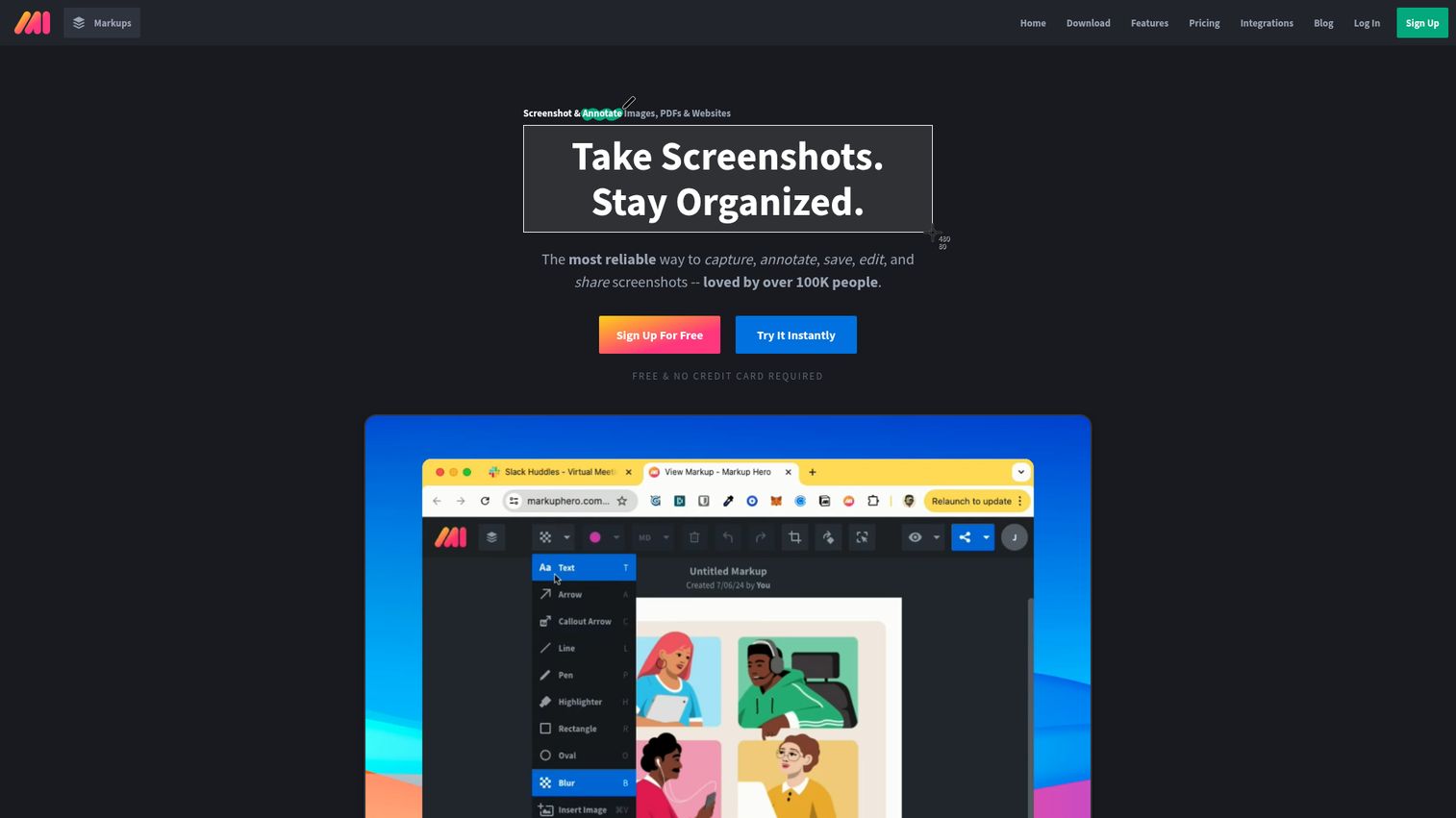
Markup Hero is a capture and annotation tool that runs across Mac, Windows, Linux, and web, with a genuinely useful free tier. It captures screenshots and scrolling screenshots, then lets you annotate images, PDFs, and websites in one place. Loved by over 100,000 people, it is a strong default when you want fast markup without installing heavy software.
What sets it apart is breadth at the free end: text, arrows, highlighters, blur, signatures, crop, and multi-page markups, plus history and collections to keep work organized. Sharable links make handoff quick.
Best for: Individuals and teams who need fast screenshot, PDF, and website annotation with shareable links and an editable history.
Key strengths
- Free tier that works: Annotate images, PDFs, and websites without paying, with editable markup history.
- Stack integrations: Connects with Chrome, Google Drive, Notion, and Slack so feedback lands where you work.
- Cross-platform: Desktop apps for Mac, Windows, and Linux plus web, so the tool follows the asset.
Why choose Markup Hero: It is the most flexible free pick here, covering all three core asset types instead of just screenshots. The integrations with Drive, Notion, and Slack mean you can mark up and share without leaving your existing workflow, which is exactly what consolidation-minded teams want.
Markup Hero pricing: The Basic plan is free with 25 markups and no credit card required. Premium runs $5 per month billed monthly or $3 per month billed annually, with unlimited markups. Premium Teams is $2 per month per member billed annually, and a Lifetime one-time plan is available. Markup Hero holds a 4.5 out of 5 rating on G2.
4. Guideflow, best for turning annotated product flows into shareable interactive demos
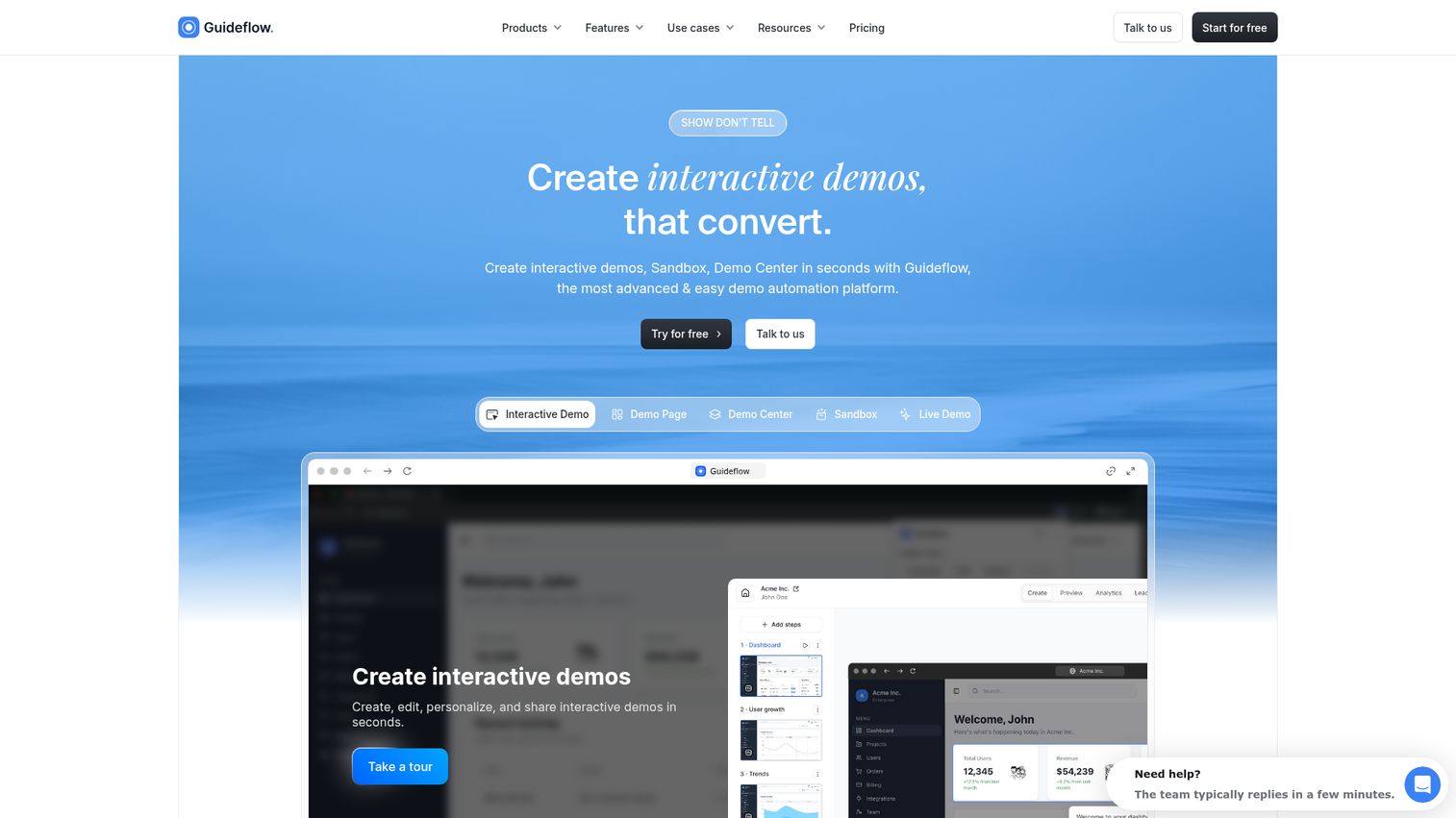
Guideflow is a demo automation platform whose interactive demo builder lets marketers capture a product or webpage, add annotations, then turn the result into a guided, clickable, shareable experience with analytics. You add tooltips, callouts, highlights, text overlays, and blur directly onto real product screens, then publish a link, embed, or social post that people step through themselves.
This is a fundamentally different engagement model than a static screenshot. Instead of labeling one frame, you guide a viewer through an annotated flow and see exactly what they engaged with. That delivers materially higher engagement than a flat image, and it gives marketers data they cannot get from a PNG.
Best for: Digital marketers who annotate product screens or web flows and want the result to become an interactive, trackable, embeddable experience rather than a static image.
Key strengths
- Annotate on real product screens: Add tooltips, callouts, highlights, and text overlays directly onto captured flows with the edit feature.
- Blur and personalize sensitive elements: Hide, blur, or swap data with a no-code editor before sharing, so demos are safe and on-message.
- Share and measure: Distribute via public links, website embeds, email, Notion, or social, then track impressions, completion, and conversion in real time with built-in analytics.
Why choose Guideflow: It performs best when your markup needs to do more than label a screenshot, when you want prospects, customers, or reviewers to click through an annotated, guided experience and you want data on what they engaged with. It excels for marketers running landing pages, product launches, onboarding flows, and ABM campaigns, and the same capture works across all of them. To see it in action, browse the demo showcase.
Guideflow pricing: Guideflow offers a free plan at $0 per month. Paid plans start at Solo for $35 per month billed yearly ($40 monthly), with Growth at $499 per month, Advanced at $1,499 per month, and Enterprise from $2,999 per month on annual billing. It holds a 5.0 out of 5 rating on G2.
Start your journey with Guideflow today!
5. Apple Markup, best built-in tool for iPhone, iPad, and Mac
Apple Markup is the annotation feature built into iPhone, iPad, and Mac, available system-wide at no extra cost. You can markup photos, screenshots, PDFs, and documents on the fly, then save or share without opening a separate app. For anyone already in the Apple ecosystem, it is the fastest path from screenshot to annotated share.
On iPhone and iPad, the markup toolbar gives you pen, marker, pencil, eraser, lasso, ruler, and color controls, and it supports Apple Pencil for precise annotation for precise drawing. You can add text, shapes, stickers, and signatures, which makes it a capable iPhone markup tool and iPad markup tool for quick work.
Best for: Apple device users who need built-in annotation across iPhone, iPad, and Mac without installing anything.
Key strengths
- Free and built-in: No purchase or install, available across iPhone, iPad, and Mac.
- Apple Pencil support: Precise freehand annotation on iPad for designers and reviewers.
- Continuity Markup: Annotate a PDF or image on iPhone or iPad and see changes appear live on your Mac, part of Continuity features across Apple devices.
Why choose Apple Markup: If your team is on Apple hardware and you mostly need quick annotations on photos, screenshots, and PDFs, it is hard to beat free and already installed. Mac Preview handles PDF markup with highlighting, text, notes, shapes, redaction, and signatures, covering most everyday sign-off needs.
Apple Markup pricing: Apple Markup is free and included with iPhone, iPad, and Mac. There is no separate plan or subscription.
6. ShareX, best free open-source markup tool for Windows
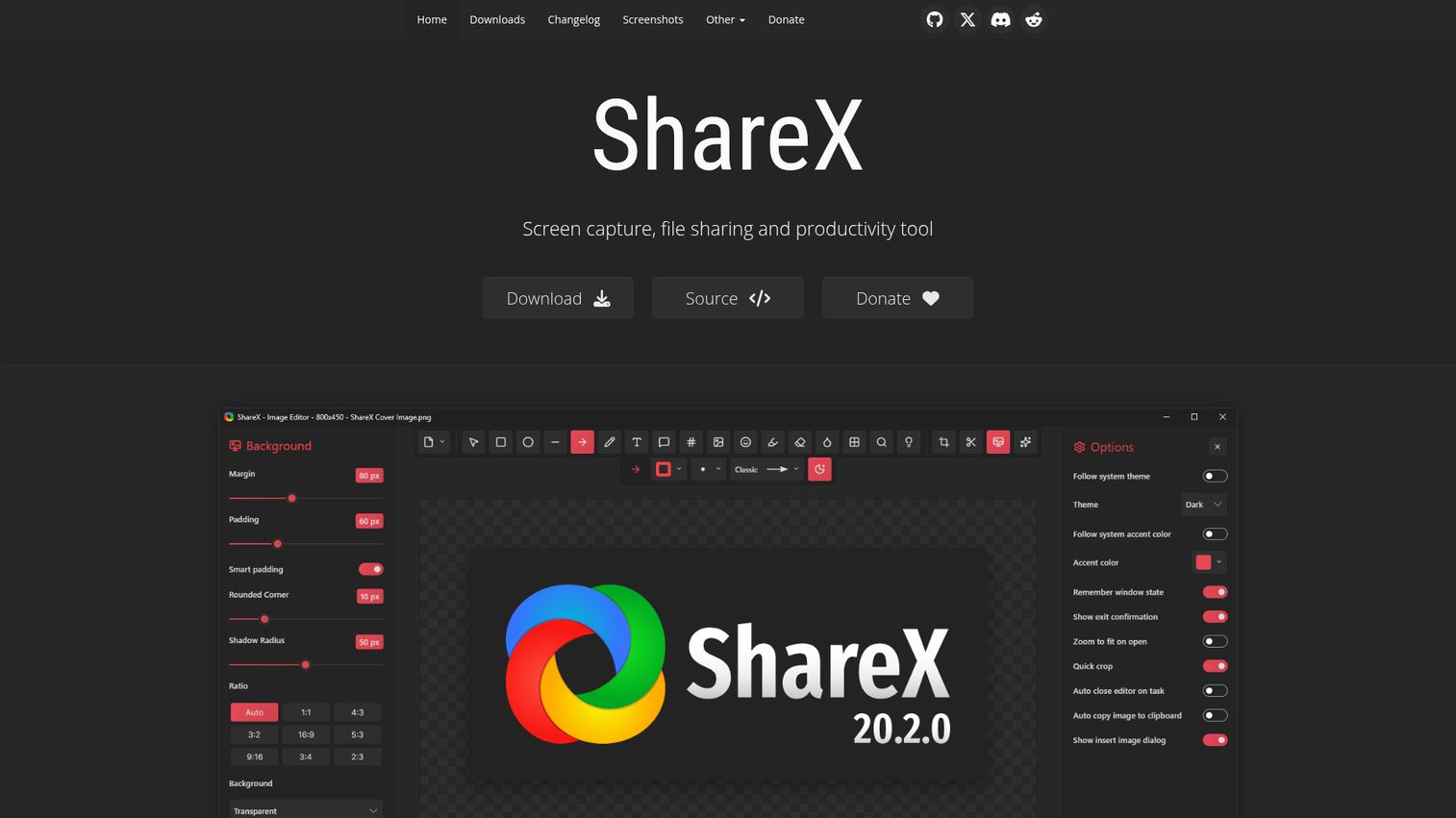
ShareX is a free, open-source software licensing capture and productivity tool for Windows with no ads. It combines screenshot and screen recording with annotation and deep workflow automation, so power users can build a custom capture-to-share pipeline. For Windows teams that want control without a license fee, it is the most capable free option.
The annotation tools cover arrows, text, blur, pixelate, highlight, crop, and a smart eraser. Where ShareX pulls ahead is automation: custom uploaders, URL sharing, QR codes, and configurable after-capture actions that remove repetitive steps.
Best for: Windows power users who want a free, deeply customizable capture, annotation, and sharing workflow.
Key strengths
- Free and open source: Full feature set with no cost and no advertising.
- Deep capture: Region, window, full screen, scrolling capture, plus GIF and video recording.
- Workflow automation: Custom uploaders, after-capture actions, and sharing rules that cut manual steps.
Why choose ShareX: If you are on Windows and willing to spend a little time configuring it, ShareX rewards you with a markup and sharing workflow tuned to exactly how you work. The automation depth is rare at any price, let alone free. If QR-based sharing is part of your flow, our roundup of the best QR code generator software is worth a look.
ShareX pricing: ShareX is completely free and open source, with no paid tiers. It holds a 4.8 out of 5 rating on G2.
7. Greenshot, best lightweight free Windows annotator
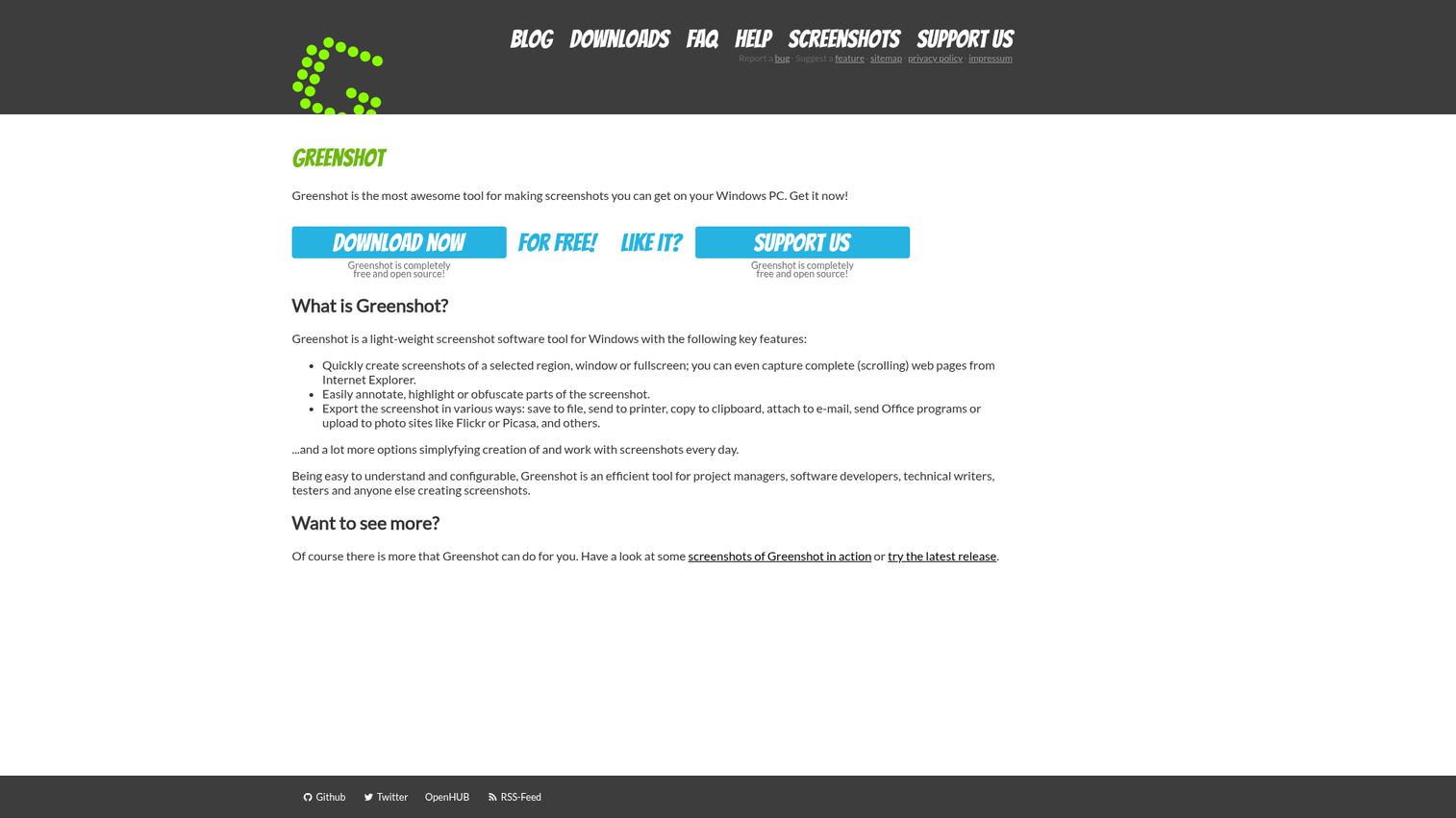
Greenshot is a lightweight, free, open-source screenshot tool for Windows. It captures a region, window, full screen, or full scrolling web page, then opens a simple editor for fast annotation. When you want minimal and quick rather than feature-heavy, Greenshot is the no-frills pick.
The editor lets you annotate, highlight, and obfuscate parts of a screenshot, then export by saving, printing, copying, emailing, sending to Office, or uploading. It does the core markup job well and stays out of your way.
Best for: Windows users who want a fast, minimal screenshot annotator without extra features to learn.
Key strengths
- Lightweight: Small footprint and fast startup for quick capture and markup.
- Free and open source: Free for private and commercial use.
- Flexible export: Save, print, copy, email, send to Office, or upload directly.
Why choose Greenshot: If Snagit feels like too much and you just need to grab, annotate, and export on Windows, Greenshot is the leaner alternative. It covers documentation, QA, and support markup without a learning curve.
Greenshot pricing: Greenshot for Windows is free and open source, free for private and commercial use. The downloads page suggests an optional small contribution to cover costs. It holds a 4.8 out of 5 rating on G2.
8. Annotely, best for clean web-based image annotation

Annotely is a free, web-based image and screenshot annotation tool with a clean, modern UI and nothing to install. You load a local image, capture from camera, take a screenshot, or pull an image from a URL, then mark it up in the browser. For fast online image markup, it removes every step between you and the annotation.
The toolset covers arrows, lines, ellipses, rectangles, highlights, freehand drawing, blur, spot, zoom, numbered pins, labels, and crop. That is a full markup kit for bug reports, feedback, and quick visual notes, all without a sign-up.
Best for: Individuals and teams who want a simple browser tool to quickly mark up screenshots or images for feedback.
Key strengths
- No install, no sign-up: Start annotating in the browser with no account required.
- Clean UI: A modern, uncluttered editor that keeps the focus on the image.
- Flexible sharing: Save to disk, share via generated link, or post to social.
Why choose Annotely: When you need to mark up one image right now and do not want to install software or create an account, Annotely is the lowest-friction option here. It is purpose-built for quick, clean image annotation and visual feedback.
Annotely pricing: Annotely states it is free to use, with no credit card and no sign-up required. No tiered pricing page was published at the time of writing.
9. Markup.io, best for live website and design review
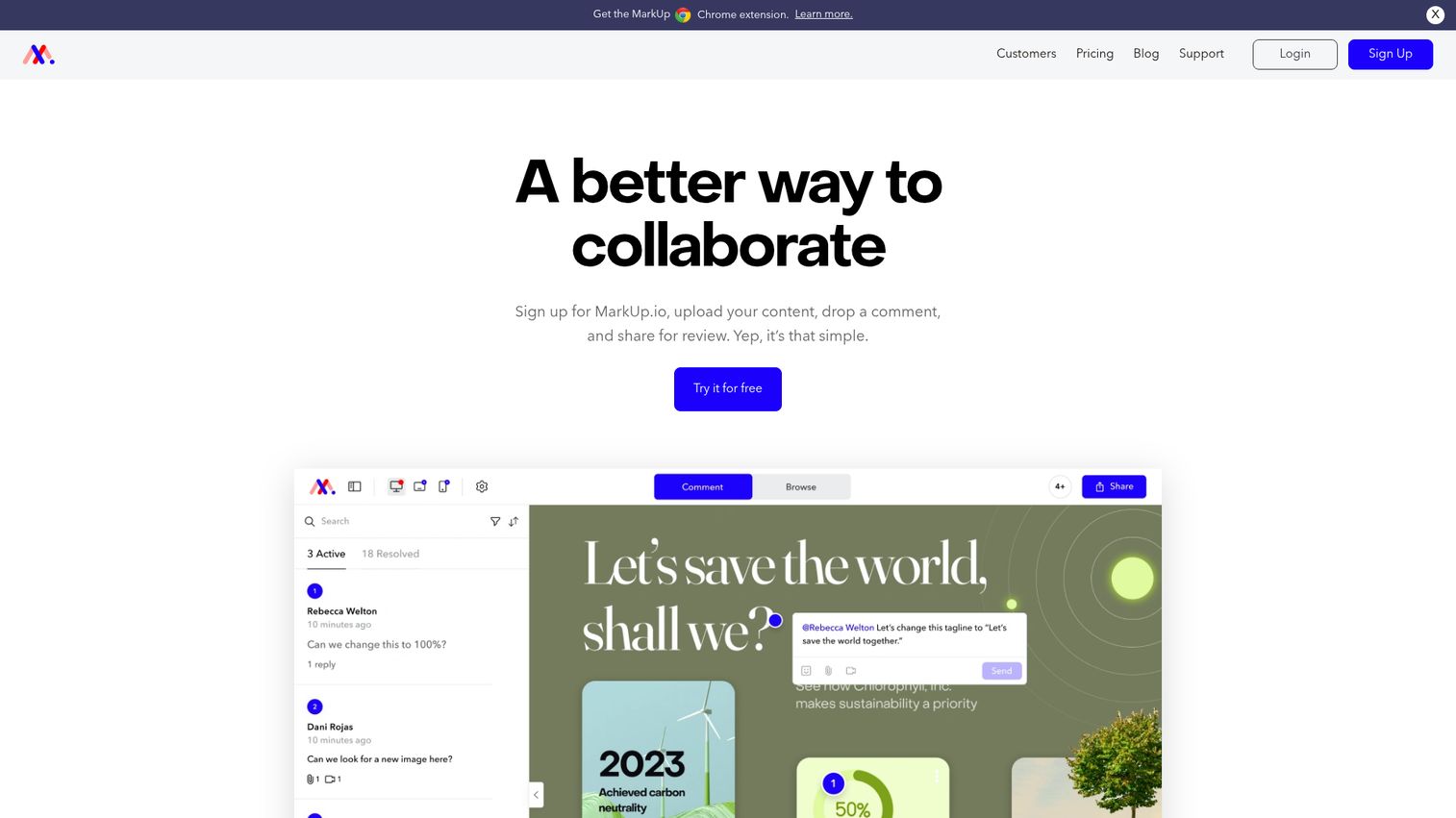
Markup.io is a visual commenting and collaboration platform built for reviewing digital content in context. It supports over 30 file types, including live websites, images, PDFs, slides, and videos, so feedback lives directly on the asset. For agencies and teams running web and design review, it is the strongest fit in this list.
You leave contextual comments and annotations on a live URL, then collect threaded feedback from clients and teammates in one place. A Chrome extension lets you create markups from the browser, with screenshots attached to comments.
Best for: Creative, marketing, design, and web teams that need centralized visual feedback on digital content, especially live pages.
Key strengths
- Annotate live URLs: Comment directly on rendered web pages, not just screenshots of them.
- 30-plus file types: Websites, images, PDFs, slides, and videos in one review platform.
- Collaborative threads: Contextual comments and organized projects keep client feedback in one place.
Why choose Markup.io: When your review work centers on live websites and campaign pages, Markup.io's contextual commenting beats marking up static captures. It is purpose-built for the website markup tool job, with project organization that scales across clients and teams. Teams that also need to collaborate on interactive product experiences should weigh how each fits their workflow.
Markup.io pricing: The Pro plan is $79 per month and includes unlimited users, one workspace, unlimited markups, 500GB storage, folders, and managed share links. Enterprise is custom and adds unlimited workspaces, unlimited storage, SOC 2 compliance for SaaS platforms documentation, and SSO. There is a 30-day free trial but no permanent free tier. It holds a 4.7 out of 5 rating on G2.
10. Filestage, best for team collaboration and approval workflows
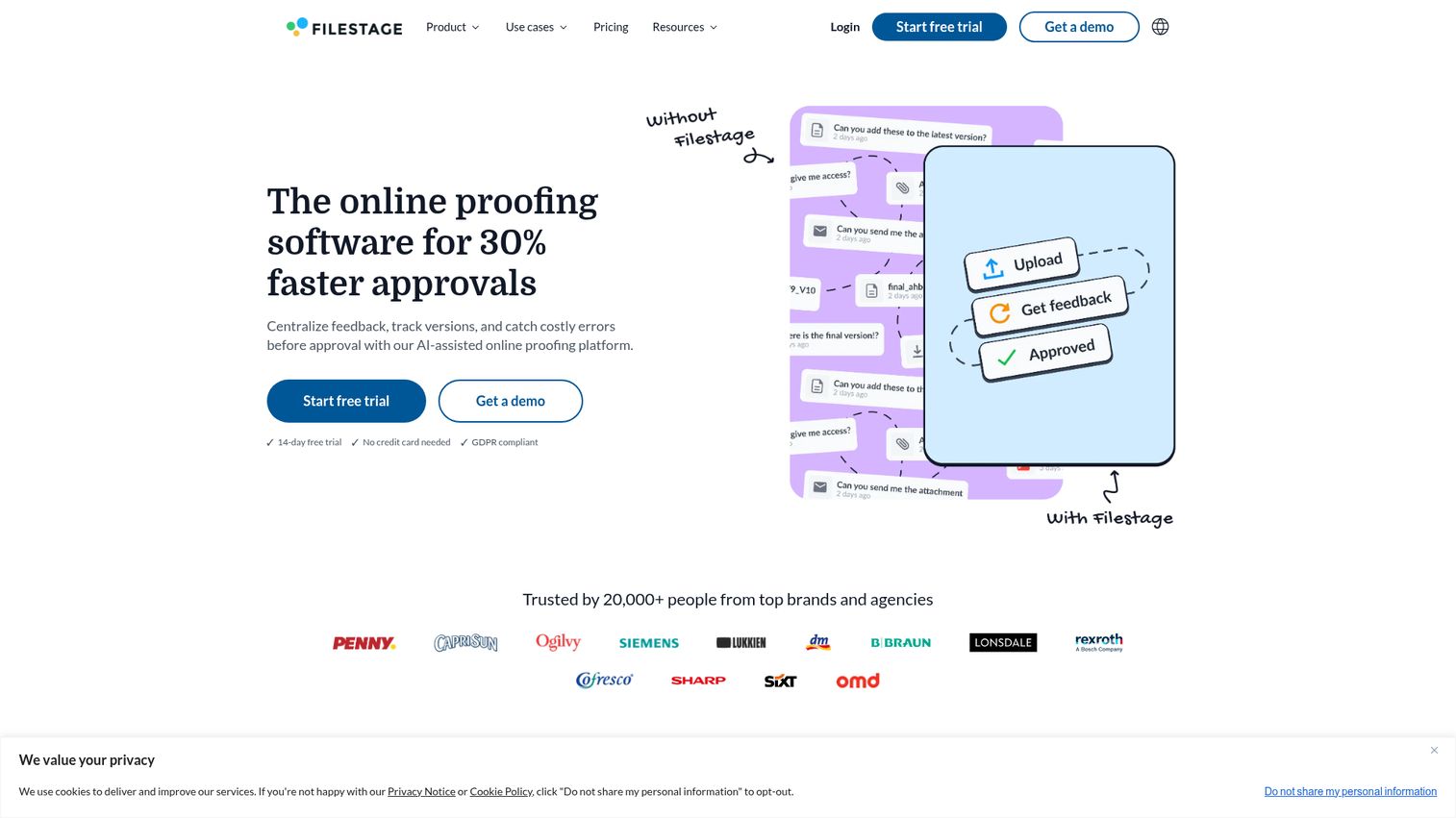
Filestage is an online proofing platform for sharing creative assets, collecting contextual feedback, comparing versions, and tracking approvals. Where most markup tools stop at annotation, Filestage adds structured review and sign-off across the whole asset lifecycle through online proofing and approval workflows. The editor supports side-by-side version comparison, due dates, and automated review steps, so feedback does not stall waiting on the next reviewer. Comments are timestamped on video and audio, pinned in context on images and PDFs, and every approval is logged for a clear audit trail.
Best for: Marketing, creative, and agency teams that need structured review and formal sign-off across multiple stakeholders and asset versions.
Key strengths
- Approval workflows: Multi-step review stages with assigned reviewers and due dates that keep sign-off moving.
- Version comparison: Place revisions side by side so reviewers see exactly what changed between rounds.
- Broad file support: Images, PDFs, video, audio, and live websites reviewed in one platform with contextual comments.
Why choose Filestage: When your bottleneck is approvals rather than annotation, Filestage is the strongest fit here. It treats review as a managed process with stages, deadlines, and an audit trail, which matters for teams juggling many assets and stakeholders at once.
Filestage pricing: Filestage offers a free plan (1 active project, limited monthly files). Paid plans start at Starter for €199 per month, with Business at €329 per month and Enterprise available through Contact Sales. It holds a 4.6 out of 5 rating on G2.
How to choose the right markup tool
No single tool wins every job, so match the pick to the work in front of you.
- For screenshots and documentation: Snagit if you need depth across Windows and Mac, CleanShot X if you are Mac-only, or ShareX and Greenshot if you want free on Windows.
- For quick, no-install markup: Markup Hero or Annotely in the browser, or Apple Markup if you are already on Apple hardware.
- For live website and design review: Markup.io for contextual commenting on rendered pages.
- For approval workflows: Filestage when structured sign-off matters more than annotation depth.
- For interactive, trackable flows: Guideflow when an annotated asset needs to become a clickable experience you can measure.
Start with the asset type you review most and the way feedback moves through your team. The right tool removes steps from that loop rather than adding another tab.
Conclusion
The best markup tool is not the one with the most features. It is the one that removes the most steps from the loop between spotting a problem and getting sign-off. That loop, not the annotation itself, is where teams lose time.
So start from the work, not the feature list. If you mostly turn screens into documentation, Snagit or CleanShot X earn their place. If you want zero friction and zero cost, Markup Hero, Annotely, ShareX, and Apple Markup cover a lot of ground for free. If your bottleneck is reviewing live pages or routing assets through formal approval, Markup.io and Filestage are built for exactly that. And when an annotated asset needs to become something a prospect can click through and you can measure, Guideflow takes the markup one step further.
Pick the one tool that fits the asset you review most and the way feedback actually moves through your team. Consolidating four scattered apps into one workflow is what turns markup from a chore into a habit, and that is where the time savings compound.
Start your journey with Guideflow today!
FAQs about markup tools
In practice, none. The terms are used interchangeably, and most products do both: they capture or load an asset, then let you add text, shapes, and highlights on top.
It depends on platform. Markup Hero is the most flexible free pick across screenshots, PDFs, and websites. On Windows, ShareX and Greenshot are strong free options, and Apple Markup is free and built in on Apple devices.
Yes. Markup.io lets you comment directly on a rendered URL, and Markup Hero supports website annotation. This keeps feedback in context for responsive issues, broken links, and copy edits rather than on a static capture.
Filestage, which adds review stages, due dates, version comparison, and an audit trail on top of annotation. When the bottleneck is sign-off rather than the markup itself, that structure matters more than annotation depth.
Yes. Markup Hero, Apple Markup (via Preview on Mac), Snagit, and Markup.io all handle PDF annotation with highlights, text, and comments. For contracts and proposals that need sign-off, look for inline signatures and tracked comments so feedback stays attached to the document.
Not always. Annotely and Markup Hero run in the browser with no install, and Markup.io works through a web app and Chrome extension. Tools like Snagit, CleanShot X, ShareX, and Greenshot are desktop apps, which trade a bit of setup for deeper capture and offline use.
Most tools in this guide include blur, pixelate, or redaction, including CleanShot X, ShareX, Snagit, and Guideflow. Apply it before you generate a share link, and double-check the exported version, since hiding data in the editor does not always mean it is removed from the underlying file.
CleanShot X is the strongest Mac-native pick, with a fast capture-to-annotation workflow and a one-time purchase. If you want something free and already installed, Apple Markup covers photos, screenshots, and PDFs across iPhone, iPad, and Mac.