

You opened a repo to make one small change. Twenty minutes later, you're checking branch history, wondering whether the CLI command you're about to run is safe, and staring at a merge conflict you didn't expect. Git is powerful, but the wrong interface makes everyday work slower and riskier than it needs to be.
That friction compounds fast. According to the Stack Overflow Developer Survey 2025, 93.9% of professional developers use Git for version control. With adoption that broad, the interface you choose shapes how efficiently your whole team moves. Visual commit graphs reduce guesswork before merges. Staged diffs catch mistakes before they reach main. Good conflict tooling lets developers resolve collisions without fear.
For technical GTM teams, the stakes extend beyond daily coding. Sales engineers and solutions consultants often need to switch branches mid-POC, inspect repository changes before a technical deep-dive, or keep demo projects stable across multiple customer accounts. The right Git client saves that time.
What's inside
This guide compares 12 git clients across GUI, desktop, and terminal-based workflows. Tools were selected from recurring SERP mentions and category fit. Selection criteria:
- Platform support: Windows, macOS, and Linux coverage
- Workflow fit: Beginner, solo developer, team, and terminal-first use cases
- Visual history and diff quality: Commit graphs, file blame, staged diffs, and conflict tools
- Pricing and licensing: Free, one-time purchase, and subscription options
The guide is written for developers, technical leads, and technical GTM teams who touch repositories during demos or evaluations.
TL;DR
- Best free beginner pick: GitHub Desktop for GitHub-first teams with zero setup friction
- Best all-around visual Git client: GitKraken Desktop for commit graphs, integrations, and AI workflows
- Best native desktop experience: Tower for Mac and Windows developers who want polished advanced controls
- Best free option for Atlassian teams: Sourcetree fits Bitbucket-heavy workflows at no cost
- Best terminal-first workflow: LazyGit for keyboard-driven developers who want structure without leaving the shell
- Best for modern branch experimentation: GitButler for parallel and stacked branch workflows
What is git client software?
Git client software is an application or interface that helps users manage Git repositories through visual, desktop, terminal, or integrated workflows instead of typing every Git command manually.
A git client gives you a graphical or interactive layer on top of Git. That layer makes repository state easier to read, branch relationships easier to understand, and risky operations like rebases or force pushes easier to preview before running.
Core jobs a git client handles
- Stage, commit, amend, and reset changes
- View commit history and branch relationships
- Compare diffs and inspect file changes
- Resolve merge conflicts with visual context
- Push, pull, fetch, and sync with remote repositories
- Manage branches, tags, stashes, and rebases
- Create pull requests or connect to hosting providers like GitHub, GitLab, Bitbucket, and Azure DevOps
Common types of git clients
- Desktop Git GUI apps: Full visual interfaces for repository management (GitKraken Desktop, Tower, Fork)
- Native OS clients: Built for a specific platform (TortoiseGit on Windows)
- Terminal user interfaces (TUIs): Keyboard-driven shell overlays (LazyGit, Magit)
- Editor-integrated clients: Git inside an editor environment (Magit in Emacs)
- Hosting-integrated apps: Tight coupling with one platform (GitHub Desktop)
What a git client is not
A git client does not replace Git fundamentals. Understanding commits, branches, staging, and remotes still matters. A good graphical git interface makes those concepts more visible and less error-prone. It doesn't remove the need to know what you're doing.
When to use a git client
Manage complex branches visually
Visual commit graphs help when a team is juggling feature branches, hotfixes, and release branches at the same time. Seeing branch relationships before running a rebase or cherry-pick reduces mistakes. For SEs preparing demo branches across multiple active accounts, a commit graph makes it obvious which branch holds what.
Resolve conflicts without guessing
A good git GUI client shows file-level diffs and conflict markers in context. That matters during both daily development and technical evaluations, where a botched conflict resolution before a customer call wastes preparation time and breaks the demo environment.
Standardize workflows across a team
Teams reduce inconsistent Git habits by choosing a shared client with clear staging, pull request, and integration workflows. Shared tooling also shortens onboarding, since new team members can follow the same visual steps rather than memorizing command sequences.
Git clients comparison
The table below gives a quick decision aid across all 12 tools. Pricing reflects verified figures from each vendor's pricing page. G2 ratings are from each tool's current G2 listing; N/A means no active listing was found.
| # | Product | Best for | Key differentiator | Pricing | G2 rating |
|---|---|---|---|---|---|
| 1 | GitHub Desktop | Beginners and GitHub-first teams | Clean free desktop Git workflow | Free | N/A |
| 2 | GitKraken Desktop | Visual Git workflows across teams | Graphical commit graph with AI | Free / paid tiers | 4.5/5 |
| 3 | Tower | Native Mac and Windows developers | Polished native UI with stacked branches | From $69/user/year | N/A |
| 4 | Sourcetree | Atlassian and Bitbucket teams | Free GUI with Atlassian ecosystem fit | Free | 4.3/5 |
| 5 | SmartGit | Advanced cross-platform users | Deep Git, SVN, and Mercurial support | From $5/user/month | N/A |
| 6 | Fork | Fast native Git on Mac and Windows | Lightweight interface with strong diffs | $59.99 one-time | N/A |
| 7 | Sublime Merge | Speed-focused developers | High-performance diffs from Sublime HQ | From $99 | 4.7/5 |
| 8 | GitButler | Modern branch experimentation | Virtual and stacked branches | Free / $5/month | N/A |
| 9 | Magit | Emacs users | Full Git control inside Emacs | Free | N/A |
| 10 | TortoiseGit | Windows Explorer users | Git actions in File Explorer | Free | N/A |
| 11 | Git Extensions | Windows open-source developers | Mature GUI with Visual Studio integration | Free | N/A |
| 12 | LazyGit | Terminal-first developers | Fast keyboard-driven terminal UI | Free | N/A |
Best 12 git clients for 2026
1. GitHub Desktop
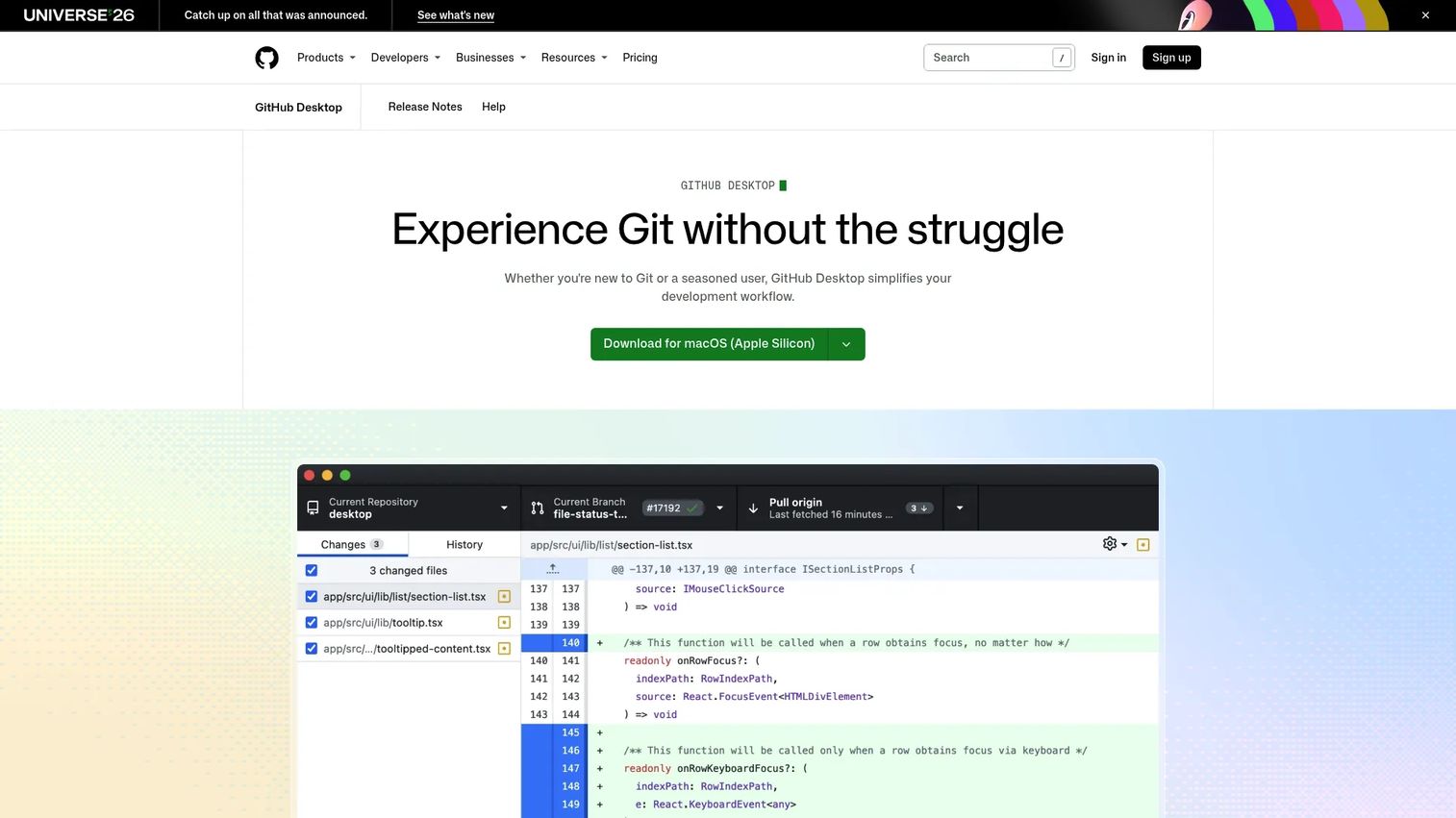
GitHub Desktop is a free, open-source Git client built around GitHub workflows. It covers the core daily loop: Clone repositories, create branches, stage changes, commit, and open pull requests. The interface strips away everything that isn't essential, which makes it one of the fastest paths from installation to your first commit.
Best for: Newer Git users, open-source contributors, and GitHub-first teams who want a clean visual layer without configuration overhead.
Key features
- Visual staged and unstaged change review
- Drag-and-drop cherry-picking and commit reordering
- Stash uncommitted changes before switching branches
- Branch creation, publishing, and pull request handoff
- GitHub and GitHub Enterprise authentication
Why choose GitHub Desktop: The low barrier to entry makes it ideal for teams onboarding non-technical contributors or developers learning Git. Advanced users who need interactive rebase, deep conflict tooling, or multi-hosting support will reach its limits quickly and may want to compare it with other git desktop app options.
GitHub Desktop pricing: Free. No paid tiers exist.
2. GitKraken Desktop
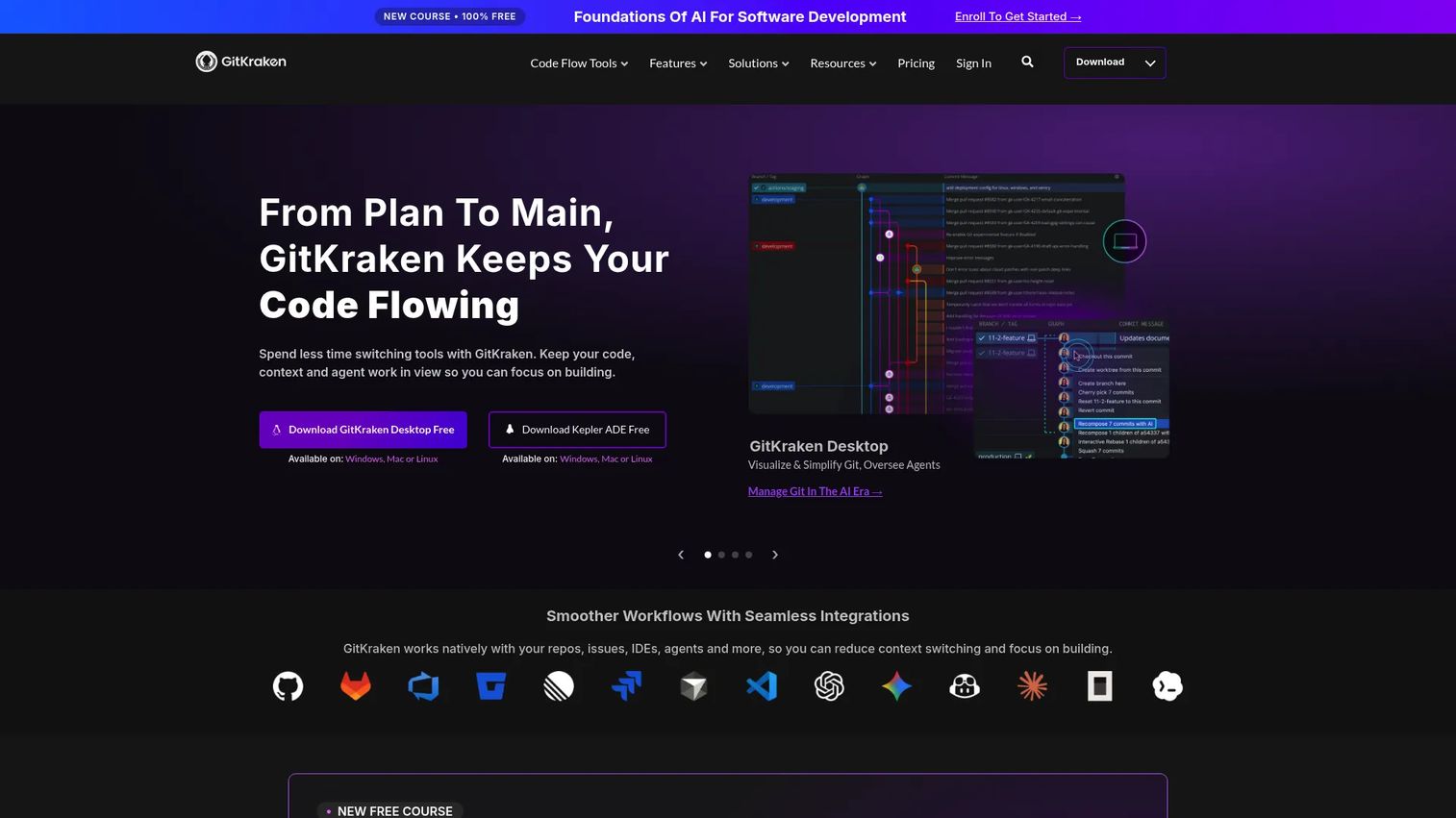
GitKraken Desktop is a cross-platform visual Git client for Windows, macOS, and Linux. Its commit graph gives teams a clear picture of branch state before merging or reviewing. Beyond the visual layer, GitKraken Desktop includes diff tools, file blame, integrated merge conflict resolution, and connections to GitHub, GitLab, Bitbucket, and Azure DevOps.
Best for: Developers and teams who want a visual Git workflow with strong repository navigation, integrations, and AI assistance.
Key features
- Visual commit graph with branch history
- Diff view with file blame and direct editing
- Merge conflict tooling inside the client
- Hosting provider integrations (GitHub, GitLab, Bitbucket, Azure DevOps)
- AI-assisted workflows and coding-agent session support
Why choose GitKraken Desktop: It fits well when your team needs to understand branch state quickly across multiple contributors. SEs preparing technical evaluations benefit from the visual diff and blame tools when inspecting repository changes before a customer call.
GitKraken Desktop pricing: The Community plan is free and covers local repositories and public remotes. Pro, Advanced, and Business plans add private repositories, self-hosted integrations, and enterprise security controls; pricing for those tiers is available on request from the vendor.
G2 rating: 4.5/5
3. Tower
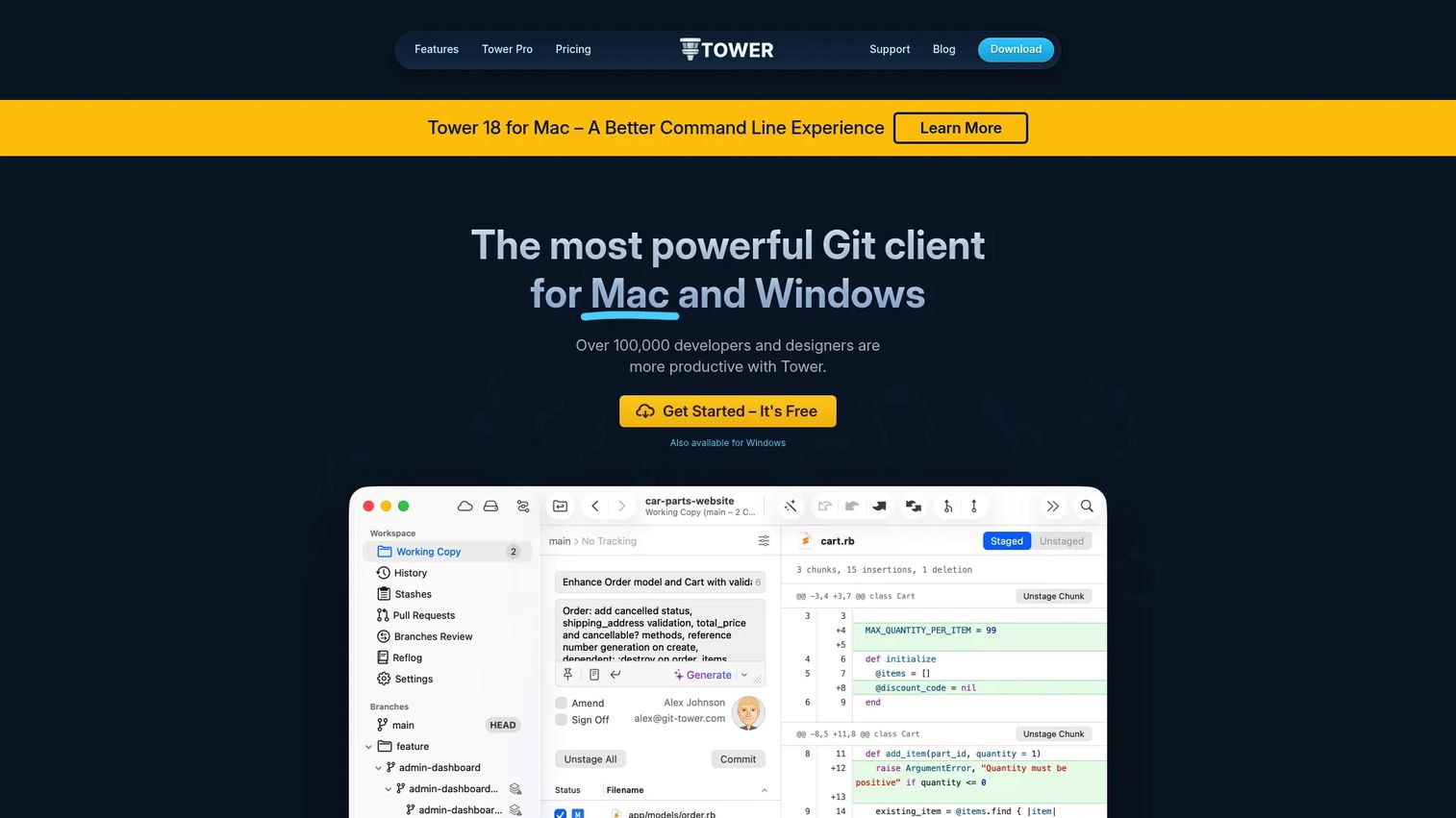
Tower is a premium native Git client for macOS and Windows. It covers the full range of daily Git work: Staging, diffs, conflict resolution, interactive rebase, cherry-picking, Git LFS, worktrees, and submodules. The Pro tier adds stacked branches, Graphite workflow support, and automatic branch management, which makes it one of the more capable commercial options on the market.
Best for: Developers who want a polished native desktop Git client with advanced controls and don't want to live entirely in the terminal.
Key features
- Native Mac and Windows applications
- Interactive rebase with visual commit editing
- Advanced staging with partial file staging
- Undo and recovery workflows for risky operations
- AI-assisted commit messages and descriptions
Why choose Tower: Tower earns its place for experienced developers who want a commercial-grade interface with a broad feature set, long-term update support, and fast native performance. Students and educators can apply for a free license.
Tower pricing: Plans start at $69 per user per year (Basic), $129 per user per year (Pro), and $149 per user per year (Enterprise). A 30-day free trial with Pro features is available.
4. Sourcetree
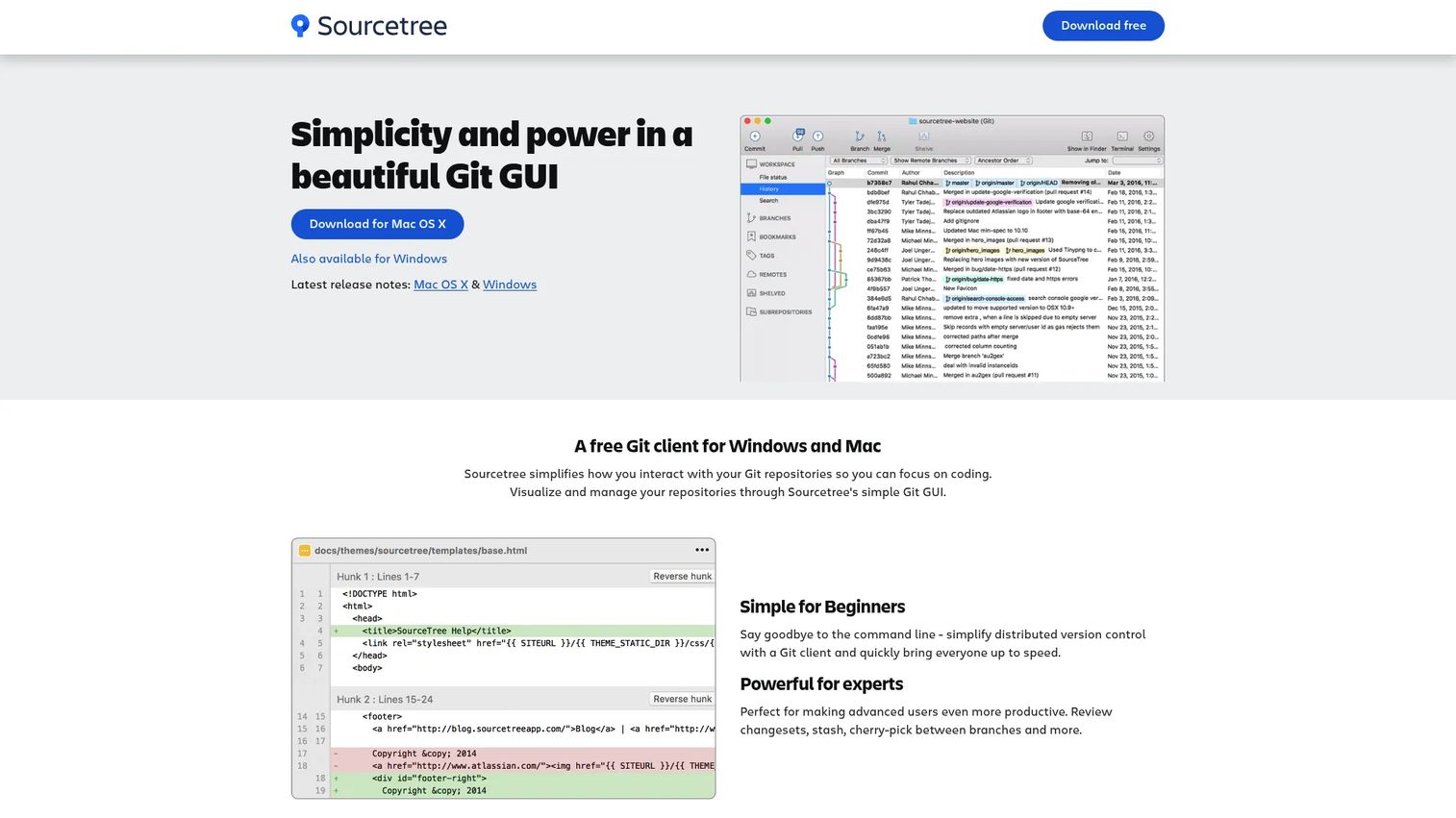
Sourcetree is a free Git and Mercurial desktop GUI for Windows and Mac, built by Atlassian. It handles visual branch management, commit history, Git LFS, Git-flow, interactive rebase, and submodules. For teams already running Jira, Confluence, or Bitbucket, Sourcetree integrates naturally into that stack.
Best for: Teams using Atlassian tools and developers who want a full-featured free GUI for Git or Mercurial repositories.
Key features
- Free Git and Mercurial repository management
- Visual branch and commit history browser
- Git LFS and Git-flow support
- Interactive rebase
- Local commit search and remote cloning
Why choose Sourcetree: The zero-cost entry makes it a practical starting point for teams inside the Atlassian ecosystem. Teams wanting a more modern UI, deeper paid support, or cross-platform Linux support will want to compare it with commercial alternatives.
Sourcetree pricing: Free for Mac and Windows, including an enterprise Windows download.
G2 rating: 4.3/5
5. SmartGit

SmartGit is a cross-platform graphical Git client for Windows, macOS, and Linux, with optional SVN and Mercurial support. It covers branching, merging, rebasing, cherry-picking, Git Flow, three-pane conflict resolution, pull request integrations, and Git LFS. Free licenses are available for hobby, educational, and open-source use.
Best for: Advanced users who want deep cross-platform Git control and optional multi-VCS support in a single interface.
Key features
- Cross-platform desktop support (Windows, macOS, Linux)
- Advanced branch management and Git Flow workflows
- Three-pane conflict resolver
- Pull request integrations with GitHub, GitLab, Bitbucket, and Azure DevOps
- Git LFS and optional SVN and Mercurial support
Why choose SmartGit: SmartGit is the right pick when a team needs depth over simplicity. Its cross-platform consistency and multi-VCS support fit development environments that mix Git with legacy SVN repositories.
SmartGit pricing: Free for hobby, educational, and open-source use. Commercial subscriptions start at $5 per user per month. Perpetual licensing is also available.
6. Fork
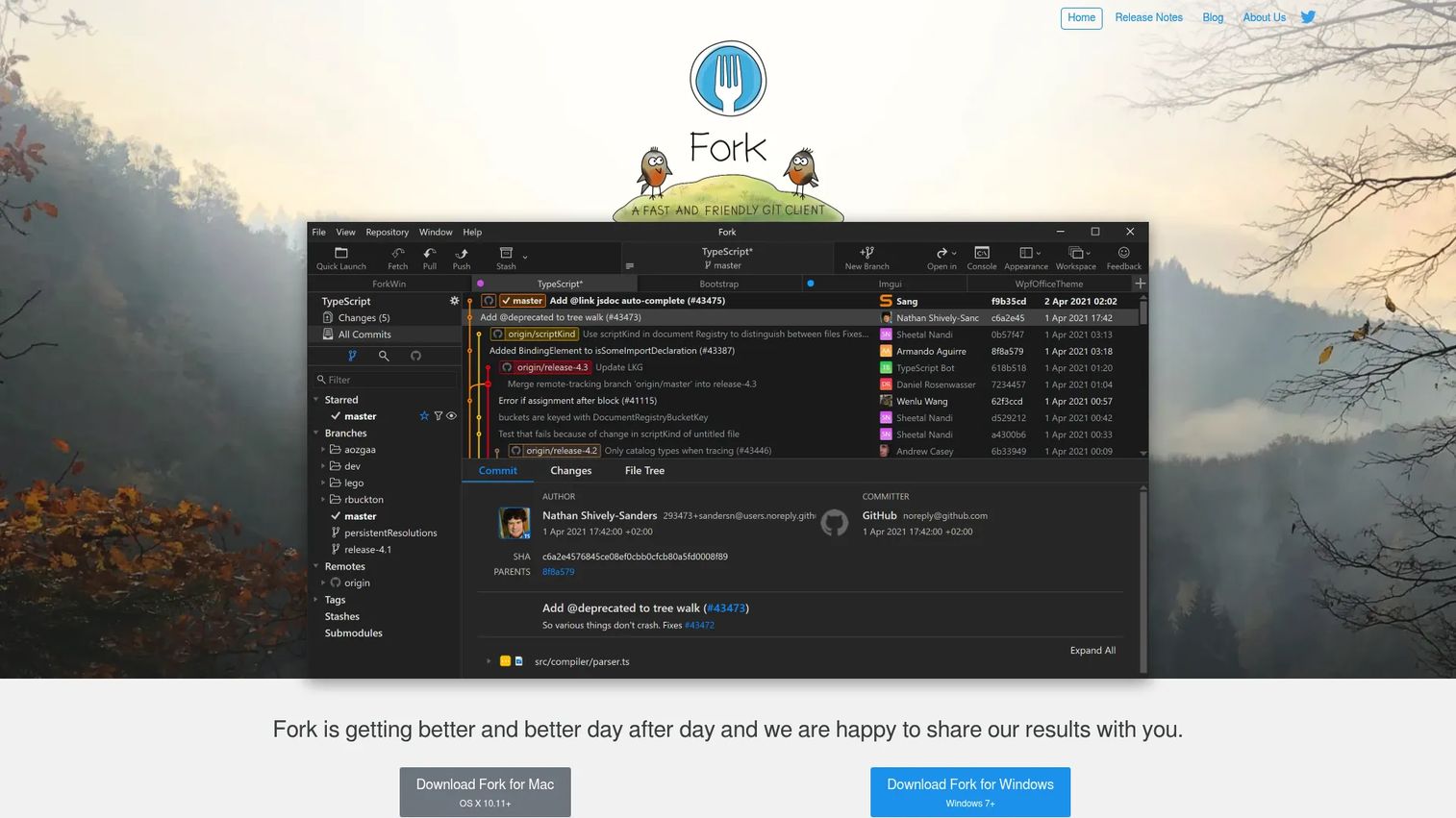
Fork is a fast native Git client for Mac and Windows. It focuses on the operations developers run most often: Viewing diffs, navigating commit history, running interactive rebases, and resolving merge conflicts. The interface stays out of the way, which suits developers who value responsiveness over feature breadth.
Best for: Developers who want a fast, focused native git desktop app without subscription costs.
Key features
- Visual interactive rebase
- Merge conflict resolver built into the client
- Advanced diff viewer with image diffs
- File and directory history with blame
- GitHub notification integration
Why choose Fork: Fork works well for solo developers and small teams where speed and clear diffs matter more than enterprise integrations. A free evaluation is available before purchase.
Fork pricing: $59.99 as a one-time purchase, covering personal and commercial use on up to three machines.
7. Sublime Merge
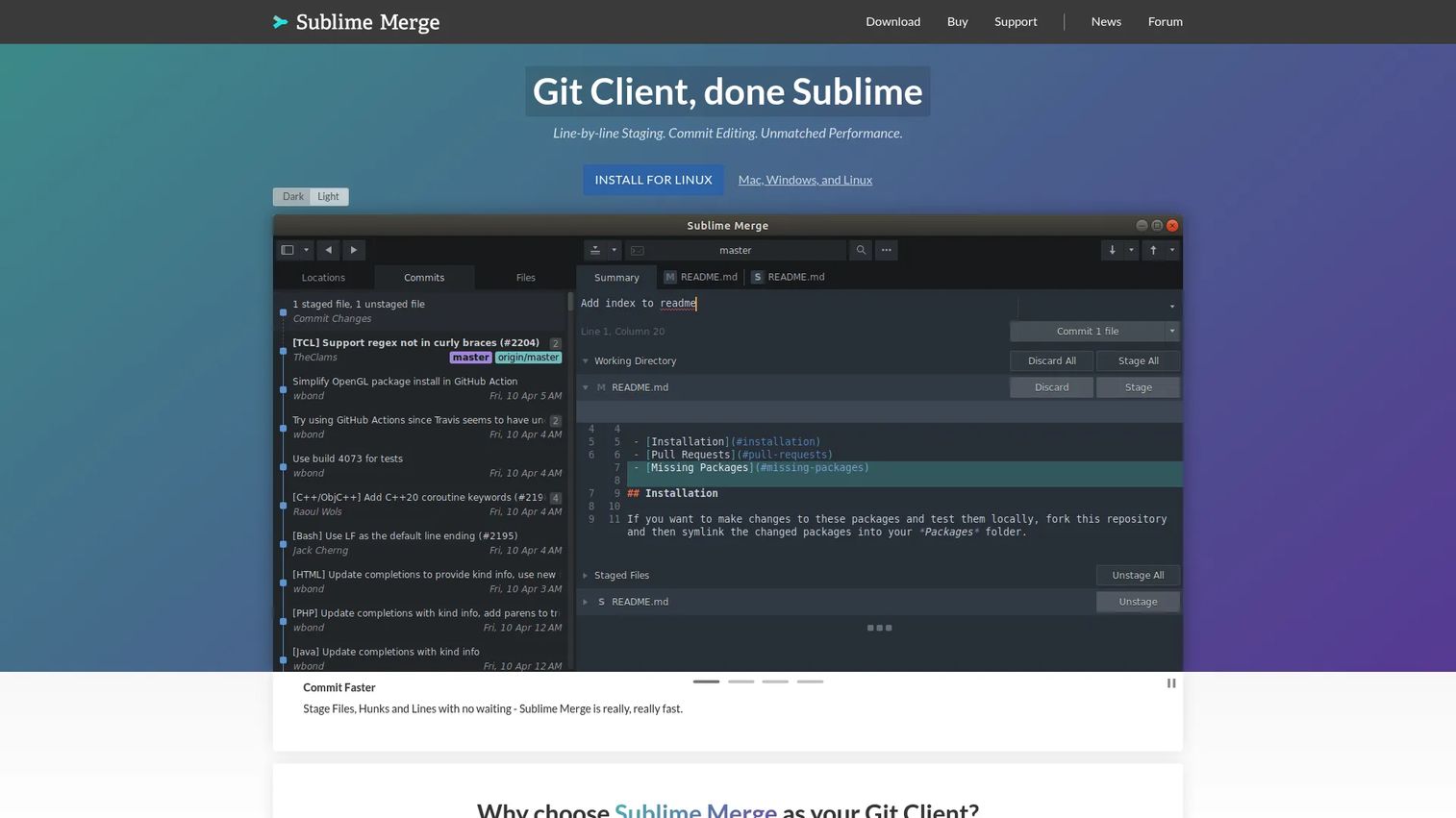
Sublime Merge is a cross-platform Git client from the makers of Sublime Text. It emphasizes raw performance and diff precision. Repository search runs across commit messages, authors, file paths, and content. Diffs are syntax-highlighted at the character level. The command palette gives keyboard-first developers a familiar control surface.
Best for: Developers who value speed, precise diffs, and keyboard-driven workflows on large repositories.
Key features
- Line-by-line and hunk staging
- Syntax-highlighted diffs with character-level highlighting
- Repository search by message, author, path, and content
- Built-in merge conflict resolution
- Git Flow integration and submodule management
Why choose Sublime Merge: Performance on large codebases is where Sublime Merge stands out most clearly. Developers who already use Sublime Text will find the interaction model familiar from day one.
Sublime Merge pricing: Free evaluation available. Personal licenses cost $99 as a one-time purchase (includes three years of updates). Business licenses run $75 per user per year.
G2 rating: 4.7/5
8. GitButler
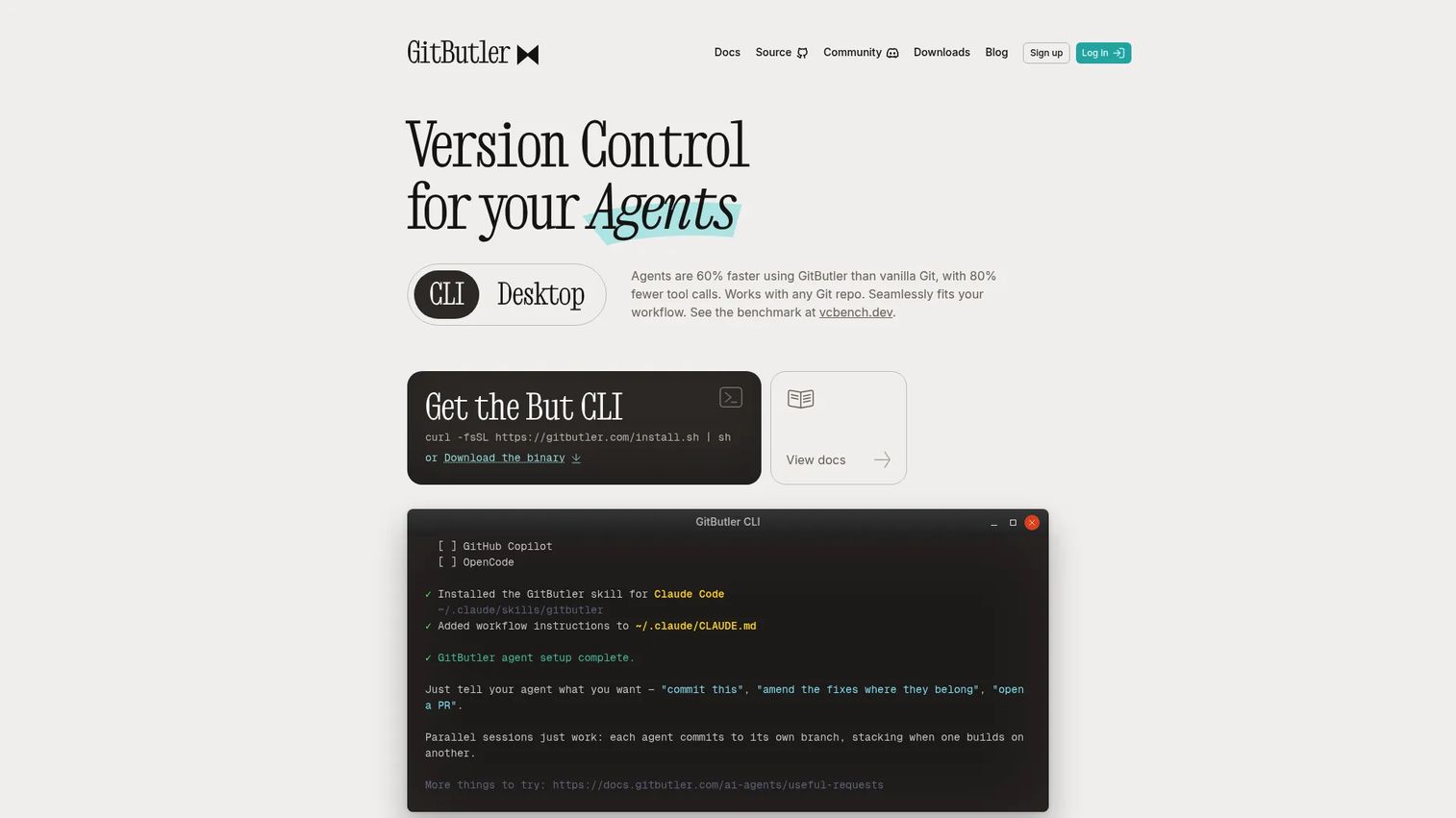
GitButler is a newer Git client designed around modern parallel branch workflows. Its virtual branches let you work on multiple changes in the same working directory without constantly switching branches. Stacked branches help organize dependent changes into a reviewable series. The client also supports unlimited undo and redo, history editing, and GitHub pull request integration.
Best for: Developers experimenting with parallel or stacked branch workflows, and teams supporting coding-agent sessions.
Key features
- Virtual branches for parallel work in one workspace
- Stacked branches with reviewable series
- Unlimited undo and redo
- History editing and rebase support
- GitHub pull request integration
Why choose GitButler: GitButler is worth evaluating when your team regularly juggles several in-progress changes and wants a structured way to organize them without creating a branch-per-feature sprawl. Users should already understand Git concepts before switching.
GitButler pricing: The client is free. A Supporter plan costs $5 per month.
9. Magit
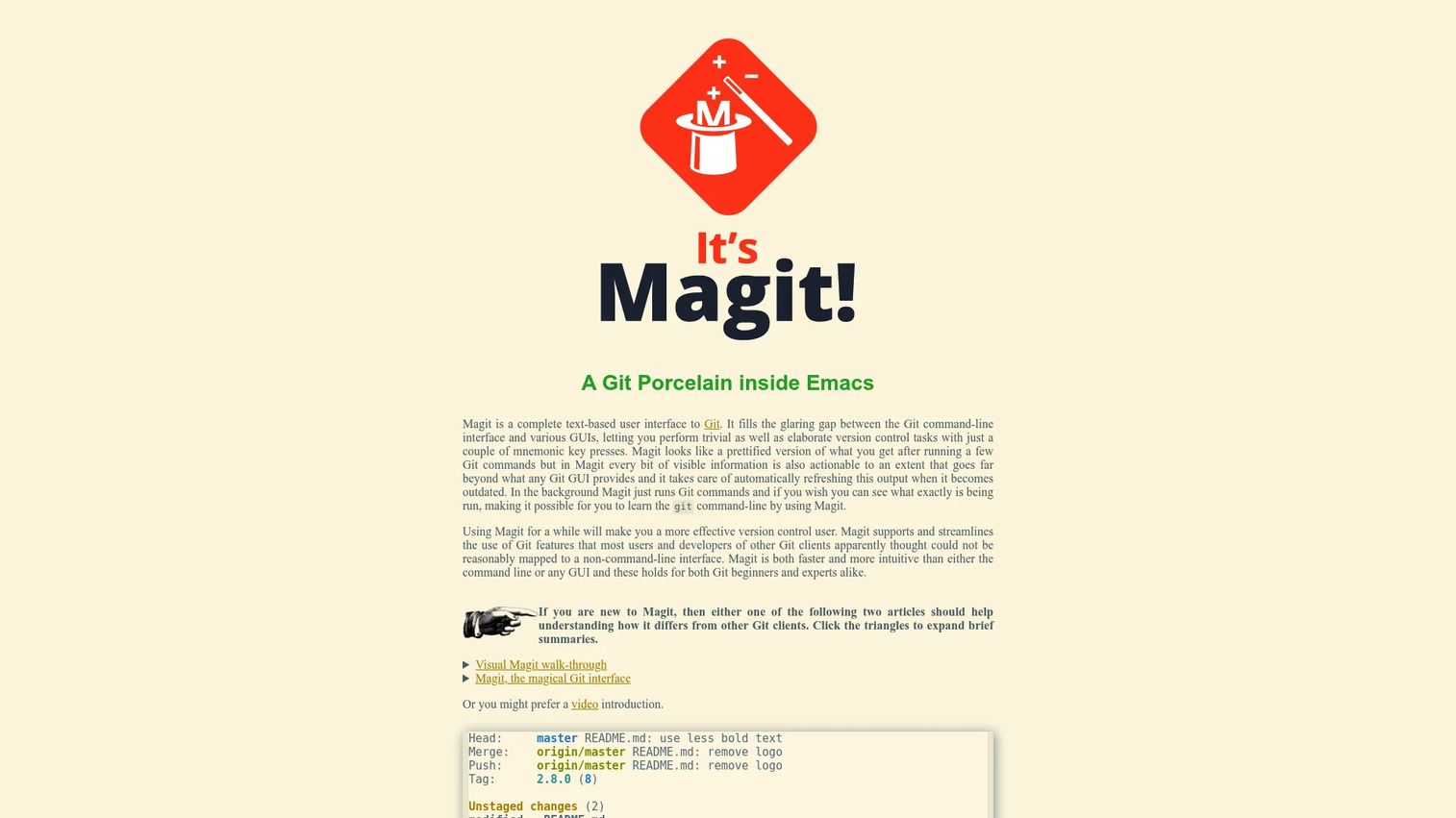
Magit is a keyboard-first Git interface that runs entirely inside Emacs. It is not a traditional desktop GUI, but it is widely regarded as one of the most capable and efficient Git interfaces available for developers who live inside the editor. Every Git operation, from staging individual hunks to rebasing interactively, is accessible through keybindings without leaving the editing environment.
Best for: Emacs users who want deep, fast Git control without opening a separate application.
Key features
- Emacs-native Git interface with keyboard-first navigation
- Staging individual files, hunks, or lines
- Branching, merging, rebasing, and cherry-picking
- Commit history browsing and diff viewing
- Stash, revert, fetch, pull, and push workflows
Why choose Magit: For Emacs users, Magit reduces context switching to zero. Non-Emacs users should choose a different client, as Magit requires both Emacs familiarity and comfort with its keybinding model.
Magit pricing: Free and open source. The official site accepts donations but charges nothing for the software.
10. TortoiseGit
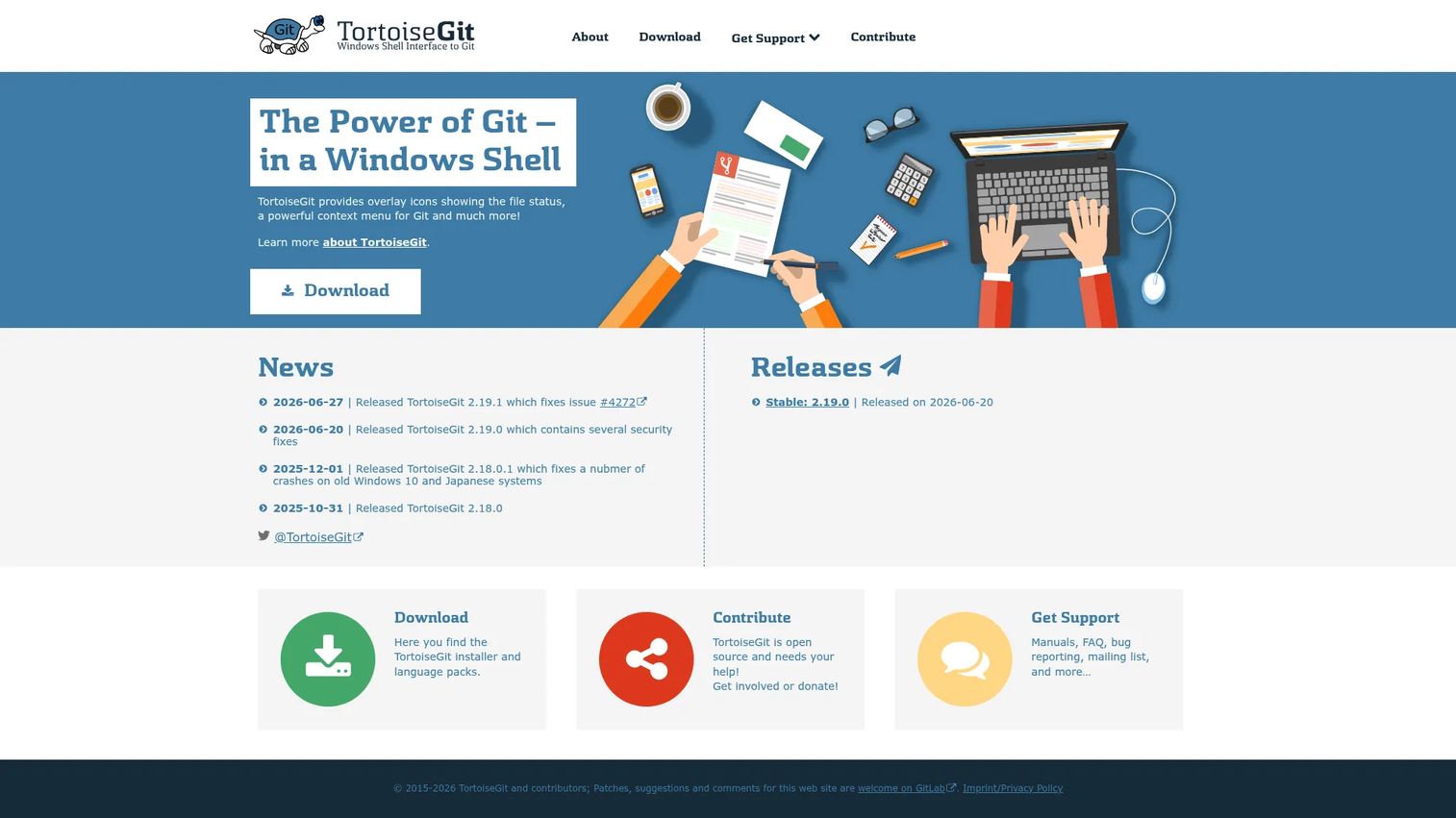
TortoiseGit is a free, open-source Windows Shell extension that integrates Git directly into File Explorer. Right-click any file or folder and you get Git actions in the context menu. File status overlays show at a glance which files are committed, modified, or untracked. It supports commit dialogs, log views, diff tools, merge and rebase workflows, blame, and patch management.
Best for: Windows-first developers who want Git commands accessible from File Explorer without opening a separate application.
Key features
- Windows Explorer shell integration with context-menu Git actions
- File-status icon overlays in Explorer
- Commit, log, diff, branch, merge, and rebase dialogs
- Conflict resolution and blame tools
- Issue-tracking integration support
Why choose TortoiseGit: TortoiseGit is the most direct option for Windows users who prefer staying inside the operating system shell. Developers who want a visual commit graph or cross-platform support will find it limited compared to full GUI clients.
TortoiseGit pricing: Free and open source under the GNU General Public License.
11. Git Extensions
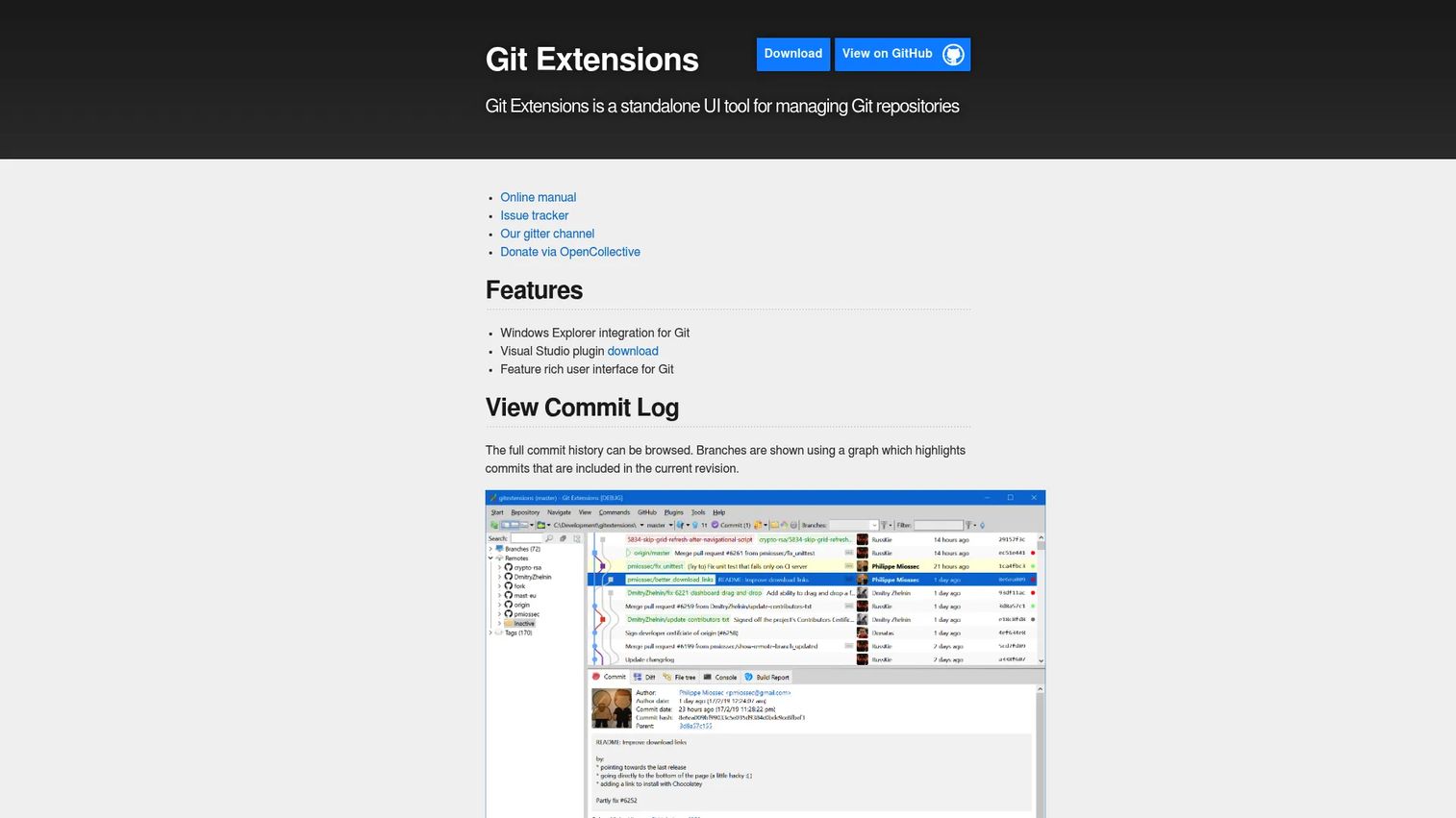
Git Extensions is a mature open-source Git GUI with a long history on Windows. It provides a repository browser, commit history viewer, and Visual Studio plugin for teams that want Git management inside their IDE. Plugin support extends the core feature set, and the project is actively maintained as a community-led open-source effort.
Best for: Windows developers who want an open-source Git GUI with broad repository controls and optional Visual Studio integration.
Key features
- Repository browser with commit history view
- Visual Studio plugin for in-IDE Git workflows
- Windows Explorer integration for Git
- Plugin support to extend functionality
- Open-source project with active maintenance
Why choose Git Extensions: The Visual Studio integration sets it apart for .NET and Windows development teams. The interface reflects its long development history and may feel more utility-focused than newer commercial clients, which is a reasonable trade for no licensing cost.
Git Extensions pricing: Free and open source.
12. LazyGit
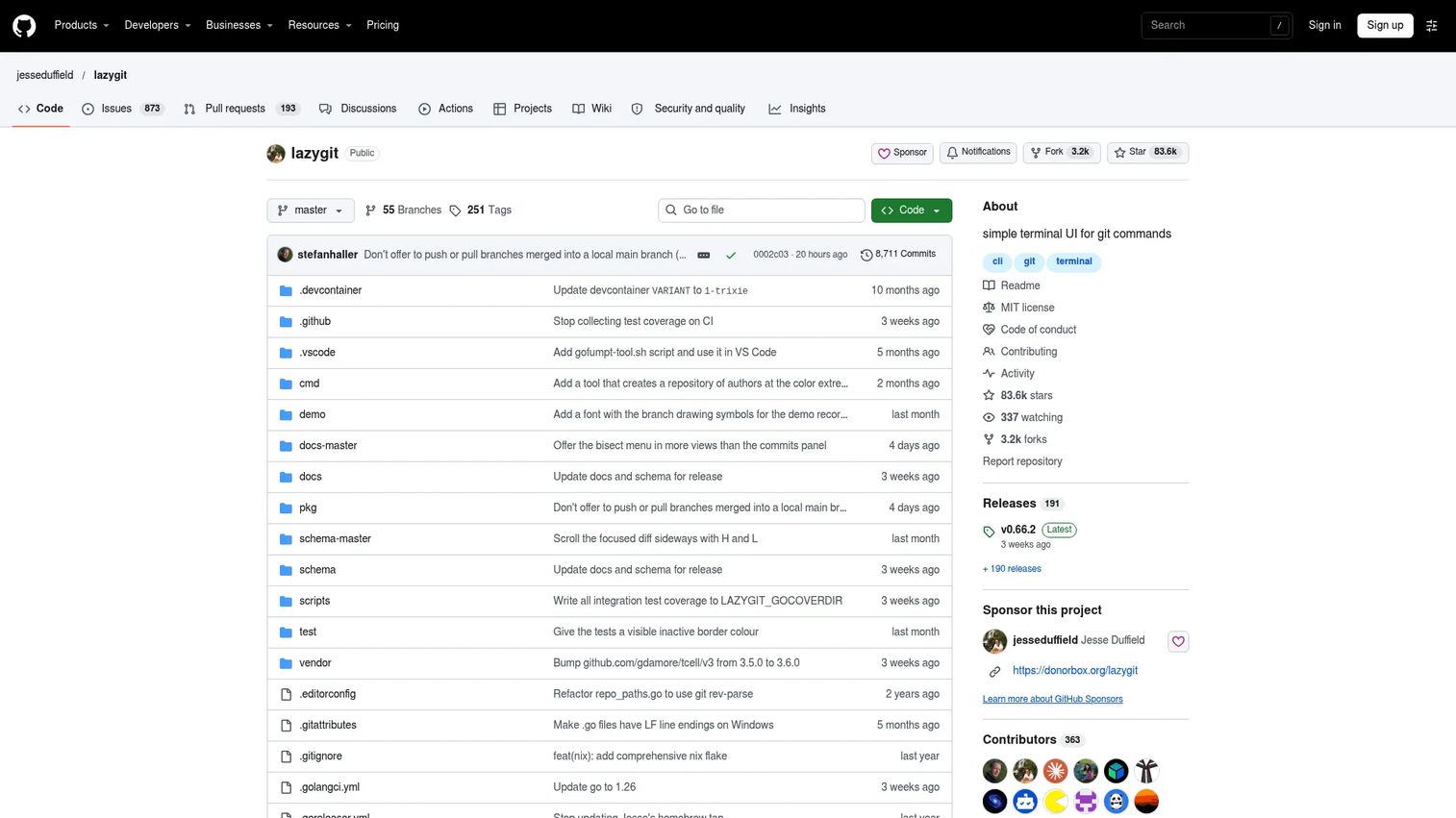
LazyGit is a terminal UI for Git that gives keyboard-driven developers a structured visual layer without leaving the shell. It covers staging individual lines or hunks, managing branches, viewing logs, running interactive rebases, cherry-picking, and bisect workflows, all navigable by keyboard from inside the terminal.
Best for: Terminal-first developers who want faster, more structured Git interactions without switching to a desktop application.
Key features
- Terminal-based interface with keyboard navigation
- Stage individual hunks or lines
- Branch and stash management
- Interactive rebase and cherry-pick support
- Open-source project under the MIT license
Why choose LazyGit: LazyGit accelerates the terminal workflow without replacing it. Developers who prefer a traditional desktop GUI with mouse support and visual commit graphs should choose a different client on this list.
LazyGit pricing: Free and open source.
Considerations when choosing git clients
Platform support
Check whether the client runs natively on your operating system before comparing features. TortoiseGit is Windows-only. Magit requires Emacs. Tower supports Mac and Windows but not Linux. GitKraken Desktop and SmartGit cover all three platforms. Choosing a cross-platform client matters if your team mixes operating systems.
Workflow fit
The best git client is the one that reduces mistakes in the workflow you already run. Beginners need clear staging and commit flows. Terminal-first developers want speed and keyboard control. Emacs users want Magit. Teams with code review cycles benefit from pull request integration and visual commit history. Match the tool to the actual workflow, not the longest feature list.
Visual history and diff quality
Commit graphs, file history, blame, and syntax-highlighted diffs reduce guesswork before merges and releases. For SEs and presales teams managing demo repositories across multiple accounts, a clear visual history prevents branch confusion that breaks POC environments at the wrong moment.
Conflict resolution and recovery
Look for built-in merge conflict tools, undo options, safe reset flows, and clear rebase previews. The best git GUI clients make risky operations visible before they execute. Tower's undo workflow and GitButler's unlimited undo are examples worth evaluating if your team regularly runs rebases or force pushes.
Integrations and licensing
Verify that your hosting provider is supported before committing to a tool. GitHub, GitLab, Bitbucket, and Azure DevOps coverage varies by client. Enterprise teams should also confirm authentication mechanisms, security review requirements, and deployment constraints. Free and open-source tools carry no licensing cost but may require more self-configuration.
Conclusion
GitHub Desktop remains the fastest free starting point for GitHub-first teams. GitKraken Desktop and Tower cover the most ground for teams that want a visual Git client with strong repository navigation and advanced controls. Sourcetree stays the right call for Atlassian-heavy organizations at no cost. Fork and Sublime Merge serve developers who prioritize responsiveness and precise diffs. GitButler is worth watching if your team is moving toward stacked or parallel branch workflows. Magit and LazyGit serve keyboard-first users who want Git depth without leaving their preferred environment. TortoiseGit and Git Extensions remain practical for Windows-focused teams that value open-source licensing and Windows Explorer integration.
Choose based on the workflow your team runs every day, not the client with the longest capability list. Test the top two or three options on a real repository before deciding.
For technical GTM teams building presales and sales enablement software stacks alongside developer tooling, the same workflow-first logic applies across every category. Picking tools that reduce repetitive work and integrate with your existing stack is what creates repeatable demo and evaluation outcomes.
Start your journey with Guideflow today!
If your team sells technical software and spends time preparing demo environments, Guideflow lets you create interactive product demos that show complex workflows without scheduling another live call. Build once, share anywhere, and track who engaged.
FAQs
A Git client is software that helps developers interact with Git repositories. It can be a desktop GUI application, a terminal user interface, an editor extension, or a platform-integrated app. All of them provide a layer on top of raw Git commands to make repository state easier to read and manage.
GitHub Desktop is the simplest starting point for developers working with GitHub repositories. It covers the core loop of cloning, branching, staging, committing, and opening pull requests with minimal configuration. Learning basic Git concepts alongside any client will make the tool much more useful.
Tower, Fork, Sublime Merge, and GitKraken Desktop are all strong mac git client options. Tower and Fork are native applications with polished performance. Sublime Merge prioritizes diff quality and speed. GitKraken Desktop adds team integrations and an AI layer. The right choice depends on whether you need advanced controls, raw speed, or team collaboration features.
GitHub Desktop, Sourcetree, GitKraken Desktop, Fork, TortoiseGit, and Git Extensions all support Windows. TortoiseGit suits developers who want Git inside File Explorer without opening a separate app. Git Extensions adds Visual Studio integration for .NET teams. GitKraken Desktop and Fork provide the most complete visual GUI experience.
GitKraken Desktop, SmartGit, and Sublime Merge all support Linux. LazyGit and Magit run in the terminal and work across any platform that supports the shell or Emacs. Linux users often compare desktop GUI clients with terminal interfaces depending on their preference for keyboard-driven versus mouse-driven navigation.
GUI clients are better for visual history, staged diffs, conflict review, and understanding branch relationships at a glance. The command line stays essential for scripting, automation, and advanced operations that no GUI exposes. Most experienced developers use both: A visual client for daily navigation and the terminal for edge cases.
Yes. Professional developers use Git clients when visual history, conflict resolution, or multi-repository navigation is more efficient outside raw terminal commands. The client does not replace Git knowledge. Developers who understand what Git is doing under the hood get more value from any graphical interface.
Start with platform support, since a client that doesn't run on your operating system isn't useful. Then evaluate visual commit history quality, diff readability, conflict tooling, and hosting integrations. Check pricing against your team size. For presales and sales engineering teams, also consider how well the client handles branch switching and repository inspection during live customer evaluations. Test on a real repository before committing to any tool.