You cut a 12-second product clip from a demo recording. You want it in Monday's newsletter as a looping GIF. Simple ask. Then the workflow eats your afternoon: one tool won't accept your video format, another watermarks the export, a third produces a 40MB file that email clients choke on.
That gap between "I need one GIF" and "I have a usable GIF" is exactly where the right tool earns its place. And the demand is real. According to InVideo AI (2026), 56% of email marketers used animated GIFs in their marketing emails, so this is not a niche creative flourish anymore. It is a standard content format that shows up in nurture flows, product update emails, social ads, and landing pages.
The category is growing to match. Cognitive Market Research (2024) projects the GIF converters market to grow at a 6.15% CAGR through 2033, with commercial users posting the fastest growth and cloud-based tools taking a majority share. For a marketer, that means more browser-first options that skip installs entirely, plus the desktop apps that still win on offline control and precision editing.
If your team ships visual content across email, social, and campaign pages, you already know the friction. The question is not whether you need a GIF editor. It is which one fits your workflow without adding another tab you resent. This guide sorts eight tools by exactly that: how fast they get you from raw file to shareable GIF. For teams also weighing motion and video assets, our roundups of the best AI video generators and AI app builder software cover adjacent creative stacks.
What's inside
This guide is for digital marketers, growth teams, and content creators who need to produce animated GIFs fast without a designer in the loop. We selected tools based on four criteria: speed from raw file to export, editing depth (crop, resize, trim, text, speed control), video-to-GIF support, and whether a free tier or trial exists. We cover browser-based tools, downloadable Windows software, and screen-capture utilities so you can match the format to your actual workflow. Every pricing and rating figure reflects verified vendor and G2 data at the time of writing.
TL;DR
- Best free browser tool for quick edits: Ezgif handles conversion, resize, crop, and optimization with no signup.
- Best for branded marketing content: Adobe Express and Canva both build GIFs inside a full design workflow with templates.
- Best for screen capture to GIF: ScreenToGif turns walkthroughs and product clips into clean GIFs on Windows.
- Best for social-first creation: GIPHY Create makes captioned, sticker-ready GIFs built for sharing.
- Best for team collaboration: Kapwing pairs GIF creation with a shared workspace and AI editing.
- Best one-time purchase desktop app: Easy GIF Animator gives Windows users offline control for a flat license fee.
What is GIF maker software?
GIF maker software is a tool that creates or edits animated GIFs from video clips, image sequences, or screen recordings, then exports a looping file ready to share. It combines a GIF creator (turning source media into frames) with a GIF editor (adjusting timing, size, text, and quality).
Most tools in this category share a core set of capabilities. Here is what to expect:
- Video to GIF conversion: Upload an MP4 or other video and trim it down to the segment you want animated.
- Image-to-GIF assembly: Stack multiple images into a frame sequence with adjustable frame delay.
- Editing controls: Crop, resize, trim, reverse, and set loop behavior on the animation.
- Text and overlays: Add captions, stickers, filters, or branded elements on top of frames.
- Optimization: Compress the output so file size stays small enough for email and social platforms.
- Export options: Download as GIF, and often WebP, MP4, or other formats for wider compatibility.
The two big architectural splits are online versus desktop, and general design suite versus dedicated GIF utility. An online GIF maker runs in the browser with nothing to install, which suits fast one-off jobs. Desktop software gives you offline access and often finer frame-level control. A design suite like Canva or Adobe Express folds GIF creation into templates and brand kits, while a dedicated utility like Ezgif focuses purely on GIF mechanics.
For marketers, the practical distinction is workflow fit. If you already live in a design tool, making GIFs there saves a context switch. If you need one clean conversion with precise crop and resize, a focused GIF editor is faster.
When to use GIF maker software
Turn a video clip into a shareable GIF
You have a screen recording, a product demo, or a webinar highlight and want a short looping version for email or social. A tool with strong make-GIF-from-video support lets you trim to the exact moment, resize for the target platform, and compress so the file loads fast. This is the most common marketing use case and the one where trim and crop controls matter most.
Produce on-brand content at scale
When GIFs need to match brand colors, fonts, and templates, a design-suite GIF maker keeps everything consistent. You reuse a template, swap the clip or copy, and export. This suits teams running frequent campaigns where every asset has to look like it belongs to the same brand system.
Capture a walkthrough as an animated GIF
Product marketers and support teams often need to show a short in-product flow: three clicks, a hover, a result. A screen-capture GIF tool records the interaction and exports it as a lightweight loop for help docs, release notes, or social. For deeper product storytelling that goes beyond a short loop, teams often pair GIFs with interactive demos that let viewers experience the full flow at their own pace.
Comparison table
Here is a side-by-side view of all eight tools, sorted by relevance to marketers who need fast GIF production. Pricing and ratings reflect verified vendor and G2 data at the time of writing.
| # | Product | Best for | Key differentiator | Pricing | G2 rating |
|---|---|---|---|---|---|
| 1 | Adobe Express | Branded content creation | GIFs inside a full design and video workflow | Free; Premium US$9.99/mo | 4.5/5 |
| 2 | Ezgif | Free online GIF editing | Quick convert, resize, crop, optimize | Free | Not listed |
| 3 | GIF Maker | Windows app creation | Simple image-to-GIF on desktop | Microsoft Store listing | Not listed |
| 4 | Easy GIF Animator | Desktop GIF editing | Offline frame control on Windows | One-time from $29.95 | Not listed |
| 5 | ScreenToGif | Screen capture to GIF | Walkthroughs and product clips | Free | Not listed |
| 6 | GIPHY Create | Social-first GIFs | Captions, stickers, sharing | Free | Not listed |
| 7 | Canva | Design suite GIFs | Template-driven branded animation | Free; Business US$20/person/mo | 4.7/5 |
| 8 | Kapwing | Collaborative editing | Team GIF and video production | Free; Pro from $16/mo | 4.0/5 |
1. Adobe Express
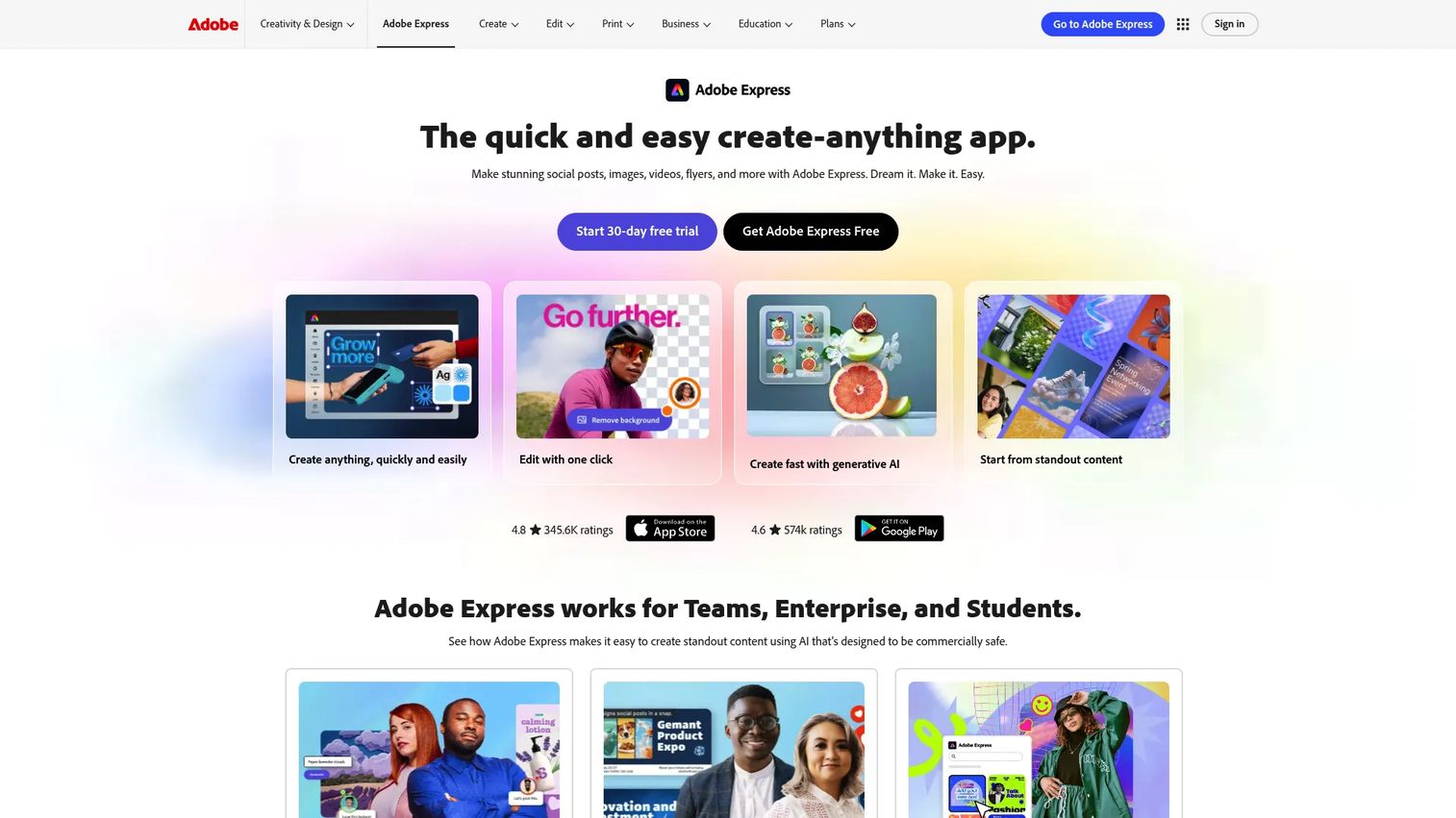
Adobe Express is Adobe's all-in-one web and mobile content creation tool for quick design, video, photo, and PDF editing. For GIF work, it sits inside a broader design environment, so you can build an animated asset with the same templates, fonts, and brand controls you use for social posts and ads. That makes it a natural fit for marketers who want every output to look on-brand without jumping between apps.
The free online GIF maker workflow is straightforward: upload your source, customize with templates or your own assets, and download. Because Adobe Express folds GIF creation into a full creative suite, it removes the context switch of exporting from a video tool and reformatting elsewhere.
Best for: Teams and individuals who need fast social, marketing, and branded content creation in one place.
Key strengths
- Template-led creation: Premium static and video templates give you a branded starting point instead of a blank canvas.
- Generative AI credits: Text-to-image and related AI tools help you generate assets and variations quickly.
- One-click utilities: Resize, background removal, collaboration, and content scheduling live in the same workspace.
Why choose Adobe Express: If your team already produces social and campaign content and wants GIFs to match that visual system, Express keeps everything under one roof. It is less of a dedicated GIF utility and more of a content engine that happens to export animated files, which suits marketers over frame-by-frame purists.
Adobe Express pricing: A free plan is available with basic content creation tools. Adobe Express Premium runs US$9.99 per month and adds premium templates, more generative credits, editing tools, one-click resize, content scheduling, 100GB storage, and the full Adobe Fonts collection.
Adobe Express holds a 4.5/5 rating on G2.
2. Ezgif
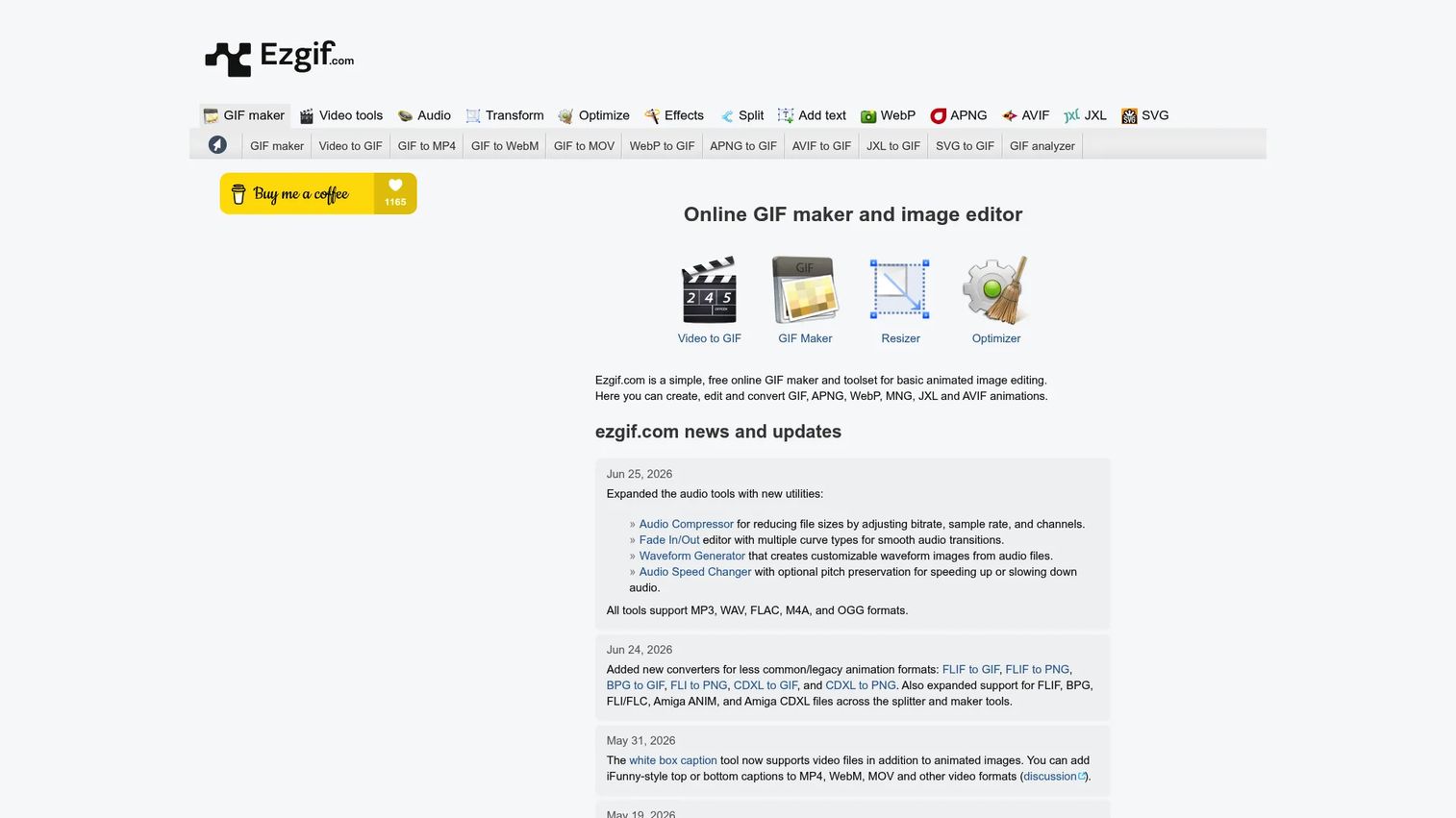
Ezgif is a free online GIF and animated image editor and converter that has become a go-to utility for anyone who needs a quick edit without a signup. It is a utility hub: each function (create, resize, crop, optimize, reverse, convert) is its own focused tool. Power users like it because it does exactly one job per screen and does it fast.
If you need to make a GIF from video, crop a GIF to a tighter frame, resize it for a platform, or shrink the file so it loads on email, Ezgif handles all of it in the browser. There is no account, no watermark on the core tools, and no learning curve beyond uploading a file.
Best for: Users who need a simple free browser-based tool for GIF creation, editing, and conversion.
Key strengths
- GIF maker and editor: Build GIFs from images or video and edit frames directly in the browser.
- Video and GIF conversion: Convert video to GIF and GIF back to video without extra software.
- Broad format support: Handles animated WebP, APNG, AVIF, JXL, and SVG beyond standard GIF.
Here are the most-used tools inside Ezgif at a glance:
| Tool | What it does |
|---|---|
| GIF Maker | Combine images or video into an animated GIF |
| Video to GIF | Convert clips like MP4 into a looping GIF |
| Resize | Scale a GIF to specific dimensions |
| Crop | Trim the frame to a tighter area |
| Optimize | Compress file size for email and social |
| Add Text | Overlay captions on the animation |
Why choose Ezgif: When speed and zero cost matter more than templates or brand kits, Ezgif is hard to beat. It suits marketers who want a precise, single-purpose edit (resize this, compress that, add text here) without opening a full design suite or paying for features they will not use.
Ezgif pricing: Ezgif is completely free. The official site shows no paid plans or public price, and there is no free-tier restriction to work around for standard GIF creation and editing.
3. GIF Maker
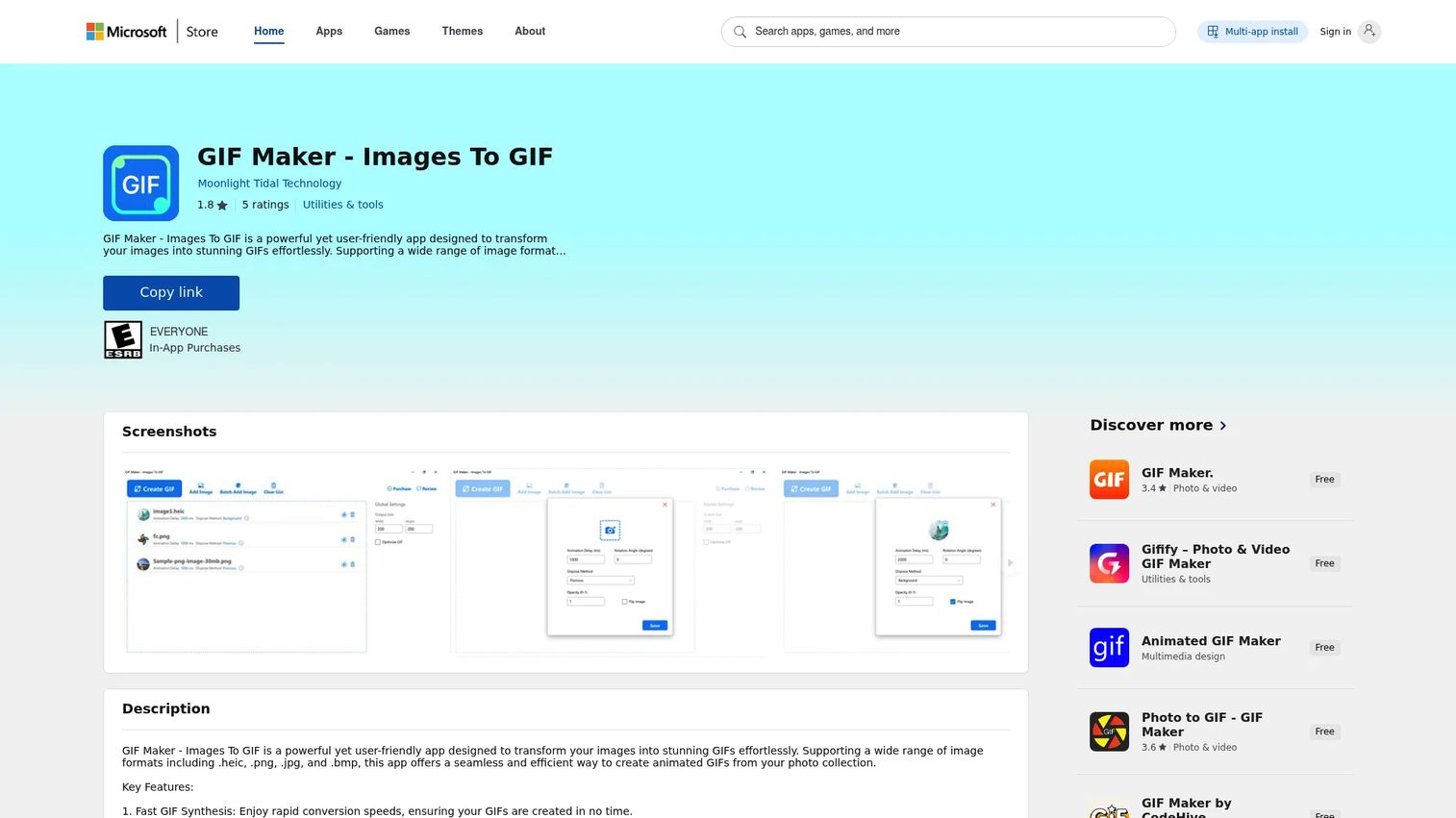
GIF Maker is a Microsoft Store app for creating GIFs from images on Windows. It is a lightweight, installed option for people who prefer a native desktop app over a browser tab. The appeal is simplicity: open the app, add your images, and export an animated GIF without an account or a web upload.
For marketers who work primarily on a Windows machine and want a GIF maker for Windows that lives in the Start menu, this fills a narrow but real need. It handles the core image-to-GIF assembly without asking you to learn a broader creative suite.
Best for: Windows users who want a simple GIF-creation app they can install and open instantly.
Key strengths
- Native Windows app: Runs as an installed desktop application rather than a browser tool.
- Image-to-GIF assembly: Combine images into an animated GIF with basic controls.
- Offline creation: Build GIFs without uploading source files to a web service.
Why choose GIF Maker: Pick this when you want a no-frills, installed utility on Windows and your inputs are mostly images or screenshots. It trades the format breadth of a browser hub for the simplicity of a single-purpose app you launch locally.
GIF Maker pricing: The app is distributed through the Microsoft Store. Check the current store listing for availability and any in-app purchase details before installing, since Store apps can change terms over time.
4. Easy GIF Animator
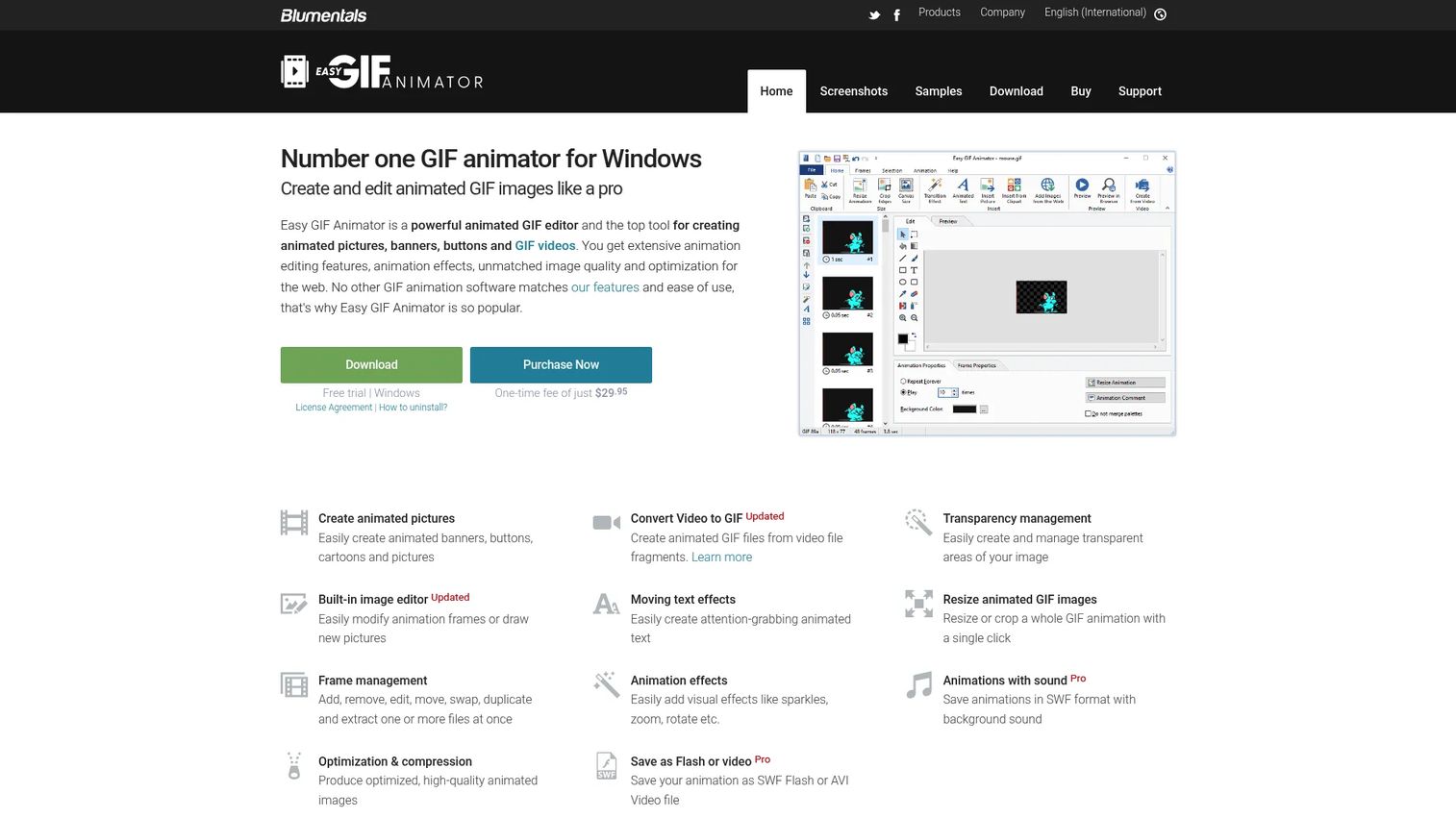
Easy GIF Animator is Windows software for creating and editing animated GIFs, banners, buttons, and GIF videos. It is a downloadable desktop editor for people who want offline control and a one-time purchase instead of a subscription. If you make GIFs regularly and prefer software that lives on your machine, this is built for that workflow.
The desktop model gives you frame-by-frame management, a built-in image editor, and GIF optimization without depending on an internet connection or upload limits. That precision appeals to users who treat GIF creation as a recurring task rather than an occasional one.
Best for: Individuals or teams creating animated GIFs and simple web graphics on Windows.
Key strengths
- Built-in image editor: Drawing tools and editing controls are included directly in the app.
- Video to GIF conversion: Turn video clips into animated GIFs on the desktop.
- Frame management and optimization: Fine control over frames plus compression to keep file size down.
Why choose Easy GIF Animator: This suits marketers and creators who want a permanent, offline tool and prefer paying once rather than monthly. The frame-level control and built-in editor make it a fit for people who want to fine-tune animations rather than rely on templates.
Easy GIF Animator pricing: Licenses are one-time purchases. The Personal license is $29.95 and the Pro license is $59.95. Volume licensing lowers the per-seat cost: $39.50 per seat for 2 to 4 seats, $37.00 per seat for 5 to 9 seats, and $34.00 per seat for 10 or more. Pricing on the main homepage displays as €29.95 depending on region.
5. ScreenToGif
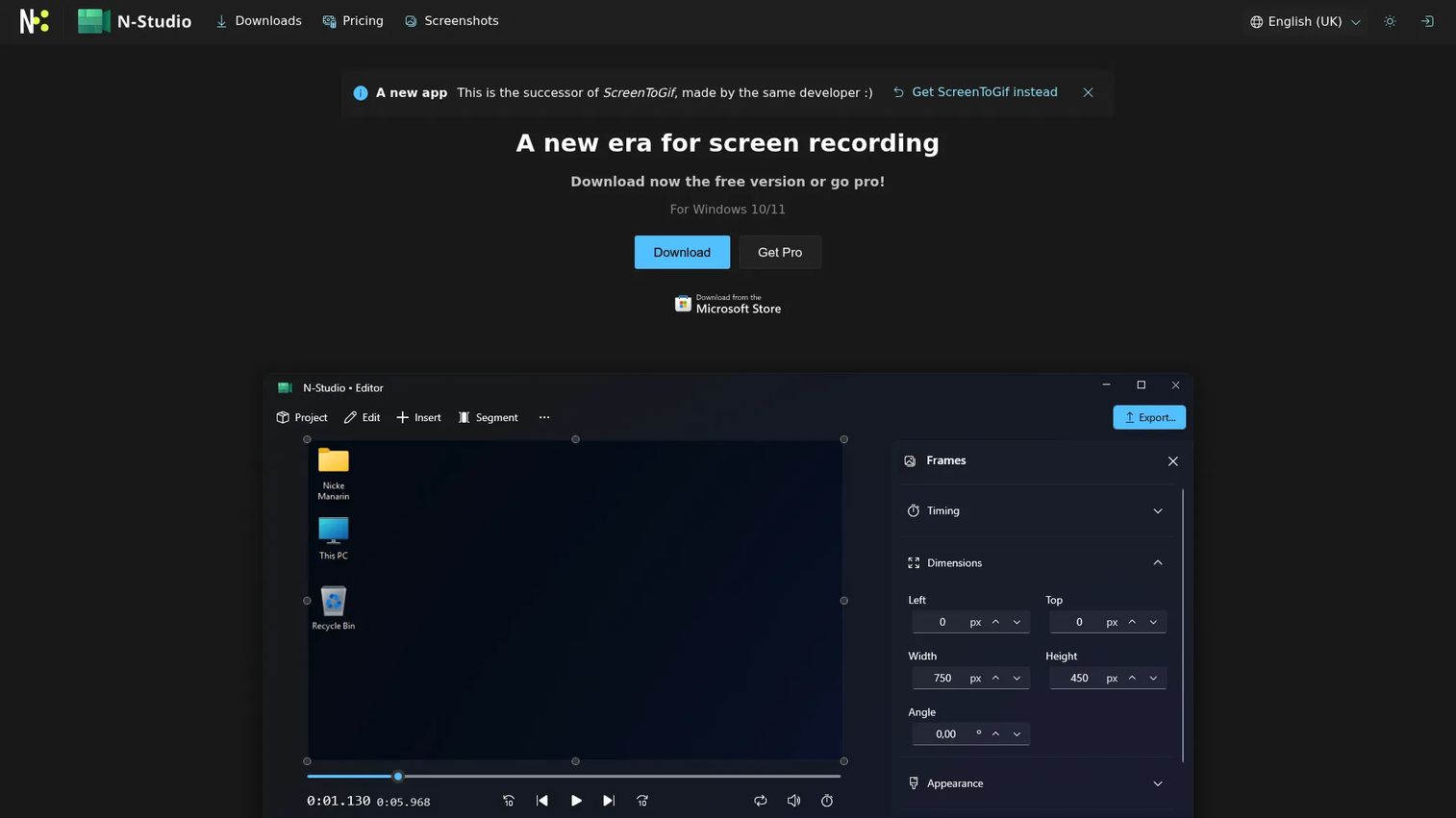
ScreenToGif is a free screen recorder and GIF editor for Windows. This is the tool to reach for when your source is not a video file or an image set, but a live interaction on your screen. Record the flow, trim the frames, and export a clean GIF. It has been a staple for turning screen activity into shareable loops for years.
For product marketers and support teams, that capture-first workflow is the differentiator. You can record a short in-product action, a settings change, or a feature walkthrough, then edit it down to the exact frames that matter before exporting.
Best for: Windows users who need a lightweight screen recorder with GIF-focused editing.
Key strengths
- Screen, webcam, and sketchboard recording: Capture from multiple sources, not just a video file.
- Built-in frame editor: Trim, delete, and manipulate individual frames before export.
- Flexible export: Output to GIF and other formats from the same editor.
Why choose ScreenToGif: Choose it when your GIFs come from screen activity rather than pre-made clips. The recording plus frame editing combination makes it ideal for walkthroughs, tutorials, and product clips, and the free, lightweight footprint means it stays out of your way. For polished product walkthroughs that need to live on a landing page or in a sales email, teams often layer a captured GIF alongside a full guided demo so viewers can move through the flow themselves.
ScreenToGif pricing: ScreenToGif is free to use. It is positioned as a free Windows screen recorder and GIF editor, so there is no license fee for the core recording and editing workflow.
6. GIPHY Create
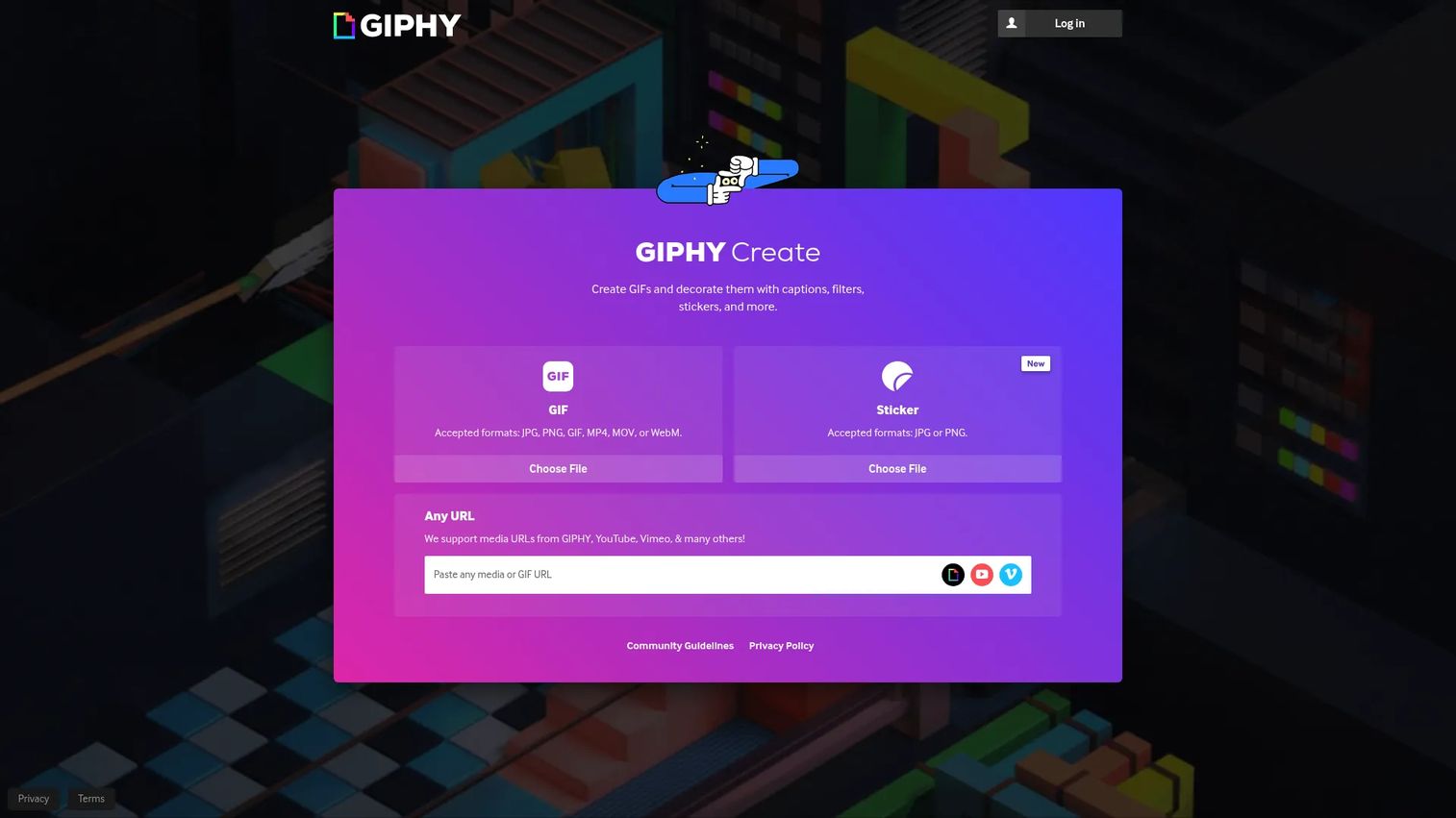
GIPHY Create is GIPHY's tool for making GIFs and stickers from videos, images, or URLs. It leans social-first: quick creation, captions, filters, stickers, and easy sharing straight into the platforms where GIFs actually get used. If your goal is a fun, shareable animated asset rather than a precisely optimized email attachment, this is the fast path.
The browser-based workflow accepts media URLs from GIPHY, YouTube, Vimeo, and others, so you can build a GIF from a link without downloading the source first. For social teams, that removes a step and keeps production light.
Best for: Individuals or teams creating branded GIFs and stickers for sharing on social platforms.
Key strengths
- Create from video, image, or URL: Start from an upload or paste a link from major video platforms.
- Captions, filters, and stickers: Layer text and effects to make GIFs feel native to social.
- Built for sharing: Publish and distribute across social channels with minimal friction.
Why choose GIPHY Create: Pick this when the destination is social and speed beats precision. It is a GIF maker app experience tuned for creators who want expressive, on-trend GIFs and stickers rather than tightly compressed, brand-locked marketing assets.
GIPHY Create pricing: GIPHY describes its creation tools as free. No public paid pricing was shown on the product or support pages, so you can create and share GIFs without a subscription.
7. Canva
Canva is an online visual design platform for creating graphics, presentations, videos, and collaborative brand content. GIF creation is one output among many, which is exactly the point: non-designers can build an animated GIF using the same drag-and-drop editor, templates, and brand kit they already use for everything else. The redesigned Visual Suite now spans video, email, and interactive elements alongside graphics.
For a marketer who lives in Canva, making a GIF there is the shortest path. You start from a template, add animation, and export as a GIF without touching a separate tool. That workflow consistency is worth more to most teams than specialized frame controls.
Best for: Teams and individuals needing fast, template-driven visual content creation.
Key strengths
- Drag-and-drop editor: Build animations without design experience or a learning curve.
- Templates and stock assets: Start from a designed base and export to GIF and other formats.
- AI-powered tools: AI editing and content features speed up asset creation.
Why choose Canva: Choose Canva when GIF creation is part of a broader content workflow and brand consistency matters more than granular GIF optimization. It fits better than a specialized editor for teams that want one platform for social graphics, presentations, and animated assets alike.
Canva pricing: Canva offers Free, Pro, Business, and Enterprise plans. The Free plan covers core design. Business is US$20 per person per month. Pro and Business include free trials, and Enterprise is contact sales.
Canva holds a 4.7/5 rating on G2.
8. Kapwing
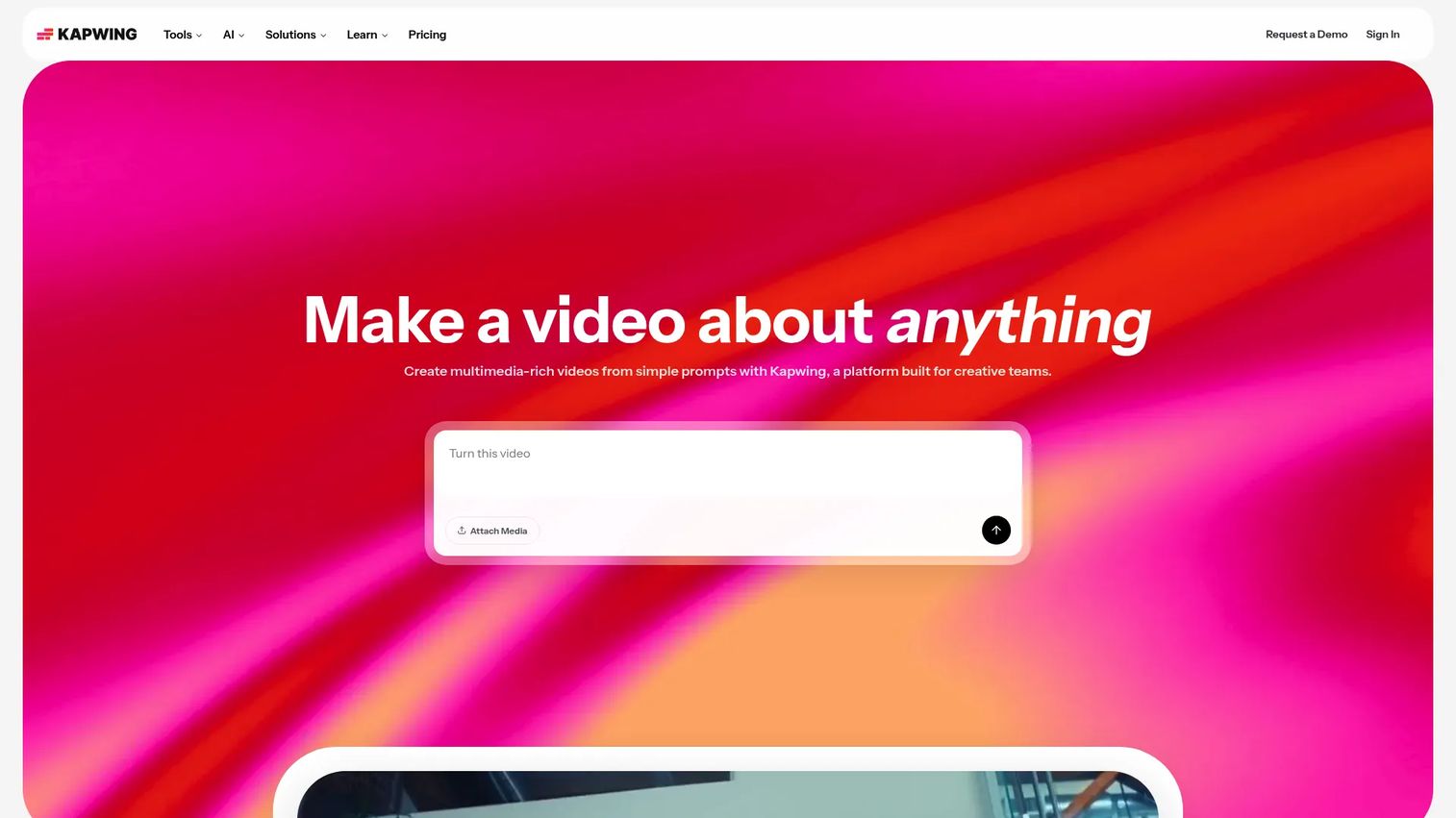
Kapwing is an online video and content creation platform for editing, repurposing, and AI-assisted media production. GIF creation sits inside a fuller editing environment with a timeline, so you can trim, layer, add text, and export an animated GIF as part of a broader video workflow. The collaborative workspace makes it a fit for teams producing content together.
For marketers repurposing video into shareable clips, Kapwing's timeline-based editor gives more control than a single-purpose converter while staying browser-based. The shared workspace with a brand kit and custom fonts keeps team output consistent.
Best for: Teams and creators making social and video content with AI-assisted editing.
Key strengths
- Online video editor: Timeline-based editing for trimming and layering before GIF export.
- AI tools: Subtitles, dubbing, clip generation, and editing assists speed up production.
- Collaborative workspace: Shared projects with a Brand Kit and custom fonts for team consistency.
Why choose Kapwing: Choose Kapwing when your team produces video and GIF content together and wants shared projects, brand controls, and AI assists in one browser tool. It suits collaborative marketers more than solo users who only need a quick single conversion.
Kapwing pricing: Kapwing offers Free, Pro, Business, and Enterprise plans. Pro is $16 per month billed annually or $24 billed monthly. Business is $50 per month billed annually or $64 billed monthly. Enterprise is contact sales. Kapwing holds a 4.1/5 rating on G2.
Considerations before you choose
Where does the GIF start?
The source dictates the tool. If your input is a video clip, prioritize strong video-to-GIF and trim controls. If it is a live screen interaction, a capture tool like ScreenToGif is the shortest path. If it is a set of images or a branded template, a design suite fits better. Match the tool to your most common input, not the edge case.
How much editing do you actually need?
Be honest about whether you need frame-level precision or just a fast crop and resize. Dedicated utilities like Ezgif give you granular control per function. Design suites trade some of that for templates and brand consistency. Buying more editing depth than you use just adds friction to a simple task.
Online or desktop?
Browser tools win on speed and zero install, which suits occasional one-off jobs and cross-device work. Desktop software wins on offline access, larger files, and precise frame control for recurring production. Consider where you work and how often you make GIFs before committing.
Does it fit your brand system?
For marketing teams, output that matches brand colors, fonts, and templates saves rework downstream. A design-suite GIF maker keeps assets consistent across campaigns. A pure utility gets you a clean file fast but leaves branding to you. Decide which matters more for your volume.
What does export and file size look like?
A GIF that email clients reject or that lags on social is a failed asset. Check that the tool optimizes and compresses output, supports the dimensions your platforms need, and exports formats beyond GIF when you need them. Optimization is often the difference between a GIF that ships and one that sits.
Conclusion
The best GIF maker software is the one that matches how your GIF starts and where it ships. For branded marketing content inside a full design workflow, Adobe Express and Canva are the strongest picks. For fast, free, single-purpose edits with no signup, Ezgif is hard to beat. For turning screen activity into clean loops, ScreenToGif leads. GIPHY Create wins for social-first, shareable GIFs, Kapwing for collaborative teams repurposing video, and Easy GIF Animator or the Microsoft Store GIF Maker for Windows users who want an installed, offline tool.
The practical rule: pick online tools for speed and occasional jobs, desktop tools for recurring, precise, offline production, and design suites when brand consistency across many assets matters most. Try one free option that matches your primary input and see how fast it gets you from raw file to shareable GIF. If your GIFs are part of a bigger product storytelling effort, pairing them with interactive demos lets prospects experience the full flow, not just a short loop.
Start your journey with Guideflow today!
FAQs about GIF maker software
For most beginners, a browser-based tool with no signup is the gentlest start. Ezgif is a strong pick because each function is its own simple screen, and GIPHY Create is easy for social GIFs. If you already use a design tool, Canva or Adobe Express let you make GIFs without learning anything new.
Ezgif is the best free option for quick, precise edits like resize, crop, and compression. For branded content, the free tiers of Canva and Adobe Express let teams build on-brand GIFs from templates. ScreenToGif is free and ideal when your GIFs come from screen recordings of a product or walkthrough.
Yes. Ezgif, Adobe Express, Canva, Kapwing, and Easy GIF Animator all support video-to-GIF conversion, letting you trim a clip down to the exact segment you want animated. GIPHY Create can even build a GIF from a video URL from platforms like YouTube and Vimeo without downloading the source first.
Ezgif is purpose-built for exactly these edits, with dedicated tools for crop, resize, and add-text that work in the browser. For text and captions with more design polish, Canva and Adobe Express give you branded fonts and layouts. Kapwing's timeline editor is strong when you need to combine trimming, text, and layering in one place.
Neither is universally better; it depends on your workflow. Online tools win on speed, zero install, and cross-device access, which suits occasional one-off jobs. Desktop software like Easy GIF Animator and ScreenToGif wins on offline access, larger files, and frame-level control for recurring production.
Prioritize speed from raw file to export, the editing controls you actually use (trim, crop, resize, text), and solid optimization so files stay small enough for email and social. Brand consistency matters if you produce high volume, so a design suite with templates and brand kits can save downstream rework. Confirm it exports the formats and dimensions your channels require.
Yes, as long as the tool includes optimization and compression. A large, unoptimized GIF can lag on social feeds or get rejected by email clients, so check that your tool shrinks file size and supports platform-specific dimensions. Tools like Ezgif include dedicated optimize functions, and design suites like Canva and Adobe Express handle resizing for common social formats.