A prospect's security team just asked how you protect data at rest. Or a laptop went missing on a flight. Or a champion needs to send a signed contract without dropping it into an unencrypted email thread. Every one of these moments comes down to the same question: is this data actually protected, or does it just feel protected?
Sensitive files rarely stay in one clean place. They live in downloads folders, synced drives, shared team storage, USB sticks, and laptops that people leave in cabs. That sprawl is why encryption matters, and why "encryption software" is such an overloaded phrase. Some tools encrypt individual files. Some encrypt entire disks. Some do both, and some only wrap files inside password-protected archives that people mistake for real encryption.
The adoption trend is hard to ignore. In the technology and software sector alone, enterprise-wide encryption use climbed from 31% in 2012 to 72% in 2022, according to Market.us Scoop (2026). The broader encryption software market is forecast to grow from USD 16.7 billion in 2024 to USD 22.3 billion in 2026, on its way to USD 60.7 billion by 2033. Encryption stopped being optional a while ago.
This guide compares file, document, local storage, and disk encryption options for 2026. If you sit in presales or run security diligence, it maps directly to the validation conversations you already have. If you also evaluate tools that help buyers self-serve during that process, our roundups of AI governance tools and AI customer service software cover adjacent parts of the technical stack.
What's inside
This guide is for anyone choosing between file encryption, disk encryption, and full-volume protection, whether that's for a personal laptop, a shared drive, or a fleet of endpoints under security review. We picked tools based on four criteria that matter to technical buyers: protection scope (file versus folder versus full disk), platform support across Windows, macOS, and Linux, trust signals like open-source provenance and verification workflows, and everyday usability. Every pick is either free, built into the OS, or has publicly documented plans. No tool made the list on marketing alone.
TL;DR
- Best overall for cross-platform power users: VeraCrypt, free open-source disk and volume encryption with plausible deniability.
- Best for Windows built-in protection: BitLocker, native full-drive encryption for supported Windows editions.
- Best for Mac users: FileVault, default full-volume encryption baked into macOS.
- Best for simple file encryption: AxCrypt, AES-256 file protection with secure sharing.
- Best for encrypted cloud file storage: NordLocker, zero-knowledge encrypted storage and sharing.
- Best for free archives and quick file packaging: 7-Zip, AES-256 encrypted archives for fast transfer.
- Best for legacy or niche disk encryption: DiskCryptor, open-source full-disk encryption for Windows.
What encryption software is
Encryption software is a tool that converts readable data into ciphertext using an algorithm and a key, so only someone with the correct key can read it again. That's the whole job. Everything else, file versus disk, cloud versus local, is about scope and where the encryption happens.
The scope distinctions matter more than most buyers expect:
- File encryption protects individual files. You encrypt a document, and it stays encrypted wherever it travels.
- Folder encryption wraps a directory and its contents, useful for grouping related sensitive material.
- Disk encryption protects an entire volume or drive, so everything written to it is encrypted automatically.
- Cloud encryption protects files stored on a remote server, ideally with zero-knowledge architecture so the provider cannot read your data.
A few terms you'll see repeatedly across file encryption software and disk tools:
- AES-256: the symmetric encryption standard most reputable tools use. It's fast, well-studied, and trusted for classified data.
- Full disk encryption (FDE): encrypts the entire drive, including the OS, with pre-boot authentication.
- Zero-knowledge: the provider holds no key and cannot decrypt your files, even if compelled.
- Pre-boot authentication: you prove identity before the operating system loads, which protects the disk from offline attacks.
File encryption vs disk encryption
The choice comes down to what you're defending against. File-level encryption is enough when you need to protect specific documents in transit or share sensitive material selectively. Full disk encryption is the better fit when you're defending against physical device loss, because it protects everything at once, including files you forgot were sensitive.
| Factor | File encryption | Full disk encryption |
|---|---|---|
| Protects | Individual files and folders | Entire volume, including OS |
| Best defense against | Interception during sharing | Lost or stolen devices |
| Portability | Encrypted file travels anywhere | Tied to the device or volume |
| Typical trigger | Emailing or uploading a document | Laptop theft, device retirement |
| Setup scope | Per-file or per-folder | One-time, whole-drive |
Most technical buyers end up using both. Full disk encryption is the baseline for endpoints. File encryption handles the documents that leave the device.
Key security signals buyers should trust
When a security team reviews an encryption tool, they look past the feature list. The signals that actually build trust are consistent across the category:
- Open-source code: publicly auditable source lets independent researchers verify there are no backdoors.
- Vendor reputation and audit history: a track record of independent security audits carries more weight than any marketing claim.
- Platform integration: native OS tools inherit the platform's security model, which reduces the attack surface.
- Recovery options: clear, documented key recovery prevents permanent data loss without weakening the encryption itself.
- Verification workflows: checksums and cryptographic signatures let you confirm the installer wasn't tampered with before you run it.
For a technical evaluation, checksums and signatures are not optional. They're the difference between installing verified software and installing whatever a compromised mirror served you.
When to use encryption software
Protect files before sharing them
Sometimes you don't need to encrypt a whole drive. You need to lock down one document before it leaves your control. This is the trigger for file encryption software: sending a signed contract by email, uploading sensitive spreadsheets to cloud storage, or handing off files on a USB stick. Encrypt the file, share the key through a separate channel, and the data stays protected even if the transfer is intercepted.
Encrypt an entire laptop or workstation
Device loss and theft are the most common data breach vectors that encryption directly prevents. When a laptop with full disk encryption disappears, the data on it is unreadable without the credentials. This is also why device retirement matters: wiping an encrypted drive is faster and safer, because the data was never readable in the first place. For endpoint protection at scale, whole-disk tools are the baseline.
Standardize encryption for a mixed environment
Teams running Windows, macOS, and Linux side by side face a harder problem: consistency. A cross-platform tool lets you standardize the encryption approach instead of managing three separate ones. This is where presales, IT, and security review teams spend real time, confirming that the same protection scope applies everywhere and that recovery workflows are documented across every platform in the fleet.
Comparison table
The list leads with the strongest match for the keyword, cross-platform disk encryption, then moves through platform-native options, file tools, and cloud storage. Pricing reflects that most of these tools are free or built into the operating system. Ratings are shown where a verified G2 score was available.
| # | Product | Intent | Key use case | Pricing | G2 rating |
|---|---|---|---|---|---|
| 1 | VeraCrypt | Cross-platform disk encryption | Full-volume and system encryption with hidden volumes | Free, open source | 4.5/5 |
| 2 | BitLocker | Windows full-drive protection | Native drive encryption for lost or stolen devices | Included with supported Windows editions | 4.6/5 |
| 3 | FileVault | Mac full-volume protection | Built-in disk encryption for macOS | Included in macOS | Not listed |
| 4 | AxCrypt | Simple file encryption | AES-256 file protection with secure sharing | Free plan; Premium billed annually | Not listed |
| 5 | NordLocker | Encrypted cloud storage | Zero-knowledge file storage and sharing | Free 3 GB plan; paid Premium tiers | Not listed |
| 6 | DiskCryptor | Windows disk encryption | Open-source full-disk and partition encryption | Free, open source | Not listed |
| 7 | 7-Zip | Archive-based file protection | AES-256 encrypted archives for transfer | Free, open source | Not listed |
1. VeraCrypt
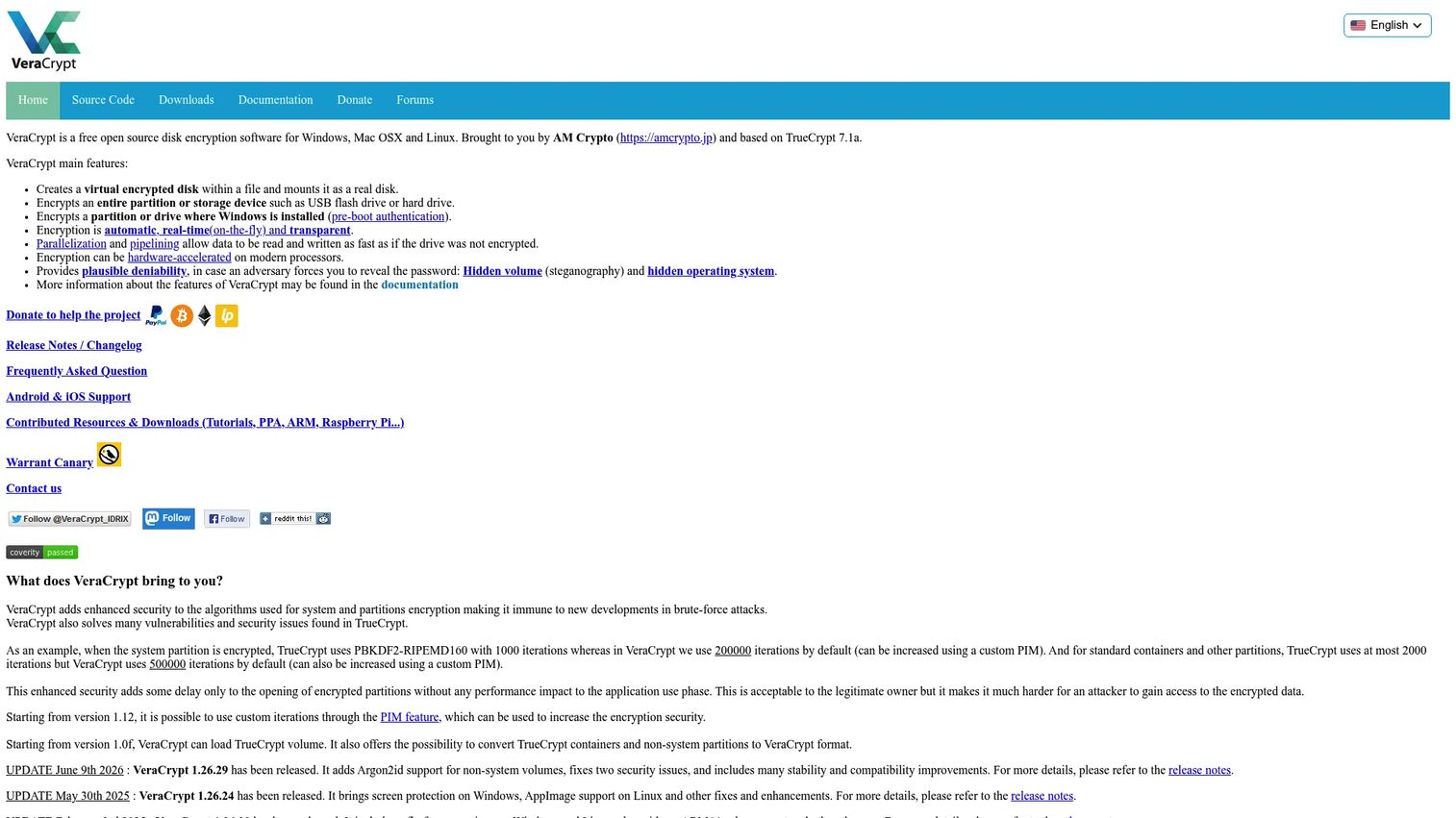
VeraCrypt is the most technically credible open-source disk encryption option on this list. It creates virtual encrypted disks inside a file, encrypts entire partitions, and can encrypt the system drive itself with pre-boot authentication. For technical buyers who want to inspect exactly how their data is protected, open-source provenance plus a public verification workflow is hard to beat. It runs on Windows, macOS, and Linux.
Best for: cross-platform power users and security-conscious buyers who need full-volume or system encryption they can audit.
Key strengths
- Virtual encrypted disks: Creates encrypted containers inside a single file, so you can mount and unmount protected storage on demand.
- Full-disk and system encryption: Encrypts entire partitions or the boot drive with on-the-fly encryption and pre-boot authentication.
- Hidden volumes and hidden operating systems: Supports plausible deniability by nesting a hidden encrypted volume inside another.
Why choose VeraCrypt: If you need encryption you can verify rather than trust, VeraCrypt is the strongest choice. The signed releases and checksums let a security team confirm the installer is authentic before deployment, and the open-source code means nothing about the encryption is a black box. It's the tool technical buyers reach for when the standard OS options don't go far enough.
VeraCrypt pricing: VeraCrypt is free and open source. The official site does not list any paid tiers or commercial plans, which is standard for a community-maintained open-source project.
2. BitLocker
BitLocker is Microsoft's built-in drive encryption feature and the strongest built-in option for most users inside Windows environments. It protects data on lost, stolen, or offline-accessed devices by encrypting the whole drive. On supported hardware, Device Encryption turns on automatically, while BitLocker Drive Encryption gives you manual control over which drives are protected.
Best for: organizations and individual users who already run Windows and want full-drive protection without adding a third-party tool.
Key strengths
- Full-drive encryption: Encrypts the entire volume so data is unreadable if the device is lost or accessed offline.
- Automatic Device Encryption: Turns on by default on supported devices, so protection is in place without manual setup.
- Enterprise management: Fits managed Windows fleets where drive encryption needs to be enforced and recovery keys centrally stored.
Why choose BitLocker: For a Microsoft-centric environment, BitLocker is the path of least resistance. It's native, it's managed through the same tools IT already uses, and it inherits the Windows security model. The main thing to confirm during evaluation is edition support, since full BitLocker Drive Encryption depends on the Windows edition in use.
BitLocker pricing: BitLocker is included as a Windows security feature at no additional standalone cost. Microsoft does not publish a separate price for it, because availability depends on the Windows edition rather than a per-seat license.
3. FileVault
FileVault is Apple's built-in disk encryption feature and the default full-volume encryption choice for Mac users. It encrypts internal and removable storage, requires user credentials during boot once enabled, and integrates directly into macOS. On Apple silicon and T2-based Macs, encryption is deeply tied to the hardware security model, which keeps performance overhead minimal.
Best for: Mac users and IT admins who want built-in full-volume encryption without installing anything extra.
Key strengths
- Full-volume encryption: Protects both internal and removable storage at rest with no separate application to manage.
- Hardware-backed on modern Macs: Ties into Apple silicon and T2 security so encryption runs with minimal performance cost.
- Flexible recovery: Supports recovery through an Apple Account, iCloud, or a locally stored recovery key.
Why choose FileVault: If your endpoints are Macs, FileVault is the obvious baseline. It's already there, it costs nothing extra, and it's designed around the hardware it runs on. The one decision that matters is recovery key handling: choosing between iCloud-based recovery and a local key changes who can regain access, which is exactly the kind of detail a security review will want documented.
FileVault pricing: FileVault is included in macOS at no additional cost. It is a built-in operating system feature rather than a separately licensed product, so there is no pricing page to consult.
4. AxCrypt
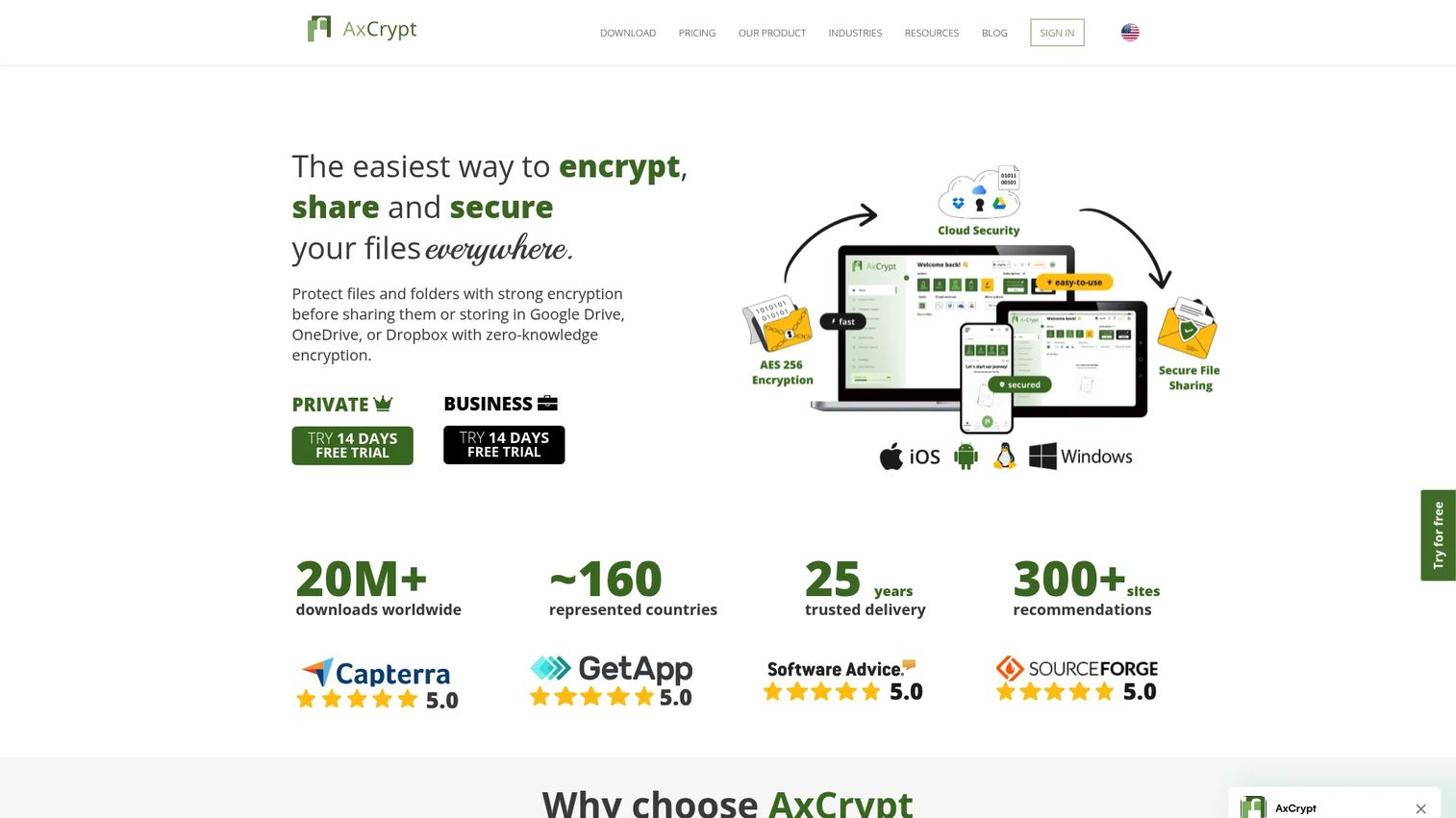
AxCrypt is a file encryption tool built for people who want simple, shareable protection without managing containers or volumes. It uses AES-256, supports key sharing between users, and secures folders and subfolders in the cloud. Where disk tools protect the device, AxCrypt protects the individual file, which makes it a natural fit for sharing sensitive documents.
Best for: individuals and teams who need straightforward file encryption with secure sharing and cloud-folder protection.
Key strengths
- AES-256 file encryption: Encrypts individual files with a widely trusted standard, so protected files stay protected wherever they go.
- Key sharing: Lets you share encrypted files with specific people without exposing the underlying key insecurely.
- Cloud folder protection: Secures folders and subfolders synced to cloud storage, useful for teams working out of shared drives.
Why choose AxCrypt: AxCrypt fits the presales and collaboration use case where you need to send sensitive files and control who can open them. The secure sharing model means a champion can forward an encrypted document to the buying committee without the file becoming readable in transit. It's the practical choice when the unit of protection is a document, not a drive.
AxCrypt pricing: AxCrypt offers a Free plan at $0. The Premium plan is billed annually, and a Business tier adds team-oriented features. Exact Premium and Business figures aren't published in a way we could verify, so confirm current tiers on the AxCrypt pricing page before purchase.
5. NordLocker

NordLocker is encrypted file storage that pairs local encryption with cloud convenience and secure sharing. It uses end-to-end encryption and a zero-knowledge architecture, meaning the provider cannot read your files even if asked to. For buyers who want encryption plus storage plus sharing in one place, it collapses three tools into one.
Best for: users who want encrypted cloud storage and secure file sharing without managing keys manually.
Key strengths
- End-to-end encryption: Encrypts files before they leave your device, so they're protected in transit and at rest.
- Zero-knowledge architecture: The provider holds no decryption key, which is a strong signal for privacy-focused buyers.
- Secure file sharing: Lets you share encrypted files without exposing them to the storage layer.
Why choose NordLocker: NordLocker fits when the job is "store and share sensitive files safely" rather than "encrypt a whole disk." The zero-knowledge model is the differentiator security reviewers care about, because it removes the provider from the trust equation entirely. For teams that already share files through cloud storage, it's a way to add real encryption without changing the workflow.
NordLocker pricing: NordLocker offers a free plan with 3 GB of storage, plus paid Premium plans with larger capacity such as 500 GB and 2 TB tiers on one-month and one-year billing. Exact paid amounts weren't visible in the source we reviewed, so check the current plans page before committing.
6. DiskCryptor
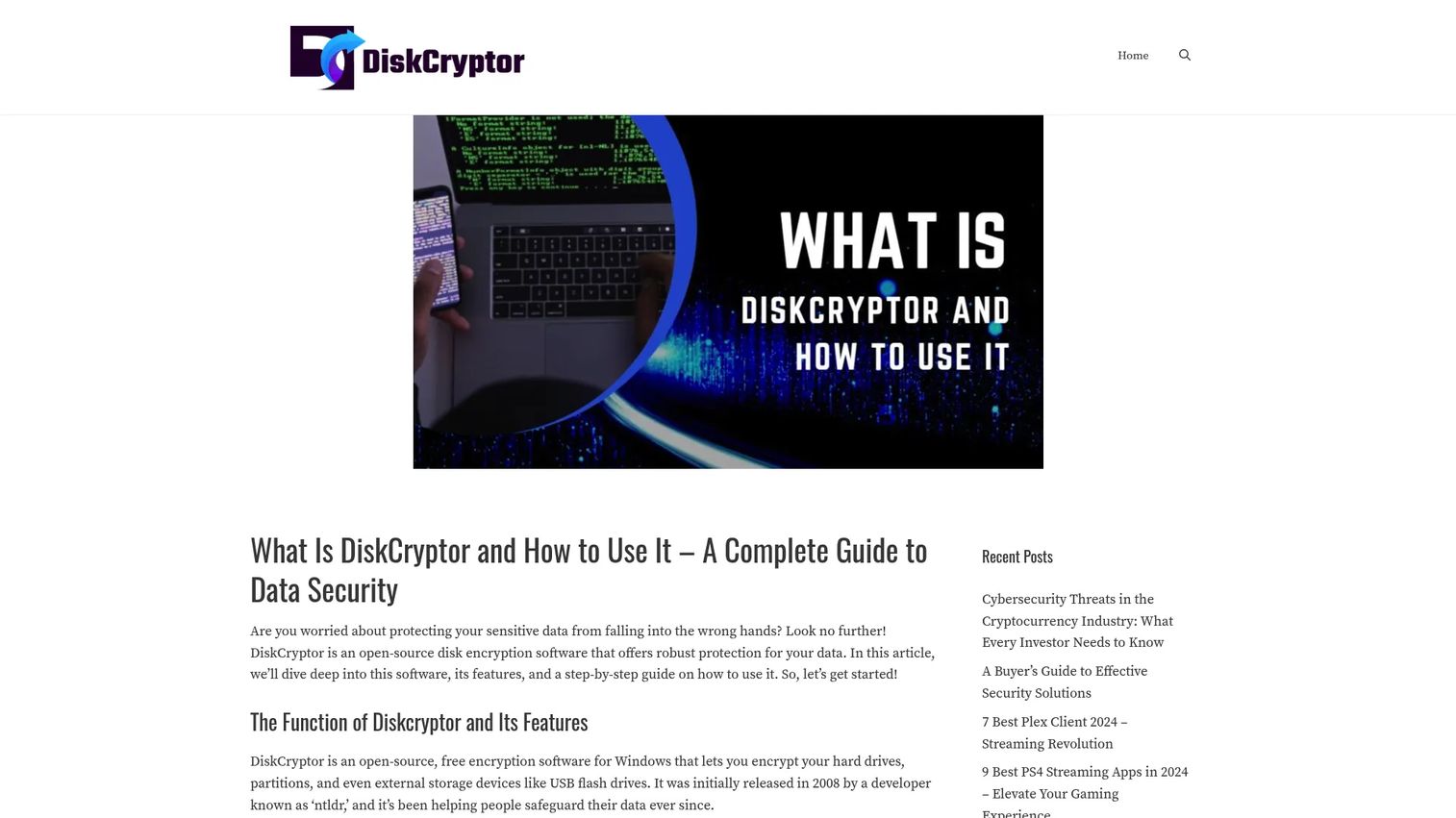
DiskCryptor is an open-source disk encryption tool for Windows that appeals to technical users who want full-disk and partition encryption without a commercial license. It handles full disk encryption, partition encryption, external storage, and pre-boot authentication. It occupies a more niche position than the built-in options, which is exactly why some advanced Windows users prefer it.
Best for: Windows users who want free, open-source full-disk encryption and are comfortable evaluating an independent project.
Key strengths
- Full disk and partition encryption: Encrypts entire drives or specific partitions, giving granular control over what's protected.
- External storage encryption: Extends protection to removable drives, not just internal disks.
- Pre-boot authentication: Requires credentials before the OS loads, protecting against offline access attacks.
Why choose DiskCryptor: DiskCryptor is the pick for Windows users who want an open-source alternative to the built-in option and are willing to vet the project themselves. Before deploying, confirm the current maintenance status and download from the official source, since the ecosystem references more than one domain. For a security-conscious buyer, that verification step is part of the evaluation, not an afterthought.
DiskCryptor pricing: DiskCryptor is free and open source. The site describes no paid tiers or commercial plans, which is consistent with a community-driven project.
7. 7-Zip
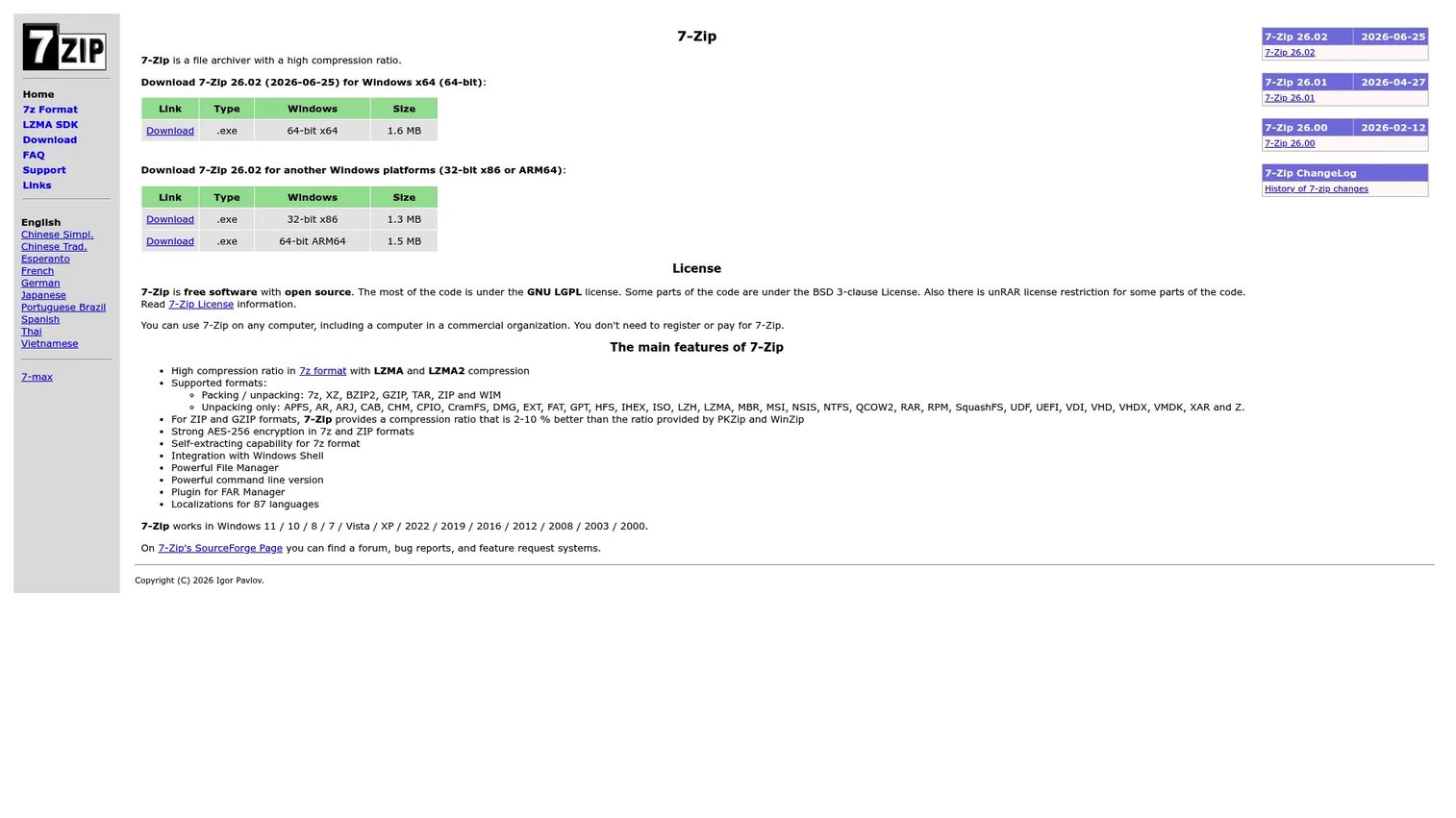
7-Zip is a free, open-source file archiver that doubles as a practical way to encrypt files for transfer. It compresses files, packs and unpacks many archive formats, and applies AES-256 encryption to the archives it creates. That last part is the key point: 7-Zip is excellent for quickly password-protecting a bundle of files, but it's built as an archiver first, not a full encryption platform.
Best for: Windows users who need a free archiver with strong compression and the ability to password-protect files for sending.
Key strengths
- AES-256 encrypted archives: Password-protects compressed archives with a trusted encryption standard.
- High compression ratio: Uses LZMA and LZMA2 to shrink files significantly before transfer.
- Broad format support: Packs and unpacks a wide range of archive formats, with Windows Shell integration and a command-line version.
Why choose 7-Zip: 7-Zip is the fast, free option when you need to bundle and encrypt files before sending them. It's ideal for one-off transfers where a full encryption tool would be overkill. Just be clear about scope: an encrypted archive protects the files inside that archive, but it is not a substitute for full disk encryption or a managed file encryption workflow. Use it for packaging, not for protecting a device.
Considerations before you choose
A shortlist is only useful if you know how to evaluate the picks against your own environment. Run each candidate through these criteria.
Protection scope
Decide first whether you need file, folder, or full-disk encryption. A device that leaves the building needs full disk encryption. A document you email needs file encryption. Choosing the wrong scope means either over-engineering a simple problem or under-protecting a serious one.
Platform coverage
Confirm the tool covers every OS in your environment. A Windows-only tool is fine for a Windows shop, but a mixed fleet of Windows, macOS, and Linux benefits from a cross-platform option so recovery and policy stay consistent.
Trust and verification
For anything handling sensitive data, prioritize open-source code or a documented audit history, and always verify installers with checksums or signatures. This step is non-negotiable for security review and is often the first question a procurement team asks.
Recovery and key management
Understand how keys are stored and recovered before you deploy. Encryption that can't be recovered is data loss waiting to happen. Document who holds recovery keys and how access is regained, especially for full disk encryption.
Conclusion
The right encryption software depends entirely on scope, not on which tool has the longest feature list. If you need cross-platform, auditable disk and volume encryption, VeraCrypt is the strongest pick. If your fleet is Windows, BitLocker is the native baseline; if it's Mac, FileVault already covers you. For locking down individual documents before sharing, AxCrypt handles file encryption cleanly, while NordLocker adds encrypted cloud storage and sharing. DiskCryptor serves advanced Windows users who want an open-source disk option, and 7-Zip is the quick, free choice for packaging and password-protecting files for transfer.
Start with your built-in OS option if your environment is simple: it costs nothing and inherits the platform's security model. Then move to VeraCrypt or AxCrypt when you need broader scope or file-level control. The next step is straightforward: pick the protection scope that matches your actual risk, verify the installer, and document your recovery process before you roll anything out.
FAQs
File encryption protects individual files or folders, so a document stays protected wherever it travels. Full disk encryption protects the entire drive, including the operating system, which defends against a lost or stolen device. File encryption is about controlling specific documents; full disk encryption is about protecting everything on an endpoint at once.
They serve different needs rather than one being universally better. VeraCrypt is cross-platform, open source, and independently auditable, which appeals to buyers who want to verify the encryption themselves. BitLocker is native to Windows, managed through familiar IT tools, and inherits the Windows security model. For a Microsoft-only environment, BitLocker is usually the simpler fit; for cross-platform or audit-driven needs, VeraCrypt is stronger.
Yes. File encryption tools like AxCrypt or archive-based tools like 7-Zip let you encrypt specific files or folders while leaving the rest of the drive untouched. This is the right approach when you need to protect a document for sharing or storage rather than defend against physical device loss. Many teams use file encryption alongside full disk encryption.
For most Mac users, FileVault provides solid full-volume encryption at rest, tied into the hardware security of Apple silicon and T2 Macs. It covers the core case of protecting a lost or stolen device. If you also need to encrypt individual files for external sharing or store encrypted files in the cloud, a dedicated file encryption tool complements it well.
For most Windows users, BitLocker is the strongest built-in choice, provided your Windows edition supports full BitLocker Drive Encryption. If you want an open-source alternative or need features the native option doesn't cover, VeraCrypt and DiskCryptor are both credible disk encryption software options. The right pick depends on whether you prefer native integration or auditable open-source code.
7-Zip applies genuine AES-256 encryption to the archives it creates, so password-protected 7-Zip archives are properly encrypted. That said, it is an archiver first, not a full encryption platform. It's excellent for packaging and encrypting files before transfer, but it is not a substitute for full disk encryption or a managed file encryption workflow across a device or fleet.
AxCrypt and NordLocker are the two practical candidates. AxCrypt encrypts individual files with AES-256 and supports secure key sharing, which works well when a specific document needs to reach specific people. NordLocker pairs zero-knowledge encrypted storage with secure sharing, which fits teams that already share files through cloud storage. Choose AxCrypt for file-level control and NordLocker when you want encrypted storage and sharing in one place.