You open five browser tabs. Krita, Procreate, Corel Painter, Clip Studio Paint, Adobe Fresco. Each one claims to be the best digital art software. None of them tells you whether it fits your device, your budget, or the way you actually paint.
That is the real problem with choosing digital painting software. It is not a shortage of options. It is the overload of them, most of them good enough that the deciding factor stops being quality and starts being fit. Do you paint on an iPad or a Windows desktop? Do you want realistic brush behavior or fast concept sketches? Do you have a budget, or do you need free digital painting software that still holds up for professional work?
The stakes are higher than they used to be. The digital painting software market reached USD 12.81 billion in 2025 and is projected to grow at a 14.73% CAGR in the coming years, according to research shared on LinkedIn. More tools, more updates, more marketing noise, and more paralysis for anyone trying to pick one.
This guide cuts through it. If you evaluate tools for a living, you already know the drill: match the tool to the workflow, watch for what you are actually replacing, and ignore the feature lists that every competitor could copy word for word. The same evaluation discipline that helps a marketing team pick between a landing page builder or an interactive demo format applies here. We ranked seven digital art programs by the decisions that matter, then told you exactly who each one fits. If you are also researching evaluation-heavy software categories, our roundups of digital adoption platforms and community management software follow the same decision-first structure.
What's inside
This guide is for anyone comparing digital painting apps by price, platform, brush engine quality, and learning curve. That covers hobbyists, students, illustrators, concept artists, and design-adjacent professionals who want a shortlist instead of a definitions dump.
We selected the seven tools on four criteria: platform support (iPad, Windows, Mac, mobile), brush engine depth and texture handling, price and licensing model, and the strength of tutorials and community support around each tool. The list mixes free digital painting software with premium tools, beginner-friendly picks with realism-focused engines, so you can find the fit for your device and skill level fast.
TL;DR
- Best overall: Clip Studio Paint, for cross-device support across iPad, Windows, and Mac plus deep illustration and comic tools.
- Best free option: Krita, a free and open source painting program with a serious brush engine and no subscriptions.
- Best for iPad: Procreate, a one-time App Store purchase built specifically for the Apple Pencil.
- Best for realistic painting: Corel Painter, for natural-media emulation and traditional brush behavior.
- Best for Windows and Mac: Krita and Clip Studio Paint both run natively on desktop with full feature sets.
- Best for beginners: Adobe Fresco, a free, touch-first paint app with a gentle learning curve.
What is digital painting software?
Digital painting software is an application that lets artists create paintings and illustrations using digital brushes, layers, and a virtual canvas instead of physical paint and paper. It simulates traditional media, adds tools impossible on paper, and exports finished work as image files.
The core capability set is consistent across the category, even when the execution differs:
- Brushes and a brush engine: the system that controls how each stroke behaves, including pressure sensitivity, texture, blending, and opacity. This is the single biggest differentiator between tools.
- Layers: stacked, independent surfaces you can paint on, reorder, blend, and adjust without touching the rest of the artwork.
- Textures: paper grain, canvas weave, and media surfaces that give strokes a physical feel.
- Canvas tools: rulers, symmetry, perspective guides, and stabilizers that keep strokes clean.
- Color controls: color pickers, palettes, gradients, and blending modes.
- Export formats: PNG, JPG, PSD, TIFF, and other formats for print, web, or handoff to other software.
Here is what "good" looks like in this category:
- A brush engine that feels responsive and natural, not laggy or synthetic.
- Non-destructive layers with plenty of blend modes.
- Platform support that matches where you actually work.
- Strong tutorials and an active community so you can learn fast.
- A pricing model that fits your budget, whether that is free, one-time, or subscription.
When to use each type of tool
Not every digital painting tool solves the same job. Match the tool to the work.
For quick sketching and concept work
When you are sketching thumbnails, iterating on concepts, or capturing ideas fast, speed matters more than simulation depth. You want a lightweight, distraction-free interface, a responsive brush, and minimal menu-hunting. Tools like Autodesk SketchBook and MyPaint strip the interface down so nothing sits between you and the canvas. Fast entry, fast output, no ceremony.
For realistic paint simulation
When brush behavior, natural-media emulation, and texture fidelity are the point, you need an engine built for it. This is illustration and traditional-media style work: oil, watercolor, gouache, and pastel that behave like the real thing. Corel Painter leads here, with Krita and Clip Studio Paint both offering strong realistic digital painting software capabilities for artists who want that tactile feel without the premium price.
For tablet or mobile-first workflows
When portability and touch matter, you want stylus support, a touch-first interface, and cross-device convenience. iPad artists reach for Procreate, Adobe Fresco, or Clip Studio Paint, all of which are built around the Apple Pencil and tablet gestures. If you move between a desktop and a tablet, cross-device sync becomes the deciding factor.
Comparison table
Read this table as a decision shortcut, not a scoreboard. The "Intent" column tells you what job each tool is built for, and "Key differentiation" tells you the one thing that sets it apart. Cross-reference pricing against platform to narrow your shortlist before you read the full sections.
| # | Product | Intent | Key differentiation | Pricing | G2 rating |
|---|---|---|---|---|---|
| 1 | Clip Studio Paint | Cross-device illustration and comics | Perpetual license option plus deep comic and animation tools | From US$0.99/month; perpetual from US$63.00 | Not listed |
| 2 | Krita | Free desktop digital painting | Free and open source with a deep brush engine | Free | 4.4/5 |
| 3 | Procreate | iPad painting and illustration | One-time purchase built for Apple Pencil | One-time App Store purchase | 4.9/5 |
| 4 | Adobe Fresco | Free touch-first painting | Live Brushes plus vector and raster in one app | Free | 4.5/5 |
| 5 | Corel Painter | Realistic natural-media painting | Traditional-media brush emulation for Windows and Mac | Subscription and upgrade options | 4.2/5 |
| 6 | MyPaint | Minimalist sketching and painting | Distraction-free canvas with a custom brush engine | Free | 4.1/5 |
| 7 | Autodesk SketchBook | Fast sketching across devices | Lightweight sketch-first workflow on desktop and mobile | Free with paid unlocks; from USD$24.99/year per seat | 4.4/5 |
1. Clip Studio Paint
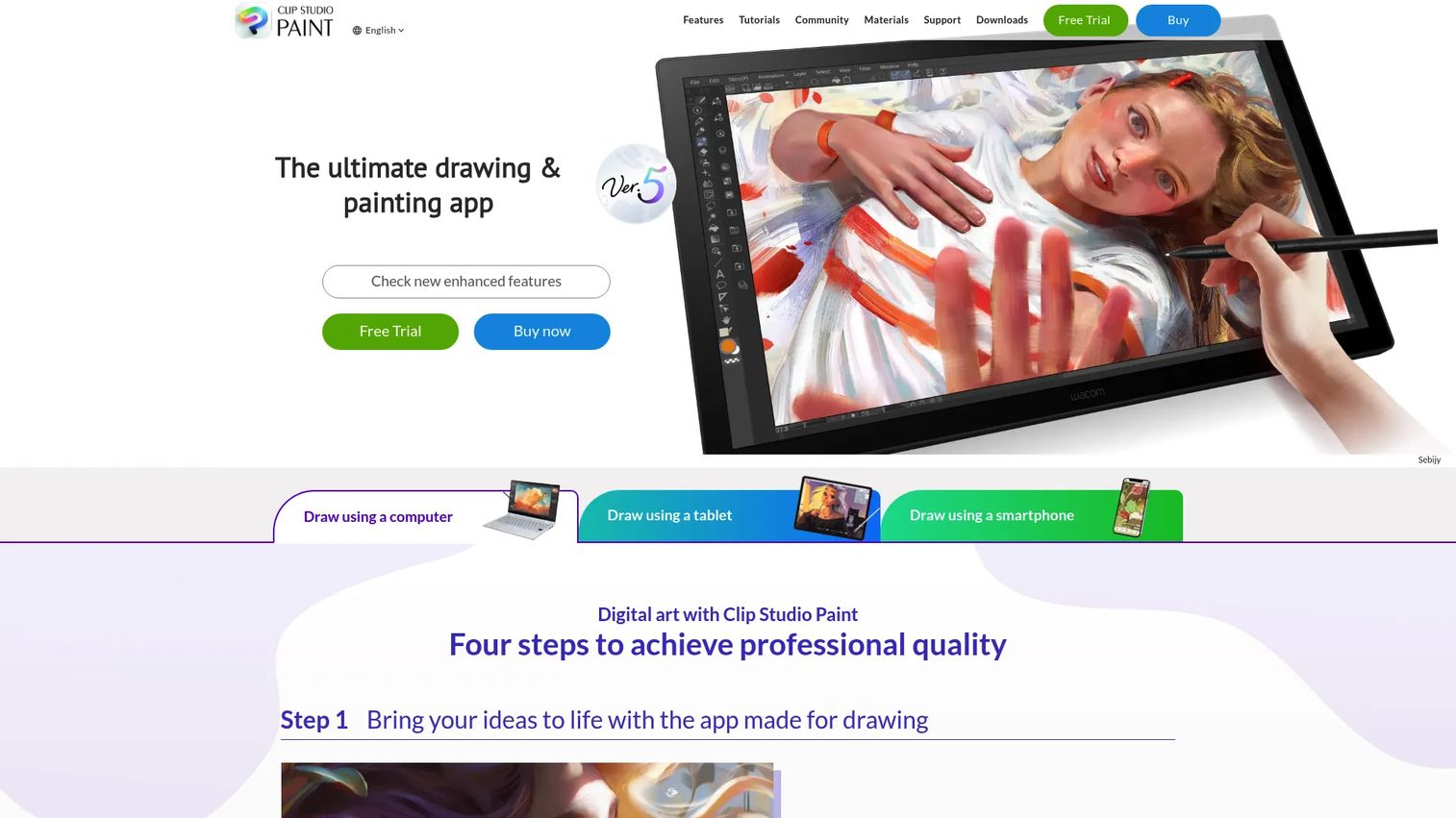
Clip Studio Paint is a digital art app for illustration, comics, design, and animation that runs across iPad, iPhone, Windows, macOS, Android, and Chromebook. That cross-device reach is why it tops this list. You can start a piece on a desktop and finish it on a tablet without changing tools or losing your workflow. It is one of the few digital painting apps that treats platform flexibility as a first-class feature rather than an afterthought.
Best for: Digital artists, comic creators, and animators who want a dedicated illustration workflow that follows them across every device.
Key strengths
- Comic and manga tools: paneling, speech bubbles, backgrounds, and perspective rulers built for sequential art.
- Character art brushes: a deep drawing and painting toolset tuned for illustration and character work.
- Animation and 3D reference: frame-by-frame animation support plus 3D reference models to pose figures and structures.
Why choose Clip Studio Paint: If you work across comics, character art, illustration, and flexible workflows, this is the most complete option here. The pricing has some complexity worth understanding, but it rewards artists who want one tool that does not force a platform choice. The official tutorials and large community make the learning curve manageable even for the deep feature set.
Clip Studio Paint pricing: Plans start from US$0.99/month on monthly or annual billing. If you prefer to own your license, the Clip Studio Paint PRO perpetual edition is US$63.00 and the EX perpetual edition is US$277.00, both one-time purchases on Windows and macOS. A free trial is available, so you can test the workflow before committing to a plan or license.
2. Krita
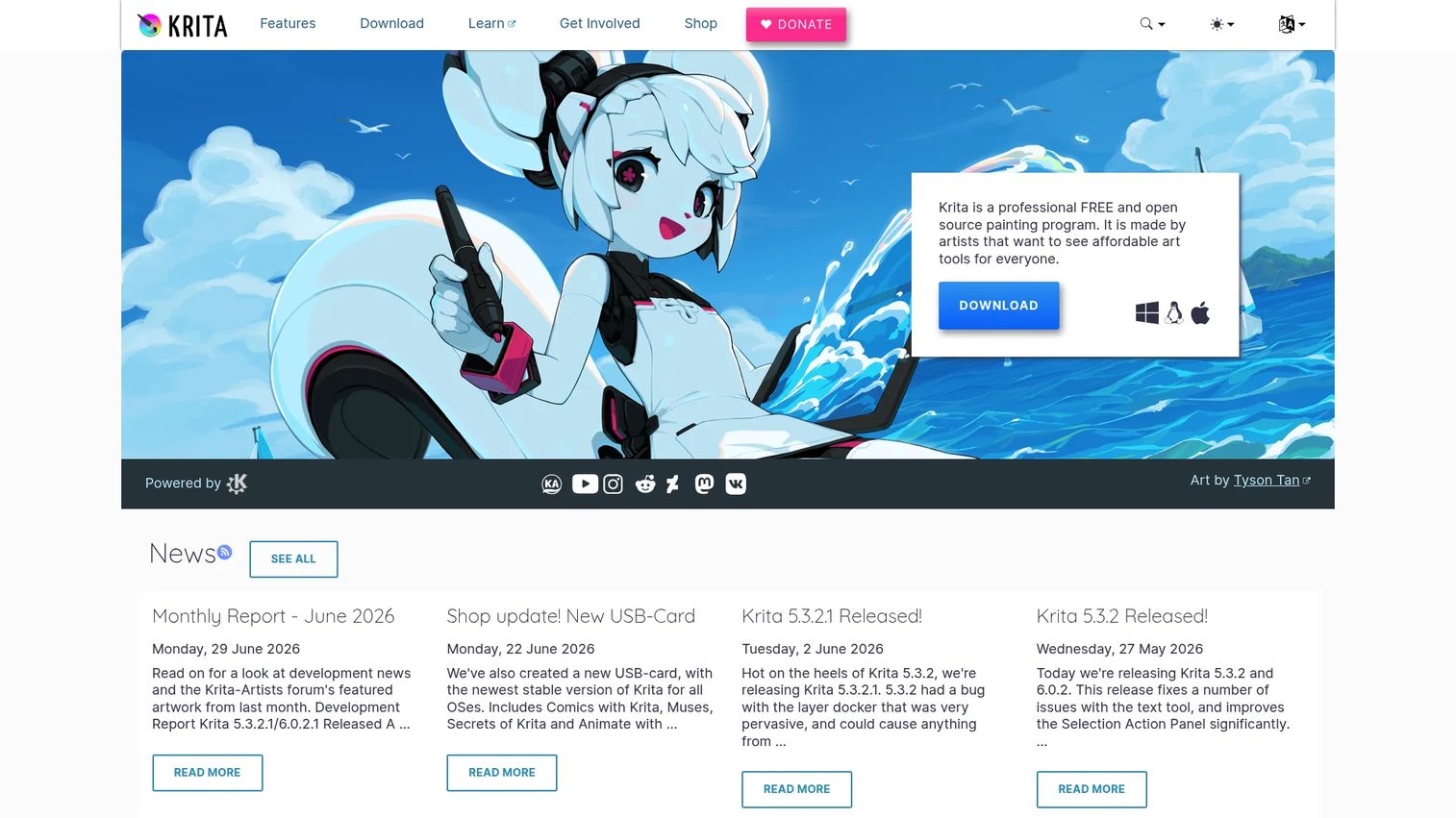
Krita is free and open source digital painting and 2D animation software, and it is the pick for anyone who wants professional-grade tools without a subscription. It runs on Windows, macOS, and Linux, which makes it one of the strongest free digital painting software options for desktop artists. The open source model means no trials, no upsells, and no feature gating. What you download is the full product.
Best for: Artists and illustrators who want a free digital painting and animation tool with genuine depth.
Key strengths
- Customizable brush system: a deep brush engine with more than 100 preloaded brushes and full customization for anyone who wants realistic digital painting software behavior.
- Layers and assistants: a full layer stack plus drawing assistants and brush stabilizers for clean, controlled strokes.
- Vector, text, and animation: vector and text tools alongside a dedicated animation workspace.
Why choose Krita: Free matters when you are building a stack on a tight budget, and Krita proves free does not mean limited. Its resource ecosystem is a real advantage. The project publishes monthly development reports and artist interviews, and the community produces a steady stream of brushes, tutorials, and templates. For budget-conscious artists on Windows and Mac, this is the default starting point.
Krita pricing: Krita is completely free and open source. There are no subscriptions, no trials, and no paid tiers. You can optionally support the project through donations or by buying it on the app stores, but the core software costs nothing.
3. Procreate
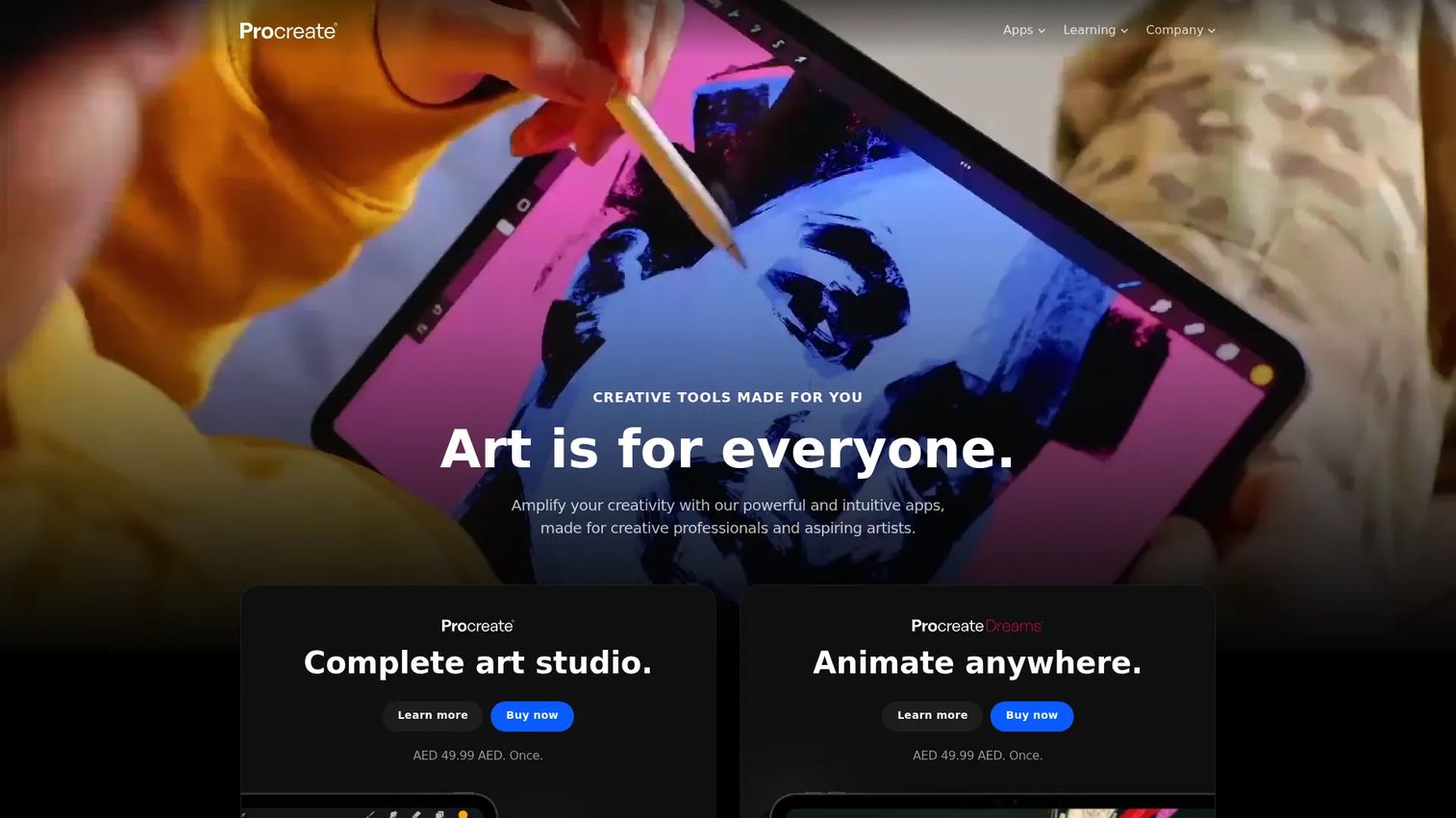
Procreate is a complete digital art studio built exclusively for iPad, and it is the reason so many artists switch to a tablet workflow in the first place. The Apple Pencil integration is the benchmark the rest of the category measures against: low latency, natural pressure and tilt response, and gestures that make the tablet feel like paper. If you own an iPad and want the best digital painting software for iPad, this is the short answer.
Best for: iPad artists and illustrators who want a one-time-purchase drawing app with a world-class stylus experience.
Key strengths
- Brush library: over 300 handcrafted brushes covering sketching, painting, inking, and illustration.
- Time-lapse recording: automatic recording of your process for replays, social clips, or teaching.
- 3D painting: paint directly onto USDZ and OBJ models for texture and product work.
Why choose Procreate: It is popular for sketching, painting, and illustration because it removes friction. No subscription, no cloud login wall, just an app tuned tightly to the hardware. The trade-off is simple: it is iPad-only, so it is the right pick for tablet artists, not cross-platform buyers who need Windows or Mac. If your work lives on the iPad, few tools compete.
Procreate pricing: Procreate is sold as a one-time purchase through the App Store with no subscriptions. You buy it once and own it, including future updates. That one-time model is a large part of its appeal for artists tired of recurring software fees.
4. Adobe Fresco
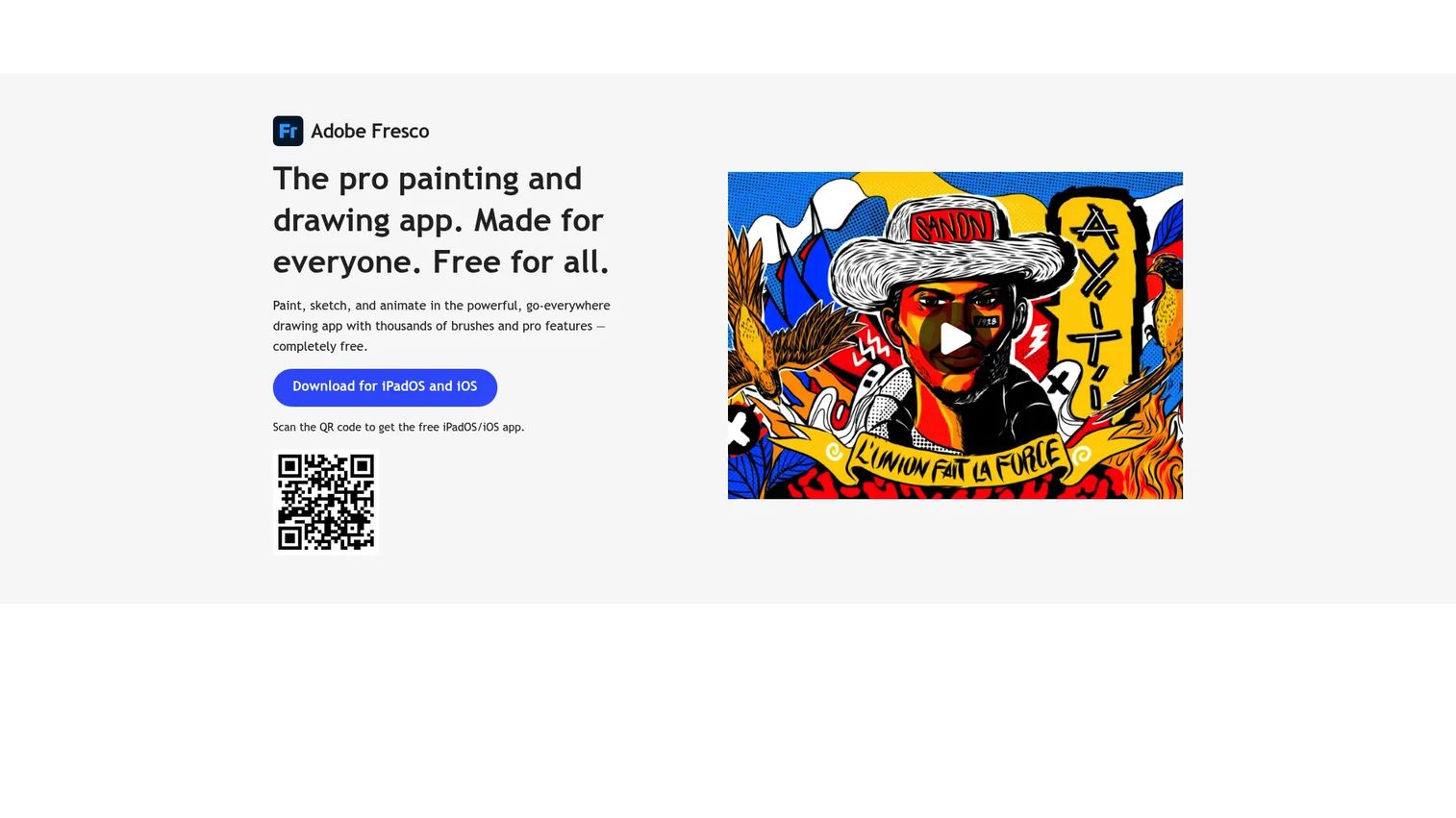
Adobe Fresco is a free digital painting and drawing app from Adobe built for sketching, painting, and animation on iPad, iPhone, and Windows. Its standout is the combination of vector and raster brushes in one app, plus Live Brushes that mimic how real watercolor and oil spread and blend on the page. For beginners and touch-first creators, it is one of the most approachable digital painting apps available.
Best for: Illustrators and digital artists who want a free Adobe drawing app with painting, vector, and animation tools in one place.
Key strengths
- Live Brushes: watercolor and oil brushes that bleed, mix, and dry like real media.
- Vector and raster together: thousands of vector, raster, and Live Brushes in a single workspace.
- Animation and sync: frame-by-frame animation, motion presets, unlimited layers, and cloud sync across devices.
Why choose Adobe Fresco: It is free, it runs on both iPad and Windows, and it plugs into the wider [Adobe workflow if you already use Photoshop or Illustrator. For digital painting software for beginners, the touch-first interface and gentle learning curve make it easy to produce something good on day one. The device flexibility also makes it a solid entry point for anyone unsure whether they prefer tablet or desktop.
Adobe Fresco pricing: Adobe describes Fresco as a free professional-level painting and drawing app, and a free Creative Cloud membership](https://www.adobe.com/creativecloud/membership.html) includes starter access. That free positioning makes it a low-risk first stop for anyone testing whether digital painting fits their workflow before spending on a premium tool.
5. Corel Painter
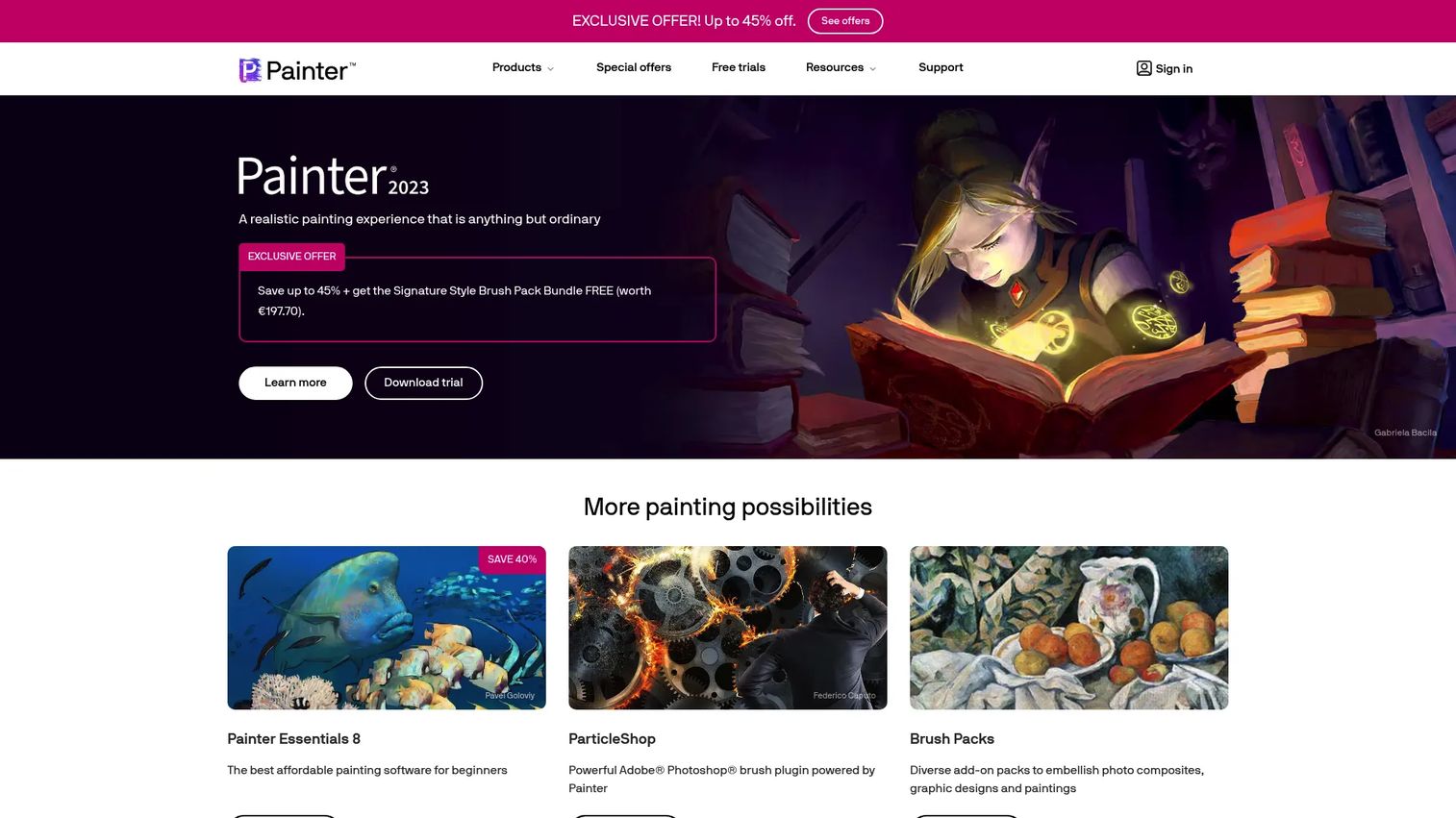
Corel Painter is professional digital art software for Windows and Mac focused on realistic natural-media painting and photo art. If your goal is realistic painting that behaves like oil, watercolor, chalk, or ink on a physical surface, this is the tool built for it. The brush depth and texture handling are the deepest on this list, which is why traditional painters and realism-focused illustrators keep evaluating it against everything else.
Best for: Digital painters and illustrators who want realistic brush behavior and true traditional-media simulation.
Key strengths
- Natural-media emulation: hundreds of artist-created brushes that reproduce how real media loads, drags, and dries.
- Deep brush customization: control over textures, patterns, palettes, and media for a fully tuned setup.
- Photo-art and AI tools: photo-to-painting workflows and AI-powered stylizing for mixed-media work.
Why choose Corel Painter: This sits in the premium tier, and that is the honest trade-off. You pay more, but you get natural-media realism that free and lower-cost tools do not match. Professionals who need their digital work to read like traditional painting, and who want brush depth and texture handling as a core requirement, are the right buyers. Hobbyists on a budget will find better value elsewhere on this list.
Corel Painter pricing: Corel Painter offers subscription plans and full upgrade purchase options on its product page, with business solutions available on a quote basis. There is no free tier, so it is best evaluated by artists who already know they want professional natural-media tools. Check the official product page for current subscription and upgrade figures before you buy.
6. MyPaint
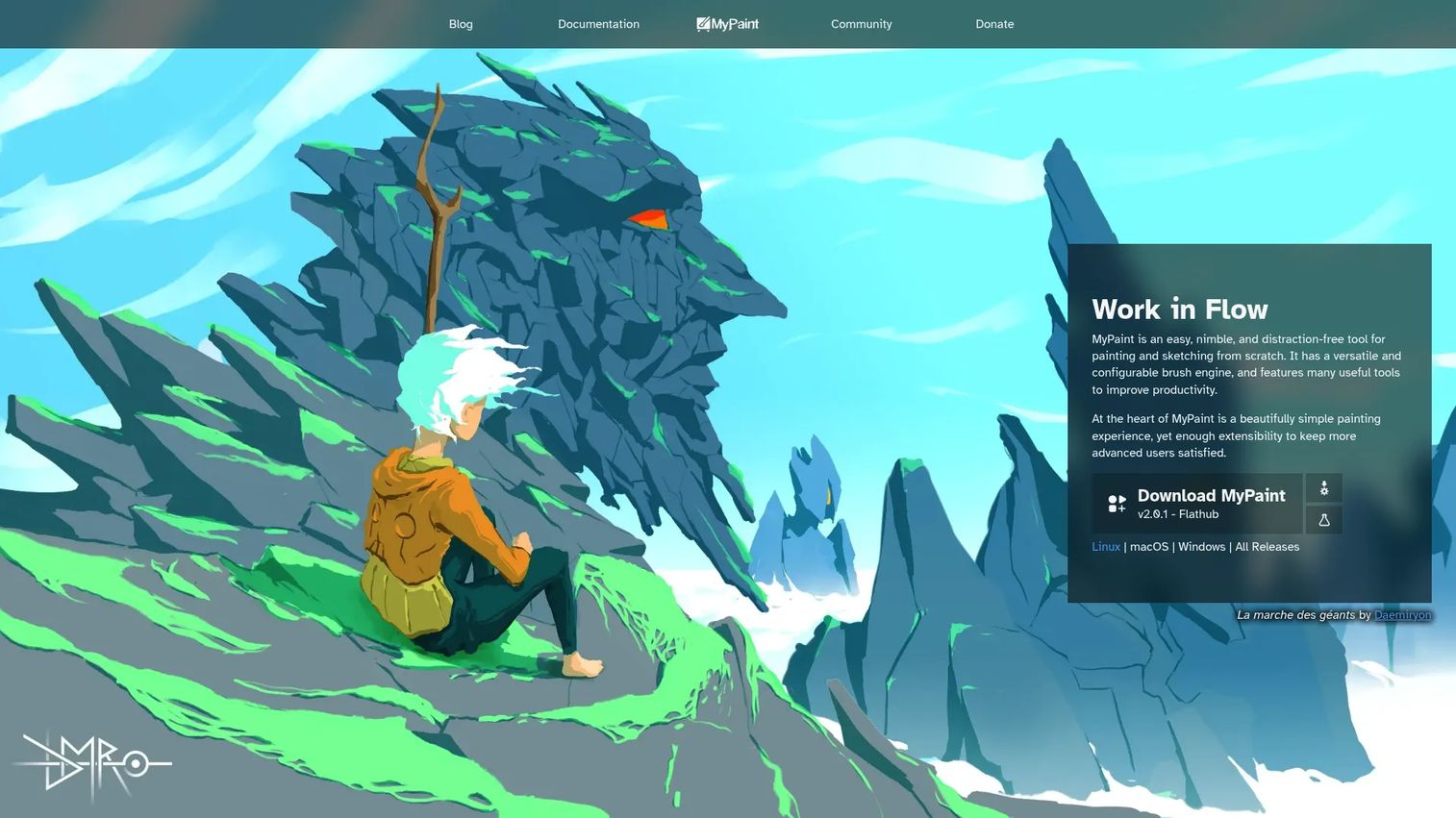
MyPaint is a community-led digital painting app for sketching and painting with a deliberately minimalist interface. It strips away panels and menus so you get a fullscreen, distraction-free canvas and nothing else. For artists who find full-featured suites overwhelming, this focus is the entire point. It is free, open source, and built around one job: painting from scratch without friction.
Best for: Artists who want a lightweight, distraction-free painting tool with strong brush customization.
Key strengths
- Powerful brush engine: an in-house brush engine with deep customization for expressive, natural strokes.
- Infinite canvas: a canvas that expands as you work, so you never hit an edge mid-idea.
- Distraction-free mode: a fullscreen drawing experience that hides everything but the artwork.
Why choose MyPaint: It is an excellent minimalist option when you want to sketch and paint without a learning curve wall or a subscription. As a community-led, open source project, it stays free and keeps improving through contributor work. It will not replace a full illustration suite for comics or animation, but for pure painting and sketching on Windows, Mac, and Linux, it is a clean, focused choice.
MyPaint pricing: MyPaint is free and open source, distributed through its official site with no paid tiers or subscriptions. That makes it another strong free digital painting software option for artists who want to keep their stack lean and their canvas clear.
7. Autodesk SketchBook
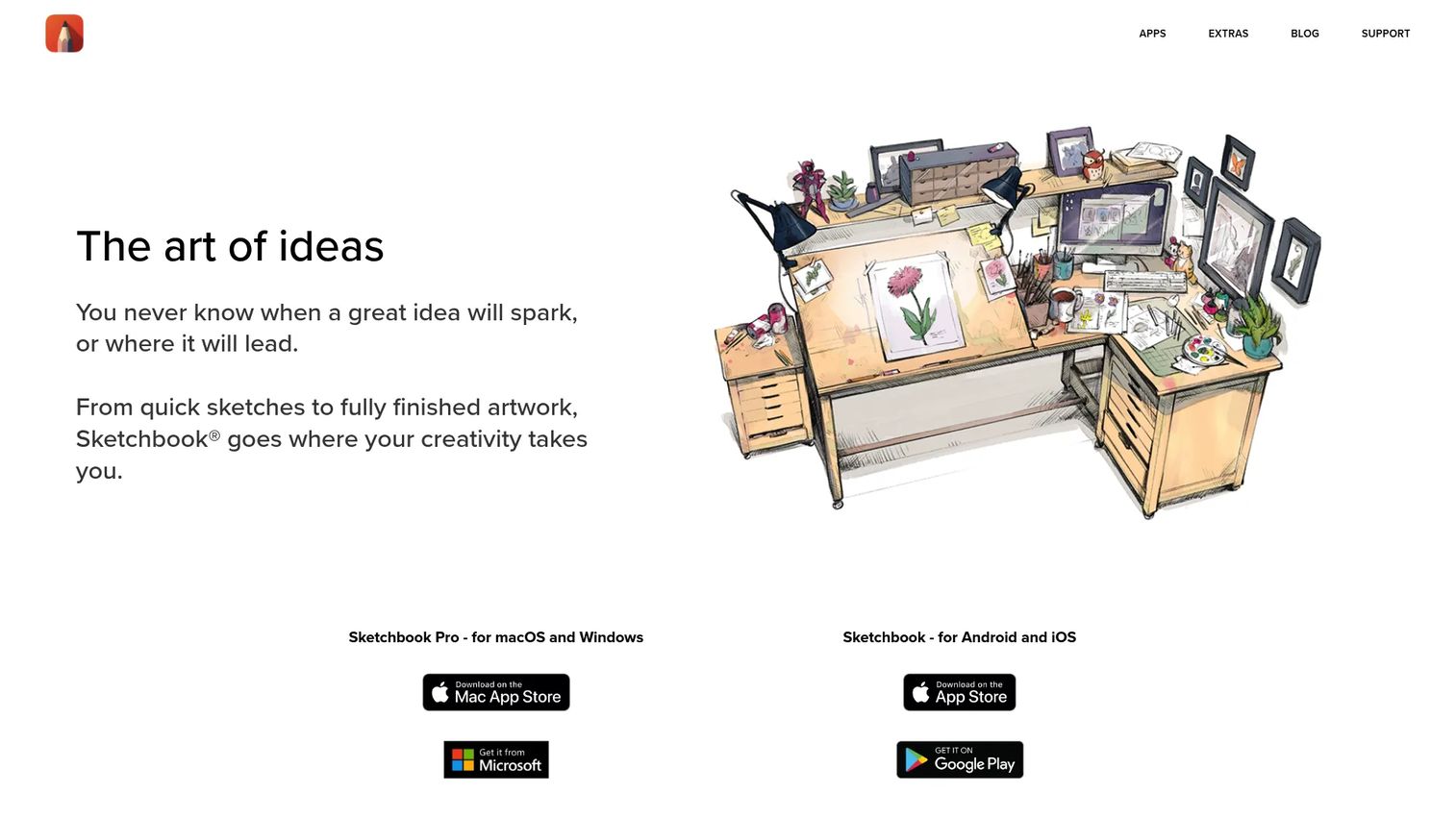
Autodesk SketchBook is a digital sketching and drawing app for desktop and mobile that has become a favorite fast entry point into digital art. The interface is clean and sketch-first, so beginners can start drawing immediately without wading through complex menus. It runs across Windows, Mac, iOS, and Android, which makes it a flexible option for artists who move between devices or want to sketch on the go.
Best for: Artists and designers who want a lightweight sketching app across desktop and mobile.
Key strengths
- Customizable brushes: hundreds of brushes you can tune, covering pencils, inks, markers, and paints.
- Layers and blend modes: a full layer system with blend modes for building up cleaner work.
- Precision tools: symmetry, rulers, guides, and predictive or steady-stroke tools for controlled lines.
Why choose Autodesk SketchBook: For sketching-first workflows and a genuinely low barrier to entry, it is hard to beat. The product positioning has shifted over the years, and the current site presents it simply as Sketchbook with free app access plus optional paid unlocks. It suits beginners testing digital art and pros who want a quick, no-fuss sketchpad alongside heavier tools.
Autodesk SketchBook pricing: The app offers free access with optional paid unlocks. On mobile, a Premium Bundle is available as a one-time in-app purchase on iOS and Android, and enterprise or education direct licensing runs USD$24.99/year per seat. That mix makes it accessible for individual artists while still serving teams and schools.
How to choose the right tool
Before you commit, run your shortlist through these criteria.
Platform match
Start here, because it eliminates half the list instantly. Procreate is iPad-only. Corel Painter targets Windows and Mac. Krita, Clip Studio Paint, and Autodesk SketchBook span desktop and mobile. If you work on one device, pick a tool built for it. If you move between devices, cross-device sync should be non-negotiable.
Brush engine depth
The brush engine determines how natural your strokes feel and how much realistic behavior you get. Corel Painter and Krita lead on depth and customization. If realism is central to your work, test the brush engine before anything else, since it is the capability you will touch every single stroke.
Pricing and licensing model
Decide whether you want free, one-time, or subscription. Krita, MyPaint, and Adobe Fresco are free. Procreate is a one-time purchase. Clip Studio Paint offers both subscription and perpetual licenses. Corel Painter is subscription and upgrade based. Match the model to how you like to pay and how long you plan to use the tool.
Learning resources and community support
A tool is only as useful as your ability to learn it. Look for official tutorials, active forums, and a healthy library of community brushes and templates. Krita, Procreate, and Clip Studio Paint all have deep learning resources and strong community support, which shortens the gap between download and finished work.
Conclusion
The best digital painting software is the one that matches your device, your budget, and the way you paint. Clip Studio Paint wins overall for cross-device flexibility and depth. Krita is the free pick with professional-grade tools. Procreate owns the iPad. Corel Painter delivers the most realistic natural-media painting. Adobe Fresco is the gentlest on-ramp for beginners, and MyPaint and Autodesk SketchBook keep sketching fast and distraction-free.
The decision comes down to four factors: platform, price, realism, and learning curve. Sort your options by device first, then by whether you want free, one-time, or subscription pricing, then test the brush engine on the two or three that survive. The right practical next step is to download one free option, like Krita or Adobe Fresco, and paint something real this week. You will learn more from one afternoon on the canvas than from another hour comparing feature lists.
FAQs
They overlap, but they are not identical. Drawing software emphasizes line work, vectors, and precision, while digital painting software focuses on brushes, blending, textures, and simulating real media. Many tools like Clip Studio Paint and Krita do both well, so the distinction matters most when a tool specializes heavily in one direction.
Adobe Fresco and Krita are the strongest free picks for beginners. Fresco has the gentler learning curve and a touch-first interface that works well on iPad, while Krita offers more depth for artists who want to grow into a fuller feature set on Windows and Mac. Both cost nothing to start.
Procreate is the standard answer for iPad, thanks to its Apple Pencil integration and one-time purchase model. Adobe Fresco and Clip Studio Paint are also excellent iPad options, especially if you want free access or cross-device sync to a desktop. Your choice depends on budget and whether you need the same tool on other platforms.
Corel Painter leads for realistic painting, with the deepest natural-media brush emulation and texture handling on this list. Krita and Clip Studio Paint are strong lower-cost alternatives for realistic digital painting if you want that tactile feel without the premium price. Test the brush engine directly, since realism lives entirely in how strokes behave.
Look for pressure sensitivity, tilt response, natural blending, texture support, and deep customization. A good brush engine feels responsive with no lag between stylus and screen, and lets you tune opacity, flow, and grain. It is the single feature you interact with on every stroke, so prioritize it above almost everything else.
Not necessarily. Lightweight tools like MyPaint and Autodesk SketchBook run well on modest hardware, while heavier suites like Corel Painter and large-canvas work in Krita or Clip Studio Paint benefit from more RAM and a faster processor. Match the tool to your machine, and keep canvas size and layer count reasonable if your hardware is older.
Yes. Krita is open source and used by professional illustrators, concept artists, and animators, with a brush engine and layer system that hold up against paid tools. MyPaint is also open source and capable for painting and sketching. Open source in this category means free and community-supported, not underpowered.
Adobe Fresco and Autodesk SketchBook are the easiest to learn, with clean, sketch-first interfaces and low barriers to entry. Procreate is also beginner-friendly on iPad once you learn its gestures. For any tool, strong tutorials and active community support matter as much as the interface, so factor learning resources into your choice.