You know the exact photo exists. You just can't find it.
It's somewhere across four hard drives, two phones, a cloud account you forgot the password to, and a folder named "New Folder (3)." So you scroll. You open thumbnails. You give up and shoot the moment again, or you send the wrong version and hope nobody notices.
The problem is not that you take too many photos. It's that your library has no system underneath it: no consistent tags, no reliable search, no single place that knows what you have. The global photo management software market was valued at roughly USD 3.6 billion in 2023 and is projected to reach USD 5.9 billion by 2032, according to a 2024 Yahoo Finance report. That growth is not about prettier editors. It's about people drowning in image files and wanting them findable.
This is a shortlist for anyone comparing photo management software by the things that actually matter day to day: how fast you can search, how cleanly you can tag, whether the library syncs across devices, and how much control you keep over your own files. If you also work with generated assets, a companion roundup of the best ai image generators pairs well with a solid organizer, and marketing teams leaning on visuals often keep an eye on ai design tools and broader ai content creation tools alongside their catalog.
Let's get into the picks.
What's inside
This guide covers the best photo management software for different workflows, from local desktop catalogs to cloud-first libraries you can reach from any device. Some tools here are pure organizers. Others combine organization with editing, so you can tag and adjust in one place.
We selected tools based on four criteria: search quality, tagging and organization depth, AI assistance (auto-tagging, face recognition, natural-language search), and platform support and value. The list spans working photographers, casual users, and people wrestling with large archives. Each pick names the workflow it fits best, so you can skip to the one that matches how you actually store and find images.
TL;DR
- Best all-around desktop catalog: Adobe Lightroom Classic, the standard for local photo organization with deep keywording, collections, and batch workflows.
- Best for cross-device access: Adobe Lightroom, the cloud-connected option that syncs your library and search across desktop, web, and mobile.
- Best universal cataloger: Peakto, a picture organizer that searches across multiple apps and legacy libraries with AI photo organization, processed locally.
- Best AI-first free option: Google Photos, the easiest cloud photo management for casual users, with automatic backup and strong search.
- Best value desktop tool: Zoner Photo Studio X, a Lightroom-style catalog and editor at a lower annual price.
- Best lightweight Adobe organizer: Adobe Bridge, a free file browser for people already inside the Adobe ecosystem.
What is photo management software?
Photo management software is a tool for importing, organizing, tagging, searching, and finding photos across a library, whether that library lives on a local drive, in the cloud, or both. It is distinct from a pure photo editor: editing changes how an image looks, while management changes how quickly you can find and reuse it. Many modern tools do both, but the organizing engine is what separates a real photo manager from a folder of files.
Good image management software handles a consistent set of jobs. When you evaluate any tool, look for how it covers these core capabilities:
- Importing and cataloging: pulling in photos from cameras, phones, drives, and cloud accounts, then indexing them into a searchable catalog.
- Tagging and metadata: keywords, ratings, color labels, captions, and EXIF or IPTC data that make images findable by more than filename.
- Search and filtering: fast retrieval by keyword, date, camera, location, rating, or any combination, ideally in real time.
- AI sorting and face recognition: automatic tagging, subject detection, natural-language search, and grouping photos by the people in them.
- Cloud sync or local library control: either syncing the library across devices, keeping everything local for privacy, or a hybrid of both.
The best photo organizer for you depends on which of these you lean on most. A studio pro living in keywords and collections wants something different from a parent who just wants every phone photo backed up and searchable.
When to use photo management software
Not every workflow needs the same tool. Here is how to match the software to the situation.
Organize a large photo archive
When your library is already huge, a catalog-first workflow saves the most time. A dedicated photo organization software tool indexes every image once, then lets you tag, rate, and group without moving files around manually. Local indexing, structured metadata, and batch tagging pay off hardest here: you set a keyword hierarchy once and apply it to thousands of images in a single action. For archives measured in tens or hundreds of thousands of photos, this is the difference between finding an image in seconds and never finding it at all.
Sync photos across devices
If you want the same library on your desktop, laptop, and phone, cloud or hybrid photo management is the fit. These tools upload your catalog so any edit or new tag shows up everywhere, and any device can pull the full-resolution file when needed. Cloud sync also doubles as an offsite backup, which matters when a single failed drive can wipe years of memories. Verify how much storage a plan includes before you commit, since large libraries fill free tiers fast.
Search faster with AI
AI photo organization earns its keep when your library is too big to sort by hand. Smart albums, natural-language search ("dog on the beach"), and auto-tagging turn a manual chore into a query. This matters most when you have thousands of untagged images and no realistic path to keywording them one by one. For smaller, well-labeled libraries, manual tags may already be enough, so weigh how much of your archive is unsorted before paying for AI features.
Comparison table
Here are the eight picks side by side, sorted by relevance to general photo library organization rather than alphabetically. Pricing and ratings reflect verified values at the time of writing.
| # | Product | Intent | Key use case | Pricing | G2 rating |
|---|---|---|---|---|---|
| 1 | Adobe Lightroom Classic | Desktop catalog | Local organization with deep keywording and batch workflows | From US$11.99/mo | 4.6/5 |
| 2 | Adobe Lightroom | Cloud + cross-device | Synced library and search across desktop, web, and mobile | From US$11.99/mo | 4.5/5 |
| 3 | Peakto | Universal cataloger | Cross-library AI search over multiple apps and archives | Trial available; paid plans | Not listed |
| 4 | ACDSee Photo Studio | DAM-style desktop | Local organization plus editing without a mandatory subscription | From $39.95 one-time | 4.4/5 |
| 5 | Zoner Photo Studio X | Value desktop | Cataloging, editing, and printing in one Windows app | From $59.00/yr | 3.8/5 |
| 6 | Capture One | Pro workflow | High-end RAW editing with organized asset handling | Free trial; paid plans | Not listed |
| 7 | Adobe Bridge | Lightweight browser | Fast file organizing for Adobe-centric workflows | Free download | Not listed |
| 8 | Google Photos | Cloud-first casual | Automatic backup, AI search, and easy sharing | Free tier; from $1.99/mo | Not listed |
1. Adobe Lightroom Classic
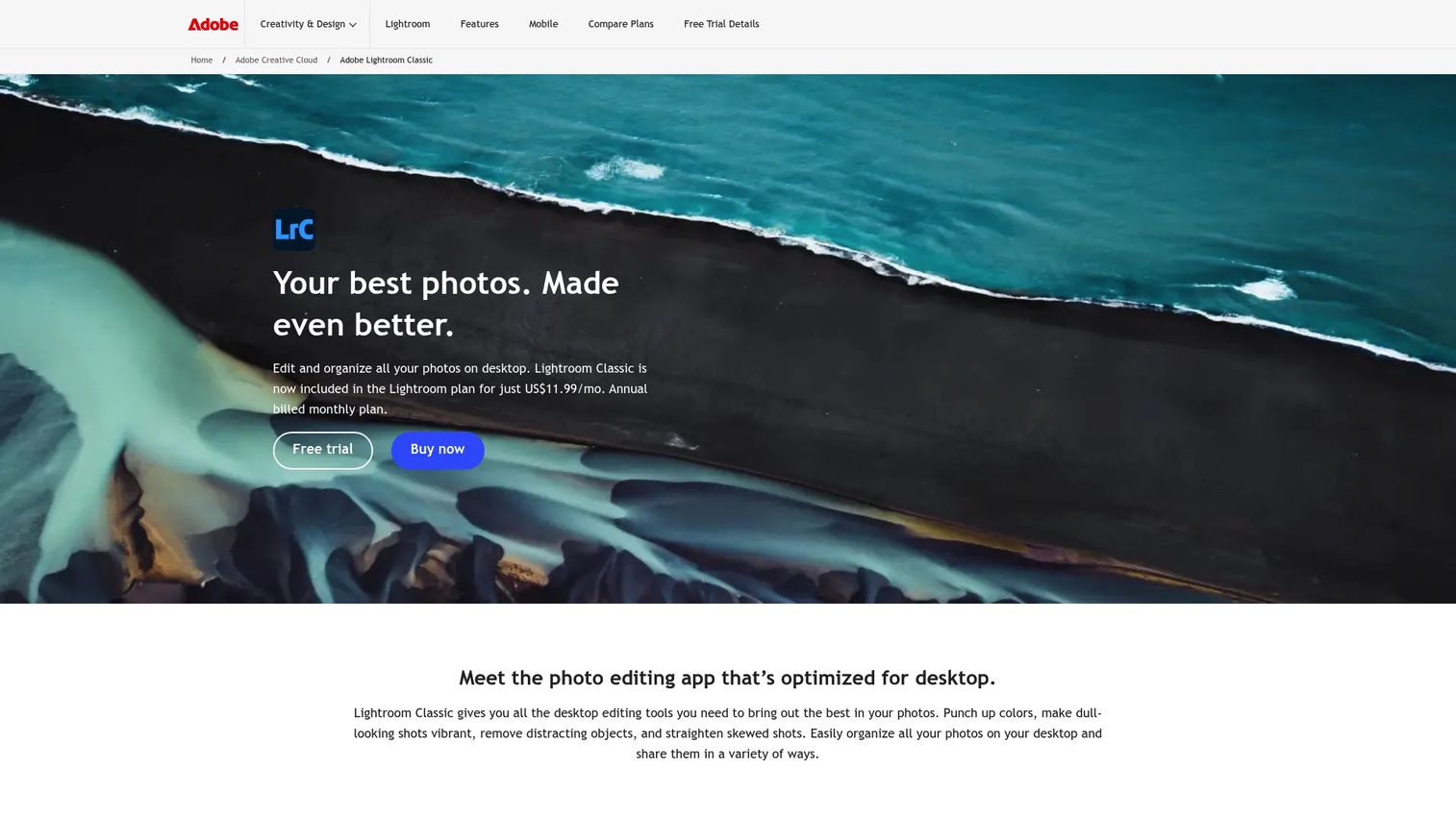
Adobe Lightroom Classic is the desktop-first standard for local photo organization, and it has held that position for a reason. It is built around a catalog that indexes your images while leaving the original files where you put them on your own drives. From there you get import presets, collections, smart collections that update themselves by rule, and a keyword system deep enough to run a working archive.
Best for: Photographers who want a desktop-first workflow with full local file control.
Key strengths
- Catalog-driven organization: Index a huge library once, then find images by keyword, rating, flag, or metadata in real time.
- Batch workflows: Apply keywords, develop settings, and metadata to thousands of photos in a single pass.
- Masking and Content-Aware Remove: Edit in the same app you organize in, so tagging and adjustment stay in one place.
Why choose Adobe Lightroom Classic: If your library lives on local drives and you want the same tool to organize and edit, Classic is the safe, proven pick. It rewards people who invest in a keyword and collection structure, and it scales to archives that would choke a lighter browser. Casual users who just want phone photos backed up will find it heavier than they need.
Adobe Lightroom Classic pricing: Classic is included in Adobe's Lightroom plan starting at US$11.99/mo (annual, billed monthly), the Photography plan at US$19.99/mo, and the Creative Cloud Pro plan at US$69.99/mo. There is no free tier, though Adobe offers a trial. It rates 4.6/5 on G2.
2. Adobe Lightroom
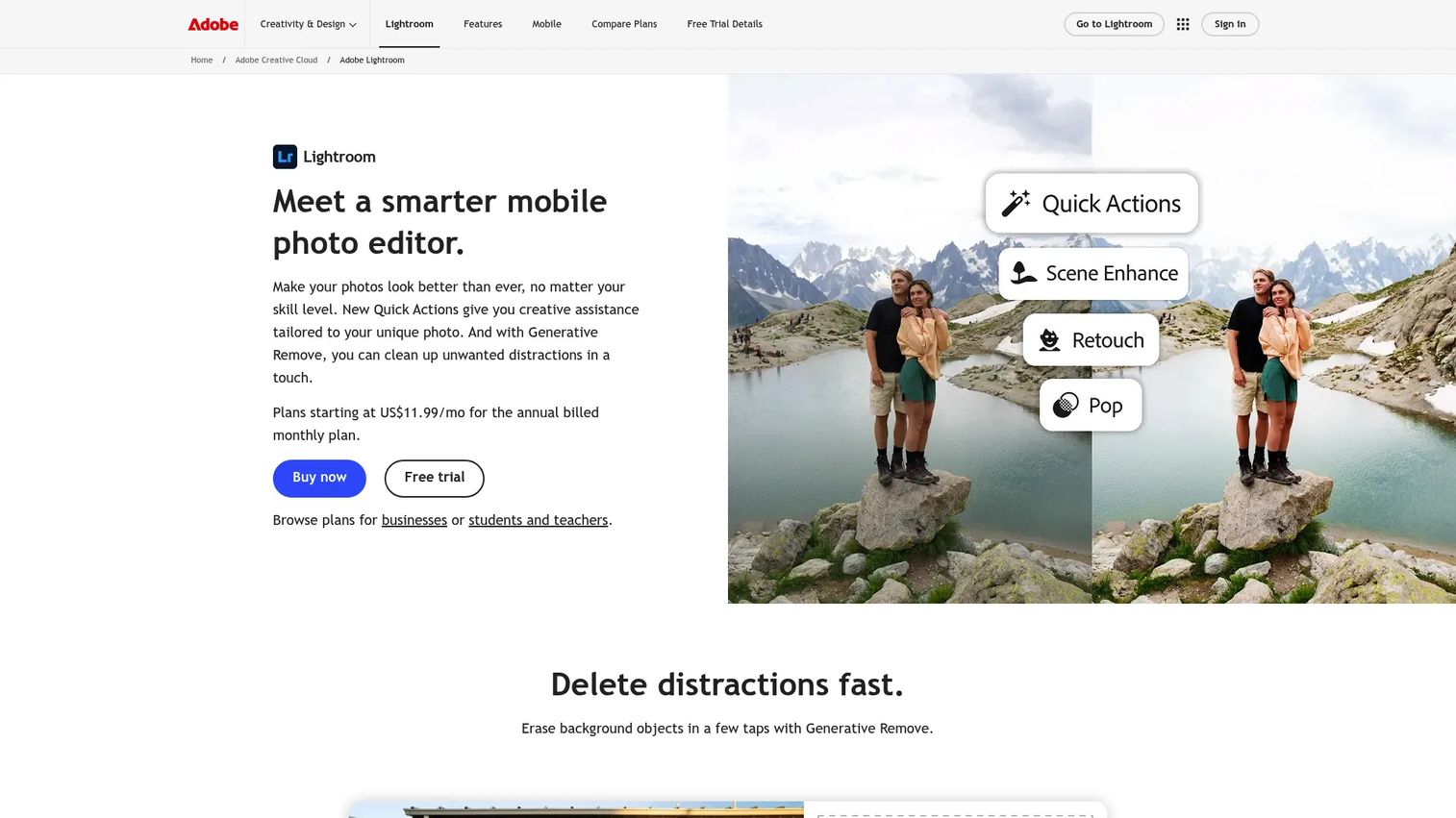
Adobe Lightroom is the cloud-connected sibling to Classic, built for people who want their organization to follow them across every device. Instead of a local catalog, your library lives in Adobe's cloud, so a tag added on your laptop shows up on your phone, and full-resolution files are available on desktop, web, and mobile.
Best for: Photographers who want cloud-based editing and organization across devices.
Key strengths
- Cross-device sync: Your full library, search, and edits stay consistent on desktop, web, and mobile.
- Cloud-based search: Find images by content and metadata from any device without touching a local catalog.
- Generative Remove and Lens Blur: Modern editing tools sit alongside organization in the same app.
Why choose Adobe Lightroom: Pick this over Classic when access beats local control, meaning you shoot on multiple devices and want everything searchable everywhere. It trades the deep catalog machinery of Classic for a simpler, sync-first model. Lightroom on mobile is a free app for iOS and Android, which makes it easy to start before committing to a plan.
Adobe Lightroom pricing: Standalone Lightroom starts at US$11.99/mo (annual, billed monthly), with the Photography plan at US$19.99/mo and Creative Cloud Pro at US$69.99/mo. Student, teacher, and team plans are also available. The mobile app has a free tier, and it rates 4.5/5 on G2.
3. Peakto
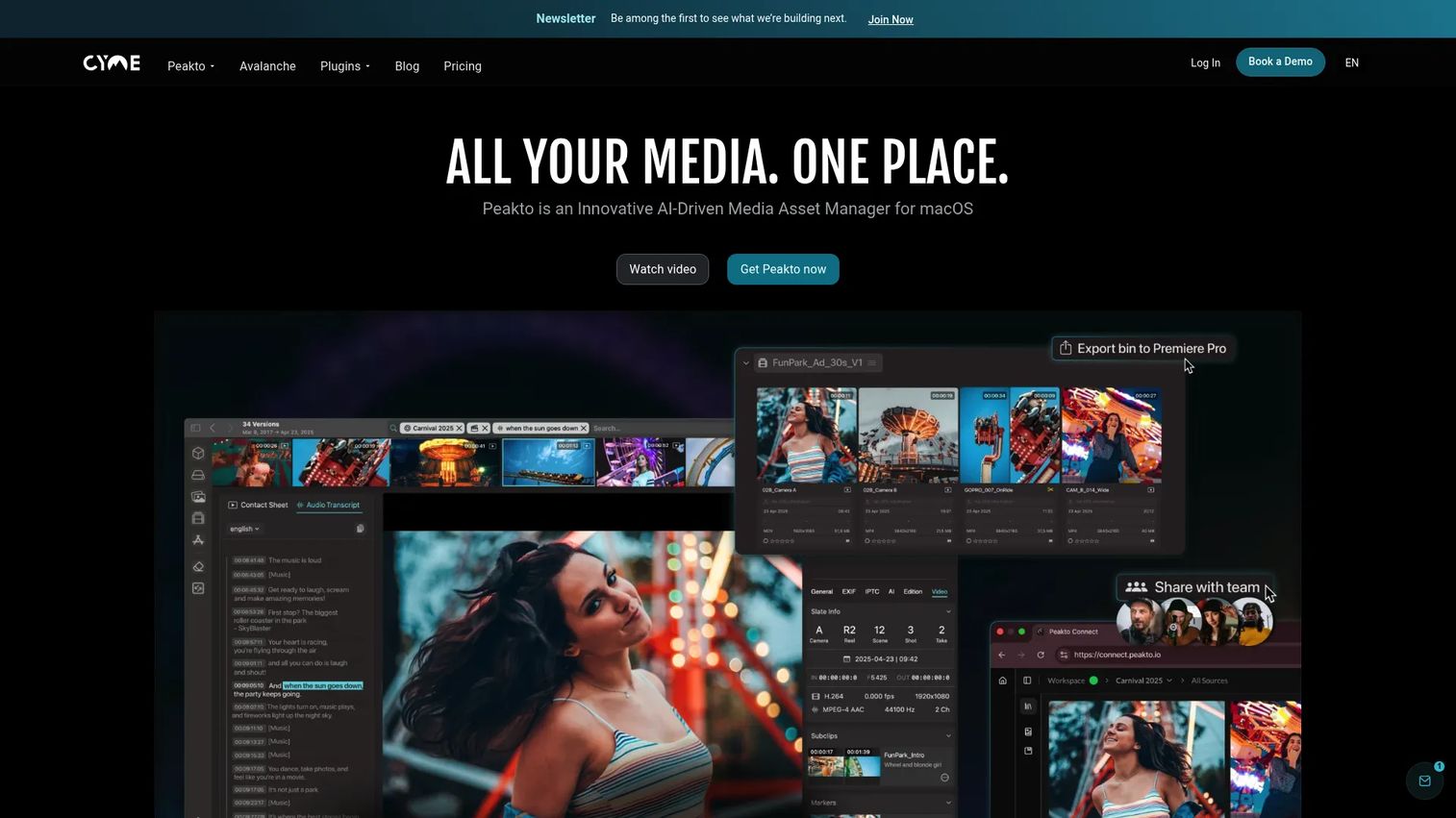
Peakto solves a problem the Adobe tools do not: what happens when your photos are already scattered across several apps and legacy libraries. It is a universal cataloger for macOS that indexes and searches across multiple sources, so you can find an image without remembering which app it lives in. Its natural-language search and AI tagging run locally, which appeals to anyone who wants AI photo organization without shipping their library to a cloud.
Best for: Photographers, videographers, and creative teams managing large local media libraries spread across multiple apps.
Key strengths
- Cross-library search: Query photos and videos across multiple apps and archives from one place.
- Local AI organization: Natural-language search, AI tagging, and face recognition process on your machine for privacy.
- Web browser access and collaboration: Reach and share your managed library beyond a single desktop app.
Why choose Peakto: If years of photos are trapped in separate catalogs, Peakto acts as the connective search layer over all of them. It fits people who juggle multiple tools and want one privacy-first place to find anything, rather than migrating everything into a single new catalog. Windows-only users will need a different pick, since it is macOS-focused.
Peakto pricing: CYME offers Standard, Professional, and Enterprise plans, with monthly, annual, and two-year billing options, plus a lifetime license option on Standard. The Standard plan includes a 7-day trial, and Enterprise is quote-based.
4. ACDSee Photo Studio

ACDSee Photo Studio is a digital-asset-management-style photo manager that pairs strong organization with editing, and it does it without forcing you into a subscription. It leans on a proper DAM approach: metadata, categories, quick search, batch actions, and face detection, so you can build order into a large library and still adjust images in the same app.
Best for: Photographers who want local photo organization plus editing without a mandatory subscription.
Key strengths
- Digital asset management: Organize and search photos with categories, metadata, and fast filtering.
- AI-assisted organization: Face detection and AI filters speed up sorting and cleanup.
- Editing in one place: RAW editing, repair, color, and lighting tools sit alongside the catalog.
Why choose ACDSee Photo Studio: This is the pick for people who dislike subscriptions and want to own their software outright while still getting DAM-grade organization. It suits a traditional desktop workflow where you keep files local and want both cataloging and editing under one roof. If you need cloud sync across devices, other tools here fit better.
ACDSee Photo Studio pricing: The Home 2026 edition is available as a one-time lifetime license at $39.95 USD. Alternatively, the ACDSee 365 Home Plan runs $8.90 USD/month or $89 USD/year. There is no free tier, and ACDSee rates 4.4/5 on G2.
5. Zoner Photo Studio X
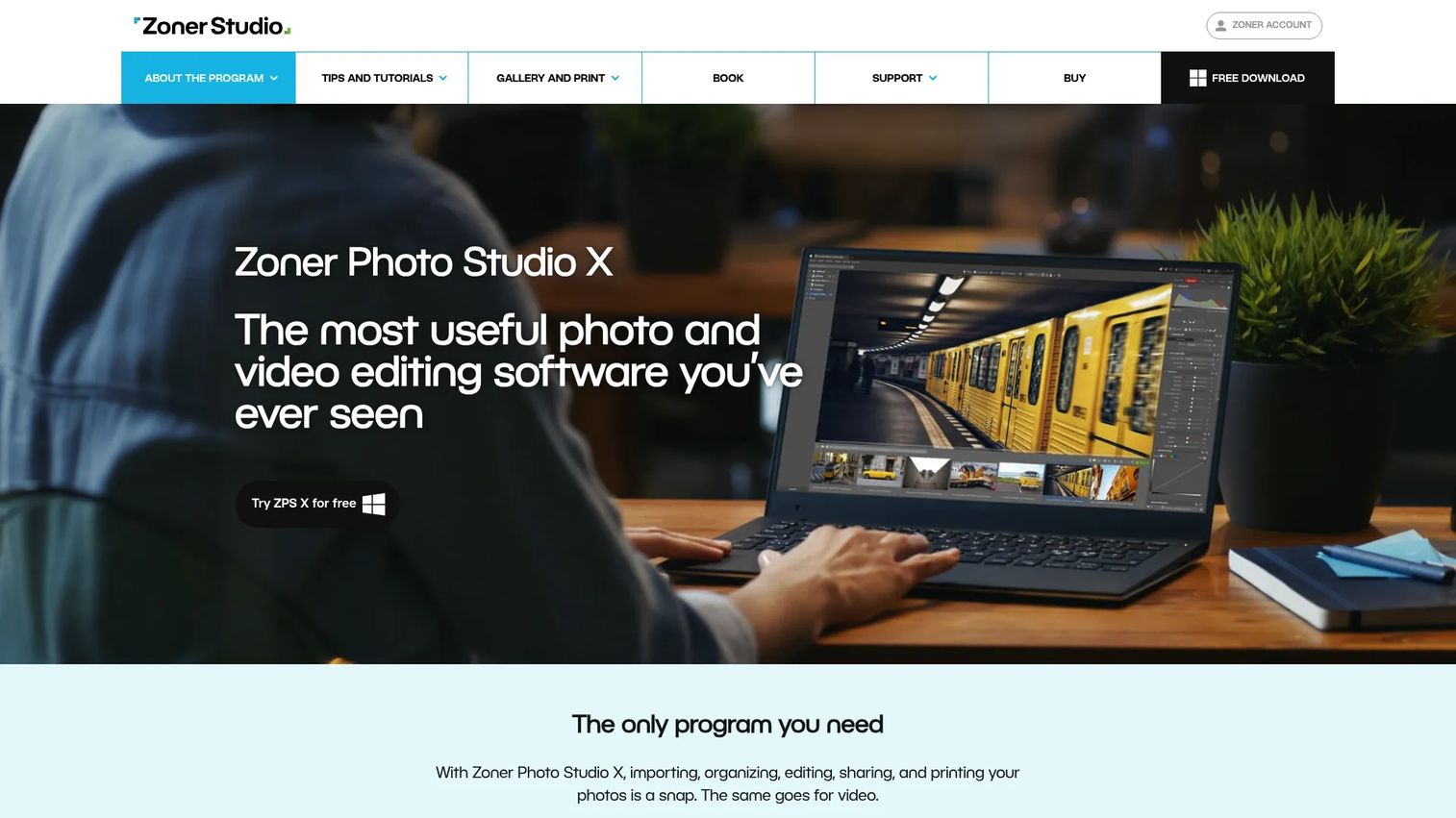
Zoner Photo Studio X is a Lightroom-style, all-in-one app that handles cataloging, editing, sharing, and printing for a noticeably lower yearly price. It organizes photos into a catalog, supports ratings and metadata, and includes the module-based structure that Lightroom users will recognize, making it a practical Adobe Lightroom alternative for Windows.
Best for: Photographers who want one Windows app for cataloging, editing, and printing.
Key strengths
- Catalog and metadata organization: Import, rate, keyword, and filter your library in a structured catalog.
- All-in-one modules: Move between organizing, editing, and printing without leaving the app.
- Light video work: Handle basic video alongside photos in the same tool.
Why choose Zoner Photo Studio X: Choose it over pricier desktop tools when you want a Lightroom-like experience without the Adobe subscription tier, especially on Windows. It covers the full loop from import to print, which suits hobbyists and enthusiasts who want value without giving up cataloging. Mac-first users and those wedded to the Adobe ecosystem may prefer other options.
Zoner Photo Studio X pricing: A free 7-day trial is available. The individual plan is $59.00/year, and the Family Plan is $98.00/year. It rates 3.8/5 on G2.
6. Capture One
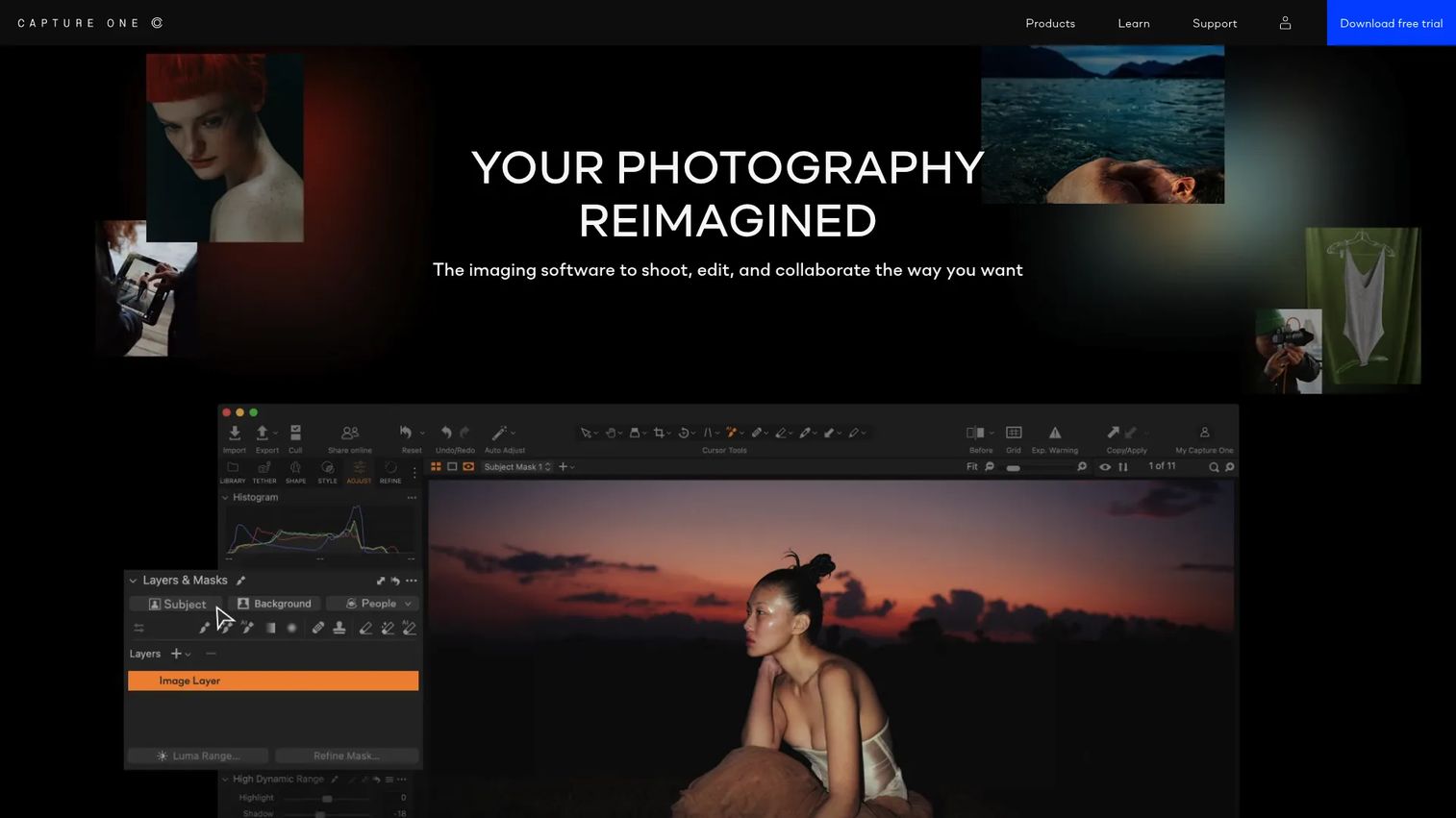
Capture One is the choice for photographers and studios who put professional image quality and workflow first. Its cataloging sits inside a high-end RAW editing and tethered-capture environment, so asset handling is organized but always in service of a serious production workflow. This is where working pros land when Lightroom Classic feels close but not quite tuned to their shooting style.
Best for: Photographers and studios needing high-end RAW editing and tethered capture with organized assets.
Key strengths
- Professional RAW editing: Precise color and detail control built for demanding studio output.
- Tethered capture: Shoot directly into an organized session or catalog during studio work.
- Assisted editing tools: AI crop, dust removal, and focus assistance streamline the production loop.
Why choose Capture One: Pick it when editing quality and studio workflow drive the decision and cataloging is the supporting cast rather than the star. It sits alongside Lightroom Classic as a pro-grade alternative, favored by photographers who value its color handling and tethering. If you want a lightweight organizer or cross-device cloud sync, this is more tool than you need.
Capture One pricing: Capture One offers a free 7-day trial, with paid plans available on its site. Public price figures were not visible at the time of writing, so confirm current pricing on the vendor page before you buy.
7. Adobe Bridge
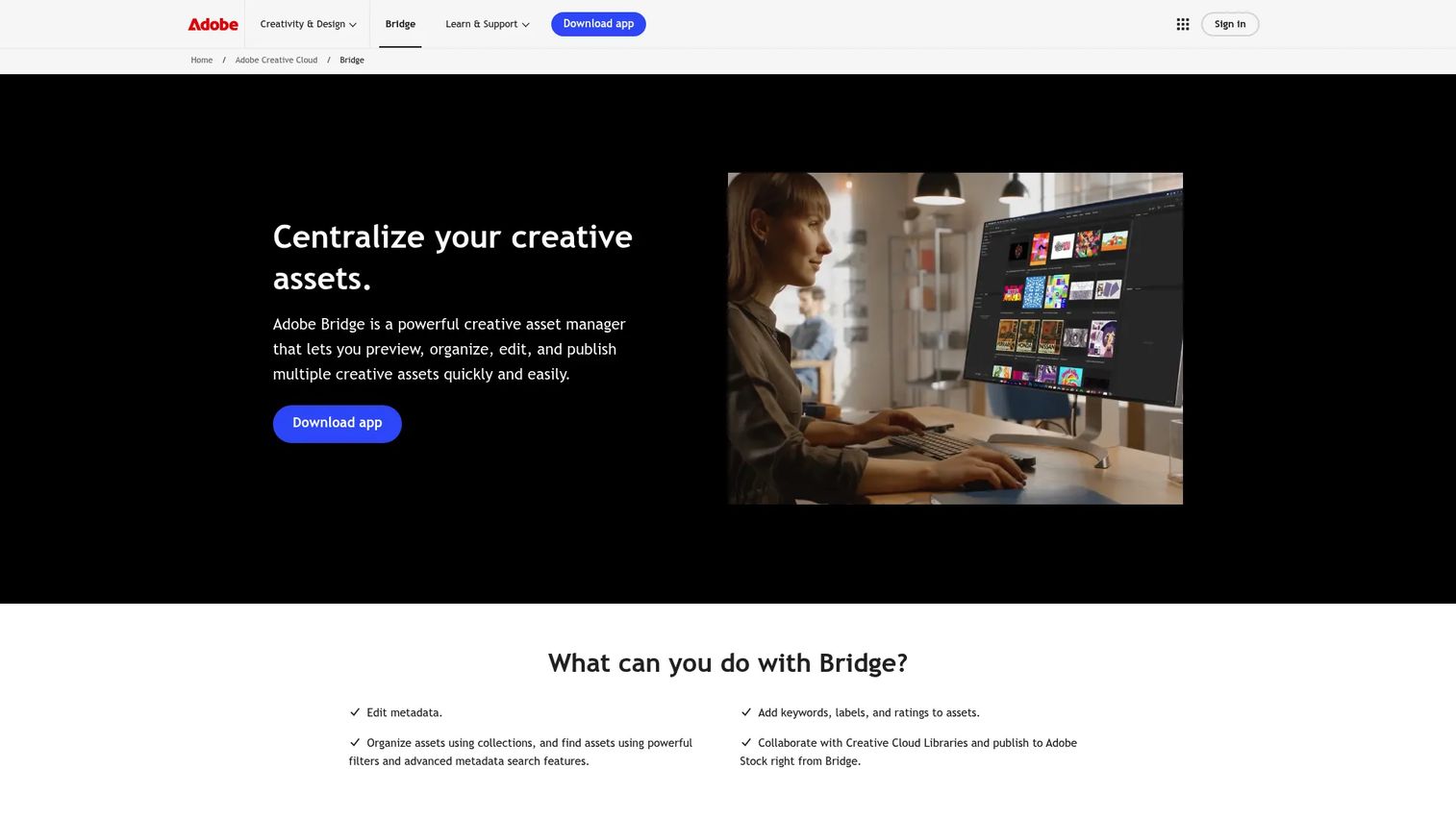
Adobe Bridge is the lightweight organizer for people who live inside the Adobe ecosystem and want a fast browser rather than a full catalog. It works directly with folders and files: previewing, rating, labeling, and editing metadata, then handing off to Photoshop, Lightroom, or another Adobe app. There is no catalog to build, so it indexes what is on disk and gets out of your way.
Best for: Creative teams that need a fast desktop asset browser for Adobe files.
Key strengths
- File and folder browsing: Preview and organize assets straight from your directory structure.
- Metadata and keywording: Edit labels, ratings, and keywords, then filter with advanced search.
- Adobe handoff: Move files into Photoshop and other Adobe apps without friction.
Why choose Adobe Bridge: Choose Bridge instead of a full catalog tool when you want speed and folder-based simplicity over a managed library. It fits designers and photographers already using Creative Cloud who need to triage and tag files fast. If you want smart collections, cloud sync, or a self-maintaining catalog, a dedicated photo manager serves you better.
Adobe Bridge pricing: Adobe lists Bridge as available to download for free. Some capabilities reference Creative Cloud membership, so check the product page for current details before relying on any paid feature.
8. Google Photos

Google Photos is the easiest cloud-first option for casual users and shared libraries. It backs up automatically across devices, groups faces, and lets you search by people, places, and things without any tagging effort on your part. For most people, it is the fastest path from "thousands of unsorted phone photos" to "find that photo in seconds."
Best for: People and teams needing simple cloud photo backup, search, and sharing.
Key strengths
- Automatic backup: Photos from phones and other devices sync to the cloud without manual imports.
- AI search: Find images by people, places, and things, plus automatic face grouping.
- Easy sharing: Share albums and photos with contacts and apps in a few taps.
Why choose Google Photos: This is the convenience pick, best when you want zero-effort organization and access from any device over deep professional cataloging. It shines for families, casual shooters, and anyone who values search that just works. Pros who need keyword hierarchies, local control, or RAW-grade editing will want a dedicated desktop tool instead.
Google Photos pricing: Every Google Account includes 15 GB shared across Photos, Gmail, and Drive at no cost. Paid Google One plans start at $1.99/month for 100 GB, with a 2 TB tier at $9.99/month and a 5 TB tier at $19.99/month.
Considerations before you choose
The right pick comes down to how you store, search, and protect your library. Run through these before committing.
Storage model matters
Decide between cloud, local, or hybrid first, because it shapes everything else. Cloud photo management gives you access anywhere and doubles as offsite backup, but you rent storage monthly. Local photo management software keeps files on your drives with no recurring storage fee and full control, though backup is on you. Verify how much storage a plan includes against your library size, and confirm the backup story before you trust it with irreplaceable photos.
Search quality is the real test
A pretty interface means nothing if you can't find a specific image fast. Indexing, metadata handling, and AI search matter more than the tour screenshots suggest. Before you buy, run the real test: import a sample of your messiest photos and time how long it takes to surface one specific shot by keyword, date, or description. If it's slow or misses, no feature list will save you.
Workflow fit beats feature count
A tool that matches how you already work is worth more than a longer feature list you'll never touch. Check Adobe compatibility if you live in Creative Cloud, confirm Mac or Windows support, and be honest about whether a pro catalog is overkill for phone snapshots. The best photo manager is the one you'll actually keep tagging in, not the one with the most checkboxes.
Budget should include migration cost
Switching tools costs time, not just money. Importing a large library, rebuilding tags, retraining your habits, and cleaning up metadata all take hours you won't get back. Factor that migration cost into any decision, especially if you're leaving a catalog you've curated for years. Sometimes the cheaper switch is the more expensive one.
Privacy and control
Some users care more about where their photos live than about convenience. Family archivists, working pros, and privacy-minded people often prefer local libraries or local AI processing over cloud-only management. If that's you, weight tools that keep files and AI on your own machine. If access and sharing matter more, cloud-first tools earn their keep.
Conclusion
The best photo management software depends entirely on how you work. For a desktop-first catalog with deep local control, Adobe Lightroom Classic remains the standard. For the same organization synced across every device, Adobe Lightroom fits. Peakto is the universal cataloger when your photos are scattered across apps, and Google Photos is the easiest cloud-first option for casual libraries. On value, Zoner Photo Studio X delivers a Lightroom-style workflow for less, ACDSee Photo Studio gives you DAM-grade organizing without a subscription, Capture One serves studio pros, and Adobe Bridge keeps Adobe workflows fast and simple.
Start with the tool that matches your library size and storage preference, cloud or local. Then run the only test that counts: import a messy sample and see how fast you can find one specific photo and tag it cleanly. Whichever tool wins that race is your photo organizer.
FAQs
Photo management software is a tool for organizing, tagging, searching, and finding photos across a library, whether that library is stored locally, in the cloud, or both. It differs from a photo editor: an editor changes how an image looks, while a photo organizer changes how quickly you can locate and reuse it. Many tools now combine both.
For large libraries, catalog strength, indexing speed, and metadata handling matter most. Adobe Lightroom Classic is the common choice for local archives thanks to deep keywording and batch workflows, while Peakto excels at searching across multiple existing catalogs. The best option depends on whether you prefer local control or cloud access.
Beginners usually want easy import, automatic tagging, and cloud sync with minimal setup. Google Photos fits that profile: it backs up automatically and searches by people, places, and things without manual keywording. Adobe Lightroom is a step up when you want more organizing control while keeping cross-device sync.
Lightroom remains a top option, but it is not the only one. Lightroom Classic is built for a desktop-first, local catalog workflow, while the cloud-based Lightroom prioritizes sync and access across devices. Strong Adobe Lightroom alternatives like ACDSee, Zoner, and Capture One fit people who want different pricing models or workflows.
Adobe Bridge is a strong free image organizer software option for Adobe-centric workflows, offering fast folder browsing, metadata editing, and keywording. Google Photos also offers a free tier with 15 GB of shared storage plus automatic backup and AI search. Free tools trade some cataloging depth for convenience, so match the choice to your library size.
Choose cloud photo management if you want access from any device and built-in offsite backup, and you're comfortable renting storage. Choose local photo management software if you want full control, no recurring storage fees, and stronger privacy, provided you handle your own backups. Library size, budget, and privacy needs decide it, and hybrid setups split the difference.
The features that matter most are fast search, reliable tagging and metadata, AI organization like auto-tagging and face recognition, and platform support that matches your devices. Prioritize how quickly you can find one specific photo, since that is the daily test of any picture organizer. Everything else is secondary to search and tagging that fit your real workflow.