

Accessibility work gets messy fast. A PM might be thinking about onboarding completion rates. A student needs audio notes from a lecture. An accessibility lead needs alt text drafted before a content audit. A support team needs clearer help documentation that users with cognitive differences can actually follow.
Those are not the same job. Yet most tool lists treat "AI accessibility" as a single category and dump everything into one pile.
The gap shows up in real outcomes. According to Level Access (2025), 82% of organizations now use AI in their digital accessibility strategies, and 86% say AI capabilities matter when purchasing accessibility solutions. The tools exist. The challenge is matching the right tool to the right barrier.
This guide maps 14 AI accessibility tools to the specific jobs they do well. For product managers, the question is straightforward: Which tools reduce friction for users without creating a maintenance burden on your team?
What's inside
This guide compares 14 AI accessibility tools for 2026, selected based on recurring category relevance, practical use case fit and current availability.
- Who it's for: Product managers, accessibility leads, educators and individuals seeking assistive technology support
- Selection criteria:
- Accessibility function and job fit (reading, writing, visual, transcription, executive function)
- Privacy and deployment suitability for institutional or workplace use
- Cost and team adoption curve
- Maintainability across release cadences
The guide covers text-to-speech software, speech-to-text, visual assistance, AI note-taking for accessibility, and executive-function support, alongside buyer considerations for responsible evaluation.
TL;DR
- Best for Microsoft-first teams: Microsoft Word and Microsoft Outlook bring accessibility checks, dictation and reading support to workflows where the work already happens
- Best for reading and listening support: Natural Reader and Speechify convert documents, PDFs and webpages into audio with speed controls and multiple voices
- Best for blind and low-vision users: Be My Eyes and Microsoft Seeing AI provide real-time visual interpretation and AI image descriptions
- Best for executive-function support: Goblin.tools helps neurodivergent users break overwhelming tasks into manageable steps
- Best for lecture notes and study: Jamworks and NotebookLM turn recordings and source documents into searchable, structured learning materials
- Best for writing clarity: Grammarly and Read&Write improve sentence clarity, grammar and comprehension support across writing tasks
What are AI accessibility tools?
AI accessibility tools are software applications that use artificial intelligence to help people perceive, understand, create, navigate or evaluate digital content more accessibly.
The category spans several distinct jobs: Helping users consume content they cannot easily read or see, helping users produce content they struggle to write, reviewing content for accessibility issues before publication, and supporting cognitive organization. For product managers, the relevant frame is activation friction: Which user barriers map to which tools?
Common AI accessibility functions
- Text-to-speech and audio playback from documents or webpages
- Speech-to-text transcription and voice note cleanup
- OCR and visual recognition for image-based text
- AI image and scene description for blind and low-vision users
- Writing clarity, grammar and tone suggestions
- Task breakdown and executive-function scaffolding
- Reading simplification and line focus
- Meeting and lecture summarization with searchable transcripts
- Accessibility checks for documents and web content
- Study aids, source-grounded Q&A and knowledge synthesis
What AI should not replace
AI tools assist, they do not decide. Human accessibility testing, keyboard navigation checks and screen-reader behavior validation still require real users. Disability community feedback cannot be automated. Official documentation, assessment materials and policy content need manual review before publication. AI-generated alt text, captions and summaries can be wrong, particularly in specialized or high-stakes contexts. Product teams should treat AI output as a first draft, not a finished check.
When to use AI accessibility tools
Support users who process information differently
Reading fatigue, dyslexia, ADHD and auditory processing differences affect how users engage with onboarding flows, help content and product documentation. Text-to-speech tools like Natural Reader and Speechify let users consume content by listening instead of reading. Task-breakdown tools like Goblin.tools reduce cognitive load when a next step is not obvious. For PMs, this connects directly to onboarding completion and support deflection: Users who can process your content are less likely to file a "how do I" ticket.
Make learning and meetings easier to revisit
Transcription and note-taking tools like Jamworks and NotebookLM produce searchable records of lectures, internal training and onboarding walkthroughs. Audiopen AI cleans up voice notes taken during discovery or research sessions. This matters for product teams running async workflows or building internal knowledge bases, where recall and documentation quality affect alignment speed.
Improve accessibility checks before human review
Tools like Microsoft Word's Accessibility Checker and Grammarly help surface readability and structure issues before content reaches users. Read&Write supports plain-language writing for support content. AI can generate alt text drafts and flag WCAG-related gaps, but a human reviewer still needs to confirm the experience works for real users. Treat AI as preparation for review, not a substitute for it.
AI accessibility tools comparison
The table below maps all 14 tools to their primary accessibility job, with verified pricing and G2 ratings. Use it to narrow your shortlist before reading the full tool sections.
| # | Product | Best for | Key differentiator | Pricing | G2 rating |
|---|---|---|---|---|---|
| 1 | Microsoft Word | Document accessibility and writing support | Built-in Accessibility Checker, Dictate and Read Aloud inside Microsoft 365 | Free web version; Microsoft 365 from $99.99/year | 4.7/5 |
| 2 | Microsoft Outlook | Accessible email creation and communication | Accessibility check, Dictate and Copilot drafting inside email workflows | Free tier available; Microsoft 365 from $19.99/year | 4.5/5 |
| 3 | Natural Reader | Text-to-speech for documents and webpages | OCR, MP3 export, podcast generation and multiple voice options | Paid plans from $13.90/month | 5.0/5 |
| 4 | Audiopen AI | Voice note cleanup and structured writing | Rewrites rambling speech into polished text with tone controls | Free plan; Prime from $33 for 3 months | N/A |
| 5 | Be My Eyes | Visual assistance for blind and low-vision users | Live volunteer calls plus AI image and scene descriptions | Free consumer app; Workplace plans from $55/user/month | N/A |
| 6 | Goblin.tools | Neurodiversity and executive-function toolkit | Multiple lightweight AI utilities for tasks, tone and organization | Free; Pro at $3/month | N/A |
| 7 | Google Lens | OCR and visual search from a mobile camera | Camera-based text extraction, translation and object recognition | Free via Google apps | N/A |
| 8 | Grammarly | Writing clarity and accessible content creation | Grammar, tone, clarity rewrites and AI text generation across surfaces | Free plan; Pro from $12/member/month (annual) | 4.7/5 |
| 9 | Jamworks | Lecture capture and AI study notes | AI Enhanced Notes, flashcards, JamAI tutor and STEM support | Student plan from £14.99/month; institutional pricing on request | N/A |
| 10 | Microsoft Immersive Reader | In-app reading support across Microsoft tools | Line focus, syllables, translation and Read Aloud inside Microsoft 365 | Free within supported Microsoft 365 apps | N/A |
| 11 | Microsoft Seeing AI | Mobile visual AI for blind and low-vision users | Narrates text, documents, barcodes, faces, currency and scenes | Free | N/A |
| 12 | Read&Write | Literacy support for education and workplace | Text-to-speech, word prediction, screen masking and study tools | From $2.75/seat/year (K-12 district); $184/year individual | 4.0/5 |
| 13 | Speechify | Audio reading for documents and long-form content | 1,000+ voices, 60+ languages, Scan and Listen and AI podcast creation | Free plan; Premium from $29/month or $139/year | 4.4/5 |
| 14 | NotebookLM | Source-grounded study and research support | Audio overviews, mind maps, citations and Deep Research from your documents | Google AI Plus from $9.99/month | 4.6/5 |
Best 14 AI accessibility tools for 2026
1. Microsoft Word
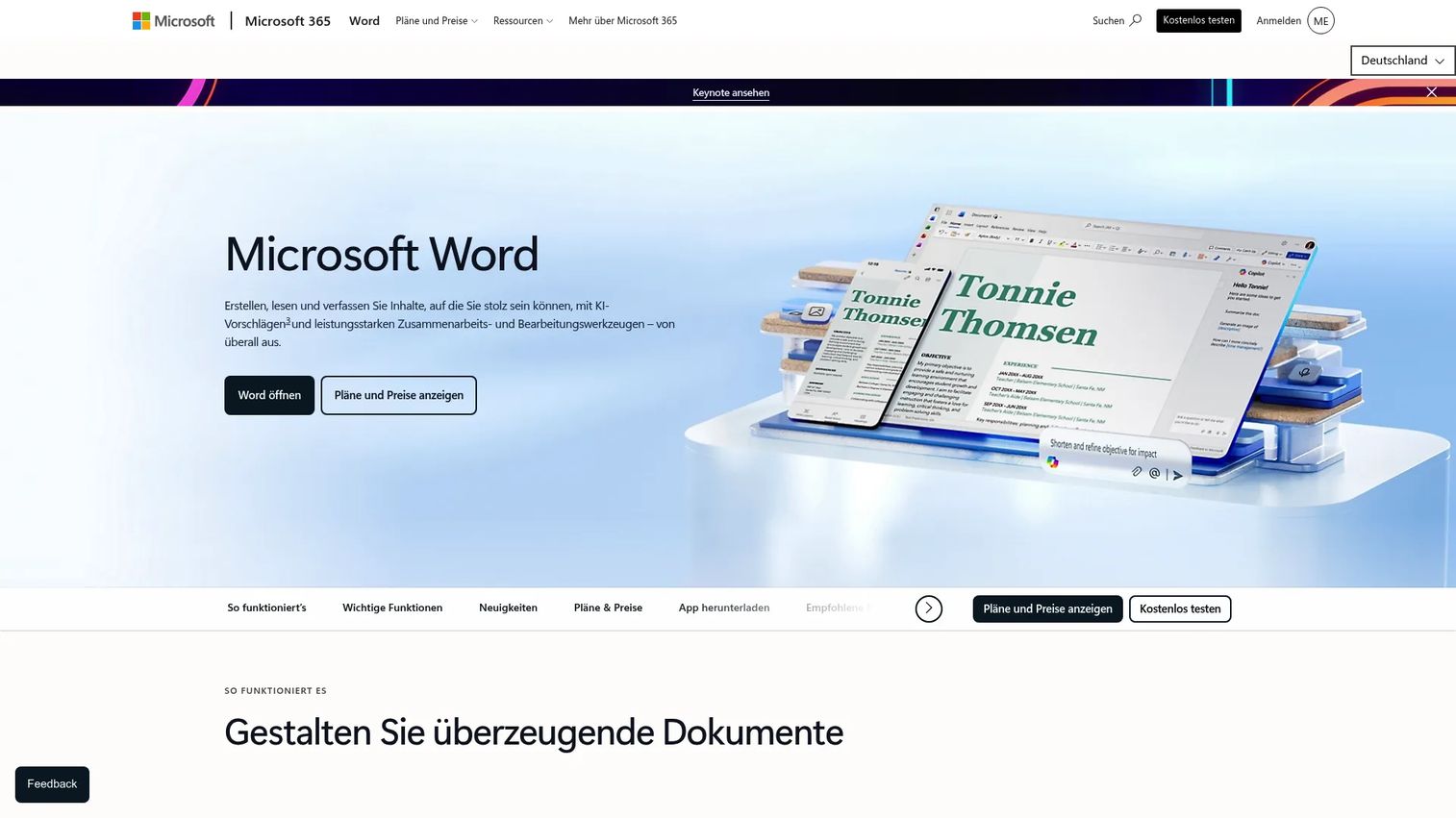
Microsoft Word is the document creation and editing application most teams already use for release notes, onboarding materials, help content and internal specs. Its accessibility features are embedded in the same environment where content gets created, which matters for adoption.
Best for: Teams creating support content, product documentation and onboarding materials inside Microsoft 365 who want accessibility checks without switching tools.
Key features
- Accessibility Checker: Flags missing alt text, heading structure issues and reading order problems
- Dictate: Converts speech to text directly in the document
- Read Aloud: Reads document content back with highlighted word tracking
- Editor: AI writing suggestions for clarity, grammar and readability
- Alt text suggestions: AI-generated descriptions for images in documents
Why choose Microsoft Word: The accessibility tools require zero additional setup for Microsoft 365 teams. It is not a full WCAG testing platform, but it catches common document issues before content reaches users, reducing the maintenance cost of post-publication fixes.
Microsoft Word pricing: Word for the web is free with 5 GB of cloud storage. Microsoft 365 Personal runs $99.99/year; Microsoft 365 Family is $129.99/year. Both paid plans add desktop Word, Copilot and expanded storage.
G2 rating: 4.7/5
2. Microsoft Outlook
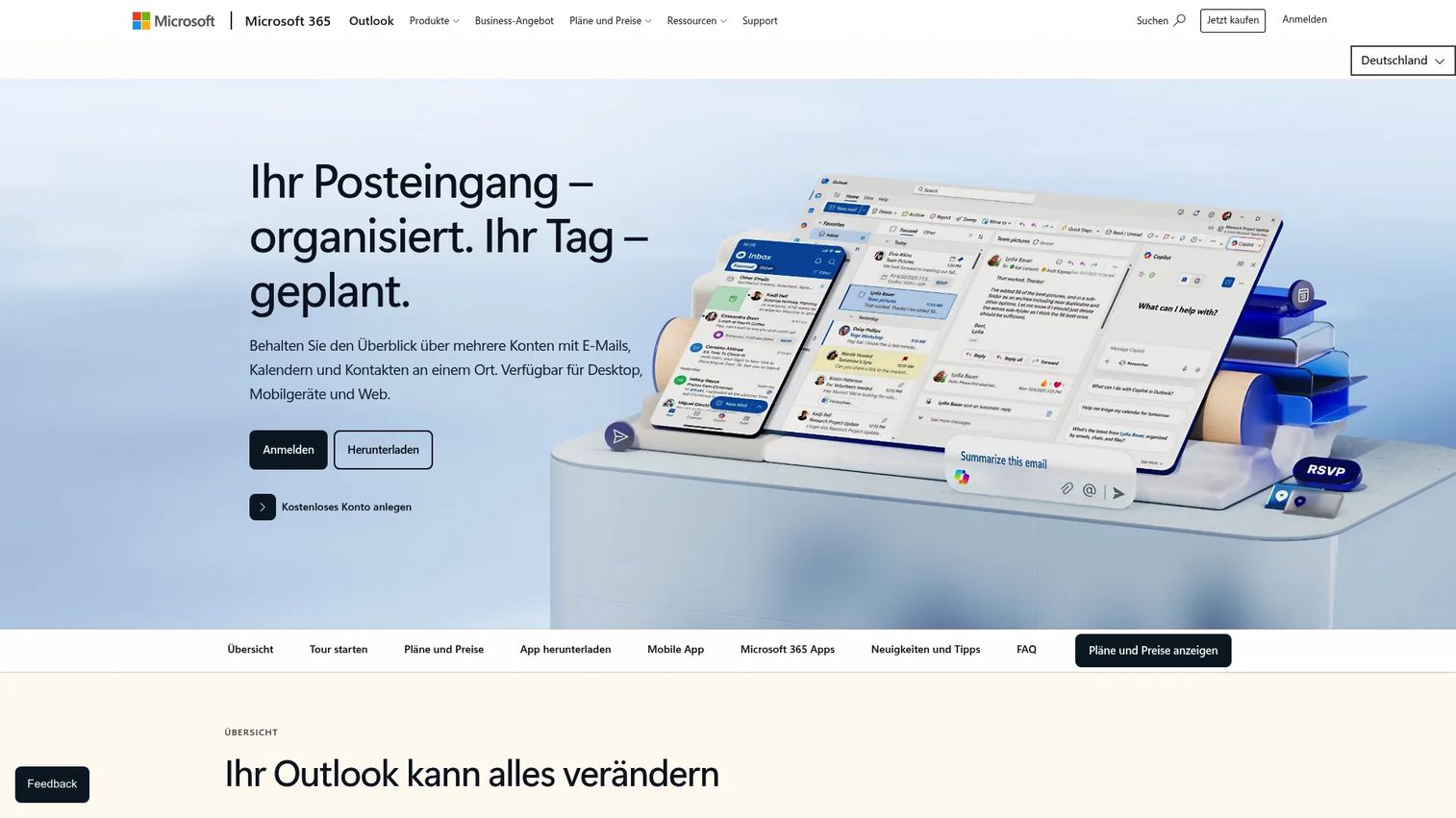
Microsoft Outlook is the email and calendar application used by many enterprise and mid-market teams. Its accessibility features sit directly inside the email composition workflow, covering dictation, reading support and AI-assisted drafting.
Best for: Teams sending onboarding, support or lifecycle emails who need accessibility checks where email is already written.
Key features
- Accessibility Checker: Reviews outgoing emails for accessibility issues before sending
- Dictate: Speech-to-text for composing messages
- Read Aloud: Reads incoming messages aloud for users who prefer listening
- Copilot drafting: AI-assisted email composition and tone adjustment
- Editor suggestions: Grammar, clarity and style recommendations inline
Why choose Microsoft Outlook: The accessibility value lives in communication, not in the product UI. For product teams, this matters because onboarding nudges, lifecycle emails and support responses are common sources of accessibility friction. Teams should still test email rendering across screen readers, since Outlook checks flag structural issues but do not simulate the full reader experience.
Microsoft Outlook pricing: A free tier includes email and calendar with 15 GB storage. Microsoft 365 Basic starts at $19.99/year. Microsoft 365 Personal is $99.99/year (or $9.99/month), adding desktop apps and expanded storage.
G2 rating: 4.5/5
3. Natural Reader
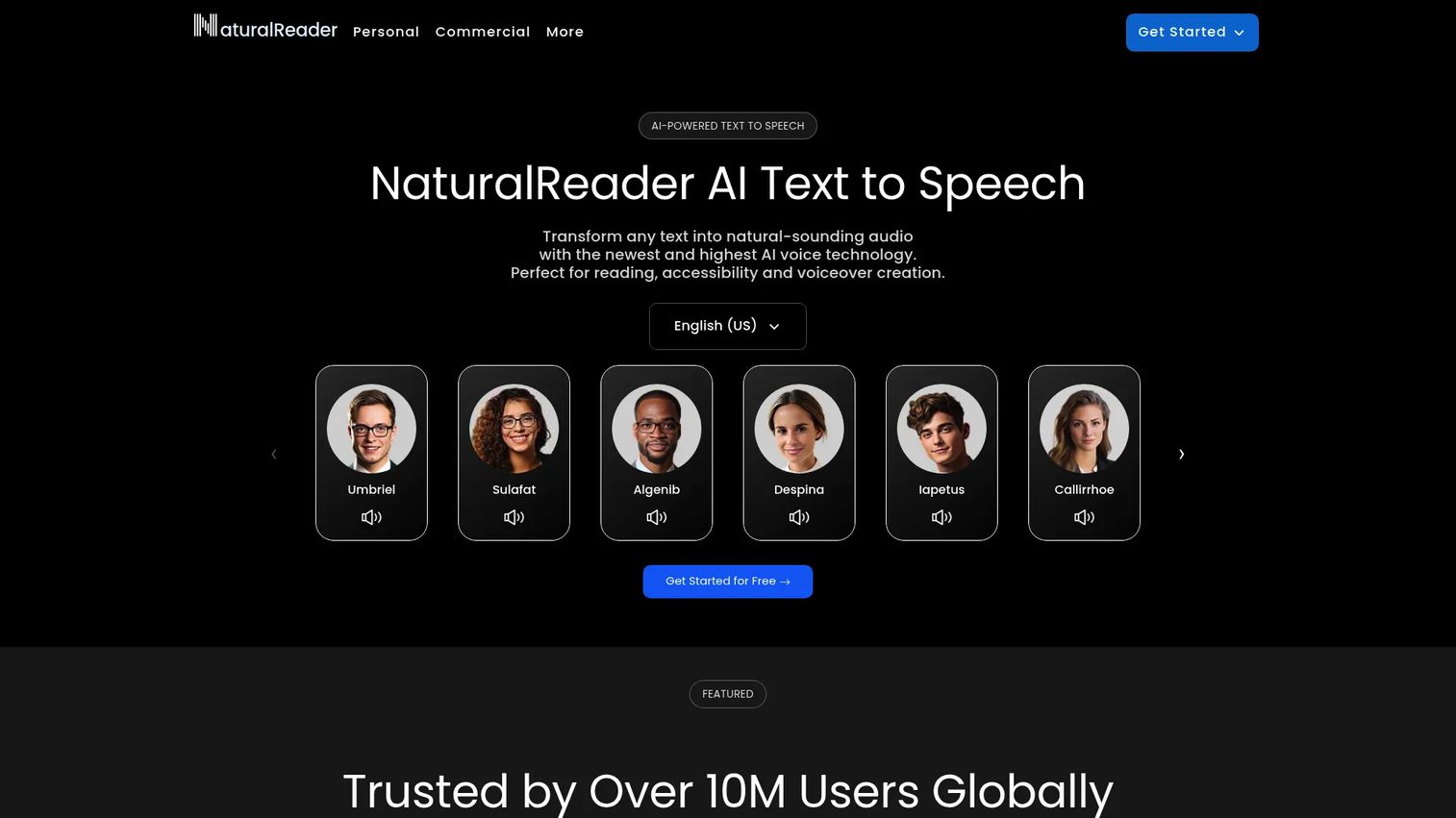
Natural Reader is a text-to-speech platform that converts documents, webpages and PDFs into spoken audio. It supports dyslexia-friendly listening, OCR for image-based text and AI features including podcast generation and voice cloning. Personal and commercial licensing options exist for different use cases.
Best for: Users who want written content converted into listenable audio, including students, professionals and teams testing whether long-form help content works when consumed by ear.
Key features
- Text-to-speech across PDFs, Word files, EPUB and other formats
- OCR for scanned and image-based documents
- MP3 export and audio download
- AI podcast generation, chat, quizzes and Q&A
- Voice cloning and multiple natural voice options
Why choose Natural Reader: Useful when reading speed or reading fatigue is the access barrier. Product teams can use it to audit whether onboarding content holds up in audio format before publishing, surfacing phrasing that sounds unnatural when spoken aloud.
Natural Reader pricing: Personal plans start at $13.90/month (or $79/year for the Lite tier). Commercial plans for licensed audio and voice cloning start at $29/user/month ($198/user/year for the Starter tier). A free tier with limited access is available on the web.
G2 rating: 5.0/5
4. Audiopen AI
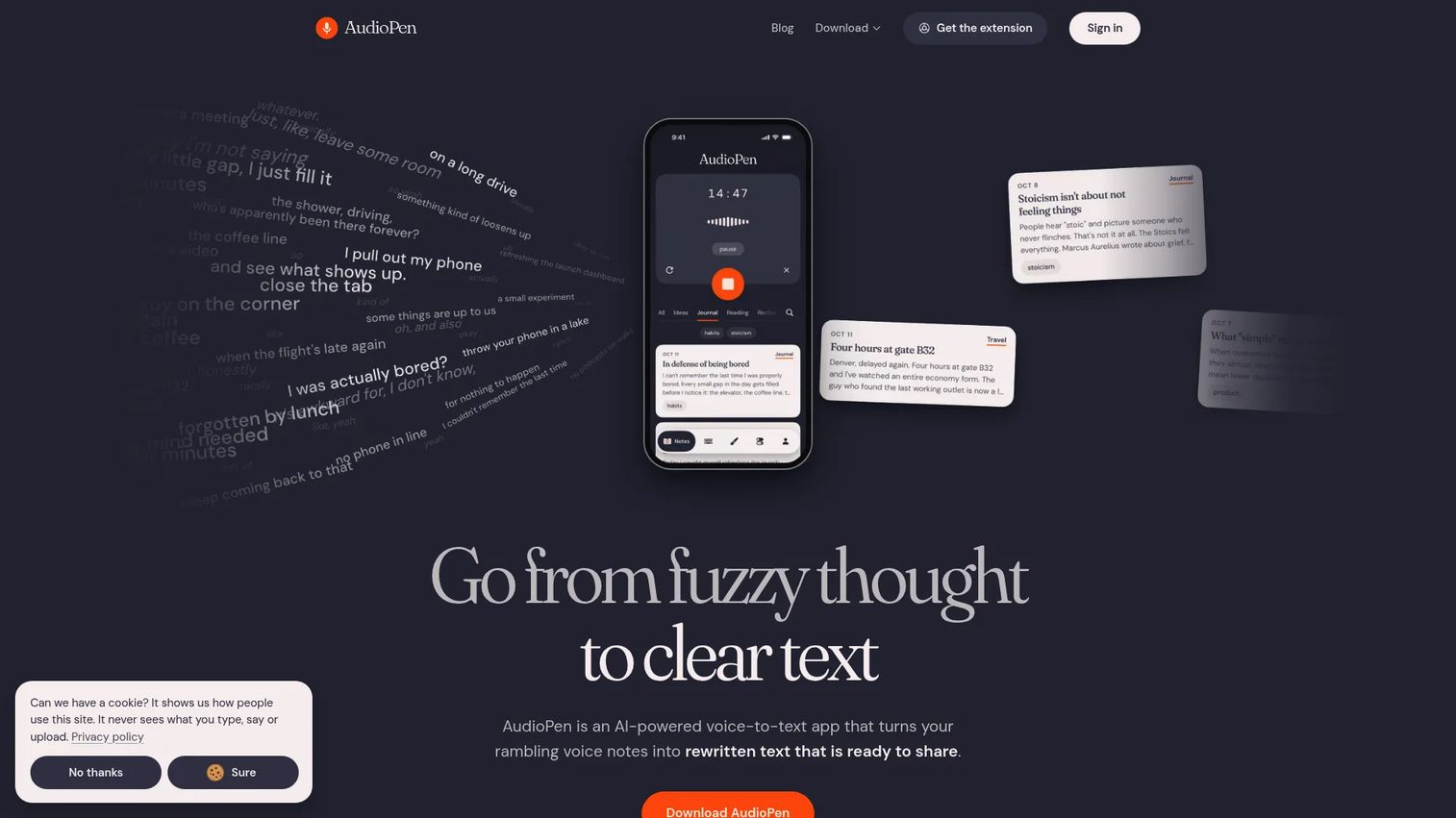
Audiopen AI takes voice recordings and rewrites them into polished, structured text. The tool is designed for users who think better out loud: It handles the messy, rambling voice note and returns a clean written output with adjustable tone and style.
Best for: Users who capture thoughts, discovery observations or user feedback by voice and need a clean written version without manual transcription cleanup.
Key features
- Voice-to-text with AI rewrite and style selection
- Custom writing styles and adjustable rewrite intensity
- Multilingual speech-to-text and translation
- Voice typing across apps and devices
- Audio file uploads, note combining and restyling (Prime plan)
Why choose Audiopen AI: Strong for reducing blank-page friction and making voice-first workflows usable in written contexts. For PMs, this fits discovery notes, onboarding research and user interview summaries. It is not a live captioning platform or meeting transcription tool, so check Jamworks or NotebookLM for those jobs.
Audiopen AI pricing: Free plan available with recordings up to 3 minutes. Prime plans cost $33 for 3 months, $99 for a year or $159 for two years. Prime adds unlimited recordings up to 15 minutes, audio file uploads and SuperSummaries.
5. Be My Eyes
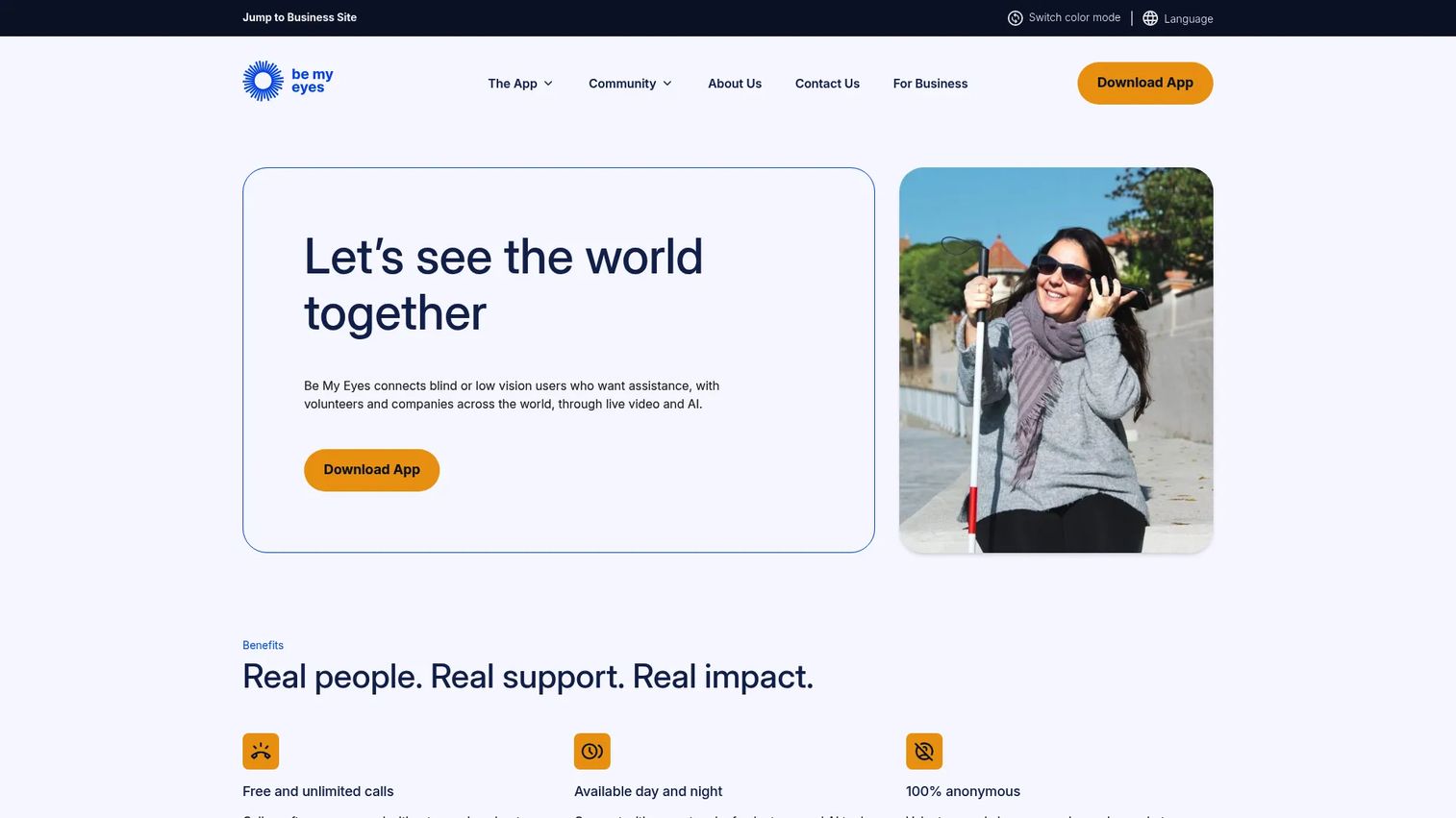
Be My Eyes connects blind and low-vision users with sighted volunteers via live video calls for visual assistance. It also offers AI-powered image and scene descriptions that can follow up with questions, and a Service Directory connecting users to accessible company support channels.
Best for: Blind and low-vision individuals who need help interpreting visual content in daily contexts, from reading a label to navigating unfamiliar spaces.
Key features
- Live video calls with sighted volunteers
- AI image and scene descriptions with follow-up questions (Be My AI)
- Service Directory for accessible company support
- Mobile-first access on iOS and Android
- Workplace plans with document and PDF processing
Why choose Be My Eyes: Strong for visual tasks that happen outside documents, such as identifying objects, reading physical signs or getting help in an unfamiliar environment. AI output should be treated as assistance, not guaranteed accuracy, particularly for high-stakes identification tasks.
Be My Eyes pricing: The consumer app is free for individuals. Workplace plans cost $55/user/month (annual) or $60/user/month (monthly). A Workplace+ tier at $82.50/user/month (annual) adds expanded support features.
6. Goblin.tools
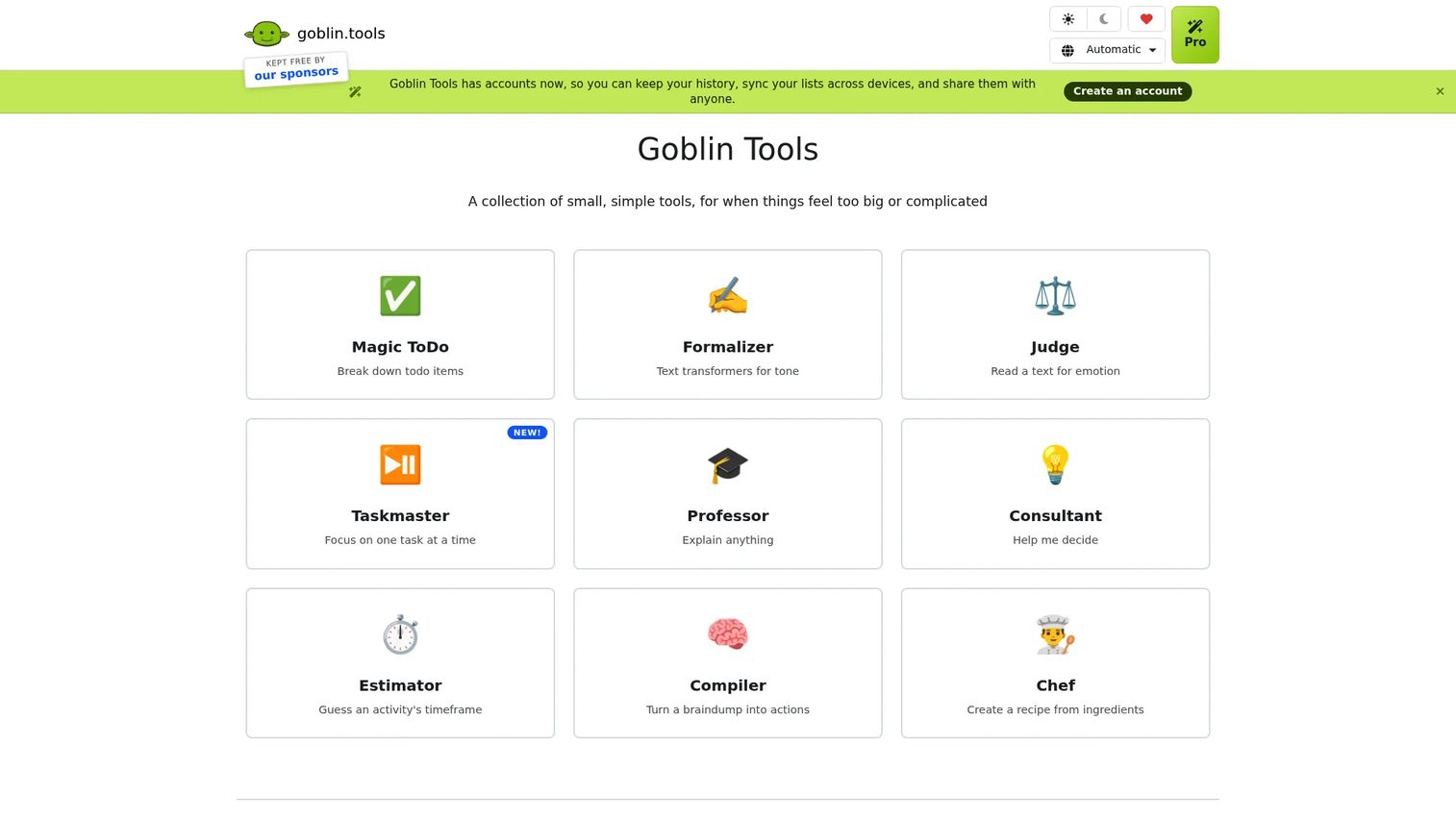
Goblin.tools is a collection of small, focused AI utilities built for neurodivergent users. The suite includes a task-breakdown tool, Formalizer for rewriting text in different tones, Taskmaster for guided step-by-step task execution and several other lightweight tools.
Best for: Individuals who want quick, practical support for task decomposition, tone adjustment and everyday organization without a full productivity suite.
Key features
- Task breakdown with subtasks, estimates and export
- Formalizer: Rewrites text across casual, formal and other tones
- Taskmaster: Guides users through tasks one step at a time with timers
- Brain dump cleanup: Turns unstructured notes into organized lists
- Simple web interface requiring no account for basic use
Why choose Goblin.tools: Covers several executive-function and communication needs in one place. The tools are lightweight enough that users can try them without committing to onboarding. For product teams, it is a useful design reference for how small AI utilities can reduce cognitive friction at specific points in a workflow.
Goblin.tools pricing: Core web tools are free. Goblin.tools Pro costs $3/month (or €3/£3 in those currencies) with a one-week free trial. Pro adds sync, history, templates and custom tones.
7. Google Lens
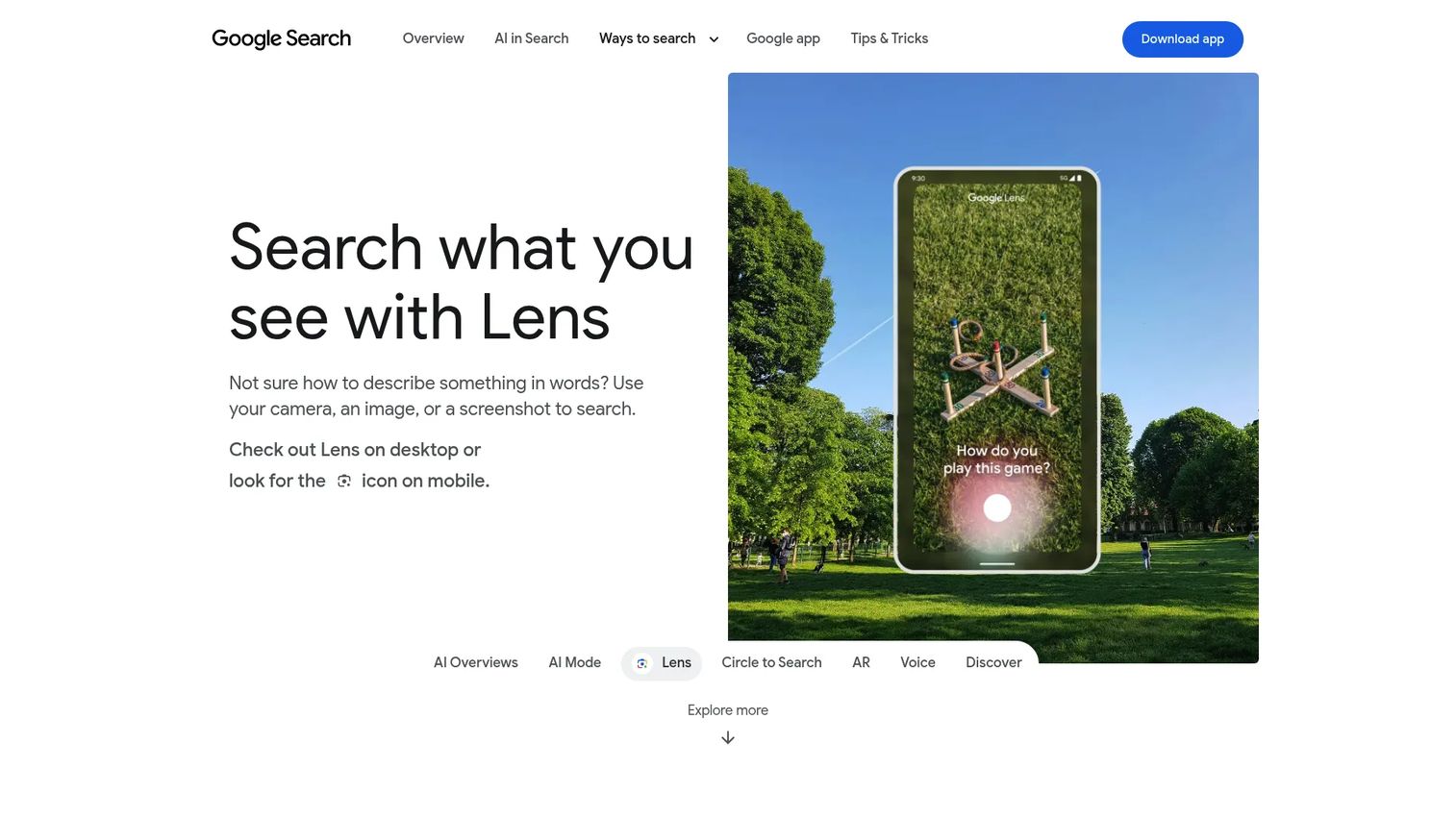
Google Lens is a visual search tool built into Google's apps that uses a camera, image or screenshot to extract text, translate content and identify objects. For accessibility contexts, its strongest use cases are OCR and translation.
Best for: Users who need quick text extraction from images, translation of visual text or object identification from a mobile camera.
Key features
- Camera-based OCR: Copies and translates text from images
- Visual search: Identifies products, landmarks, plants and artworks
- Translation in over 100 languages
- Step-by-step homework help
- Object and scene recognition
Why choose Google Lens: Strong for everyday visual access tasks, particularly reading physical text that is not in a digital format. It is a general AI visual tool with accessibility use cases rather than a dedicated assistive technology platform. Teams evaluating low-vision support should also assess Be My Eyes and Microsoft Seeing AI for more purpose-built options.
Google Lens pricing: Free, available through Google Search, Google Photos and the Google app.
8. Grammarly
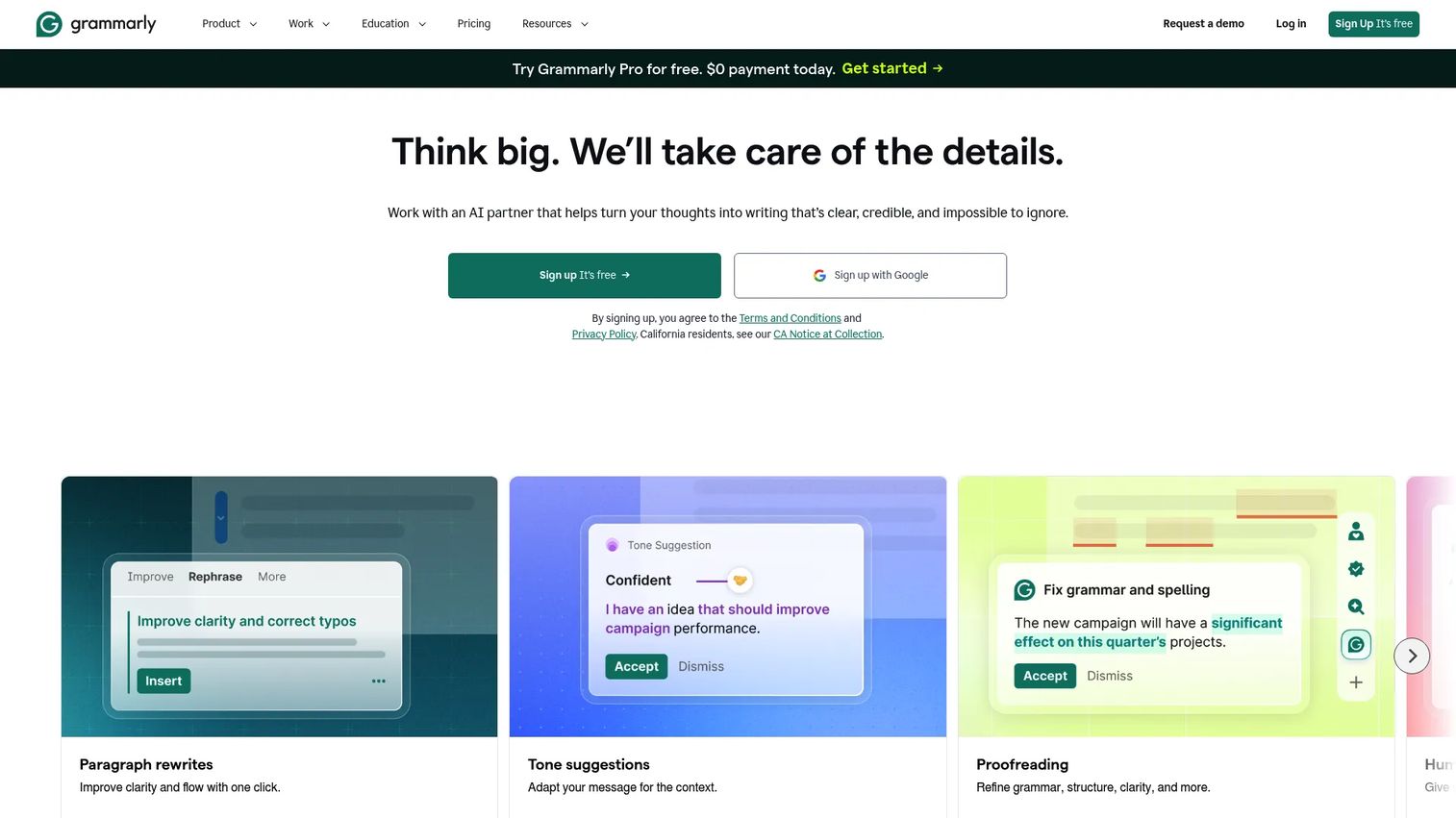
Grammarly is an AI writing assistant that checks grammar, rewrites sentences for clarity, adjusts tone and generates text. It operates across browser, desktop, mobile and web editors, covering the surfaces where most content gets written.
Best for: Teams and individuals who need clearer writing across product copy, help documentation, emails and onboarding content.
Key features
- Grammar, spelling and punctuation checking
- Full-sentence clarity rewrites
- Tone detection and adjustment suggestions
- AI text generation and drafting
- Browser extensions plus desktop and mobile apps
Why choose Grammarly: Clearer product copy reduces cognitive load and support tickets. For PMs, the value is in improving help documentation, in-app messaging and onboarding copy before it reaches users. Grammar tools do not replace plain-language review with real users, but they catch structure and clarity issues at low opportunity cost.
Grammarly pricing: Free plan includes basic mistake checking, tone insights and 100 AI prompts per month. Pro costs $12/member/month billed annually ($30/month on a monthly plan) and adds rewrites, plagiarism detection and 2,000 AI prompts. Enterprise pricing requires contacting sales.
G2 rating: 4.7/5
9. Jamworks
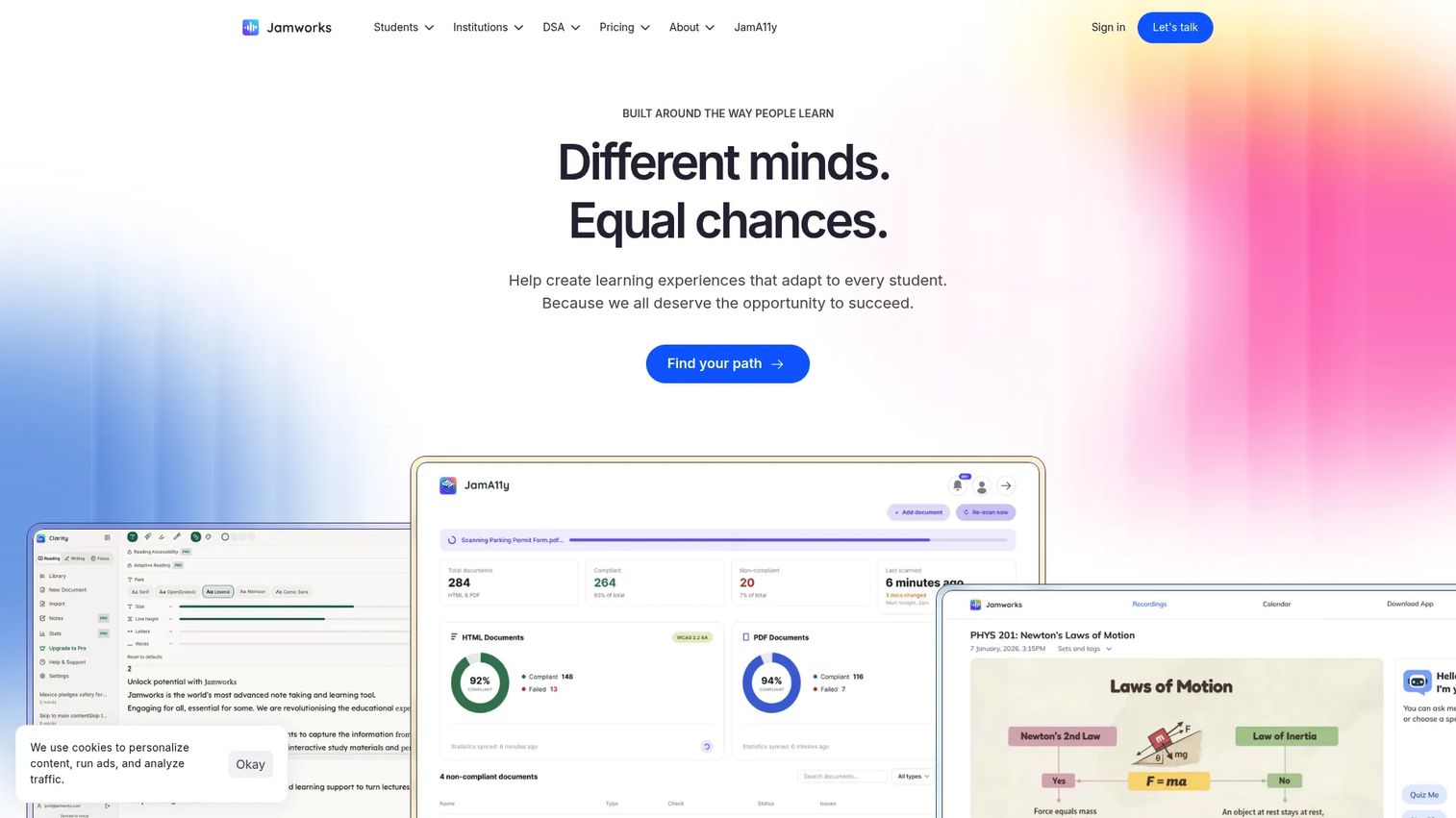
Jamworks is an AI-powered lecture capture and study platform for students and educational institutions. It records lectures, generates AI Enhanced Notes, creates flashcards and revision summaries, and includes a JamAI tutor for source-based questions. The platform also covers STEM equations and supports screen readers and keyboard navigation.
Best for: Education teams and learners who need accessible, searchable notes and revision materials from live teaching or recorded content.
Key features
- Lecture recording and live captioning
- AI Enhanced Notes, Key Points and summaries
- Flashcards, quizzes and study guides
- JamAI personal tutor for lecture-specific questions
- Slide-based notes and JamSlides visual analysis
Why choose Jamworks: Strong for structured learning and training environments where lecture-recall quality affects outcomes. For product teams building internal training or onboarding programs, the tool's approach to turning recordings into structured study materials is worth evaluating. Check institutional privacy and consent policies before deployment, particularly for recorded lectures with identifiable participants.
Jamworks pricing: Student plan at £14.99/month with a 14-day free trial. Institution pricing requires requesting a quote directly from Jamworks.
10. Microsoft Immersive Reader
Microsoft Immersive Reader is a reading support tool built directly into Microsoft 365 applications including Word, OneNote, Teams and supported learning management systems. Users activate it without leaving the content they are reading.
Best for: Students, employees and users who benefit from reading support inside existing Microsoft workflows, without switching to a separate application.
Key features
- Read Aloud with synchronized word highlighting
- Line Focus for reducing visual distraction
- Text spacing, font and size customization
- Syllable display for decoding support
- Translation into 100+ languages
Why choose Microsoft Immersive Reader: Delivers reading accessibility inside the content experience rather than requiring users to copy and paste content into a separate tool. For product teams, this is a good example of how reading support embedded at the UI level reduces friction more effectively than standalone add-ons. Availability varies by Microsoft product and deployment configuration.
Microsoft Immersive Reader pricing: Available at no additional cost within supported Microsoft 365 apps and Microsoft Education deployments.
11. Microsoft Seeing AI
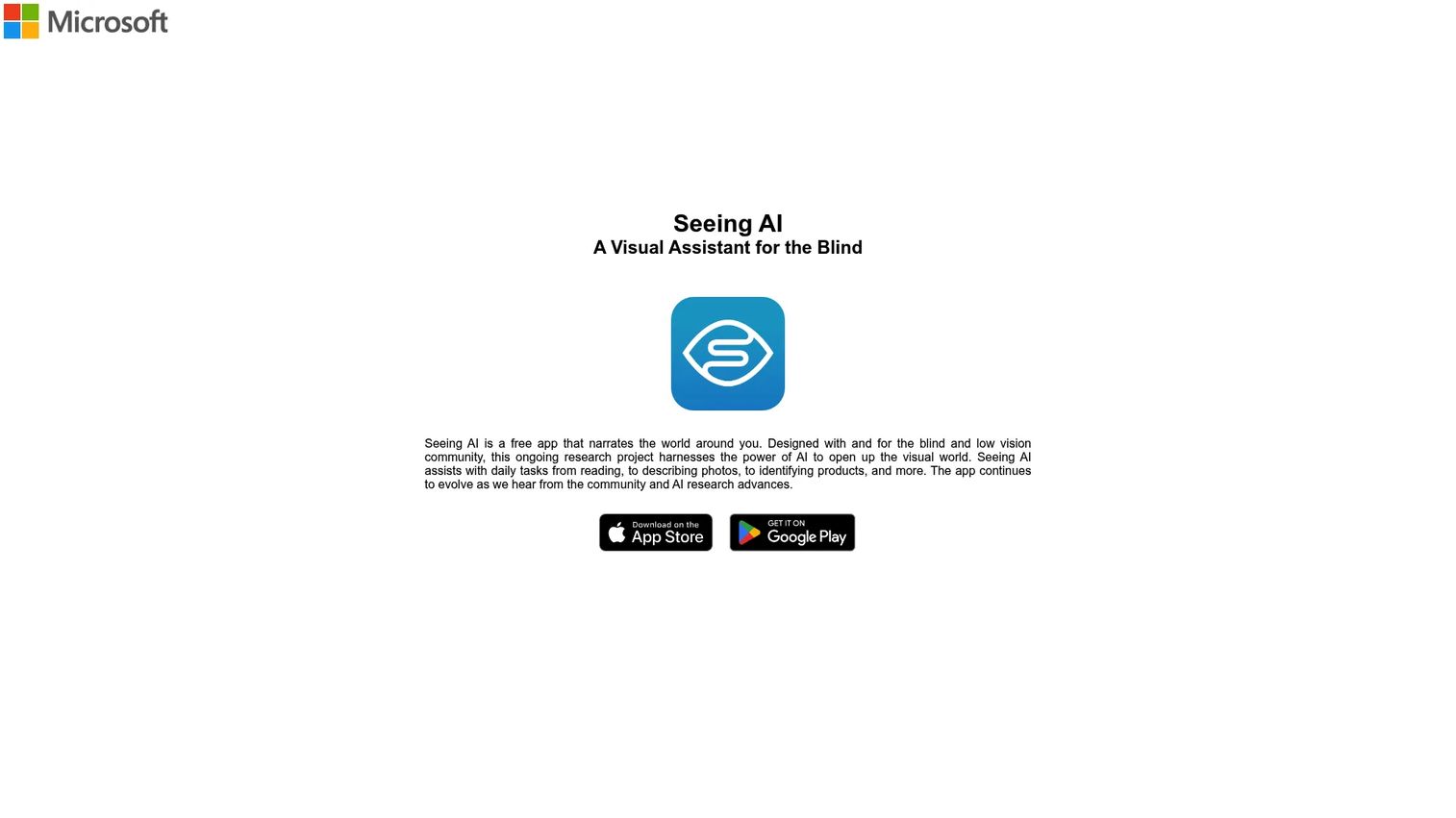
Microsoft Seeing AI is a free mobile app from Microsoft that narrates the visual world for people who are blind or have low vision. The app covers short text, full documents, barcodes, faces, currency, colors, handwriting and scene descriptions.
Best for: Blind and low-vision users who need mobile AI assistance for visual information across daily contexts.
Key features
- Short text and document reading via camera
- Product recognition via barcode scanning
- Scene and environment descriptions
- People recognition and facial expression descriptions
- Currency, color and handwriting identification
Why choose Microsoft Seeing AI: A strong starting point for mobile visual interpretation. Its breadth of channels (text, documents, objects, people, currency) covers more ground than most general camera apps. AI descriptions should be treated as an aid rather than a definitive output, particularly for tasks where accuracy is critical.
Microsoft Seeing AI pricing: Free. Available on iOS and Android with no subscription required.
12. Read&Write
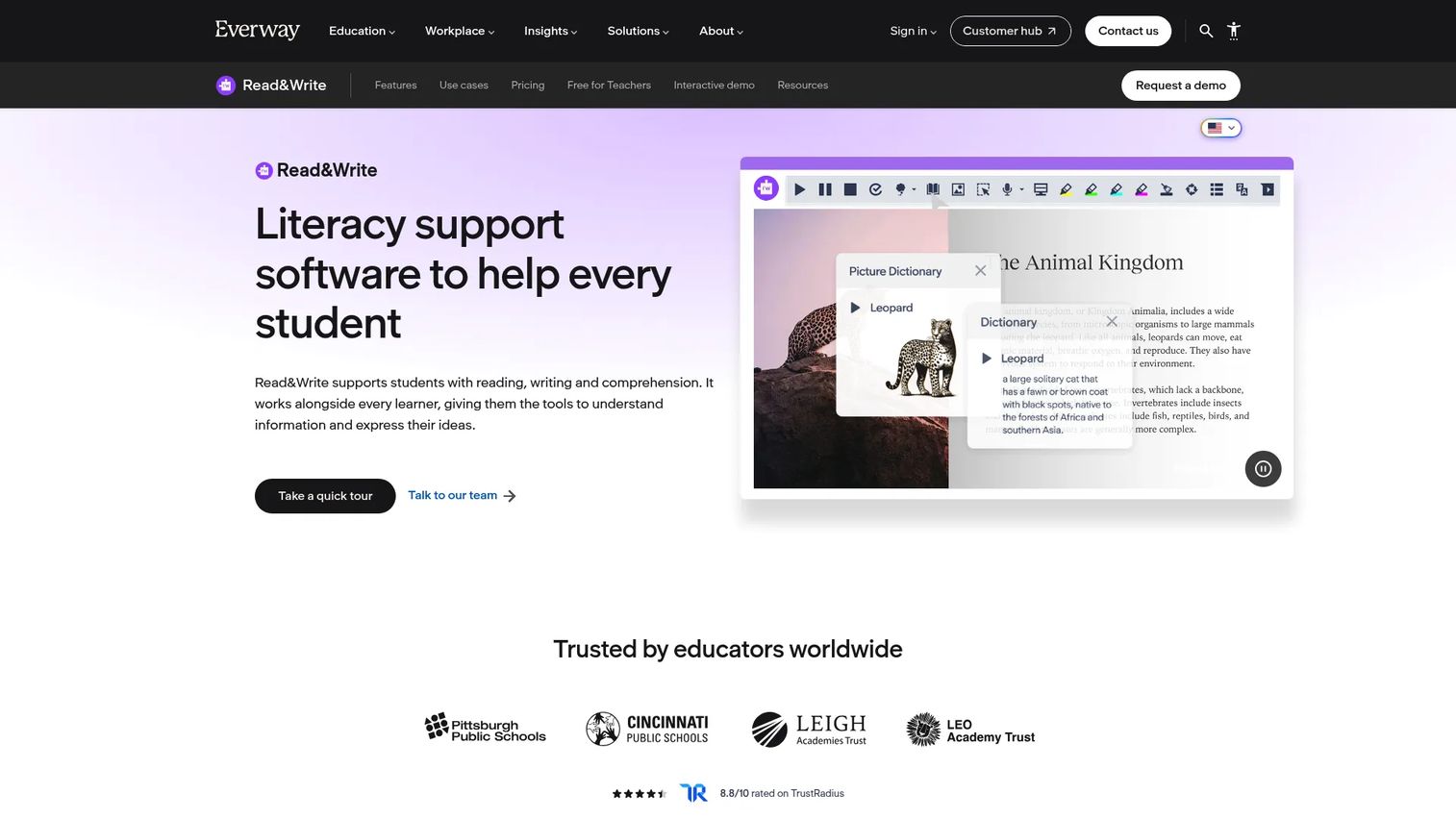
Read&Write from Everway (formerly Texthelp) is a literacy support tool covering text-to-speech, word prediction, dictionaries, screen masking and study tools. It is widely deployed in education institutions and workplace accessibility programs.
Best for: Education institutions and workplaces supporting users with dyslexia, literacy differences and reading comprehension needs across reading and writing tasks.
Key features
- Text-to-speech with screenshot reader
- Speech-to-text and word prediction
- Picture dictionary and vocabulary support
- Screen masking to reduce visual distraction
- Highlighting, audio maker and study tools
Why choose Read&Write: Covers both reading and writing accessibility in one toolkit, which matters when users need support across the full content interaction, not just one direction. For organizations deploying at scale, check platform coverage, seat licensing options and the institutional onboarding process before purchasing.
Read&Write pricing: K-12 district licenses from $2.75/seat/year. K-12 group licenses at $18.30/seat/year. Individual licenses cost $184/year. Higher education pricing requires contacting Everway. K-12 teachers receive free access.
G2 rating: 4.0/5
13. Speechify
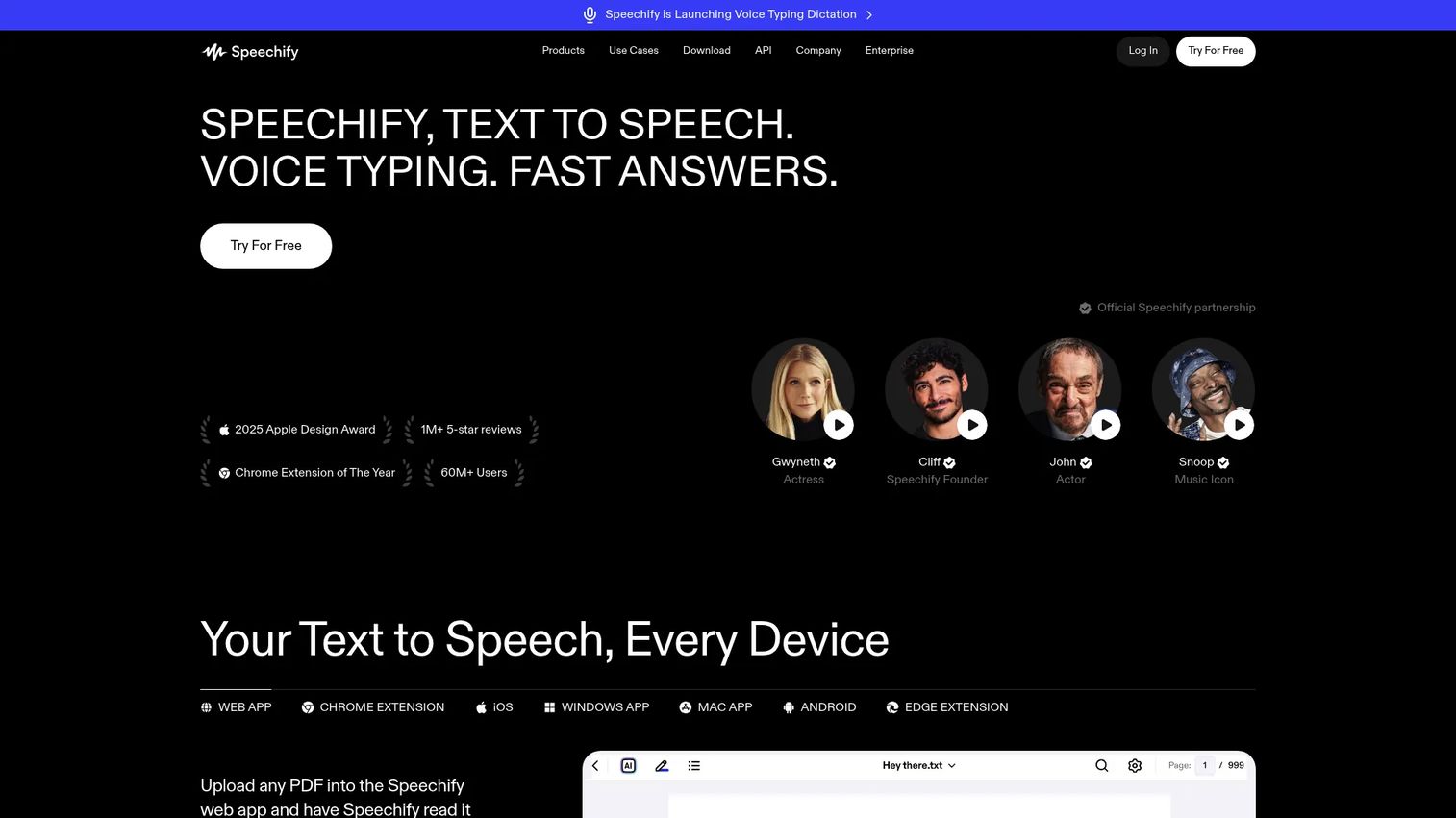
Speechify is a voice AI productivity platform that converts text from documents, PDFs, webpages and emails into spoken audio. The Premium tier adds over 1,000 voices, 60+ languages, Scan and Listen for physical text, an AI Voice Assistant and AI podcast creation.
Best for: Users who prefer audio as their primary reading path, covering long-form content including product documentation, support articles and study materials.
Key features
- Text-to-speech for documents, PDFs, webpages and email
- OCR scanning with Scan and Listen
- Speed controls with natural-sounding voices
- AI Voice Assistant for summaries, explanations and questions
- AI podcast creation from uploaded content
Why choose Speechify: Strong when listening is the main access path for a user. For product teams, testing whether long help documentation holds up when consumed at speed is a practical use of the tool. Verify privacy expectations before uploading internal or sensitive documents, particularly in enterprise contexts.
Speechify pricing: Free plan includes text-to-speech with 10 voices and speeds up to 1.5x. Premium costs $29/month or $139/year and adds 1,000+ voices, 60+ languages, Scan and Listen and AI features.
G2 rating: 4.4/5
14. NotebookLM
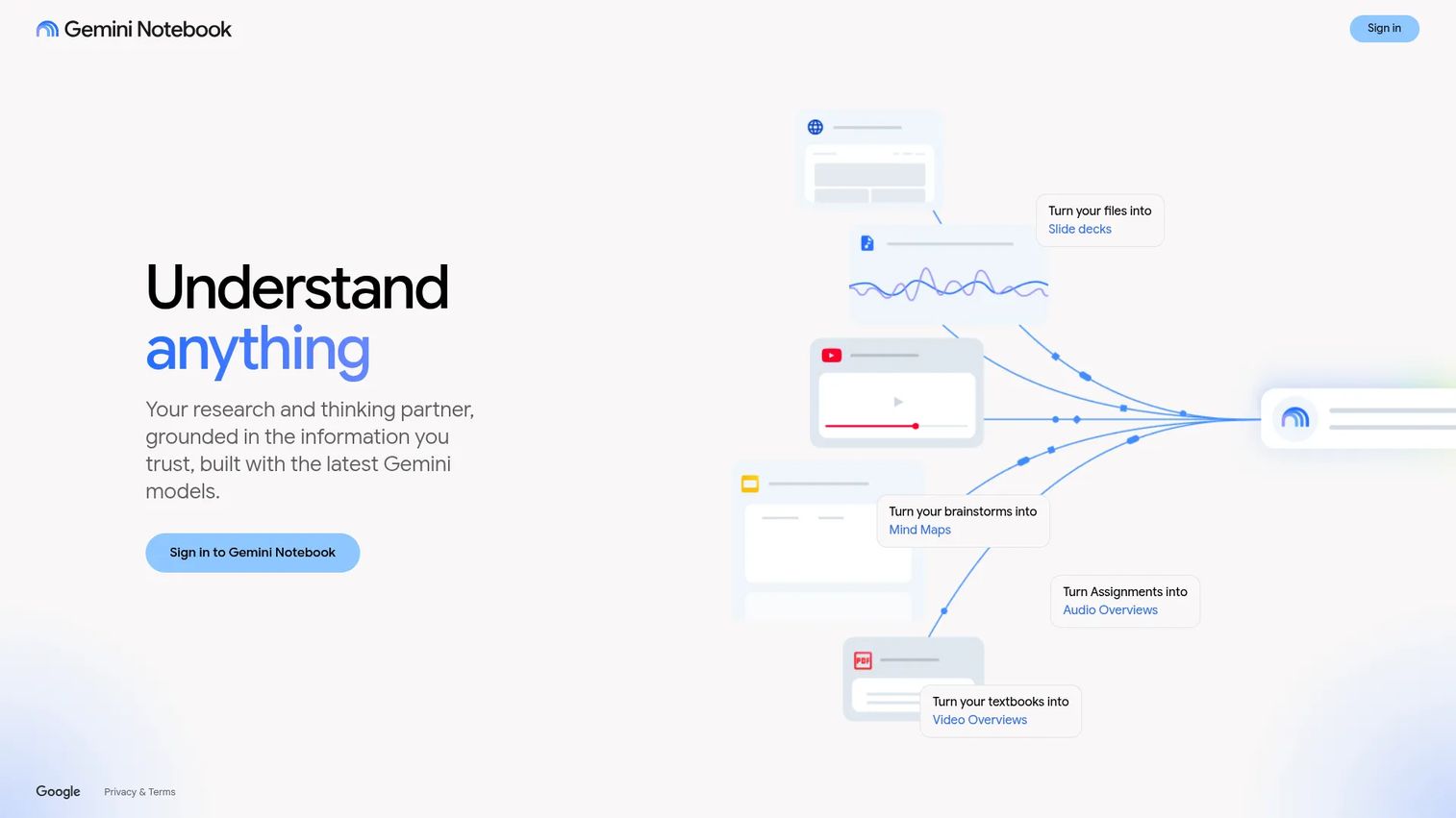
NotebookLM (now accessible as Gemini Notebook via Google AI plans) is Google's source-grounded research and study tool. Users upload documents, PDFs, Drive files, images or DOCX files, and the tool generates summaries, answers questions with citations, creates Audio Overviews, builds mind maps and produces flashcards and study guides.
Best for: Students, educators and teams who need to understand a bounded set of source materials more easily, including product docs, onboarding research or accessibility notes.
Key features
- Source-grounded Q&A with inline citations
- Audio and Video Overviews from uploaded sources
- Mind maps, reports, flashcards and quizzes
- Deep Research and multi-format source support
- Notebook organization across projects
Why choose NotebookLM: Strong when users need to process a specific set of documents rather than the open web. For PMs, this fits turning product documentation, user research notes or internal training materials into digestible learning assets. Users should verify source quality and avoid uploading sensitive information without organizational approval.
NotebookLM pricing: Google AI Plus plan at $9.99/month includes Gemini Notebook with standard access. Google AI Pro at $19.99/month adds expanded access. A free Google account provides basic access, though NotebookLM-specific free-tier limits were not confirmed on the Google One pricing page.
G2 rating: 4.6/5
Considerations when choosing AI accessibility tools
Match the tool to the accessibility job
Start with the specific user barrier rather than the AI feature list. Reading support, writing support, visual interpretation, transcription, executive function and accessibility review are different jobs that require different tools. For PMs, map each tool to an activation blocker or support-ticket pattern before adding it to the stack.
Check privacy and data handling before uploading content
Many accessibility workflows involve personal, educational or workplace data. Review data minimization policies, admin controls, consent requirements, data retention terms and institutional approval processes before deploying any tool in a regulated or sensitive context. This matters especially for education deployments and workplace accommodation programs.
Verify AI output before users depend on it
AI-generated summaries, descriptions, alt text and captions can be incorrect. High-impact content, official documentation, assessment materials and product onboarding flows all require human review. AI prepares content for review; it does not replace it. For product teams, this means AI accessibility tools fit into QA workflows, not as the final gate.
Evaluate deployment and maintenance cost
Subscription price is only part of the equation. Consider seat management requirements, platform coverage (web, desktop, mobile), training time, procurement process, age restrictions for education tools and integration with your existing analytics or content stack. Tools that require significant setup reduce the speed-to-value that makes them worth adopting.
Measure whether the tool changes behavior
For product teams, track activation rate, time to first value, onboarding completion and support deflection before and after introducing an accessibility tool. For education teams, track usage patterns, learner feedback and accommodation workflows. Without a baseline, you cannot assess whether the opportunity cost of adding a tool was worth it.
Conclusion
The 14 tools in this guide cover distinct accessibility jobs. Picking by AI feature count is the wrong approach. Picking by user barrier is the right one.
If your team already runs on Microsoft 365, start with the built-in tools in Word and Outlook before adding anything external. For reading support, Natural Reader and Speechify both perform well. Be My Eyes and Microsoft Seeing AI address visual access needs that general-purpose tools cannot cover. Goblin.tools helps users who need cognitive scaffolding rather than reading or visual support. Jamworks and NotebookLM are the strongest options for turning lectures and documents into structured, searchable learning materials. Grammarly and Read&Write improve the accessibility of content at the writing stage, which reduces downstream support load.
For product managers, the practical question is always the same: Does this tool reduce friction for a user segment without creating a maintenance burden for your team? Evaluate against activation data, support ticket patterns and your current release cadence before committing.
Accessibility does not stop at choosing the right tools. Product teams also need clearer onboarding, training and self-serve education for every type of user. If your team needs to explain product workflows in a more visual, guided way, Start your journey with Guideflow today!
FAQs
AI accessibility tools are applications that use artificial intelligence to help people perceive, understand, create, navigate or evaluate digital content more accessibly. They cover text-to-speech, speech-to-text, visual assistance, writing clarity, task breakdown, transcription and accessibility review. The right tool depends on the specific access barrier, not on the sophistication of the AI feature.
Text-to-speech and reading support tools are the most direct fit. Natural Reader and Speechify convert written content into audio with speed controls. Microsoft Immersive Reader adds line focus, syllable display and translation inside Microsoft workflows. Read&Write combines text-to-speech with word prediction and writing support across a single toolbar. Grammarly helps when the barrier is writing production rather than reading.
Be My Eyes provides live volunteer assistance and AI image descriptions for everyday visual tasks. Microsoft Seeing AI narrates text, documents, barcodes, currency and scenes through a mobile camera. Google Lens handles quick OCR and translation from images. All three produce AI output that should be verified for high-stakes tasks. For workplace use, Be My Eyes Workplace adds document processing and human support.
No. AI tools speed up content checks, generate alt text drafts and surface readability issues, but they cannot replicate testing with real users. Screen-reader behavior, keyboard navigation, plain-language comprehension and lived-experience fit all require human review. According to Level Access (2025), 82% of organizations use AI in their accessibility strategies, but the standard expectation is that AI assists rather than replaces manual evaluation.
It depends on the tool and the deployment context. Free consumer tools typically have fewer data controls than enterprise or institutional versions. Before uploading personal data, educational records or workplace content, check each tool's privacy terms, data retention policy, admin controls and consent requirements. Institutional or enterprise plans for tools like Jamworks and Be My Eyes Workplace include additional governance features suited for regulated environments.
PMs typically benefit from tools that improve documentation quality, research workflows and internal communication. Microsoft Word's Accessibility Checker helps catch issues in onboarding and support content before publication. Grammarly improves clarity across product copy and help articles. NotebookLM can turn product documentation or user research notes into structured study materials. Audiopen AI cleans up voice-recorded discovery notes. Jamworks supports internal training programs where recall and searchability matter. All five connect to activation and support deflection goals.
Assistive AI helps individuals perceive, process or produce information, covering tools like text-to-speech, visual description and task breakdown. Web accessibility AI helps teams review or improve digital content, such as checking alt text completeness, flagging WCAG-related issues or scoring readability. Most teams building inclusive products need both: Assistive tools for users who access the product, and review tools for teams creating it.
Start with the user barrier, not the feature list. Then assess accuracy (AI output can be wrong), privacy (what data the tool processes and retains), platform fit (web, desktop, mobile), deployment cost and integration with your analytics stack. For product teams, include activation rate, support ticket volume and onboarding completion as outcome metrics. Tools that cannot connect to measurable behavior change are hard to justify in a prioritization conversation. The AI governance tools landscape is also worth reviewing when evaluating responsible AI deployment for accessibility programs at scale.