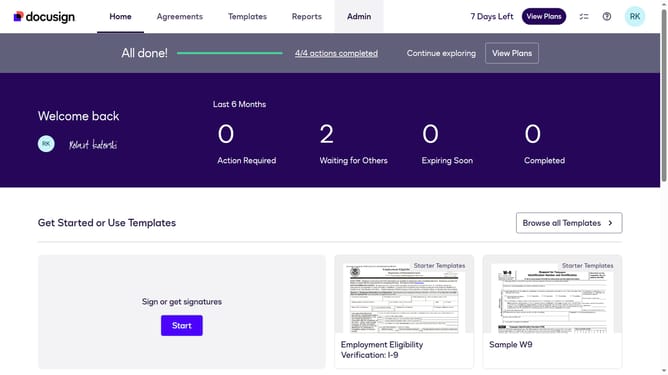
How to show the groups column under the users section in DocuSign
Here is how to show the groups column under the users section in docusign
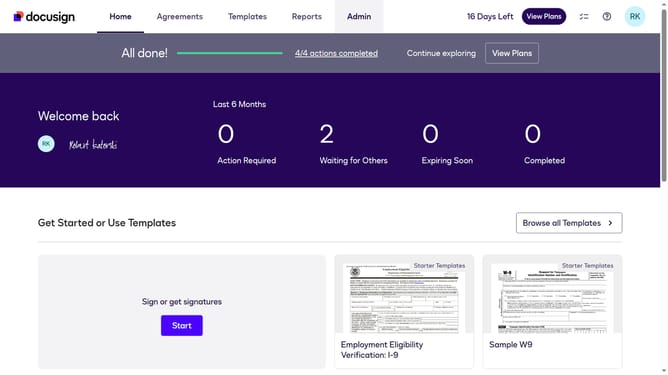
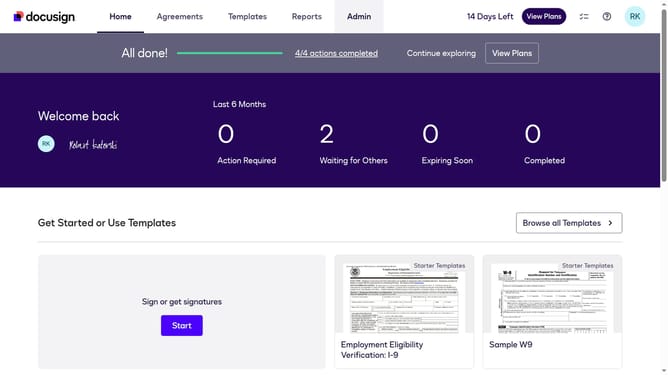
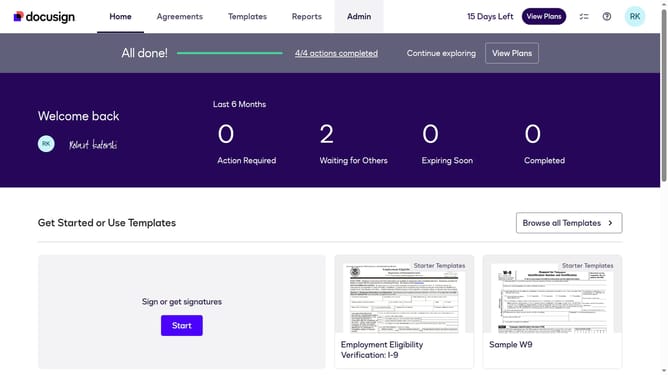
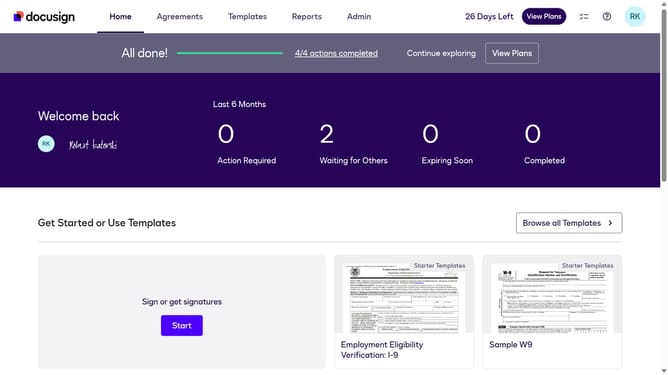
- First click on the "Admin" link in the top navigation menu
- Then scroll down the page to view the sidebar menu options
- Next click on the "Users" link in the left sidebar navigation
- Then click on the settings icon (gear icon) in the top right corner of the Users table
- Next click on the "Groups" checkbox in the Show/Hide Columns dialog
- Finally click on the "Apply" button to confirm the column visibility changes
Why should you show the groups column under the users section in DocuSign
DocuSign is a leading digital transaction management platform that streamlines the signing and management of agreements.
Implementing the groups column under the users section unlocks insights about user assignments, optimizing team collaboration.
This feature offers a clear view of user group affiliations, making it easier to manage permissions and streamline workflow.
Such transparency not only enhances organizational efficiency but also strengthens resource allocation, empowering administrators with better control and oversight.
Last update