How to insert links in articles in Zendesk
Here is how to insert links in articles in zendesk
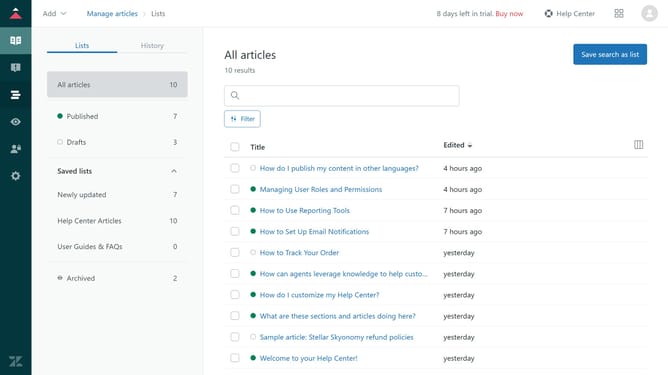
- First in the Guide Admin, click on "Manage articles" in the left sidebar
- Then select the article you want to edit from the articles list
- Next highlight the text where you want to insert the link
- Click on the "Add link" icon in the editor toolbar
- In the "Add link" dialog, go to the "URL" tab to link to a URL
- Paste the URL you want to link to in the URL field
- Check the "Open in new tab" checkbox if you want the link to open in a new tab
- Alternatively to link to an article in your Help Center, click the "Help Center article" tab
- Select the article title you want to link to from the list
- Once done, click the "Add link" button to insert the link
- Finally click the "Save" button in the bottom right to save the changes
Why should you insert links in articles in Zendesk
Zendesk is an intuitive platform designed to enhance customer service experiences.
Inserting links in Zendesk articles is a feature that boosts the connectivity and depth of customer support documentation.
By embedding relevant links, users can seamlessly guide readers to supplementary information, enhancing their understanding. This not only improves content engagement but also reduces the time spent searching for additional resources.
Ultimately, the ability to insert links effectively enriches the knowledge base, empowering both agents and customers.
Last update