How to share a restricted dashboard with users in Zendesk Explore
Here is how to share a restricted dashboard with users in zendesk explore
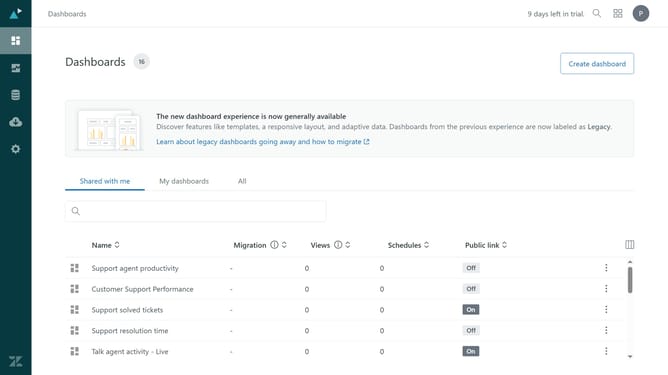
- First in Zendesk Explore, click on "Dashboards" icon in the left sidebar
- Then locate the restricted dashboard you want to share and click on it
- Next click on the "Share" button in the top right toolbar
- In the invite dialog, click on the "Access" dropdown menu
- Select the dashboard restriction that defines which data the selected users should be able to see
- Click on the "Add team members or groups" dropdown field
- Select the users you want to share the dashboard with from the team members list
- Next click on the "Send email notification" checkboxes to send an email notification
- Finally click the "Invite people" button to send the invitation
- The selected users will now have access to the restricted dashboard based on the permissions you set
Why should you share a restricted dashboard with users in Zendesk Explore
Zendesk is a versatile platform designed to elevate customer support experiences.
Sharing a restricted dashboard in Zendesk Explore allows you to maintain control over sensitive data while still empowering your team with essential insights.
This feature ensures that only authorized users access relevant data, fostering collaboration without compromising privacy.
Utilizing this capability optimizes team performance, enhances decision-making, and maintains information security.
Last update