How to edit a deletion schedule in Zendesk
Here is how to edit a deletion schedule in zendesk
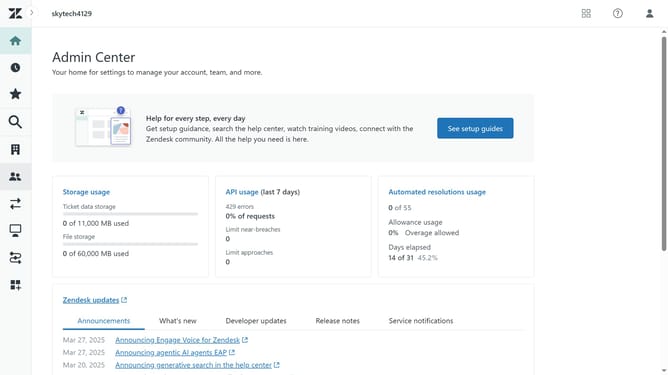
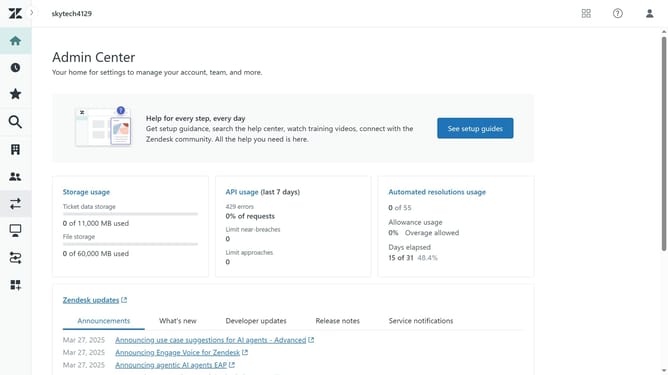
- First in the Admin Center, click on the "Account" icon in the left sidebar
- Then click on "Deletion schedules" under the Security section
- Locate the deletion schedule you want to edit from the list
- Next click the "More options" button (three dots) next to it
- Select "Edit" from the dropdown menu
- Modify the schedule name, description or conditions as needed
- Finally once done, click the "Save" button to apply the changes
Why should you edit a deletion schedule in Zendesk
Zendesk streamlines customer interactions into an efficient support system.
Editing a deletion schedule in Zendesk provides the flexibility to manage your data lifecycle effectively. By adjusting these schedules, businesses ensure that sensitive or outdated information is removed at appropriate times, enhancing data governance and privacy.
Using this feature can optimize storage, uphold compliance with regulations, and maintain clarity within your support data framework.
Last update