How to delete a scheduled dashboard delivery in Zendesk Explore
Here is how to delete a scheduled dashboard delivery in zendesk explore
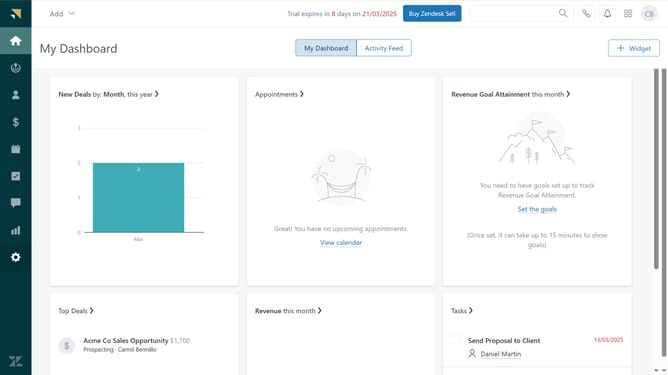
- First in Zendesk Explore, click on the "Dashboards" icon in the left sidebar
- Then find the dashboard you want to delete the schedule for and click to open it
- In the top toolbar, click on the "Share" dropdown button
- Select "Schedule delivery" option from the Share dropdown menu
- Then click the "Delete" icon next to the scheduled delivery you want to delete
- Finally confirm deletion by clicking "Delete" in the confirmation dialog
Why should you delete a scheduled dashboard delivery in Zendesk Explore
Zendesk is a powerful tool designed to elevate customer service experiences.
In Zendesk Explore, the ability to delete a scheduled dashboard delivery enhances the flexibility of your data management. It allows you to manage your reporting schedule with efficiency, ensuring outdated or unnecessary deliveries are easily removed.
Streamlining your dashboard delivery means your team focuses on the most relevant data, saving time and keeping the workflow tidy. This feature optimizes operations and keeps your insights streamlined and up-to-date.
Last update