How to edit a smart list template in Zendesk Sell
Here is how to edit a smart list template in zendesk sell
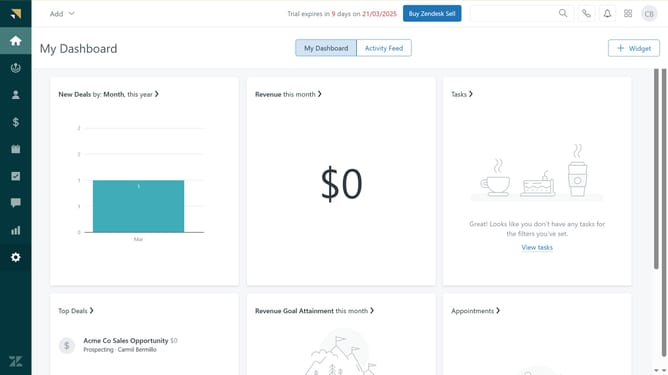
- First in Zendesk sell, click on the "Settings" icon in the left sidebar
- Then click on Leads, Contacts or Deals in the left menu under the Customize section
- Next click on "Smart List Templates" tab
- Click on "Edit" button next to teamplate you want to edit
- Start making your changes, click on the "Field" button in the top right corner
- Select the fields you want to add to your template from the fields dropdown menu
- You can also drag the columns to reorder them in your desire view
- Finally once you satisfied, click on "Save" button to apply the changes
Why should you edit a smart list template in Zendesk Sell
Zendesk is a powerful, user-friendly platform designed to enhance customer relations and streamline sales processes.
One of its standout features in Zendesk Sell is the ability to edit smart list templates, which allows users to customize their sales data views efficiently.
This feature empowers sales teams by providing tailored insights and ensuring that the most relevant data is at their fingertips, leading to informed decision-making and increased productivity. Personalizing templates fosters a better focus on key metrics, ultimately driving sales success.
Last update