How to change the chart type of a report in Zendesk Explore
Here is how to change the chart type of a report in zendesk explore
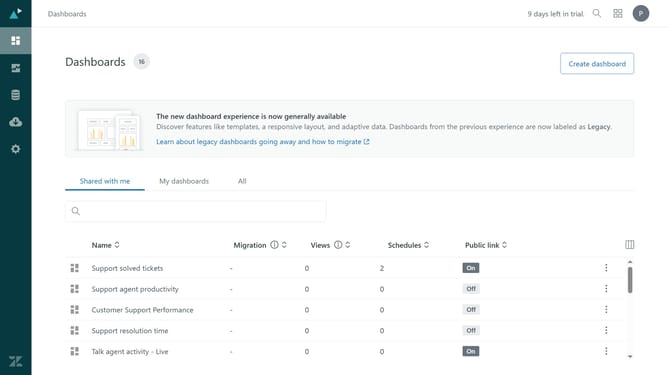
- First in Zendesk Explore, click on "Dashboards" in the left sidebar menu
- Then click on the report you want to modify from the reports list
- Click the "Chart type" button in the right toolbar to change visualization
- Choose the desired chart type from the available options (e.g., bar chart, line chart, pie chart)
- Finally, click anywhere outside the menu to close it and the report will update to reflect the selected chart type
Why should you change the chart type of a report in Zendesk Explore
Zendesk is a powerful customer service platform designed to enhance interactions and streamline support processes.
In Zendesk Explore, changing the chart type in your report is a simple feature that brings data to life. This feature allows users to switch between chart styles to best visualize metrics, making complex information more digestible.
By customizing chart types, teams can gain clearer insights, identify trends quicker, and make informed decisions, ultimately driving improved performance and customer satisfaction.
Last update