How to duplicate smart lists in Zendesk Sell
Here is how to duplicate smart lists in zendesk sell
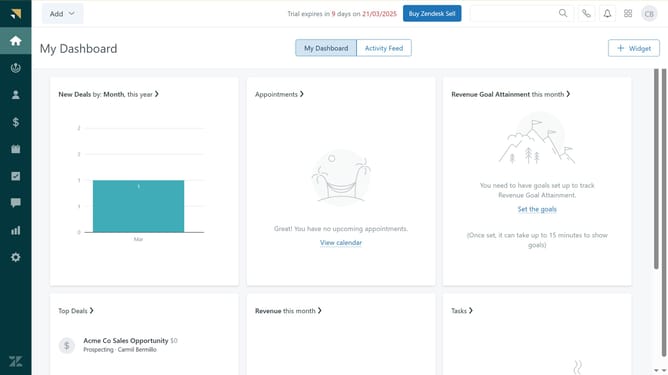
- First in the left sidebar, click on Leads, Contacts, or Deals, depending on where the smart list you want to export is located
- Then click on the "More options" button (three dots) next to the smart list name
- Next click on the "Duplicate" option from the dropdown menu
- In the popup dialog, enter the name of the duplicated list in the "Name" field
- Finally, click the "OK" button in the dialog box to save it
- You have successfully duplicated your smart list
Why should you duplicate smart lists in Zendesk Sell
Zendesk is a comprehensive customer service platform designed to enhance customer interactions through streamlined solutions.
Duplicating smart lists in Zendesk Sell effortlessly enables users to replicate and modify lists without starting from scratch, promoting efficiency and consistency.
By utilizing this feature, sales teams can quickly tailor lists to suit varied client needs or campaigns, allowing for targeted marketing and improved customer targeting.
This customization option not only saves time but also ensures that all team members are aligned with the key performance indicators vital for achieving business objectives.
Last update