How to edit the CSAT survey in Zendesk
Here is how to edit the csat survey in zendesk
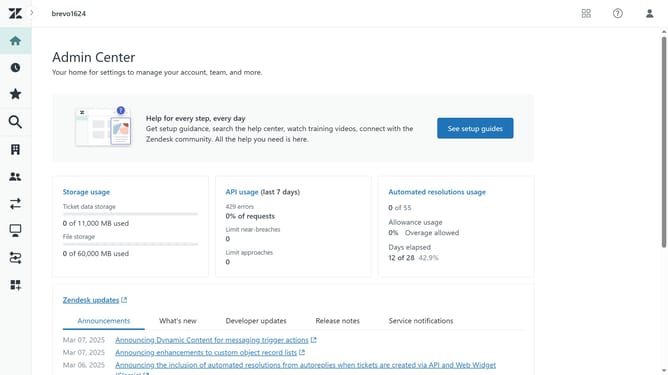
- First in the Admin Center, click on the "Objects and rules" icon in the left sidebar
- Then click on "Customer satisfaction" under business rules
- Click on the "Edit survey" button in the main content area
- Click on the rating scale dropdown arrow to expand the options
- Edit the "Headline" field to set the survey prompt text, select your desired "Scale Range" , choose the "Scale Type" , and then configure the "Labels" for Ratings according to your preference
- Click on the "Dropdown question" dropdown to expand it
- Enter the text for the Headline to ask users for more details on their negative rating
- Click the "Add option" button to add new options
- Scroll down to "Open-ended question" and enter the question in the "Headline" field
- You can click on "Delete" to remove this question from the survey as your preferences
- Finally, click the "Save" button in the bottom right corner to save changes
Why should you edit the CSAT survey in Zendesk
Zendesk is a versatile platform designed to elevate customer service experiences through robust support solutions.
Editing the CSAT survey in Zendesk enables you to tailor feedback mechanisms to better capture customer sentiments.
This customization allows for more relevant questions, aligning responses with your unique service goals and enhancing measurement accuracy.
Ultimately, refining the CSAT survey fosters actionable insights, driving improvements in customer satisfaction and loyalty.
Last update