How to bulk delete reports in Zendesk Explore
Here is how to bulk delete reports in zendesk explore
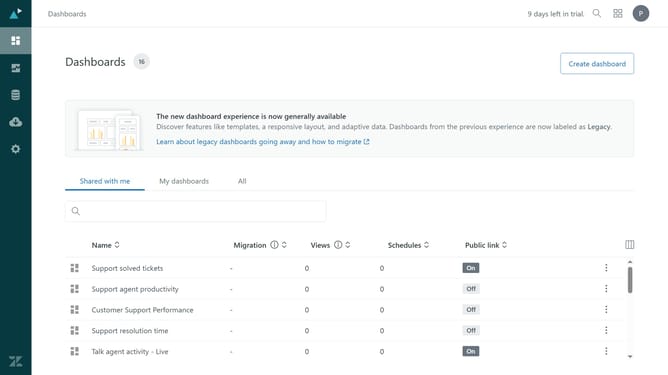
- First in Zendesk Explore, click on the "Reports" icon in the left sidebar menu
- Then select the reports you want to delete by checking the boxes next to them
- Next click on the "Delete" button at the bottom of the reports list
- Finally click on the "Yes, delete" button in the confirmation dialog to delete the selected reports
Why should you bulk delete reports in Zendesk Explore
Zendesk is a versatile platform designed to enhance customer service experiences seamlessly.
The bulk delete feature in Zendesk Explore streamlines data management by allowing multiple reports to be removed simultaneously. This significantly reduces the time and effort usually required to manage extensive data sets.
Using this feature can lead to a more organized workspace, allowing teams to focus on generating actionable insights rather than being bogged down by clutter or outdated reports.
Ultimately, this results in increased productivity and efficient data handling within your customer service operations.
Last update