How to schedule a dashboard delivery in Zendesk Explore
Here is how to schedule a dashboard delivery in zendesk explore
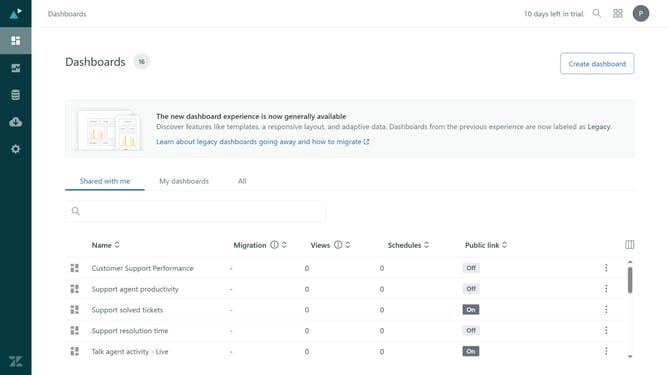
- First in Zendesk Explore, click on "Dashboards" icon in the left sidebar
- Click on the dashboard you want to schedule for delivery from the list
- Then click on the dropdown arrow next to the "Share" button in the top toolbar
- Select "Schedule delivery" from the share options dropdown menu
- Click the "Create scheduled delivery" button in the scheduled deliveries dialog
- Click on the "Frequency" dropdown
- Choose how often the export should run (daily, weekly, or monthly)
- Depending on the frequency you selected, specify the Hour, Day, or Day of the month the export should run
- Click on the "Run for" dropdown and select for how long you want to share the dashboard
- Choose the delivery formats in the format options
- Next click on the "People or groups" search field
- Then choose the groups or users to send the dashboard to
- Finally, click the "Save" button to create the scheduled delivery
- Your dashboard delivery is now scheduled and will be sent automatically based on the configured settings
Why should you schedule a dashboard delivery in Zendesk Explore
Zendesk is a comprehensive platform designed to enhance customer service interactions and streamline support operations.
With Zendesk Explore, you can easily schedule dashboard deliveries, ensuring that critical insights reach the right people at the right time.
This feature promotes efficiency by automating the distribution of key data, allowing teams to focus on action instead of manually sharing information.
By regularly delivering these insights, organizations can make informed decisions, enhancing their ability to respond to customer needs effectively.
Last update