How to mark a section as a draft in Zendesk Guide Admin
Here is how to mark a section as a draft in zendesk guide admin
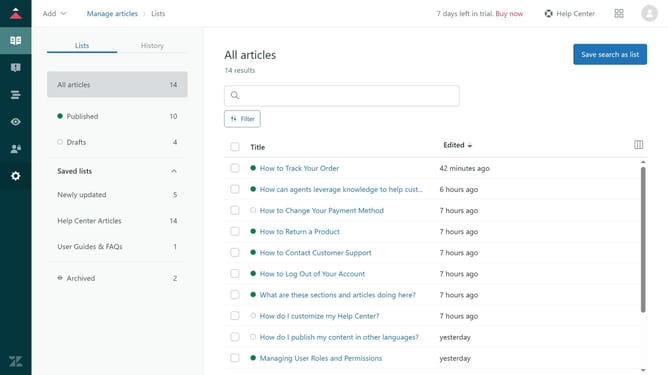
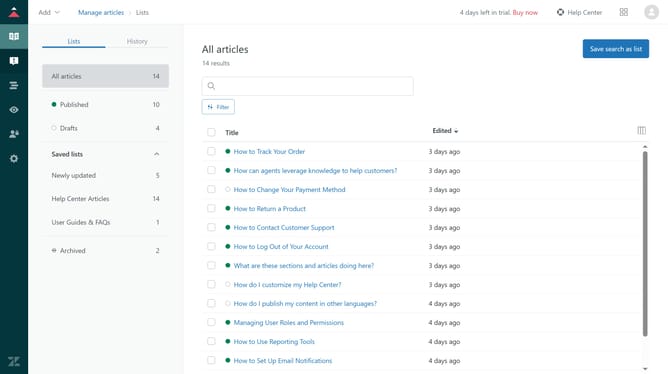
- First in Guide admin, click on the "Arrange content" icon in the left sidebar
- Then, click on the category that contains the section you want to mark as draft
- Next, click on the "More actions" menu next to the section
- Select "Edit section" from the dropdown menu
- Then click on the "Mark as draft" checkbox in the edit section form
- Finally, click on the "Update" button in the top-right corner to save the changes
- Your section is now succesfully marked as a draft
Why should you mark a section as a draft in Zendesk Guide Admin
Zendesk offers a unified platform designed to enhance customer service experiences.
One of its intuitive features in the Zendesk Guide Admin is the ability to mark a section as a draft.
This feature allows teams to collaboratively refine and perfect content before it goes live, ensuring accuracy and quality.
It offers flexibility in content management, reducing the risk of premature publication and maintaining professionalism.
Incorporating this feature into your workflow not only improves efficiency but also enhances the overall customer experience by delivering well-crafted and polished information.
Last update