How to view and update the rule for an active CSAT channel in Zendesk
Here is how to view and update the rule for an active csat channel in zendesk
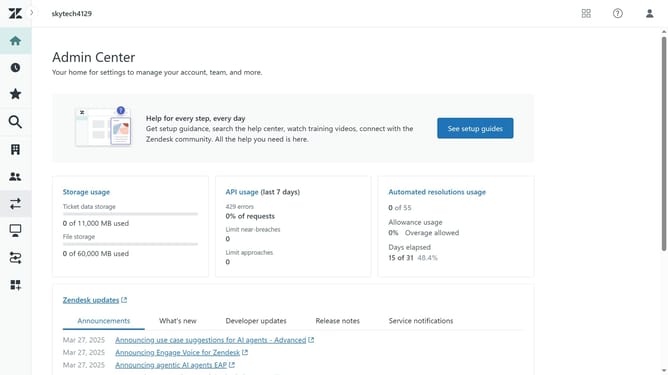
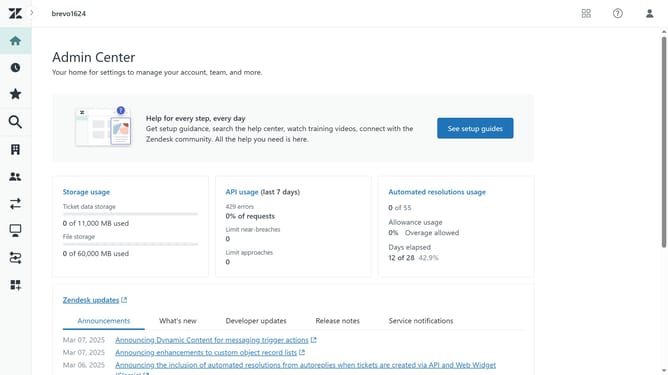
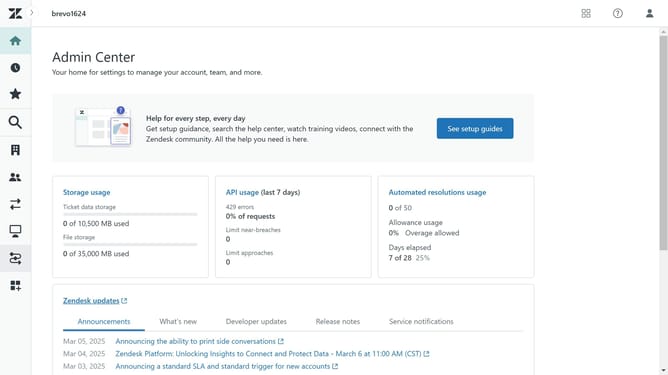
- First in the Admin Center, click on the "Objects and rules" icon in the left sidebar
- Then click on "Customer satisfaction" under Business rules section
- In the Channels section, click on the "Three-dot" menu next to the channel you want to view
- Click "View rule" option from the dropdown menu
- For email automation, you can modify the existing "Request customer satisfaction rating" automation rule or create a custom rule
- Scroll down and for messaging triggers, you can update the trigger or configure a new one based on your preferences
- Next, click on "Update" from the dropdown at the bottom of the form
- Finally, click the "Submit" button to save the changes
- The CSAT rule has now been successfully updated
Why should you view and update the rule for an active CSAT channel in Zendesk
Zendesk is a dynamic platform designed to enhance customer service interactions.
One standout feature is the ability to view and update the rule for an active CSAT (Customer Satisfaction) channel. This ensures that feedback is channeled effectively, enabling teams to maintain high-quality service standards.
Keeping these rules up to date is crucial, as it allows for immediate adjustments based on the latest customer insights, fostering continuous improvement and heightened satisfaction levels.
Ultimately, this promotes responsive, customer-focused operations, enhancing overall business performance.
Last update