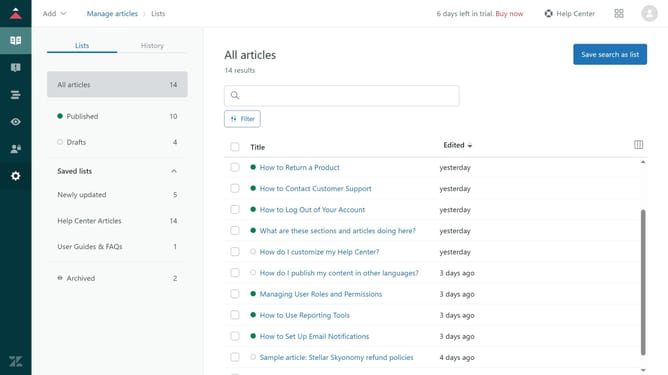
How to change the author for articles in bulk in Zendesk Guide
Here is how to change the author for articles in bulk in zendesk guide
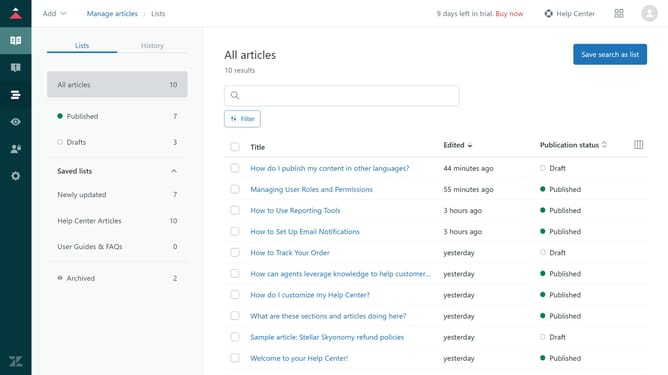
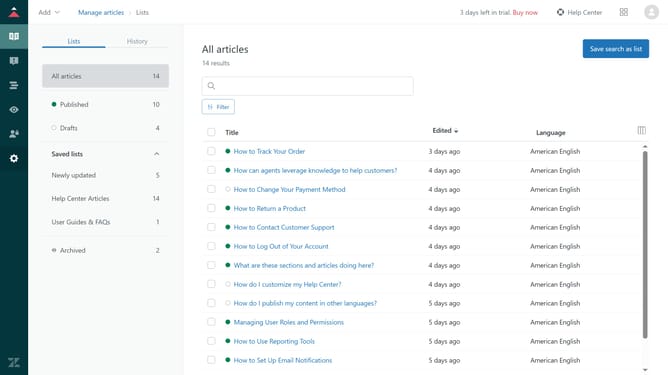
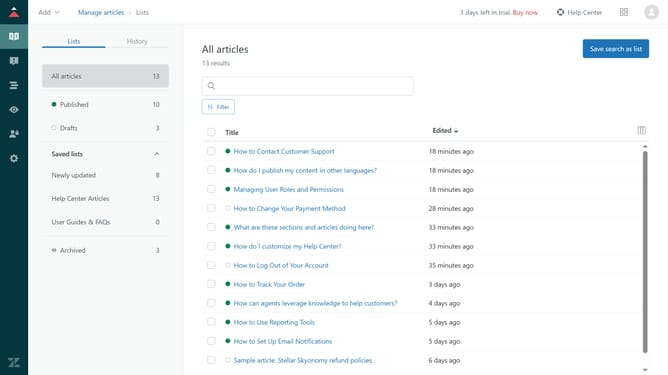
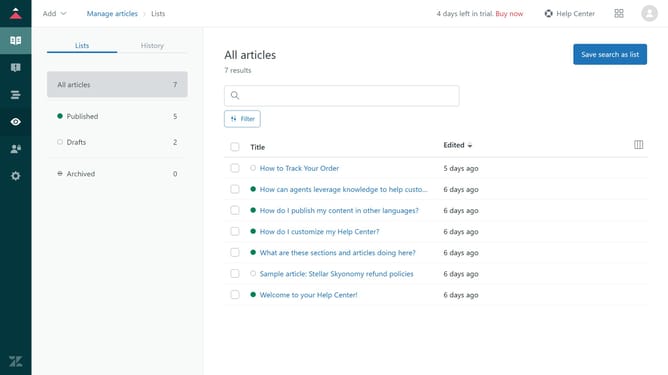
- First in Guide admin, click on "Manage articles" icon in the left sidebar
- Then select the articles you want to change the author for by clicking the checkboxes next to them
- After selecting articles, click the "Article settings" dropdown at the bottom of the page
- Next select "Change author" option from the dropdown menu
- In the change author dialog, click on "Select a team member" dropdown
- Select the new author from the team members list
- Finally, click the "Change author" button to apply the change
- The author for the selected articles will be changed successfully
Why should you change the author for articles in bulk in Zendesk Guide
Zendesk is a comprehensive customer service platform designed to enhance support and engagement.
The ability to change the author for articles in bulk within Zendesk Guide simplifies content management for teams. This feature streamlines updates, allowing seamless transitions of ownership across multiple articles.
Utilizing this capability ensures content accuracy and reflects team changes without manually editing each piece. This leads to improved efficiency and better team collaboration by keeping information consistent and up-to-date.
Last update