How to delete a custom object in Zendesk
Here is how to delete a custom object in zendesk
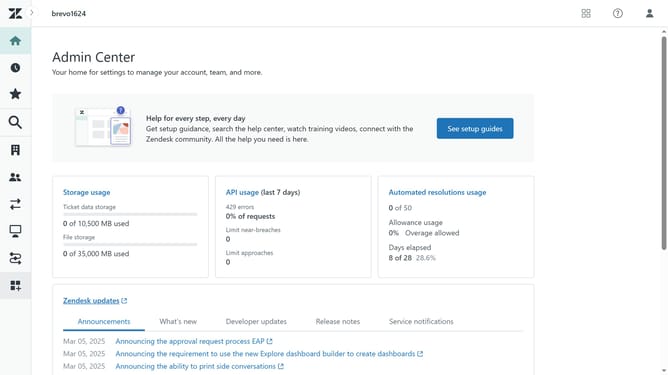
- First in Admin Center, click on the "Objects and rules" icon in the left sidebar
- Then click on "Objects" under the Custom objects section
- Next click on the the custom object you want to delete in the objects list
- Click on the "Actions" dropdown button in the top-right corner
- Click on "Delete object" from the Actions dropdown menu
- In the confirmation dialog, ensure all checkboxes are selected to acknowledge the consequences of deleting the object
- Finally click on the "Delete object" button in the confirmation dialog
Why should you delete a custom object in Zendesk
Zendesk is a versatile customer service platform designed to enhance communication and streamline customer support operations.
Deleting a custom object in Zendesk is a straightforward feature that enhances your data management capabilities. It allows for the removal of outdated or unnecessary custom objects, ensuring a cleaner and more efficient database.
This feature is beneficial as it aids in maintaining an organized system, ultimately improving workflow efficiency. It supports optimal resource management by freeing up space, which can be crucial for growing enterprises.
Last update