How to change your sound notification settings in Zendesk Chat
Here is how to change your sound notification settings in zendesk chat
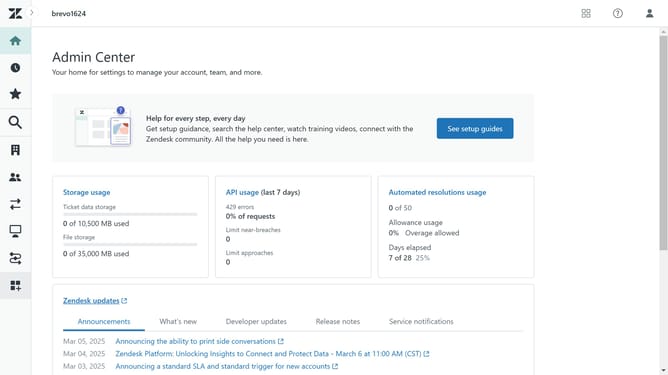
- First in your dashboard, click on "Settings" in the left sidebar
- Then click on "Personal" in the settings menu
- Click on "Sounds & notifications" tab in the personal settings section
- Scroll down to find the "Sounds" section
- Next click on the dropdown menu next to a notification type
- Choose your preferred sound from the sound dropdown list
- Click on the volume slider to adjust the sound level
- You can also set the number of times this notification is repeated
- Repeat these steps for each notification type based on your preference
- Finally click on "Save changes" button to apply the new sound settings
Why should you change your sound notification settings in Zendesk Chat
Zendesk, a cloud-based customer service platform, streamlines support interactions efficiently.
Customizing your sound notification settings in Zendesk Chat enhances your ability to stay alert to customer inquiries without overwhelming your senses.
By tailoring these settings, you can prioritize urgent requests and ensure no important message gets missed. Adjustments in sound notifications help maintain productivity, providing an uninterrupted workflow while keeping communication seamless.
Last update