How to create a custom user field in Zendesk
Here is how to create a custom user field in zendesk
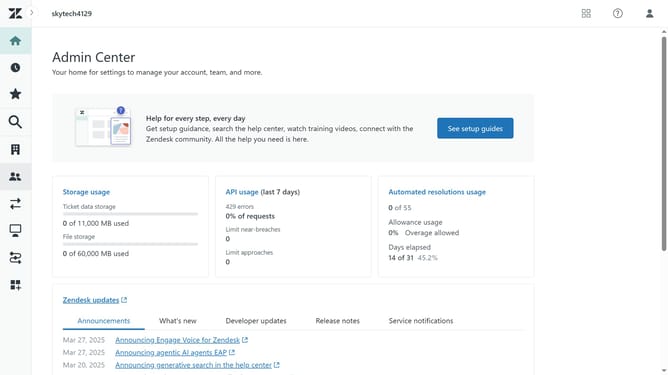
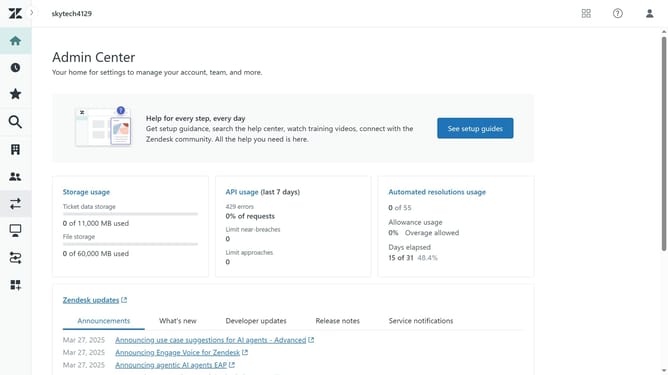
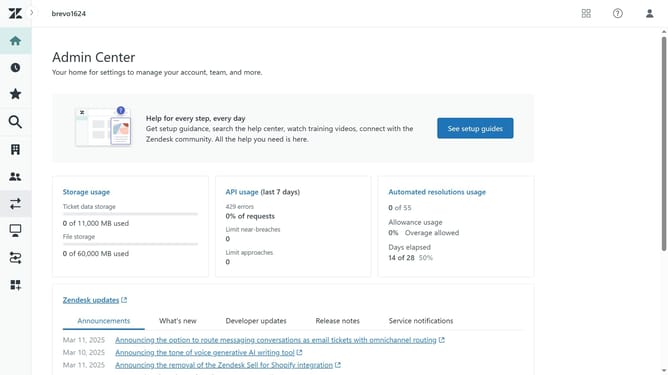
- First in Admin Center, click on the "People" icon in the left sidebar
- Then click on "User fields" under the Configuration section
- Next click the "Add field" button in the main content area
- Select the appropriate field type based on the data you need to collect (e.g., Text, Dropdown, etc)
- Enter a name for the field in the "Display name" field to define the purpose of the field
- The field key is auto-generated but you can customize it if needed
- Enter the description in the "Description" field explaining the enter the purpose of this field
- Configure any additional options, depending on your field type. If using a "Dropdown" or "Multi-Select" field, enter the possible values that users can choose from
- Finally, once done, click on the "Save" dropdown menu in the bottom-right corner
Why should you create a custom user field in Zendesk
Zendesk is an intuitive customer service platform designed to enhance and streamline communication between businesses and their clients.
Creating a custom user field in Zendesk allows for tailoring the user experience to better fit specific needs.
By adding custom fields, you can store valuable information such as customer preferences and history, which can be used to personalize interactions and improve service efficiency.
This flexibility not only boosts customer satisfaction but also enhances the team's ability to deliver targeted solutions seamlessly.
Last update