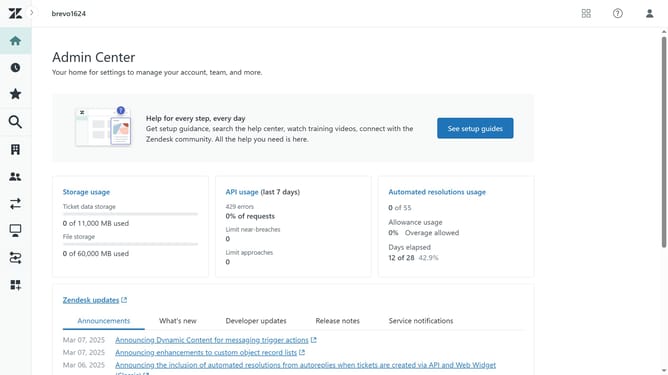
How to delete a custom object's field in Zendesk
Here is how to delete a custom object's field in zendesk
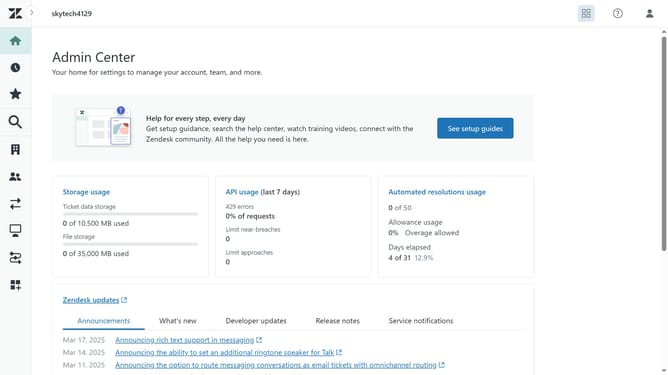
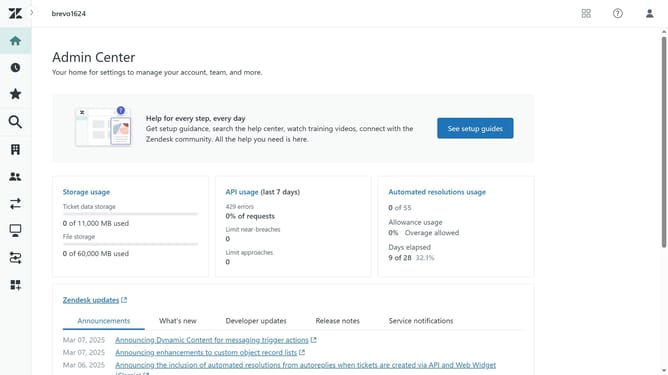
- First in Admin Center, click on the "Objects and rules" icon in the left sidebar
- Then click on "Objects" under the Custom objects section
- Next click on the custom object that contains the custom field you want to delete
- Click on the "Fields" tab in the object details view
- Next find and click on the custom field you want to delete in the fields list
- Click on the "Actions" dropdown button in the field details view
- Then click on the "Delete" option in the Actions dropdown menu
- Finally, click on the "Delete" button in the confirmation dialog to confirm the deletion
- You’ve successfully deleted the custom field from your object
Why should you delete a custom object's field in Zendesk
Zendesk empowers customer interactions by streamlining and enhancing communication channels.
Deleting a custom object's field in Zendesk is a straightforward feature designed to optimize your data management.
By removing unnecessary fields, teams can maintain organized datasets, improving searchability and efficiency within the platform.
This feature not only helps in decluttering databases but ensures that critical information is always accessible and current, enhancing overall service delivery.
Last update