How to reorder a custom object's fields in Zendesk
Here is how to reorder a custom object's fields in zendesk
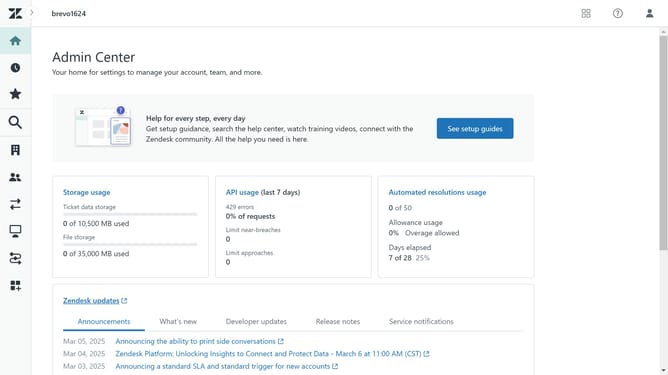
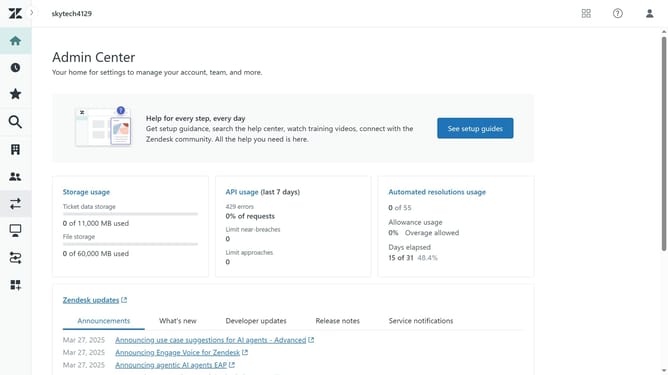
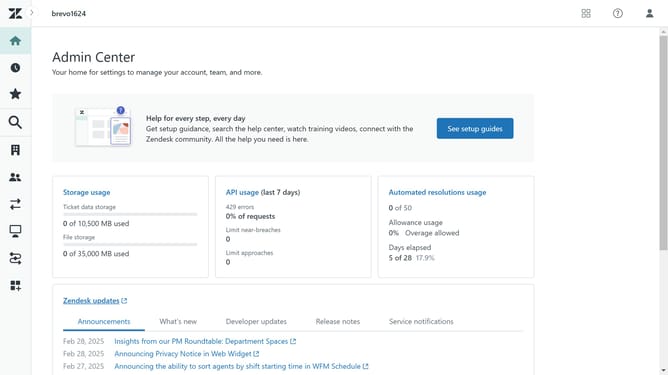
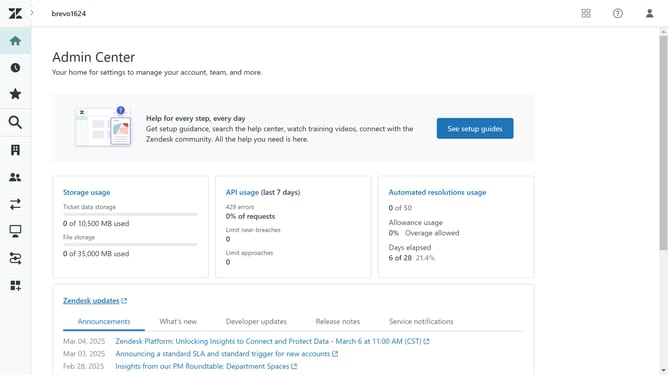
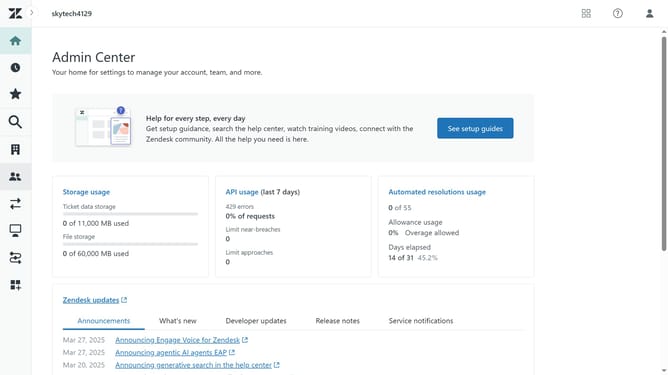
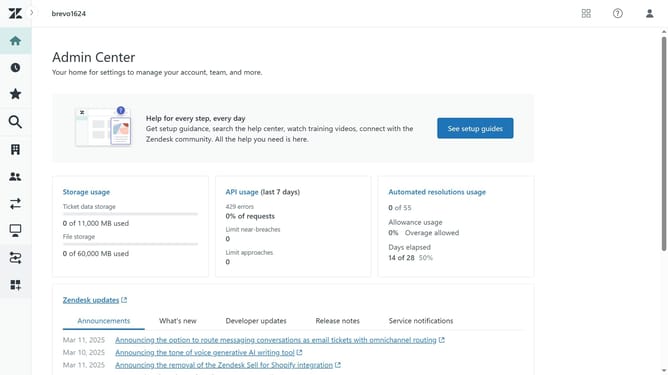
- First in Admin Center, click on the "Objects and rules" icon in the left sidebar
- Then click on "Objects" under the Custom objects section
- Next click on the custom object whose fields you want to reorder
- Click on the "Fields" tab in the object details view
- Click on the "Edit order" button in the fields view
- In the Edit order view, click and drag the field you want to move to its new position
- Then release the field to drop it in the desired position
- Do the same for all the other fields you want to change the order of
- Finally once done, click on the "Save" button to confirm the field order changes
Why should you reorder a custom object's fields in Zendesk
Zendesk is a comprehensive platform designed to enhance customer support interactions.
Reordering custom object's fields in Zendesk allows you to tailor data organization to fit your unique requirements.
This feature ensures that your team can access and prioritize information efficiently, leading to faster response times and improved customer satisfaction.
By customizing field order, you streamline workflows, which empowers your support team to deliver stellar service.
Last update