How to delete an existing shortcut in Zendesk Chat
Here is how to delete an existing shortcut in zendesk chat
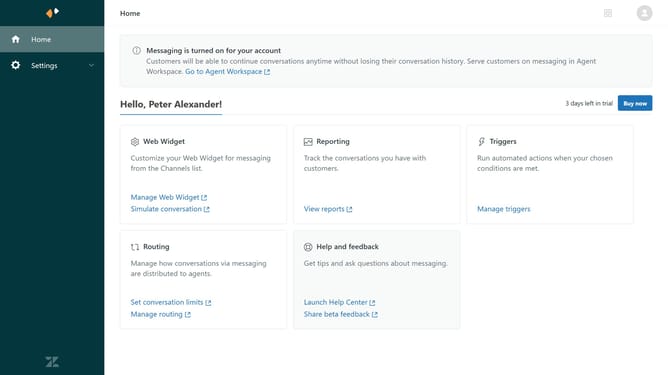
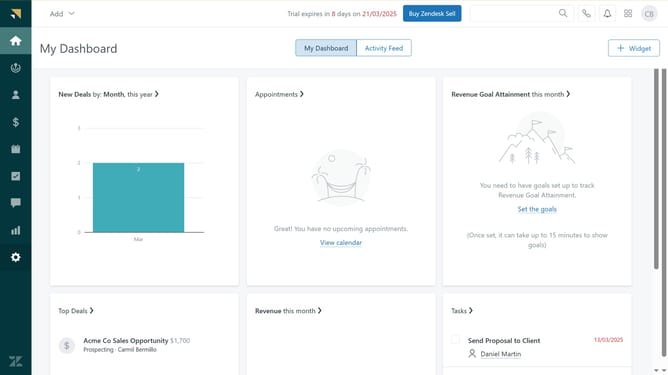
- First in your dashboard, click on the "Settings" option in the left sidebar
- Then click on "Shortcuts" in the settings menu
- Select the checkbox next to the shortcut you want to delete
- Next click on the "Actions" dropdown button in the top toolbar
- In the dropdown menu, click on the "Delete" option
- Finally click the "Delete" button in the confirmation dialog to permanently remove the selected shortcut
Why should you delete an existing shortcut in Zendesk Chat
Zendesk is a versatile platform designed to enhance customer support through seamless communication.
The feature to delete an existing shortcut in Zendesk Chat is essential for keeping your communication streamlined and relevant. Removing outdated or redundant shortcuts helps ensure that only the most effective and frequently used responses are at your fingertips.
By deleting unused shortcuts, you maintain an organized interface, which boosts your team's efficiency and responsiveness, ultimately improving customer satisfaction and support quality.
Last update